You open a chat, the character answers in her own voice, and a few seconds later a photo of the scene lands right under her message. That is the promise behind every NSFW chatbot with pictures, and it is why searches for the idea keep climbing. Text roleplay on its own feels flat once you have seen a face to go with the voice. Pictures turn a conversation into a scene.
The catch is that most chat apps bolt on a weak image tool, lock it behind credits, or filter everything into beige. This article shows how the pieces really fit together, which models handle the picture side best, how to write prompts that stay glamorous without turning explicit, and how to run the whole thing for free or close to it.
💡 Quick take: a chatbot writes the story, an image model draws the moment. Pair a good language model with a fast, permissive photo model and you get the same result as a dedicated app, with far more control.
What an NSFW Chatbot With Pictures Really Is
Two engines, one conversation
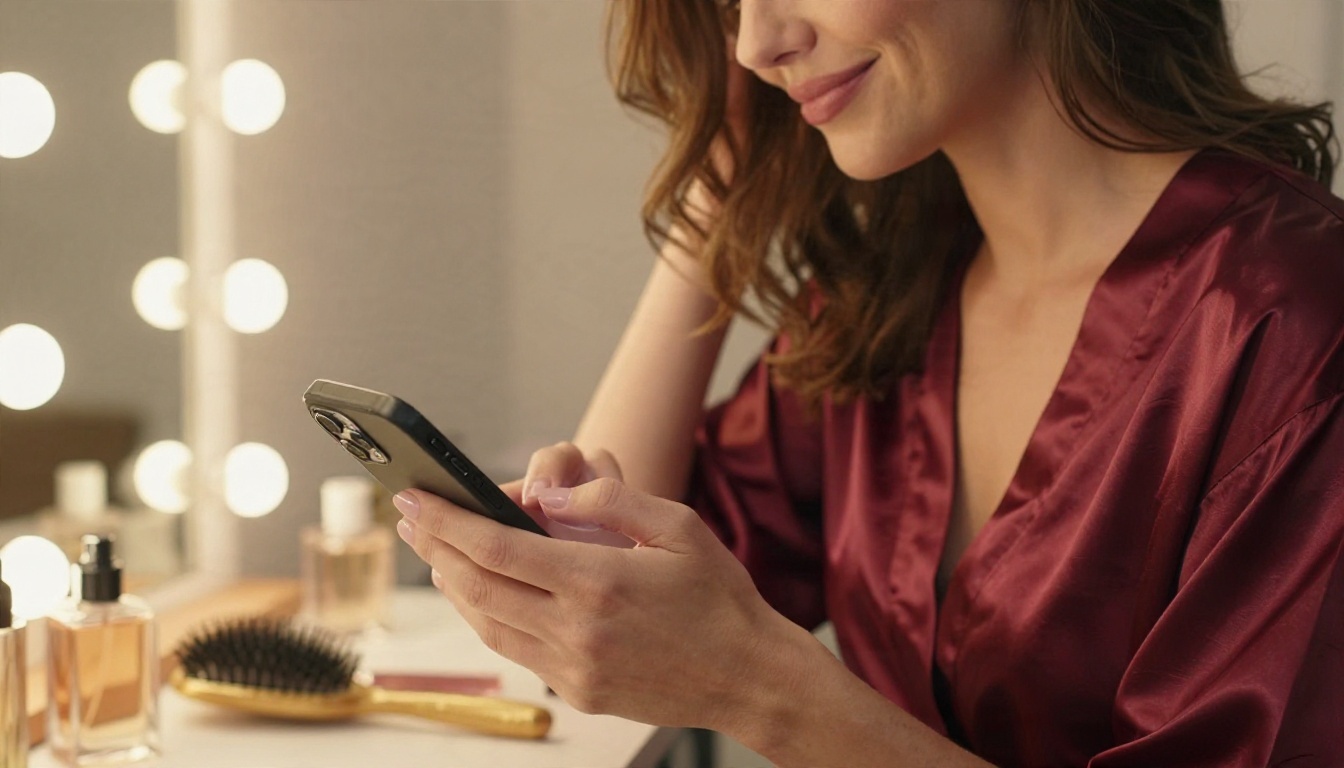
Under the hood, every chatbot with pictures runs two separate systems. The first is a large language model that holds the persona, remembers the plot and writes each reply. The second is an image model that receives a short description of the current moment and renders a photo.
The two never share a brain. The chat model just writes a line such as "she turns toward the window in a red satin dress, evening light" and the picture model turns that line into pixels. Once you see this, the whole category stops being mysterious. You can swap either engine whenever you like.
Why people want pictures in the chat
Three reasons come up again and again:
- Visual anchoring. A face and a wardrobe make a character feel stable across a long conversation.
- Pacing. A photo after a big story beat acts like an illustration page in a novel.
- Creative control. Writers and hobbyists use the images as reference for stories, mood boards or character sheets.
What "NSFW" should mean here
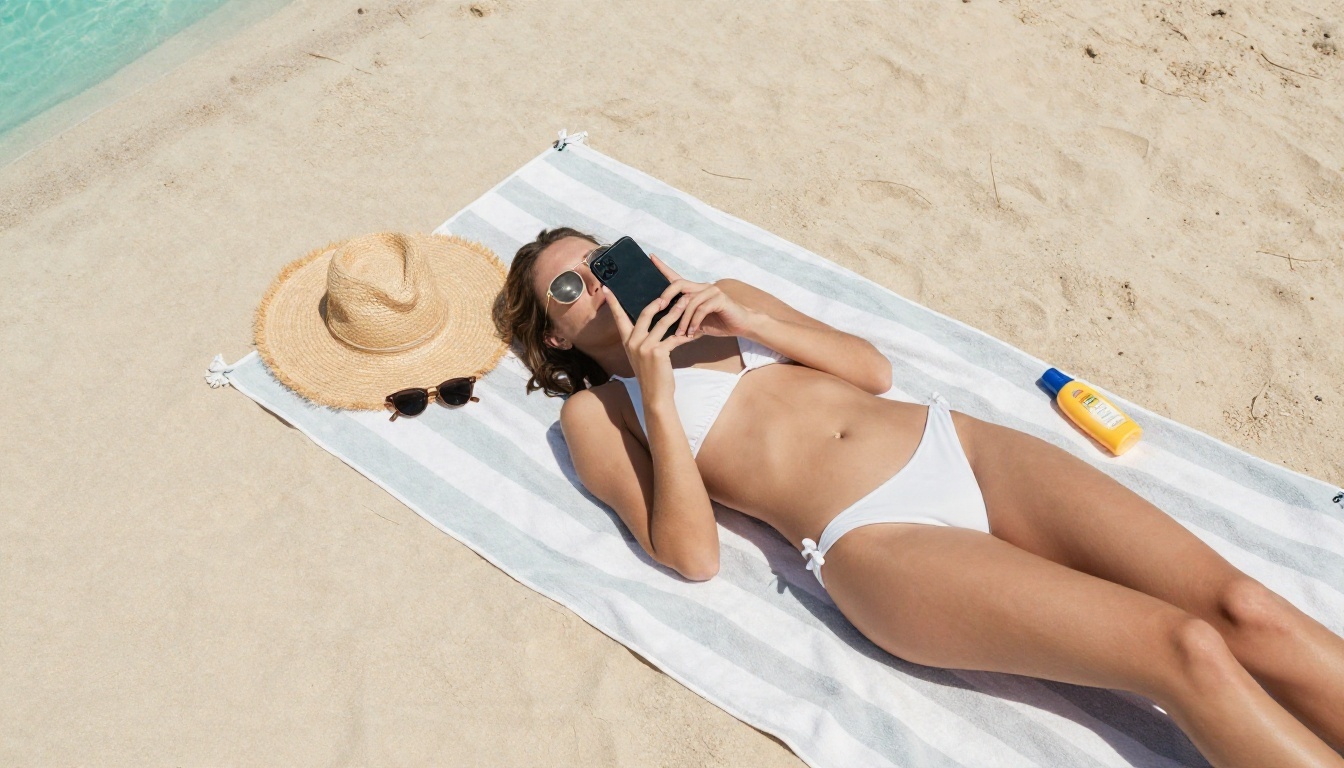
In practice, the sweet spot is suggestive and glamorous: bikinis, silk, lace, boudoir lighting, magazine style poses. Photos like that look better, share more safely and get blocked far less often. Explicit content is a dead end for quality anyway, since models trained to be permissive still produce their best faces, hands and fabrics when the prompt stays focused on style and light.
Free Image Generation Without the Wall
What "free" should actually mean
Many apps advertise free pictures, then cap you at three renders a day. A useful free setup has no per-image paywall, a fast render time and no sudden refusal on a swimsuit or a satin dress. Speed matters as much as price, because a chat that waits a minute for each photo loses its rhythm.
Best models for glamour images
For adult glamour work, the order below is the one worth following. Seedream 4.5 comes first because it delivers sharp skin texture, believable fabric and clean hands at high resolution, and it handles bikini, boudoir and evening wear prompts without drama. PicassoIA Image Editor Pro comes second, and its big advantage is unlimited generations, which makes it ideal for iterating a character across dozens of scenes.
| Model | Best for | Speed | Notes |
|---|
| Seedream 4.5 | Photoreal glamour portraits | Fast | Lead choice for skin and fabric detail |
| PicassoIA Image Editor Pro | Unlimited iteration and edits | Fast | Unlimited generations, great for character series |
| Nano Banana Pro | Clean 4K stills, edits | Medium | Strong on consistency between shots |
| Z Image Turbo | Rapid drafts | Very fast | Perfect for testing a scene before the final render |
| Qwen Image 3 Pro | Natural looking portraits | Medium | Good lighting realism |
| Flux 2 Klein 9B Base LoRA | Styled looks through LoRA | Fast | Useful once you want a very specific aesthetic |
💡 Tip: adult content filters differ a lot between image models. If a render gets blocked, rewrite the prompt around the outfit, the setting and the light, then try again. Softer wording usually passes, and it often gives a better photograph.
Roleplay Setups That Work
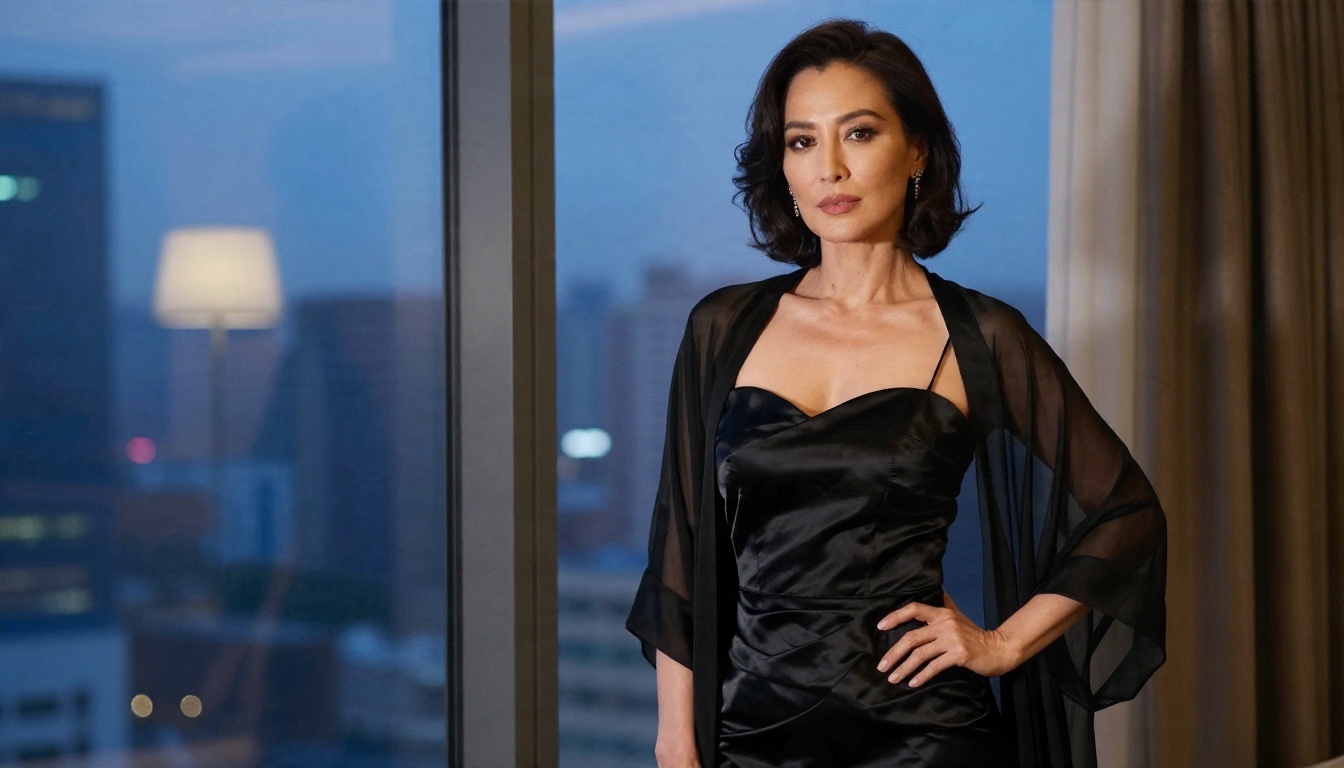
Build a character sheet first
Before the first message, write a short character sheet and paste it as the system prompt of your chat model. Five lines are enough:
- Name and age (adult characters only, always stated).
- Look: hair, eye color, skin tone, one or two signature details such as freckles or a gold necklace.
- Voice: teasing, shy, confident, dry humor.
- Setting: a penthouse, a seaside villa, a speakeasy.
- Wardrobe palette: the colors and fabrics she tends to wear.
That fifth line is the secret to consistent pictures. When every image prompt reuses the same look and palette, your character stops changing faces from one render to the next.
Ask the chat model for a scene line
Add one instruction to the persona: "After every reply, end with a single line starting with SCENE: that describes what a photographer would see right now, in 40 words." The model now writes your image prompt for you. Copy that line, add camera and lighting terms, and send it to the image model.
Keep the face consistent
Faces drift because every render starts from noise. Three habits cut the drift sharply:
- Reuse the exact same descriptive phrase for the face in every prompt.
- Keep the same lens and light style (for example 85mm, soft window light).
- Use an editing model to alter the outfit or background of a good render rather than writing a new prompt from scratch. This is where PicassoIA Image Editor Pro pays off, since unlimited generations mean you can keep nudging a render until it is right.
Prompt Examples You Can Copy
A strong image prompt follows one order: subject and pose, setting, light, lens, texture. Here are three examples that stay tasteful and still look striking.
Example 1: Beach day
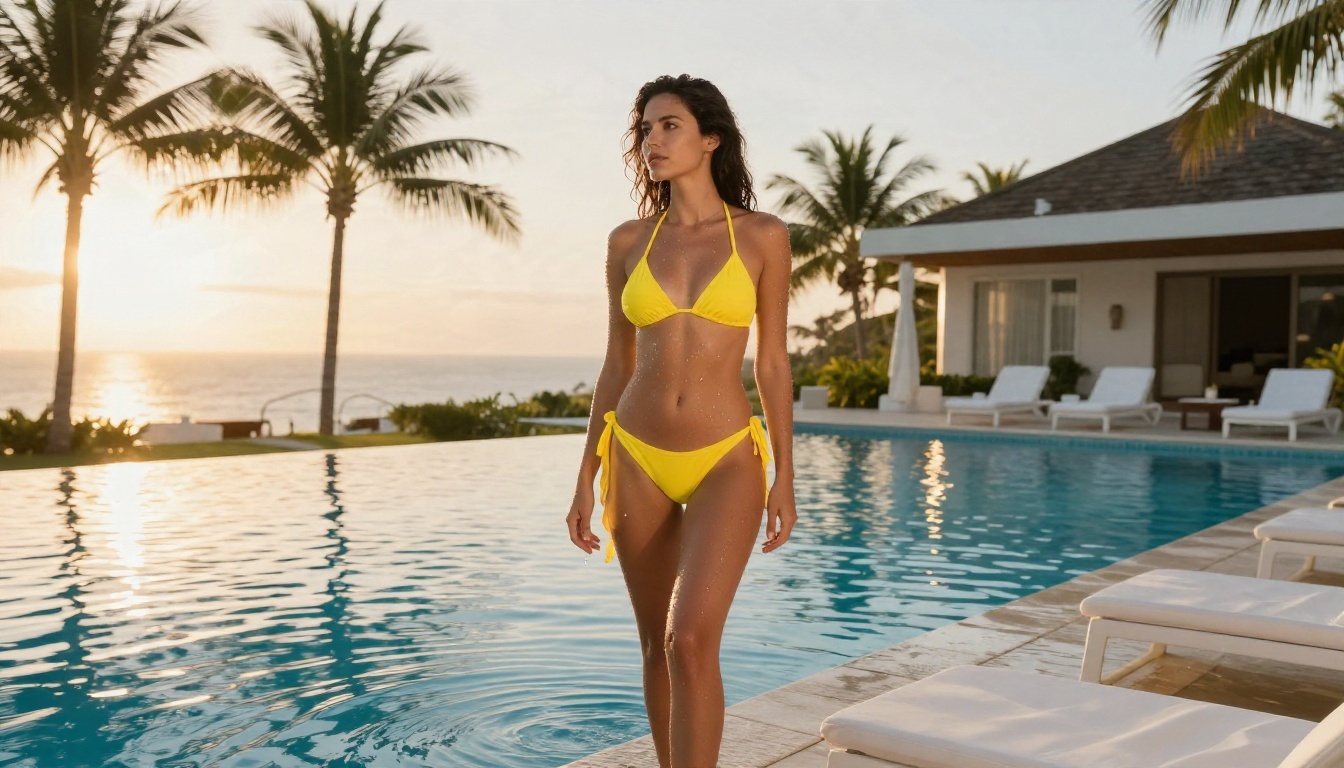
A woman in a white bikini lying on a striped towel on pale sand, holding a phone above her face, straw hat and sunglasses beside her, bright midday sun, 35mm lens f/4, natural skin with light tan lines, crisp sand grain, Kodak Portra 400 tones.
Why it works: the pose is simple, the props anchor the scene and the light is named. Models respond well to concrete objects such as a straw hat or a sunscreen bottle, because they add realism without any extra effort.
Example 2: Evening glamour
Fashion photograph of a woman in a red satin cocktail dress with an open back, leaning on a brick wall in a moody speakeasy corridor, vintage sconce light from above left, looking back over her shoulder with a playful smirk, 85mm lens f/1.8, visible fabric sheen, fine film grain.
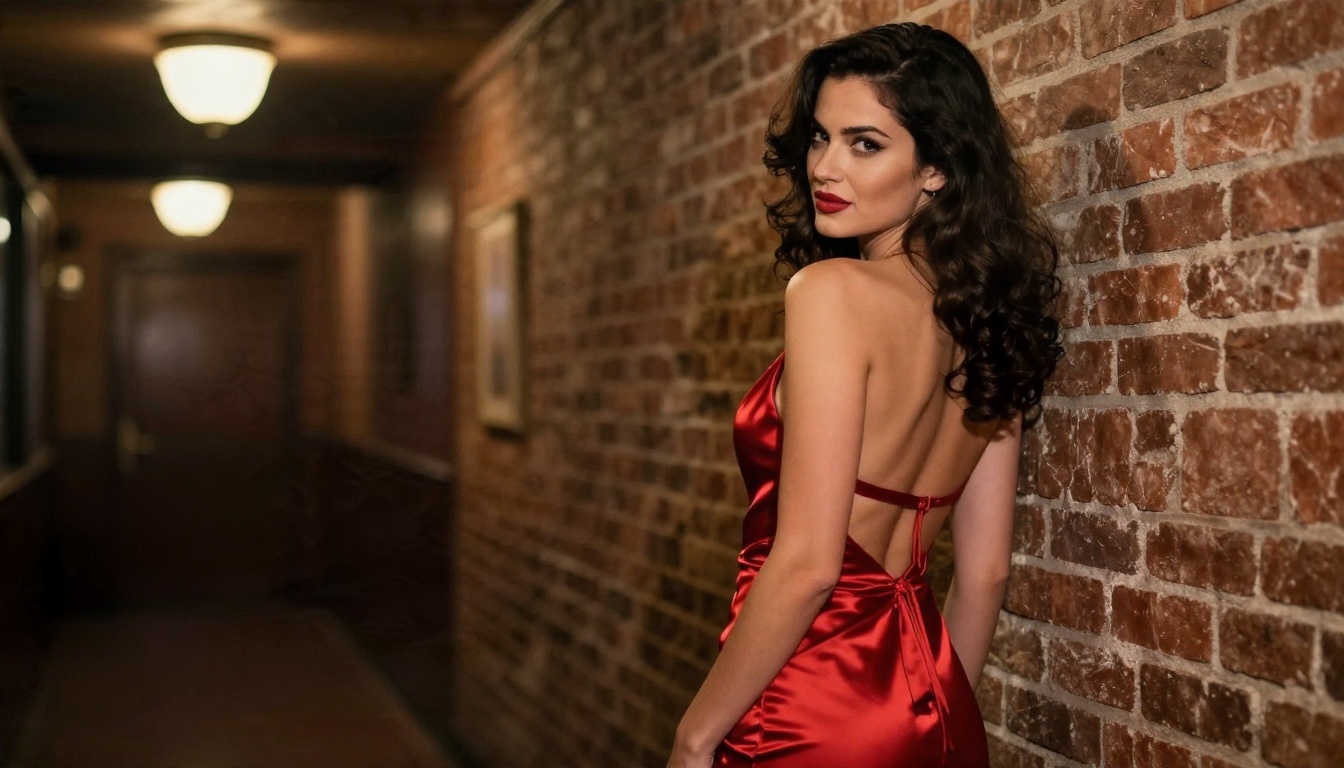
Why it works: one named light source and a lens choice give the image a cinematic feel. The expression, "playful smirk", gives the character personality, which is what you want from a chatbot persona.
Example 3: Candlelit roleplay
A woman in an ivory silk nightgown seated on a velvet armchair in a candlelit bedroom, reading a tablet showing a chat, candles on a dresser, warm glow from the right with soft shadows, 50mm lens f/1.8, silk folds and velvet pile texture.
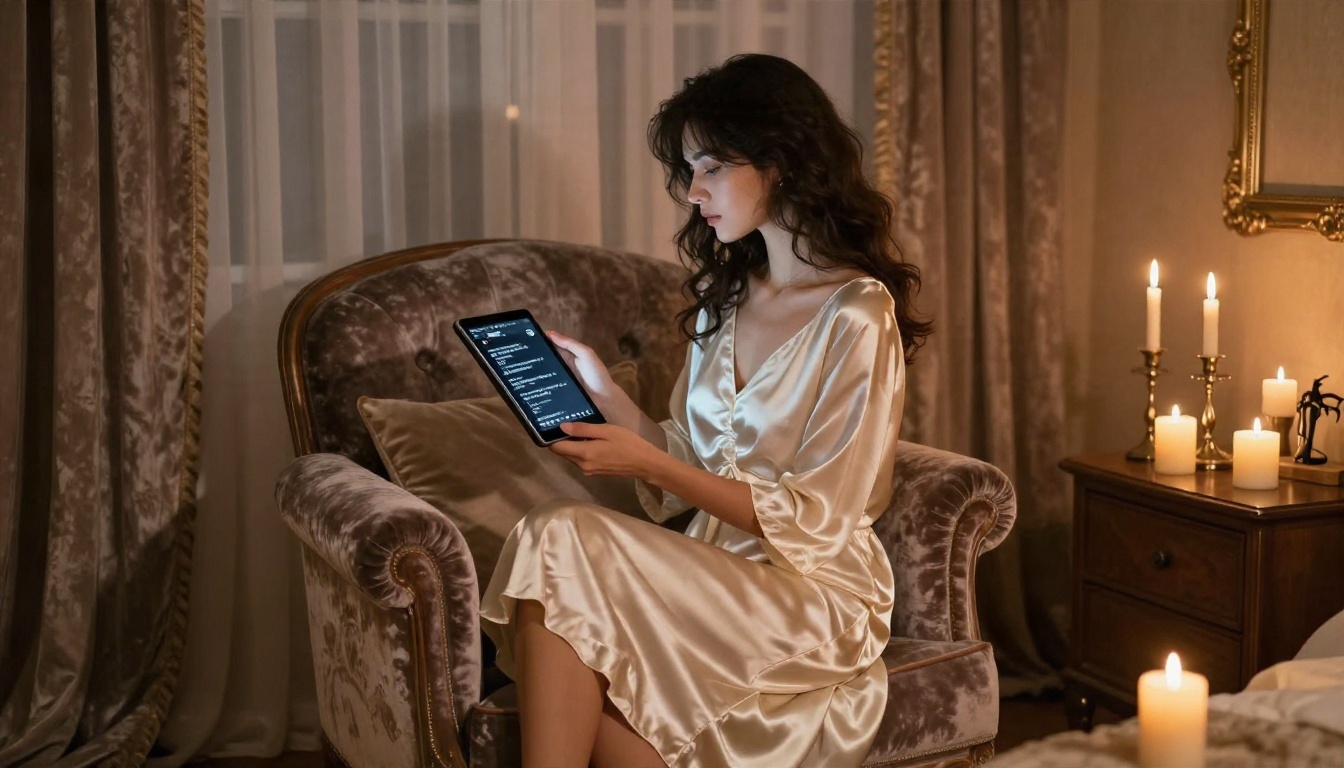
Why it works: the device in her hands ties the picture back to the chat, which is a lovely touch when you want the images to feel like part of the conversation.
Choosing the Language Model for Chat
The chat side decides how alive your character feels. A good model keeps tone, remembers details from twenty messages ago and writes natural dialogue. A weak one repeats itself.
On PicassoIA you can pick from several large language models. Mainstream models differ in how they handle mature themes, so treat them as persona writers and prompt writers for suggestive, romantic and flirtatious content, and keep explicit material out of the loop.
| Model | Strength | Good for |
|---|
| Deepseek v3.1 | Natural dialogue, long memory | Everyday character chat |
| Kimi K2.6 | Consistent persona over long threads | Slow burn roleplay |
| Gemini 3.5 Flash | Fast replies, reads images | Quick back and forth, describing renders |
| Claude Sonnet 5 | Rich writing, careful tone | Story heavy scenes and prompt writing |
| GPT 5.6 Luna | Very fast text replies | High volume drafting of scene lines |
💡 Tip: if you want the chat model to read a generated image and describe it back, pick one that accepts images, like Gemini 3.5 Flash. That lets the character "react" to the photo it just sent.
A Step by Step Workflow
Here is the loop that works for most people. It takes about five minutes to set up and then runs on its own.
Step 1: Write the persona
Paste your character sheet into a language model of your choice. Add the SCENE line rule from earlier. Test with two or three messages until the voice feels right.
Step 2: Turn the scene line into a prompt
Take the SCENE sentence and extend it with a lens, a light direction and a texture note. For example, add "85mm lens f/1.8, soft window light from the left, visible skin texture, Kodak Portra 400 grain". That small block of photography language lifts nearly any render from "generic AI image" to "magazine photograph".
Step 3: Render with Seedream 4.5
Open Seedream 4.5, paste the prompt and set the aspect ratio to 16:9 for scenes or 3:4 for portraits. Keep the prompt between 40 and 80 words. Longer prompts tend to confuse the model, and shorter ones leave too much to chance.
Step 4: Refine in Image Editor Pro
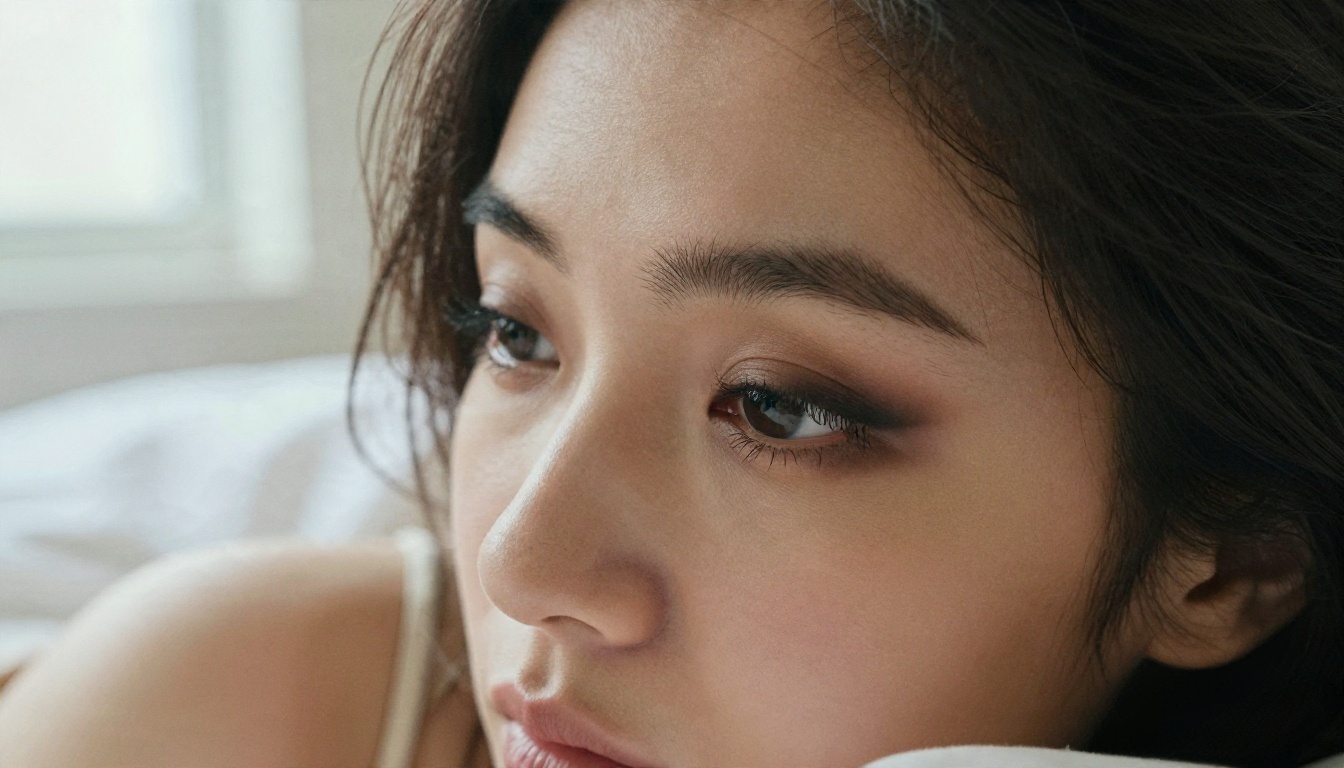
If the render is close but not perfect, send it to PicassoIA Image Editor Pro. Ask for one change at a time: "change the dress to deep green satin", "make the background a candlelit room". Unlimited generations mean you can try as many versions as you like without watching a counter.
Step 5: Paste the result back into the chat
Describe the image in one line to the chat model, or send the image itself if the model reads pictures. The character now reacts to what the viewer sees, and the loop starts again.
💡 Speed trick: draft with Z Image Turbo to check composition in seconds, then render the final version with Seedream 4.5.
Rules Worth Following
Adults and invented people only
Every character should be a clearly adult, fictional person. Never use the face of a real individual without their consent, and never create anything involving minors. This is both the right call and the practical one, since image platforms block these requests and accounts get closed over them.
Keep it suggestive, not explicit
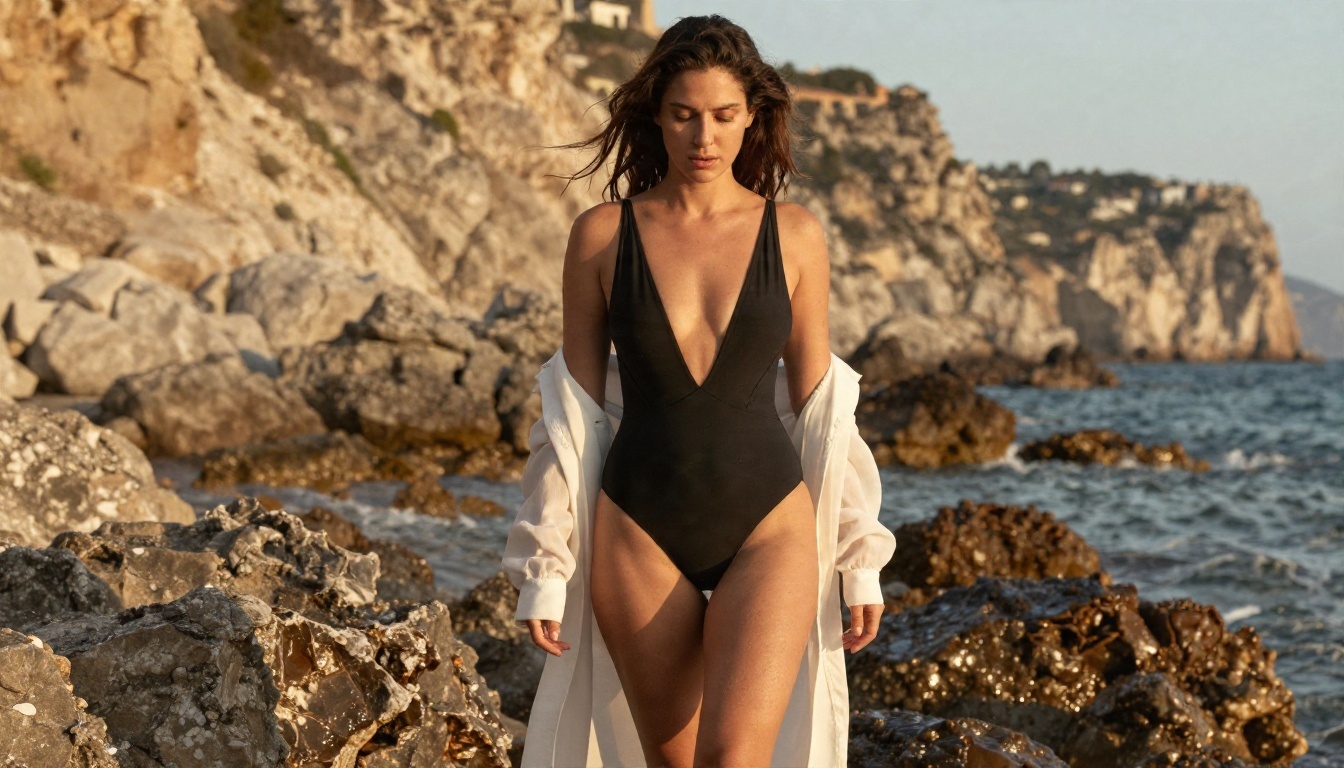
Stay with swimwear, silk, lace, boudoir light and artistic framing. Photos that suggest rather than show are easier to share, rarely blocked and, honestly, look better. A bikini on a beach at golden hour will beat any crude prompt for quality every single time.
3 common mistakes
- Vague prompts. "Sexy woman" gives the same plastic face every time. Name the outfit, the place, the light and the lens.
- Changing the face description. If hair color or freckles change between prompts, the character changes too. Copy the same face phrase each time.
- Ignoring light. The difference between a flat snapshot and a glamour photo is almost always a named light source: window light from the left, warm lamp light, golden backlight.
Quick Reference Table
| Goal | What to do |
|---|
| Sharper skin and fabric | Add lens, aperture and "visible skin texture" to the prompt |
| Same face across scenes | Reuse one face description word for word |
| Fewer blocked renders | Describe outfit, setting and light, drop explicit wording |
| Faster previews | Draft with Z Image Turbo, finish with Seedream 4.5 |
| Unlimited retries | Use PicassoIA Image Editor Pro |
| Better story flow | Let the chat model write a SCENE line after each reply |
Try It Yourself Today
You do not need a dedicated app to get an NSFW chatbot with pictures. You need a persona, a scene line and a photo model that does not flinch. Start with Seedream 4.5 for the first render, move to PicassoIA Image Editor Pro when you want unlimited tries, and pair them with a chat model such as Deepseek v3.1 or Kimi K2.6 for the voice.
Write a character sheet tonight, render three scenes, and see how much more alive the conversation feels with a face attached. When you want more options, browse the full catalog at picassoia.com/en/all-models and mix models until the look is exactly yours.


