Most people searching for NSFW image to image AI free online with no credits have already hit the same wall. They find a tool, upload a photo, get one decent result, and then a counter tells them the credits are gone. This article is about avoiding that loop. You will see which models take a reference photo and rework it, which prompts keep the result realistic, which settings decide whether the output looks like your source or like a stranger, and where the hard limits sit. Everything here stays on the suggestive, glamour side: swimwear, lingerie, boudoir, styled portraits. Nothing explicit.
What Image to Image Really Does
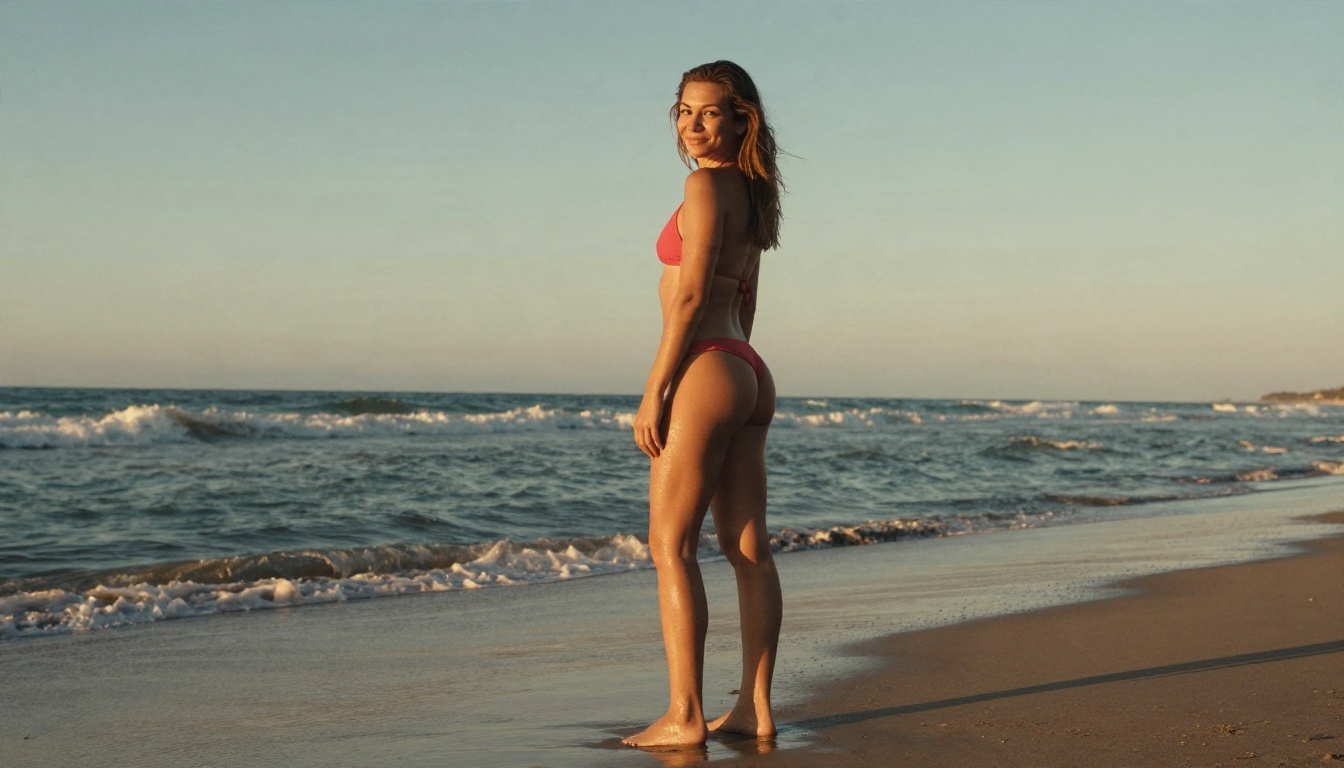
Image to image means you give the model a starting picture plus a text instruction, and it produces a new picture that keeps part of the original and changes the rest. Pose, framing, lighting direction and color palette can survive. Clothing, background, mood and styling can change. It sits between plain text to image generation and manual photo retouching.
Reference Photo vs. Text Prompt
With text to image, the model invents everything. With image to image, your upload does most of the heavy lifting, and the prompt only steers the changes. That is why results feel more controlled. If you upload a beach portrait and write "same woman, same pose, black halter bikini, sunset rooftop," the model has a skeleton to work from instead of a blank page.
Why Adult Edits Need Extra Care
Adult content is where filters, anatomy errors and consent issues pile up. Two rules keep you out of trouble. First, only edit photos of adults you have the right to use, ideally yourself, a model who agreed, or an AI generated character. Second, keep the output in the glamour range. Models behave far more predictably with "silk slip dress, soft window light" than with anything that pushes toward explicit territory, and a blocked request wastes time even when generation is unlimited.
💡 Quick rule: if you would be comfortable seeing the result in a swimwear catalog or a perfume ad, the model will almost always accept it.
Where to Run It Free
"Free" and "no credits" are not the same promise. Some sites give you three free tries and then lock you out. Others are unlimited but slow. The table below compares the options worth testing on PicassoIA.
Seedream 4.5 First
Seedream 4.5 is the model to open first for this kind of work. It renders skin texture, fabric and lighting in a way that reads as photography rather than illustration, and it follows outfit and scene instructions closely. For swimwear, boudoir and fashion style edits, it gives the most believable results in the fewest attempts.
Image Editor Pro Has No Cap
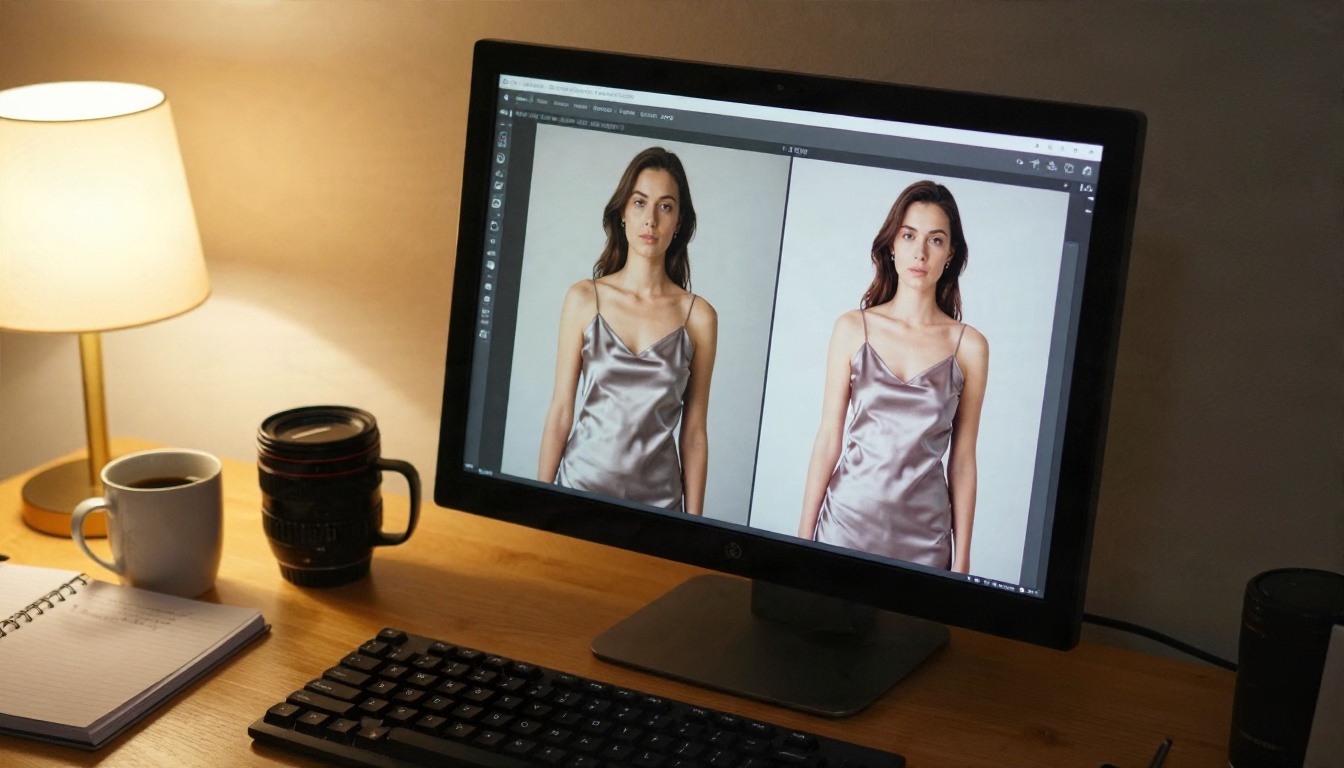
If your main frustration is credits, PicassoIA Image Editor Pro is the answer. It offers unlimited generations, so you can iterate twenty times on the same reference without watching a counter. That changes how you work. Instead of writing one perfect prompt and hoping, you can test small variations, compare, and keep the best.
Other Models Worth Testing
Qwen Image Edit Plus is strong when you want a narrow change, like swapping a dress color while leaving everything else alone. P Image Edit returns results almost instantly, which makes it ideal for quick tests before committing to a slower model. Z Image Turbo and Flux 2 Klein 9B Base LoRA work best as prompt driven generators when you want a fresh look inspired by your reference rather than an exact edit.
💡 Every model has its own moderation behavior. If one refuses a prompt, rewrite it in softer wording before assuming the idea is impossible.
How to Use Seedream 4.5 on PicassoIA
Here is a simple workflow that produces consistent results on Seedream 4.5.
Step by Step
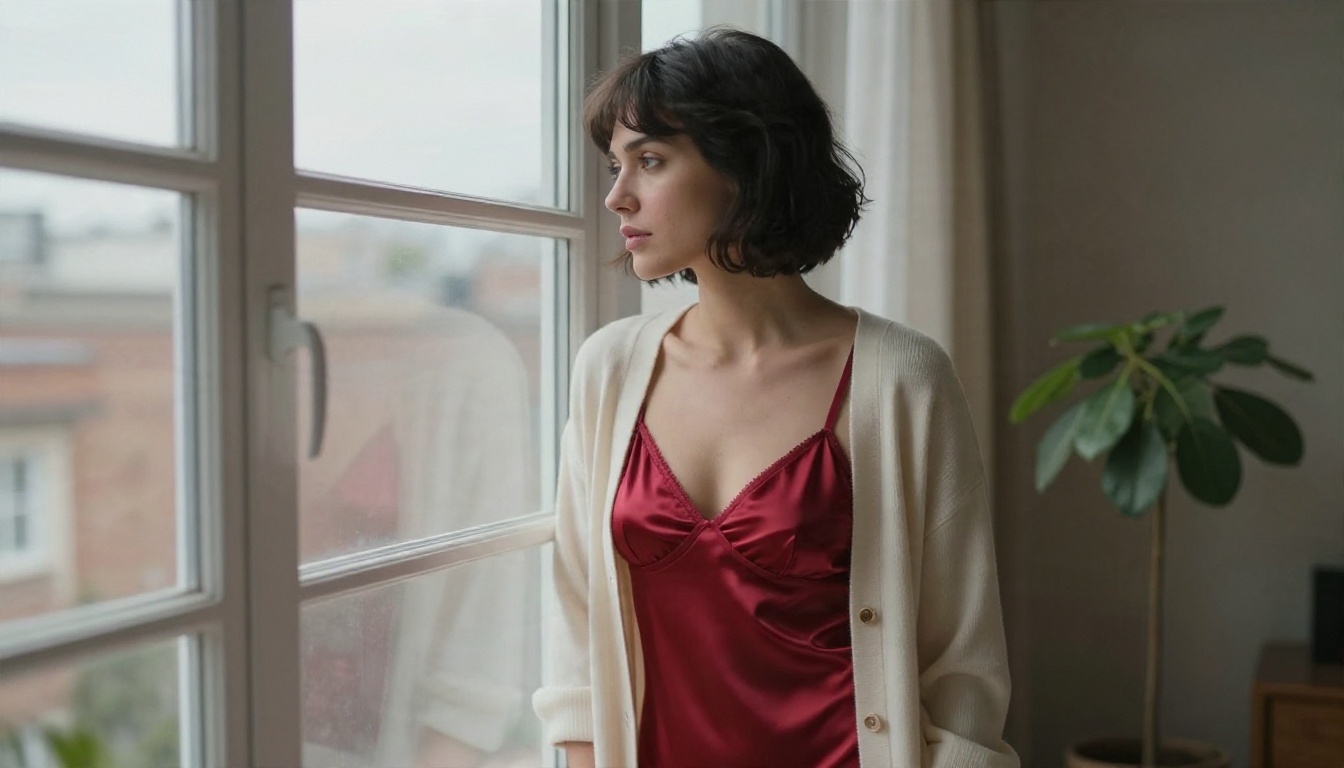
- Open the model page and choose the image input option so the model receives your reference photo.
- Upload a clean source. A sharp, well lit photo with the subject clearly visible gives the model more to work with than a dark or blurry one.
- Write one clear instruction. Describe the new outfit, setting and light in a single sentence or two.
- Pick an aspect ratio that matches your source, or choose 16:9 for a wide editorial look.
- Generate, compare, adjust. Change only one thing between runs so you can see what caused each difference.
- Save the best result and reuse it as the next reference if you want to build a set.
Parameter Tips
- Keep the resolution at the highest setting you need, since skin and fabric detail improve with more pixels.
- Use a fixed seed when the tool offers it. That lets you change one word in the prompt and compare fairly.
- If the output drifts too far from your photo, shorten the prompt. Long prompts give the model permission to reinvent.
Prompts That Actually Work
A good image to image prompt is shorter than a text to image prompt, because the reference already carries a lot of information.
The Four Part Structure
Use this order: subject anchor, change, light, camera.
- Subject anchor: "same woman, same pose, same face"
- Change: "emerald satin slip dress, loose cream cardigan"
- Light: "soft morning window light from the left"
- Camera: "85mm portrait lens, shallow depth of field, Kodak Portra 400 grain"
Prompt Examples to Copy
| Goal | Prompt |
|---|
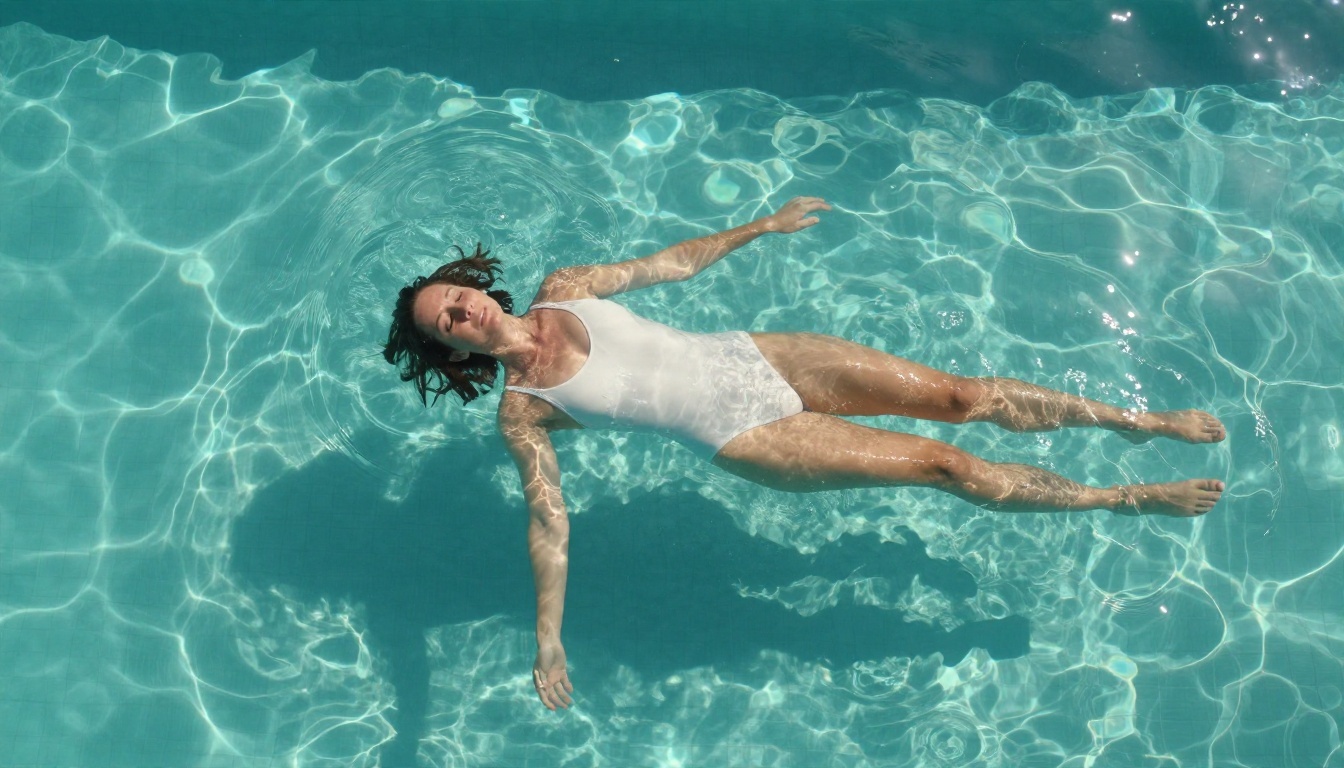
| Swimwear restyle | Same woman and pose, white one piece swimsuit, turquoise pool, midday sun softened by haze, 35mm lens, natural skin texture |
| Boudoir mood | Same pose, ivory silk robe over a lace trimmed camisole, sunlit hotel suite, warm window light, film grain |
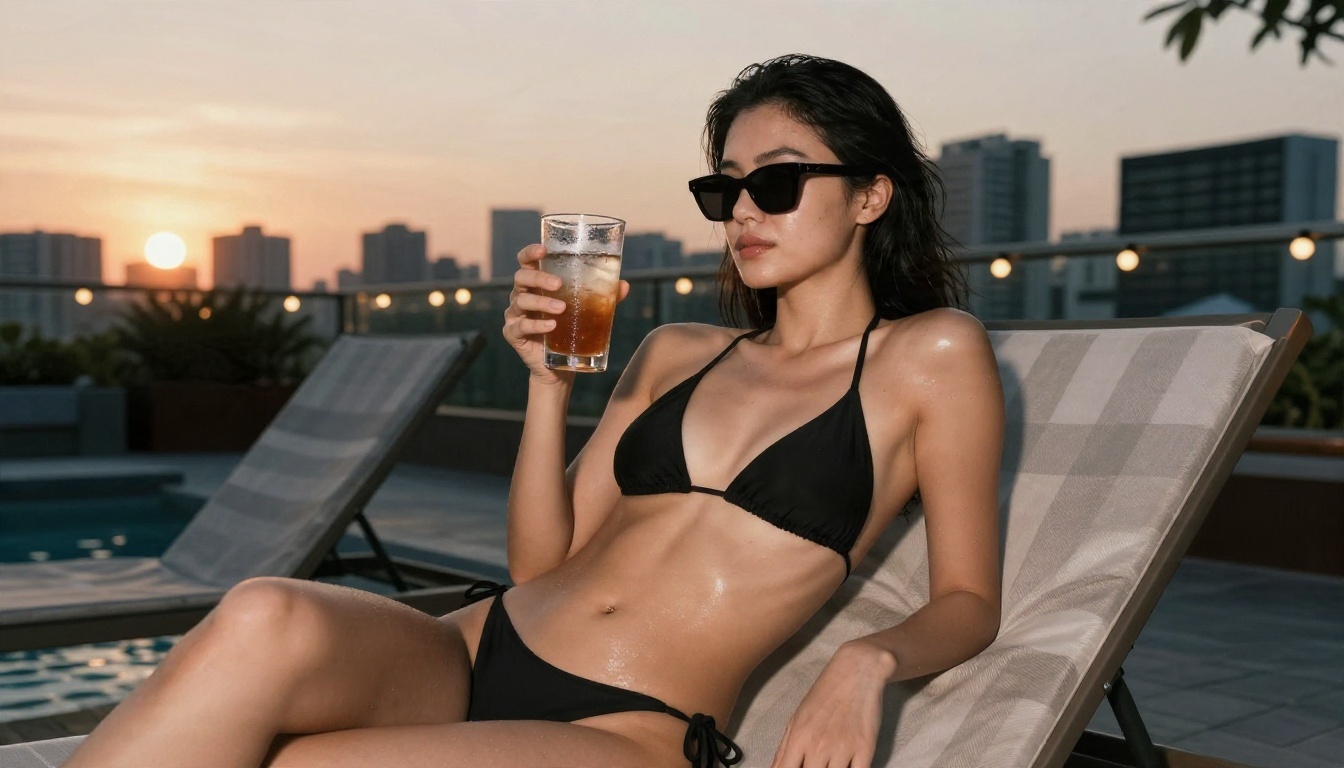
| Evening look | Same face, black halter bikini, rooftop lounger at dusk, warm sunset glow, 135mm lens, condensation on a glass |
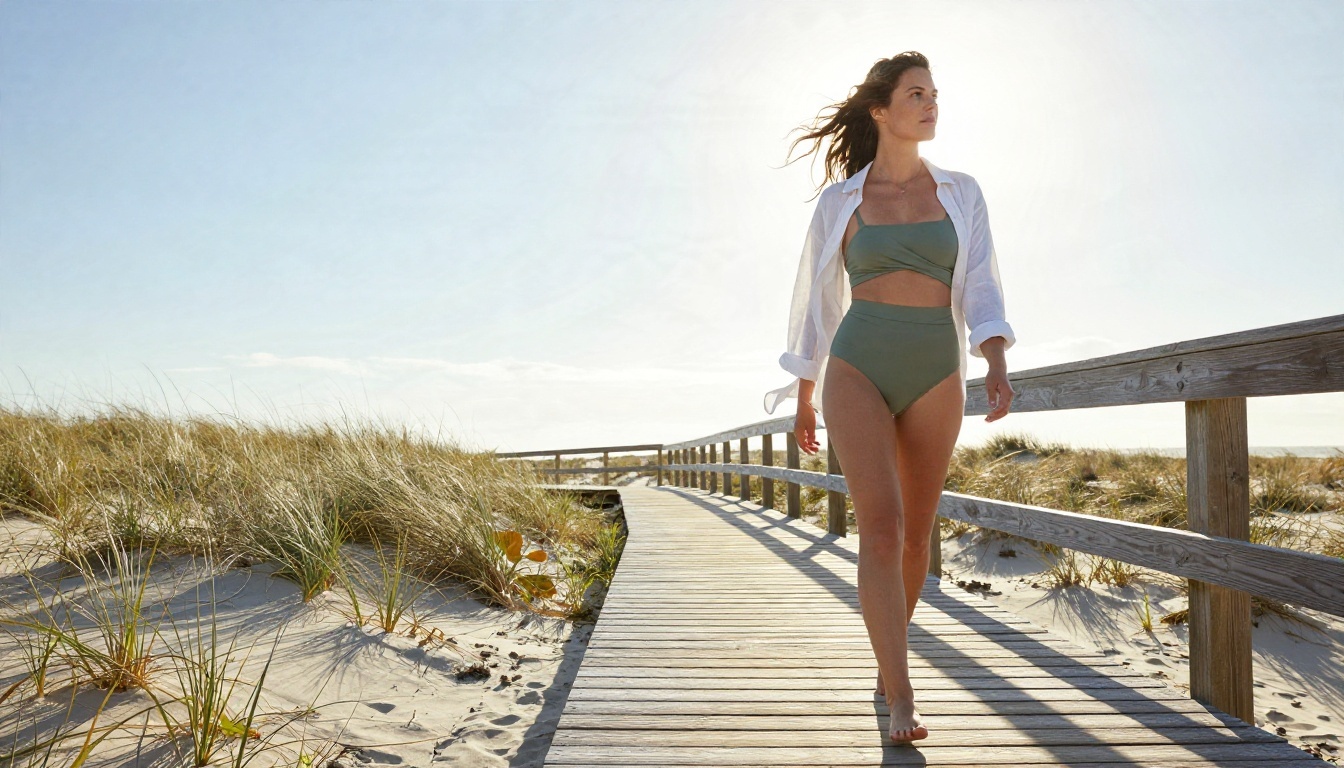
| Casual glamour | Same woman, sage green two piece with an open linen shirt, coastal boardwalk, backlit afternoon sun |
Wording That Keeps Results Photoreal
Words like "pores," "peach fuzz," "natural sheen," "film grain," "85mm f/1.8" push the model toward photography. Words like "perfect," "flawless," "ultra smooth" push it toward the waxy, airbrushed look that gives AI images away. If your result feels plastic, remove the beauty words first.
Settings That Decide the Result
Prompts get the attention, but settings often matter more.
Strength: How Far to Drift
Many image to image tools expose a strength or similarity slider. Low values keep your photo almost untouched. High values let the model rewrite most of it.
| Strength level | What happens | Use it for |
|---|
| Low (about 0.2 to 0.4) | Pose, face and background stay | Color, light and small outfit tweaks |
| Medium (about 0.5 to 0.65) | Pose and face stay, clothes and scene change | Swimwear or boudoir restyles |
| High (about 0.7 to 0.9) | Only the rough composition remains | New looks inspired by the source |
Start at medium. If the face changes too much, go down. If the outfit refuses to change, go up in small steps.
Aspect Ratio and Resolution
Match the output ratio to the source. A vertical photo stretched into 16:9 forces the model to invent the sides, which is where odd shapes and duplicated limbs appear. If you need a wide image from a vertical source, generate vertical first and extend the canvas afterward.
Seed and Consistency
If you want the same character across many images, reuse the same reference photo and the same face description every time. Change the outfit and scene, not the subject anchor. A fixed seed helps with comparisons, but a stable reference image does more for face consistency than any seed.
Real Limits to Expect
Be honest with yourself about what free and unlimited does and does not give you.
Filters and Refusals
Some models block anything that looks sexual, even when it is only swimwear. Others accept glamour but refuse explicit requests. A refusal is not a bug you can prompt around, and chasing it usually wastes your time. Pick a model that fits the glamour range and work inside it. For PicassoIA Image Editor Pro and Seedream 4.5, suggestive but non-explicit content is the sweet spot.
Hands, Fabric and Small Details
Image to image still struggles with fingers, jewelry clasps, lace patterns and straps that cross over each other. If a detail looks wrong, regenerate with a lower strength or crop and fix that area separately. Lace and sheer fabric are the usual troublemakers, so give the model simple textures like satin, cotton or knit when you want clean output.
Real People and Consent
Do not upload photos of real people without their permission, and never create images that could pass as a real person doing something they did not agree to. This is a legal and personal line, not only a platform rule. The safest sources are your own photos, photos of consenting models, or characters you generated yourself.
Free Is Not Always Unlimited
A site that says "free" may still limit resolution, add watermarks, slow your queue or cap daily runs. When you compare tools, look for four things: no sign up wall, no watermark, no daily cap, full resolution download. A tool that checks all four is rare, which is why unlimited editors stand out.
Fixing Common Mistakes
Most disappointing results come from three habits.
Overlong Prompts
Pasting a 200 word prompt into an image to image tool usually makes the result worse. The model weighs the text against your photo, and a long text wins. Keep it to two sentences and let the reference do the work.
Low Quality Sources
A blurry or heavily compressed photo gives the model nothing to anchor skin, hair and edges. If your source is weak, run it through an upscaler first, then edit. A sharper input almost always gives a sharper output.
Changing Everything at Once
If you swap the outfit, background, lighting and camera in one pass, you will not know which change broke the image. Change one thing per run. With an unlimited editor like PicassoIA Image Editor Pro, this costs you nothing but a few seconds.
💡 Fast routine: test the idea on P Image Edit for speed, then move the best prompt to Seedream 4.5 for the final render.
Try It Yourself Today
You do not need a stack of credits to get a polished glamour edit. You need a clean reference photo, a short four part prompt, a medium strength setting and a model that allows suggestive content without hiding it behind a paywall. Start with Seedream 4.5 for realism, then keep iterating in PicassoIA Image Editor Pro where generations are unlimited. If you want a second opinion on the same photo, try Qwen Image Edit Plus or P Image Edit.
Pick one of your own photos, write a two sentence prompt, and run five variations today. When you want more options, browse every available model at picassoia.com/en/all-models and compare how each one handles the same reference.


