You loaded the workflow, typed a prompt, pressed Queue, and got a wall of red nodes, a gray rectangle, or a crash at 94% sampling. Or worse: it ran fine, and the clip ended after exactly five seconds with no way to make it longer. If you build glamour and adult-themed clips with LTX 2.3 in ComfyUI, these problems are common, and almost all of them trace back to a short list of causes. This article walks through each one, shows the frame-count math behind length limits, and points to hosted options for when you would rather make videos than debug graphs.
A quick note before we start. Everything here is about non-explicit, suggestive content with adult, fictional or fully consenting subjects: swimwear, lingerie, boudoir and glamour. That is what the models handle best anyway, and it keeps your output usable on most platforms.
Why the Workflow Breaks
Before touching any setting, sort your problem into one of three buckets: the graph will not load, the graph loads but crashes, or the graph finishes but the output looks wrong. Each bucket has a different fix, and mixing them up wastes hours.
Version Mismatches
LTX 2.3 support was added to ComfyUI through official templates, and many community workflows were built against a specific build of ComfyUI plus a specific set of custom nodes. If you downloaded a workflow from a forum post that is a few months old, it may reference nodes that were renamed or merged.
What to do:
- Update ComfyUI itself first, then update your custom node packs.
- Restart fully. A browser refresh alone does not reload Python-side nodes.
- Open the built-in LTX 2.3 template from the template library and confirm that it runs untouched.
- Only then load the community workflow and compare it against the template.
If the template runs and the community graph does not, the problem is inside the community graph. If the template fails too, the problem is your install.
Missing Nodes and Models
Red boxes on load usually mean a missing custom node. Orange or yellow warnings on a loader node usually mean a missing file or a wrong folder. The checkpoint, the text encoder, the VAE and any upscaler or LoRA files each have to sit in the folder the loader node expects.
💡 Tip: Rename nothing. Many workflows match file names exactly. If a loader shows a file name you do not have, pick your file from its dropdown instead of renaming the file on disk.
Black Frames and Garbled Output
When the run finishes but the video is black, gray or full of noise, the model is almost never "broken." Something in the chain is feeding it the wrong data type or the wrong size.
Precision Mismatch
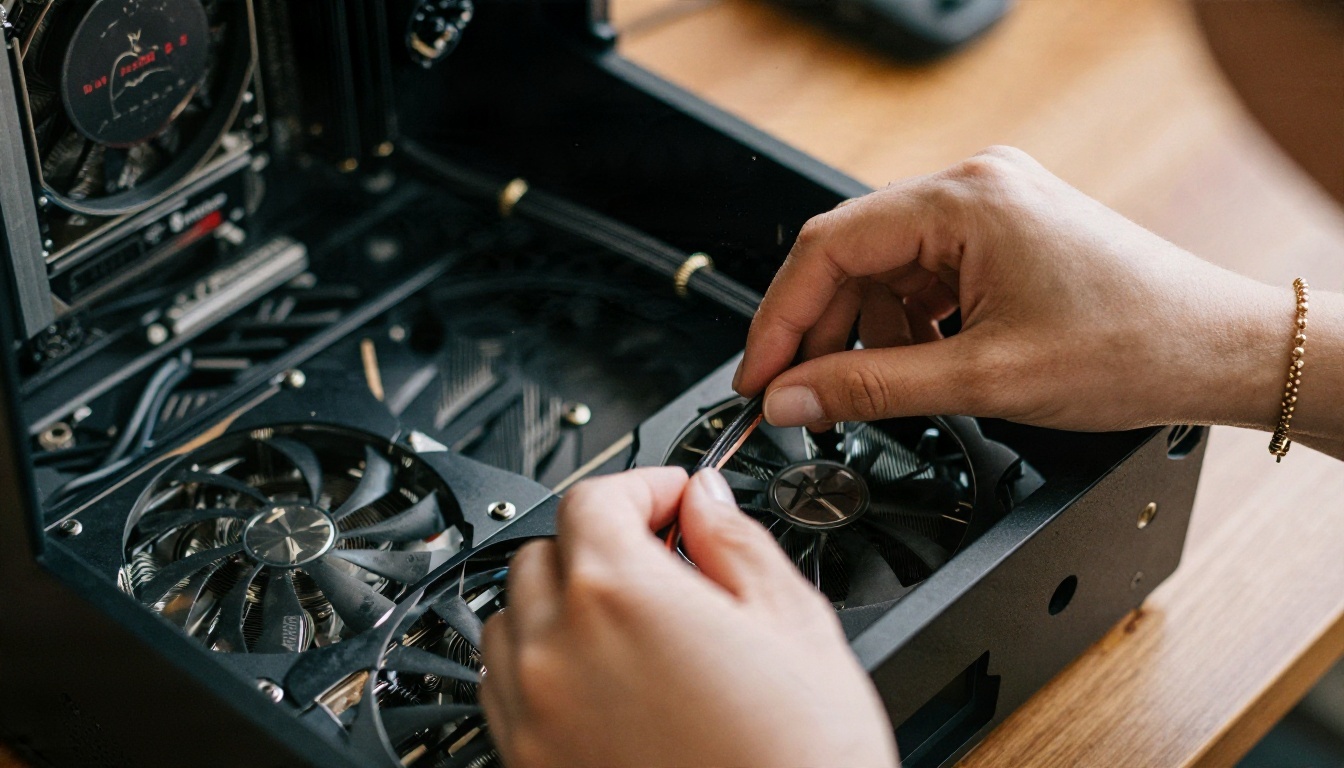
A frequent culprit is mixing precisions. For example, loading an FP8 checkpoint but forcing a half-precision VAE or text encoder override can produce black or garbled frames. Treat this as a likely cause rather than a certainty, since reports come from community posts, but it is cheap to test.
Quick test: load the checkpoint, text encoder and VAE as a matched set from the same release, remove any manual precision override flags, and run a tiny 512 by 320 clip. If it renders, add your changes back one at a time.
Resolution Stride
LTX models like dimensions that divide cleanly. Stick to multiples of 32 for width and height. Some graphs snap near-miss values for you, but others do not, and an odd size can cause jitter, edge artifacts or a hard failure in the upscale stage.
| Symptom | Likely cause | First fix |
|---|
| Red nodes on load | Missing custom nodes | Update ComfyUI, install missing nodes |
| Loader shows blank file | Model in wrong folder | Move file, restart, reselect |
| Black or gray video | Precision mismatch | Use a matched checkpoint, VAE and encoder set |
| Jittery edges or artifacts | Width or height not a multiple of 32 | Resize to a valid stride |
| Crash during decode | Out of memory | Tiled decode, lower frame count |
| Output ends at about 5 seconds | Default frame count | Change the frame number, not "seconds" |
Fixing Out-of-Memory Crashes
Out-of-memory errors are the most reported failure for LTX 2.3. People describe a workflow that worked at one frame count suddenly failing after a small increase, even on a very large consumer card. That is normal behavior: memory use grows with frames, resolution and the number of stages, and the final decode step often spikes the highest.
FP8 and Tiled Decode
Two changes help the most:
- Use FP8 weights if your card is struggling. They shrink the model footprint with a modest quality cost.
- Switch to tiled VAE decode. The decode stage processes the clip in tiles instead of all at once, which flattens the memory spike at the end.

Frame Count vs VRAM
Think of memory as a budget with three spenders: resolution, frames and stages. If you want a longer clip, you pay for it somewhere. Drop the first-stage resolution, lean on the upscale stage, or cut your frame count. A beach walk like the one above looks great at modest resolution plus an upscale pass, and costs far less than rendering everything at the maximum.
💡 Tip: Test every new idea at about 49 frames and a small size. Once the motion looks right, raise the numbers. Debugging at full size burns time and VRAM for nothing.
Length Limits Explained
The "five second limit" is the number one question about LTX workflows, and the answer is boring: it is mostly a default, not a wall.

The Frame Formula
Most LTX graphs ask for a frame count, not a number of seconds. The common starting value is 121 frames, which lands at about five seconds at 24 fps. The rule of thumb is:
frames = seconds × fps + 1
| Target length | At 24 fps | At 25 fps |
|---|
| 3 seconds | 73 frames | 76 frames |
| 5 seconds | 121 frames | 126 frames |
| 8 seconds | 193 frames | 201 frames |
| 10 seconds | 241 frames | 251 frames |
LTX also prefers frame counts that fit its internal cadence, so if a value gets nudged by the graph, use the nearest valid number instead of fighting it. Typing "8" into a field labeled frames gives you a third of a second of video, and typing seconds into a frames field is the most common reason people think the workflow is broken.
Stretching Past 5 Seconds
Past the default, quality and memory both get harder. These are the approaches that work in practice:
- Raise the frame count modestly and lower the resolution to pay for it.
- Chain clips. Take the last frame of clip A as the first frame of clip B and keep the prompt consistent.
- Use first and last frame guidance if your workflow supports it, so each segment has a fixed start and end.
- Interpolate afterward. Generate fewer frames and use a frame interpolation step to smooth and slow the result.
Long single shots tend to drift: outfits change texture, hair shifts, lighting wanders. Short shots stitched together look more stable, and glamour content is naturally made of short beats anyway.
Video-to-Video Under 2 Seconds
If you use video-to-video, very short inputs can fail outright. Reports point to clips under about two seconds as a trouble spot. Pad the input to a few seconds, process it, then trim the result.
Writing Prompts for Glamour Clips
A broken-looking clip is not always a technical failure. Sometimes the prompt is asking for too much motion in too few frames.

Keep It Suggestive
For adult-themed content that stays non-explicit, describe wardrobe, setting, light and mood rather than anatomy. Lingerie, swimwear, silk robes, hotel suites and golden-hour beaches give the model a clear visual target and keep results consistent. Explicit prompts tend to produce unstable anatomy and artifacts, and they limit where you can publish the clip.
Motion Verbs That Work
Give the model one subject action and one camera move. Good pairings:
- "She turns her head and smiles, slow dolly-in."
- "Hair moves in a light breeze, static camera."
- "She steps forward, camera tracks sideways at waist height."
Avoid stacking five actions. A five-second clip can hold roughly one idea, maybe two.
💡 Tip: Write the prompt as a chronological story: starting pose, what moves, how the camera moves, what the light does. Short, concrete sentences beat long poetic ones.
Skip the Setup: Alternatives
Local workflows give you control. They also give you red nodes, driver issues and an evening lost to a decode crash. If you want finished clips more than you want a tunable graph, hosted options are a sensible shortcut.
LTX 2.3 Without ComfyUI
The same model family is available on PicassoIA, so you can keep the look you know without maintaining the install:
Other Video Models
If LTX is not giving you the motion you want, other models handle glamour scenes differently:
Start With Better Source Stills
A strong video begins with a strong first frame. Most "bad" image-to-video results come from a muddy or over-processed source image, not from the video model.
Generate With Seedream 4.5
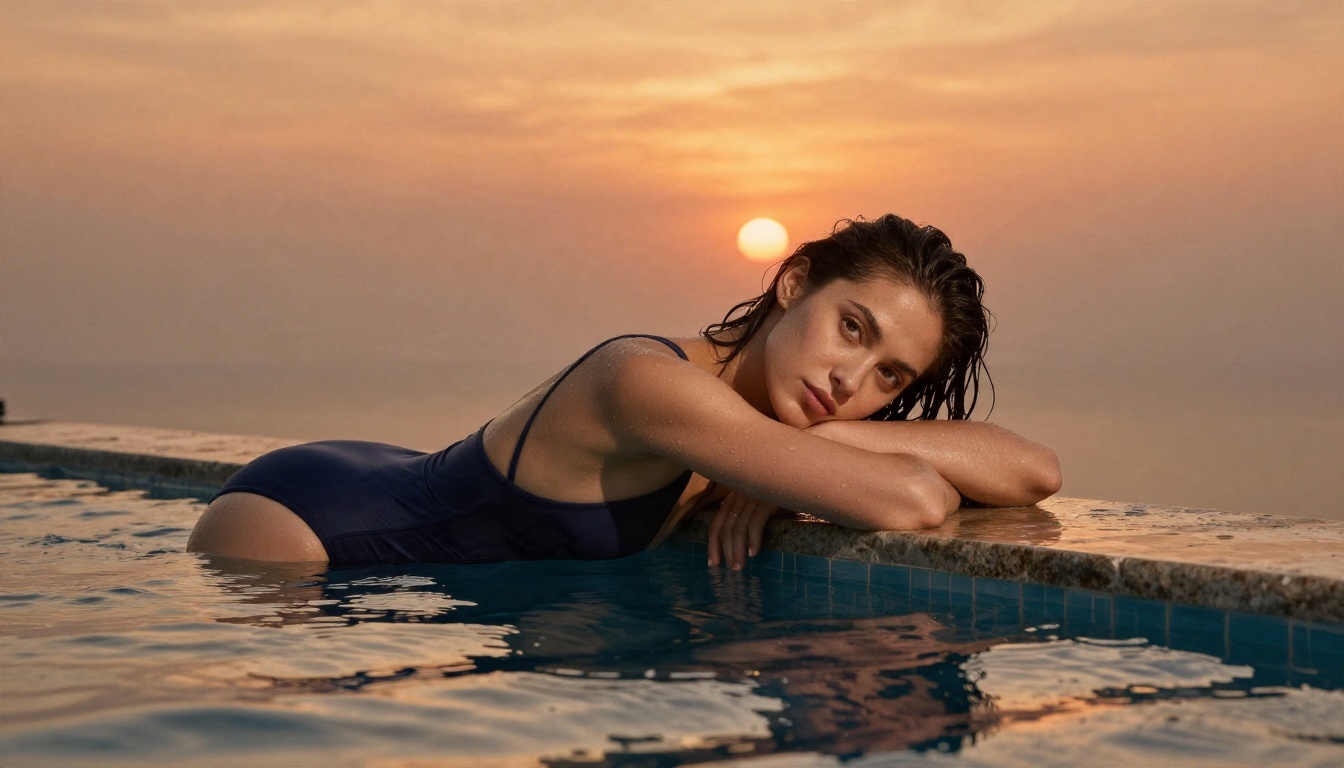
For adult-themed stills, lead with Seedream 4.5. It produces sharp, photoreal skin, fabric and light, which gives the video model plenty of detail to preserve while it animates. Write the still like a photographer: subject, pose, location, light direction, lens.
Edit With Image Editor Pro
When a still is close but not right, such as a strap in the wrong place, a harsh highlight or a distracting background, use PicassoIA Image Editor Pro. It offers unlimited generations, so you can iterate as many times as you need without watching a credit counter. Qwen Image 3 Pro is another solid photorealistic option when you want a second opinion on a look.

How to Use LTX 2.3 on PicassoIA
Here is the short path from idea to finished clip, with no node graph.
Step by Step
- Make your first frame. Generate or edit a still in Seedream 4.5 or Image Editor Pro. Aim for a clean subject, clear light and a simple background.
- Open the model page. Choose LTX 2.3 Fast for tests or LTX 2.3 Pro for final output.
- Write a motion prompt. One subject action, one camera move, one note about light. Keep it under a few sentences.
- Pick duration and resolution. Use the options shown on the model page. Start short for tests.
- Generate, review, adjust. If motion looks wrong, change the prompt before you change anything else.
- Chain if you need more length. Use the last frame of a good clip as the start of the next.
Parameter Tips
- Test on Fast, finish on Pro. The same prompt usually behaves similarly, so you save time on dead ends.
- Keep prompts short. Long prompts add contradictions the model has to resolve.
- Match the source image mood. If the still is golden hour, say golden hour in the prompt. Contradicting the image causes flicker.
- Change one variable per run. Otherwise you will not know what fixed it.
Local or Hosted: Which Fits You
Be honest about what you want from the process.
| If you want... | Choose |
|---|
| Full control over every node, LoRA and sampler | Local ComfyUI |
| Fast tests and finished clips with no install | Hosted LTX 2.3 Fast or Pro |
| Better first frames for any video model | Seedream 4.5 plus Image Editor Pro |
| A different motion style | Wan, Kling or Hailuo |

Many creators do both: they keep a local workflow for experiments with custom LoRAs, and use a hosted model for everything that has a deadline.
Make Your Own Clips Today
If your LTX 2.3 workflow is still red, gray or stuck at five seconds, run through the checklist: update ComfyUI and nodes, match your precision set, use multiples of 32, enter frames instead of seconds, and cut resolution before you cut ideas. When you would rather skip the debugging, open PicassoIA, generate a first frame with Seedream 4.5, polish it in Image Editor Pro with unlimited generations, and animate it with LTX 2.3 Fast or Pro in a few minutes.
Pick one still, write one motion sentence, and press generate. Then browse every available model at picassoia.com/en/all-models and compare how each one animates the same image. That side-by-side test will teach you more about your own style than any amount of node tweaking.


