You upload a photo, type a short prompt, press generate, and the face that comes back belongs to a stranger. That is the daily experience of using Perchance NSFW image to image tools, and it is the reason so many people search for something steadier. Perchance is free, it needs no account, and it is fast. It is also a loose collection of community generators, which means the quality, the rules, and the settings change from one page to the next.
This article breaks down what image to image really does on Perchance, where it falls short, which free editor alternatives hold a face together better, and which settings and prompts give you tasteful, photorealistic adult glamour edits without the usual melted hands and plastic skin.
💡 Quick answer: Keep the strength setting low to medium, lock your seed while you test, write prompts about light and fabric instead of anatomy, and move to a stronger editor like Seedream 4.5 or PicassoIA Image Editor Pro when you need the same face across several edits.
How Perchance Image to Image Works
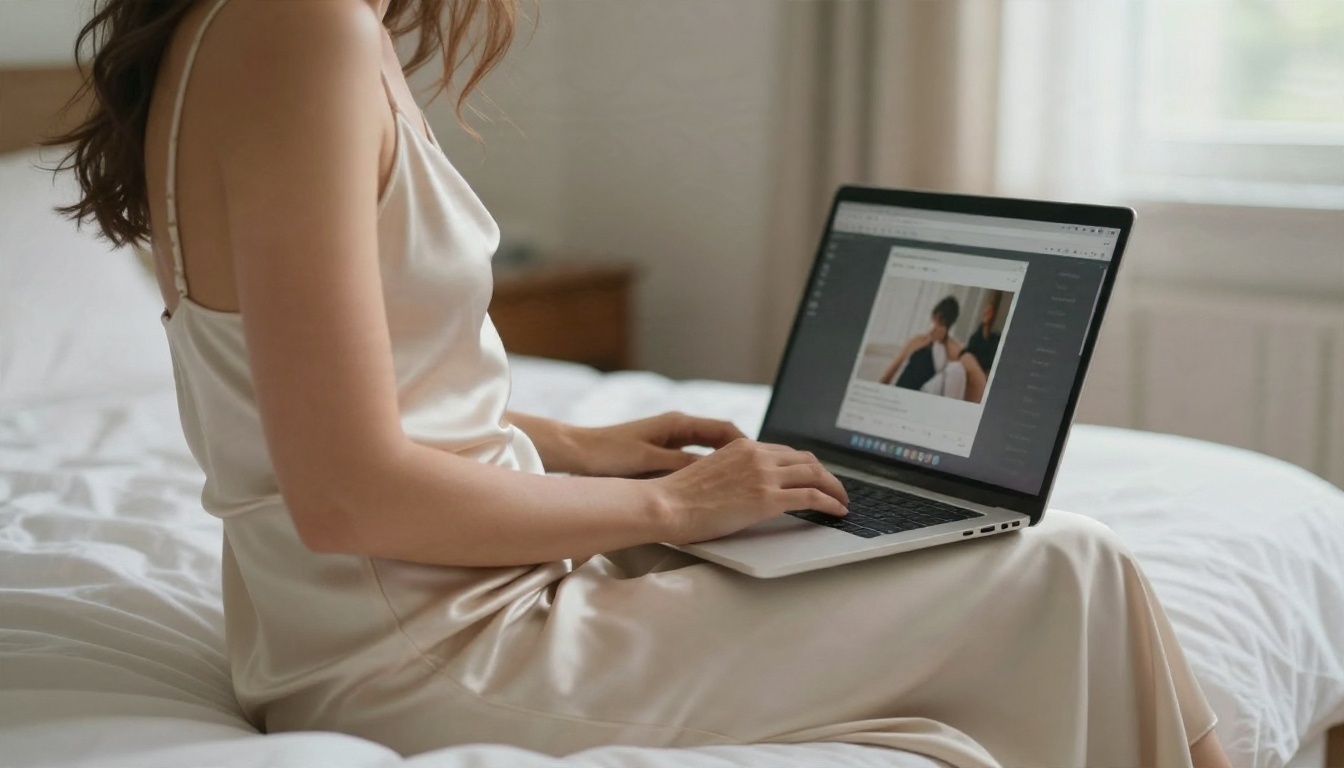
Perchance is not one app. It is a platform where creators publish their own generator pages, and each page wires up a different model, a different set of sliders, and a different filter. When people say "Perchance image to image," they usually mean one of the community pages that accepts a reference upload alongside a text prompt. Reports from third party reviewers say that reference upload only works on certain pages, so a tutorial that applies to one generator may do nothing on another.
What the reference upload does
Image to image starts from your photo instead of from pure noise. The model keeps the rough layout, colors, and pose of the upload, then repaints the details according to your prompt. A strength slider decides how far the result is allowed to wander from the original. At a low value you get a gentle restyle. At a high value you get a new picture that only vaguely resembles the source.
That is useful for three jobs:
- Restyling a photo with new lighting, fabric, or setting.
- Cleaning up a rough render so it looks more like real photography.
- Posing variations based on a reference you already like.
Where the limits show up
Most Perchance generators run lighter models built for speed and zero cost. The trade is predictable. Faces drift between runs, fingers multiply, and skin often turns waxy when strength climbs. Large uploads can also make the browser sluggish, so a source image around 1024 pixels on the long edge behaves better than a full resolution phone photo.
💡 Tip: If a generator ignores your reference entirely, check whether that specific page offers an upload button. If it does not, you are running plain text to image, and no slider will change that.
Why People Look for Alternatives
Nobody leaves a free tool without a reason. The complaints about Perchance image to image fall into a few buckets, and knowing which one hits you decides which alternative suits you.
Inconsistent faces and hands
The biggest frustration is identity. You edit one photo and get a convincing result, then edit the next and the face changes jaw shape, eye color, and age. Hands show the same problem. A pose that looks natural in the source can come back with six fingers or a wrist at an impossible angle.
Unclear moderation rules
Community generators set their own filters, and several third party write ups describe moderation as reactive: keyword checks and user reports instead of a published policy. I could not verify an official NSFW policy for Perchance image to image, so treat any claim you read, including promotional reviews, with caution. The practical result is unpredictable behavior. A prompt that works today may be filtered tomorrow, and a page can disappear without notice.
Free Editor Alternatives Compared
Here is how the options stack up for adult glamour work that stays non explicit: swimwear, boudoir style portraits, robes, and silk. The table reflects what each model is good at, not a ranking of raw power.
| Editor | Best for | Reference photo support | Strength |
|---|
| Seedream 4.5 | Realistic skin, lighting, and 4K detail | Yes | Photographic realism |
| PicassoIA Image Editor Pro | Unlimited edit runs on one photo | Yes | Volume and speed |
| Nano Banana Pro | Precise instruction following | Yes | Clean edits |
| Qwen Image Edit Plus | Targeted changes to clothing and background | Yes | Local edits |
| Seedream 4 | Fast 4K drafts | Yes | Quick iterations |
| Perchance generators | Free quick experiments | Only on some pages | No account needed |
Seedream 4.5 for portraits
Seedream 4.5 is the model to try first when realism matters. It renders skin with visible pores, handles window light convincingly, and keeps a face recognizable when you give it a reference photo. For swimwear and boudoir style portraits it tends to return natural proportions where lighter models drift.
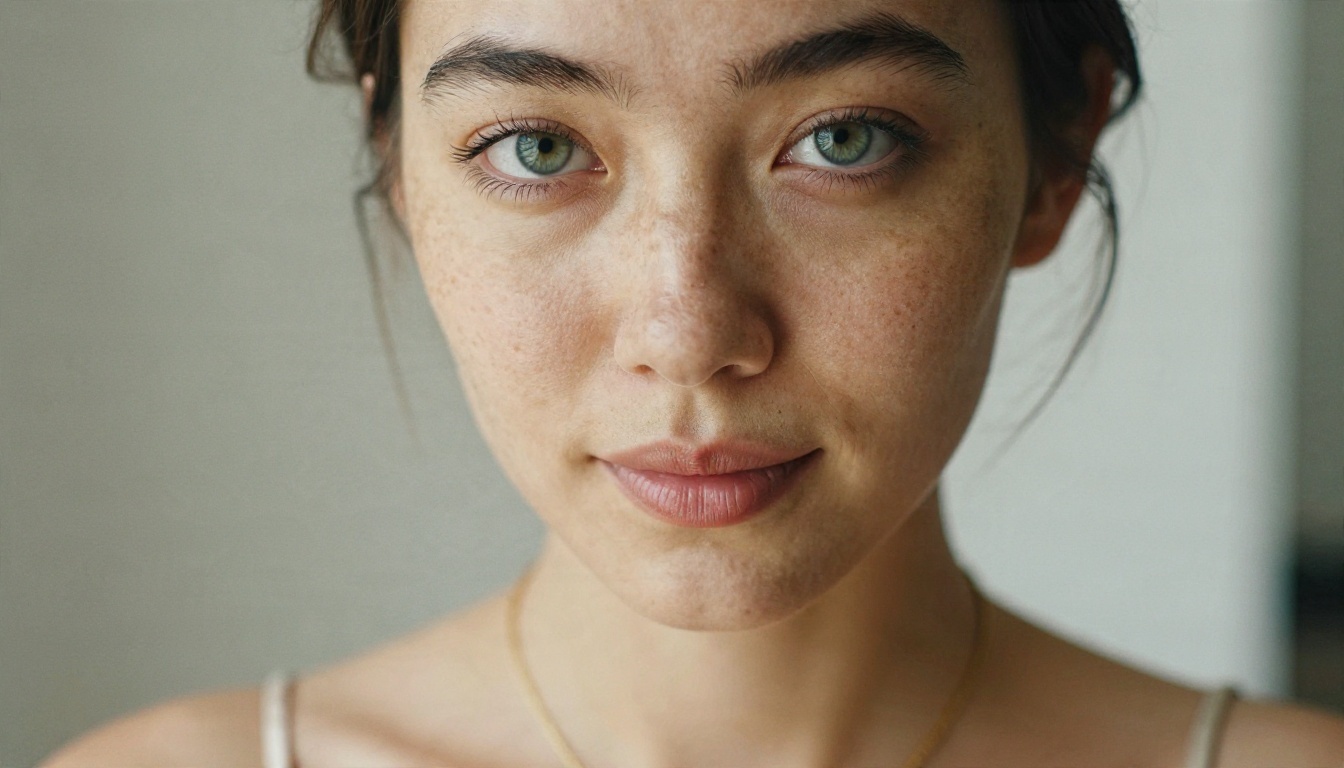
Image Editor Pro for unlimited runs
PicassoIA Image Editor Pro is the answer to the "I keep running out of tries" problem. Image to image is a trial and error process. You rarely land the ideal edit on the first run, so unlimited generations change how you work: you can test five strengths, three outfits, and two lighting setups without counting credits. It is also quick, so iteration feels closer to a live preview than a queue.
Nano Banana Pro and Qwen edits
When you want to change one thing and leave the rest alone, Nano Banana Pro and Qwen Image Edit Plus are worth a look. Both respond well to short, literal instructions such as "change the swimsuit to black" or "move the scene to a pool at dusk." That makes them handy for variations on a photo you already like.
Settings That Change the Result
Whatever editor you pick, the same four dials do most of the work. Perchance pages often hide or rename them, but the logic stays the same.
Strength: the main dial
Strength (sometimes called denoise or creativity) controls how much of your source survives. Use this as a starting point:
| Strength | What happens | Use it for |
|---|
| 0.15 to 0.30 | Light touch, same face and pose | Skin cleanup, color grading |
| 0.35 to 0.55 | Clothing, light, and setting change, identity holds | Most glamour restyles |
| 0.60 to 0.75 | Big changes, identity starts to drift | Concept changes |
| 0.80 and above | Almost a new image | Only when the source is a rough sketch |
Most people set strength too high. Start at 0.40, run it, then move in steps of 0.05.
Seed and aspect ratio
Lock the seed while you test. If the seed changes every run, you cannot tell whether a better result came from your prompt or from luck. Once the edit looks right, change the seed to get alternates. Keep the output aspect ratio equal to your source, because stretching a portrait into a landscape frame invites bad anatomy.
Source photo quality
The source sets the ceiling. A sharp photo with even light gives the model clean information about skin and fabric. A blurry, backlit, heavily filtered upload gives it nothing to hold on to, so it invents details. Crop tightly, fix exposure first, and avoid heavy beauty filters.
💡 Tip: Use a source where the face is at least 400 pixels tall. Small faces are the first thing to drift.
Prompts That Keep Images Tasteful
The best adult glamour edits are about atmosphere. Light, fabric, and setting do more than any explicit wording, and they also keep your prompts clear of the filters that block generations outright.
A prompt formula that works
Use this order: subject and outfit, setting, light direction, lens, texture, mood.
For example: adult woman in a black silk robe, sunlit loft apartment, golden morning light from the left, 85mm f/1.8 shallow depth of field, visible skin pores and silk folds, Kodak Portra 400 film grain, intimate and elegant.
Ready to paste examples
Copy these and swap in your own details:
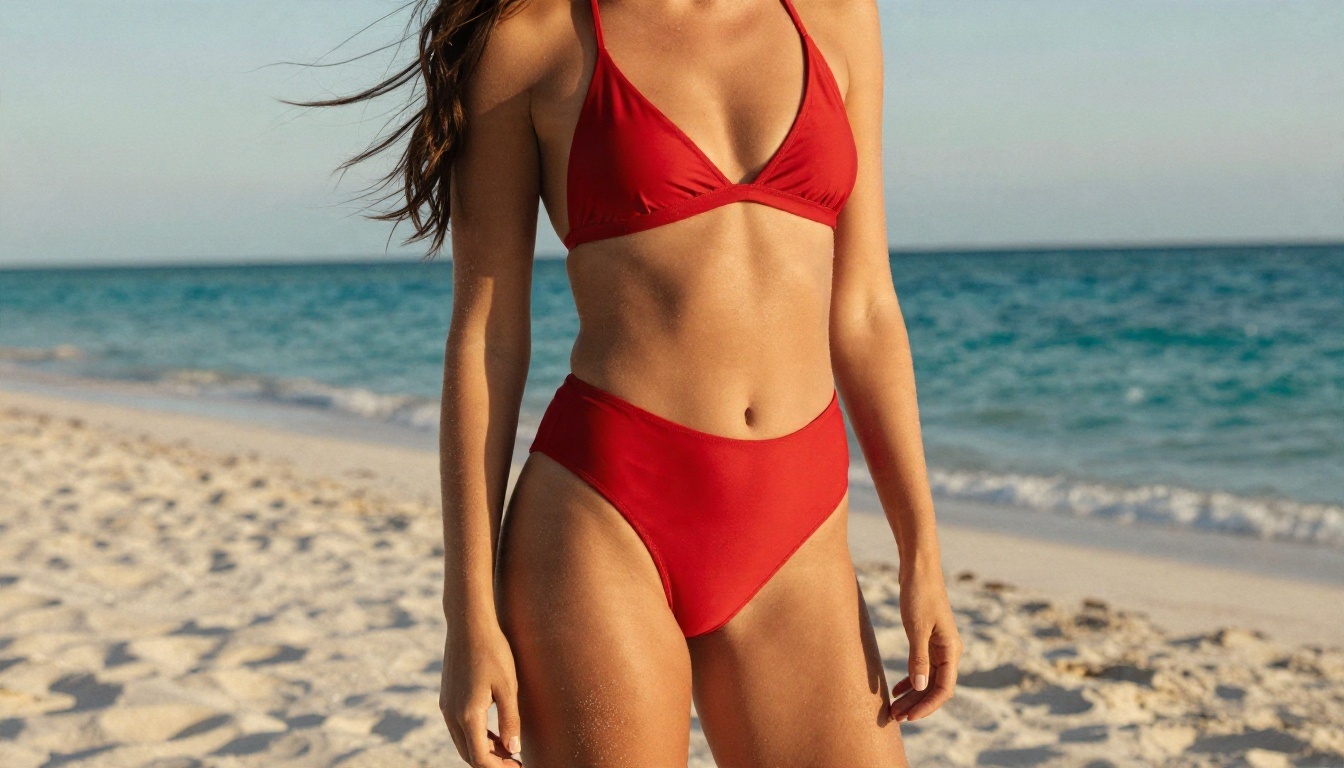
- Beach editorial: "adult woman in a red two piece swimsuit, white sand beach at golden hour, warm backlight, 35mm lens, sea salt texture on tanned skin, film grain."
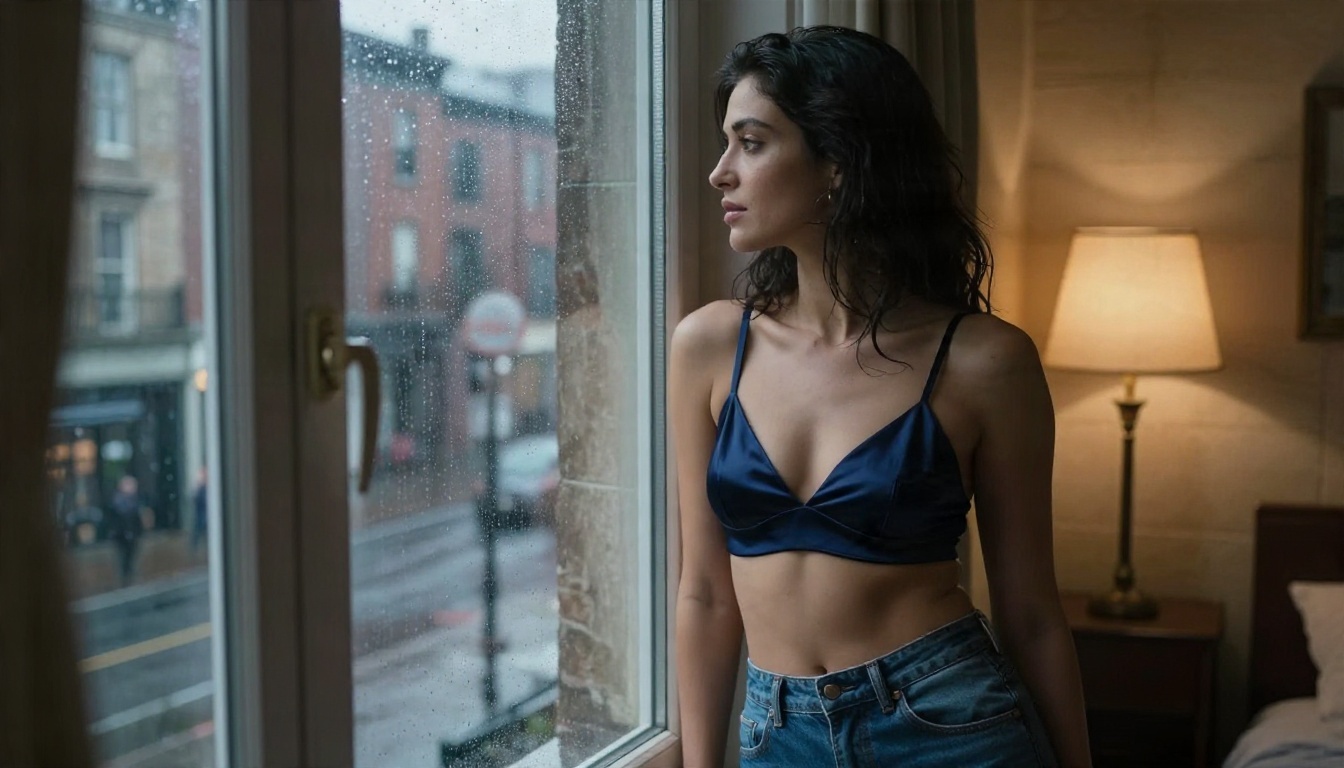
- Window portrait: "adult woman in a navy satin bralette and high waisted jeans leaning on a rainy window, cool daylight with warm lamp glow, 70mm f/2, realistic skin texture."
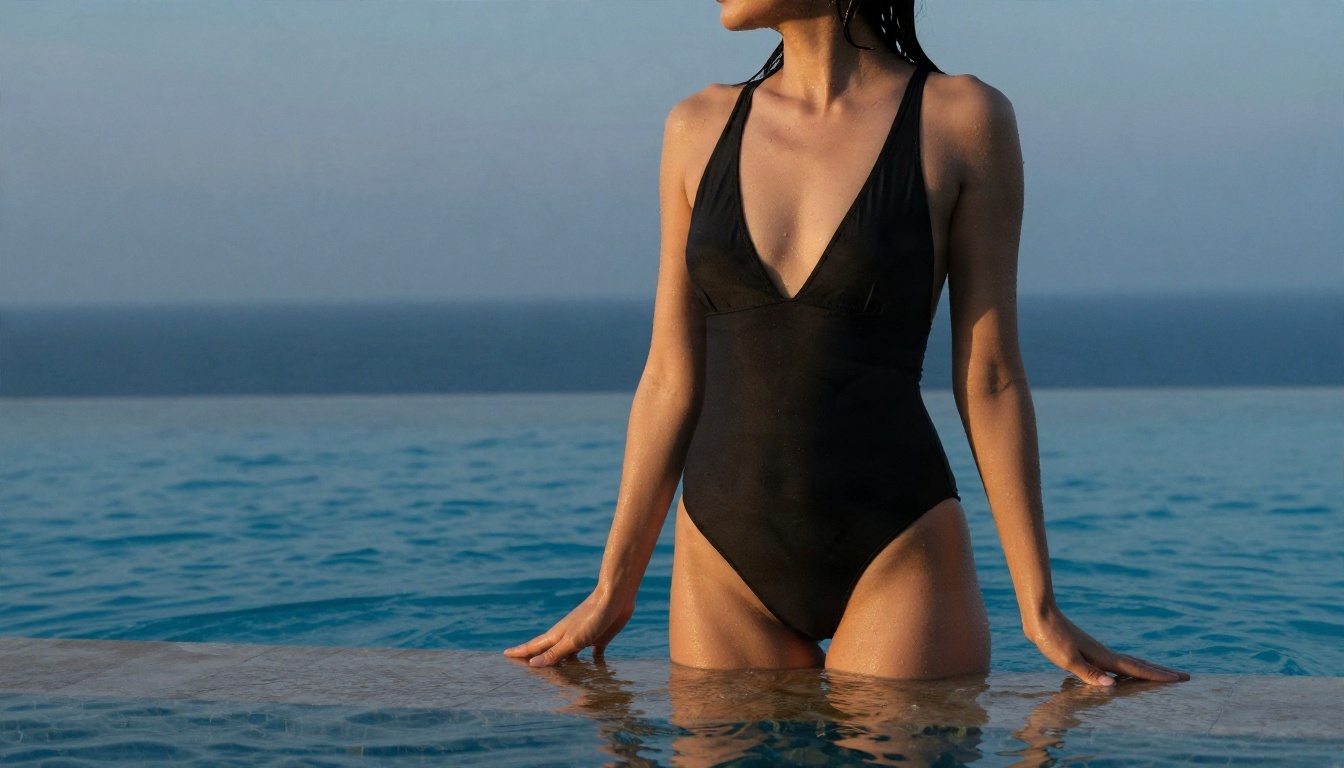
- Resort evening: "adult woman in a black one piece swimsuit with a sheer sarong beside an infinity pool at dusk, wet hair slicked back, warm last light."
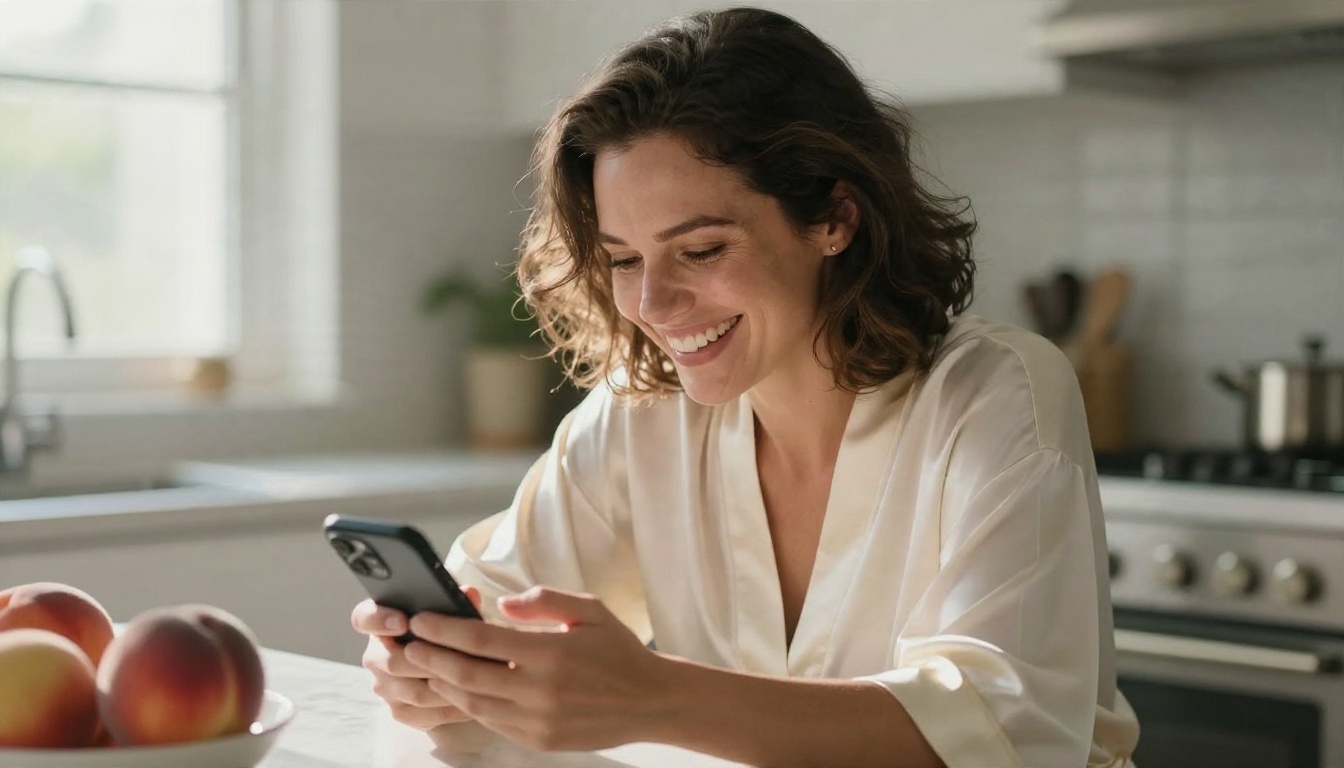
- Morning robe: "adult woman in an ivory silk robe laughing in a sunlit kitchen, soft backlit hair, 50mm f/1.8, natural skin sheen."
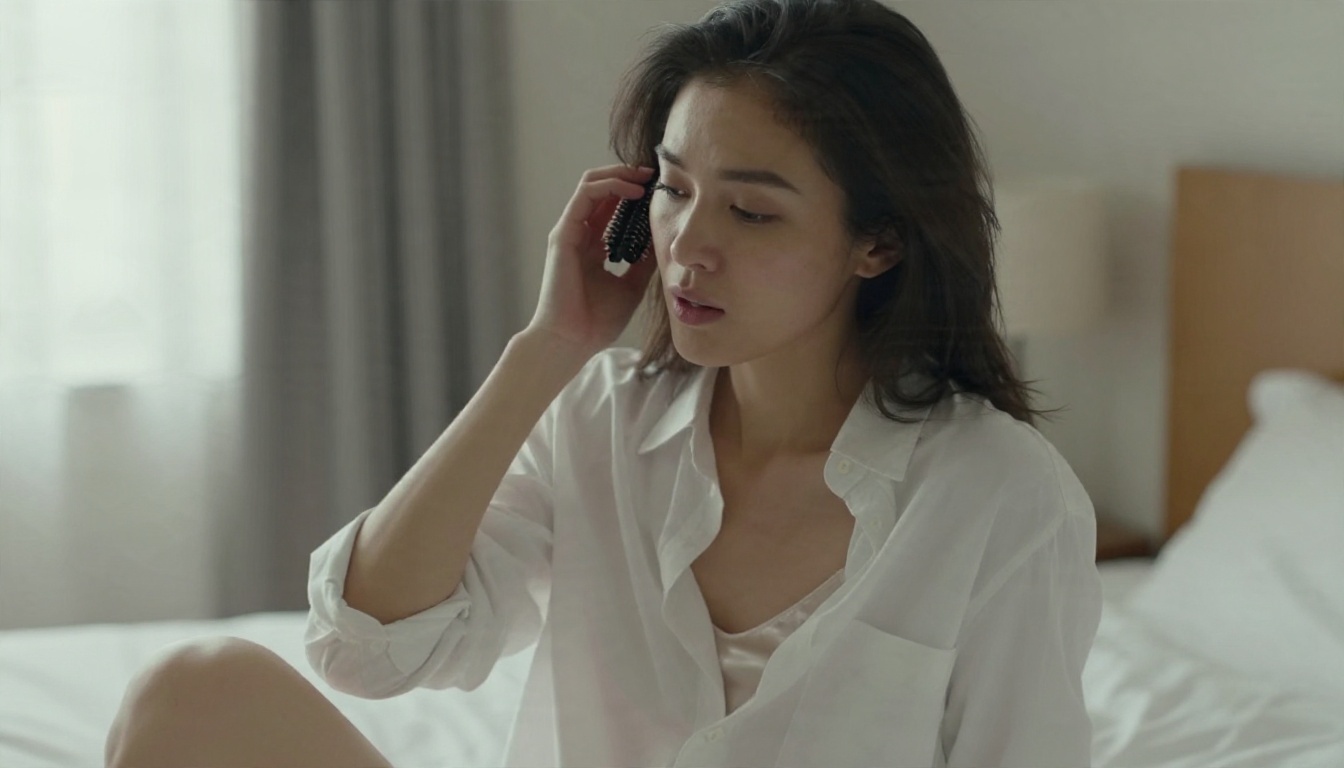
- Hotel editorial: "adult woman in an oversized white shirt on the edge of a hotel bed, soft overcast window light, 85mm f/1.8, cotton fabric texture."
Words that cause trouble
Some terms push models toward plastic skin or trigger filters. Cut these from your prompts:
- "Perfect skin," "flawless," "airbrushed": they produce smooth, waxy faces. Ask for "visible pores" and "natural skin texture" instead.
- "8K ultra detailed masterpiece" stacks: these often add a harsh, over sharpened look.
- Explicit anatomy terms: they get blocked on most hosted tools and rarely improve the image.
- Vague age wording: always write "adult woman" and keep the subject clearly an adult.
💡 Reminder: Only edit photos of yourself or of adults who gave clear permission. Never upload someone's photo to create content they did not agree to.
How to Get Similar Results on PicassoIA
Perchance is a separate website, not a PicassoIA model. If you want a steadier version of the same workflow, Seedream 4.5 is the first model to try, followed by PicassoIA Image Editor Pro when you want unlimited runs.
Steps with Seedream 4.5
- Open the Seedream 4.5 page and choose the image input so your photo acts as the reference.
- Upload a sharp, evenly lit source with the face clearly visible.
- Write the prompt with the formula above: subject, setting, light, lens, texture, mood.
- Pick a 16:9 or 3:2 aspect ratio that matches your source, then generate.
- If the face drifts, shorten the prompt and describe fewer changes at once.
- Pick the best result and run a second pass with one small change, such as the outfit color.
Steps with Image Editor Pro
- Open PicassoIA Image Editor Pro and upload your reference.
- Write one instruction at a time, for example "change the robe to black silk, keep the face and pose."
- Generate several variations back to back. Since runs are unlimited, test different wording without worrying about cost.
- Keep the best frame as the new source and continue editing from it. Chained small edits hold identity better than one large change.
Parameter tips
| Parameter | Suggested value | Why |
|---|
| Prompt length | 40 to 80 words | Enough detail without conflicting instructions |
| Edits per run | One or two | Keeps the face stable |
| Aspect ratio | Match the source | Avoids stretched anatomy |
| Seed | Fixed while testing | Makes comparisons fair |
| Source resolution | 1024 px or higher on the long edge | Gives the model texture to work with |
More models worth testing
If you want to compare, Nano Banana Pro and Qwen Image Edit Plus are good for small, targeted changes, Seedream 4 is a fast option for 4K drafts, and Qwen Image 3 Pro is another photorealistic pick. You can browse the full lineup at picassoia.com/en/all-models.
Common Mistakes and Fixes
Most failed edits trace back to the same handful of habits.
| Mistake | What you see | Fix |
|---|
| Strength too high | New face, new pose | Drop to 0.35 to 0.50 |
| Seed changes every run | Random results, no pattern | Lock the seed while testing |
| Overloaded prompt | Muddy, confused image | One or two changes per run |
| Low quality source | Waxy skin, invented details | Use a sharp, evenly lit photo |
| Stretched aspect ratio | Long limbs, odd proportions | Match the source ratio |
| Piling on quality words | Over sharpened, harsh look | Ask for natural skin texture |
A few habits save time:
- Save your best prompts in a note so you can reuse the wording.
- Edit in small steps. Three gentle edits beat one aggressive edit.
- Check hands and edges before you call a result finished. If they are off, regenerate with a fixed seed and a slightly lower strength.
- Fix the source first. Ten minutes spent on exposure and cropping saves an hour of regenerations.
Try Your Own Edits Today
Perchance is a fine place to run a quick free experiment, but it is a weak base for work you care about. Faces drift, rules are unclear, and settings change from page to page. A stronger editor gives you the same free flow with far more control.
Start with Seedream 4.5 for realistic skin and light, then move to PicassoIA Image Editor Pro when you want unlimited generations and fast iteration. Take one of the prompts above, keep the strength near 0.40, and see how much steadier the result looks. When you want to test more models, open picassoia.com/en/all-models and try a few side by side on the same photo.


