You typed "Pikaso" into a search bar because you want AI images fast, without a credit card and without a pile of rules. Fair enough. Pikaso, the AI image tool from Freepik, is one of the easiest places to start, and it still draws a lot of traffic from people who just want to type a prompt and see something appear. But the free tier has limits, the filters are strict, and a lot of people hit the ceiling within one afternoon.
This article lays out what the Pikaso Freepik app gives you for free, how to use it online (and on your phone), where it frustrates people, and which uncensored alternatives let you keep generating when the daily cap runs out.
💡 Quick answer: Pikaso is a Freepik tool, not a model you can run on PicassoIA. If you want photorealistic results with fewer restrictions, the alternatives further down are the ones to try first.
What Pikaso Actually Is
Pikaso launched in late 2023 as Freepik's real-time sketch-to-image tool. You drew rough shapes on a canvas, typed a short description, and the picture refined itself while you drew. It was a clever demo, and it brought a lot of designers in.
Since then, the name has stretched. Today people use "Pikaso" to mean the whole Freepik AI image area: text-to-image generation, sketch-to-image, retouching, image expansion, background removal, and a growing list of third-party models you can pick from inside the Freepik interface.
Pikaso vs the Freepik AI Suite
There is some naming confusion here, so here is the short version:
- Pikaso is the original brand name for the sketch and image generation tool.
- Freepik AI Suite (and similar labels) is the wider workspace that now holds image, video, and editing tools.
- Both sit behind the same Freepik account and the same plan.
If a tutorial from 2024 shows a menu that does not match what you see now, that is why. Freepik has reshuffled the interface more than once.
Who Uses It
The tool tends to attract three groups:
- Designers who already have a Freepik subscription for stock assets and want AI in the same place.
- Casual users who want a few free images for a post, a thumbnail, or a quick mock-up.
- People who tried it, got blocked by a filter, and went looking for something looser. That last group is the reason many readers land on this page.

Free Limits You Will Hit
This is the part that matters most if you plan to rely on the free plan. Based on Freepik's own help pages at the time of research, the free tier works on daily caps rather than a credit balance.
The Daily Image Cap
Free users get up to about 20 AI images per day using Freepik's in-house model. There is no stored credit pool. When the day's allowance is used, you wait for the reset.
Other tools have their own separate counters. Reported free-tier numbers include:
| Tool | Free daily allowance (approximate) |
|---|
| AI image generation | Up to 20 images |
| Sketch to image | Around 40 per day |
| Retouch | 3 per day |
| Image expansion | 3 per day |
| Background removal | 1 per day |
⚠️ Numbers change often. Third-party pricing pages disagree with each other, and with Freepik's own pages. Check the current plans page inside your account before you plan a project around a specific figure.
Watermarks and Attribution
This is murky. Some reviews say free images carry a watermark and that free output is not suited to client work. Other sites mention attribution requirements. I could not confirm either point with certainty, so treat both as possible and read the license terms attached to your account before you publish anything commercially.

What the Paid Plans Look Like
Freepik sells tiers with a monthly pool of AI credits. Reported annual-billing numbers at the time of research:
| Plan | Approx. monthly price (annual billing) | AI credits per month |
|---|
| Free | $0 | Daily caps, no credit pool |
| Essential | About $5.75 | 8,000 |
| Premium | About $12 | 20,000 |
| Premium+ | About $24.50 | Higher pool, with unlimited use on most image models |
The tier that stands out is Premium+, because it is the one that removes the counting for most image models. If you are sitting on the free plan and generating more than a handful of pictures a day, the jump in cost is significant compared with what you pay now, which is nothing.
Why Credits Run Out Faster Than You Expect
Each generation is not equal. Higher-end models inside the platform can cost more credits per image, and every retry for a hand that looks wrong or a face that drifts eats into the same allowance. A realistic prompt session usually involves five to ten attempts to land one image you like. At 20 per day, that is two to four finished pictures.
How to Use Pikaso Online
You do not need to install anything. The tool runs in a browser, and there is a mobile experience too.
Step by Step in the Browser
- Go to the Freepik site and sign in, or create a free account.
- Open the AI image generator from the main menu.
- Type a prompt. Short and specific works better than a paragraph of adjectives.
- Choose an aspect ratio, and a style if you want one.
- Generate, then pick your favorite from the batch.
- Download, or send the image into retouch, expand, or background removal.
Sketch to Image Mode
The sketch tool is still the feature that sets Pikaso apart. Draw a rough silhouette, such as a bottle, a landscape horizon, or a character pose, add a few words, and the canvas redraws as you work. It is handy for layouts where you care about composition more than fine detail.

The Mobile App Question
Freepik has mobile access, and many users search "Pikaso app" expecting a separate download. In practice the experience mirrors the web version, and you work inside the Freepik environment. If a download page asks for odd permissions or comes from a store listing that does not look official, skip it. Several copycat apps use the Pikaso name.
💡 Prompt tip: Describe the lens and the light, not just the subject. "Portrait of a woman by a window, soft side light, 85mm lens, natural skin texture" gives a more believable result than "beautiful realistic woman, ultra detailed, 8k."
Common Mistakes on the Free Plan
- Burning attempts on vague prompts. Write the scene first, then iterate.
- Ignoring the aspect ratio. Cropping afterward wastes resolution.
- Skipping the license check. Free output may carry conditions.
- Expecting adult content to pass. More on that next.

Why People Look for Uncensored Options
Freepik is a mainstream stock platform. It sells to businesses, schools, and agencies, so it applies moderation filters on prompts and outputs. That is a reasonable business decision, but it creates friction for many legitimate creators.
What Gets Blocked
Typical complaints from users include:
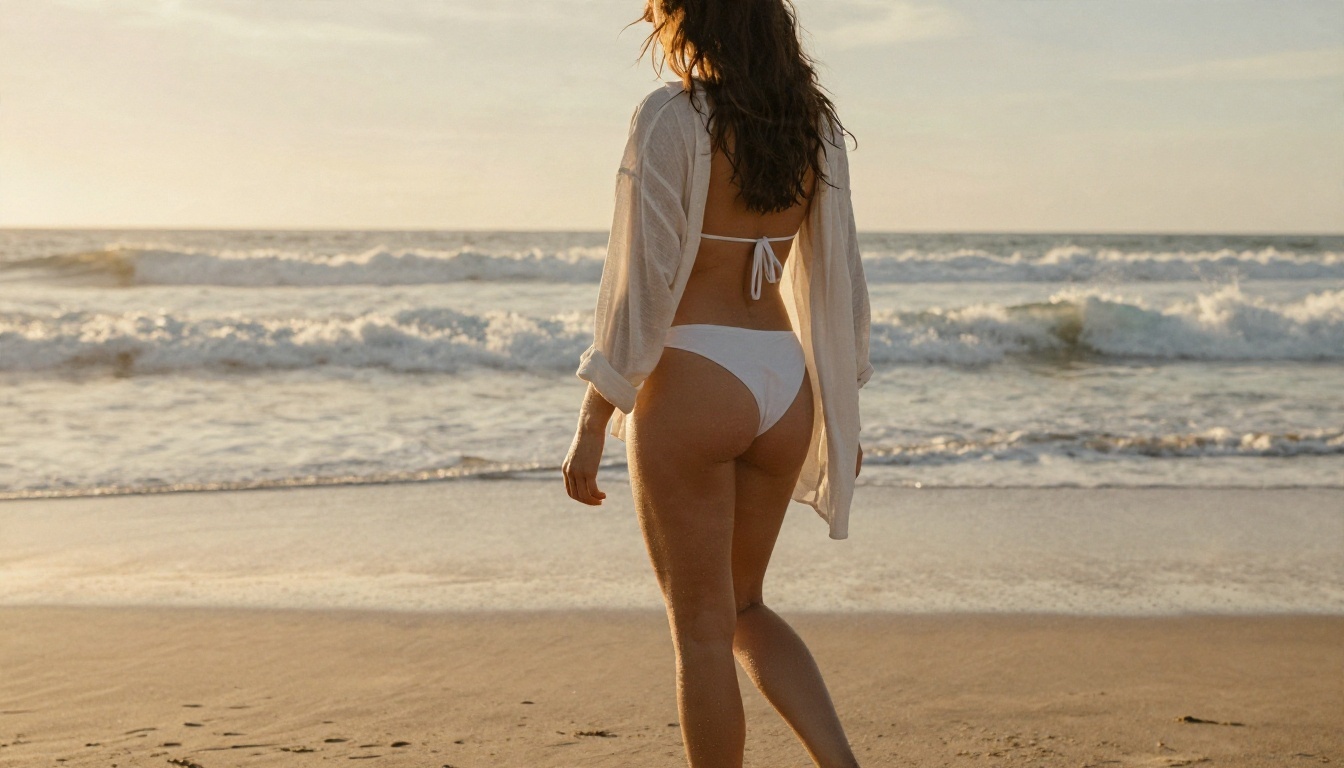
- Swimwear, lingerie, and fashion shoots rejected as "unsafe."
- Glamour and boudoir portraits that return a refusal.
- Artistic figure studies flagged for no obvious reason.
- Prompts with a harmless word that happens to trip a keyword filter.
If you work in fashion, beauty, or photography, you run into this often. A swimwear campaign is a normal commercial job, yet the tool treats it like a problem.
What "Uncensored" Should Mean
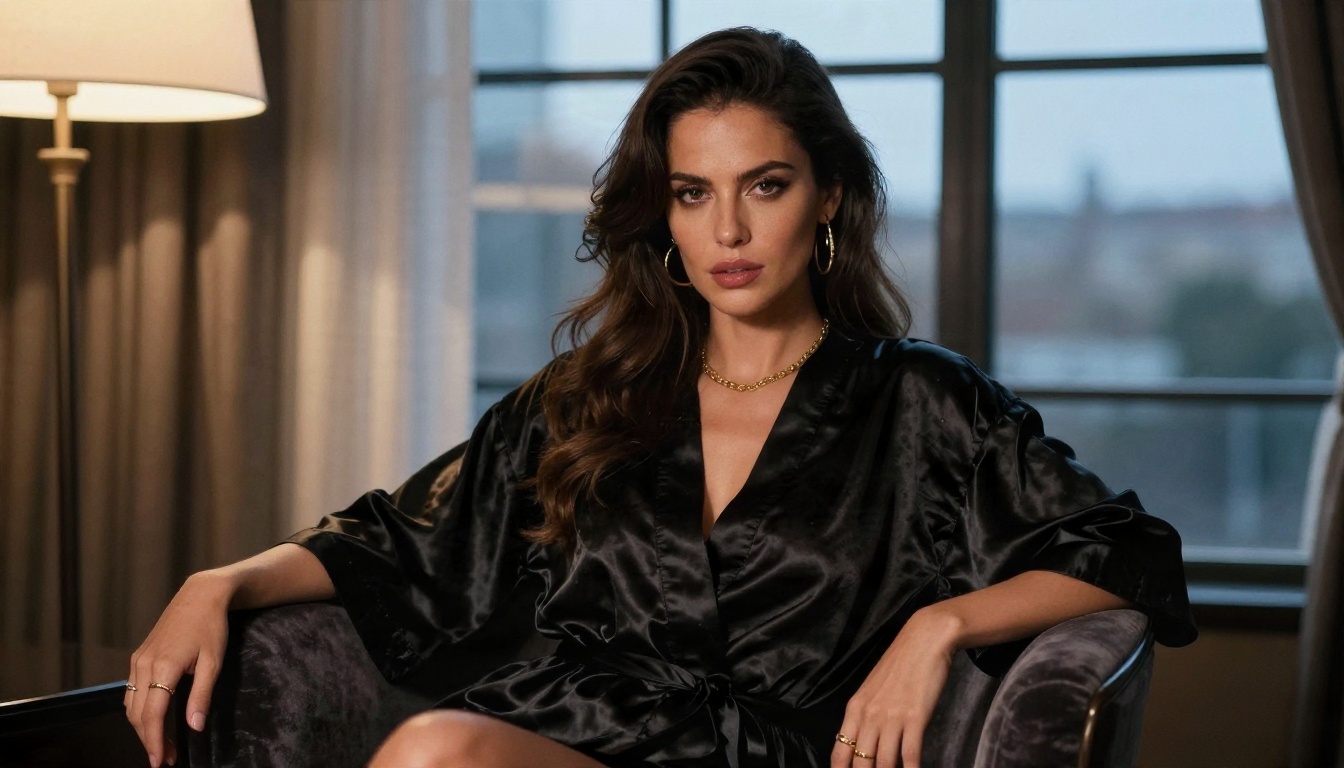
Let me be clear about the term. For a serious creator, "uncensored" does not mean explicit. It means a tool that trusts you with suggestive, attractive, and artistic imagery: a bikini shoot on a beach, a glamour portrait in a hotel suite, a boudoir-style editorial. It means fewer false positives and no lecture when you ask for a satin robe.
Rules That Still Apply
Even with looser filters, a few lines stay in place. Do not generate images of real people without their consent, do not create anything involving minors, and do not use realistic output to mislead people. Good tools and good users both respect those limits.
Uncensored Alternatives That Work
Pikaso and Freepik models are not on PicassoIA. There is no Pikaso page here, and no way to run Freepik's own model through this site. For similar results today, these are the models to try, in the order I recommend them.
1. Seedream 4.5
Seedream 4.5 is the first stop for photorealistic people. Skin texture, fabric, and light behave like a real camera captured them. It handles swimwear, glamour, and fashion prompts without the constant refusals, and the output reaches 4K.
2. PicassoIA Image Editor Pro
PicassoIA Image Editor Pro is the one to pick if you hate counting. It offers unlimited generations and works as both a generator and an editor. Upload a photo, describe the change, and the model rewrites it. That makes it a good fit for outfit swaps, background changes, and retouching, with none of the "3 per day" ceilings you see on a free plan elsewhere.
3. Nano Banana Pro
Nano Banana Pro is strong when you need consistent characters across several images, such as a series for a lookbook or a social campaign. It also follows long prompts well, so detailed scenes come out close to what you wrote.
4. Z Image Turbo
Z Image Turbo is built for speed. When you want ten options in a few minutes, rather than one image per coffee break, this is the model that keeps up. It is a good draft tool before you move your favorite prompt to a heavier model.
Side-by-Side Comparison
Here is how the options stack up for the things people ask about most.
| Feature | Pikaso (Freepik) | Seedream 4.5 | Image Editor Pro | Z Image Turbo |
|---|
| Free daily access | About 20 images | Free to try | Unlimited | Free to try |
| Photorealistic skin | Good | Excellent | Very good | Good |
| Swimwear and glamour | Often filtered | Supported | Supported | Supported |
| Photo editing | Limited daily caps | Prompt-based | Core feature | Basic |
| Speed | Moderate | Fast | Fast | Very fast |
| Sketch to image | Yes | No | No | No |
💡 The one thing Pikaso does that the others do not is live sketching. If that is your main workflow, keep it for layouts, then move to a photorealistic model for the final render.
How to Get Similar Results on PicassoIA
The simplest way to replace a Pikaso session is to use Seedream 4.5. Here is the routine.
Step 1: Open the Model Page
Go to the Seedream 4.5 page on PicassoIA and open the generator. No separate install is needed, and it runs in your browser.
Step 2: Write a Camera-Style Prompt
Skip the buzzword pile. Write like a photographer describing a shoot:
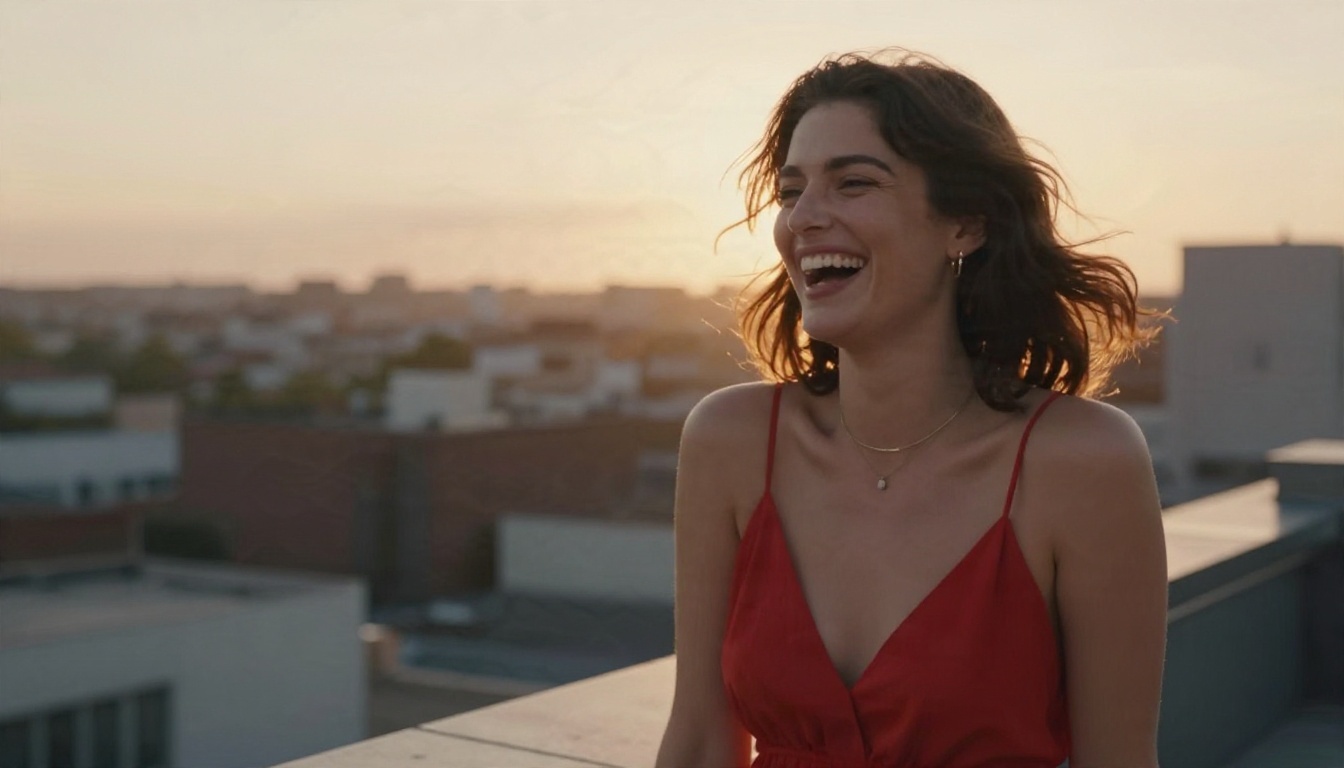
- Subject and action: "A woman in a red summer dress laughing on a rooftop terrace"
- Light: "warm low sun from behind, soft rim light on her hair"
- Lens: "85mm f/1.6, shallow depth of field"
- Texture: "natural skin pores, fabric moving in a light breeze"
- Film feel: "Kodak Portra 400, fine grain"
Step 3: Set the Aspect Ratio
Choose 16:9 for banners and video thumbnails, 4:5 for social feeds, and 9:16 for stories. Picking the right ratio at the start saves you a crop later.
Step 4: Generate and Compare
Create a batch, and choose the one with the cleanest hands, eyes, and edges. If one detail is off, change one phrase in the prompt, not the whole thing.
Step 5: Refine in Image Editor Pro
Open the winner in PicassoIA Image Editor Pro. Ask for a different outfit, a tidier background, or a softer sunset. Since generations are unlimited there, you can run ten variants without watching a counter.
Parameter Tips
- Keep prompts under about 100 words. Past that, details start to conflict.
- Name one light source. Two or three competing sources produce muddy results.
- Use film stock names sparingly. One reference is enough.
- Reuse your best prompt. Change only the subject to keep a consistent look.
Is Unlimited Worth Choosing?
A daily cap shapes how you work. When every image costs something, you play it safe, you stop experimenting, and you settle for "good enough." When there is no cap, you try the odd idea, the strange angle, the second and third version.
Who Gains the Most
- Fashion and swimwear brands testing looks before a shoot.
- Photographers building mood boards and reference sets.
- Content creators who need a steady stream of fresh visuals.
- Hobbyists who just enjoy making images and hate being told to come back tomorrow.
A Simple Rule of Thumb
If you make fewer than ten images a week, a free daily cap is probably fine. If you make that many in a single evening, or your work involves swimwear, glamour, or portraits that get filtered, move to a tool with room to breathe.

Quick Answers to Common Questions
Is Pikaso Free?
Partly. There is a free tier with a daily generation cap. Heavier use needs a paid plan, and the unlimited option sits at the top tier.
Can I Use Pikaso Without an Account?
Plan on needing one. The free version requires a Freepik login.
Is There an Official Pikaso App?
You work inside the Freepik environment, on web and mobile. Be careful with look-alike downloads that borrow the name.
Can It Make Swimwear or Glamour Images?
Results vary and refusals are common. That is the main reason people move to other tools.
Can I Use the Images Commercially?
It depends on your plan and on the license that comes with it. Read the terms before you publish client work.
What Is the Best Free Alternative?
For photorealistic people, start with Seedream 4.5. For unlimited editing and generation, use PicassoIA Image Editor Pro.
Try It Yourself
You do not need to guess which tool suits you. Take one prompt, the one you tried on Pikaso, and run it through Seedream 4.5. Then send the best result to PicassoIA Image Editor Pro and change the outfit, the light, or the background. For speed tests, try Z Image Turbo, and for consistent characters, Nano Banana Pro.
Start with one image, change one thing, and see how far a single idea can go. The full catalog of image models is at picassoia.com/en/all-models, so you can try something new whenever you feel like it.


