You type "a tiny knight standing in a forest village, 16-bit style" and four seconds later a sprite appears that looks like it came off a Super Nintendo cartridge. That is pixel art AI, and it has gone from a novelty to a daily tool for indie developers, streamers, sticker sellers and hobbyists. The big questions are always the same: is it actually free, which apps are worth opening, and what do you type to get clean results instead of a blurry mess?
This article answers all three. You will see what "free" really means in 2027, a fair comparison of the best online options, and a set of prompt examples you can copy straight away. I also explain the one problem that ruins most AI pixel art (fake pixels) and how to fix it.
Is Pixel Art AI Actually Free?
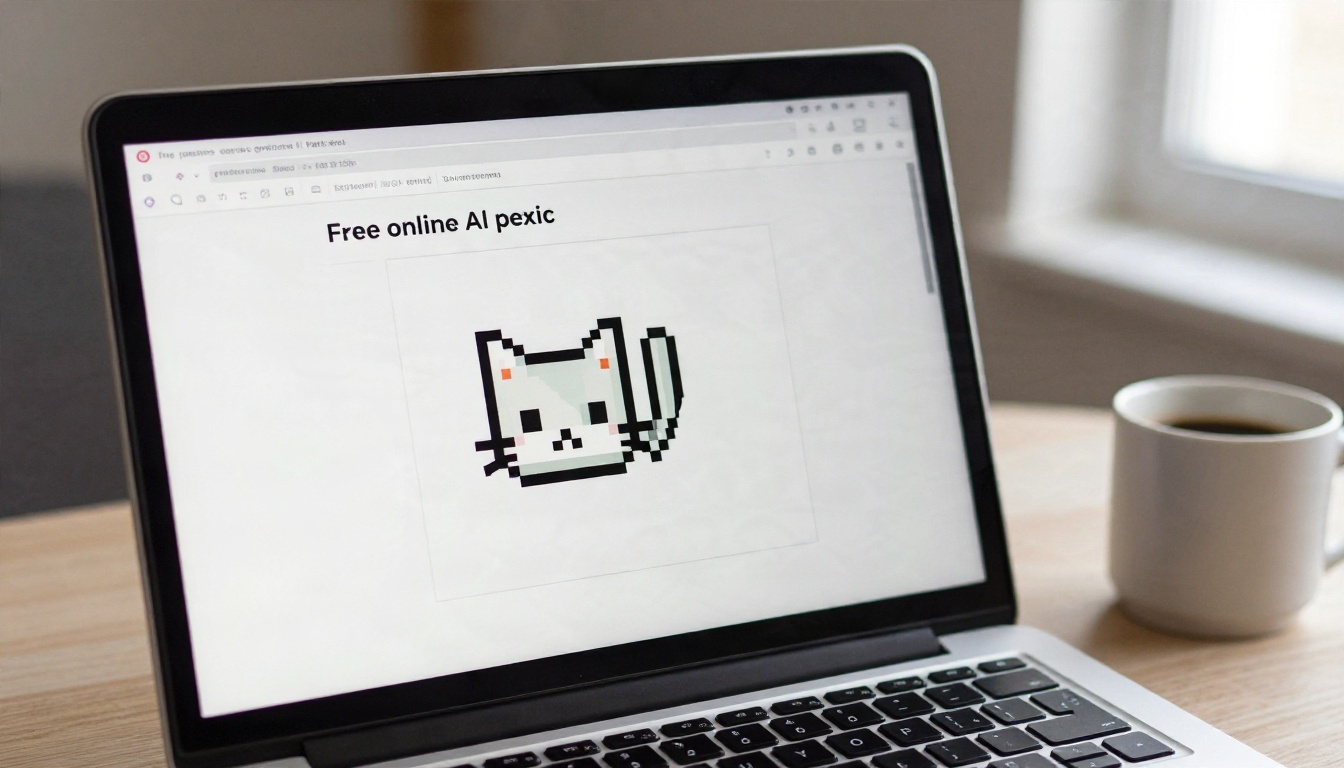
Short answer: yes, you can make pixel art with AI for free, but "free" comes in three very different flavors. Knowing which one you are dealing with saves you from surprises later, especially if you plan to sell what you make.
The Three Kinds of Free
| Type of free | What you get | The catch |
|---|
| Fully free tool | Open a page, type a prompt, download a PNG | Usually basic controls, small output sizes, ads or queues |
| Free tier with credits | Daily or monthly credits on a better generator | Credits run out, and the best settings may be locked |
| Free trial | Full features for a few days | Needs a card or account, then it stops being free |
Most of the tools people recommend sit in the middle row. You get a handful of generations per day, which is plenty for testing ideas and not much for building an entire tileset.
What Free Plans Usually Limit
Based on 2026 roundups of pixel art generators, the common restrictions are surprisingly consistent:
- Daily credit caps. Some generators hand out a small daily token allowance that resets every 24 hours.
- Public galleries. On some free plans, your generations are visible to other users by default. Private mode is often a paid feature.
- Commercial rights. This is the big one. A few services state that free outputs are for personal or evaluation use only, while others are more open about commercial use. Always read the license page before putting free-plan art in a game you plan to sell.
- Resolution and watermarks. Small outputs and the occasional watermark are normal on free tiers.
💡 Rule of thumb: if the art is for a hobby project, wallpaper or social post, almost any free tool works. If it is for a product, check the commercial terms first, and keep a screenshot of the license date.
Free on PicassoIA
General image models can also produce convincing pixel art, and several are available on PicassoIA with free access to try them. Flux Schnell is built for speed, so you can run ten variations of a sprite in the time it takes to make coffee. Nano Banana is excellent when you want to edit an existing picture into a pixelated version. I cover both again below.
Why Pixel Art Still Works
Pixel art survived because it was never only a technical limit. It is a visual language. Hard edges, small palettes and readable silhouettes make an image legible at tiny sizes, which is exactly why it still dominates indie games, app icons, Discord emotes and merch.
Nostalgia Plus Readability
A 32x32 character has maybe 12 colors and a handful of shapes. Your brain fills in the rest. That constraint is also why pixel art is a good fit for AI: the style is simple enough that a model can imitate it, and forgiving enough that small mistakes still look charming.
The Resolution Trap
Here is the catch that most beginners miss. Image generators do not paint on a 32x32 grid. They paint a large image that looks like pixel art. Zoom in and the squares are often uneven, with soft edges and slightly different sizes. This is why true pixel art tools treat the grid as a hard rule, while general models treat it as a style suggestion.
You can work with either. You just need to know which one you are using.
Best Pixel Art Apps Online
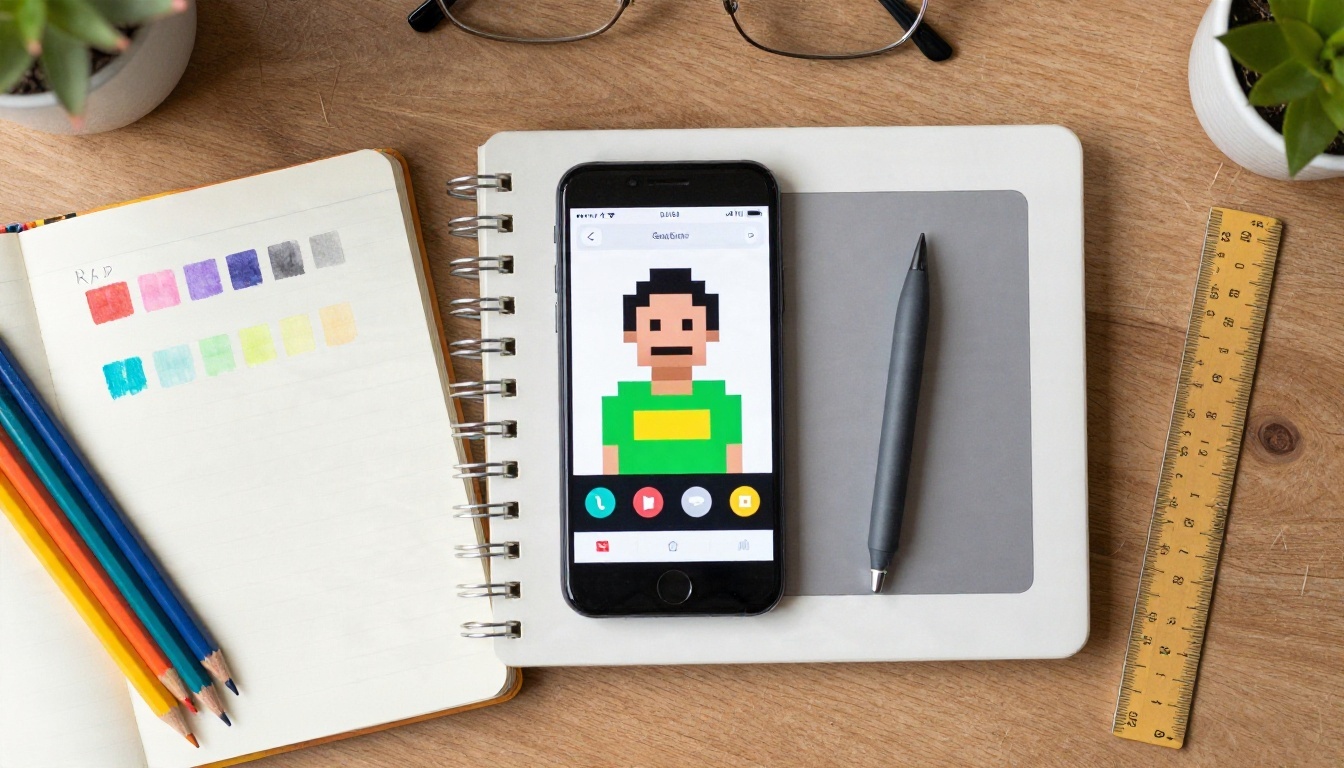
There is no single winner, because the best choice depends on whether you want a quick image, a game-ready sprite, or a photo converted into pixels. Here is how the main categories compare.
Dedicated Pixel Art Generators
These tools are built around the grid. They output real pixel blocks at a fixed size and often include palette limits.
- DeepAI Pixel Art Generator is a simple prompt box that gives you a quick result with almost no setup.
- Perchance offers lightweight, free prompt-based generation that suits experiments and prompt testing.
- Piskel is a free browser-based pixel editor. It is not an AI generator, but it is the best place to clean up and animate whatever the AI gives you.
- PixelLab and LlamaGen PixelBox focus on character sprites and isometric assets, which matters if you are building a game rather than a poster.
Big General Platforms
Platforms like Leonardo and Adobe Firefly include pixel art style options inside much larger toolkits. Leonardo has offered a free tier with daily allowances, and Adobe Firefly is often praised for clear commercial usage wording. Microsoft Bing Image Creator is another free route that anyone with an account can reach.
General Image Models on PicassoIA
If you want more control over composition, lighting and detail, a modern text-to-image model usually beats a one-click pixel tool. These are the ones I reach for:
| Model | Best for | Why it works for pixel art |
|---|
| Flux Schnell | Fast iteration | Cheap, quick drafts to test a prompt idea |
| Seedream 4.5 | Detailed scenes | Strong composition and clean, sharp edges in landscapes |
| Nano Banana | Photo to pixel | Edits an uploaded image into a pixel version while keeping the subject |
| Ideogram v4 Balanced | Posters and logos | Handles short text on signs, banners and game titles |
| Stable Diffusion 3.5 Large | Prompt obedience | Follows style words closely, good for consistent sets |
| Recraft v4.1 | Clean graphic icons | Crisp flat shapes that hold up when scaled |
💡 Which should you pick? For a one-off sprite, a dedicated pixel generator is faster. For a full scene, a character with specific clothing, or a themed set of icons, a general model gives you far more control.
Prompt Examples That Work
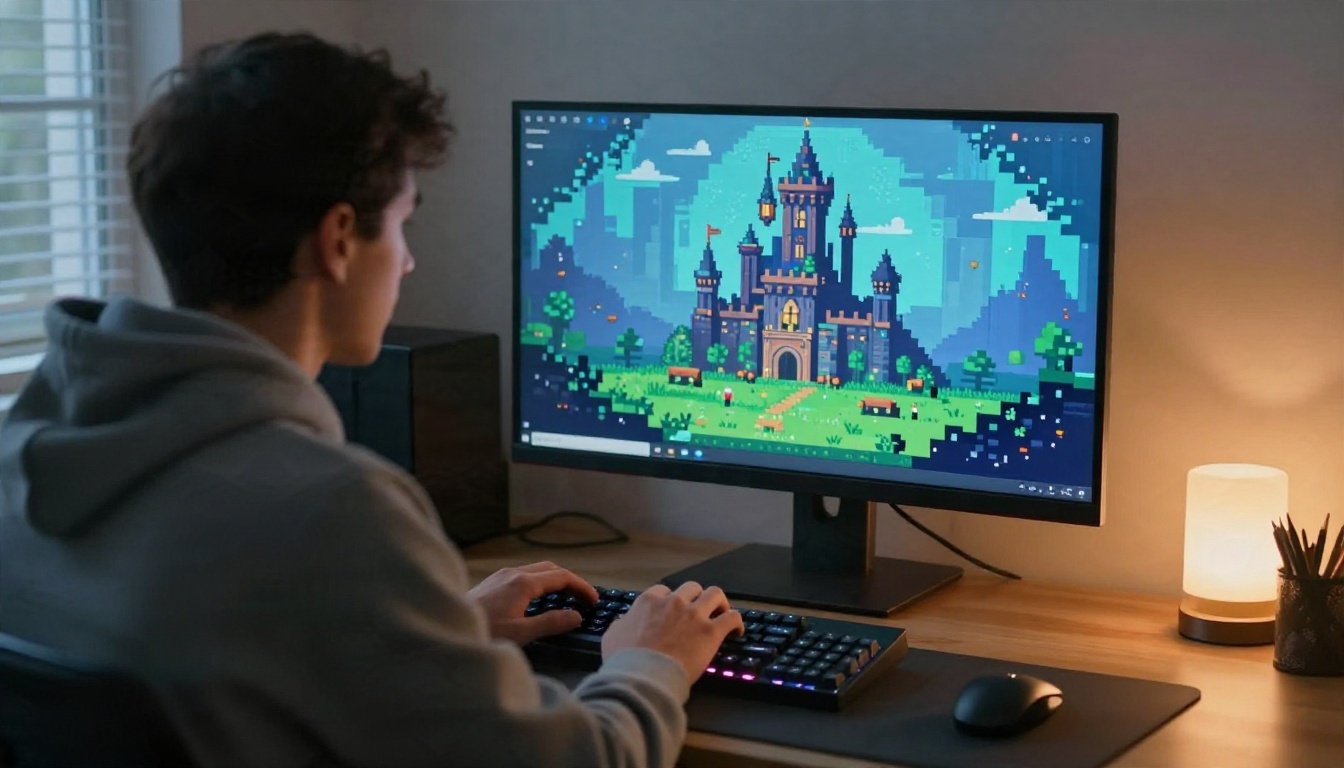
Good pixel art prompts are short and specific. They name the subject, the console era or resolution, the palette, and the view. Skip long poetic descriptions; the model only needs the visual facts.
The Basic Formula
Use this structure and swap the parts:
[Subject] + [pixel art style and era] + [palette] + [camera view] + [background] + [clean edges, no blur]
For example: "a red fox sitting on a rock, 16-bit pixel art, limited warm palette, side view, plain light background, crisp hard edges, no anti-aliasing".
Character Sprites
Copy and adjust these:
- "a tiny wizard with a blue hat, 32x32 pixel art sprite, 16 color palette, front view, plain white background, sharp square pixels"
- "a female space pilot in an orange jumpsuit, 16-bit pixel art character, side view walking pose, transparent style flat background, limited palette"
- "a slime monster, 8-bit pixel art enemy sprite, green and yellow, front view, simple shading, hard edges"
Landscapes and Scenes
- "a mountain village at sunrise, 16-bit pixel art landscape, layered parallax hills, warm orange and purple palette, wide scene"
- "a rainy city street at night, pixel art, 1990s adventure game style, reflections on wet pavement, limited blue and yellow palette"
- "a cozy bedroom interior, isometric pixel art, wooden furniture, soft afternoon light, tidy low-resolution look"
Icons, Items and Tiles
- "set of nine fantasy inventory icons, pixel art, sword, potion, shield, key, scroll, coin, gem, bow, helmet, consistent style, grid layout, plain background"
- "seamless grass and dirt tile, top-down pixel art, 16x16 texture, repeating pattern, bright greens and browns"
- "a pixel art coffee cup icon, 64x64, white outline, flat colors, centered, sticker style"
Words That Improve Results
Add these when the result looks mushy:
- "crisp hard edges" and "no anti-aliasing"
- "limited color palette" or a number like "12 colors"
- "flat shading" instead of gradients
- "plain background" so the sprite is easy to cut out
- "sprite sheet" when you want several poses together
And remove anything that pushes the model toward realism: "cinematic", "photorealistic", "8K", "ultra detailed". Those words work against the pixel look.
Fixing Blurry or Fake Pixels
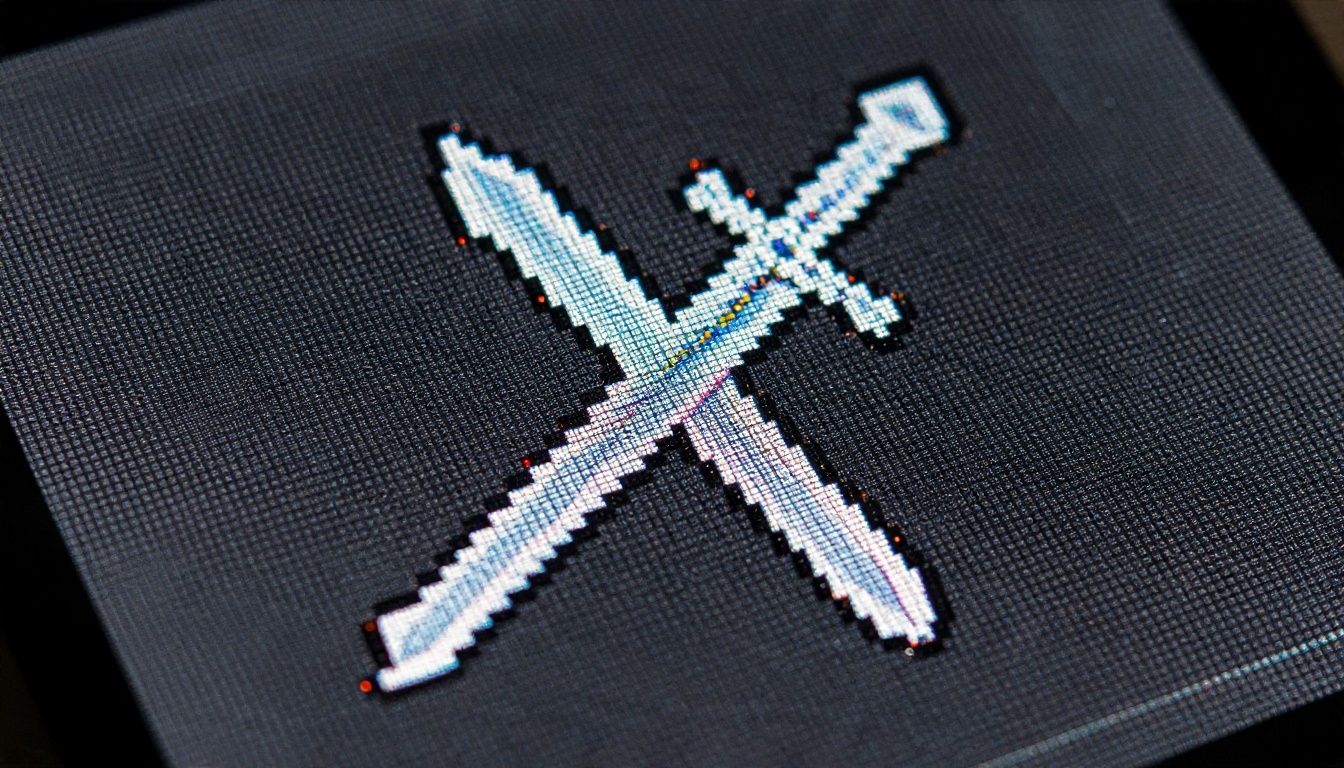
This is the single most useful section if you have been disappointed by AI pixel art. The image looks right at a glance, but it is not clean when you zoom in or drop it into a game engine.
Why Pixels Come Out Uneven
A diffusion model builds an image from noise. It does not know about a grid, so it draws shapes that resemble blocks. The result is slightly wobbly lines, mixed pixel sizes and soft color halos.
The Downscale Trick
The fastest repair is to shrink the image, then enlarge it with nearest-neighbor scaling:
- Generate the image at a normal size, for example 1024 pixels wide.
- Downscale it to the target size (64, 128 or 256 pixels wide) using a tool that supports nearest-neighbor or "no smoothing".
- Reduce the palette to 16 or 32 colors.
- Upscale it by a whole number (2x, 4x, 8x) with nearest-neighbor so the blocks stay sharp.
An editor like Piskel is perfect for the palette and cleanup step.
💡 Tip: always scale by whole numbers. A 3.5x upscale creates blurry or uneven pixels, while 4x keeps every pixel a perfect square.
Keep One Style Across a Set
If you are building a game, consistency matters more than any single image. Reuse the same wording, palette and era in every prompt, and keep a fixed seed when your tool allows it. Stable Diffusion 3.5 Large is a solid choice for batches because it follows repeated style phrases closely.
Pixel Art for Games and Sprites
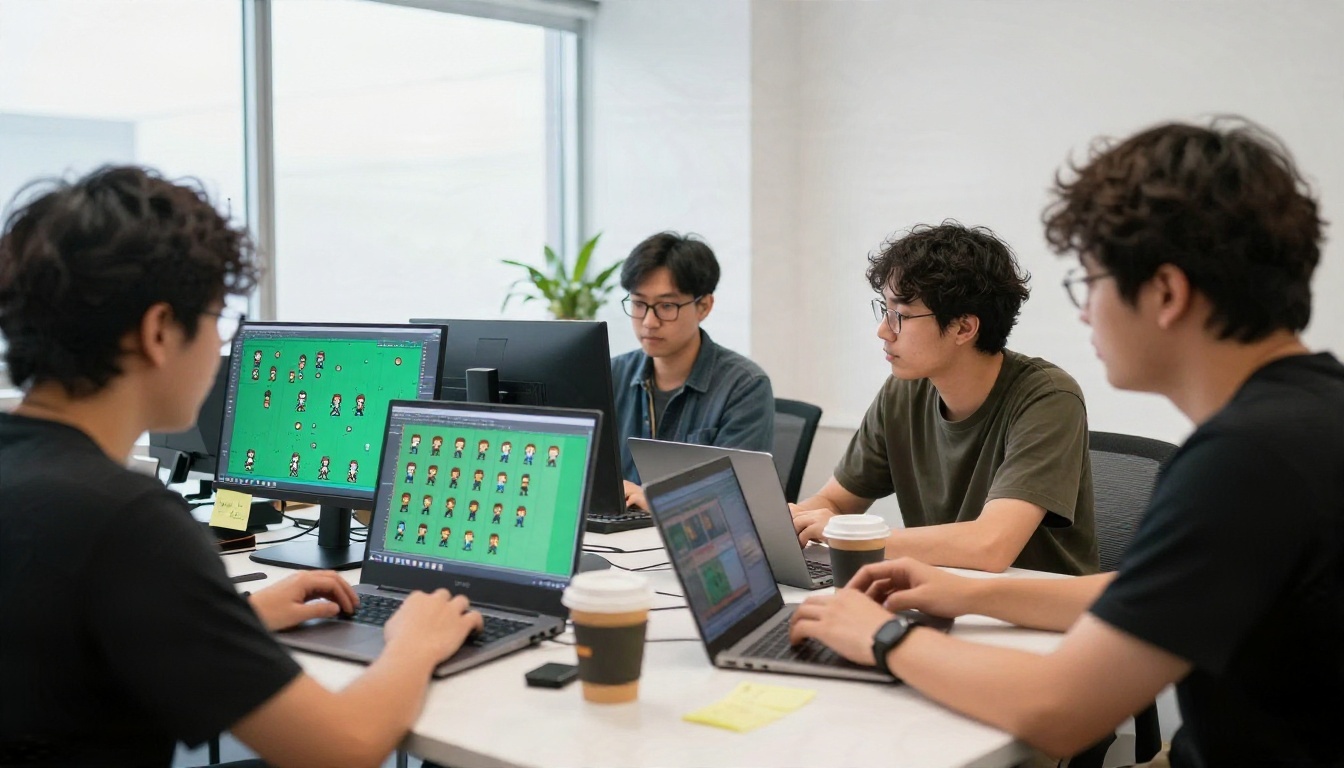
Small teams use AI as a concept and base layer, not a final answer. The pattern that works looks like this.
A Practical Sprite Workflow
- Generate a character concept with a fast model such as Flux Schnell. Try eight or ten variations to find a silhouette you like.
- Pick one and refine it with a more detailed model like Seedream 4.5 if you need richer clothing and props.
- Downscale and clean the sprite using the method above.
- Animate by hand. AI can suggest poses, but walk cycles still look best when an artist adjusts each frame.
Tilesets and Backgrounds
Backgrounds are where AI saves the most time. A wide parallax landscape can take a human artist hours, and a model can give you five options in a minute. Ask for "layered hills" or "foreground, midground, background" and cut the layers apart in your editor.
What AI Still Struggles With
- Perfectly symmetrical tiles that repeat without a seam
- Consistent character faces across many poses
- Exact pixel counts on small sprites (a "16x16" request is a suggestion)
- Readable text inside the image
If you need a game title or a banner, Ideogram v4 Balanced handles short words far better than most models. Keep the text to one or two words.
Turn Photos Into Pixel Art
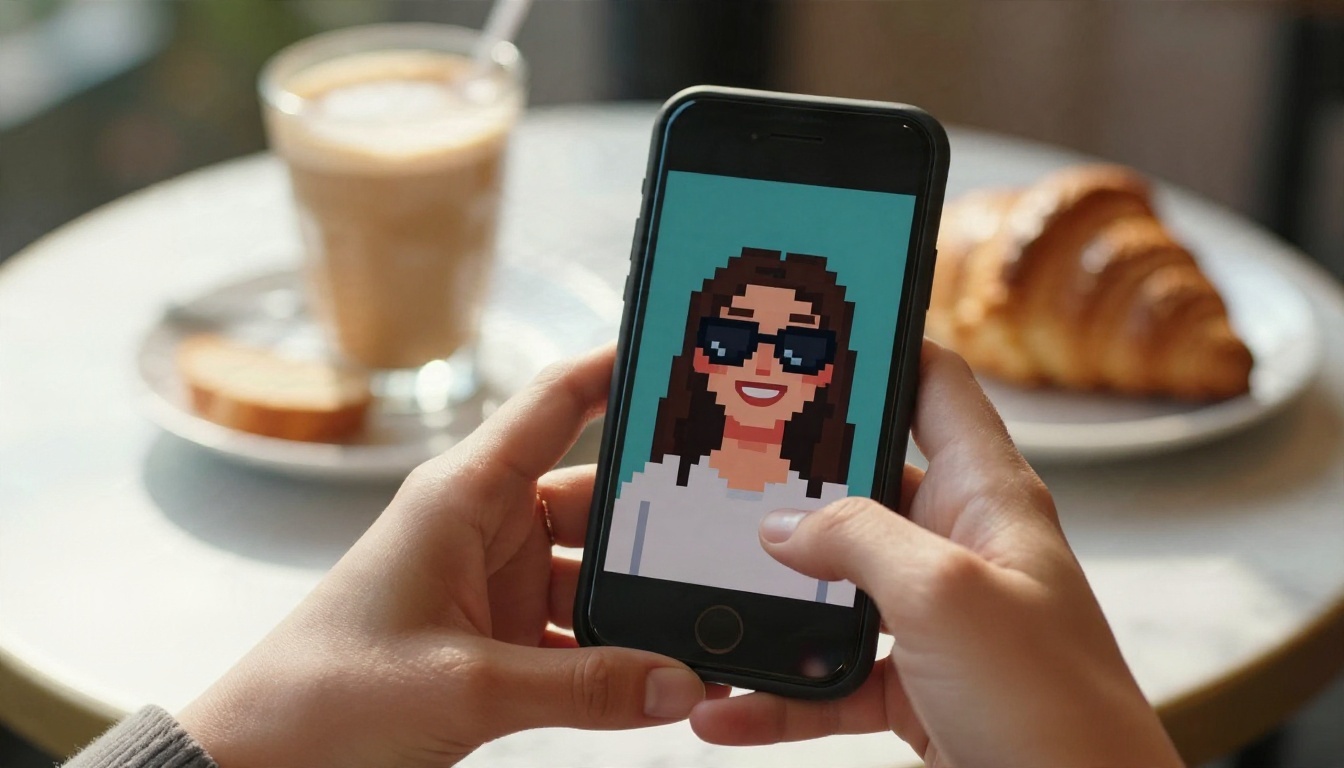
Photo conversion is the most popular use for casual users. Profile pictures, pet portraits and travel snapshots all look great as pixel art, and it takes less than a minute.
Step by Step With Nano Banana
Nano Banana accepts an input image and an edit instruction, which makes it a natural fit.
- Open the model page and upload a clear, well-lit photo. A face that fills a good part of the frame works best.
- Write a direct instruction, for example: "Turn this photo into 16-bit pixel art, limited 24 color palette, crisp hard edges, keep the same pose and expression, plain background."
- Generate and compare two or three results. Small wording changes can shift the style a lot.
- If the pixels look soft, run the downscale trick from earlier.
Photo Prompts to Try
- "portrait of this person as an 8-bit game character, bust view, bright flat colors"
- "this dog as a 16-bit pixel art sprite, side view, sitting pose, plain white background"
- "this street photo as pixel art, 1990s adventure game style, warm sunset palette"
💡 Privacy note: only upload photos you have the right to use, and avoid images of people who have not agreed to it.
Ideas for Using Your Pixel Art
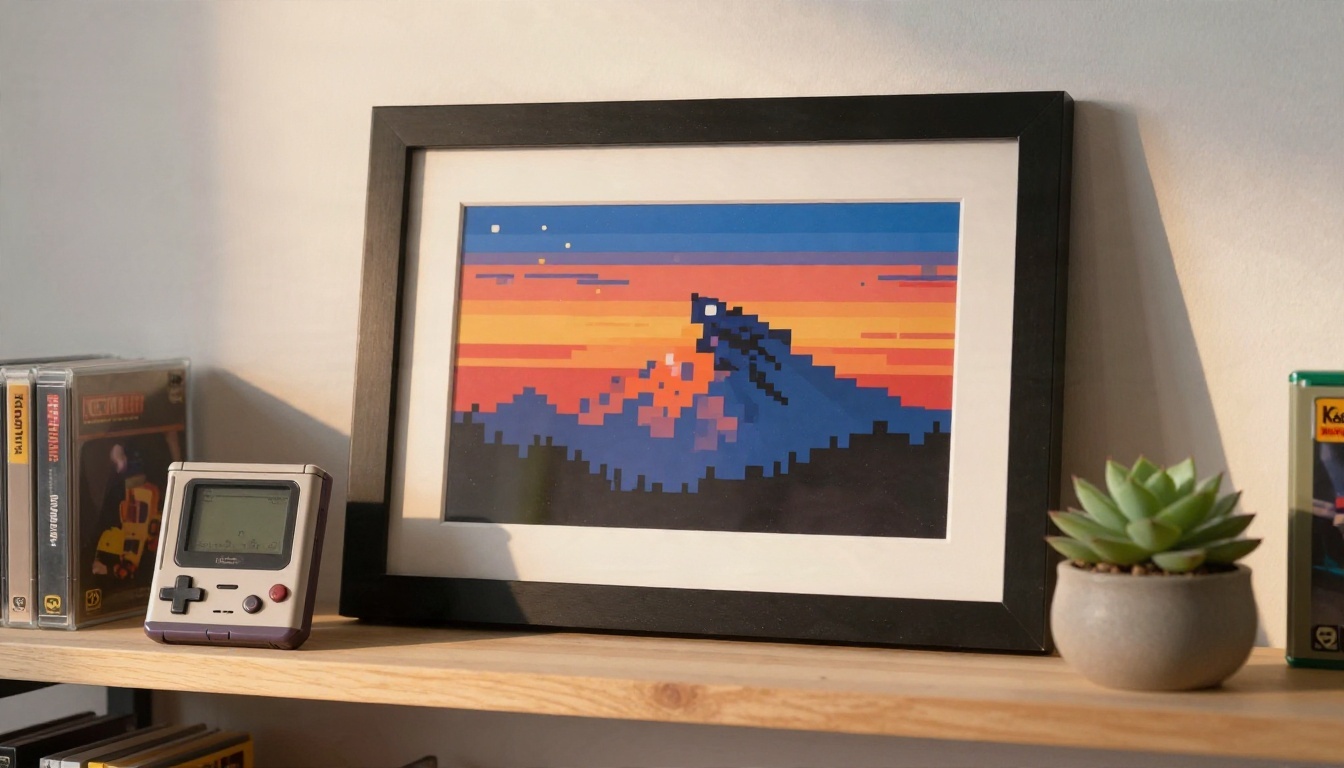
Once you have a clean image, there are plenty of places to use it.
Quick Wins
- Profile pictures and avatars for Discord, Twitch or social accounts
- Stream overlays and emotes that read well at 28 pixels
- Wall prints for a desk or game room, especially landscapes
- Stickers and phone wallpapers with a flat plain background
- Game jam assets when you have 48 hours and no artist
Bigger Projects
- Indie game backgrounds and UI icons
- Tabletop RPG maps and tokens
- Newsletter headers or blog illustrations with a retro look
💡 Printing tip: pixel art prints well when you export at a whole-number multiple of the original size. A 256 pixel wide image at 8x gives you 2048 pixels with perfect square blocks.
Draw Over the Result
Even a rough AI image is a decent underlay. Many artists import it into an editor, trace the shapes on a new layer, fix the palette by hand and end up with something that feels fully custom. That gives you the speed of AI and the control of a human hand.
Pixel Art Mistakes to Avoid
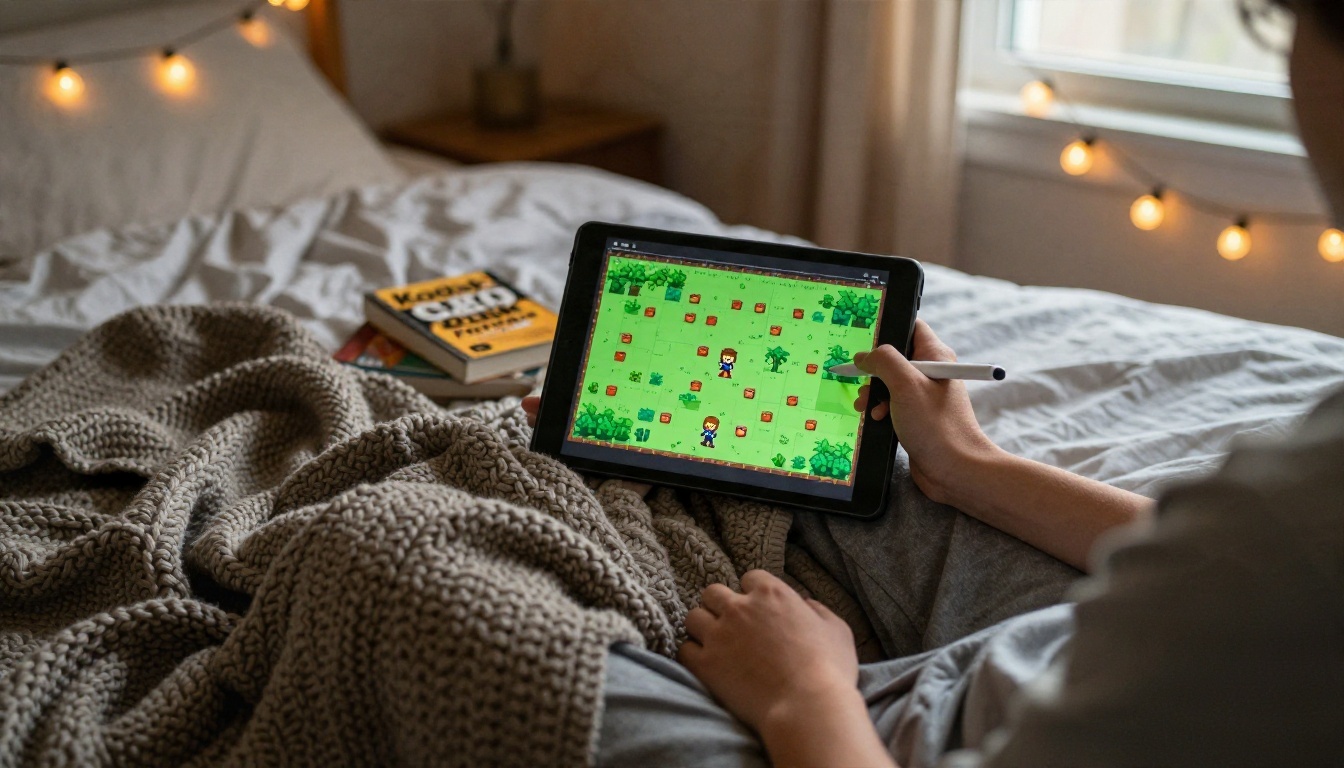
Most bad results come from a short list of habits. Fix these and your output improves immediately.
Common Errors
- Using realism words. "Cinematic" and "ultra detailed" push the result away from the pixel look.
- Asking for too much in one image. A tiny sprite with fifteen props becomes noise. Keep it simple.
- Ignoring the palette. Without a color limit, models add gradients that destroy the retro feel.
- Upscaling with smoothing. Always use nearest-neighbor, never bicubic.
- Skipping the license check. Free plans may not allow commercial use.
A Quick Checklist
| Step | Check |
|---|
| Prompt | Subject, era, palette, view, background |
| Style words | "crisp hard edges", "no anti-aliasing", "flat shading" |
| Cleanup | Downscale, reduce palette, scale by whole numbers |
| Rights | Read commercial terms before selling |
| Consistency | Same wording and palette across a set |
Make Your Own Pixel Art Today
You do not need a paid plan or an art degree to start. Pick one prompt from the list above, paste it into a fast model, and look at what comes back. Then change one word: the era, the palette or the camera view. That small loop of tweak and compare is how people go from a blurry first try to clean, game-ready sprites.
Here is a simple plan for your first session:
- Open Flux Schnell and generate ten quick sprite ideas.
- Take your favorite to Seedream 4.5 for a more detailed version.
- Try Nano Banana on a favorite photo of yours.
- Clean the result with the downscale trick.
Ready to try more styles? Browse every image model at picassoia.com/en/all-models and start creating your own pixel art on Picasso IA today.


