You typed a perfectly reasonable swimwear prompt into PixVerse, waited for the render, and got a refusal instead of a clip. So you searched for a PixVerse NSFW video bypass, and now you are here. Let me save you a few hours: there is no reliable bypass, the tricks you will find on forums stop working within weeks, and the better move is to change the tool, not fight it. This article shows what the filter actually blocks, why workarounds fall apart, which alternatives on PicassoIA give you more room for glamour and swimwear content, and prompts you can paste today.
A quick boundary before we start. Everything below stays suggestive and tasteful: bikinis, silk, evening wear, golden hour skin. Nothing explicit. That is also the zone where AI video looks best, so you lose nothing.
💡 Short version: PixVerse is built to refuse explicit content. Start from a strong still image in a model with fewer limits, then animate it. That workflow beats any filter trick.
What the PixVerse Filter Blocks
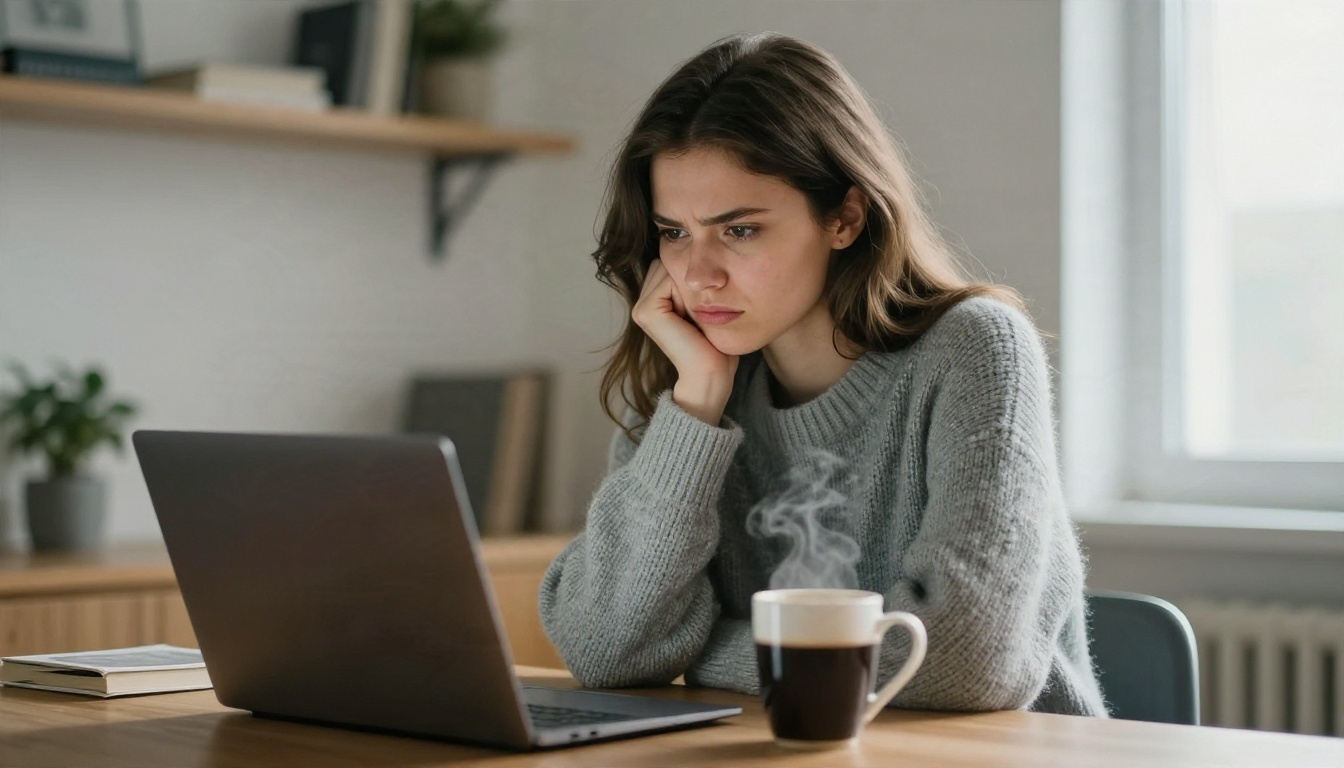
The frustration is real. You are not asking for anything outrageous, and the refusal feels random. It is less random than it looks. PixVerse is a mainstream video platform, and its published terms prohibit sexually explicit material. Reports from resellers of its API say that the rules were refreshed in 2026 and did not loosen. Nothing suggests the platform is heading toward a looser stance.
Where the Filter Sits
Moderation on video generators usually runs in three places:
- Prompt screening: your text is checked before any compute is spent.
- Input image screening: if you upload a photo for image to video, the photo is analyzed too.
- Output screening: the finished clip can be scanned and withheld if it looks too revealing.
That third layer is why a prompt can pass and the result still disappears. You cannot reword your way past a check that looks at pixels.
What Usually Gets Through
Ordinary swimwear, fashion, beach scenes, dance clips and soft lifestyle footage generally render fine. The trouble starts with ambiguous framing: very tight crops on skin, wet fabric described in detail, or prompts packed with suggestive adjectives. A filter reads these as a risk signal even when your intent is a normal swimsuit shoot.
| Prompt style | Typical result on a strict platform |
|---|
| Woman in bikini walking on a beach | Usually renders |
| Fashion editorial, silk robe, window light | Usually renders |
| Stacked suggestive adjectives | Often refused |
| Tight skin close-ups with wet fabric detail | Often refused or blurred |
| Anything explicit | Always refused |
Why Bypass Tricks Fail
I am not going to list prompt obfuscation tricks, partly because they are a moving target and partly because they do not deliver what people want anyway. Here is why the whole approach is a bad deal.
Wording Tricks Age Badly
Any phrase that slips through today is added to a blocklist or a classifier update tomorrow. Guides that promise a working bypass are usually describing something that worked once, on one version, for one prompt. You end up rewriting prompts constantly and still hitting walls.
Account Risk Is Real
Repeated attempts to push past a moderation system can get an account flagged, throttled or closed. If you paid for credits, that is a painful way to lose them. Platforms generally treat repeated blocked attempts as a signal, not as harmless experimentation.
The Quality Penalty
Even when a trick works, the output often suffers. Prompts bent to confuse a filter tend to be vague, and vague prompts give mushy motion and inconsistent anatomy. You spend credits on clips you cannot use.
💡 Rule of thumb: if a method depends on fooling a filter, expect it to break. If it depends on better inputs, it keeps working.
Free Alternatives Worth Trying
The practical fix is a two step pipeline. Make the image in a model that treats glamour and swimwear as normal subject matter, then send that still into an image to video model. All of the models below are on PicassoIA, so you can switch between them without juggling accounts.
Seedream 4.5 for Source Stills
Seedream 4.5 is where I would begin. It produces high resolution images with believable skin texture, fabric weave and lighting, which matters because an image to video model can only animate what it is given. A weak still gives a weak clip. A sharp, well lit still gives you motion that looks like a real shoot.
Image Editor Pro for Edits
PicassoIA Image Editor Pro is the one to open when the first still is close but not right: change the outfit color, fix the background, adjust the pose. Because generations are unlimited, you can iterate ten times without watching a credit counter. That freedom is the real "free alternative" here, since the cost of experimenting drops close to zero.
Video Models for Motion
Once the still is ready, pick a video model. Moderation rules differ from one model to another and they change over time, so treat this as a test, not a promise. Keep your prompts in the tasteful zone and you will have a much smoother time with any of them. You can see the whole catalog at picassoia.com/en/all-models.
How to Use PixVerse v6 on PicassoIA
PixVerse itself is available on PicassoIA, and it is a strong choice for fashion, travel and lifestyle clips even though it will refuse explicit material. The latest version is PixVerse v6, which adds native AI audio. If you prefer an earlier look, PixVerse v5.6 and PixVerse v5 are also there.
Step by Step
- Open the PixVerse v6 page on PicassoIA.
- Choose text to video for a fresh idea, or upload a still you made in Seedream 4.5 to animate it.
- Write the prompt as a short scene: subject, setting, light, one camera move.
- Pick the resolution that fits your use. Use a lower one for drafts and the highest for the final take.
- Generate, review, and change one thing at a time if you rerun.
Parameter Tips
- Keep prompts under 60 words. Long prompts dilute the motion instruction.
- One camera move only. A slow push in or a gentle pan. Combining three moves causes jitter.
- Describe light, not skin. "Warm sunset from the left" gives a better and safer result than anatomical detail.
- Use a still as the first frame when consistency matters. It locks the face, outfit and setting.
💡 If PixVerse refuses a prompt, do not retry the same text five times. Simplify the scene, remove the stacked adjectives, or switch to one of the alternatives above.
Prompts That Pass and Look Good
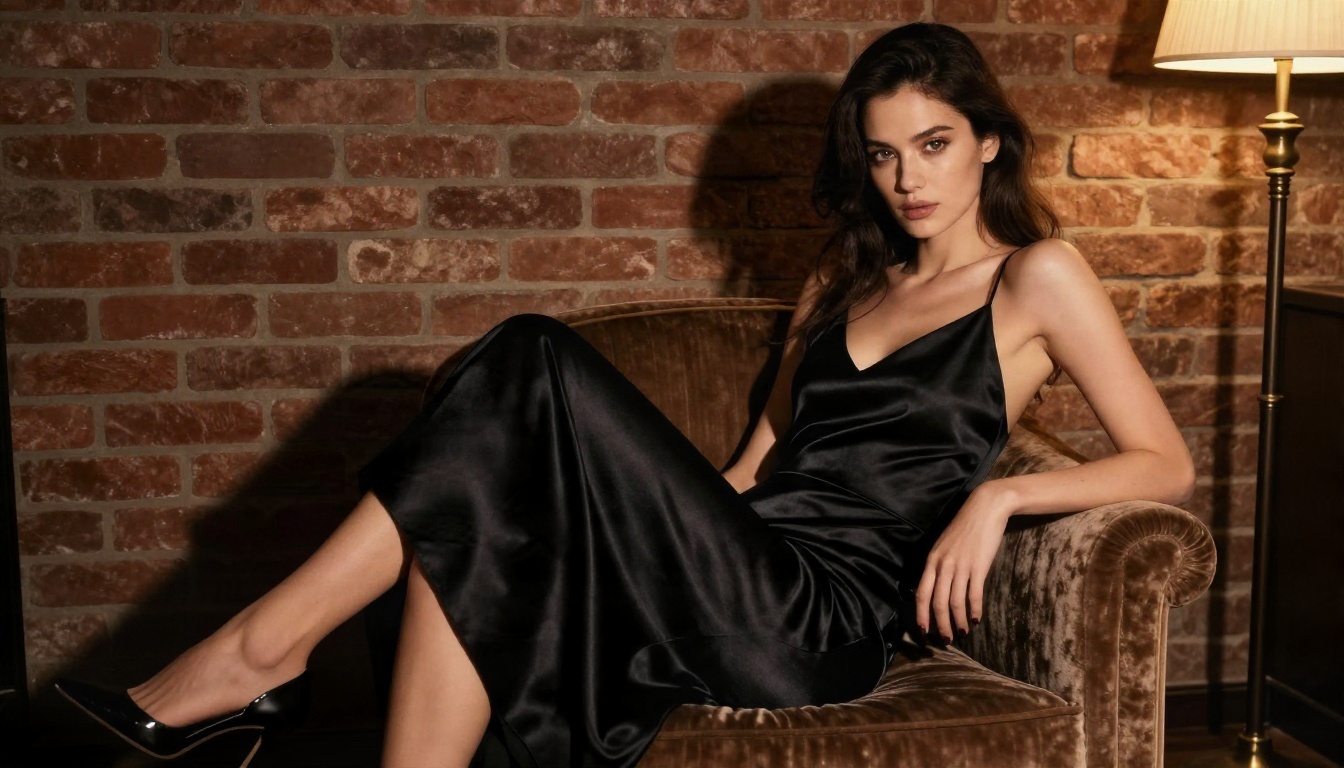
These prompts follow a pattern: subject, setting, light, one movement, mood. They are written for image to video, so each assumes you already have a matching still. Copy them, swap the details, and keep the structure.
Poolside Golden Hour
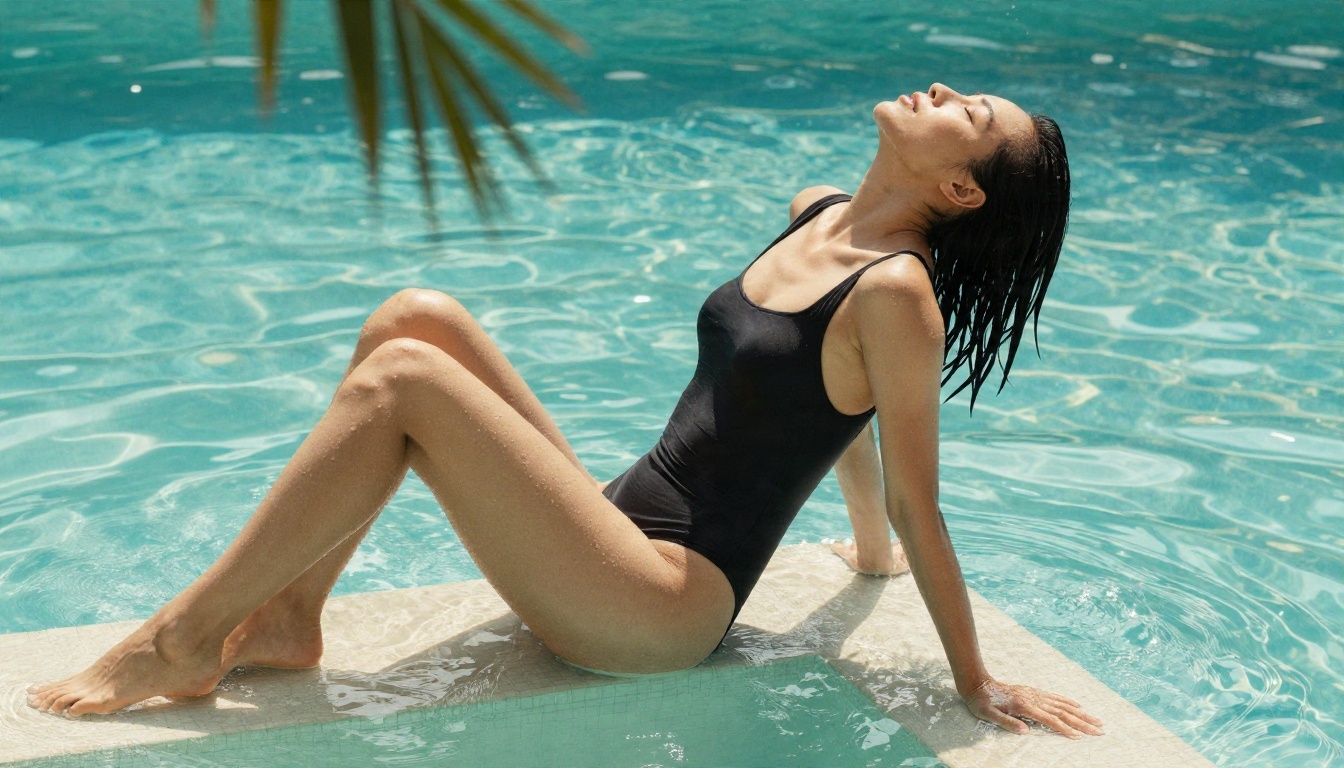
A woman in a black one piece swimsuit sits on the edge of a turquoise pool. She lifts her head slowly and smiles toward the camera as the water ripples around her legs. Slow dolly in at low angle, warm sun from the right, sparkling reflections, natural film look.
Silk Robe Morning
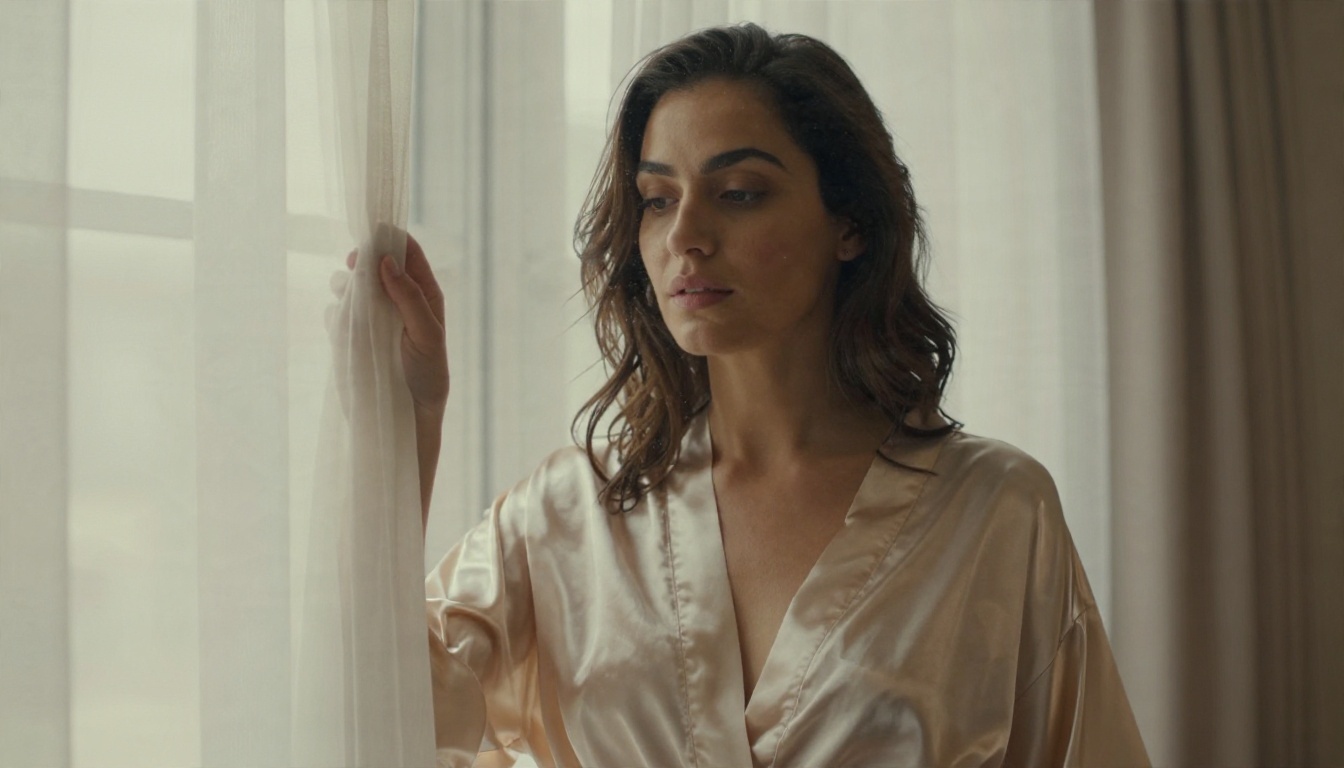
A woman in a champagne silk robe stands beside a tall window. A light breeze moves the sheer curtains and she turns her head toward the glow. Soft handheld drift, diffused daylight from the left, quiet and elegant mood.
Beach Walk at Sunset
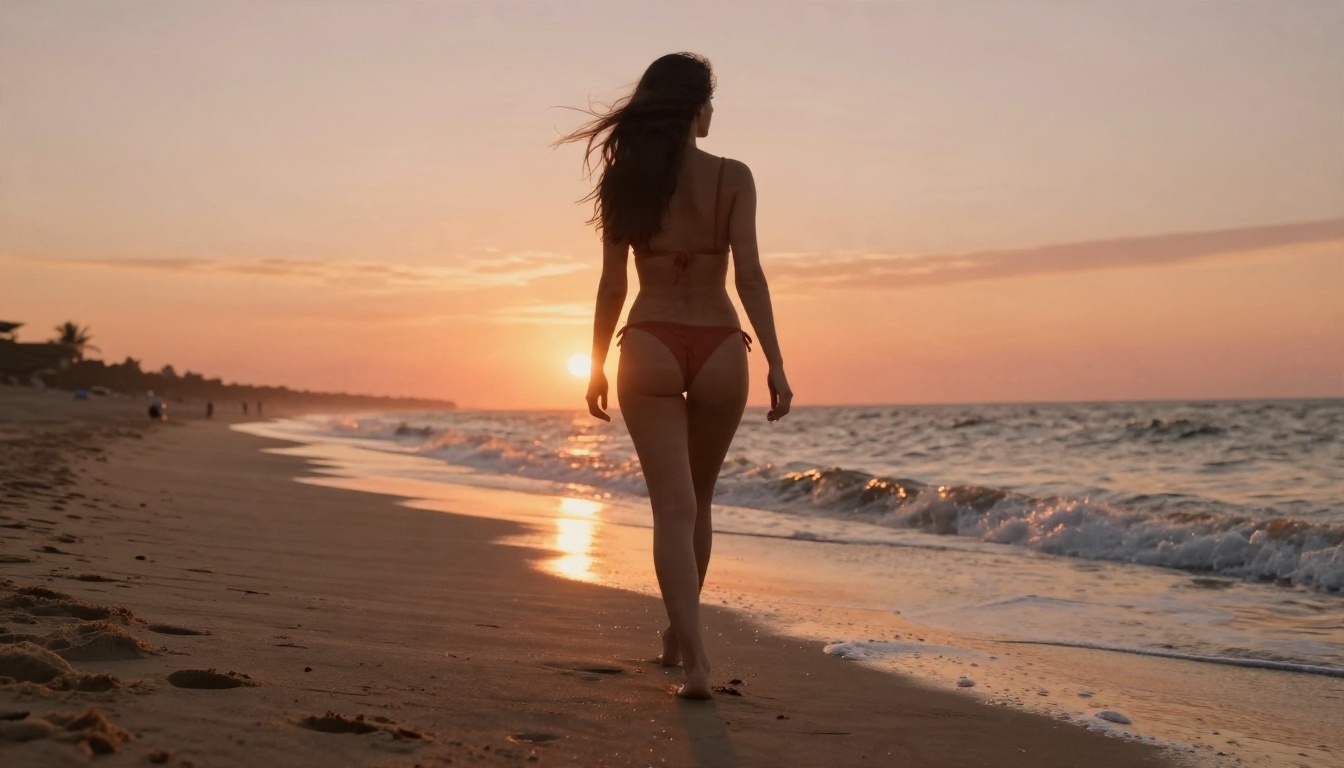
A woman in a terracotta bikini walks along the shoreline as small waves slide over her ankles. Wind moves her hair. Camera tracks sideways at knee height, backlit golden light, warm film tones.
Satin Dress Editorial
A woman in a black satin slip dress sits sideways in a velvet armchair. She uncrosses her legs, looks into the lens and settles back. Slow push in, single warm lamp from the right, dim brick loft, fashion magazine feel.
| Prompt element | What to write | What to avoid |
|---|
| Subject | Outfit and pose in plain words | Stacked suggestive adjectives |
| Setting | One clear location | Cluttered scenes with many props |
| Light | Direction and color | Vague "sexy lighting" |
| Motion | One verb, one camera move | Three simultaneous camera moves |
| Mood | Elegant, relaxed, confident | Explicit intent words |
The Still First Workflow
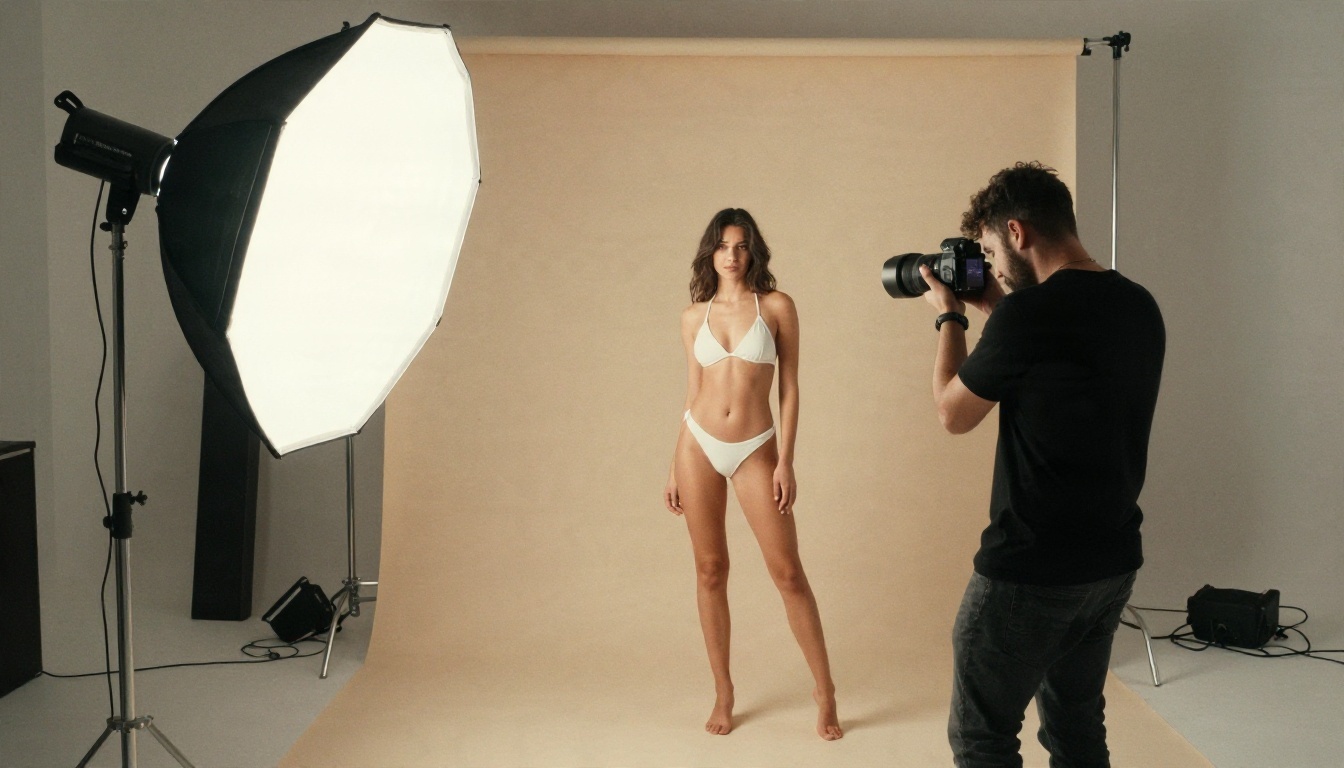
Think like a photographer. A real shoot works because the light, wardrobe and location are decided before anyone presses the shutter. AI video rewards the same discipline. When you build the image first, the video step becomes a small, cheap decision instead of a gamble.
Build the Photo Like a Shoot
Write the still prompt with real photography language: lens, light direction, time of day, fabric. For example, "85mm f/1.8, warm sunset from the left, matte ribbed bikini fabric, freckles, natural skin pores." Seedream 4.5 responds well to that kind of detail, and the resulting image gives the video model plenty to hold on to.
Fix Problems Before Animating
Check hands, jewelry, straps and background edges in the still. A wrong finger in a photo becomes a melting finger in motion. Use Image Editor Pro to correct it first. Since generations there are unlimited, this is the cheapest place to be picky.
Keep Motion Small
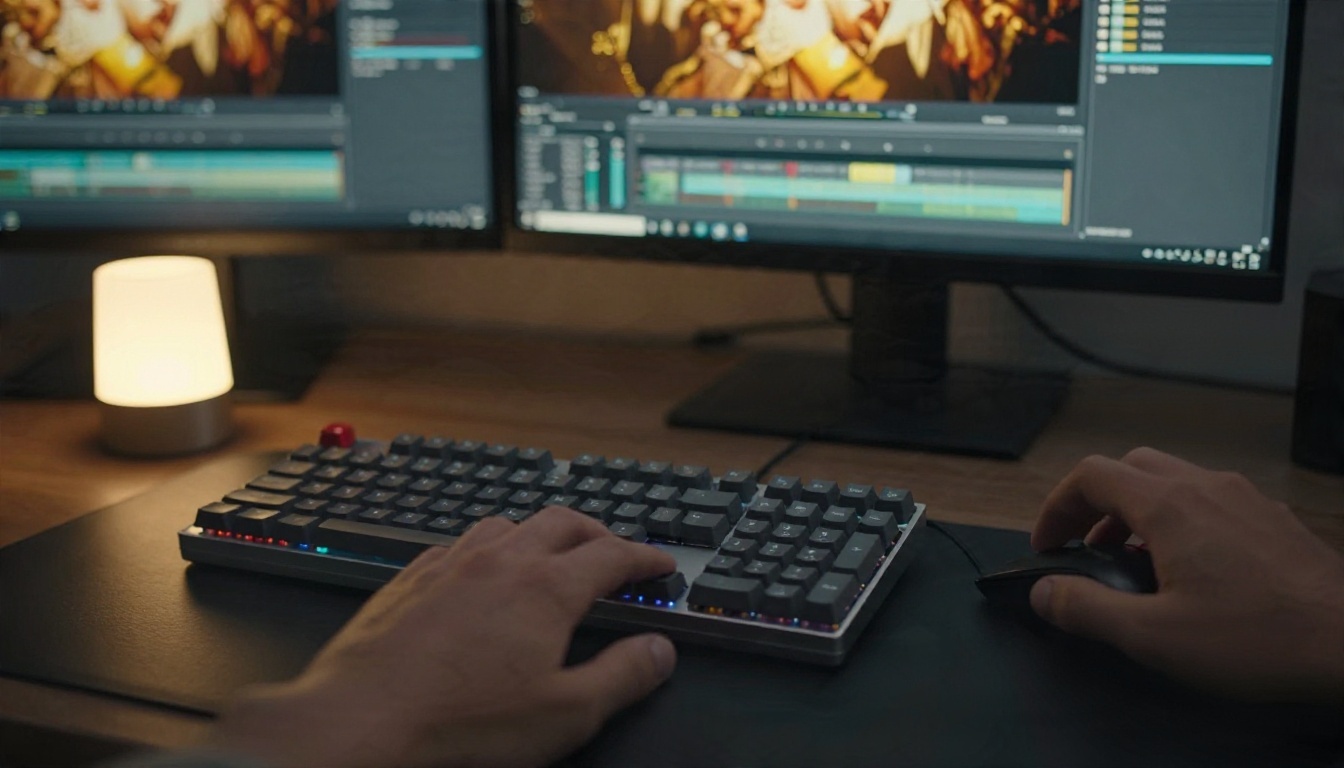
Five seconds is short. The best clips use one idea: a head turn, a breeze through hair, a slow walk. Big dramatic action in a five second window tends to warp faces and bodies. Subtle movement reads as expensive and cinematic.
Mistakes That Waste Credits
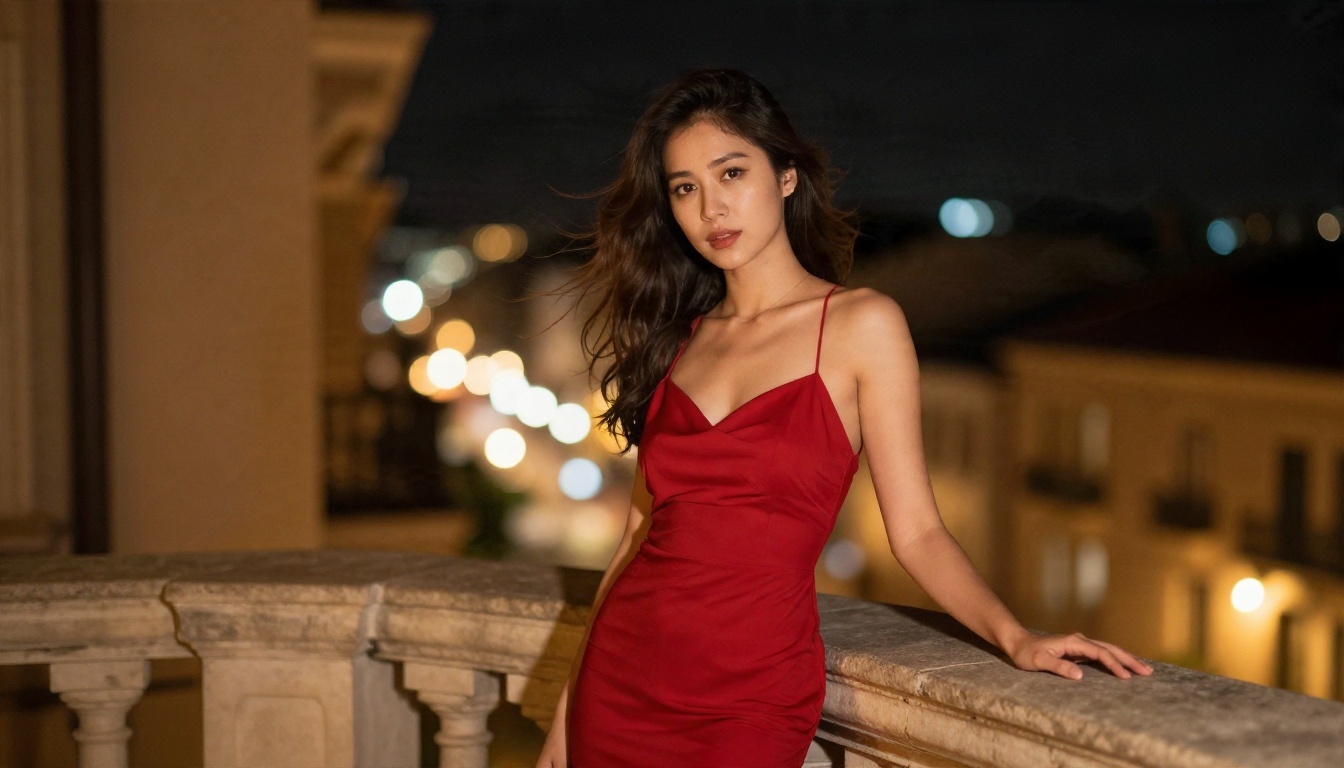
Retrying the Same Blocked Prompt
If a prompt was refused, the same text will be refused again. Change the scene or change the tool.
Skipping the Source Image
Going straight from text to video is fine for exploration, but for anything you plan to publish, a prepared still gives you control over the face, the outfit and the framing.
Overloading the Prompt
A prompt with six actions, three lighting setups and a list of adjectives produces confused output. Strip it back to the pattern above.
Ignoring Platform Rules
If you publish on social platforms, their rules apply to your clip no matter where you made it. Stay on the tasteful side, label AI content where required, and use only imagery of fictional or consenting subjects. Never create content that imitates a real person without their permission.
Quick Comparison
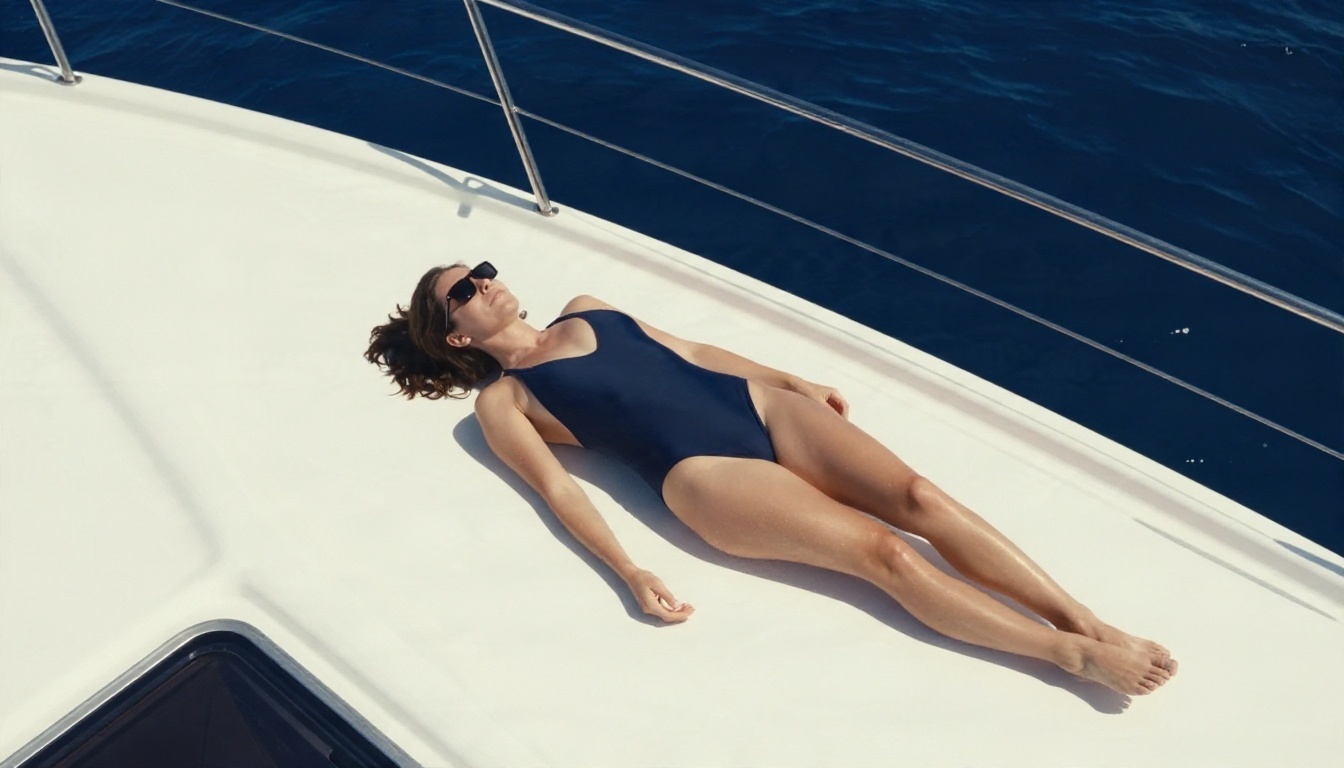
| Approach | Reliability | Quality | Risk |
|---|
| Prompt tricks on PixVerse | Low, changes often | Often mushy | Account flags |
| Tasteful prompts on PixVerse v6 | High | Strong | Low |
| Seedream 4.5 still plus image to video | High | Very strong | Low |
| Image Editor Pro iteration, then animate | High | Very strong | Low |
The pattern is clear. The more you rely on good inputs, the less you depend on a filter behaving a certain way.
Make Your Own Clip Today
You came for a bypass and leave with something better: a workflow that does not break when a moderation update ships. Start with a still in Seedream 4.5, refine it in PicassoIA Image Editor Pro where generations are unlimited, then animate it with PixVerse v6, Wan 2.5 I2V Fast or Kling v2.5 Turbo Pro.
Pick one of the prompts above, change the outfit and the location, and run it. Then run it again with a different light. The fastest way to get good at this is to make ten small variations and keep the best one. Browse every available model at picassoia.com/en/all-models and build your first clip on PicassoIA now.


