Most people who try an SDXL NSFW workflow quit after three bad renders: plastic skin, melted hands, a bikini that fuses with the background. The model is not the problem. The settings and the prompt order are. Get those two things right and SDXL-class models produce suggestive, magazine-quality glamour images in under a minute, with no local install and no GPU of your own.
This article gives you a repeatable workflow. You will get starting values for resolution, steps, sampler and CFG, a prompt formula you can paste and edit, a negative prompt that actually removes artifacts, and an honest comparison of which models to pick for which job. Everything here targets non-explicit, tasteful content: swimwear, lingerie-style fashion, boudoir lighting, and glamour portraits of adults.
💡 Quick answer: Start at 1024 x 1024 (or a similar total pixel count), 28 to 35 steps, CFG 5 to 7, a DPM++ style sampler, then refine with inpainting and a 1.5x upscale. For speed, use a 4-step Lightning model. For the highest realism with the least tuning, start with Seedream 4.5.
What This Workflow Actually Does
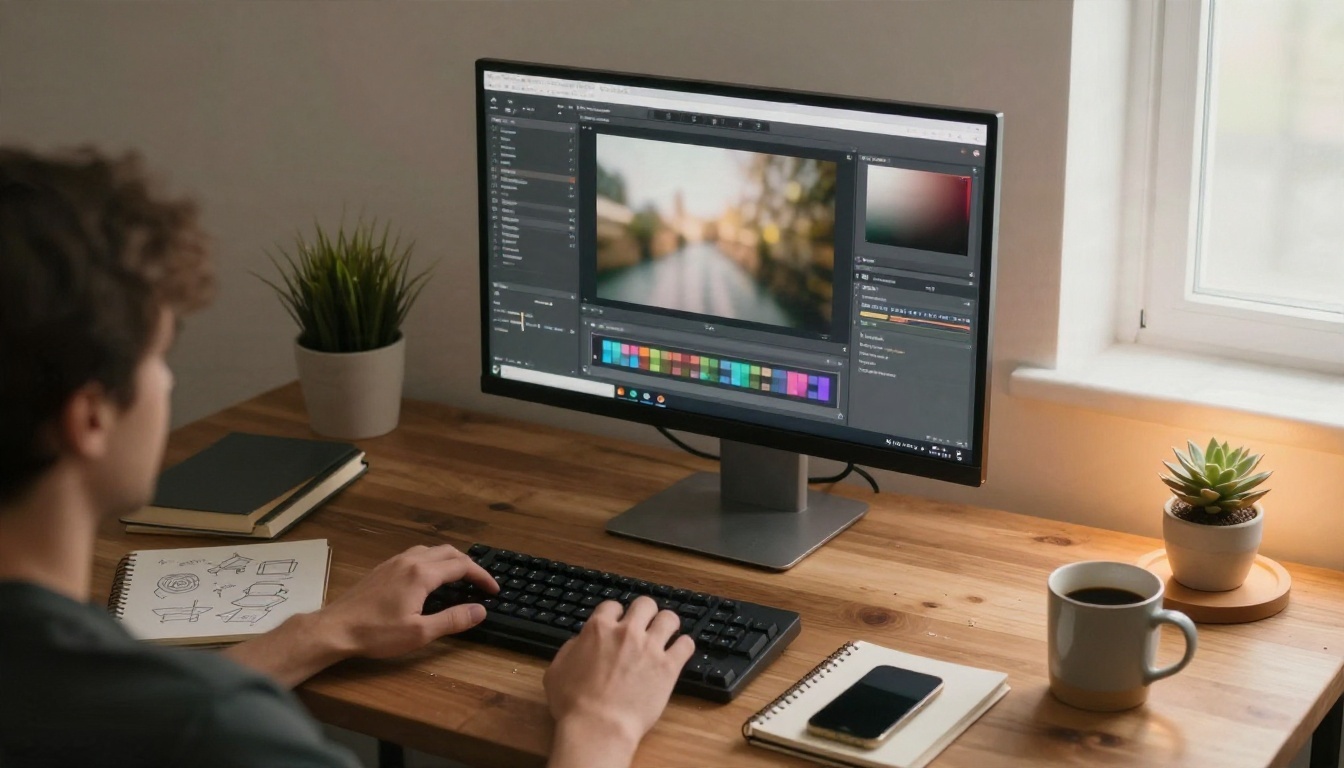
An SDXL NSFW workflow is a short pipeline, not a single click. Think of it as five stages:
- Pick the model that matches your goal (speed, realism, or control).
- Set the generation values: resolution, steps, sampler, CFG, seed.
- Write the prompt in a fixed order: subject, wardrobe, setting, light, lens, film look.
- Add a negative prompt that blocks the common failures.
- Refine: inpaint the weak areas, upscale, and keep the seed of your favorite result.
The reason people get inconsistent results is that they skip stages 4 and 5, or they change five variables at once. Change one value per run. Keep the seed fixed while you test. That alone will save you dozens of wasted generations.
Why SDXL Is Still Popular
SDXL produces native 1024 pixel images, reads long natural-language prompts better than the older 1.5 generation, and has a huge ecosystem of fine-tuned checkpoints and LoRAs. It is also light enough to run fast. That is why a lot of tasteful glamour work is still done with SDXL variants even though newer models exist.
What "Free Online" Really Means
Running SDXL locally means a 8 GB or larger graphics card, a UI to install, checkpoints to download and keep updated. Online, you open a page, type a prompt and get an image. On PicassoIA you can run several SDXL-family models in the browser, including SDXL Lightning 4Step, SDXL Multi ControlNet LoRA and the RealVisXL variants covered below. A plain, unmodified SDXL base checkpoint is not listed on its own, so the family members are what you work with.
Settings That Actually Matter
Every platform labels sliders slightly differently, and not every model exposes every control. Treat the table below as a starting point and check each model's input panel for what it supports.
| Setting | Starting value | When to change it |
|---|
| Resolution | 1024 x 1024, or 1344 x 768 for wide shots | Stay near 1 megapixel total. Going far above causes duplicated limbs. |
| Steps | 28 to 35 (standard), 4 (Lightning), 6 to 8 (Turbo) | Raise by 5 if fabric or hair looks mushy. |
| CFG scale | 5 to 7 (standard), 1 to 2 (Lightning), 2 to 3 (Turbo) | Lower if colors look burned, raise if the prompt is ignored. |
| Sampler | DPM++ 2M Karras or similar | Switch to Euler a only for softer, painterly results. |
| Seed | Fixed once you like a composition | Randomize again when you want fresh poses. |
| Batch | 2 to 4 images | More images per run gives you better odds on hands and faces. |
Resolution and Aspect Ratio
SDXL was trained around one megapixel. For a standing full-body pose, use a tall ratio such as 832 x 1216. For beach, pool and interior scenes, a wide ratio like 1344 x 768 gives the model room to place the environment properly. Never ask for 2048 x 2048 directly. Generate at native size and upscale afterward.
Steps and Sampler
More steps do not always mean better. Past roughly 35 steps on a standard SDXL model, you mostly burn time. For Lightning and Turbo models, the opposite is true: they are distilled to work in very few steps, and pushing them to 30 produces oversaturated, crunchy output. Match the step count to the model type.
CFG Scale
CFG controls how strictly the model follows your prompt. At 5 to 7, skin looks natural and light stays soft. At 10 and above, you get hard contrast, orange skin and an over-processed look that screams "AI". If you want better prompt adherence, fix the prompt instead of raising CFG.
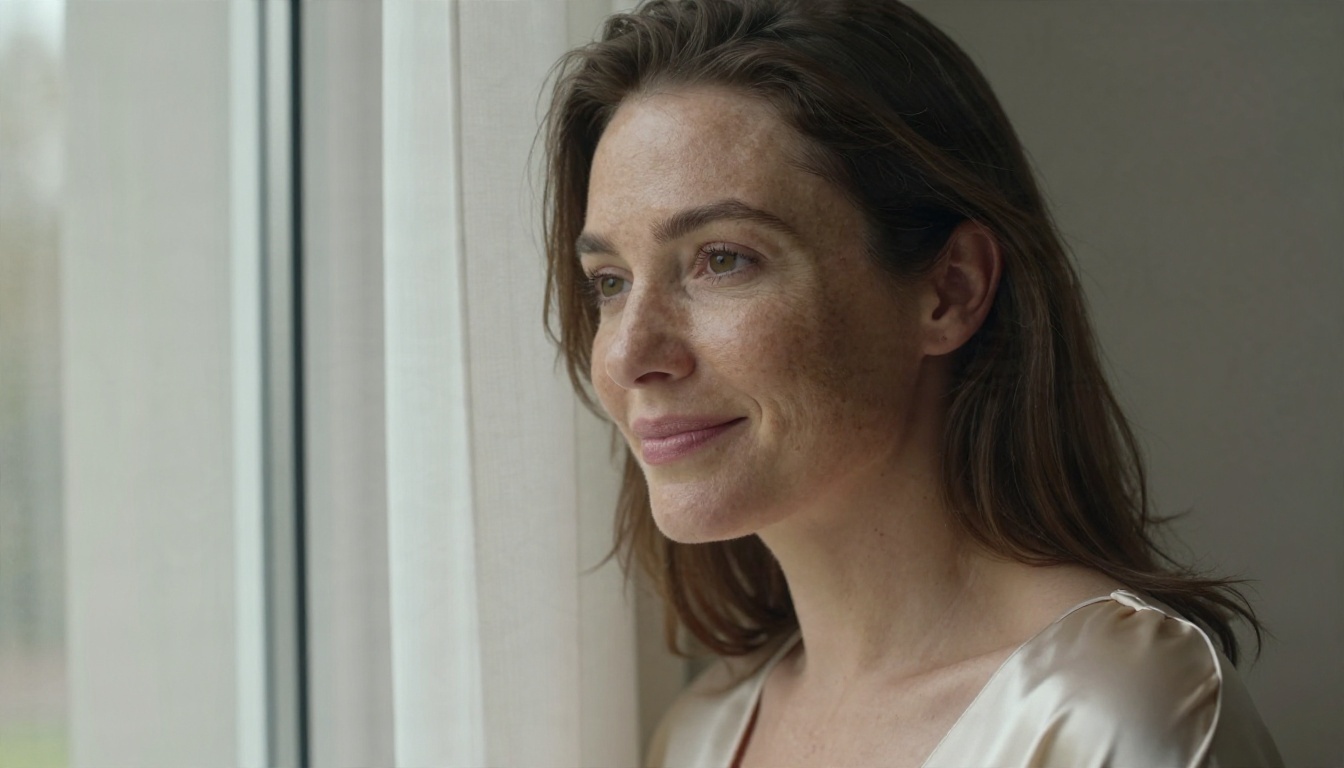
💡 Tip: If skin looks waxy, lower CFG by 1 and add "visible skin pores, natural skin texture, subtle freckles" to the prompt. These two changes together fix most plastic faces.
Prompts That Work Every Time
SDXL responds well to a consistent order. Models weight the earliest words most, so put the subject and the look first and the technical details last.
The Prompt Formula
Use this structure:
[Subject and age] + [wardrobe] + [pose and expression] + [setting] + [light direction] + [lens and camera] + [film look and texture]
A working example:
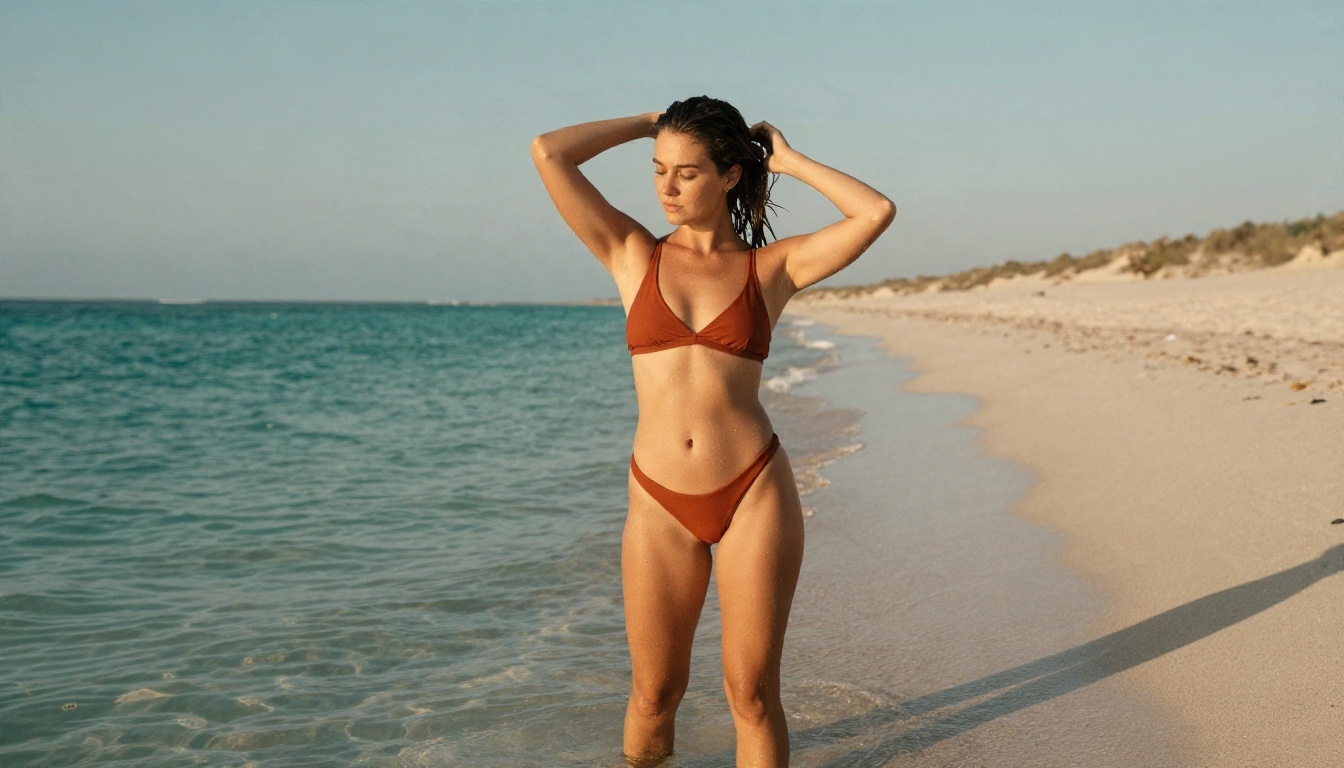
"adult woman in her late twenties, terracotta two-piece bikini, adjusting wet hair, standing in clear turquoise shallows, late afternoon sun from the right, 35mm lens f/2, visible water droplets on tanned skin, Kodak Portra 400 film grain, photorealistic"
Notice what is missing: no stacked quality tags like "masterpiece, best quality, 8k, ultra detailed" repeated five times. SDXL does not need that wall of tokens, and it often pushes the image toward a glossy illustration look.
Negative Prompt Starter
A short, targeted negative prompt beats a giant one. Start with:
"blurry, low resolution, extra fingers, fused fingers, deformed hands, extra limbs, distorted face, asymmetrical eyes, plastic skin, oversaturated, watermark, text, cartoon, illustration"
Add to it only when you see a specific failure. If you see double chins, add "double chin". If hands keep failing, add "bad hands, mutated hands". Do not paste in 200 tokens from a random forum thread.
Lighting and Wardrobe Words
Light is the biggest difference between an amateur result and a professional-looking one. Words that work well:
- Soft window light from the left: gentle gradients, flattering for portraits.
- Golden hour backlight, warm rim light: beach, rooftop and yacht scenes.
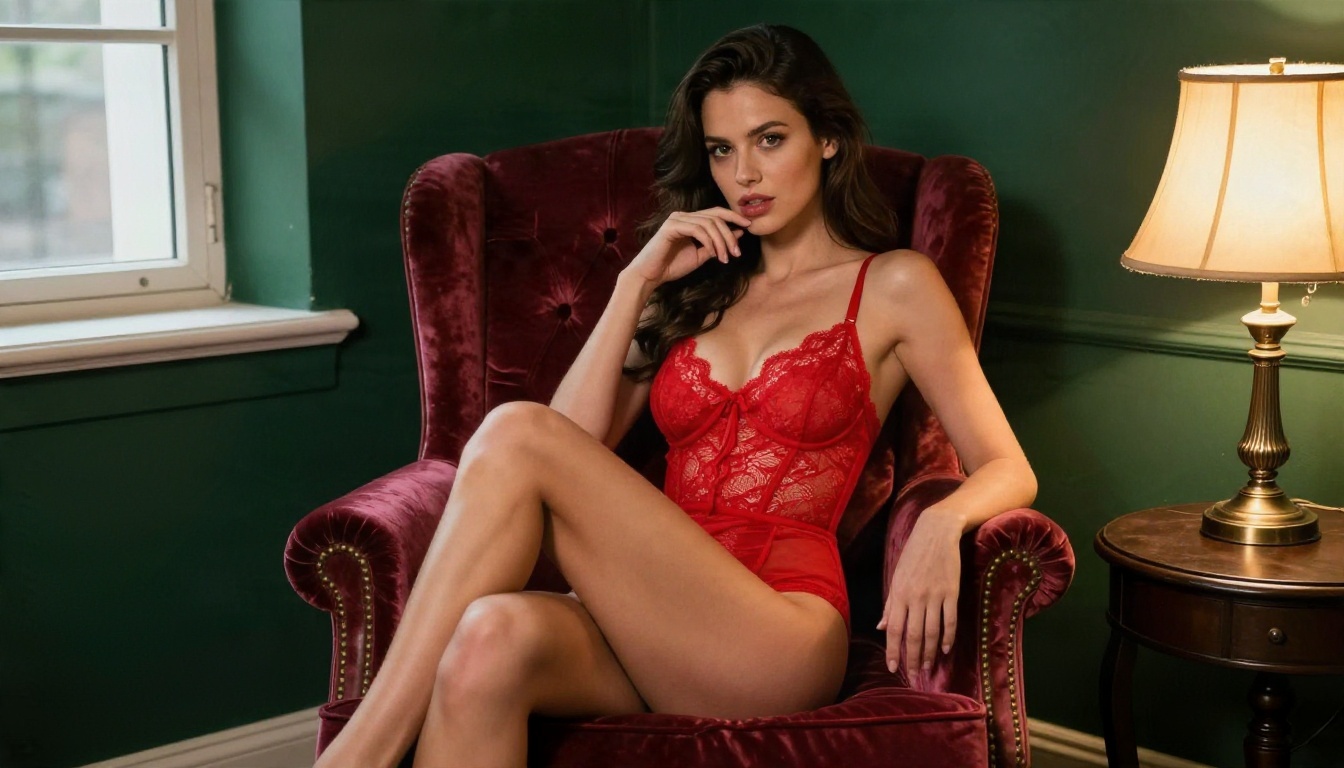
- Single warm table lamp, dim room: moody boudoir.
- Overcast daylight through sheer curtains: even, natural skin.
- Blue hour with warm string lights: city and terrace scenes.
For wardrobe, specific fabrics give better results than generic labels. "Red lace bodysuit", "emerald silk slip dress", "cream satin camisole" and "navy bikini top under a white linen shirt" all give the model texture to render.
Age and Subject Safety
Always state that your subject is an adult ("adult woman in her late twenties"). It sharpens the result and keeps the work where it belongs. Keep the content suggestive and artistic rather than explicit. That also matters practically: most hosted platforms filter explicit prompts, and a tasteful prompt goes through more reliably.
Model Choices Compared
Not every model fits every goal. Here is how the main options stack up for glamour and swimwear work.
Start With Seedream 4.5
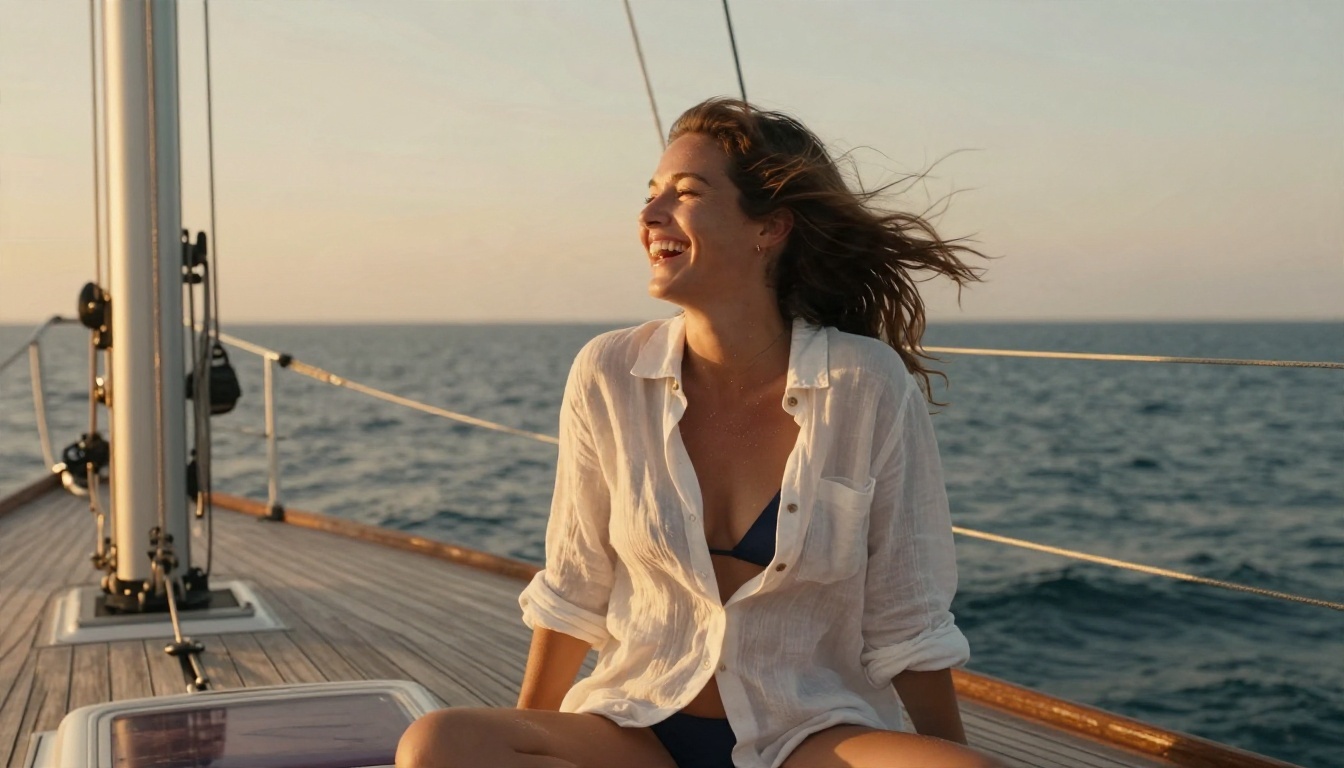
If you want the best result with the fewest tries, begin with Seedream 4.5. It reads natural sentences, handles skin, fabric and light convincingly, and outputs high resolution without a separate upscale step. For tasteful swimwear and glamour portraits, it is the fastest route from idea to a polished image. You write one clear paragraph and you get a usable photo. Its speed also makes it a good partner for SDXL: use it to find a look, then recreate or vary it elsewhere.
Use Image Editor Pro for Refinement
PicassoIA Image Editor Pro is the tool to reach for after you have a good base image. Because it offers unlimited generations, you can iterate without watching a counter: change the outfit color, adjust the background, soften the light, or fix a small flaw, then run it again. That freedom to retry is what makes a workflow efficient. Most good images are the fifth variation, not the first.
Where SDXL Variants Still Win
SDXL-family models win when you need control. With SDXL Multi ControlNet LoRA you can feed a pose reference, an edge map or a depth map so the figure keeps a specific posture, which is hard to get from prompt text alone. RealVisXL v3 Multi ControlNet LoRA combines that control with a photographic skin tone and lens look. And RealVisXL v3.0 Turbo gives you a quick photoreal portrait at low step counts.
Other Options Worth Testing
If you want to compare against different architectures, try Qwen Image 3 Pro for photorealistic scenes with clean detail, Stable Diffusion 3.5 Large for prompt following, and Flux 2 Klein 9B Base LoRA when you want a style-tuned look through a LoRA.
💡 Rule of thumb: Seedream 4.5 for finished images, Image Editor Pro for fixing and varying them, SDXL variants when you need pose control or very fast drafts.
How to Use SDXL Lightning on PicassoIA
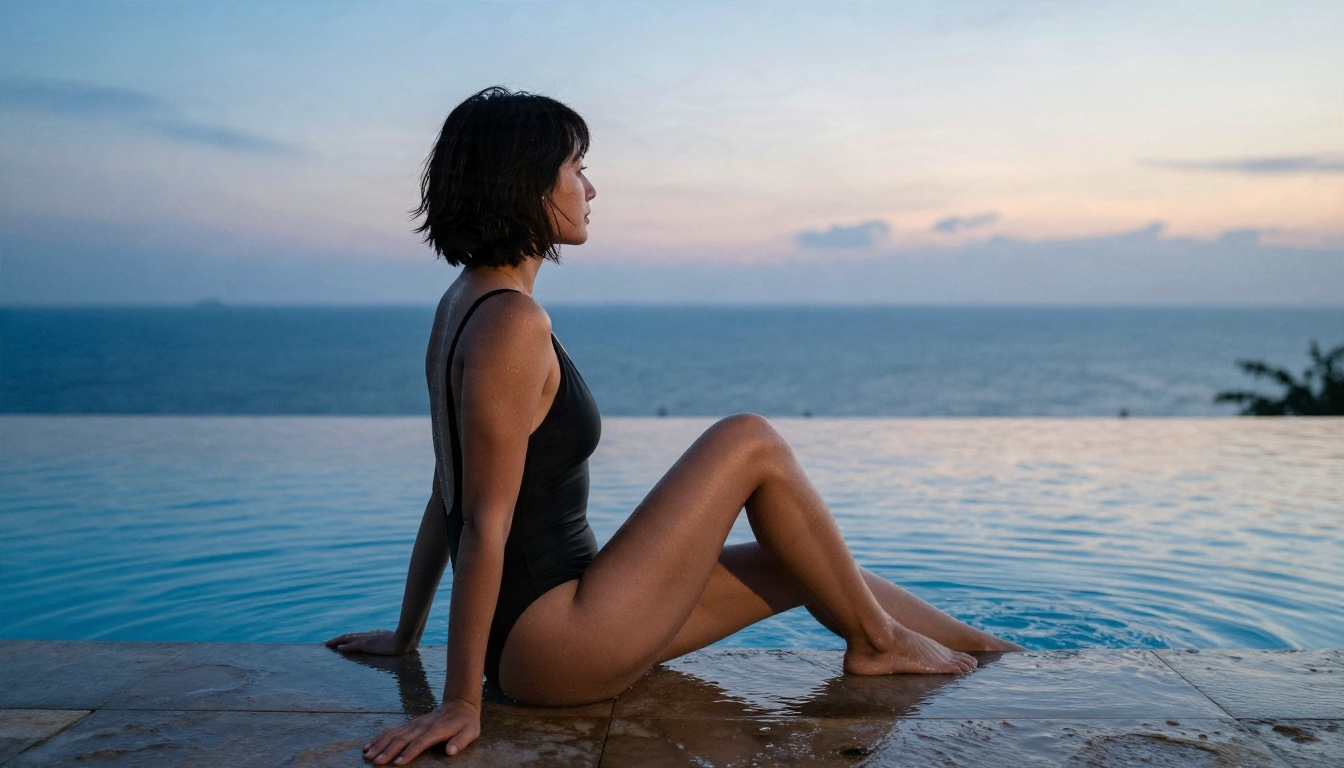
SDXL Lightning 4Step is the best SDXL-family model for the testing phase. It returns an image in seconds, so you can try ten prompt variations in the time a standard model finishes two.
- Open the model page at the link above and go to the generation form.
- Paste your prompt using the formula from earlier. Keep it under about 60 words.
- Add your negative prompt if the form has a field for it.
- Choose a wide or tall size that stays near one megapixel.
- Leave steps at 4. This model is built for it. Raising the number does not improve quality.
- Keep the guidance value low, around 0 to 2. Higher values burn the colors.
- Set a fixed seed once you find a composition you like, then edit one word at a time.
- Generate a batch, pick the best frame, and take it to refinement.
Parameter Tips
- Draft in Lightning, finish elsewhere. Use the winning prompt in Seedream 4.5 or RealVisXL for the final render.
- Keep prompts short. Distilled models drop details from long prompts.
- Test lighting words first. They change the mood more than any other single term.
- Save your seeds. A seed is the cheapest way to reproduce a result.
Fixing the Most Common Problems
Even with good settings, a few failures appear again and again. Here is how to deal with each.
Hands and Anatomy
Hands are the weak point of nearly every image model. Reduce how often they appear: have the subject hold hair, touch a railing, rest a hand on glass, or keep hands out of frame. When hands are visible and wrong, inpaint just that region with a short prompt like "natural relaxed hand, five fingers" and run a few attempts. The SDXL Multi ControlNet LoRA route helps too, because a pose reference gives the model a skeleton to follow.
Plastic Skin and Over-Processed Looks
Three causes explain almost every waxy result: CFG that is too high, "8k ultra detailed masterpiece" token stacks, and no mention of texture. Lower CFG, delete the quality-tag pile, and add specific physical detail: pores, fine hair, freckles, a slight sheen on the cheekbones. Add a film stock like Kodak Portra 400 so the model aims for analog softness instead of digital sharpness.
Blocked or Empty Generations
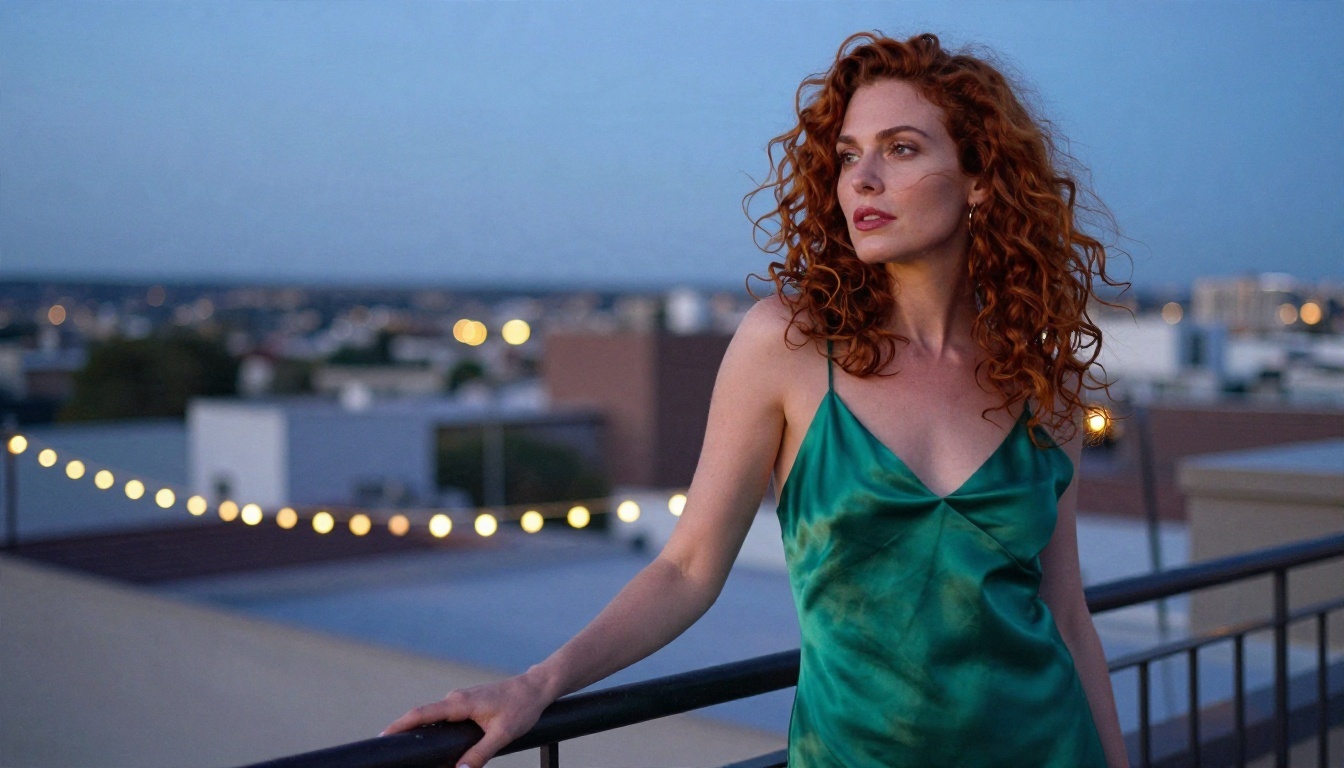
Hosted tools run safety filters. If a generation fails, the cause is usually wording that sounds explicit. I saw this firsthand while preparing the images for this article: a prompt built around lingerie and a reclining pose was rejected, and the same scene described as an editorial fashion portrait with a silk camisole went through. Rewrite toward fashion and photography language: fabric, light, lens, mood. Describe the shoot, not the act.
Messy Backgrounds
Crowded prompts create crowded images. Name three background objects at most. "Sheer curtains, brass lamp, plaster wall" is enough. If something weird shows up behind the subject, inpaint it away instead of rewriting the whole prompt.
Refining With Inpainting and Upscaling
A first render is a draft. The finishing stage is where a good image becomes a great one.
Inpainting the Weak Spots
Mask only the area that needs a fix: a hand, a strap, an eye, a patch of background. Use a denoise or strength value of roughly 0.4 to 0.6. Lower values barely change anything, and higher values redraw the area so much that it no longer matches the rest. Run three or four attempts and keep the best.
PicassoIA's Image Editor Pro is a natural fit here, since you can describe the change in plain language and retry as often as you like.
Upscaling and Detail Pass
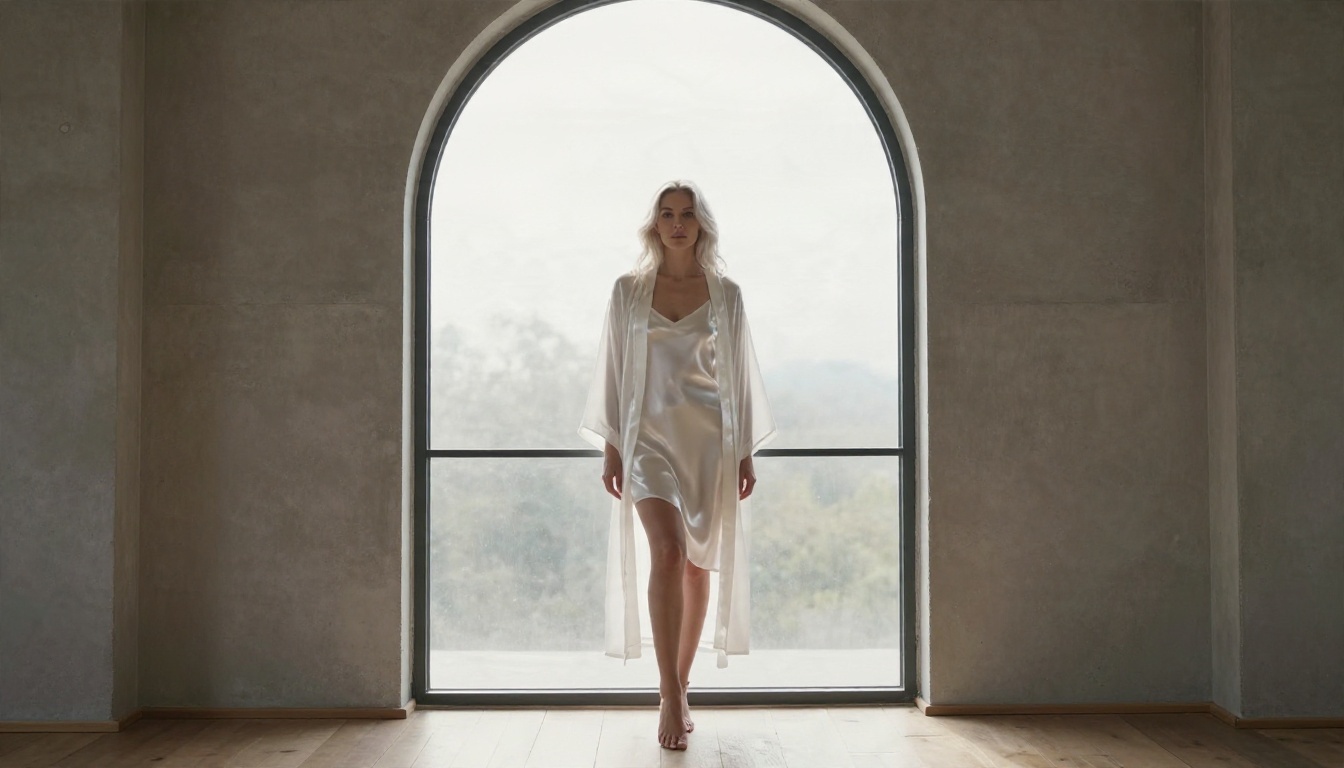
For a print-size or large-screen result, upscale by 1.5x to 2x after you have a final composition. Generating directly at huge sizes is what causes stretched bodies and duplicated faces. A gentle upscale with a low denoise keeps the skin texture and sharpens fabric edges. For 4K delivery straight from the prompt, Seedream 4.5 skips this step entirely.
A Repeatable Session Plan
| Stage | Tool | Goal | Time |
|---|
| 1. Draft | SDXL Lightning 4Step | Test 10 to 20 prompt ideas | 5 minutes |
| 2. Polish | Seedream 4.5 or RealVisXL | One final render of the best idea | 2 minutes |
| 3. Fix | Image Editor Pro | Hands, background, outfit color | 5 minutes |
| 4. Finish | Upscale step | Print or large-screen size | 1 minute |
Following this order keeps you from spending slow, expensive generations on ideas that were weak from the start.
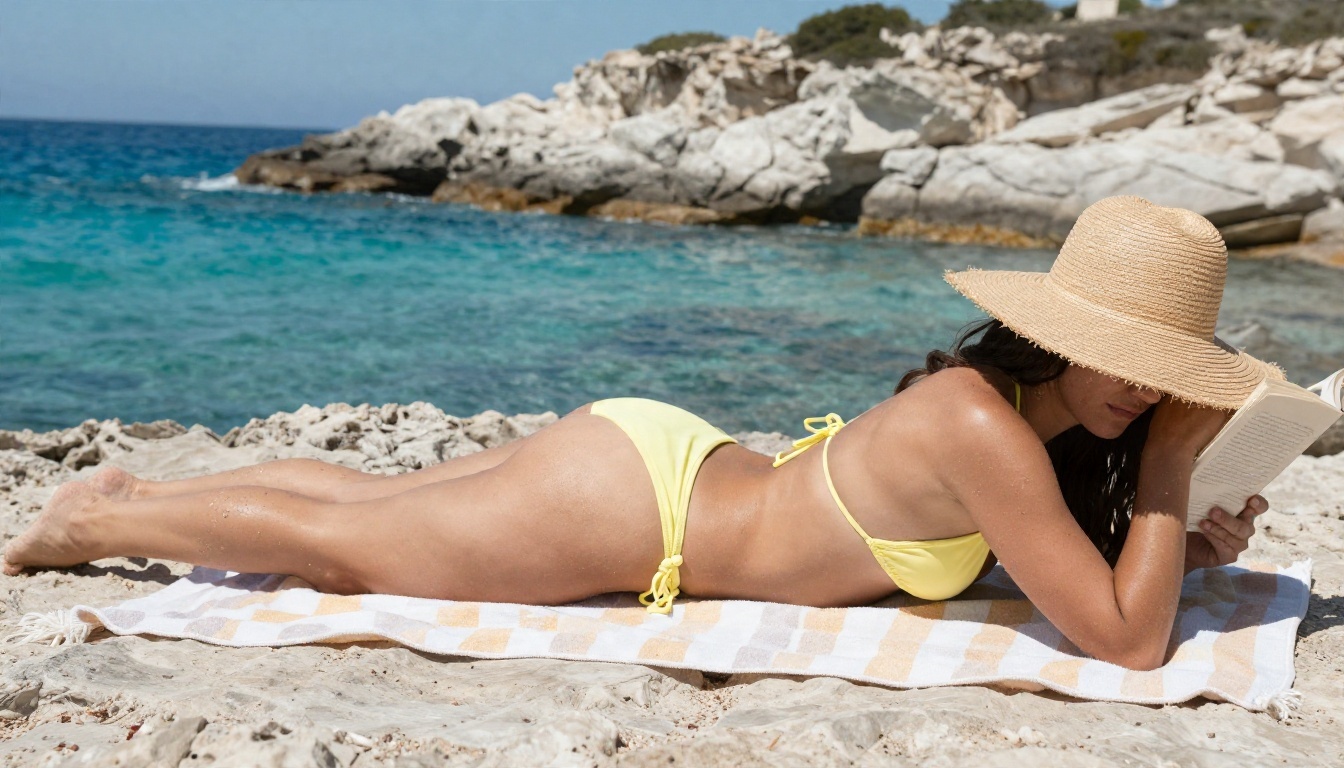
Start Creating Your Own Images
You now have the pieces: a settings table you can copy, a prompt formula, a short negative prompt, and a clear picture of which model does which job. The fastest way to improve is to run the workflow yourself and change one thing at a time.
Here is a simple first session. Open Seedream 4.5 and write one paragraph for a beach or hotel-room portrait using the formula. Pick your best result, then take it into PicassoIA Image Editor Pro and try five variations: a different outfit color, a different hour of light, a different lens. If you want pose control or fast drafts, try SDXL Lightning 4Step and the RealVisXL v3.0 Turbo model.
There is no install and nothing to configure. Browse every available image model at picassoia.com/en/all-models, pick one, and make your first image today with PicassoIA.


