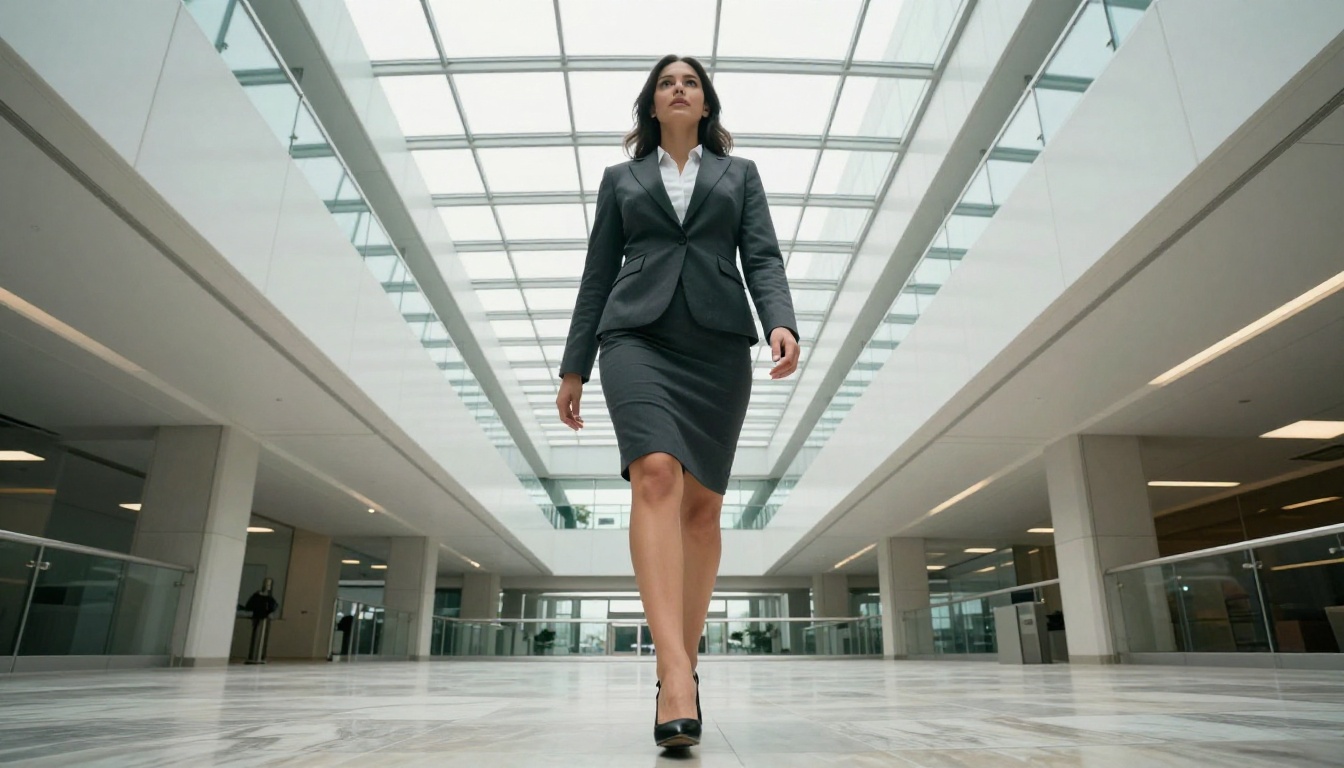
Controlling camera movement in AI-generated video used to be a lottery. You typed a prompt, hit generate, and hoped the model understood what "slow pan left" meant. Seedance 2.0 from ByteDance changes that completely. It treats camera motion as a first-class parameter, not an afterthought, giving creators the ability to specify pan, tilt, dolly, orbit, and zoom trajectories with real precision. The results are cinematic. The process is surprisingly simple once you know the vocabulary.
What Seedance 2.0 Actually Does
Seedance 2.0 is ByteDance's flagship text-and-image-to-video model. It accepts both text prompts and reference images as input, generating video clips with high motion fidelity and strong temporal consistency. Unlike earlier models that produced jittery or inconsistent motion, Seedance 2.0 maintains subject stability while moving the camera independently, which is the core feature that makes camera control actually useful in a production context.
Text and Image as Starting Points
You can start from scratch with a text prompt describing the scene, or feed in a reference image and describe the motion you want applied to it. The image-to-video workflow is particularly powerful for camera control because you already know exactly what the scene looks like. You define the frame, and Seedance 2.0 animates how the camera moves through it. This removes a significant variable from the creative process.
Native Audio Support
One of the distinguishing features of Seedance 2.0 is built-in native audio generation. The model synthesizes ambient sound and environmental audio that matches the visual content, making clips feel complete without additional post-production. For camera movement scenarios like a dolly through a forest or a pan across a busy street, the audio layer adds a dimension that purely visual models cannot match. The sound responds to the motion, not just the content.
The Camera Movements You Can Control
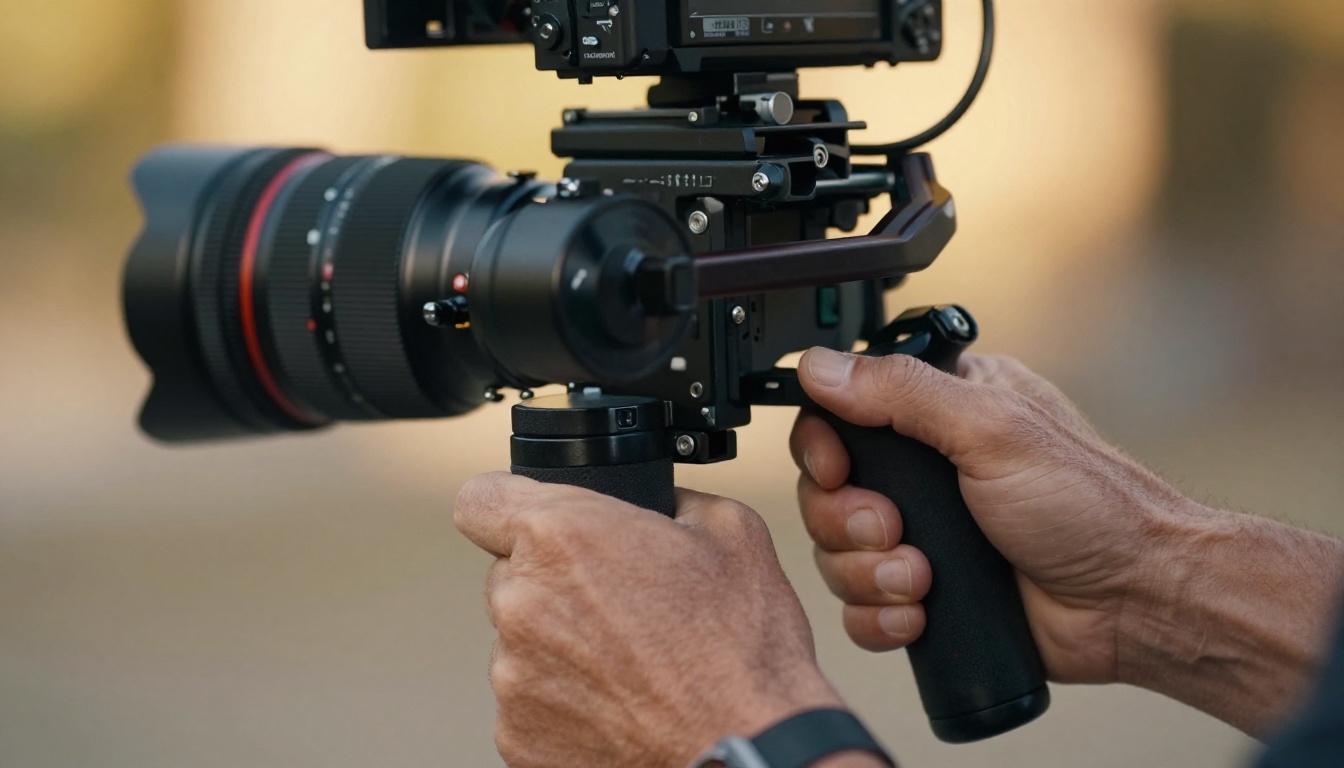
Understanding the vocabulary of camera movement is what separates a mediocre AI video prompt from one that produces exactly what you imagined. Seedance 2.0 responds to standard cinematography terms. Using the right language is the difference between a generic result and a shot that feels intentional and professionally composed.
Pan and Tilt
A pan moves the camera horizontally on a fixed axis, left or right. A tilt moves it vertically, up or down. These are the simplest movement types and the most reliable in Seedance 2.0. Prompts like "slow pan left across a mountain range at sunrise" or "tilt up from feet to face" produce consistent, smooth results. For best performance, always specify the speed: slow, smooth, fast, or quick snap. Speed descriptors have a significant effect on output quality and naturalism.
💡 Tip: Pair pan with environmental context. "Pan left to reveal a crowd" gives the model a narrative reason for the movement, producing more natural and purposeful motion than "pan left."
Dolly and Push Moves
A dolly physically moves the camera toward or away from the subject, as opposed to a zoom which changes focal length. Prompts specifying "dolly in," "push in," or "track forward" tell Seedance 2.0 to simulate physical camera movement through the space. This creates the parallax effect you see in professional cinematography, where foreground and background elements shift relative to each other as the camera advances.
Dolly vs. Zoom:
| Movement | Camera Moves? | Depth Effect | Feel |
|---|
| Dolly in | Yes | Strong parallax | Immersive, physical |
| Zoom in | No | Flat compression | Detached, observational |
| Dolly zoom | Yes + lens change | Disorienting | Dramatic, psychological |
Orbit and Arc Shots
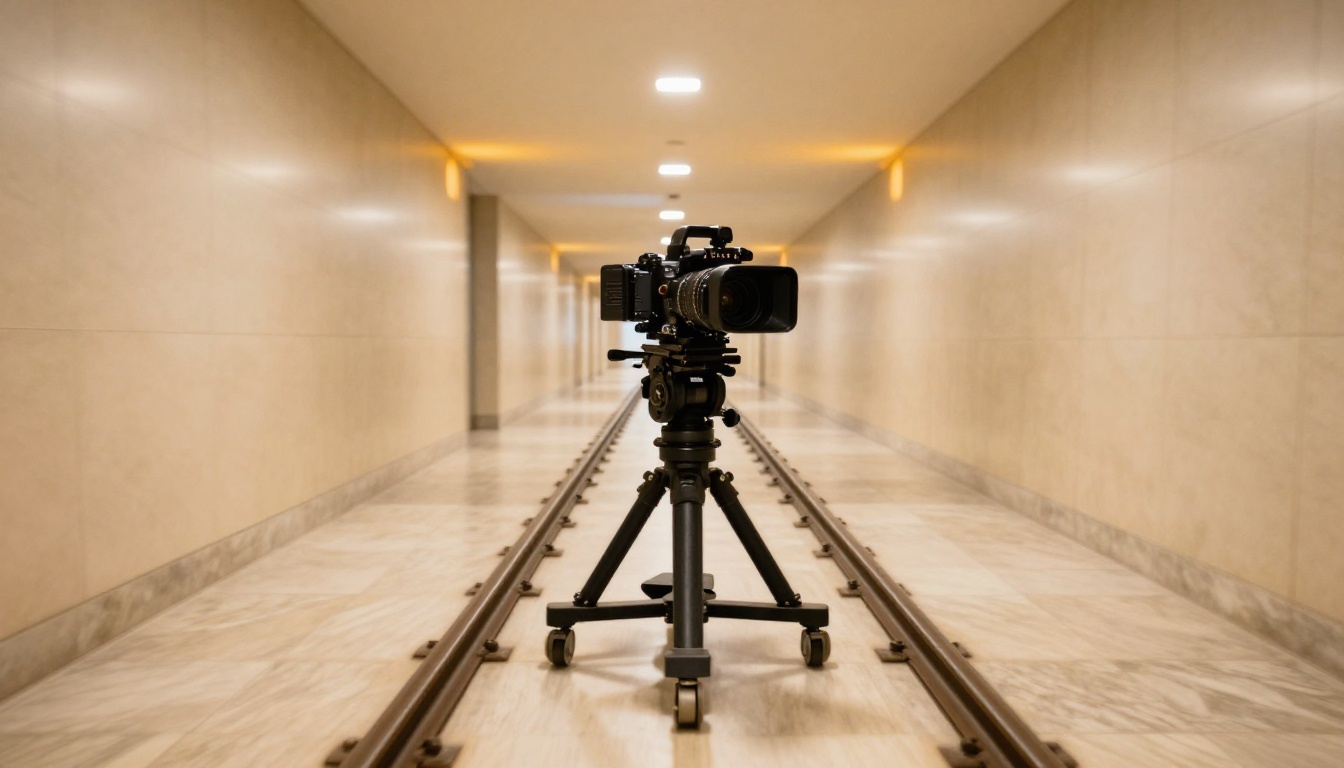
An orbit circles the camera around a subject while keeping it in frame. It is one of the most visually striking movements in AI video and Seedance 2.0 handles it particularly well. Use terms like "orbit around," "circular track," or "arc left around subject" in your prompt. The model maintains subject position in the frame while rotating the background, creating a 360-degree reveal effect that feels expensive and intentional.
The Aerial and Crane Perspective
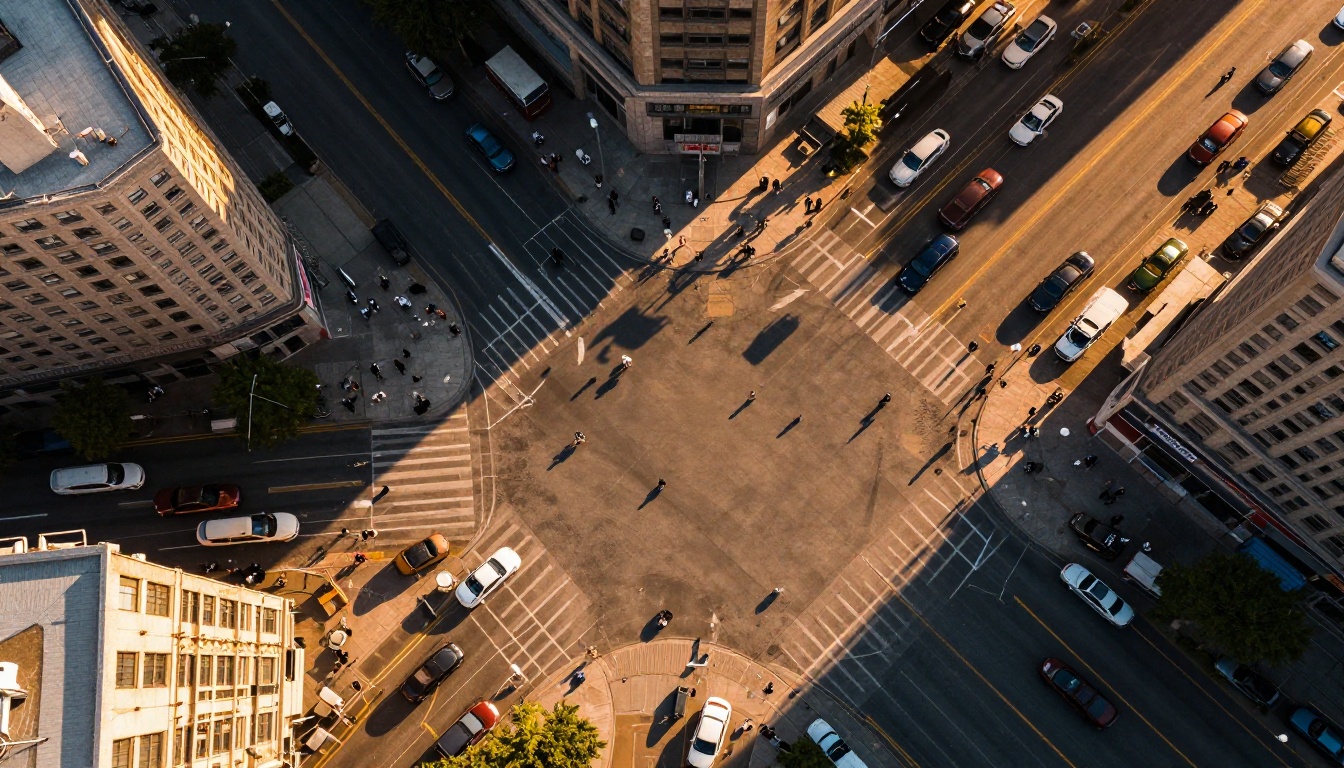
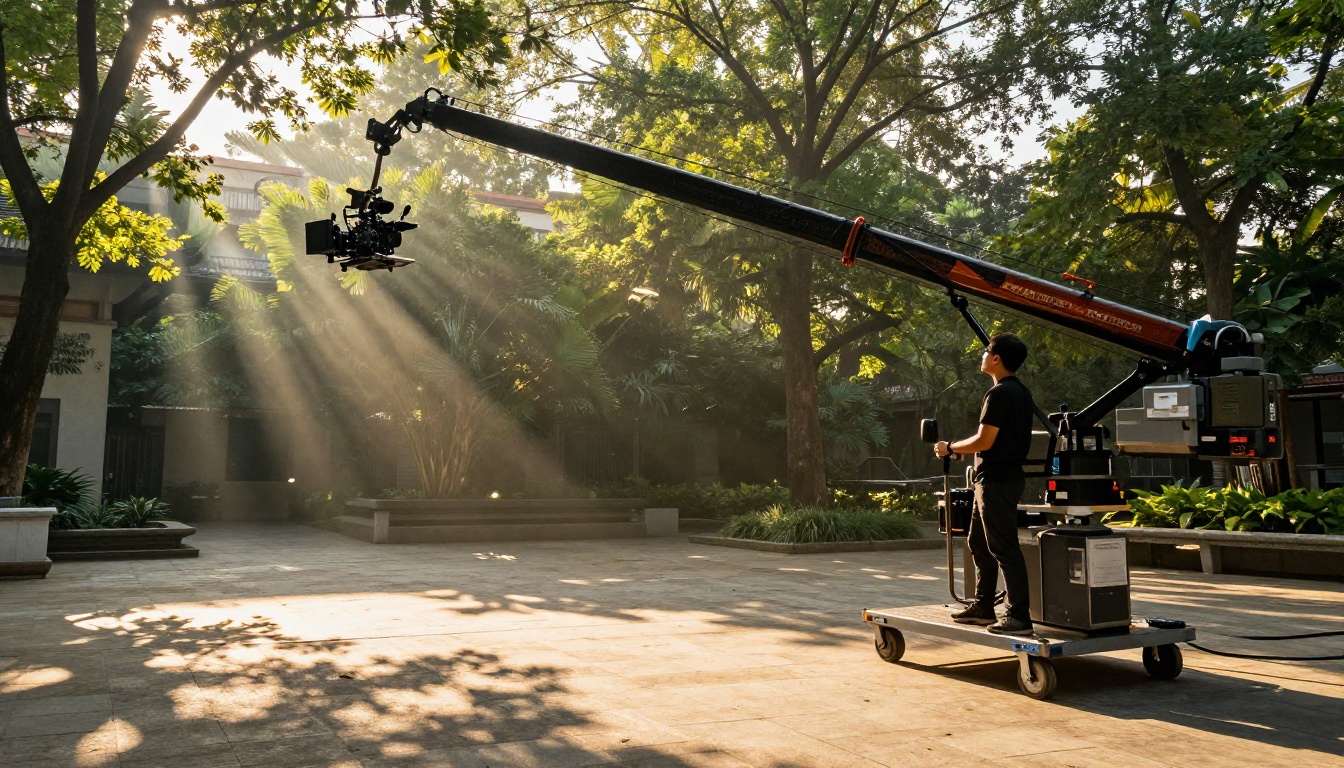
Specifying aerial camera positions, crane moves, or jib arms produces dramatic vertical camera shifts. Terms like "crane shot rising above the subject," "aerial pullback," or "helicopter descending view" all trigger specific vertical-movement behaviors. Combining a crane up with a slow tilt down creates the classic "reveal and reframe" that establishes scenes powerfully in narrative video and short-form content alike.
How to Use Seedance 2.0 on PicassoIA
Seedance 2.0 is available directly on PicassoIA without any complex account setup. Here is the exact workflow for generating a camera-controlled video clip from start to a finished output.
Step 1: Choose Your Starting Point
Navigate to the Seedance 2.0 model page on PicassoIA. You will see options to input either a text prompt or an image reference. For camera control work, the image input mode gives the most predictable results because you control the exact starting frame composition. Upload a reference photo or use a generated image from PicassoIA's text-to-image models to establish the scene before adding motion.
Step 2: Write the Prompt
Structure your prompt using the camera-first formula detailed in the next section. Place the camera movement instruction at the beginning of your prompt, before any subject or scene description. Seedance 2.0 prioritizes the first movement instruction it encounters. A prompt beginning with "Slow dolly push in toward" will reliably produce a dolly movement regardless of what scene elements follow in the rest of the text.
💡 Tip: Keep the prompt under 120 words. Longer prompts with competing instructions produce inconsistent results. One primary camera movement per generation produces the cleanest output.
Step 3: Set the Parameters
Seedance 2.0 on PicassoIA exposes several key parameters that directly affect camera movement quality:
| Parameter | Recommended Setting | Effect |
|---|
| Duration | 5-8 seconds | Enough time to show the full movement arc |
| Resolution | 1080p | Best clarity for camera movement detail |
| Motion Strength | 0.6-0.8 | Visible movement without distortion artifacts |
| Seed | Lock after good result | Reproduce same movement on different scenes |
Step 4: Review and Retry
Camera path quality varies between generations. If the movement feels wrong, the most effective fix is to add a speed modifier: slow, smooth, gradual, or rapid. Avoid regenerating with the exact same prompt. Change one element, specifically the speed or the movement descriptor, before retrying. Identical prompts rarely produce different enough results to justify the generation cost.
Prompt Writing That Actually Works
Writing prompts for camera-controlled AI video is fundamentally different from writing image generation prompts. The model needs spatial and temporal instructions, not just visual descriptions. Getting this right is what separates creators who consistently produce great results from those who rely on luck.
The Camera-First Formula
Every camera movement prompt should follow this precise structure:
[Camera Move] + [Speed] + [Subject/Scene] + [Environment] + [Mood/Lighting]
Working examples:
- "Slow pan right across a foggy harbor at dawn, fishing boats in foreground, soft diffused morning light"
- "Orbit clockwise around a woman standing in a desert canyon, golden hour warm light from the west, dust particles in air"
- "Smooth dolly push in toward a candlelit dinner table, shallow depth of field, warm amber interior light"
The camera instruction comes first. The rest of the prompt fills in what the camera is looking at and the atmospheric conditions surrounding the shot.
5 Prompt Templates for Camera Control
These templates work reliably with Seedance 2.0:
1. The Reveal Pan:
"Slow pan left to reveal [subject], [environment description], [lighting condition]"
2. The Intimacy Push:
"Smooth dolly push in toward [subject], [emotional descriptor], bokeh background, [lighting]"
3. The Power Orbit:
"Orbit counterclockwise around [subject] at [height] level, [background environment], [time of day]"
4. The Establishing Crane:
"Crane shot descending from [height] down to [subject], [wide environment], [atmospheric condition]"
5. The Follow Track:
"Camera tracks behind [subject] moving through [environment], [speed], [lighting condition]"
Using Negative Space in Prompts
Seedance 2.0 also responds to framing instructions. Adding "subject in right third of frame" or "subject centered throughout movement" helps maintain compositional intent during the camera path. Combine this with the camera-first formula for precise artistic control over both motion trajectory and visual composition simultaneously.
Seedance 2.0 vs. Other Motion Control Models
PicassoIA hosts several models with camera movement capabilities. Knowing when to use each one saves generation credits and time, and produces better results than defaulting to a single model for every use case.
Kling V3 Motion Control
Kling V3 Motion Control by Kwai uses a reference video to transfer motion patterns to new footage. It is excellent when you have an existing video with the exact camera movement you want and need to apply that motion to different content or subjects. For original camera path creation from text descriptions alone, Seedance 2.0 provides more creative control. For motion transfer from reference footage, Kling V3 Motion Control is the stronger choice.
Video-01 Director
Video-01 Director from Minimax offers explicit camera movement presets with named controls. It is faster for simple movements because you select from predefined camera trajectories rather than writing them out in natural language. However, Seedance 2.0 produces more nuanced, cinema-quality camera paths for complex movements like orbits and dolly zooms. The Seedance 2.0 Fast variant bridges the speed gap for iterative workflows where quick previews matter.
3 Common Mistakes in Camera Prompts
Most failed generations come down to a few repeating errors. Recognizing them saves significant time and generation credits across any serious production workflow.
Too Vague With Direction
"Move the camera" or "dynamic camera movement" produces random, unpredictable motion. Seedance 2.0 needs specific directional language to perform consistently. Replace vague terms with precise cinematographic vocabulary: "pan left 90 degrees," "dolly in," "tilt up from ground to sky," "orbit clockwise." The more specific the directional instruction, the more reliable the output.
Stacking Multiple Movements
Writing "pan left then tilt up then dolly in" creates conflicting instructions and the model typically picks one movement or produces erratic, disjointed motion. One camera movement per generation is the practical rule. If you need a complex multi-move shot, generate each segment separately and combine them in post-production. The final result is cleaner and each segment benefits from its own optimized prompt.
Forgetting Subject Motion
Camera movement and subject motion interact directly in Seedance 2.0. A dolly push toward a static subject reads very differently than a dolly push toward a subject walking toward camera. Specifying subject motion alongside camera motion produces more dynamic, realistic results. "Dolly push in as she turns to face camera" gives the model two synchronized motion events that create natural cinematic tension between viewer and subject.
💡 Tip: The most cinematic AI shots happen when camera motion and subject motion work in opposition. Camera pulls back while subject walks forward. Camera orbits left while subject turns right. This opposition creates visual energy that purely camera-driven shots cannot generate on their own.
Your Cinematic Shots Are Ready to Create
The gap between professional cinematography and AI-generated video has narrowed dramatically with Seedance 2.0. The camera movement control it offers is not a novelty feature. Pan, tilt, dolly, orbit, and crane moves all produce results that hold up to scrutiny when the prompts are written with the right structure and vocabulary.
Every technique covered here is available to use right now on PicassoIA. Start with a single clean pan or dolly, get familiar with how Seedance 2.0 responds to speed modifiers and directional language, then build toward the more complex orbit and crane shots. The Seedance 2.0 Fast variant is ideal for rapid experimentation without waiting on full-quality renders during the iteration phase.
After mastering camera paths, PicassoIA's video enhancement tools can upscale and stabilize your clips for final delivery. Other motion-driven models like Kling V3 Motion Control and Wan 2.6 Image-to-Video complement Seedance 2.0 within a complete AI video production workflow. Each tool has its role. Seedance 2.0 owns the cinematic camera path space.
The camera is in your hands. Point it somewhere interesting.