Seedance 2.5 arrived with a clear message: ByteDance was done playing it safe with video generation. The model produces up to 30-second clips with native synchronized audio, handles complex motion scenes with consistency that earlier versions could not, and runs on PicassoIA with no generation limits if you use the free tier. For anyone creating adult-themed or suggestive AI content, this is the most capable and accessible tool available right now.
This article covers exactly what you came here for: how to use Seedance 2.5 to produce sensual, cinematic AI videos, step by step, with prompt formulas, settings, and the best supporting image models.
What Seedance 2.5 Actually Does

Unlike most video generation models that produce 4 to 6 seconds of output, Seedance 2.5 extends clips to 30 full seconds. This length changes the creative equation entirely. A 4-second clip shows a pose. A 30-second clip shows a story.
30-Second Clips with Native Audio
ByteDance built audio generation directly into the rendering pipeline. You do not need to add music or ambient sound in post-production. When you prompt a beach scene, the model adds waves. When you prompt a warm interior scene, it adds subtle ambient room tone. For adult content, this detail makes results feel natural rather than cinematic but silent.
The audio layer follows the visual prompt, not a separate instruction. A prompt describing a windy ocean cliff produces the sound of wind and surf. A prompt describing a quiet indoor scene produces near-silence with subtle room ambience. This alignment between visual and audio is something most competing models still do not have.
Resolution Options
Seedance 2.5 on PicassoIA renders at three quality levels:
| Resolution | Best For | Credit Cost |
|---|
| 480p | Fast iteration and prompt testing | Low |
| 720p | Final quality output for sharing | Medium |
| 1080p | Premium showcasing and archival | High |
For adult and suggestive content, 720p is the recommended starting point. It balances generation speed with the skin texture detail and fabric movement that make sensual AI video feel real. At 480p, close-range body shots lose texture detail that gives the output credibility. At 1080p, render time increases significantly, making it best reserved for final approved prompts.
Motion Consistency Across 30 Seconds
Earlier versions of the Seedance series occasionally drifted: the subject's facial features, body proportions, or outfit would subtly shift mid-clip. Seedance 2.5 holds subject consistency across the full 30 seconds, which matters enormously when the subject is the focus of every frame. This is the single biggest quality improvement over Seedance 2.0.
Using Seedance 2.5 on PicassoIA

Accessing the model takes less than two minutes if you have a PicassoIA account.
Step 1: Go to the Model Page
Navigate directly to Seedance 2.5 on PicassoIA. You can also find it under the Text-to-Video category in the collections menu.
If you want free unlimited generations while testing prompts, Seedance 2.5 Lite is available at no cost. It limits resolution to 480p and clips to 10 seconds, but it is fully functional for testing prompt logic before committing credits to the full version.
Step 2: Select Your Input Mode
Seedance 2.5 accepts two input types:
- Text-to-Video: Describe the scene entirely in text. The model generates both the visual and audio from scratch.
- Image-to-Video: Upload or paste a static image as the starting frame, then prompt the motion that follows. This produces more consistent facial and body results across the full clip duration.
For adult content, Image-to-Video is almost always the better choice. Start with a high-quality portrait generated by Seedream 4.5 or another uncensored image model, then animate the result. This two-step workflow gives you full control over the subject's appearance before video generation begins.
Step 3: Write Your Prompt
This is where most people spend too little time. Prompt quality determines output quality more than any parameter setting. The full prompt formula is in the section below.
Step 4: Set Duration and Resolution
For a first-pass test, use 10 seconds at 480p. Once the prompt and composition look right, increase to 30 seconds at 720p for the final render. This approach saves credits during iteration.
💡 Tip: The audio generation scales with clip length. A 30-second clip at 720p with a well-written prompt produces ambient sound that matches the visual environment. Do not skip the full-length render once your prompt is confirmed.

Most failed adult video prompts share a common flaw: they describe what the subject looks like instead of what is happening. Seedance 2.5 needs motion. Every element of your prompt should imply movement, direction, or change across time.
The Four-Part Prompt Structure
Use this structure for every prompt:
[Subject + Starting State] + [Motion or Action] + [Camera Behavior] + [Environmental Details]
Here is an example that produces strong sensual output:
"A woman in a white linen bikini standing at the edge of an infinity pool, slowly turning to face the camera with a soft smile as her hair moves in a warm breeze, camera gently dolly-in from wide to medium close-up, late afternoon golden light from the left casting long shadows across the water surface, atmospheric haze over the ocean in the background"
Breaking it down:
- Subject: woman in white linen bikini, at pool edge
- Motion: slowly turning, hair moving in wind
- Camera: dolly-in from wide to medium close-up
- Environment: golden hour, atmospheric ocean haze
Each of these four parts contributes to a different layer of the rendered video. Dropping any one of them makes the output feel incomplete or random.
Words That Produce Sensual Results
Specific physical descriptors paired with natural motion cues consistently outperform vague descriptors:
| Phrase | Why It Works |
|---|
| "slowly turns to face camera" | Natural, deliberate movement without feeling forced |
| "hair lifts in warm sea breeze" | Organic secondary motion adds life to the shot |
| "skin catches afternoon light" | Creates texture realism in the render |
| "gentle dolly-in" | Cinematic intimacy without sudden cuts |
| "loose fabric drapes and shifts" | Adds sensual secondary motion to clothing |
| "walks slowly toward the lens" | Subject movement paired with a static camera |
What to Avoid in Prompts
- Describing appearance only ("She is tall and beautiful with dark hair") with no motion cues
- Multiple conflicting camera movements ("zoom in and pan left simultaneously")
- Extreme content descriptors that trigger content filters and produce degraded or refused output
- Vague atmosphere words like "romantic" without concrete visual details attached to them
💡 Tip: Think like a film director, not a photographer. Your job is to describe a 30-second scene in motion, not a single static frame.
Specificity Beats Vagueness Every Time
The single biggest improvement most users can make is replacing generic words with specific physical details.
Weak: "Beautiful woman on the beach"
Strong: "A woman with sun-streaked hair and tanned shoulders walking barefoot along wet black sand, the waves retreating around her ankles with each step, warm side light from the setting sun creating a gold rim around her profile, slow tracking shot from left to right"
The second prompt gives the model 12 pieces of actionable information. The first gives it fewer than five.
Image Models That Work for NSFW Content

Seedance 2.5's Image-to-Video mode performs best when you feed it a high-quality source image. The source image determines subject appearance, lighting baseline, and compositional framing for the entire clip. Choosing the right image model is not optional when working with adult content.
Start with Seedream 4.5
Seedream 4.5 is the strongest option for NSFW and adult-adjacent content on PicassoIA. It produces photorealistic results without the censorship layers that newer, more restrictive models apply. The output quality at 16:9 with a detailed portrait prompt consistently delivers the subject consistency and skin texture needed before handing the image to Seedance 2.5.
Why not Seedream 5 Lite? That version actively blocks adult content requests and returns degraded or replaced outputs for suggestive prompts. It is built for general audiences and will refuse the kinds of prompts that pair well with Seedance 2.5.
Recommended two-step workflow:
- Generate your source image using Seedream 4.5 at 1024x576 or 1280x720
- Download or copy the image URL from the result
- Open Seedance 2.5 in Image-to-Video mode
- Paste the image URL as your starting frame
- Write your motion prompt using the four-part formula and render
PicassoIA Image Editor Pro for Unlimited Iteration
If you want to refine the source image before passing it to Seedance, the PicassoIA Image Editor Pro gives you unlimited image generations. You can fine-tune clothing, body positioning, lighting, and background detail without consuming video generation credits.
The editor supports inpainting to fix specific regions of an image, outpainting to expand the composition beyond its original frame, and object replacement to swap background elements. Use it to adjust any part of your Seedream 4.5 source frame before converting it to video.
💡 Tip: After inpainting adjustments, re-run the image through Seedream 4.5 with a refined prompt to lock in the final quality before video generation begins.
Comparing the Seedance Family

ByteDance has built a full Seedance ecosystem across several generations. Knowing which version suits your use case prevents wasted credits and frustrating render attempts.
For adult content creation, Seedance 2.5 is the clear recommendation. The 30-second duration and native audio justify the credit cost, and the higher NSFW tolerance means fewer failed or degraded renders compared to older versions in the series.
If budget is a constraint, use Seedance 2.5 Lite for prompt iteration and switch to Seedance 2.5 for final production renders.
Cinematic Methods for Better Results
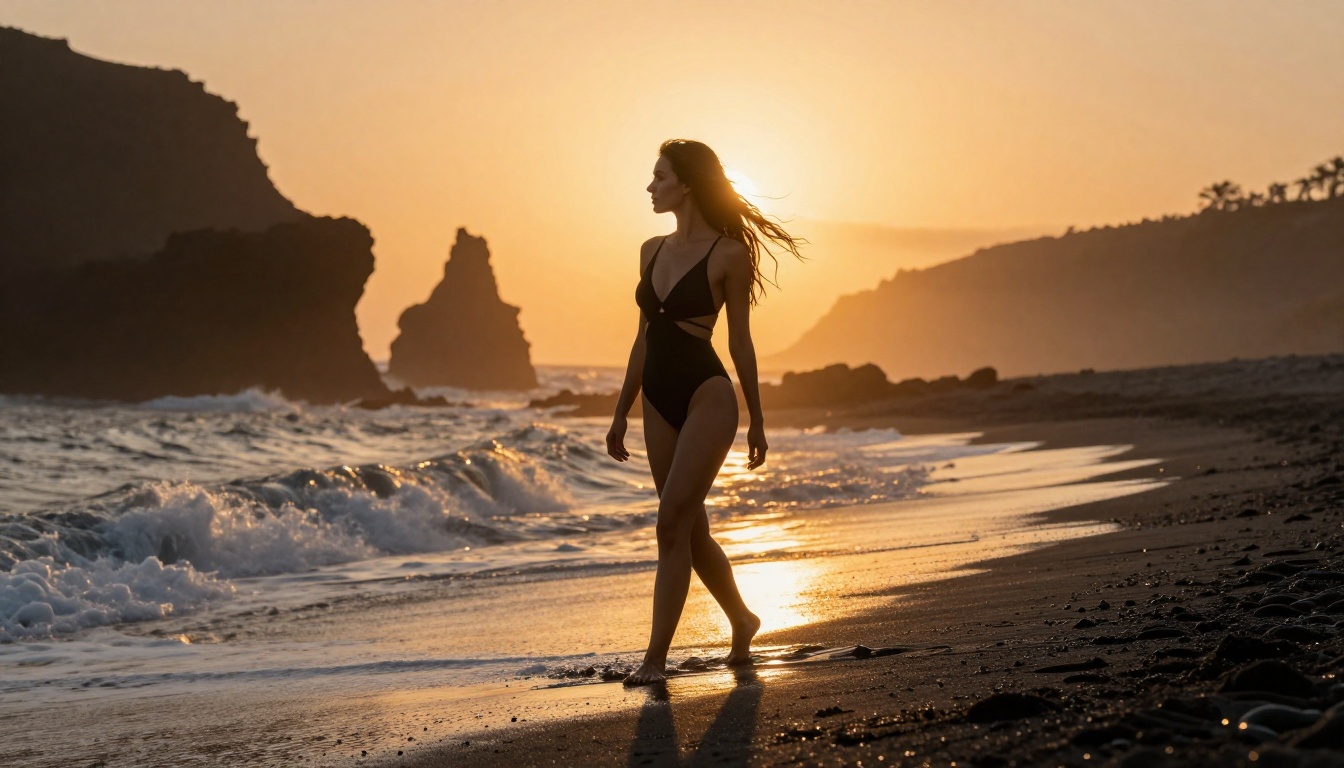
The gap between average and excellent adult AI video comes down to cinematography embedded in the prompt. These methods require no extra tools, only more specific prompt language.
Camera Movement Descriptions
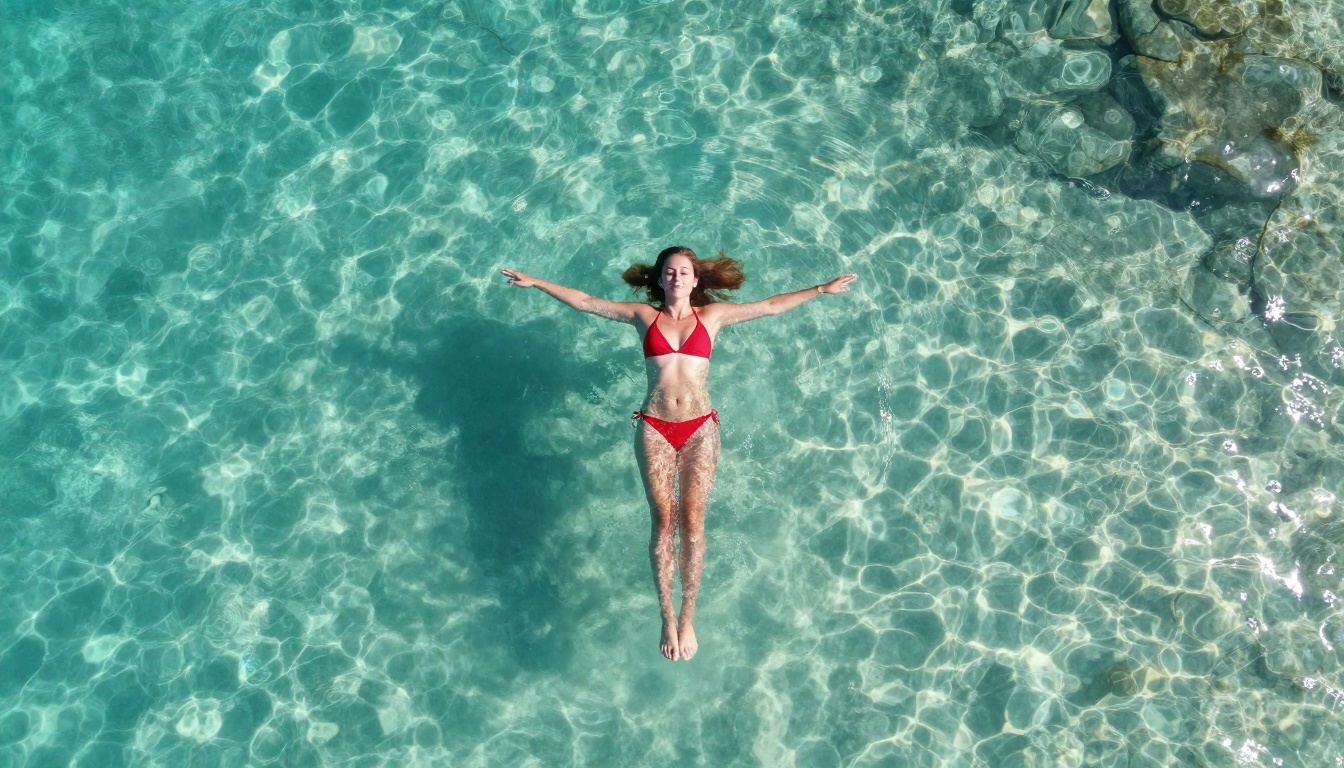
Explicit camera movement descriptions change how the model renders motion throughout the clip:
- "slow dolly-in": Camera moves toward the subject over the clip duration, creating a sense of closeness
- "gentle pan left to right": Camera follows the subject laterally, ideal for walking scenes
- "static camera, subject moves toward lens": Keeps background stable while subject approaches
- "orbital shot around subject": Camera circles the subject slowly, showcasing full body and outfit movement
- "handheld slight drift": Adds organic camera movement that mimics natural observation
💡 Tip: Pick one camera movement per prompt. Combining two movements creates conflicting instructions that produce unstable output across the 30-second clip.
Lighting Descriptions That Work
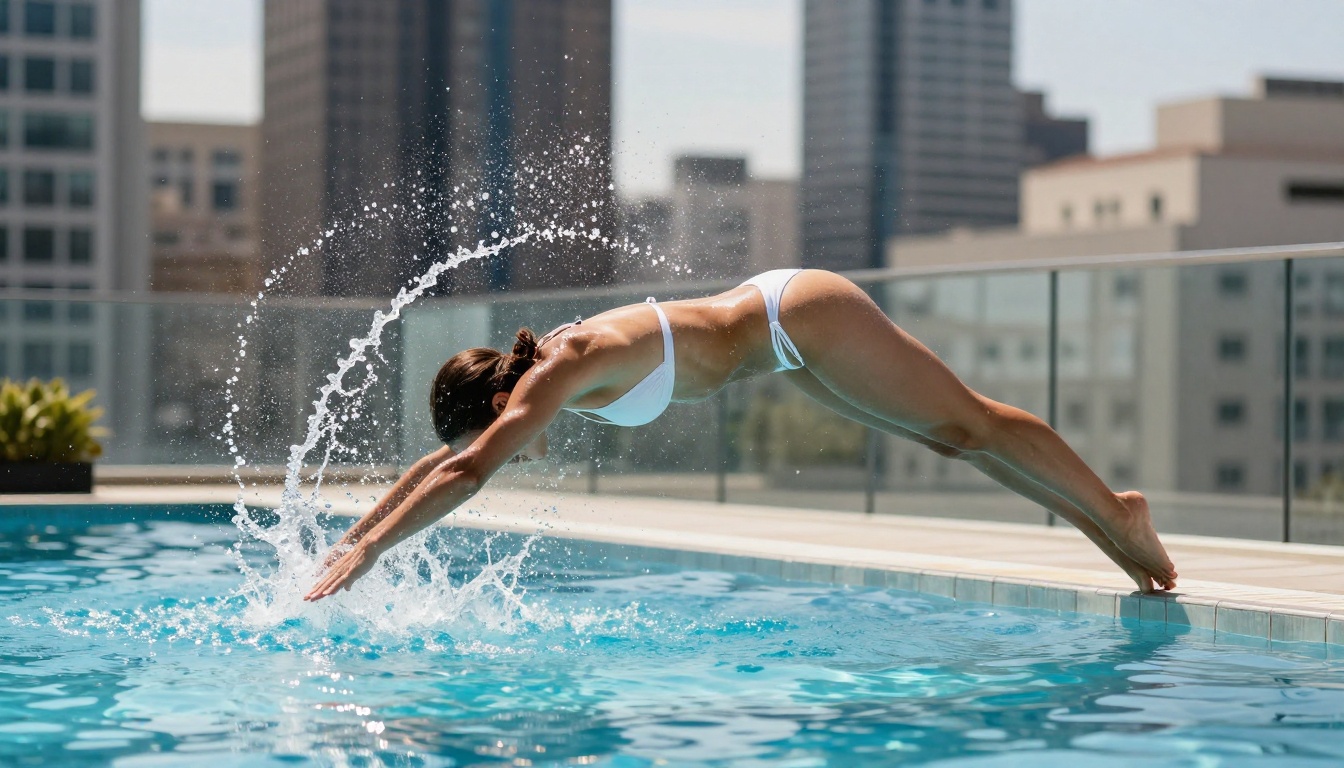
Lighting descriptions affect both visual quality and the mood of the rendered video:
- "golden hour side light": Warm, flattering shadows across the body, ideal for outdoor sensual shots
- "overhead midday sun": Harsh, high-contrast light, effective for beach or pool scenes
- "soft diffused window light": Interior scenes, natural and flattering for close-up body shots
- "rim light from setting sun": Emphasizes body shape and fabric silhouette against a bright sky
Matching the lighting in your Seedream 4.5 source image to the lighting described in your Seedance prompt produces the most consistent, natural-looking transition from static frame to animated clip.
Motion Timing and Pacing
Seedance 2.5 defaults to continuous motion across the clip. For sensual content, pacing is a creative tool:
- Slow motion: Add "slow motion, 50% playback speed" to reduce the pace of all movement in the frame
- Natural pacing: Describe the speed explicitly ("slowly", "gently", "gradually approaching")
- Dramatic pause: "Camera holds on subject standing still for 3 seconds, then subject begins slowly walking toward the lens" creates a cinematic build before motion starts
Common Mistakes
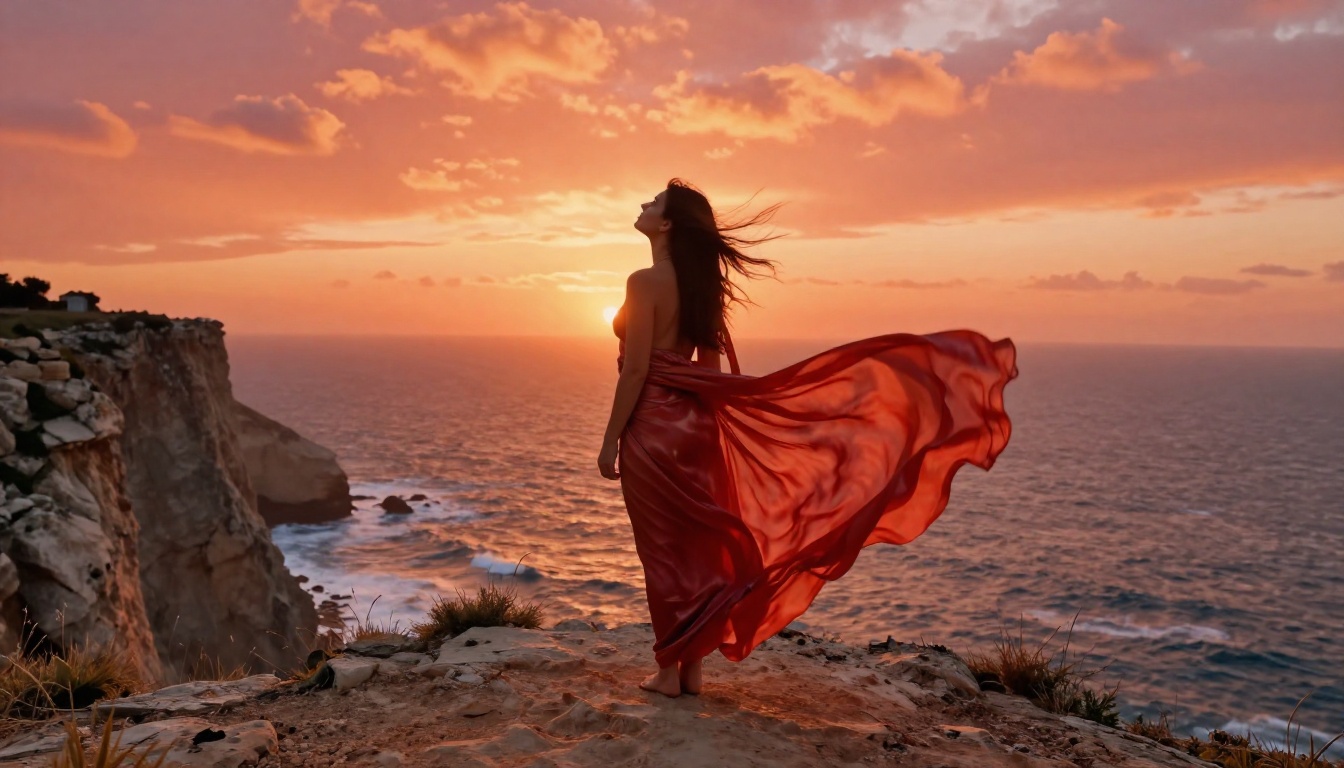
Even experienced users make these errors when switching to Seedance 2.5 from older models:
1. Using 480p for final outputs. At close range, skin texture looks flat and plastic at 480p. Use 720p minimum for anything meant to be shared or kept.
2. Skipping Image-to-Video mode. Pure text-to-video for adult content produces inconsistent facial features and body proportions across the 30-second clip. Always anchor the video to a source image generated with Seedream 4.5.
3. Overcrowded prompts. More than 80 words starts creating competing instructions. The model cannot prioritize 15 different directives simultaneously. Focus on four clear elements and let the model fill in the rest.
4. Ignoring secondary motion. Hair, fabric, water, and foliage all respond to wind and movement in the model's training data. Prompting for these secondary elements makes the output feel alive rather than posed.
5. Not testing on Lite first. Seedance 2.5 Lite is free and unlimited. Test every new prompt at 480p on Lite before spending credits on the full version at 720p or 1080p.
6. Skipping the source image step. Spending 30 seconds generating a dedicated Seedream 4.5 image saves several failed video renders. The source image locks in the subject consistency that text-to-video alone cannot reliably guarantee.
Start Generating Now
Everything covered here is live on PicassoIA. Seedance 2.5 is ready, Seedream 4.5 is available for source image generation, and the Image Editor is waiting for any refinements you need before the video step.
Start with the two-step workflow: generate a source image with Seedream 4.5, then animate it with Seedance 2.5 using the four-part prompt formula. Run your first test on Seedance 2.5 Lite at 480p to confirm the prompt direction, then produce the final version at 720p once the composition looks right.
If you want to see the full range of what is available for video, image, audio, and more, browse the full catalog at picassoia.com/en/all-models. Over 87 text-to-video models are available, including Wan 2.7 T2V, Kling v3 Video, and Pixverse v5.6 as alternatives when you want to experiment with different motion styles and NSFW tolerances.
The workflow is straightforward, the tools are built, and the results speak for themselves. Your first prompt is one click away.


