You have two tabs open. One says Seedance, the other says Wan. Both promise cinematic clips from a sentence or a single photo, and both have changed fast over the last year. The questions that actually decide your choice are boring and practical: how much can I generate without paying, how long can a clip run, what resolution do I get, and how should I write the prompt so I don't waste credits?
This is a direct Seedance vs Wan breakdown built around those four questions. Every model mentioned below is on PicassoIA, so you can test the claims yourself in a few minutes rather than trusting a spec sheet.

The Short Answer First
If you only have thirty seconds, here is the version I'd give a friend.
- Pick Seedance when you want audio built in, spoken dialogue with lip movement, and strong control through reference images, reference videos and reference audio.
- Pick Wan when you want the highest resolution (up to 1080p), a negative prompt field, and automatic prompt expansion that rescues short, lazy prompts.
- Pick either for clips of up to 30 seconds. Both families now reach that length in their newest versions.
💡 Tip: Don't commit to a family. Write one prompt, run it through both, and keep the better take. A five second test costs far less than a wrong decision on a full project.
Quick Comparison Table
| Feature | Seedance 2.5 | Wan 3 |
|---|
| Longest clip | Up to 30 seconds | Up to 30 seconds |
| Resolution options | 480p, 720p | 480p, 720p, 1080p |
| Native audio | Yes, with dialogue in quotes | Not the focus of this model |
| Image to video | Yes, first and last frame | Yes, single first frame |
| Reference inputs | Up to 30 images, 10 videos, 10 audios | Single starting image |
| Negative prompt | Not exposed | Yes |
| Prompt expansion | Not exposed | On by default |
| Aspect ratios | 16:9, 4:3, 1:1, 3:4, 9:16, 21:9, adaptive | Adaptive, 16:9, 9:16, 1:1, 4:3, 3:4 |
You can open Seedance 2.5 and Wan 3 in two tabs and compare the inputs as you read.
Free Limits Without the Marketing
"Free" is the most abused word in AI video. Let me separate what is true on PicassoIA from what you should check yourself.

What Is Actually Free on PicassoIA
The model pages for Seedance 2.5, Wan 3 and Wan 3 Prime all describe themselves as free to try online. That means you can run a first clip without building a pipeline or installing anything.
The clearest "unlimited" option is Seedance 2.5 Lite. It is the lightweight version of Seedance 2.5, tuned for 480p and 720p, and Elite and Infinite members can run it without a per-clip cost or a daily counter. Clips run 5 or 10 seconds.
Why Daily Caps Differ by Model
Heavier models cost more to run. A 30-second 1080p clip uses far more compute than a 5-second 480p clip, so any free allowance gets used up quickly on the big ones. Third-party reviews of both families say the same thing: free daily credits are meant for testing, and queue time and clip length are the real ceilings once you move to production.
My practical advice: do your drafts on the cheap, short settings, and only spend on the long 1080p render once the motion looks right.
💡 Tip: Drafts at 480p and 5 seconds. Finals at the resolution you will publish. This one habit stretches any allowance two or three times further.
How the API Prices Compare
Outside PicassoIA, public API pricing for the older generation was close between the two families. One comparison put a 5-second Seedance 2.0 clip and a 5-second Wan 2.6 clip within a cent of each other, at about 75 cents. Another listing priced Wan 2.6 at roughly 7.5 cents per second at 720p and 11 cents per second at 1080p. Treat those as rough reference points, since prices move often.
Video Length: Who Goes Longer
Length is where the two families used to differ most. Now they have converged.
Clip Length by Model
When Longer Is Worse
A 30-second clip sounds like a win, but it gives the model more time to drift. Faces change, objects morph, and the lighting slides away from your original frame. For a product shot, a 5 to 8 second clip almost always looks tighter than a long one.
Use the long setting for a single continuous move: a slow walk through a street, a camera drifting around a table, a dance. If your idea has several beats, generate several short clips and cut them together.
Extending a Clip Beyond the Limit
Seedance 2.5 accepts reference videos for extension, so you can feed a finished clip back in and continue the action. With Wan, the usual trick is to take the last frame of one clip and use it as the first frame of the next with Wan 2.6 I2V or Wan 3.
Settings That Change the Result
Most people leave everything on default. That is fine for a first try, but a handful of settings do real work.
Resolution and Aspect Ratio
- 480p renders fastest. Use it for drafts and for testing a prompt.
- 720p is the sweet spot for social posts and web embeds. Both families support it.
- 1080p is a Wan advantage: Wan 3 and Wan 3 Prime list it, and Wan 3 Prime defaults to it. Seedance 2.5 stops at 720p.
- 21:9 is only on Seedance 2.5, which is handy for a widescreen film look.
When you provide a starting image, both families follow that image's ratio and ignore the ratio field. Crop your image first.
Seeds, Negative Prompts and Expansion
Set a seed when you like a result and want to tweak only one word. Change the prompt and keep the seed, and you can see which words shifted the output.
Wan adds two helpers Seedance doesn't expose. The negative prompt lets you list what to keep out: text overlays, extra fingers, flicker, watermarks. The prompt expansion switch rewrites a short prompt into a richer one. It helps when you type five words, and it adds latency. Turn it off when your prompt is already detailed, because you want your exact words obeyed.
Audio and Watermark Switches
Seedance 2.5 generates synced dialogue, sound effects and music in the same render, and has a toggle to turn audio off for a silent clip. It also has a watermark switch, off by default. If you plan to add your own soundtrack, turn audio off and save yourself a cleanup step.
How to Write Prompts for Each
The same sentence behaves differently in each family. Here is what I've seen work.

The Seedance Prompt Pattern
Seedance responds best to chronological, cinematic descriptions: what the subject does first, then next, with a clear camera move. The 2.5 model accepts up to 2000 characters, so you have room to describe the beats.
A pattern that works:
- Subject and starting pose. "A woman in a green raincoat stands at a bus stop."
- Action over time. "She checks her watch, then steps forward as a bus arrives."
- Camera. "Slow dolly-in, shallow depth of field."
- Light and mood. "Overcast evening light, wet pavement reflections."
- Audio. Put spoken words in double quotes: "She says, 'Finally.'"
When you use reference images, call them in the prompt as [Image1], [Image2]. For reference video and audio, use [Video1] and [Audio1]. This is how you keep a face or outfit consistent across shots.
The Wan Prompt Pattern
Wan likes a dense visual description of the scene first, followed by motion and camera. Because prompt expansion is on by default, even a short prompt will be elaborated, but you get more predictable output when you write the details yourself.
A pattern that works:
- Scene and subject, with materials and colours.
- Motion, in plain verbs: drifts, ripples, turns, settles.
- Camera and lens, such as "handheld, 35mm, slight push-in".
- Negative prompt: "text, watermark, distorted hands, flicker."
Prompt Mistakes That Waste Credits
- Stacking three camera moves. Pick one: dolly, pan or orbit.
- Asking for a crowd of faces. Faces in the background are where artefacts show first.
- Writing a script in the prompt. Long monologues in a 5-second clip never fit.
- Using vague adjectives. "Epic" and "beautiful" do less than "golden-hour backlight on wet sand".
Where Each Model Wins
Specs only get you so far. Here is how I'd match the models to real jobs.
Dialogue and Sound
For a scene where someone speaks, Seedance 2.5 is the stronger pick. It was built to produce dialogue, ambient sound and music in a single pass, and lip movement is matched to the quoted lines. Reference audio can drive lip-sync too. If you need dialogue from an older, cheaper model, Seedance 1.5 Pro also pairs text to video with audio.
Motion and Camera Moves
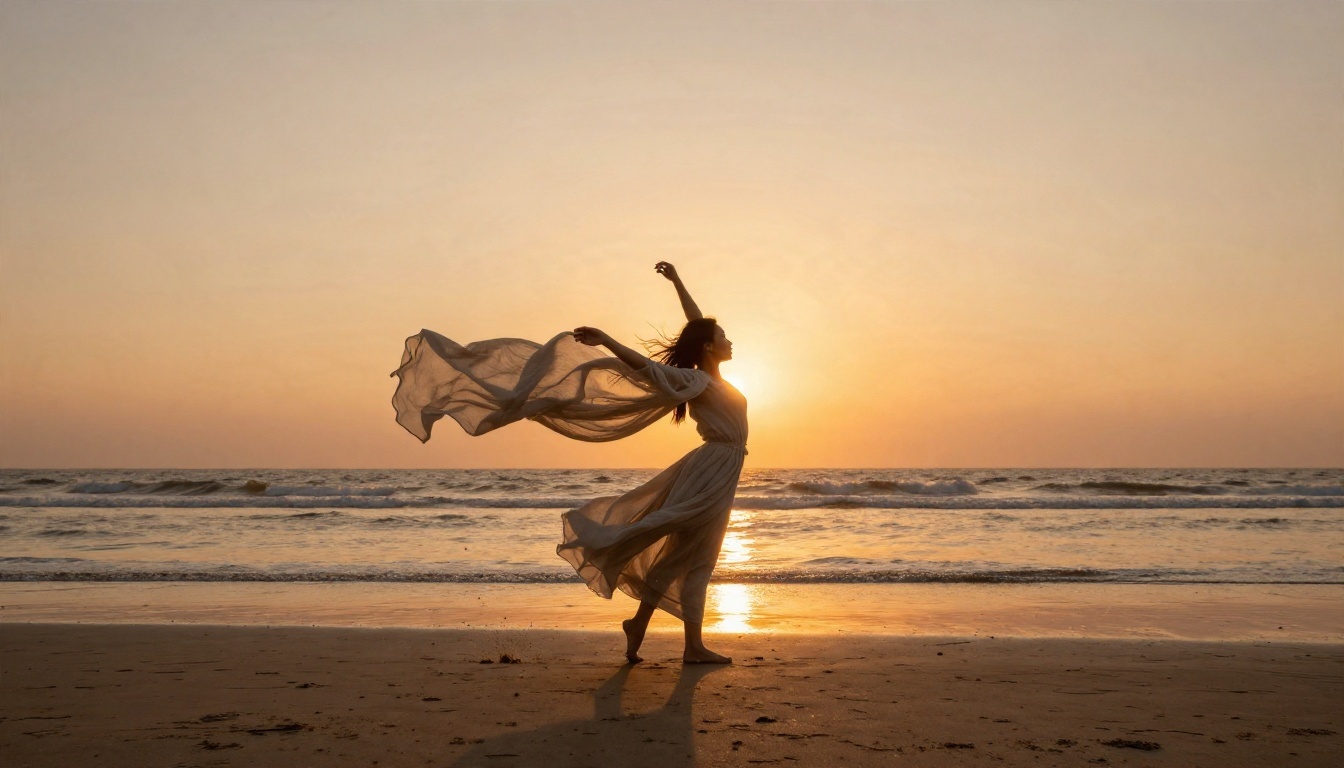
For flowing fabric, water, hair and wind, the Wan family has a loyal following. The shot of a dancer on a beach is exactly the kind of scene that both can animate, and side by side tests are the only honest way to pick. Run Wan 3 and Seedance 2.5 on the same photo and compare the wind, the cloth and the camera.
Social Clips and Product Shots
For vertical 9:16 social video, both families work. The budget route is Seedance 2.5 Lite for fast, repeatable 720p clips. If you want a slightly higher quality ceiling, step up to Wan 3 Prime at 1080p.
For product work, start from a clean photo and animate it. Wan 2.6 I2V and Wan 2.5 T2V are older but still useful when you want a quick, cheap turn. For consistency across many shots of the same product, Seedance 2.5 reference images (up to 30) are the better tool.
How to Use Seedance 2.5 on PicassoIA
Here is the simplest path from idea to finished clip.
- Open the model page. Go to Seedance 2.5.
- Write the prompt. Use the chronological pattern above. Keep it under 2000 characters.
- Choose duration. Start at 5 seconds. Move to 10 or more once the motion works. Use -1 if you want the model to decide.
- Pick resolution. 480p for drafts, 720p for the final.
- Set aspect ratio. 16:9 for YouTube, 9:16 for Shorts and Reels, 21:9 for a cinematic look. Use adaptive when you supply an image.
- Add references (optional). Upload up to 30 images for character consistency, or a first and last frame to control how the clip opens and ends.
- Leave audio on or turn it off. Put dialogue in double quotes.
- Generate, then iterate. Reuse the seed and change one phrase at a time.
For unlimited drafts, run the same idea on Seedance 2.5 Lite first, then take the best prompt to the full model.
Using Wan 3 for 1080p Output
The Wan route is similar, with two differences. Pick 1080p in the resolution field, and use the negative prompt to remove unwanted artefacts. Open Wan 3 for image to video with an optional starting frame, or Wan 3 Prime when you want text first.
💡 Tip: If your clip looks soft, check that you didn't leave the duration at a very long value with a low resolution. Shorter clips at higher resolution look sharper.
Which Model Should You Pick
Pick by Job
My Honest Take
Neither family beats the other everywhere. Seedance wins on audio, references and control. Wan wins on resolution and the extra helpers like negative prompts. Since Seedance 1 Pro and Wan 2.2 I2V A14B are still available for cheaper experiments, you can keep older models in your toolbox for simple jobs.
Run Your Own Side by Side Test
Reading comparisons is useful, but your footage, your prompts and your taste are what matter. Take one prompt and one photo, run them through Seedance 2.5 and Wan 3, and keep the clip that looks like your idea. Try a 5-second draft at 480p, then a 10-second version at 720p, then your favourite at full quality.
Ready to try it? Open PicassoIA, pick a video model, and generate your first clip today. Browse every video model at picassoia.com/en/all-models and build your own shortlist.


