Most people type five words into Seedream 5.0, get a decent picture, and assume that's the ceiling. It isn't. This model reads sentences the way a photographer reads a brief: subject, light, lens, mood, in that order of importance. Feed it a vague line and it fills the gaps with safe, average choices. Feed it a precise one and the output starts to look like it came from a real shoot. Below you'll find the prompt formula I use, ten copy-ready examples, the settings that actually change results, and the simplest ways to try it without paying anything.
💡 Quick note on sources: ByteDance has not published one definitive official prompt manual for this release, and third-party sites disagree on some specs (especially resolution). Everything below is based on how the model behaves in practice plus the details that most providers agree on. Always check the model page for the current limits.
What Seedream 5.0 Does Differently
Seedream 5.0 is ByteDance's newest image model family, and it currently shows up in two main flavors: a faster Lite version and a higher-fidelity Pro version. Both are available on PicassoIA as Seedream 5 Lite and Seedream 5 Pro.
Compared with the 4.x line, reviewers keep pointing at the same three improvements:
- Better instruction following. Multi-part prompts with spatial relationships ("the cup on the left, the notebook behind it") are respected more often.
- Stronger lighting logic. If you say the light comes from the right, shadows tend to fall to the left.
- Reference image handling. You can feed in a photo and ask the model to borrow its mood, palette or composition.
Lite vs Pro at a Glance
| Feature | Seedream 5 Lite | Seedream 5 Pro |
|---|
| Speed | Faster, cheaper per image | Slower, more deliberate |
| Best for | Drafts, social posts, iteration | Final images, detailed scenes |
| Output size | 2K class, some providers list 3K | 2K class on PicassoIA |
| Prompt tolerance | Short to medium prompts | Long, layered prompts |
| Adult content | Blocked | See platform rules |
If you're unsure, start in Lite to test an idea, then rerun your winning prompt in Pro for the final.
How It Compares With Earlier Versions
Older siblings such as Seedream 4.5 and Seedream 4 are still very good, particularly for 4K output and for adult or edgier creative work where 5 Lite is stricter. Keep them in your rotation rather than abandoning them.
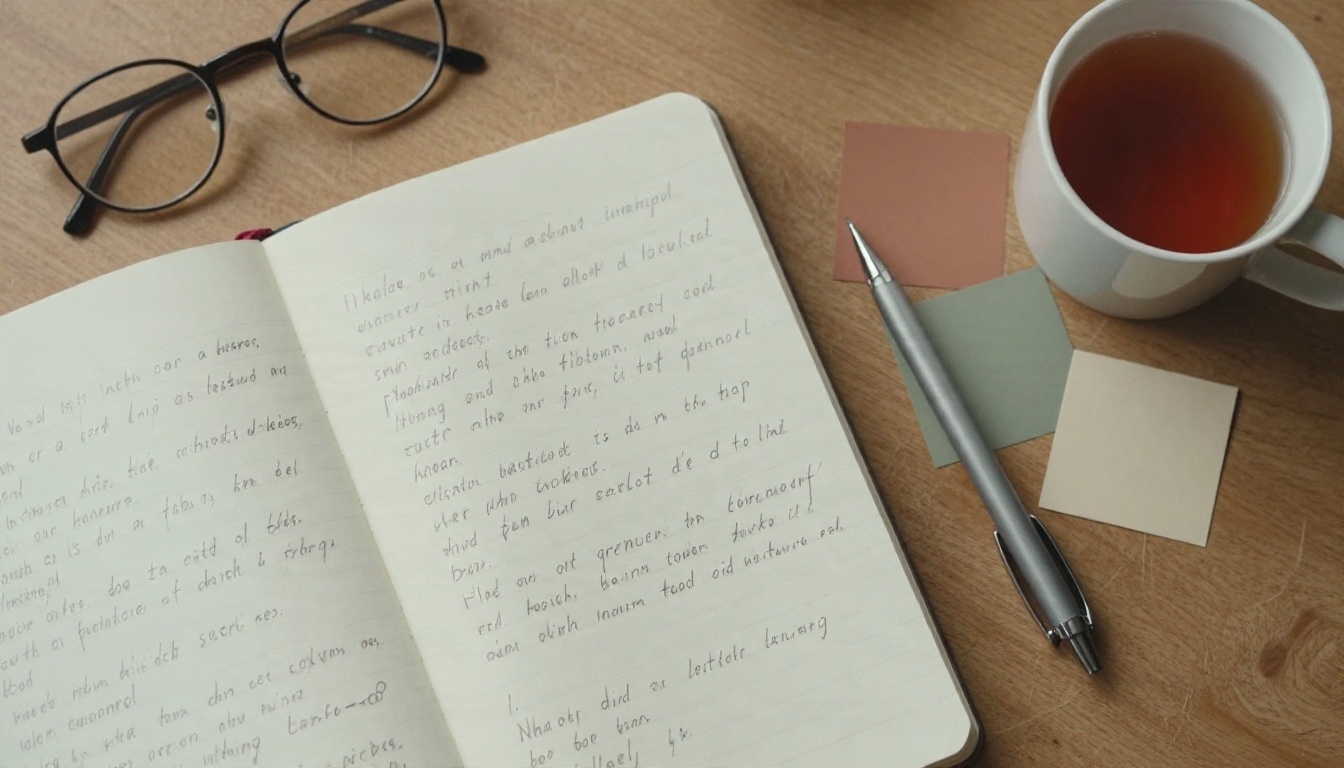
After a lot of trial and error, one structure beats everything else for me. Write it as a flowing sentence or two, not a keyword pile.
Subject + Action + Setting + Light + Camera + Texture + Mood
Put the Subject First
The model weights the opening words more heavily. Lead with who or what the image is about. "A weathered fisherman mending a net" beats "Golden light, cinematic, 8K, a fisherman."
Describe Light Like a Photographer
This is the single biggest quality jump. Replace "good lighting" with something concrete:
- Soft overcast window light from the right
- Low golden hour backlight with rim light on the hair
- Overhead softbox, neutral and even
- Blue hour with warm shop windows glowing in the distance
Name a Lens and a Distance
Lens language steers framing and depth of field better than adjectives do. "85mm f/1.8" gives you a tight portrait with blurred background. "24mm" gives you wide, deep scenes. "100mm macro" pushes in on texture.
Add Surface Details
Photorealism lives in texture. Mention pores, fabric weave, wood grain, wet stone, paper fibers. These small words tell the model to stop smoothing everything.
Close With Mood and Film Stock
A final phrase like "Kodak Portra 400 palette, soft film grain, calm and quiet" quietly unifies color and contrast across the frame.
Ten Prompt Examples to Copy
Each example below follows the formula. Paste, run, then change one variable at a time to see what moves.
Portrait Prompt
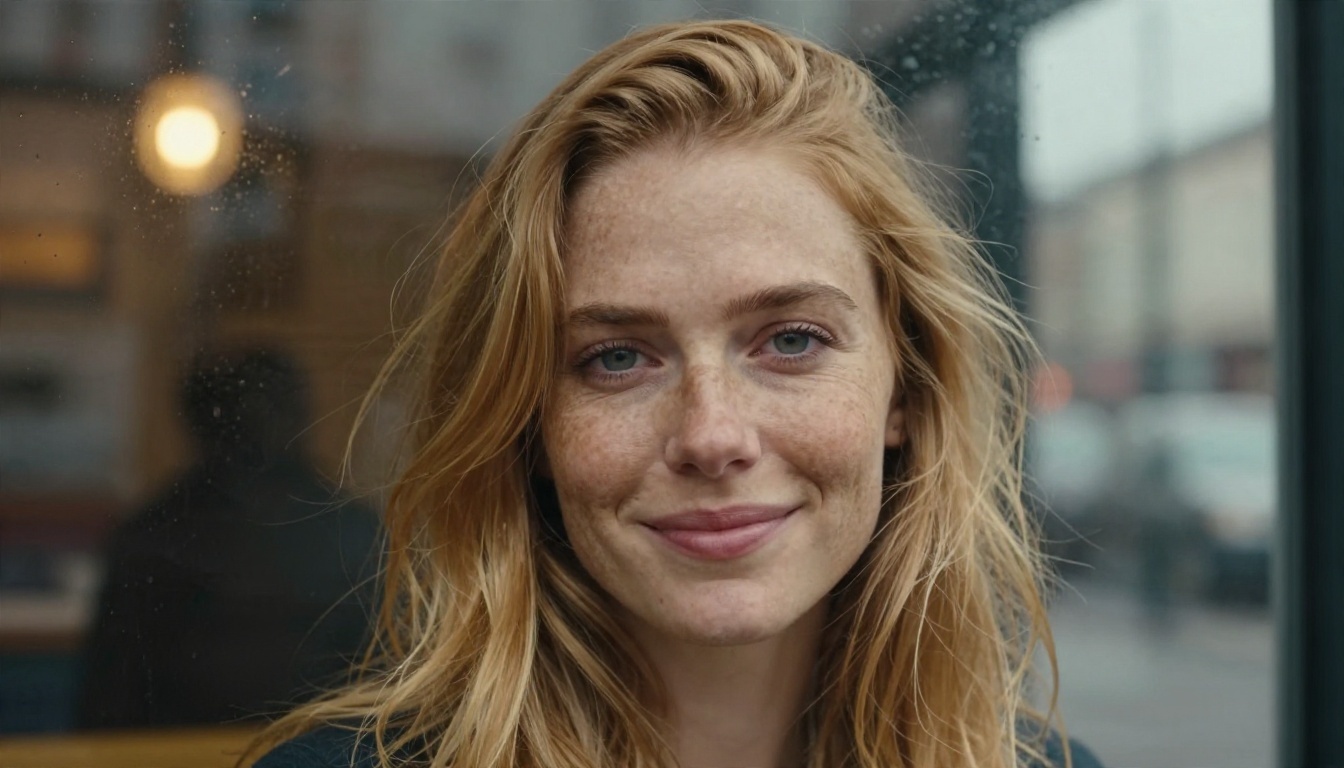
Close-up portrait of a woman in her thirties with freckles and wind-tousled auburn hair, soft smile, standing by a rain-streaked cafe window, visible skin pores and fine peach fuzz, catchlight in hazel eyes, overcast window light from the right, blurred warm street lamps behind her, 85mm f/1.8 lens, Kodak Portra 400 film grain.
Why it works: the skin detail phrase stops the airbrushed look, and the catchlight mention gives the eyes life. Try swapping the window for a doorway to see how the light logic follows.
Product Prompt
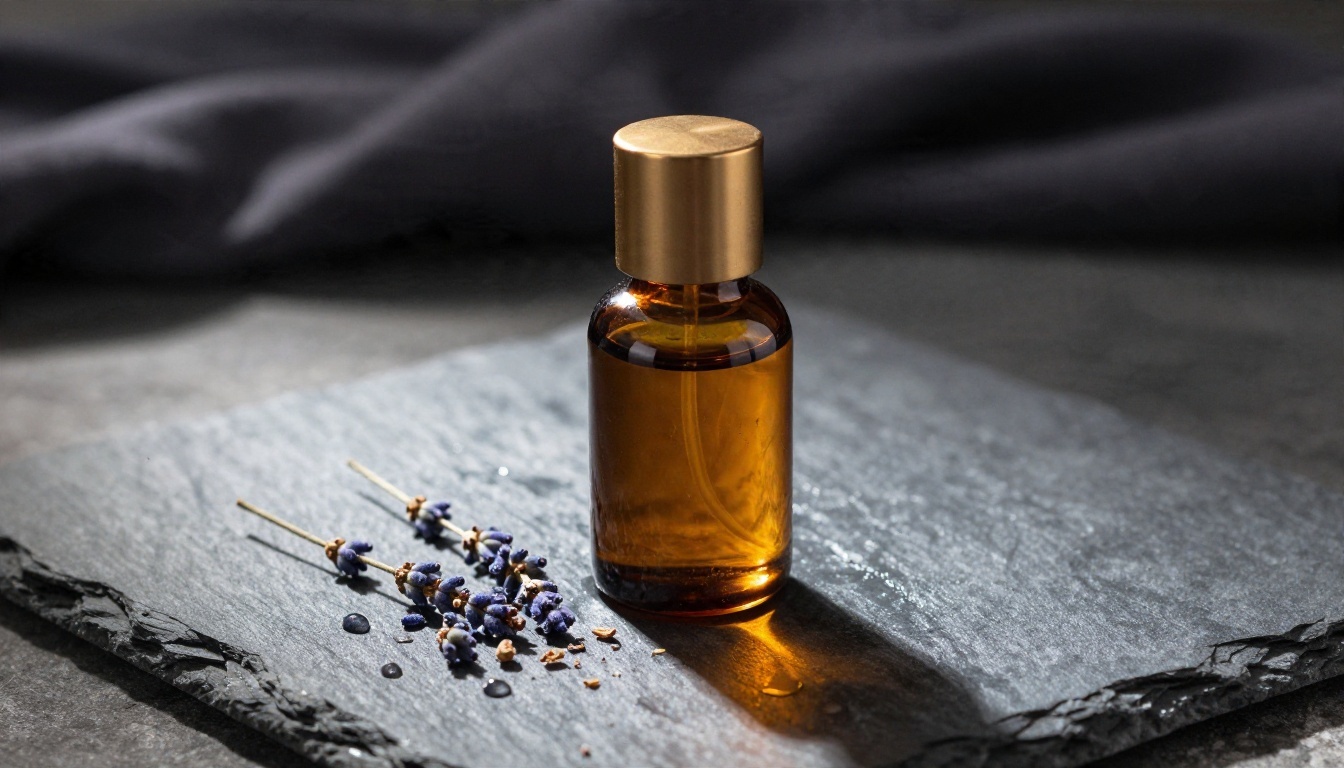
Low-angle product photograph of an amber glass perfume bottle with a brushed brass cap resting on a slab of wet gray slate, scattered dried lavender and a single water droplet trail, warm side light from the left casting a long soft shadow, dark linen backdrop, macro 100mm f/2.8 lens, crisp glass reflections.
Why it works: materials are named (glass, brass, slate), so each surface gets its own reflection behavior. Product shots reward this kind of material vocabulary more than any other genre.
Landscape Prompt
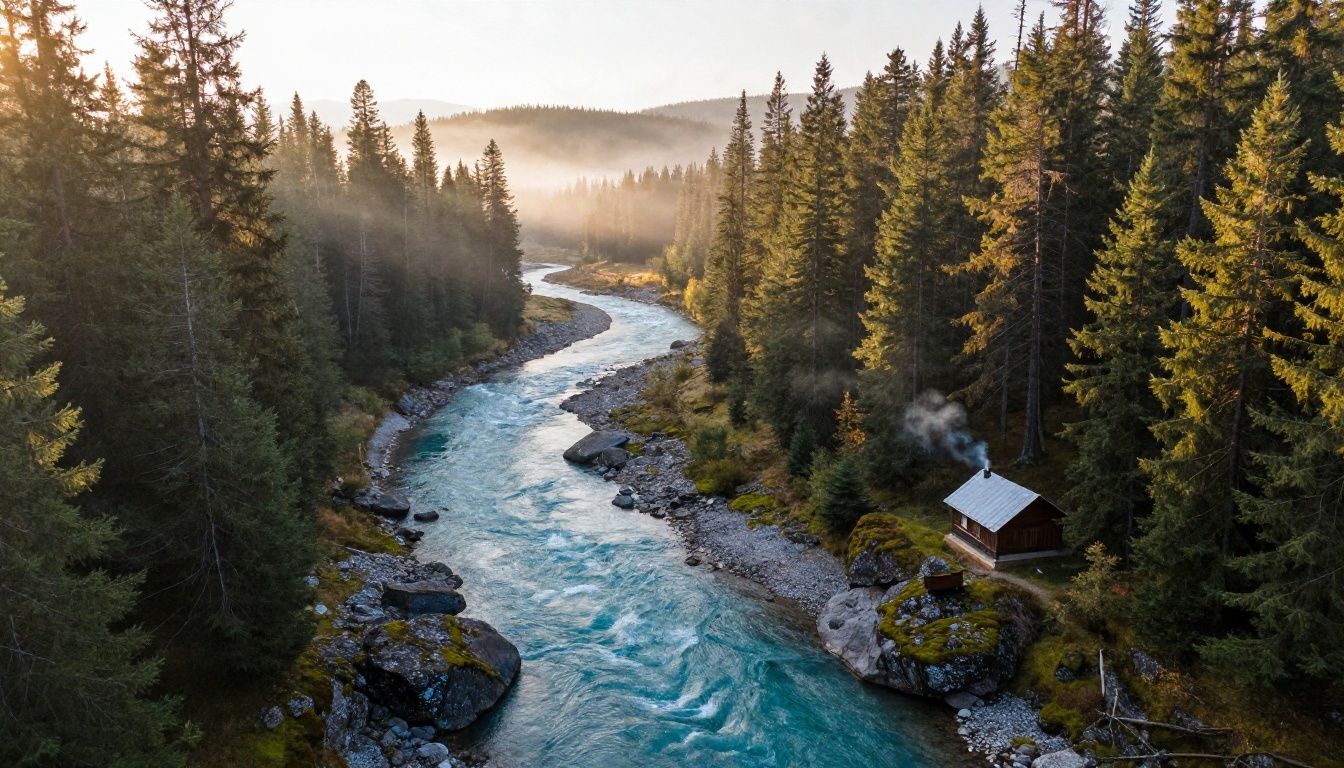
Aerial wide shot of a winding turquoise river cutting through a pine valley at sunrise, low mist hanging between ridges, golden light raking from the right across moss-covered rocks, a tiny wooden cabin with a thin line of chimney smoke near the bank, 24mm drone perspective, deep depth of field, natural color.
Why it works: a small human detail (the cabin) gives scale, and the mist plus raking light creates depth layers. Add "no people" if figures sneak in.
Street Scene Prompt
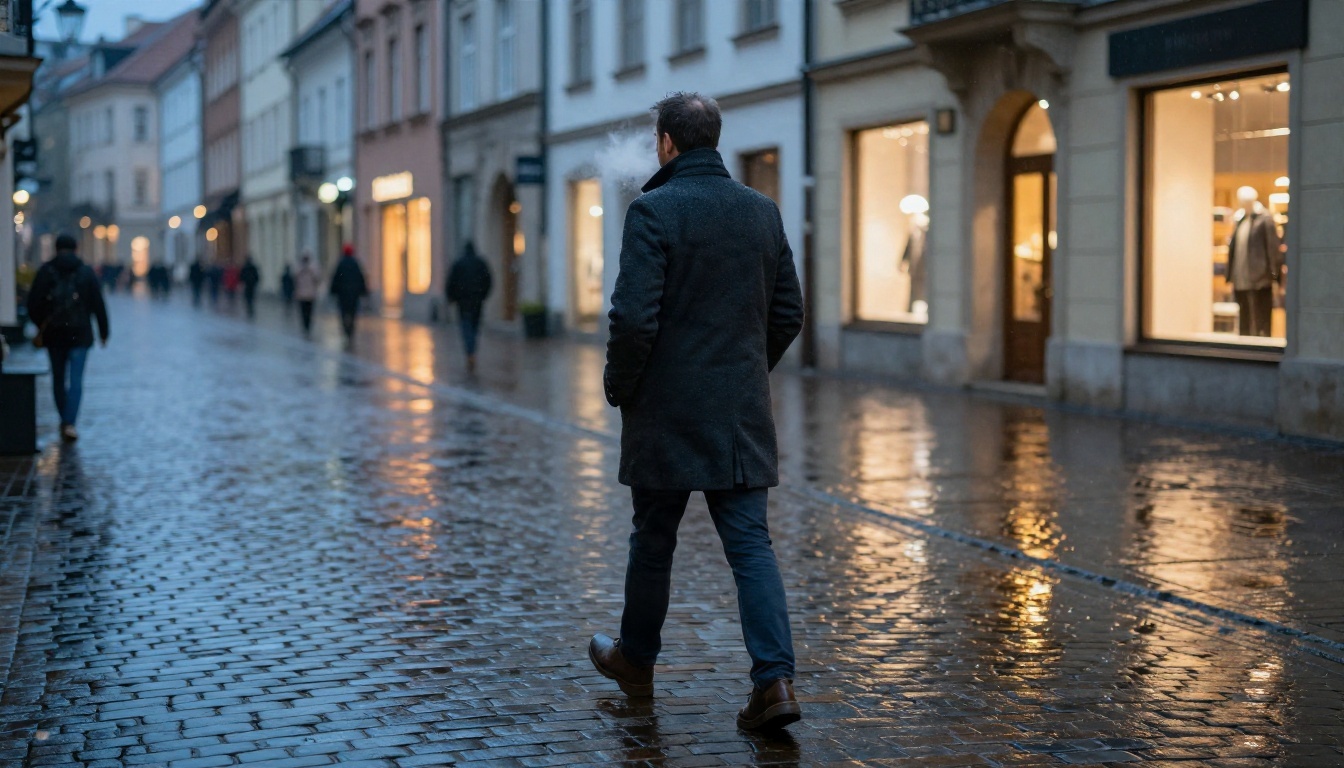
Street photograph at dusk of a man in a charcoal wool coat crossing a wet cobblestone plaza in a European old town, reflections of warm shop windows on the stones, soft blue hour light with an amber glow from the right, medium-wide shot from a slightly low angle, 35mm f/1.4 lens, shallow depth of field, visible breath in the cool air.
Why it works: the blue-and-amber contrast does the cinematic work for you. You don't need to type the word "cinematic" at all.
Five More Quick Starters
Use these as skeletons and fill in your own details:
- Food: Overhead shot of a rustic sourdough loaf split open on a floured wooden board, steam rising, soft window light from the left, 50mm lens, visible crumb texture.
- Architecture: Symmetrical front view of a pale stucco townhouse with green shutters at midday, hard sun from above, long shadows under balconies, 35mm tilt-shift look.
- Fashion: Full-length portrait of a model in a linen trench coat leaning on a concrete wall, soft overcast light, 70mm lens, fabric creases clearly visible.
- Wildlife: A red fox crossing a frosted meadow at dawn, backlit fur glowing at the edges, 400mm telephoto compression, shallow focus.
- Interior: A sunlit reading nook with a worn leather armchair, wool blanket and stacked books, warm afternoon light through sheer curtains, 28mm lens.
Writing Longer Prompts Without Losing Control
Pro handles detail better, but length alone doesn't help. Structure does.
Use Short Sentences for Separate Ideas
Instead of one 90-word run-on, break the prompt into three or four sentences: one for the subject, one for the environment, one for light and camera, one for texture and mood. The model parses these chunks more reliably.
Be Specific About Position
Spatial words pay off in this model. Compare these two:
| Weak | Strong |
|---|
| A desk with a laptop, mug and notebook | A mug on the left, a laptop in the center with its screen facing away, a notebook open on the right |
| A man and a woman at a table | A man seated at the left end of the table, a woman standing at the right end, both looking at the window |
Say What You Don't Want, Positively
Negative prompts are inconsistent across providers. Instead of "no blur," write "tack-sharp focus on the eyes." Instead of "no text," write "clean surfaces without signage."
Keep Text Minimal
Seedream 5.0 renders short text better than most models, but one or two words is still the safe limit. If a sign must appear, put the exact words in quotes and keep it short.
Best Settings for Sharp Results
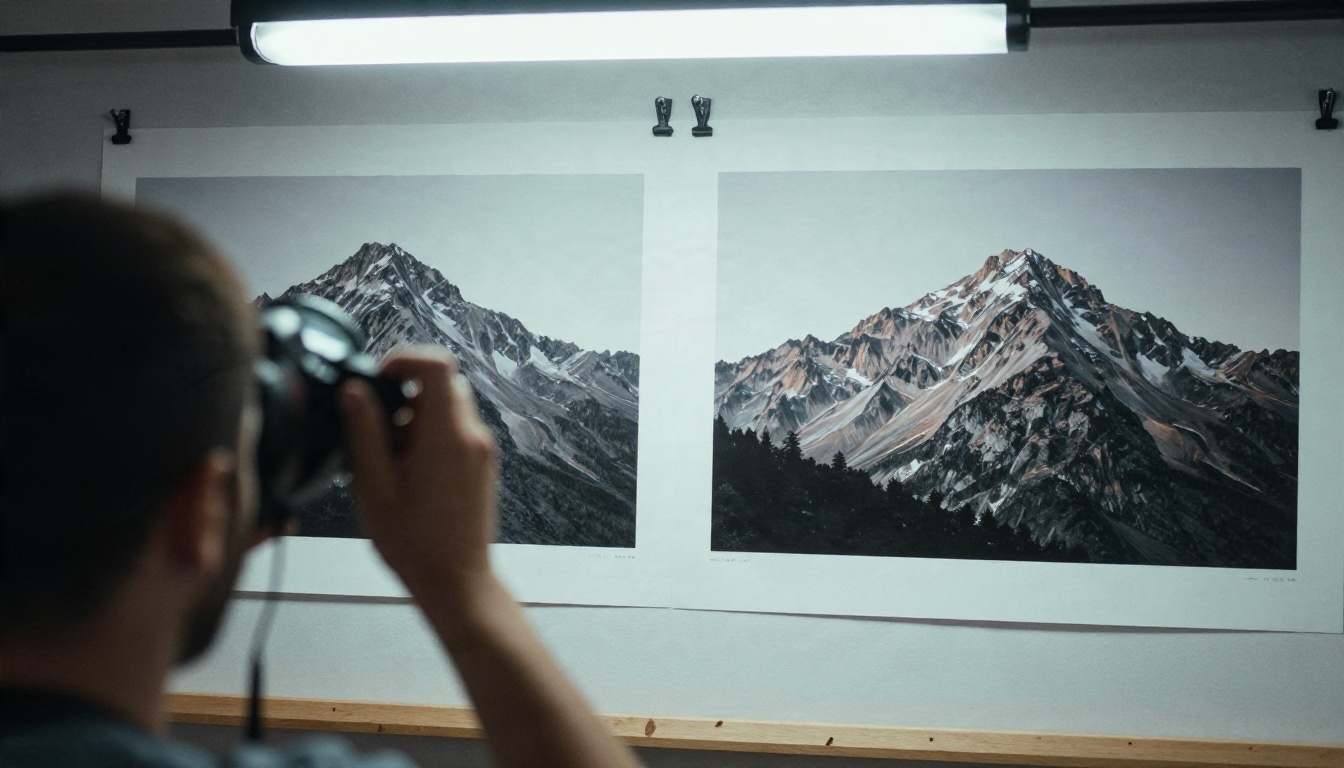
Settings vary a little between platforms, so treat this table as a starting point and match it against the model page.
| Setting | Recommended starting point | Why |
|---|
| Resolution | 2K for drafts and finals, 3K where offered | Higher sizes cost more and slow generation |
| Aspect ratio | 16:9 for scenes, 3:4 or 2:3 for portraits, 1:1 for products | Composition follows the frame |
| Output format | JPEG for photos, PNG if you plan to edit | PNG keeps more detail for retouching |
| Seed | Fixed while testing, random for exploring | A fixed seed isolates the effect of each prompt change |
| Prompt length | 40 to 90 words for Lite, 70 to 150 for Pro | Lite loses focus when overloaded |
Aspect Ratio Is Part of the Prompt
A tall frame invites a standing figure; a wide frame invites a landscape or a group. If your result feels awkward, change the ratio before you rewrite the text.
Lock the Seed While You Iterate
Pick a seed you like, then change only one thing per run: the light, the lens, the time of day. You'll see exactly which phrase is doing the work. Once you've settled on the look, unlock the seed and generate variations.
Upscale Only the Winners
Rather than running everything at maximum size, generate at 2K, choose your favorites, and send those through a super resolution model if you need print size.
💡 Workflow tip: Draft in Lite, finalize in Pro, upscale only the one image you'll actually publish. It cuts cost and time without hurting quality.
Using Reference Images
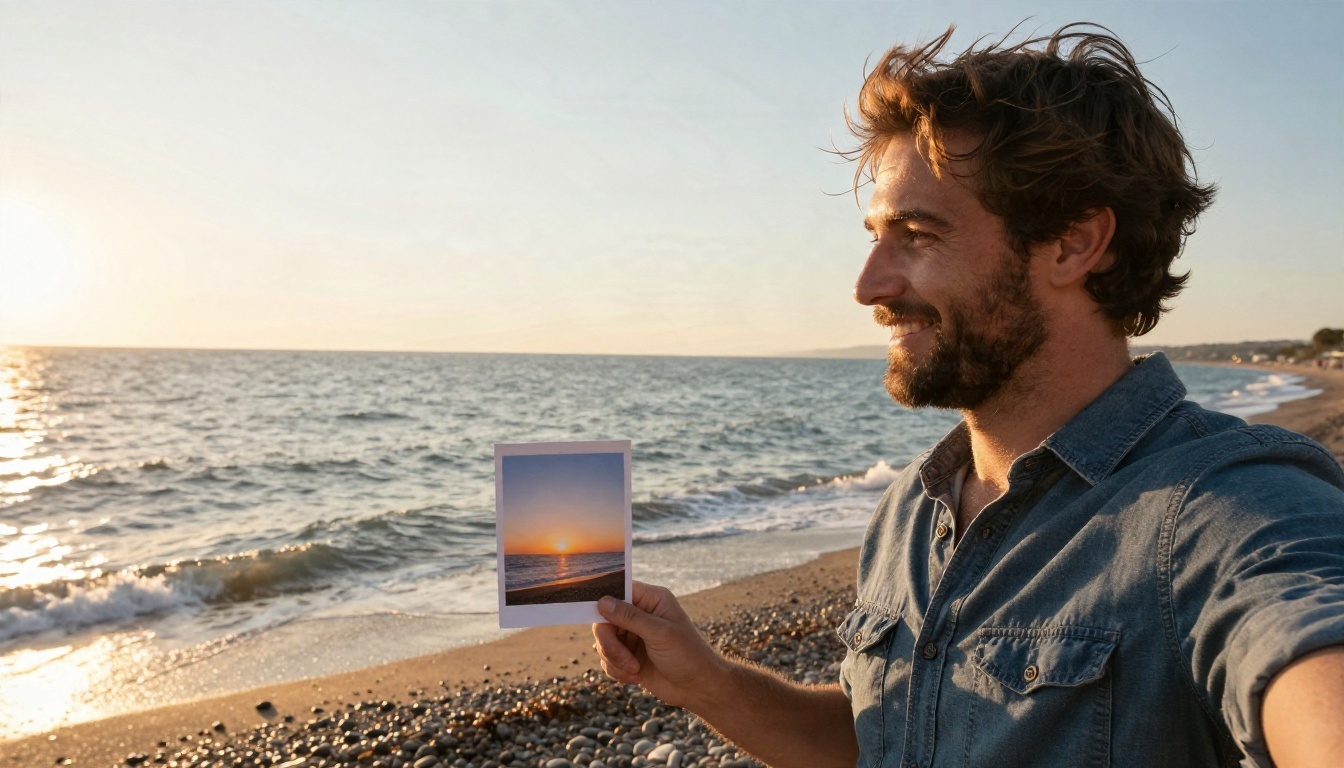
Reference-based generation is one of the more interesting additions in the 5.0 line. You upload a photo and use the prompt to say what you want borrowed from it. It does take some practice to get consistent results, so be explicit.
What to Borrow
- Color palette: "Use the warm coral and teal palette of the reference."
- Composition: "Keep the same off-center framing and horizon height."
- Lighting mood: "Match the soft backlight and haze."
What to Change
Say what's new in plain language: "Replace the subject with a golden retriever standing on the same beach." The more clearly you split "keep" from "change," the better the output.
Common Reference Mistakes
- Uploading a low-resolution or heavily compressed photo.
- Asking to copy everything and change everything in the same sentence.
- Using a reference with strong text or logos, which often leak into the result.
Fixing Common Problems

Plastic or Overly Smooth Skin
Add physical detail: "visible pores, fine peach fuzz, slight skin shine on the forehead." Also drop words like "flawless" and "perfect," which push the model toward retouched looks.
Flat, Boring Light
If the picture looks evenly lit and lifeless, you probably didn't specify direction. Add "light from the left," "rim light on the hair," or "late afternoon sun low in the sky."
Wrong Hands or Extra Objects
Give hands something to do. "Hands shaping wet clay on a wheel" produces better anatomy than "hands" alone, because the action defines the pose. Reduce clutter by naming only the objects you want.
Overcooked Color
When saturation feels loud, add a film reference such as "muted Kodak Portra 400 palette" or "soft, desaturated greens." This calms things without a separate editing step.
Inconsistent Characters Across Images
Use a reference image, keep the same seed where the platform allows it, and repeat the same descriptive phrase for the character each time ("a woman with short silver hair and round tortoiseshell glasses").
Free Ways to Try Seedream 5.0

Pricing changes quickly, and many "free" offers turn out to be a handful of credits. Here is the honest picture.
Free Credits on Platforms
Most image platforms that host ByteDance models give new accounts a small batch of free generations. That's usually enough to test 10 to 30 prompts, which is plenty to run the examples above.
Try It on PicassoIA
You can open Seedream 5 Lite or Pro directly in your browser on PicassoIA, with no software to install. The same site also hosts neighbors worth comparing, such as Nano Banana Pro, Nano Banana 2 Lite and the Flux 2 Klein 9B Base LoRA, so you can run one prompt across several engines and pick the best result.
Free or Low Cost Alternatives
If you run out of credits, Seedream 4 is a strong fallback with the same prompt logic, and the formula in this article transfers to it with almost no changes.
Watch Out for Fake "Free" Sites
Be careful with pages that promise unlimited, no-signup access to a brand-new model. Some are thin wrappers that run an older model under a new name. If the resolution, speed or style doesn't match what a trusted provider shows, close the tab.
How to Use Seedream 5 on PicassoIA
Here is the quickest route from idea to image.
- Open the model page. Go to Seedream 5 Lite for fast drafts or Seedream 5 Pro for finals.
- Paste your prompt. Use the formula: subject, action, setting, light, camera, texture, mood.
- Choose the aspect ratio. 16:9 for scenes, 3:4 for portraits, 1:1 for products.
- Pick the resolution. Start at 2K. Move up only for a final version.
- Set a seed if you're iterating. Keep it fixed while you tweak one phrase at a time.
- Generate and compare. Run two or three versions, change one variable each time, and keep a note of the phrases that worked.
- Refine or upscale. Send the best image to a super resolution model if you need more pixels, or run an edit pass to adjust details.
💡 Pro move: Save your best three prompts as templates. Swapping only the subject while keeping the light, lens and mood phrases gives you a consistent visual style across a whole series.
A Simple Weekly Practice Routine
Prompting is a skill, and it improves quickly with deliberate repetition.
Day One: One Subject, Five Lights
Keep the same subject and generate it with five different lighting setups. You'll build intuition for how much the light phrase controls.
Day Two: One Light, Five Lenses
Hold the light constant and try 24mm, 35mm, 50mm, 85mm and 135mm. Note how framing and background blur change.
Day Three: Texture Pass
Rewrite an old prompt with three added surface details. Compare it with the original side by side.
Day Four: Reference Test
Use a photo you took yourself as a mood reference, and write a prompt that keeps its palette but changes the subject.
Start Creating Your Own Images
You now have the formula, ten starting prompts, and a settings checklist. The fastest way to make it stick is to run something right now. Open Seedream 5 Lite on PicassoIA, paste the portrait or landscape example, and change just the light. Then try the same prompt in Seedream 5 Pro and compare. Five minutes of side by side testing will teach you more than any list of tips, and your own prompts will start to sound like a photographer's brief before the day is over.


