Most people treating AI video like a text-to-magic box produce garbage. Not because the models are bad, but because they skip the one step that separates cinematic results from visual noise: the storyboard. Before you type a single prompt into Sora 2 Pro, you need a plan. A real one. Five to seven scenes, written in order, with character anchors, lighting decisions, and camera language locked down. This is how you make 25 seconds feel like a film instead of a demo reel.
What 25 Seconds Actually Means
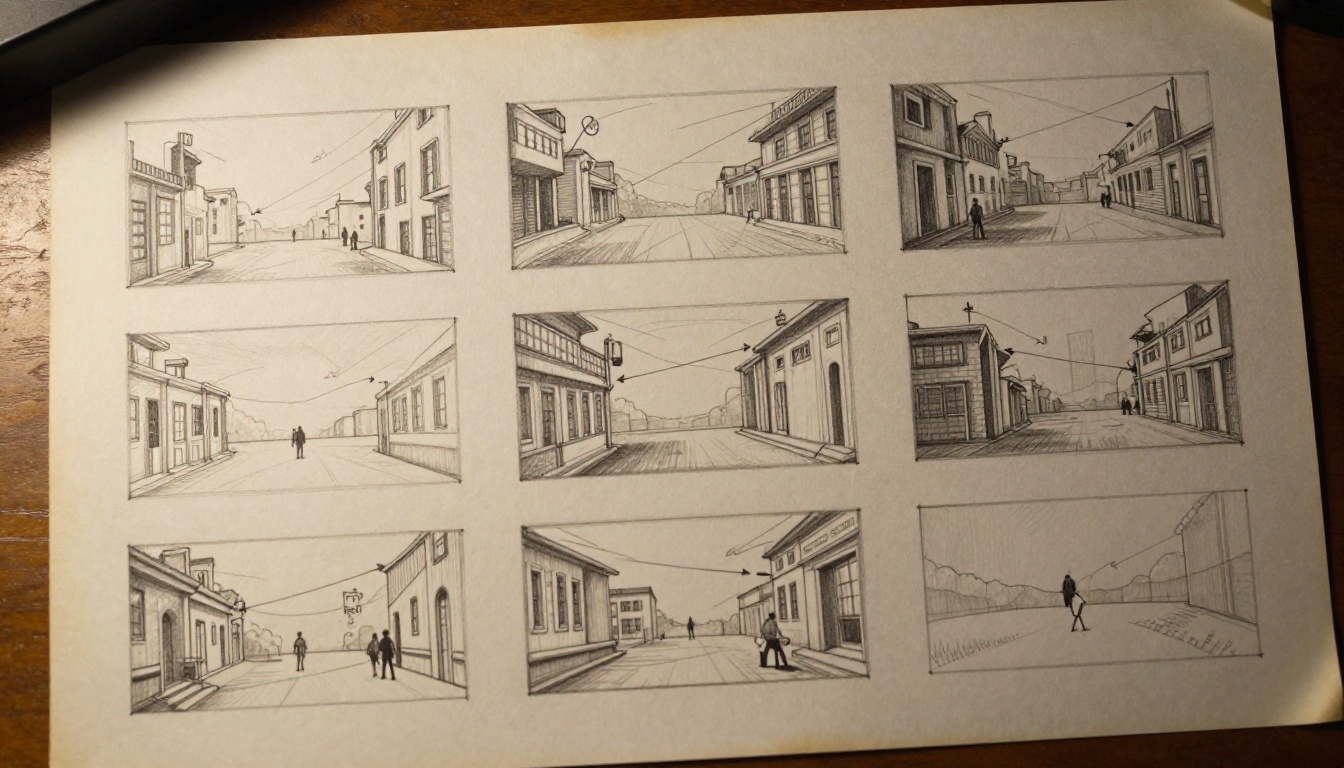
Twenty-five seconds is not short. It is long enough to tell a complete story, build emotion, and leave a viewer with something real to feel. The problem is that most creators treat it as a single clip when it is actually five to eight distinct moments that need to flow into each other with intention.
The math behind the timing
Break your 25 seconds into a scene structure first. A natural split looks like this:
| Section | Duration | Purpose |
|---|
| Opening shot | 3-4 sec | Establish world, tone, location |
| Introduce subject | 4-5 sec | Viewer anchors to a character or object |
| Rising action | 6-8 sec | Something changes, moves, or shifts |
| Peak moment | 4-5 sec | The emotional or visual climax |
| Resolution | 4-5 sec | Let it breathe, close the loop |
This is three-act structure compressed into half a minute. Every filmmaker has used it for a century. AI video is no different.
Why constraints improve output
The 25-second format forces creative discipline. You cannot hide bad planning behind runtime. Each clip you generate needs to earn its place in the sequence. When you storyboard with this constraint in mind, your prompts become more intentional, your results more consistent, and your editing decisions faster.
Building Your Sora 2 Pro Storyboard
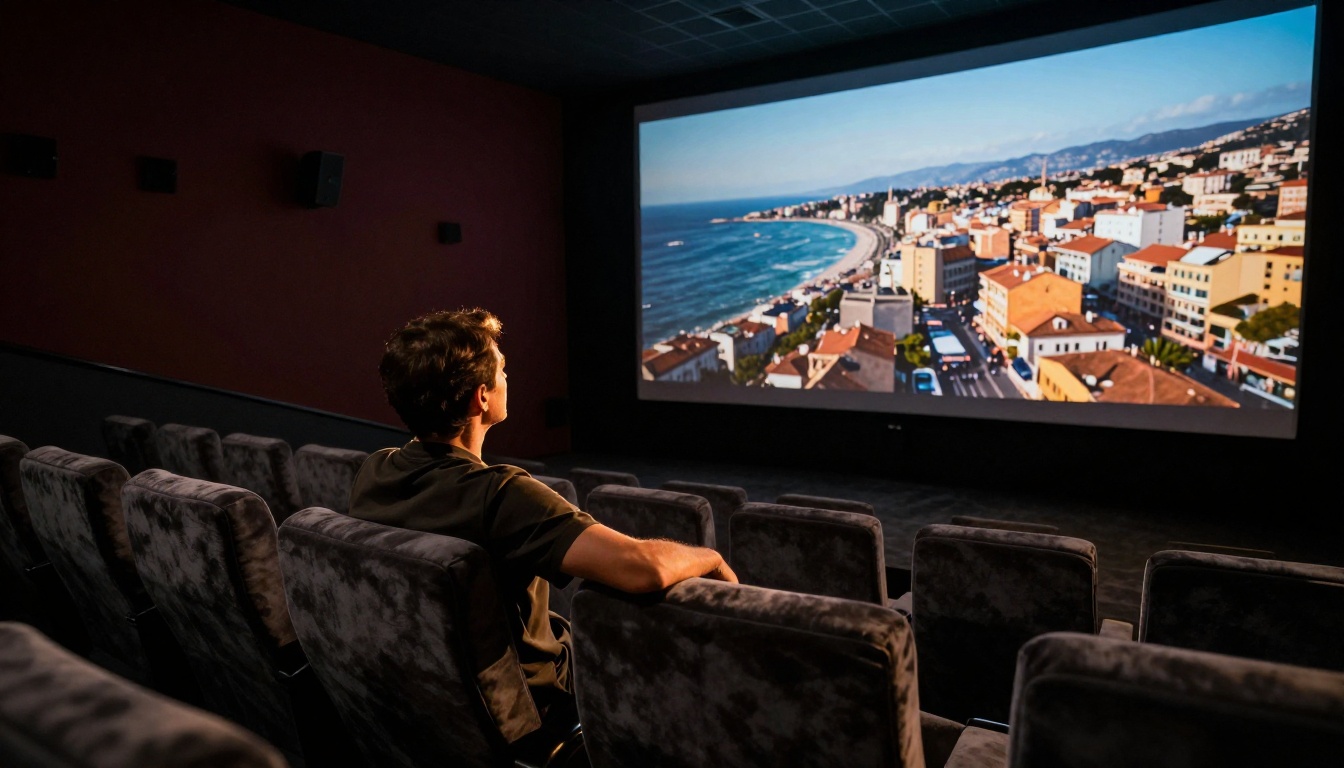
A storyboard for AI video is different from traditional film pre-visualization. You are not planning camera positions for a physical shoot. You are writing scene briefs that train the model's output toward your intended visual language.
Scene count and pacing
For a 25-second video with natural pacing, target five scenes minimum, seven maximum. Under five and you get static, boring footage with no visual rhythm. Over seven and you lose coherence because each prompt shift introduces visual discontinuity.
Each scene brief should answer four questions:
- What is in the frame? Subject, environment, notable visual elements
- What is the camera doing? Static, slow push-in, tracking, aerial descent
- What is the light source and direction? Time of day, practical or natural
- What mood or emotion should the viewer feel? Contemplative, tense, warm, urgent
Answer those four and you have a scene brief. The storyboard is just those five to seven briefs arranged in sequence.
Shot types that work best
Not all shot types render equally well in Sora 2 Pro. Some consistently produce strong results.
Reliable shot types:
- Slow cinematic push-in toward a subject
- Aerial descending drone shot onto a landscape
- Tracking shot following a walking subject from the side
- Static wide with natural movement (wind in trees, water, a moving crowd)
- Close-up with shallow depth of field, subject in sharp focus
Avoid these in your storyboard:
- Whip pans (temporal artifacts appear frequently)
- Fast-cut montage within a single clip
- Complex multi-character physical interaction
- Extreme Dutch angles with heavy distortion
Work with the model's strengths. Your storyboard should be built around shot types that Sora 2 Pro handles with confidence, not what you wish it could do.
Writing prompts that hold continuity
The single biggest storyboard mistake is treating each scene prompt as independent. If your storyboard has a woman in a red coat walking through a city in scene one, that woman in a red coat needs to appear in every subsequent scene that includes her. Sora does not have memory across generations. You do.
Build a character anchor into your storyboard notes:
"A woman, late twenties, red wool coat, dark hair in a low bun, worn leather shoulder bag, natural skin, no heavy styling."
Copy that exact description into every prompt that includes her. This is how you maintain visual consistency without relying on video editing tools afterward to correct drift.
How to Use Sora 2 Pro on PicassoIA
Sora 2 Pro is available directly on PicassoIA. No waitlist, no API credentials needed. You open the model page, write your scene prompt, set your parameters, and generate.

Setting up your first project
Before generating a single frame, do this in order:
- Write all five to seven scene briefs in a text document outside PicassoIA
- Define your character anchor and environment anchor strings
- Decide on a consistent color temperature and lighting scheme for all scenes
- Lock your aspect ratio: 16:9 for widescreen, 9:16 for vertical social formats
Only then open PicassoIA and start generating. Creating prompts on the fly without a storyboard is how you end up with five clips that look like they belong to five different films.
Duration and clip structure
Sora 2 Pro supports clip lengths up to 20 seconds per generation. For a 25-second final piece, structure your generations like this:
| Clip | Duration | Storyboard Panel |
|---|
| Opener | 5 sec | Panel 1 (establishing shot) |
| Body A | 7 sec | Panels 2 and 3 |
| Body B | 7 sec | Panel 4 (peak moment) |
| Closer | 6 sec | Panel 5 (resolution) |
💡 Generate your riskiest scene first. If it fails your quality standard, restructure the storyboard before generating the others. This saves significant time and generation cost.
Iterating from storyboard to clip
Generation is rarely one-shot. Budget two to three iterations per scene. The first pass tests whether your scene brief translates visually. The second refines language and camera specifics. The third should deliver a keeper.
Keep your storyboard document open alongside PicassoIA. After each generation, annotate what worked and what did not directly in the scene brief. This turns your storyboard into a living production document you can reference across the entire project.
The 5-Panel Storyboard Formula
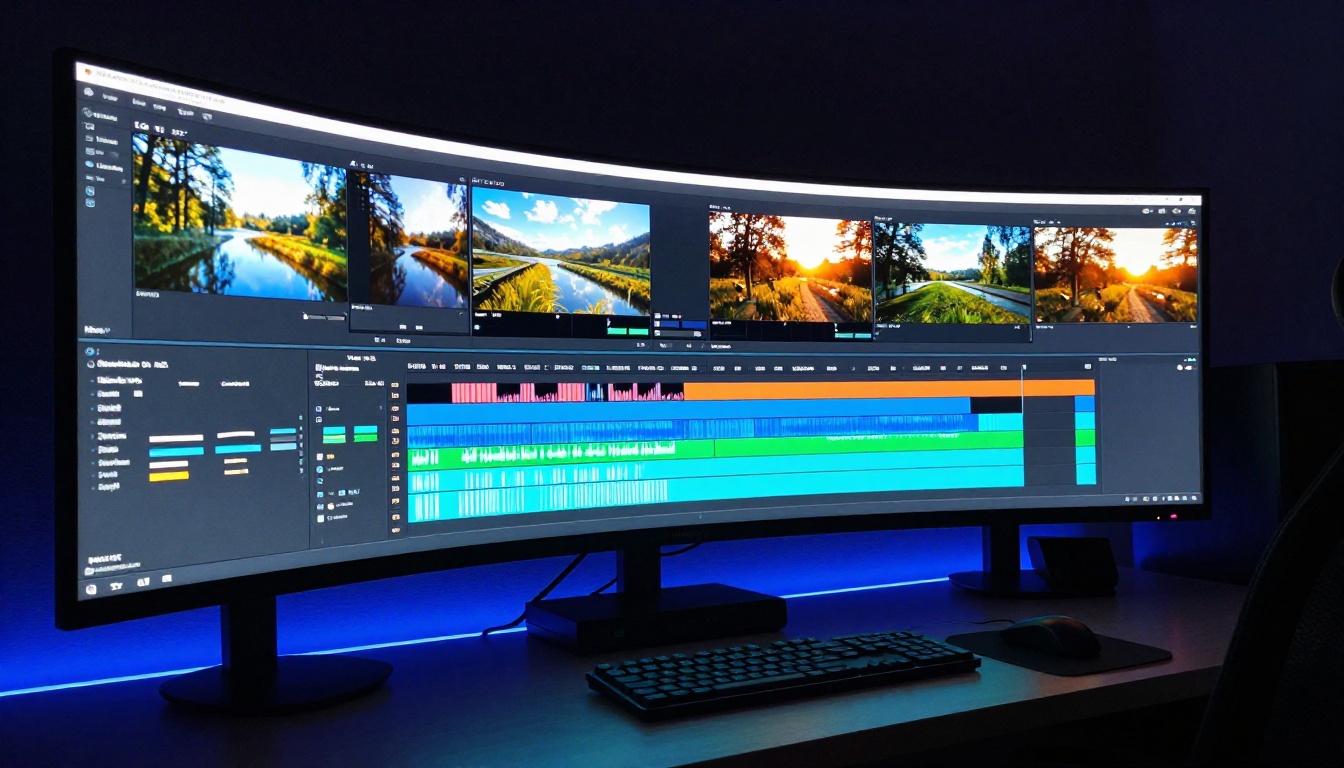
This is a repeatable structure that works for narrative videos, product showcases, location pieces, and cinematic short films. Adapt it to your subject matter.
Panels 1 and 2: establish, then introduce
Panel 1 is always an establishing shot. Wide angle, full environment, no tight subject focus. The viewer needs to know where they are before they care about anything happening in that space.
Panel 2 introduces the subject. This is your medium shot: close enough to identify a person or object, wide enough to show them in their environment. If your video has no human subject, Panel 2 is your close environment detail: a surface texture, a product in context, a compelling architectural detail.
Panels 3 and 4: tension and action
Panel 3 is where something changes. The camera moves toward the subject. The subject begins moving through the frame. Light shifts as the sun drops lower. This is the visual beat that signals to the viewer that the story is progressing.
Panel 4 is peak action or peak visual interest. Your strongest shot. The one frame someone would screenshot from the video. Write your Panel 4 prompt with the most detail in the entire storyboard. This is where you invest extra iteration time.
Panel 5: resolution
Panel 5 is resolution. Hold on something beautiful. A wide shot pulling back slowly from the subject. A close-up releasing into a gentle blur. A static shot of the environment after the subject has moved through it.
Endings in short AI videos feel rushed because creators spend all their energy on Panels 3 and 4. Give Panel 5 space and you give the viewer an emotion to carry after the video ends.
Prompt Engineering for Scene Continuity
This is where most AI video creators fall apart. The model is capable. The prompts are not. Continuity across a multi-clip sequence requires deliberate prompt architecture, not improvisation.
Character and environment anchors
Before writing any scene prompt, define two anchor strings:
Character anchor (copy into every scene that includes your subject):
A [gender, approximate age], [specific clothing with colors and fabrics], [hair description], [2-3 distinguishing physical details], [skin tone].
Environment anchor (copy into every scene at the same location):
[Architectural style or natural setting], [time of day], [weather and sky conditions], [dominant color palette].
These two anchors are the reason your five clips will feel like one story rather than five unrelated moments stitched together in a timeline.
Lighting consistency
Light is the most important continuity element after character description. A warm golden-hour scene followed by a cool overcast scene breaks visual immersion immediately and signals to any viewer that the clips were generated separately without a plan.
Choose one lighting scheme and lock it for your entire storyboard:
- Golden hour: warm amber tones, long horizontal shadows, low sun angle, soft lens quality
- Overcast natural: soft diffused light, no harsh shadows, cool-neutral color temperature throughout
- Interior ambient: practical lamp sources, warm pools of light, deep shadows at the edges of the frame
State your lighting scheme explicitly in every prompt. Do not assume the model will maintain it.
Camera language that works
Sora 2 Pro responds well to specific cinematic vocabulary. Use these exact phrases in your prompts:
| Intended shot | Prompt language to use |
|---|
| Slowly moving closer | "slow cinematic push-in" |
| Wide from above | "aerial establishing shot, descending slowly" |
| Following a moving subject | "smooth tracking shot from the side, subject centered in frame" |
| No camera movement | "static locked-off shot, no camera movement" |
| Rotating around subject | "slow orbital camera movement, 90-degree arc" |
Vague terms like "beautiful camera movement" or "dynamic shot" produce inconsistent and often disappointing results. Specific cinematic terminology gives the model something concrete to execute against.
Alternatives Worth Knowing
Sora 2 Pro is not always the right tool for every panel in your storyboard. PicassoIA gives you access to 87 text-to-video models. Knowing when to switch is part of producing a polished 25-second piece that holds together visually.
When to use Kling v3
Kling v3 excels at human motion and character expression. If your storyboard has panels with close-up facial emotion, natural walking cadence, or physical interaction between characters, Kling v3 often produces cleaner and more naturalistic results. Use Sora 2 Pro for cinematic wide shots and environmental storytelling. Use Kling v3 for intimate human moments where body language and expression matter most.
Gen-4.5 for precise camera control
Gen-4.5 by Runway offers more precise camera movement control than most other models on the platform. If Panel 3 or 4 in your storyboard requires a specific, exacting camera move, Gen-4.5 gives you finer control over the spatial relationship between camera and subject throughout the clip duration.
LTX-2.3-Pro for fast testing
LTX-2.3-Pro generates significantly faster than Sora 2 Pro. During early storyboard validation, use LTX-2.3-Pro to test your scene briefs quickly across all five panels before committing to full-quality generation. Once you confirm a scene brief works and the visual output matches your storyboard intention, switch to Sora 2 Pro for the final pass.
3 Mistakes That Break Your Video
Over-describing the prompt
There is a word count beyond which more detail produces worse results. For Sora 2 Pro, the effective range is 80 to 120 words per scene prompt. Beyond that, competing descriptors confuse the model's spatial reasoning and you get visual artifacts, blended elements, or characters that drift from their anchor description.
Write lean. Say the essential things with precision. Cut anything that does not directly contribute to what the viewer should see in that specific clip.
Ignoring the transition problem
AI video clips do not cut together automatically. When you sequence five clips on a timeline, the transitions between them are jarring unless you planned for them in the storyboard.
Two reliable approaches:
- Match cut planning: End Panel 2 on a close-up of one object, begin Panel 3 on a visually similar object at a new location. The visual rhyme creates a natural edit point the viewer's eye accepts instinctively.
- Planned fade: If your clips are thematically connected but visually distinct, note in your storyboard to use a brief fade rather than a hard cut. Decide this during storyboarding, not in post.
Prompting without visual reference
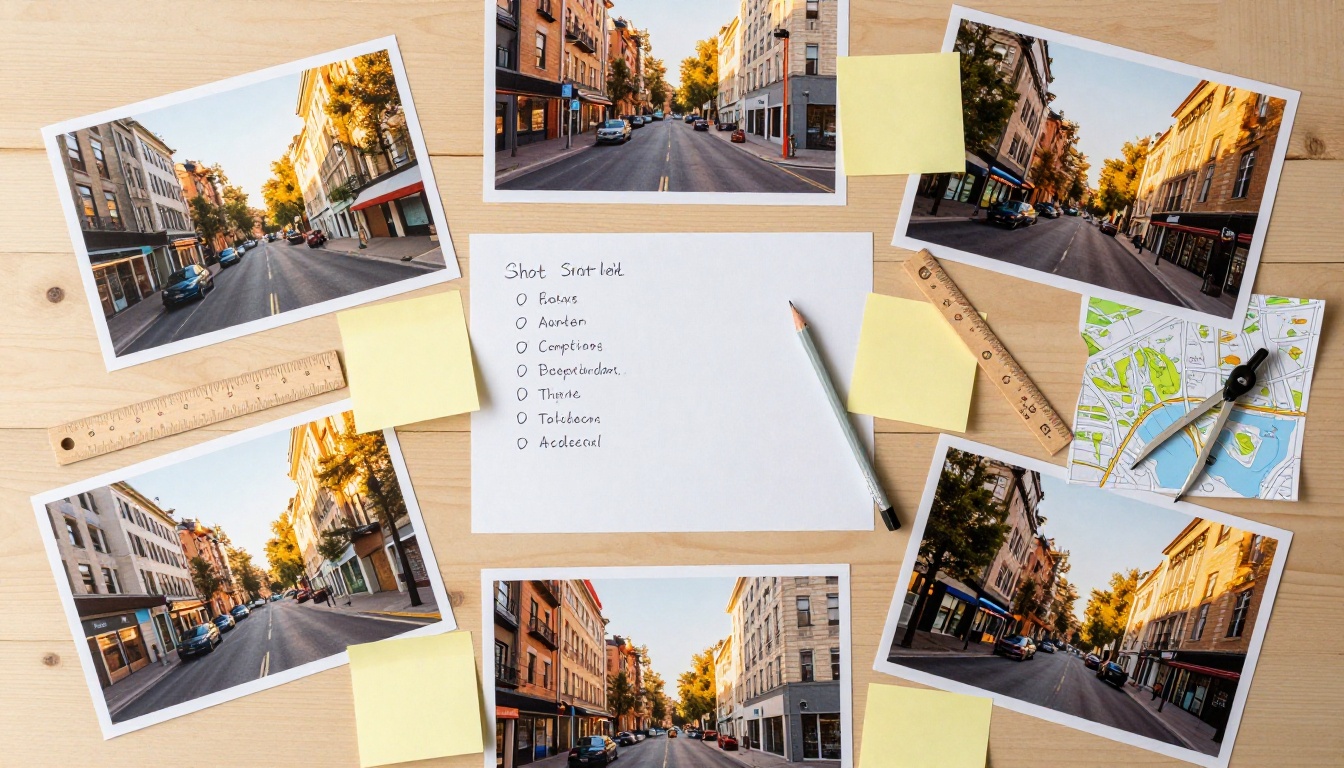
Your storyboard should include reference images alongside every scene brief. Not to upload to the model, but to anchor your own visual intention before you start writing. When you can see what you are trying to create, your prompt writing improves dramatically because you are describing something specific rather than imagining something abstract.
Collect two to three reference images per panel before writing the prompt. Ten minutes of reference gathering saves hours of generation iteration.
Your 25 Seconds Starts Now
The storyboard is not a detour before the creative work. It is the creative work. Every cinematic short film, commercial, and music video started as a series of rough scene briefs before a single camera rolled. AI video is no different, except the camera is a model and the sketches are prompts.
You now have the structure: five panels, two anchors, specific camera language, and a scene-by-scene production plan. That is more preparation than most AI video creators ever do, and it shows immediately in the output quality.
Open Sora 2 Pro on PicassoIA, write your five scene briefs, and generate your first panel. Do not aim for perfect on the first pass. Aim for a keeper in three iterations. From there, the rest of the storyboard falls into place one clip at a time.
The 25 seconds are waiting.


