Here is the first thing to know: Synthesia and Pixop are not really competitors. One creates brand new videos with AI presenters from a script. The other takes footage you already have and makes it sharper, cleaner and higher resolution. Yet people keep typing both names into the same search bar, usually because they are building a video workflow on a budget and want to know where the money goes.
So this is a practical comparison of Synthesia vs Pixop: Pricing, Free Options, and Best Uses for Video Creators. You will see what each tool does, how the plans are structured, what you can try without paying, and which jobs each one handles well. Near the end, there is a section on getting similar results on PicassoIA, because neither Synthesia nor Pixop has a page there.
💡 Quick note on prices: AI software pricing changes often, and third-party sources disagree on some figures. Treat every number below as a ballpark from late 2026 and check each company's own pricing page before you pay.
The Short Answer First
If you only have thirty seconds, this table is for you.
| Question | Synthesia | Pixop |
|---|
| Main job | Turn scripts into videos with AI avatars and voices | Upscale, denoise and restore existing footage |
| Input | Text, slides, documents | Video files |
| Output | New talking-presenter videos | Cleaner, higher-resolution versions of old clips |
| Pricing model | Monthly subscription with minute or credit limits | Pay as you go, billed per processed job |
| Free access | A limited free tier with watermarked output | Conflicting reports, often a small minimum credit purchase |
| Best for | Training, onboarding, explainers, internal comms | Archives, old tapes, broadcast and documentary clean-up |
| Weak spot | Cost rises fast with more minutes and custom avatars | Costs scale with footage length, no creative generation |
Pick Synthesia when you have words but no footage. Pick Pixop when you have footage but it looks tired. If you have both problems, you will end up using two tools, and that is perfectly normal.

What Synthesia Actually Does
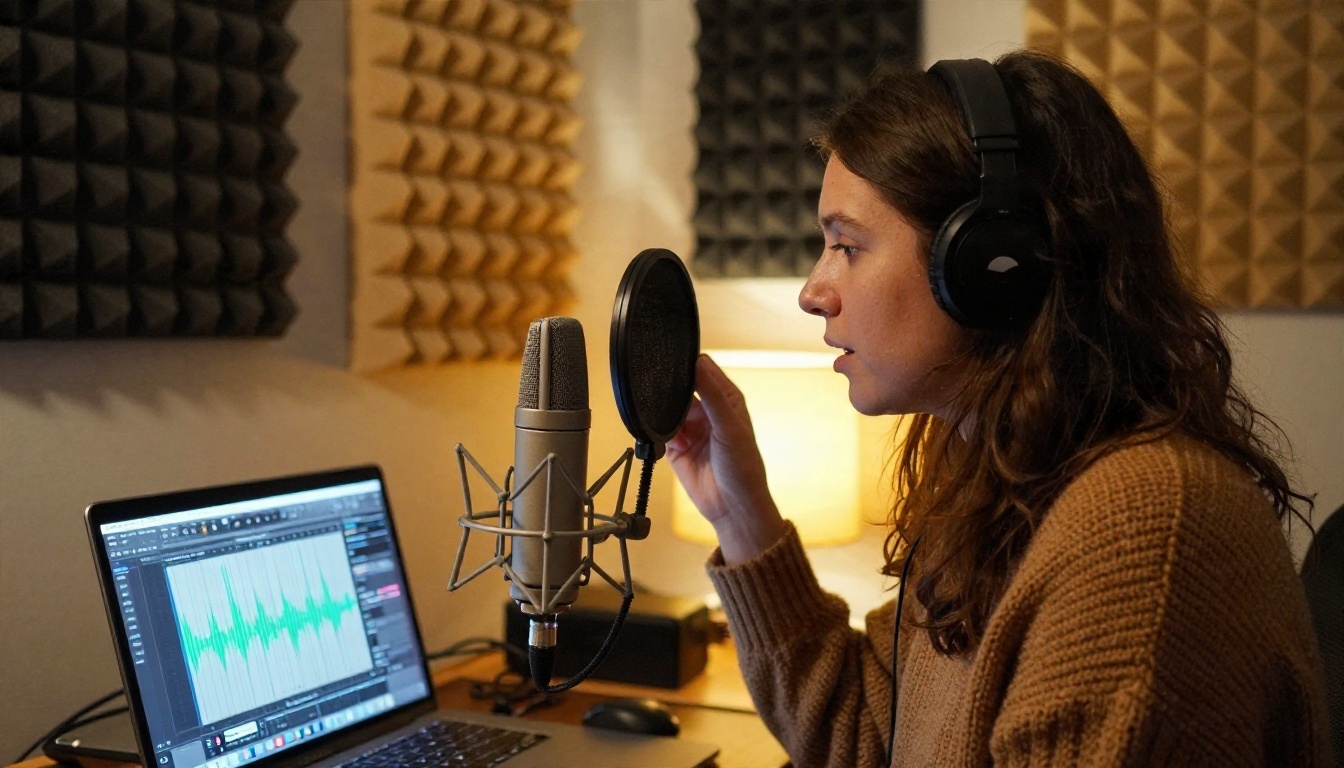
Synthesia is an AI avatar video platform. You paste or type a script, choose a digital presenter and a voice, pick a language, and the platform renders a video of that presenter speaking your words. There is no camera, no microphone, no studio booking and no retakes when someone stumbles over a sentence.
Avatars and voices
The library contains stock presenters in many ages, styles and settings. Higher plans add the option to create a personal avatar of yourself or a team member. The voice side supports dozens of languages, which is the feature companies tend to love most. One script can become a dozen localized versions without hiring a dozen voice actors.
Where it shines
Synthesia is built for repeatable, informational video. Think compliance training, product walkthroughs, onboarding series, internal announcements and support tutorials. The format is predictable: a presenter, maybe a slide or screen recording behind them, and clear narration. For that kind of content, speed matters more than cinematic flair.
Where it struggles
It is not a creative video generator. You will not get a drone shot over a coastline or a dramatic product reveal from a prompt. It is also a poor fit if your audience reacts badly to obviously synthetic presenters, such as personal-brand channels where authenticity is the whole point.
What Pixop Actually Does
Pixop is a cloud video processing service. You upload a clip, pick the processing you want, and it comes back at higher resolution with less noise and fewer compression artifacts. It is aimed at people who handle real footage at scale: broadcasters, archives, production houses, and editors dealing with legacy material.
Upscaling and restoration
Typical jobs include taking standard definition material up to HD or 4K, cleaning grain and compression blocks, deinterlacing old broadcast footage, and improving frame rate. The goal is not to invent a new video. It is to make the existing one watchable on modern screens.
Where it shines
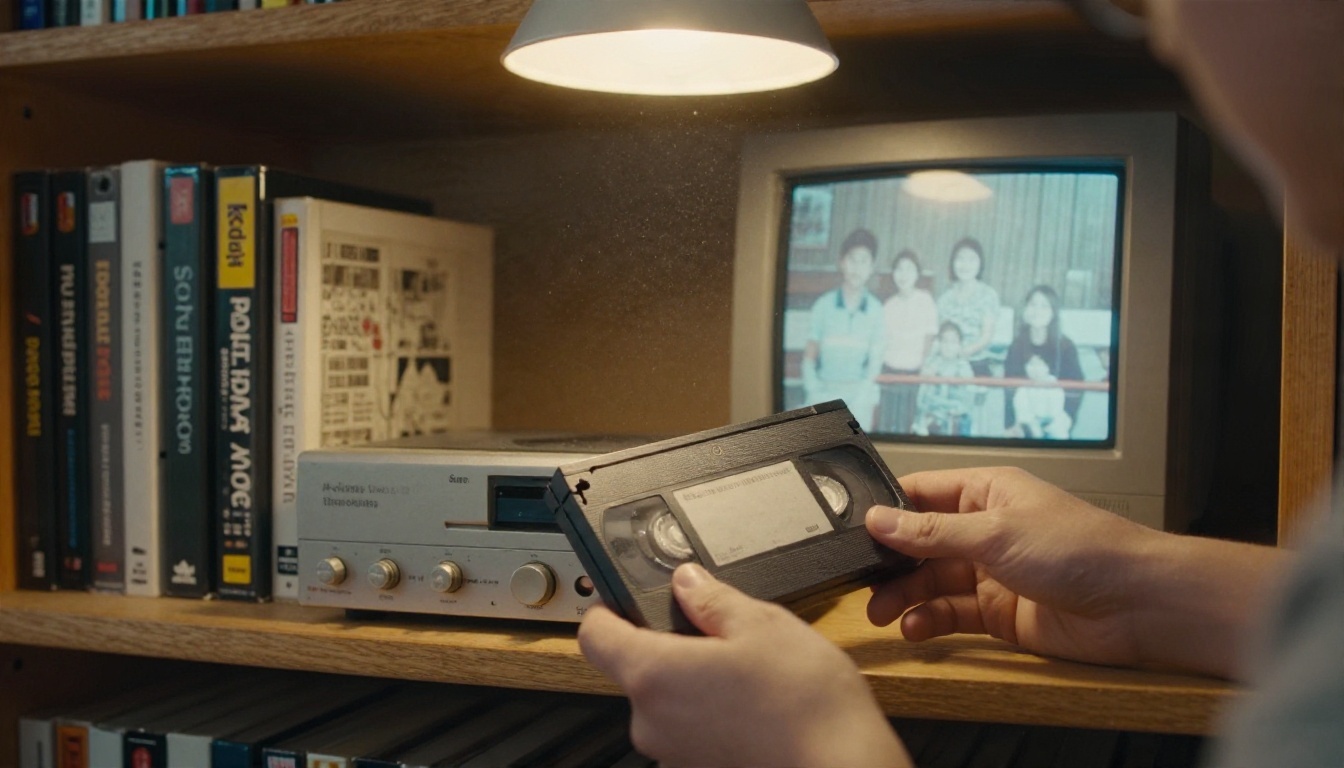
Pixop works best on archival and documentary material. An old wedding tape, a 2004 interview, a regional news archive, a corporate video from a decade ago: these are the clips that look awful on a 4K TV and can look surprisingly decent after processing.
Where it struggles
If your source is badly damaged, no upscaler can recover detail that never existed. Results also depend on the footage. Clean, well-lit material improves dramatically, while blurry, heavily compressed phone clips improve less. And since billing follows processing, a long archive gets expensive quickly.
Pricing Compared Side by Side
This is the part most readers came for. The two tools charge in completely different ways, which makes a direct comparison tricky.

How Synthesia charges
Synthesia uses subscription tiers tied to how much video you can generate. Based on what comparison sites reported in late 2026, the structure looks like this:
| Plan | Typical price (ballpark) | What you get |
|---|
| Free / Basic | $0 | A few minutes of watermarked video per month, limited avatars |
| Starter | Around $18 to $29 per month, depending on annual or monthly billing | More minutes or credits, no watermark, more avatars |
| Creator | Around $64 to $89 per month | Higher minute allowance, personal avatars, more export options |
| Enterprise | Custom quote | Single sign-on, custom avatars, security controls, team features |
Sources disagree on exact credit counts and minute caps, and the company has adjusted its plans more than once. The pattern is consistent though: cheap to start, expensive to scale. A solo creator making a few short videos stays on a low tier. A company producing hours of training content moves to custom pricing.
How Pixop charges
Pixop works on a pay as you go model. You buy credit, and each processing job draws from it based on factors like clip length, input and output resolution, and the type of enhancement you choose. Most reports mention a modest minimum credit purchase, around $10, to get started.
Per-minute rates reported by directories start around a dollar or a bit more for standard definition work, and rise as resolution and processing complexity go up. One buyer guide even suggests the company leans toward sales-led enterprise pricing now. Because of those conflicting reports, do a small test job first and note the exact cost before queuing a big batch.
Which is cheaper?
It depends on the shape of your work.
- Ten short explainer videos a month: Synthesia on a low tier is usually cheaper than hiring anyone or booking a studio.
- One 90-minute archive to restore: Pixop's per-minute billing will add up, so estimate the total before you start.
- Both at once: budget separately. They never replace each other.
💡 Budget trick: For upscaling, always process a 30 second sample from the worst part of your footage first. If the result looks acceptable, scale up. If not, you saved yourself the full bill.
Free Options: What You Really Get
"Free" means very different things here, and both tools have catches.

Synthesia's free tier
Synthesia offers a free entry level with a small monthly allowance of video minutes. Output carries a watermark, avatar choices are limited, and some features are locked. It is fine for a test drive: write a short script, see how the avatar delivers it, and decide whether the style suits your audience. It is not suitable for anything you want to publish professionally.
Pixop's free situation
This one is murkier. Some sources describe a free trial or free tier for testing. Others report that the account trial gives access to the interface but no real processing until you add payment, with a small minimum credit purchase required. If you rely on a free trial, read the current terms on Pixop's own site, and plan to spend a little for a real test.
The honest take
Neither tool gives you a meaningful free workflow. They give you a taste. If you need ongoing free or low-cost experimentation, it is worth looking at platforms where several generation and enhancement models live in one place, which is what the PicassoIA section below is about.
Best Uses for Video Creators
Let us get specific about who should use what.
Use Synthesia if you are...
- A trainer or HR team producing onboarding and compliance videos in multiple languages
- A SaaS company making product walkthroughs that need frequent updates
- A teacher or course creator who wants consistent lesson intros without filming
- A small business that needs a spokesperson video but has no camera setup

Use Pixop if you are...
- A documentary editor with archival clips that look soft on modern screens
- A family archivist digitizing old tapes for a reunion or anniversary
- A broadcaster or production house with legacy content to republish in HD or 4K
- A YouTuber reusing older uploads that need a resolution bump
When you need both
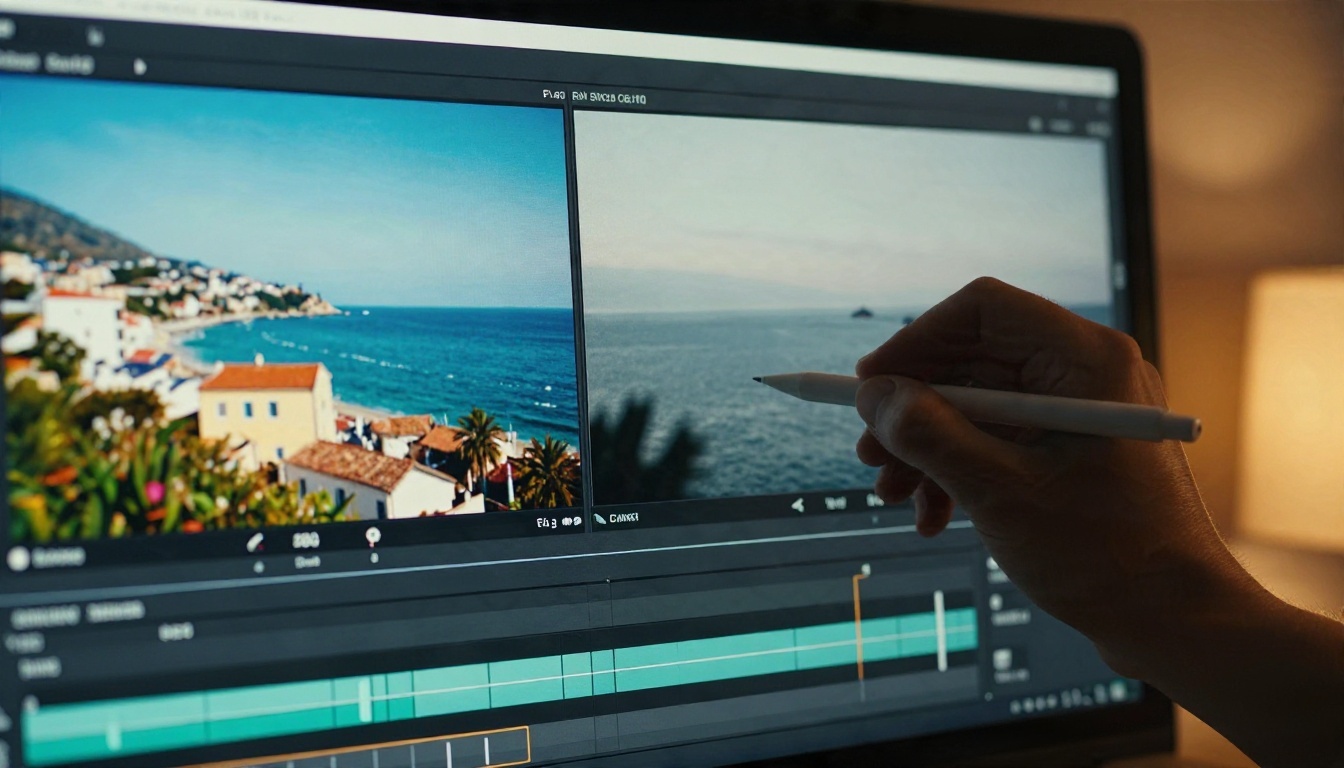
A realistic example: a company has a decade of recorded webinars in low resolution and wants to build a polished training library. They restore the old webinar clips for B-roll and archive value, then use avatar videos for the new lesson intros. Different problems, different tools, one workflow.
Where PicassoIA Fits In
Here is the straightforward part. Synthesia and Pixop are not on PicassoIA. There is no Synthesia page and no Pixop page on the platform, so you will not find either of them there. What you will find are alternatives that handle the same two jobs: presenter videos from a script or image, and upscaling for existing footage.
💡 Synthesia is not on PicassoIA yet; for similar avatar results today, try Avatar V, Avatar IV, P Video Avatar or Kling Avatar v2. Pixop is not on PicassoIA either; for similar upscaling, try Video Upscale, Upscale v1 or Video Increase Resolution.
| Job | Closest PicassoIA options | Good for |
|---|
| Talking presenter from a photo and audio | Avatar V, Avatar IV, Omni Human | Explainers, intros, spokesperson clips |
| Animated face with expressive motion | Kling Avatar v2, P Video Avatar | Short social clips, character delivery |
| Upscale old or soft footage | Video Upscale, Upscale v1 | Archives, 4K delivery, frame rate boosts |
| Raise resolution inside an editing workflow | Video Increase Resolution | Quick resolution lifts on finished clips |
| Generate new cinematic footage | Kling v3 Video, Wan 3 | B-roll and scenes Synthesia cannot create |
How to Get Similar Results on PicassoIA
Two separate workflows, one for each side of the comparison.
Presenter videos with Avatar V
Avatar V is the closest PicassoIA option for the Synthesia style of work: a talking presenter delivering your message.
- Open the model page. Go to the Avatar V page and start a new generation.
- Choose your source image. Use a clean, front-facing portrait with even lighting. Shoulders visible, mouth closed, no sunglasses. This single choice affects quality more than any setting.
- Add your voice. Upload a recording or generate narration with a text-to-speech model first, then feed the audio in. Keep each clip short, under a minute, for the most natural motion.
- Write a short script. Aim for conversational sentences. Long, dense paragraphs make any avatar look stiff.
- Generate and review. Watch the first few seconds for lip sync and head motion. If the delivery looks off, try a different source portrait before changing anything else.
- Assemble the series. Make multiple short clips and cut them together, rather than one very long take.
💡 Parameter tip: If you want a more energetic look, try a source image where the person has a slight natural smile. Models tend to carry that expression through the clip.
Upscaling with Video Upscale
Video Upscale is the closest equivalent for the Pixop style of work: sharper footage at a higher resolution.
- Prepare your clip. Trim to the section you want to improve. Shorter clips process faster and let you test settings cheaply.
- Open the Video Upscale page and upload the file.
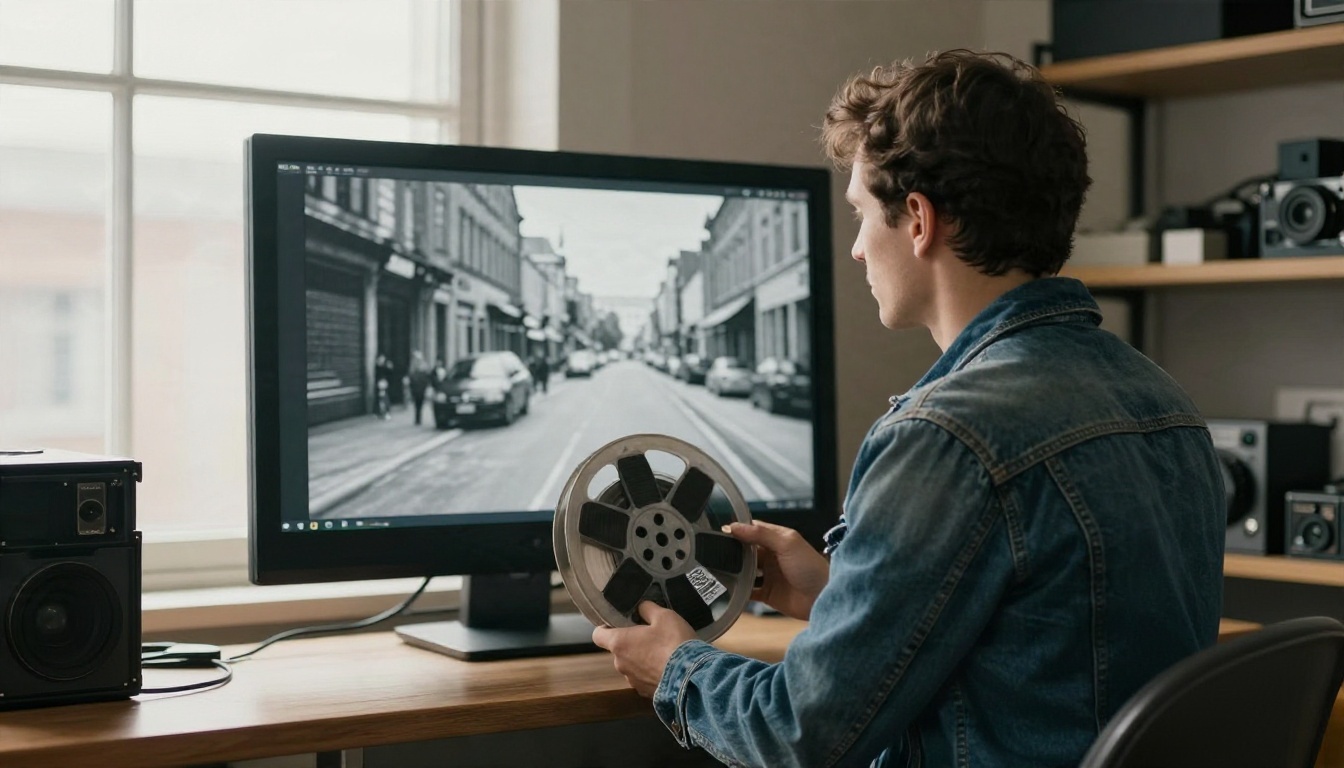
- Pick your target resolution. Go for 1080p from standard definition, or 4K from good HD. Jumping too far from a poor source tends to look plastic.
- Consider frame rate. If the footage looks choppy, raise the frame rate. Leave it alone for film-style material where the original cadence is part of the look.
- Run a sample first. Process a short clip from the worst part of your footage, compare it side by side with the original, then do the full file.
- Compare alternatives. Upscale v1 is worth testing on the same sample, since different models handle faces, grain and text differently.
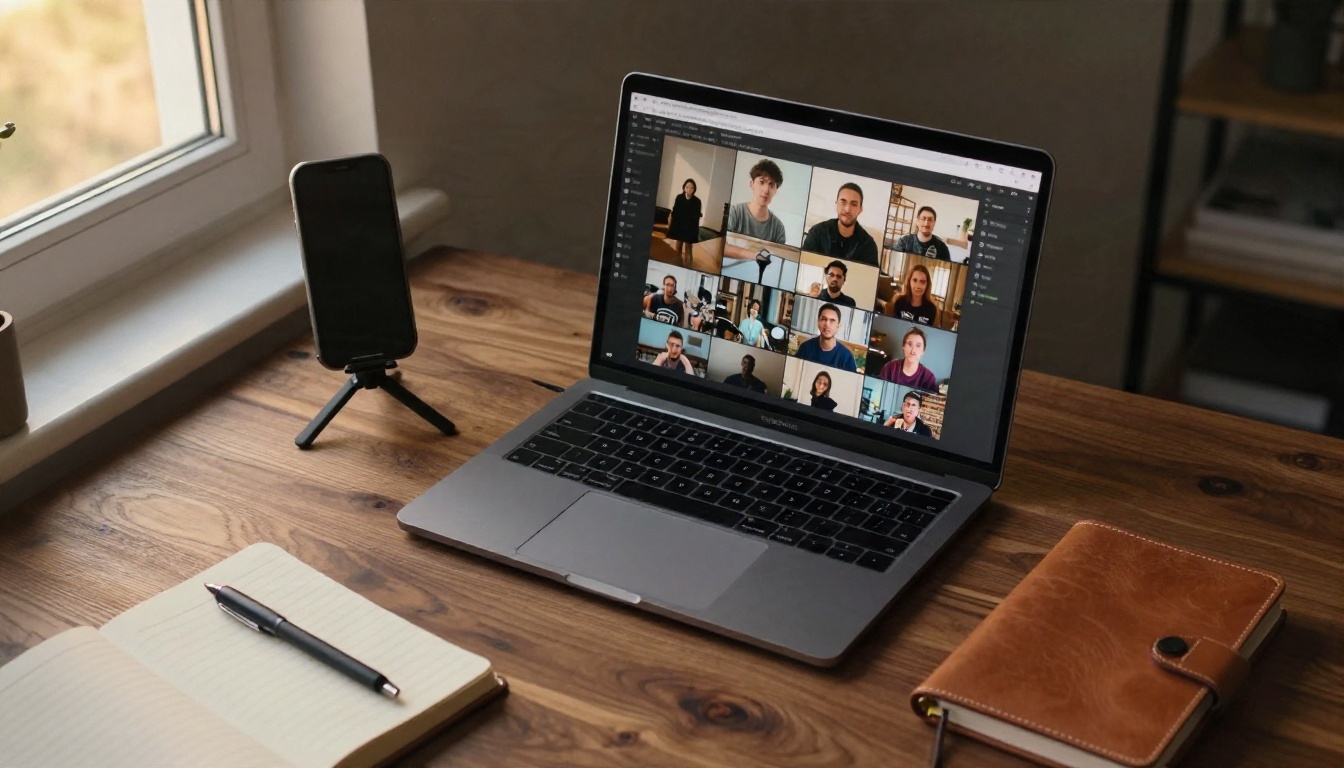
A quick decision path if you are still undecided.
- Do you have footage already? If yes and it looks poor, you need upscaling. If no, you need generation.
- Is your content informational and repeatable? Avatar videos fit well. If it needs cinematic scenes, use a text-to-video model instead.
- How much volume? A few clips a month can run on low tiers or pay-per-job billing. Dozens of hours need a proper budget conversation, or a platform with generous limits.
- How picky is your audience? Corporate and training audiences accept avatars readily. Personal-brand audiences often do not.
Three common mistakes
- Buying a plan before testing. Run a single short sample through any tool before committing money.
- Expecting an upscaler to fix everything. It sharpens and cleans. It cannot recreate a face that was never recorded clearly.
- Using avatars for the wrong content. Emotional storytelling and personal updates almost always land better with a real person on camera.
Try It Yourself on PicassoIA
You do not have to pick a side. The practical route is a platform where avatar generation, text-to-video and upscaling sit in the same place, so you can test each step with a small clip before spending real money.
Start with a 10 second presenter clip in Avatar V, then run an old clip through Video Upscale and compare the result with the original. If you need new footage that no camera captured, try Kling v3 Video for cinematic scenes. Browse every option at picassoia.com/en/all-models and build the workflow that matches your own videos, your own budget and your own audience.


