You have a script, a face, and no time to film. Ten years ago that meant hiring a crew or recording take after take until you stopped flinching at your own voice. Today a talking head generator takes one still photo plus an audio track and returns a video of that person speaking, with lips, jaw, blinks and small head movements all in sync. The good ones are free to try, run in a browser, and finish in a couple of minutes.
This article breaks down how these tools work, what "free online maker" actually gets you, how to choose an AI voice that doesn't sound like a GPS, and what realistic lip sync looks like in different situations. You will also get a step-by-step workflow you can follow today on PicassoIA.
What a Talking Head Generator Does
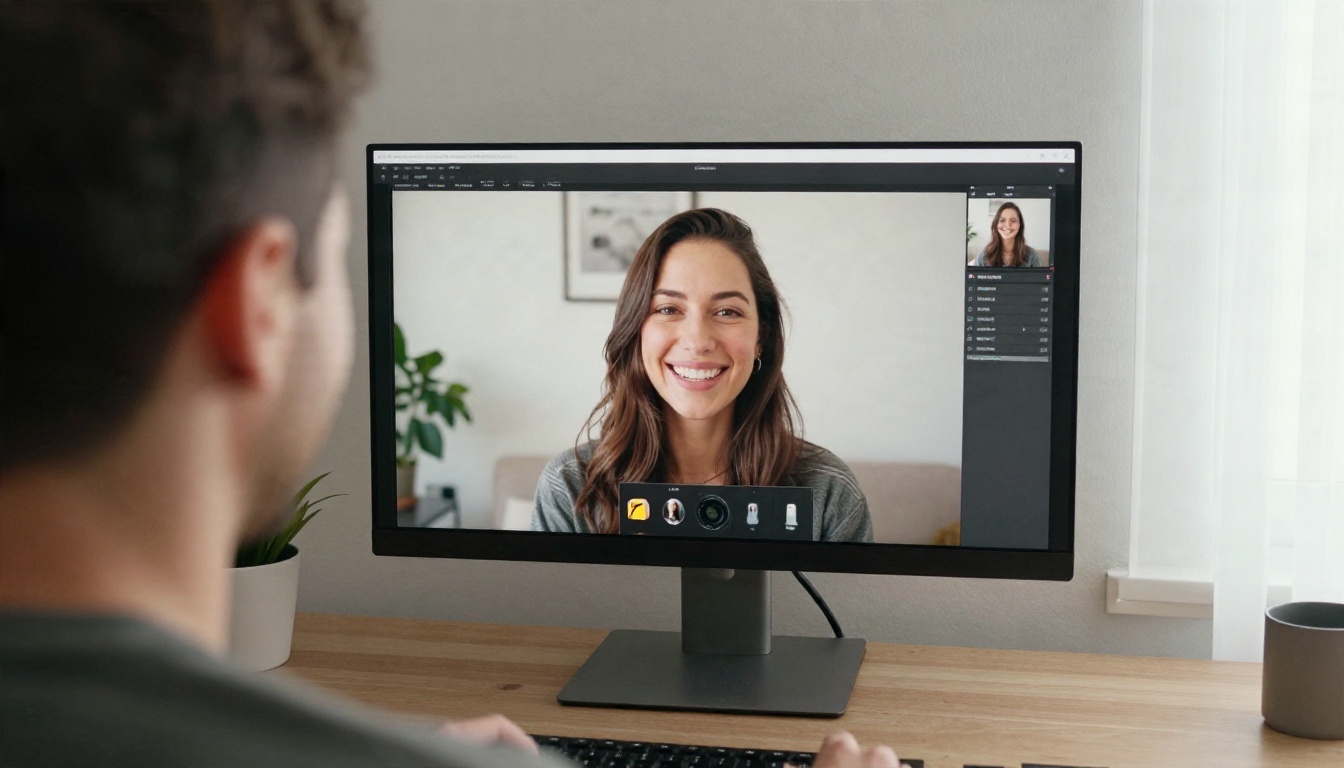
Photo in, speaking video out
A talking head generator is a lip sync model wrapped in a simple interface. You give it two inputs: an image of a face (or sometimes a short video) and an audio file. The model predicts how the mouth, cheeks, eyebrows and head should move for every fraction of a second of that audio, then renders the frames.
Early versions only moved the lips and left the rest of the face frozen, which is why they looked like a mask. Current models such as Omni Human 1.5 and Fabric 1.0 animate the whole upper body. You get blinking, shoulder shifts, hand gestures in some cases, and a natural rhythm that follows the emotion of the voice.
💡 Quick distinction: Photo-to-video tools build movement from a still image. Video lip sync tools take existing footage and rewrite only the mouth area. Both are called "talking head" tools online, but they solve different problems.
Why the format works
The "talking head" format has survived every platform shift for a simple reason: people trust faces. A person looking at the camera and speaking holds attention longer than a slideshow with narration, and it costs far less than a full shoot.
The use cases are practical rather than flashy:
- Training and onboarding videos that need updating every quarter
- Product explainers in several languages without re-filming
- Social clips from a creator who prefers not to be on camera
- Sales outreach with a personal intro that was never actually recorded
- Course lessons where the instructor records audio only
Free Online Makers Compared
What "free" really means
Most sites that advertise a free talking head maker give you a taste, not a workflow. Typical limits include a watermark across the frame, a clip length of 10 to 30 seconds, low resolution, or a daily cap on generations. Some require a card on file before the first render. None of that is a scam, but it matters when you are building something real.
PicassoIA takes a different approach. You can try the lip sync and avatar models directly, pick the one that suits your footage, and see the output before deciding how much to produce. Because everything sits in one place, you can also generate the portrait, the voice and the video without bouncing between five tabs.
Model comparison at a glance
Here is how the main lip sync and avatar models on PicassoIA differ in practice:
| Model | Input | Best for | Notes |
|---|
| Omni Human 1.5 | Photo + audio | Expressive full-upper-body motion | Strong emotional range, natural gestures |
| Omni Human | Photo + audio | Quick talking portraits | Reliable on clear front-facing photos |
| Fabric 1.0 | Photo + audio | Making any photo talk | Handles illustrations and mascots too |
| P Video Avatar | Photo + audio | Fast avatar clips | Good for short social videos |
| Lipsync 2 Pro | Video + audio | Studio-grade mouth replacement | Preserves teeth and facial detail |
| Lipsync 2 | Video + audio | Everyday dubbing | Solid balance of speed and quality |
| Kling Lip Sync | Video + audio | Matching mouths in generated clips | Pairs well with AI-made footage |
| React 1 | Video + audio | Performance-aware edits | Adjusts expression along with the lips |
What to check before you pick
Before committing to a tool, run the same photo and the same ten seconds of audio through two or three models. Compare these points:
- Teeth and tongue. Cheap models smear them. Good ones keep clean edges.
- Blink rhythm. A speaker who never blinks, or blinks every second, looks off.
- Head drift. The face should stay in frame and not slowly slide or warp.
- Audio match on hard sounds. Watch the "p", "b" and "m" sounds, where lips must fully close.
- Clip length limits. Some models cap output at 15 seconds, others handle minutes.
Pick an AI Voice That Fits
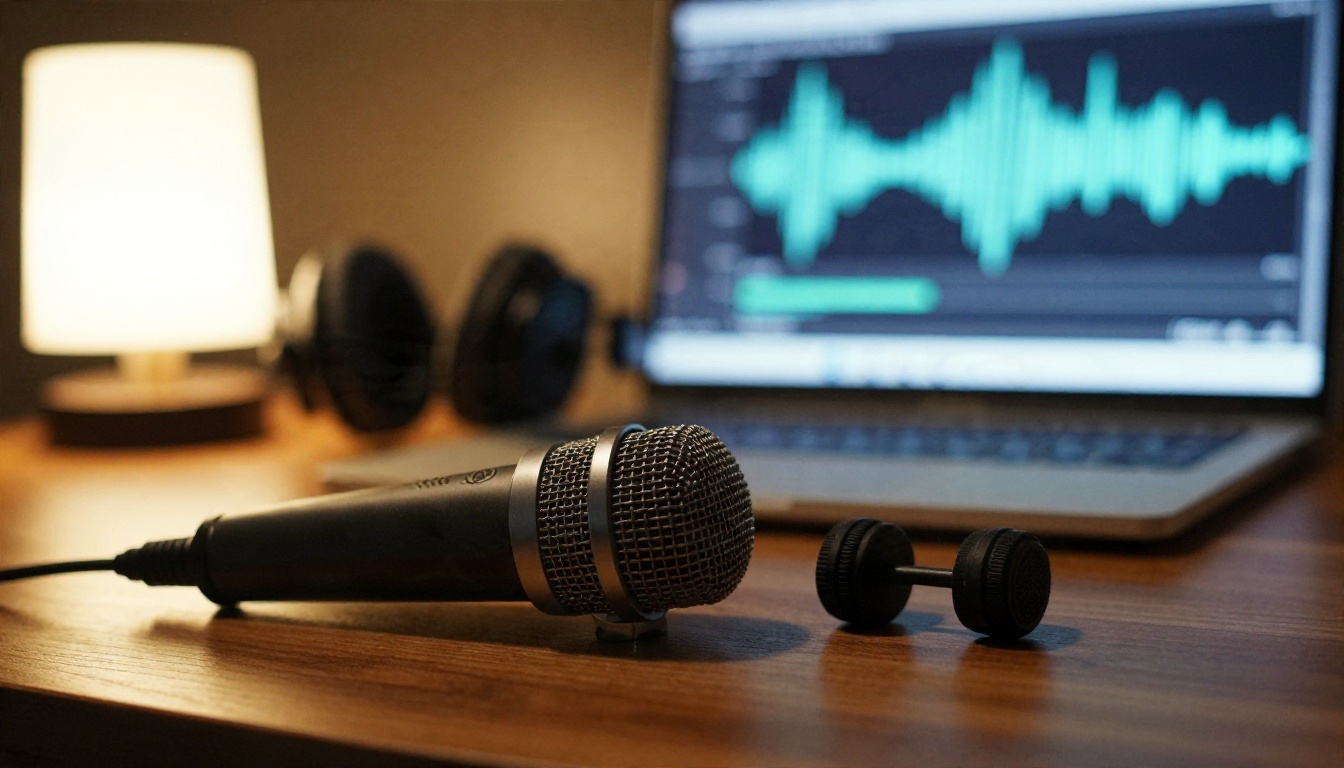
Text to speech options
The voice does more for believability than the visuals do. A perfect face with a flat, robotic voice feels uncanny within three seconds. Luckily, current text to speech models are far better than the voices people remember from a few years ago.
On PicassoIA you can choose from several families, all linked here:
💡 Tip: Write your script for the ear, not the eye. Short sentences, contractions, and a comma wherever you would naturally breathe. Read it out loud once before generating.
Recorded voice vs synthetic voice
You do not have to use a synthetic voice at all. If you record your own audio on a phone in a quiet room, the lip sync model will match it just as well. Many creators mix both: they record the core message and generate alternate language versions with AI voices.
| Voice source | Strength | Weakness |
|---|
| Your own recording | Authentic, personal | Needs a quiet room, retakes for mistakes |
| AI text to speech | Fast edits, any language | Needs script polish for natural pacing |
| Hybrid | Best of both | Two workflows to manage |
Lip Sync Examples by Use Case
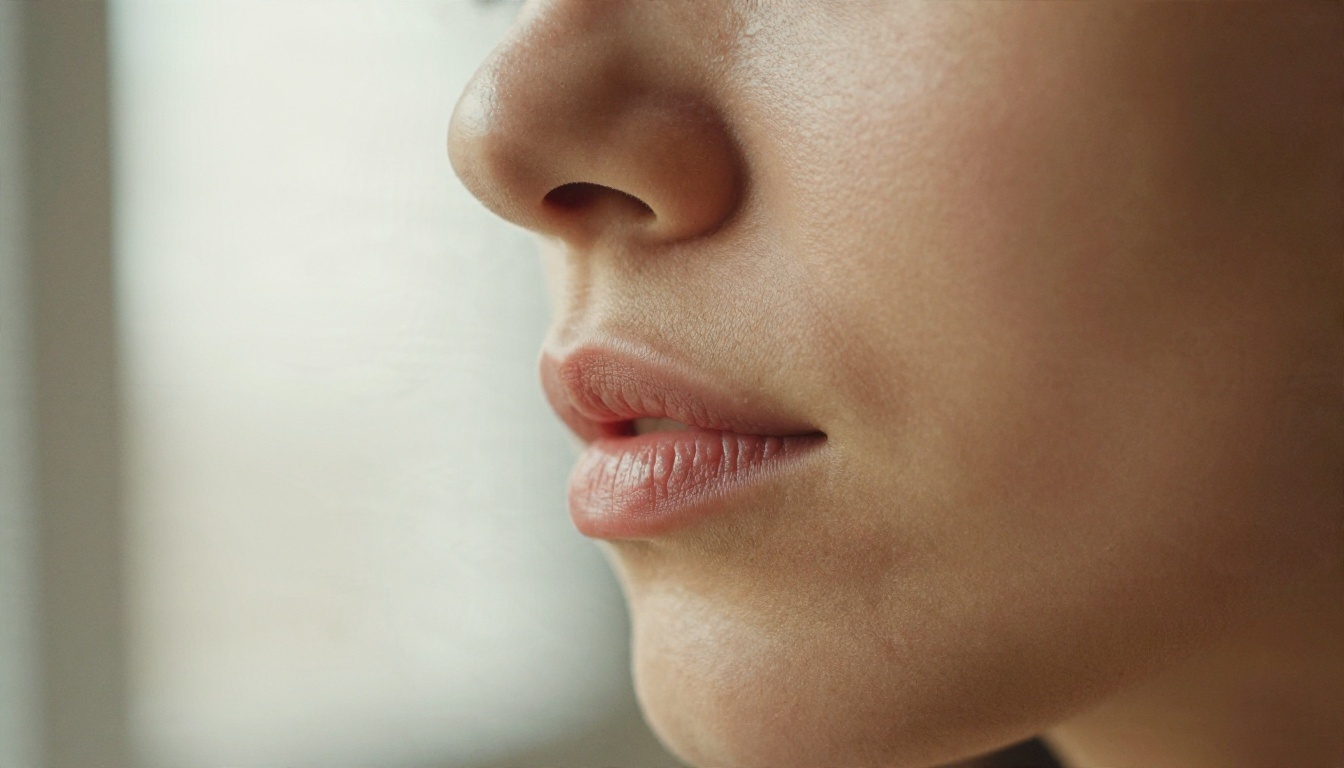
What does "good lip sync" actually look like? It is easier to judge in context, so here are the situations where talking head tools earn their keep.
Training and teaching

An instructor records a lesson once, then needs to fix a single sentence after a policy change. Instead of re-shooting, they regenerate that sentence as audio, run it through a video lip sync model like Lipsync 2 Pro, and swap the clip into the timeline. The face, background and lighting stay identical because only the mouth region is rewritten.
What to look for in this kind of result: steady eye contact, no jitter around the jawline, and teeth that look the same before and after the edit.
Marketing and product clips

A founder wants a 20-second intro for an email campaign but dislikes being on camera. They generate a clean portrait, write a short script, pick a warm voice, and produce the clip with P Video Avatar or Omni Human 1.5.
Short and specific scripts work best here. A single message, a single call to action, and a pause at the end so the final frame doesn't cut mid-breath.
Dubbing into other languages
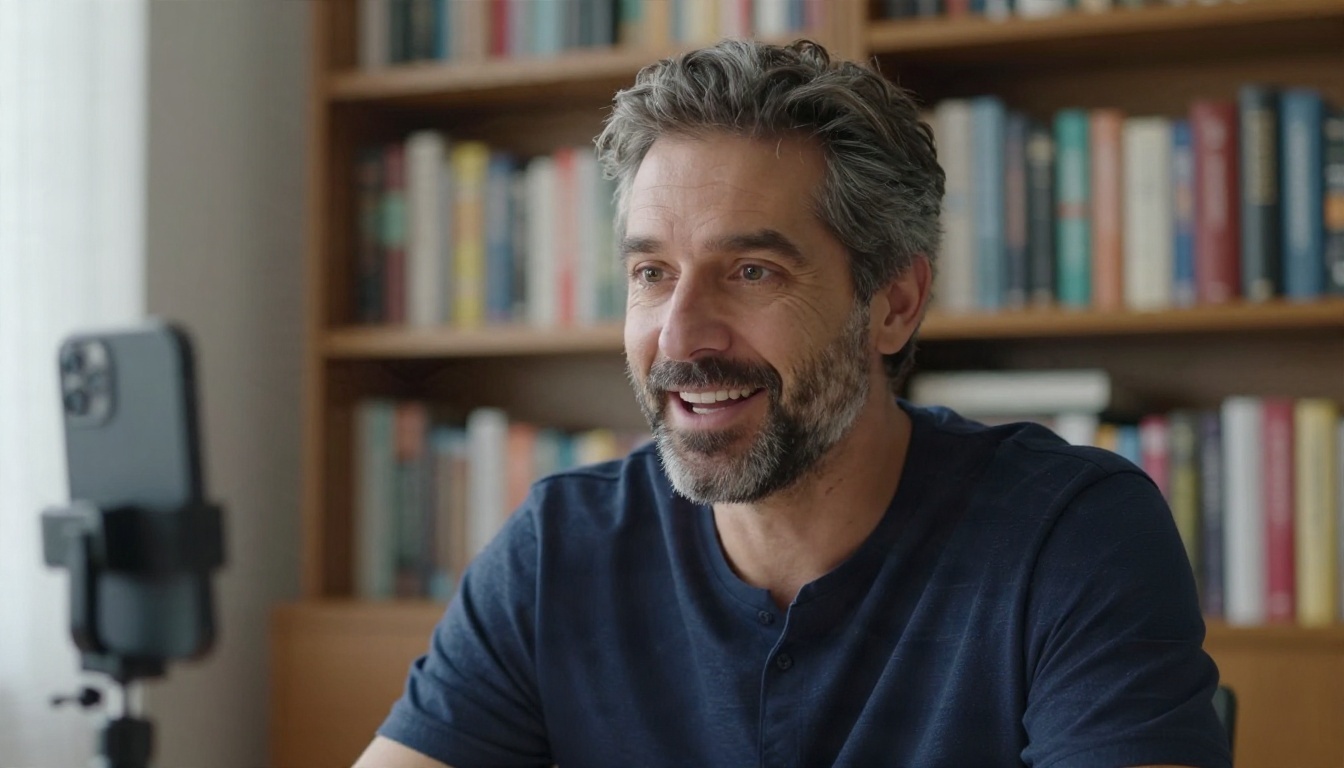
This is where lip sync becomes a real time saver. You take one recorded presentation and produce versions for new markets. Video Translate handles dubbing across 150+ languages, while Lipsync Precision and Lipsync Speed let you choose between maximum fidelity and fast turnaround.
💡 Watch the timing: Some languages need more syllables than English for the same idea. If your translated audio runs 30% longer than the original, trim the script rather than speeding up the voice.
How to Make One Step by Step
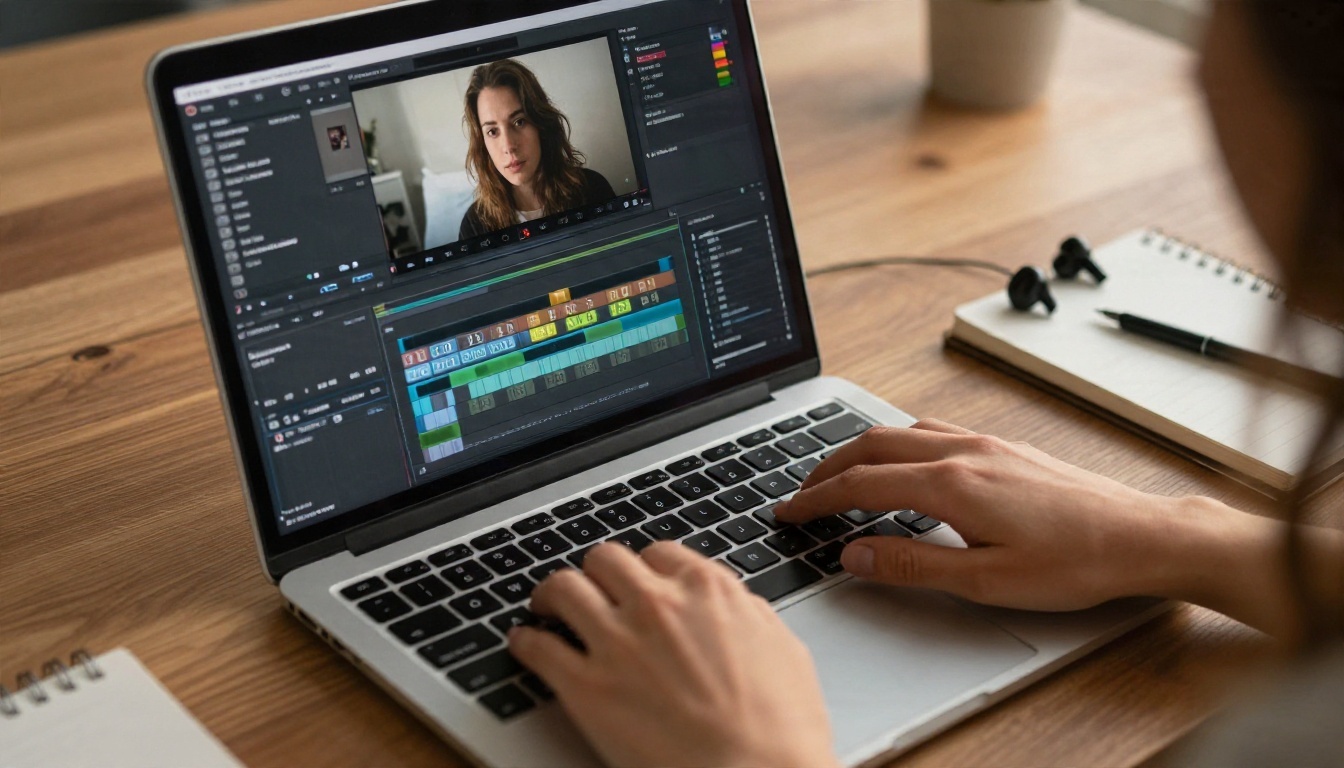
Here is a workflow that takes roughly ten minutes from blank page to finished clip.
Step 1: Prepare your portrait
Use a sharp, front-facing photo with even lighting and a neutral or slightly open mouth. Avoid sunglasses, hands covering the chin, and heavy shadows across the face. If you don't have a good photo, generate one with Seedream 4.5 or Nano Banana Pro. A prompt like "photorealistic portrait of a friendly woman in her thirties, soft window light, neutral background, looking at camera" works well.
Step 2: Write and generate the voice
Keep the script under 150 words for a first test. Paste it into a text to speech model such as ElevenLabs v3 or Speech 2.8 HD, choose a voice that fits the face, and download the audio. Listen once with headphones to catch odd pronunciations.
Step 3: Run the lip sync model
Open Omni Human 1.5, upload the portrait, upload the audio, and submit. If your photo is an illustration, mascot or stylized character, try Fabric 1.0 instead.
Step 4: Review and refine
Watch the result at full screen with sound on. Check the first two seconds, because that is where most issues show up. If something feels off, change one variable at a time: the photo, the voice, or the model. Changing all three makes it impossible to tell what helped.
💡 Shortcut: If you want speech and visuals generated together, Veo 3.1 Fast creates video with native audio from a text prompt, which suits scenes where a person talks in a setting rather than straight to camera.
Fixing Common Problems

Stiff mouth and frozen face
If the mouth moves but the rest of the face looks locked, the source photo is usually the cause. Photos with a tight, forced smile or a closed mouth give the model little to work with. Pick a photo with a relaxed expression and slightly parted lips.
Voice and face mismatch
A deep, gravelly voice on a young face feels wrong even if the sync is perfect. Match age, energy and accent to the person on screen. If you are using an illustrated or stylized character, a slightly more playful voice works better than a polished broadcaster tone.
Quick troubleshooting table
| Problem | Likely cause | Fix |
|---|
| Mouth drifts out of sync | Audio has long silence at the start | Trim leading silence |
| Teeth look smeared | Low-resolution source | Upscale the photo first |
| Face warps mid-clip | Head turned too far in the photo | Use a front-facing portrait |
| Voice sounds flat | Script reads like text | Rewrite with short, spoken sentences |
| Output looks soft | Low-quality source image | Start from a sharp, well-lit photo |
A note on consent
Only animate faces you have the right to use. That means your own photo, a licensed stock model, a character you created, or a person who has agreed. Clear labeling of AI-generated video also protects your audience's trust, and it is increasingly required by platforms.
Ready to Make Your Own?
You don't need a studio, a camera crew or a perfect take. You need one good photo, a script that sounds like a person talking, and a model that matches your footage. Start with a short ten-second test, compare two models side by side, and only then scale up to full-length videos.
Open PicassoIA, generate a portrait, choose a voice, and run your first talking head clip today. Try it with your own face, a character you invented, or a product mascot, and see how quickly a blank page becomes a speaking video.


