Blurry images don't get a second chance. Whether you shot on a smartphone five years ago, scanned an old film negative, or grabbed a frame from compressed video footage, a low-resolution source has always felt like a dead end. That changes with AI upscaling. The latest models don't just interpolate pixels, they actually reconstruct detail that wasn't there, adding texture, sharpness, and clarity that holds up at large print sizes or 4K display resolution. The question isn't whether AI upscaling works anymore. It's which tool does it best for your specific use case.
This article breaks down every serious AI upscaler available on PicassoIA right now, covering photo-focused tools, portrait-optimized models, and video quality options, so you can stop guessing and start getting results.
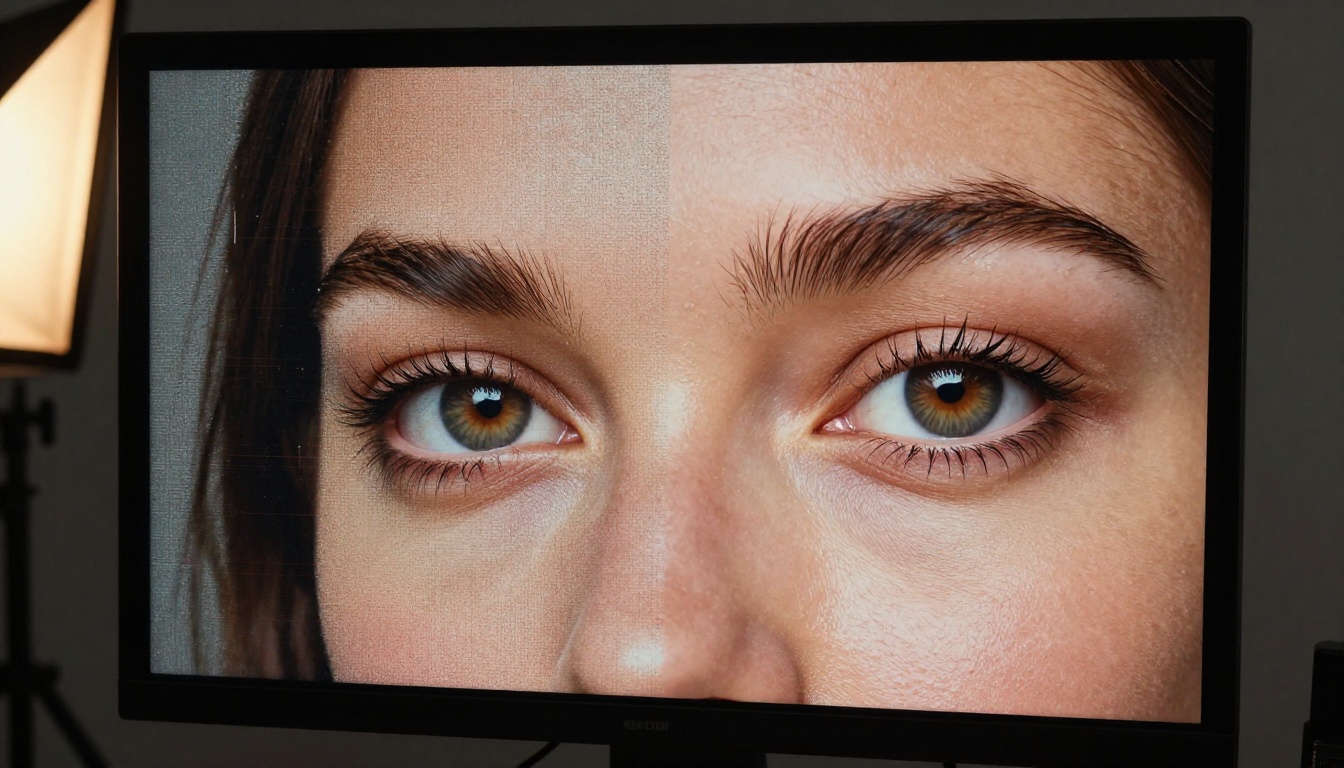
Why Low-Resolution Costs You More Than You Think
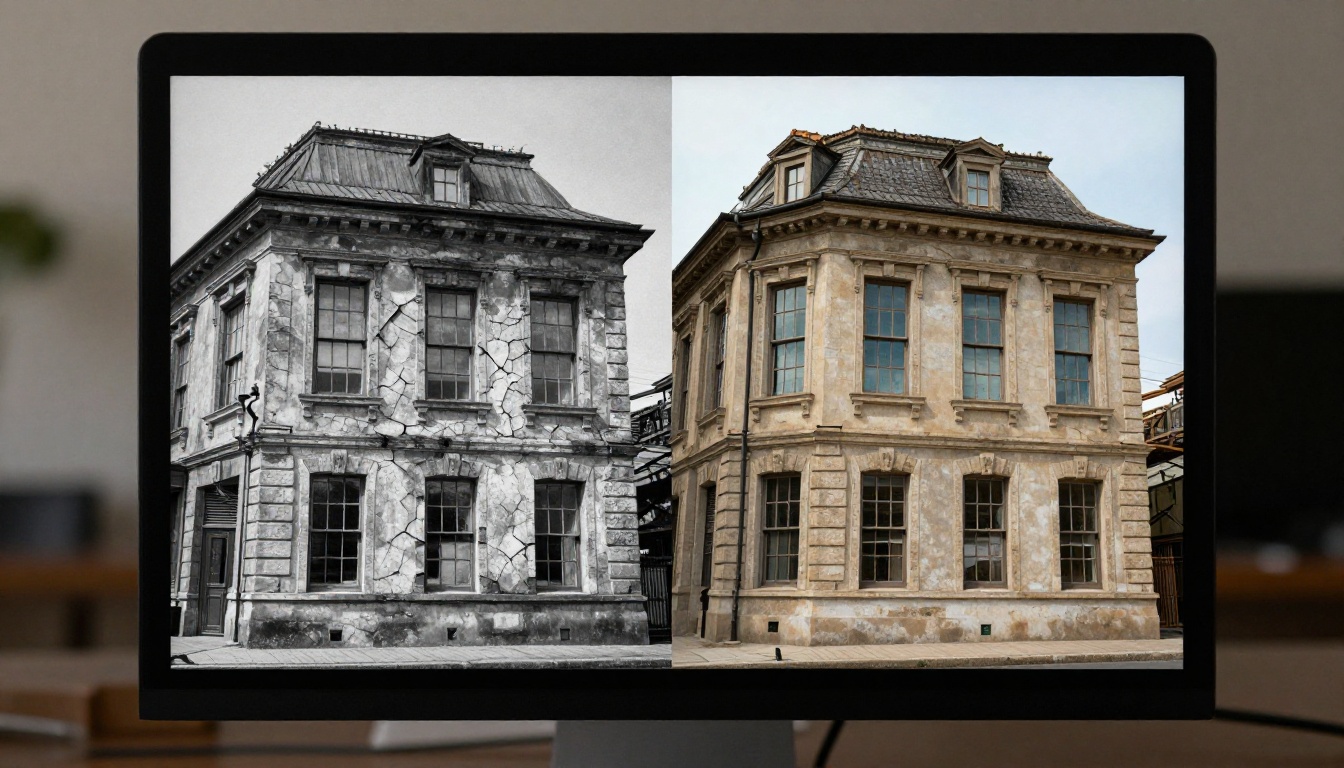
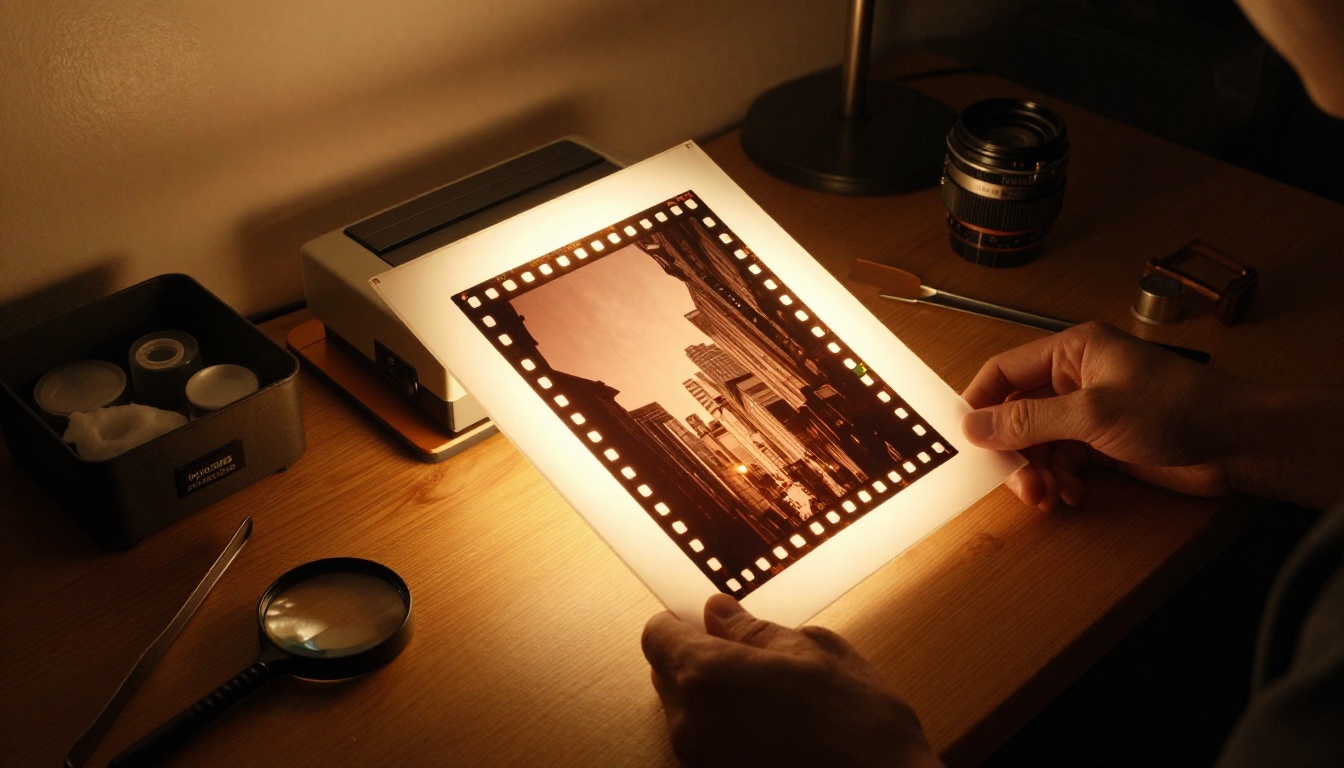
Most people treat low resolution as a minor inconvenience. In reality, it's a hard ceiling on what you can do with an image. A 512x512 photo can't be printed larger than a business card without visible pixelation. A compressed 720p video clip looks embarrassing on a modern 4K screen. An old scanned family photo at 72 DPI crumbles the moment you try to enlarge it.
Traditional upscaling methods, bicubic interpolation and Lanczos resampling, simply average surrounding pixels and blur edges to hide the problem. The result looks soft and artificial, like someone smeared petroleum jelly on the lens. AI upscaling works on a fundamentally different principle. Models trained on millions of image pairs learn to recognize patterns and textures: skin pores, fabric weaves, tree bark, architectural stone, water reflections. When they encounter a low-resolution source, they reconstruct the right detail based on what that type of surface should actually look like at full resolution.
The output isn't just bigger. It's genuinely sharper, more detailed, and more realistic than anything traditional interpolation could produce.
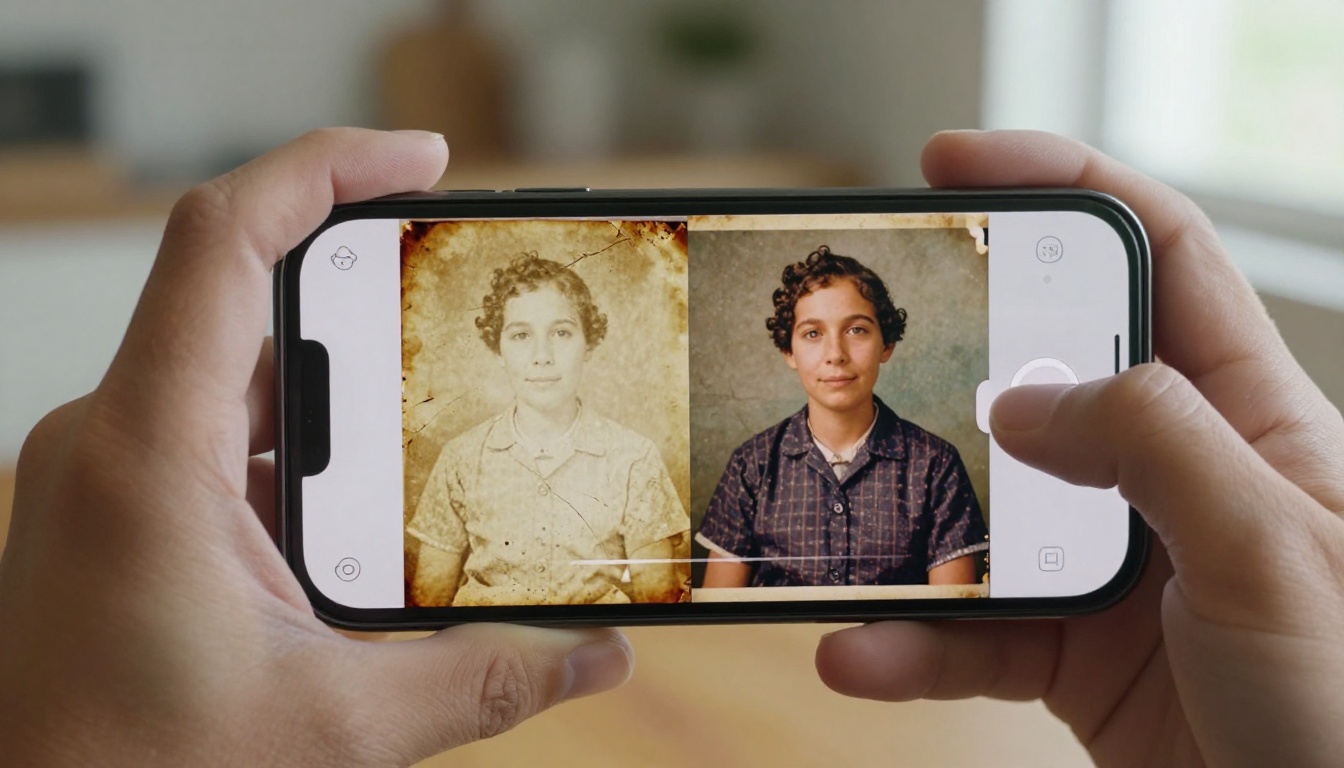
💡 Before upscaling: Remove noise from your image first. AI upscalers amplify both detail and artifacts, so a clean source always produces a cleaner result. Use a noise reduction pass before you run any upscaling model.
The 9 Best AI Upscalers for Photos
Here is every serious upscaling model currently available on PicassoIA, what it does best, and when to reach for it.
1. Topaz Image Upscale
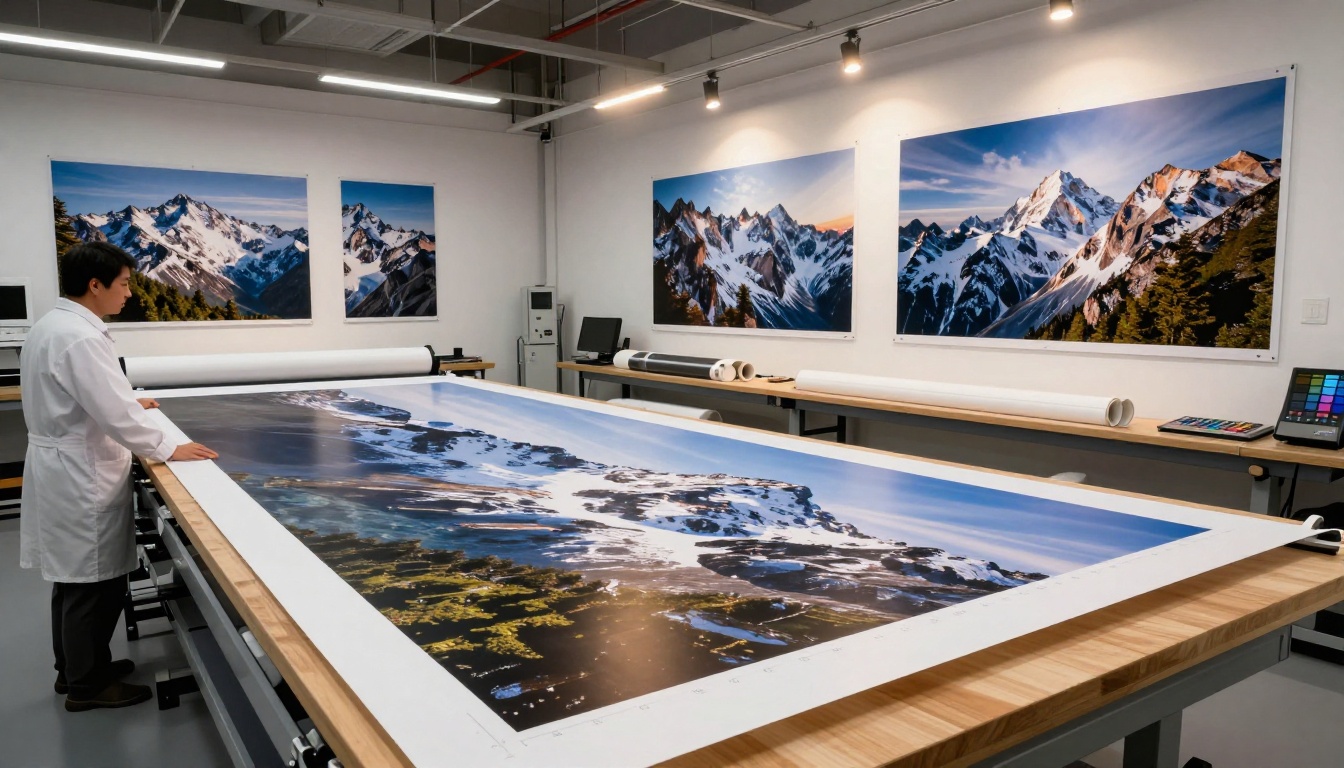
Image Upscale by Topaz Labs is the ceiling. It supports upscaling up to 6x the original resolution, making it the only model in this category capable of turning a small thumbnail into a file large enough for billboard-sized print without quality loss. Topaz Labs has spent years training on diverse real-world photography data, and the results show: edges stay crisp, textures like fabric and foliage render naturally, and there is minimal hallucination of incorrect detail.
Best for: Large print production, professional photography, e-commerce product shots, or any situation where maximum output resolution matters.
- Supports 2x, 4x, and 6x scale factors
- Strong on fine architectural and landscape detail
- Handles color and black-and-white images equally well
- Reliable performance on images with complex multi-depth backgrounds
2. Clarity Pro Upscaler
Clarity Pro Upscaler from philz1337x takes a photorealistic-first approach. Where many upscalers prioritize raw sharpness (which can look overprocessed and artificial), Clarity Pro balances edge definition with natural texture, producing results that look like the photo was captured at higher resolution rather than algorithmically processed. The skin rendering stands out in particular: it adds realistic pore detail without the plastic over-sharpened look that ruins portrait work.
Best for: Portrait retouching, wedding photography, fashion shoots, and any image where skin texture and natural realism matter more than aggressive sharpening.
- Excellent skin tone and pore texture preservation
- Smooth, natural-looking output at 4x
- Works particularly well with images shot under soft natural light
3. Google Upscaler
Google Upscaler brings the weight of Google's image research to bear, offering 4x upscaling with strong general-purpose performance. It excels at scenes with mixed content: a photo containing both soft bokeh backgrounds and sharp foreground subjects. The model handles transition zones between sharp and blurred areas better than most alternatives, making it a reliable default choice for varied content.
Best for: Mixed-content images, travel photography, street scenes, and photos with complex depth of field relationships.
4. Real-ESRGAN
Real-ESRGAN is the workhorse of this list. It's the most widely used open-source super resolution model in the world, known for aggressive sharpening and strong artifact removal. Real-ESRGAN excels with compressed or degraded images: old JPEGs with compression blocks, blurry smartphone photos, or video frames extracted from low-bitrate footage.
Best for: Restoring compressed or degraded images, old social media exports, screenshots, and heavily compressed JPEGs.
- Aggressive noise and compression artifact removal
- Strong on flat graphic content and text clarity
- 4x upscaling with excellent edge recovery
💡 When to use Real-ESRGAN: If your image has visible JPEG blocks, banding, or compression rings, Real-ESRGAN cleans those up while upscaling simultaneously. It's the right tool for rescuing heavily compressed files.
5. Recraft Crisp Upscale
Recraft Crisp Upscale does exactly what the name says. It prioritizes maximum edge sharpness above all else, making it ideal for content where technical precision matters more than organic texture. Fonts, UI elements, product labels, and line art all come out razor-sharp with clearly defined edges.
Best for: Product photography, graphic design assets, UI screenshots, logos, and any image where crisp lines and text legibility are the primary goal.
6. P Image Upscale
P Image Upscale by Prunaai is optimized for speed. It processes images significantly faster than most other models in this category while still delivering sharp, usable results. For workflows where you're processing large batches of images and don't need the absolute maximum quality ceiling, it's the most efficient option available on the platform.
Best for: Batch photo upscaling, high-volume content pipelines, e-commerce catalogs, and any workflow where processing time is a real constraint.
7. Crystal Upscaler
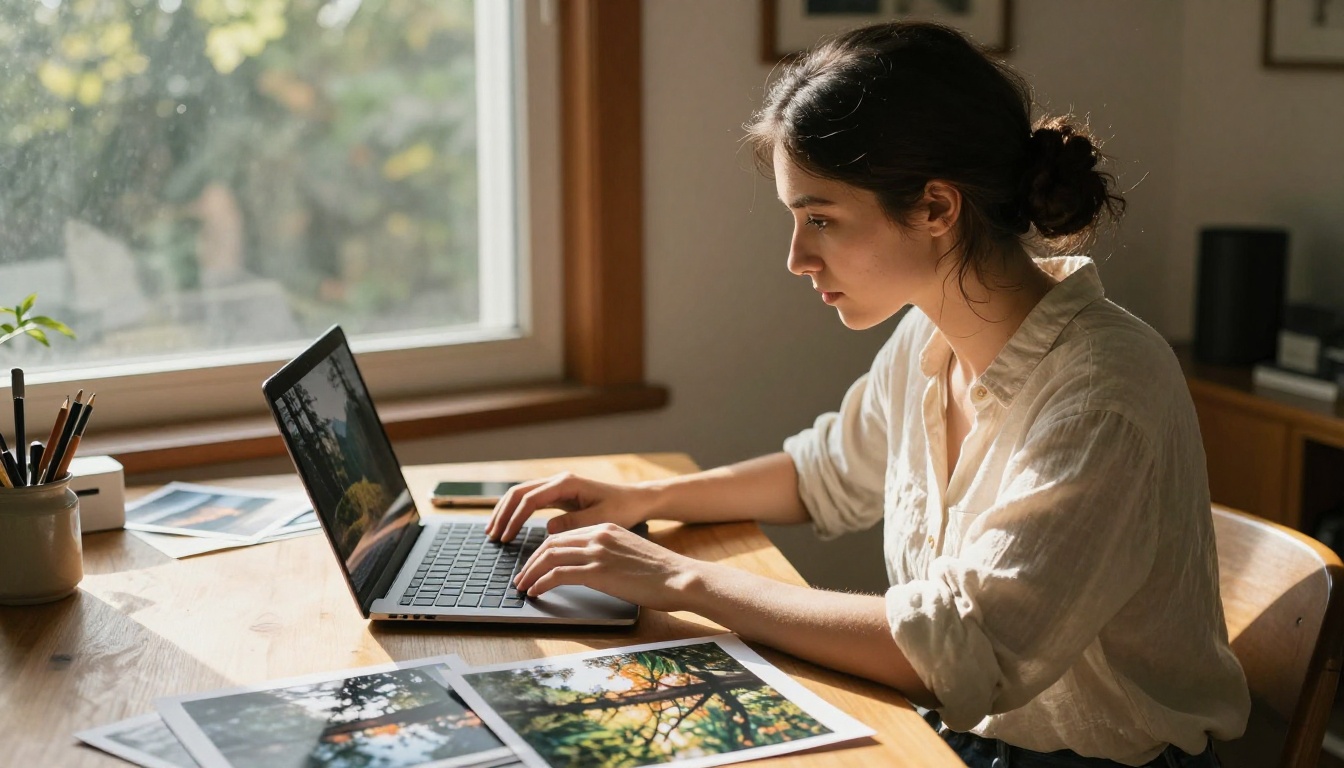
Crystal Upscaler is built specifically for portrait upscaling. It's trained to handle the nuances of human faces: the way light catches an eyelash, the subtle variation in skin tone across a cheek, the texture of beard stubble or fine hair strands. For headshots and close-up portrait work, it outperforms more general-purpose models consistently.
Best for: Headshots, close-up portraits, beauty photography, and any image where facial detail is the primary focus.
- Specialized face and skin texture rendering
- Strong eye clarity with visible iris detail even in heavily upscaled crops
- 4x upscaling, tuned for portrait aspect ratios
8. Bria Increase Resolution
Increase Resolution by Bria offers 4x upscaling with a focus on commercial image quality. It's trained on professional stock photography datasets, which gives it a polished, production-ready aesthetic. Images come out with consistent color balance, clean tonal graduation, and a finish that works well for marketing materials and professional publications.
Best for: Marketing assets, commercial photography, real estate photography, and images destined for professional publications or brand campaigns.
9. Recraft Creative Upscale
Recraft Creative Upscale takes a different approach from the rest of this list. Instead of recovering lost detail with strict fidelity, it adds plausible new detail based on the image's content and visual context. It's more interpretive than technical, making it the right choice when you want an upscaled result that looks richer and more textured than the original source could have ever supported.
Best for: Creative photography, artistic portraits, nature and landscape images where adding interpretive texture is desirable rather than a concern.
💡 Crisp vs. Creative: Use Recraft Crisp Upscale when accuracy is the priority. Use Recraft Creative Upscale when you want the upscaled version to feel more immersive and detailed than the original.
How to Upscale a Photo on PicassoIA
Using any of these models is a three-minute process at most. Here is the exact workflow:
- Open PicassoIA and browse the Super Resolution collection.
- Choose your model based on your image type. Topaz Image Upscale for general photos, Crystal Upscaler for portraits, Real-ESRGAN for compressed or damaged files.
- Upload your image. Most models accept JPG, PNG, and WebP formats up to a generous file size limit.
- Select your scale factor. 2x is sufficient for most screen display purposes; 4x or 6x for large prints or high-resolution crops.
- Run the model. Processing typically finishes in 10 to 30 seconds depending on image dimensions and selected scale.
- Download and compare. Run the same source through two models and compare outputs side by side before committing to one.
No software installation, no local GPU, no subscription required to test. The entire pipeline runs in the browser.
AI Upscalers for Video
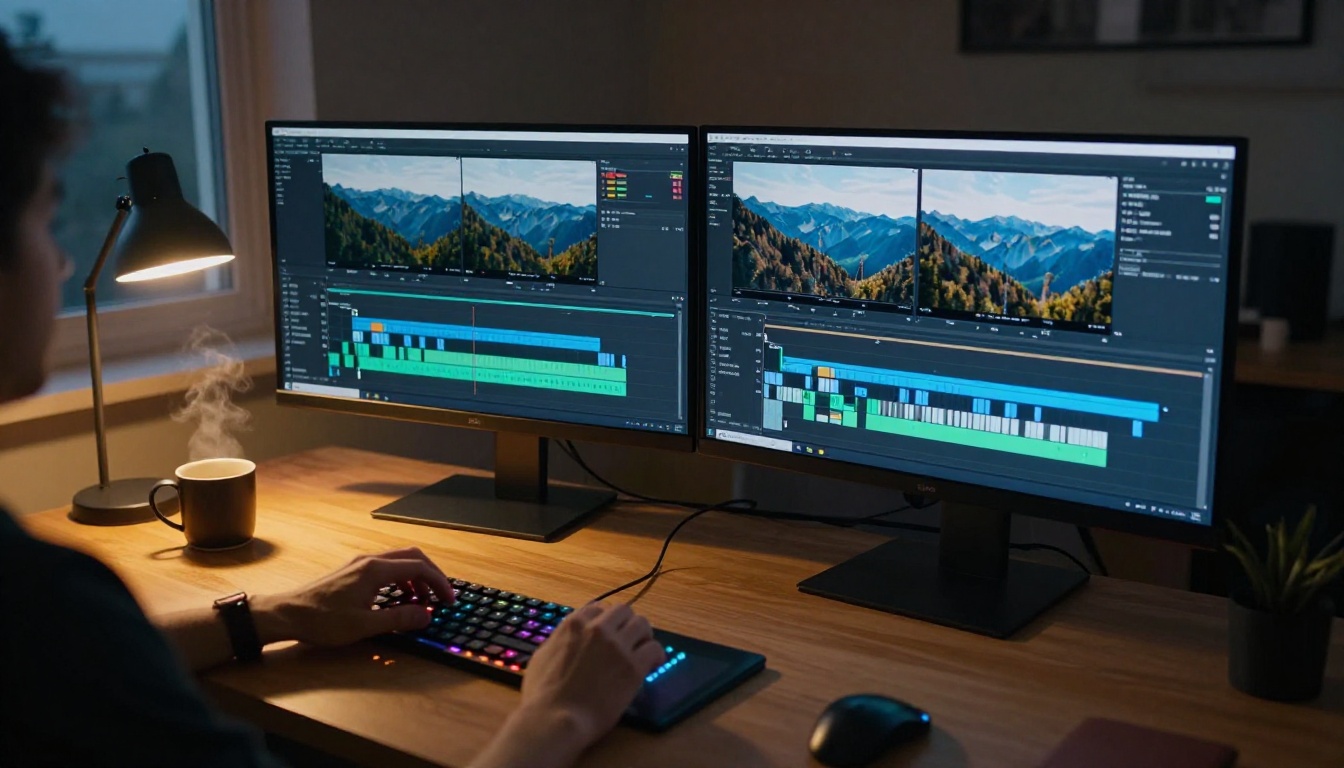
Photo upscaling and video upscaling share the same core AI principles, but video introduces one critical additional constraint: temporal consistency. A model that processes each frame independently can produce flickering artifacts where pixel-level details shift between frames, even when each individual frame looks acceptably sharp on its own.
The best AI video upscalers process footage with awareness of adjacent frames, ensuring that a strand of hair, a building edge, or a skin tone stays stable across motion. For video work, PicassoIA's AI Enhance Videos category includes models built specifically to handle temporal coherence, stabilization, and frame interpolation alongside resolution upscaling.
Common video upscaling use cases:
- Upscaling 1080p footage to 4K for modern display standards
- Restoring old VHS or Super 8 footage to watchable quality
- Sharpening compressed drone video for social media publishing
- Extracting and upscaling individual frames from archival footage
💡 Stabilize before upscaling: Unstable footage compounds poorly with AI upscaling because the model has less consistent frame-to-frame information to work with. Stabilize first, then upscale.
Photo vs. Video Upscaling: What Actually Differs
| Factor | Photo Upscaling | Video Upscaling |
|---|
| Processing time | Seconds per image | Minutes per clip |
| Temporal consistency | Not applicable | Critical to prevent flicker |
| Scale factor range | 2x to 6x | Typically 2x to 4x |
| Artifact types | JPEG blocks, noise, softness | Compression, banding, flicker |
| Best use case | Prints, portraits, archives | Streaming, social media, archival |
| Primary PicassoIA category | Super Resolution | AI Enhance Videos |
The two workflows complement each other well. If you produce content involving both still photography and video, running both through AI upscaling brings your overall output quality to a consistent standard.
When to Upscale vs. When to Reshoot
AI upscaling is powerful, but it has limits. Knowing when to upscale versus when to reshoot saves time and prevents disappointment.
Upscale when:
- The original moment is irreplaceable (old family photos, event coverage, archival material)
- You have compressed exports and the original high-res file no longer exists
- You need a larger print size from a technically solid but lower-resolution image
- You're working with stock imagery delivered at lower resolution than needed
Reshoot when:
- The source image has severe motion blur that no upscaler can fix
- Exposure is off by more than 2-3 stops in a way that corrupts color data beyond recovery
- The original scene is still accessible and the cost of reshooting is low
AI upscaling works by recovering lost detail, but it cannot create detail that was never captured in the first place. A photo taken in low light with heavy motion blur won't become a sharp, well-lit shot after upscaling. Knowing this boundary helps you use the tool where it actually wins.
Quick Comparison Table
Which One Should You Use
The right upscaler depends on what you're upscaling:
No single model wins every category. The advantage of having all nine accessible on one platform is that testing multiple outputs on the same source image takes seconds, not hours. Your best images deserve to be seen at their actual best resolution.
Take Your Photos to Their Best Quality
Every model in this article is available on PicassoIA right now, browser-based, with no installation required. Upload a photo, pick a model, and see what AI upscaling actually does to your images in about 15 seconds.
Not sure where to start? Open Topaz Image Upscale for a general photo or Crystal Upscaler for a portrait. Run the same image through two or three models and compare the outputs side by side. The difference in how each model processes your specific image type will tell you more than any comparison table.
Low resolution doesn't have to be permanent. Upload your first image on PicassoIA and see what these models actually do to your photos, whether it's a portrait you shot years ago, a product image you need at print size, or a compressed file you thought was beyond saving.


