You have an idea. It could be a fantasy, a scenario, a character, or just a feeling you want to bring to life. And now, for the first time in history, a single text prompt can turn that idea into an actual video. Not a slideshow. Not a static image. A moving, breathing clip that looks and feels real.
The question is not whether AI can do this. It can, and it does it well. The real question is which tools will actually let you create what you want, without blocking you at every step.
This article shows you exactly how to turn your idea into an adult AI video, from choosing the right models, to writing prompts that work, to getting consistent output at a quality level that makes your content worth creating.
The censorship wall
The majority of AI video generators refuse adult content outright. You type a suggestive prompt and get one of three outcomes: a content policy error, a completely sanitized result, or a vague warning that gets you nowhere. Platforms like Sora, Runway, and Pika all maintain strict filters because they target mainstream business customers.
That is not a criticism. It is just the reality. Those platforms are not built for what you are trying to do.
What the restrictions actually cost you
Beyond the obvious frustration, over-filtered tools create a practical problem: inconsistency. When a model rewrites your prompt to make it "safe," the output is never what you imagined. You end up iterating endlessly, trying to reverse-engineer what the filter will and will not allow, and the results are always a compromise.
For creators serious about adult AI video, the solution is not to fight the filters. It is to use platforms where those filters do not exist.
💡 PicassoIA gives you access to models where safety filters are disabled by default, so your prompt runs as written, every time.
The Right Starting Point
Generate your image first
The best adult AI videos do not start with a video prompt. They start with a strong image. This is because image-to-video models produce far more consistent results than pure text-to-video when it comes to specific character appearances, poses, and scenes.
Your workflow should always be:
- Write your image prompt with full detail: appearance, environment, lighting, pose
- Generate the image and verify it matches your vision
- Feed that image into a video model with a motion prompt
- Render and review
This two-step process gives you precise control over what your video will look like before a single frame is rendered.
Why image quality matters so much
The video model inherits everything from your source image. If the image has great lighting, realistic skin texture, and a clear composition, the video will too. If the image looks off, the motion will amplify those problems. Spend time on your image. It is the most important investment in the whole pipeline.
Best Models for Adult AI Video on PicassoIA
PicassoIA hosts a curated set of models that accept adult content without filtering. Here is the full recommended lineup, ordered by performance and value:
Seedream 4.5: the top image pick
Seedream 4.5 is the strongest image model on the platform for adult content. It generates photorealistic results in under 3 seconds, supports both text-to-image and image editing, and does not block adult prompts. This is your starting point for building the source images that power your videos.
One critical note: the newer Seedream 5 Lite does not support NSFW content. Stick with Seedream 4.5 for adult generation.
PicassoIA Image Editor Pro: the unlimited option
If volume matters, PicassoIA Image Editor Pro is in a class of its own. With an Elite or Infinite subscription, you get unlimited generations. That means 1,000 images at zero extra cost. On other platforms, that same volume would cost around $100. Here it is included. Results come back in under a second, and there is a 3-generation free trial with no credit card required.
Writing Prompts That Actually Work
What a strong prompt looks like
Most failed generations come down to weak prompts. The model is not the problem. The instruction is. Here is the structure that consistently produces great results:
[Subject + appearance details] + [Scene/environment] + [Lighting description] + [Camera angle and lens] + [Mood/atmosphere] + [Style directive]
For example:
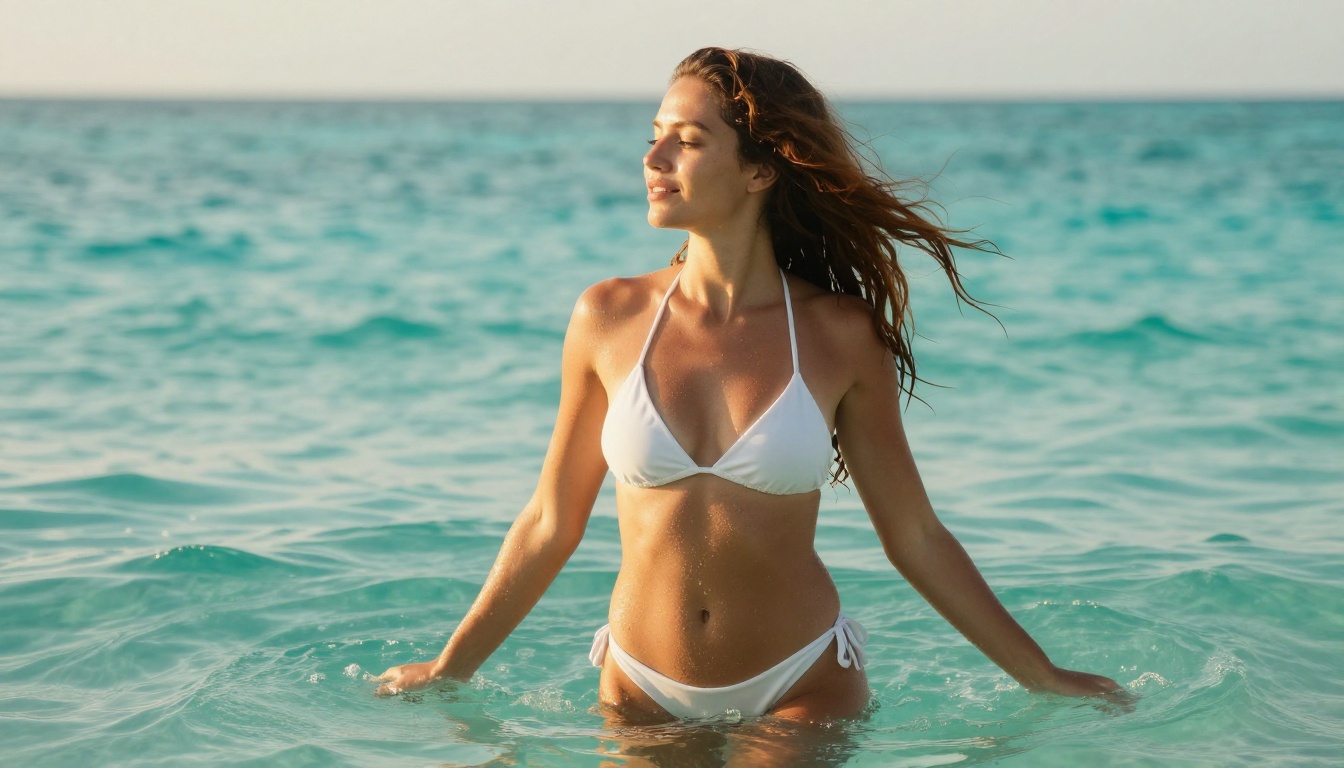
"A beautiful woman with long dark hair wearing a white bikini, standing in shallow turquoise water at golden hour, warm rim light from behind creating a luminous halo, shot from waist level with 50mm lens, photorealistic 8K RAW"
That single prompt contains six layers of information. Each layer guides the model toward a specific visual result. Removing any one layer increases uncertainty.
Common prompt mistakes
- Too vague: "attractive woman on a beach" gives you a generic tourist snapshot
- Conflicting details: describing a nighttime scene while asking for "bright sunlight" confuses the model
- No camera direction: without an angle and lens spec, composition is random
- Missing lighting: lighting is the single biggest factor in how realistic an image looks
💡 Always include a lighting direction (e.g., "volumetric morning light from the left") and a lens spec (e.g., "85mm f/1.4 shallow depth of field"). These two details alone dramatically improve realism.
For video prompts specifically
Video prompts describe motion, not appearance. Your image already handles the appearance. The video prompt should describe:
- What moves and how
- How the camera moves (slow dolly, gentle pan, zoom)
- What changes over the 5-second clip
Example video prompt: "Woman gently tilts her head and smiles, hair lifting slightly in a warm breeze, slow dolly-in toward her face, golden afternoon light softening across skin"
Keep video prompts under 50 words and focus entirely on motion and camera behavior.
From Static Image to Moving Video
The image-to-video workflow
Once you have a source image you are happy with, here is how the conversion works on PicassoIA:
- Open the video model of your choice (P-Video, Grok Imagine Video, or LTX 2.3 Pro)
- Upload your source image as the conditioning frame
- Write a motion prompt describing the movement over 5 seconds
- Set resolution to 720p or higher
- Render and review
The model uses your image as the visual starting point, then generates frame-by-frame motion based on your prompt. The result is a short clip where everything in the scene moves naturally, including hair, fabric, water, and ambient elements.
Choosing the right model for video
Different models have different strengths. P-Video is the most flexible: it accepts text, image, or audio as input, renders at up to 1080p, and runs with its safety filter disabled by default. Grok Imagine Video gives you clips up to 15 seconds with no watermarks. LTX 2.3 Pro produces the highest-fidelity output at up to 4K/50fps, with unique tools like retake (replace a specific segment) and extend (add footage before or after your clip).
For simpler, faster clips, PicassoIA Video offers unlimited video generation at 720p with no per-clip cost on Elite and Infinite plans.
Top Video Models: What Each One Does Best
The model comparison
| Model | Max Resolution | Max Length | Safety Filter | Standout Feature |
|---|
| PicassoIA Video | 720p | 5s | Off | Unlimited clips |
| P-Video | 1080p | 10s | Off by default | Text, image, audio input |
| Grok Imagine Video | 720p | 15s | Off | Longest clips, no watermarks |
| LTX 2.3 Pro | 4K / 50fps | Custom | Off | Retake, extend, highest fidelity |
| Wan 2.7 I2V | 1080p | 5s | Off | Smooth image-to-video animations |
| Seedance 2.0 | 1080p | 5s | Off | Built-in audio, cinematic motion |
When to use each model
Choose PicassoIA Video when you want volume. If you are testing many variations of a scene and need fast turnaround at no extra cost, unlimited generation at 720p is hard to beat.
Choose P-Video when you need more resolution and flexibility. The 1080p cap, adjustable duration from 1 to 10 seconds, and the no-filter approach make it the most versatile model for detailed adult content.
Choose LTX 2.3 Pro when quality is the only variable that matters. If you are creating final-output content that needs to look pristine, 4K at 50fps with retake and extend tools gives you editing-room precision.
Choose Grok Imagine Video when you need length. Fifteen seconds is three times the clip length of most competitors, and the output has no watermarks.
How to Use PicassoIA Video Step by Step
Step 1: Create your account
Go to picassoia.com and sign up. The free trial for PicassoIA Image Editor Pro includes 3 generations with no credit card required. For video generation without limits, the Elite or Infinite plan gives you access to PicassoIA Video and P-Video with no generation caps.
Step 2: Generate your source image
Open Seedream 4.5. Write your image prompt following the structure above: subject, environment, lighting, camera, mood. Hit generate. Review the result and iterate if needed. Seedream 4.5 returns results in under 3 seconds, so iteration is fast.
If you want to refine the image before using it as a video source, PicassoIA Image Editor Pro lets you make targeted edits: change clothing, adjust lighting, or modify the background without regenerating from scratch.
Step 3: Set up your video generation
Navigate to P-Video or LTX 2.3 Pro. Upload your source image. Write a motion prompt. Select 720p or 1080p resolution. Run draft mode first if the model offers it: this gives you a fast low-res preview before committing to a full render.
Step 4: Review and iterate
Check the output for consistency with your source image. Look at:
- Face consistency: does the character match your source image?
- Motion naturalness: does the movement feel real or robotic?
- Lighting continuity: does the light hold steady throughout the clip?
If anything feels off, adjust your motion prompt and re-run. Small changes in phrasing produce meaningfully different results.
Step 5: Upscale if needed
If you generated at 720p and want higher-quality output, use Crystal Video Upscaler to push the clip to 4K without re-rendering from scratch.
Speed and Quality at a Glance
How fast are these models?
Speed varies significantly between models and resolution settings:
💡 Use draft mode on P-Video before committing to a full render. You get a preview in seconds instead of minutes, which saves significant time during the iteration phase.
The cost reality
Most creators underestimate how many generations they will need to get a result they are happy with. A single adult AI video typically takes:
- 3 to 10 image iterations to get the source right
- 2 to 5 video iterations to get the motion right
On a per-credit platform, that adds up fast. This is why unlimited generation plans are not a luxury for adult content creators. They are a practical necessity. The math is straightforward: if you are paying per generation, your costs scale directly with your quality standards.
Prompt Vocabulary That Improves Every Output
The quality of your results depends on vocabulary. Here are the terms that consistently improve adult AI video outputs when embedded in your prompts:
- Photorealistic / hyperrealistic: signals real-world rendering, not illustration
- Natural lighting / golden hour: produces warm, flattering results
- Film grain / Kodak Portra: adds texture that makes AI images feel photographed
- Cinematic motion: tells video models to add subtle, camera-like movement
- RAW 8K: pushes detail and texture fidelity
- Shallow depth of field / bokeh: isolates subjects cleanly
- Suggestive / glamour / artistic: scopes the content level appropriately
Weaving these terms into your prompts does not guarantee perfect output on its own, but it consistently shifts results toward what you actually want.
3 Mistakes That Ruin Good Videos
1. Skipping the source image step
Jumping straight to text-to-video gives you far less control over character appearance. Always generate a strong image first, then animate it.
2. Writing motion prompts that describe appearance
Video prompts describe what moves, not what looks good. "A beautiful woman with long hair" is an image prompt. "Her hair lifts slowly in a breeze as she turns toward camera" is a video prompt. These are very different instructions.
3. Generating at full resolution from the start
Full-resolution renders take minutes. Draft mode takes seconds. Always preview first. Fix the motion. Then commit to the full render.
Start Creating Right Now
Every idea you have is now executable. The gap between imagination and output has collapsed. You do not need film equipment, a production team, or a large budget. You need a clear idea, a strong prompt, and the right platform.
PicassoIA puts every model on this list in one place, with no content filters standing between you and your output. Start with Seedream 4.5 for your source image. Refine with PicassoIA Image Editor Pro. Move to P-Video or LTX 2.3 Pro for your video. Iterate fast. Get results that look real.
The full catalog of uncensored models, including everything listed in this article and more, is available at picassoia.com/en/all-models.


