Your phone camera is already a powerful starting point. What was once only possible with professional photo editors and expensive software is now something anyone can do in minutes, using nothing but a browser and a good selfie. The wave of free AI image generation tools has made it possible to take an ordinary portrait photo and turn it into something that looks like it was shot by a master photographer, painted by a professional artist, or processed in a high-end post-production studio. And the best part? You do not need to spend a single dollar to try it.
Why Selfie-to-AI Art Blew Up
Social media changed what people want from photos
The demand for elevated portrait content has never been higher. Instagram, TikTok, and LinkedIn all reward images that stand out. A basic front-camera snapshot just does not compete with AI-processed portraits that look editorial, cinematic, or professionally lit. What changed things was the arrival of open-source image generation models like Flux Dev and Stable Diffusion 3.5 Large, which brought studio-quality output to anyone with an internet connection.
The cost barrier fell to zero
A few years ago, getting a photorealistic AI portrait required expensive software subscriptions or waiting lists for invite-only tools. Today, models like Flux Schnell and SDXL are available on free-tier platforms, and the output quality rivals what would have cost hundreds of dollars in professional editing time just two years ago.
People want to see themselves differently
There is something deeply compelling about seeing your own face reimagined. Whether it is a golden-hour portrait with cinematic lighting, a softly processed glamour shot, or a clean professional headshot, AI art from selfies taps into a universal desire for beautiful self-representation. This is not vanity. It is creative expression made accessible.
What Actually Makes a Good Selfie for AI Art
Lighting is everything
The single biggest factor in how well an AI model can process your selfie is the quality of light in the original photo. Front-facing phone cameras are not great in low light, and when you feed a grainy, dark selfie into an AI generator, the model has less information to work with. For best results:
- Shoot near a window during the day, with natural light facing you
- Avoid overhead lighting that casts harsh shadows under the eyes
- A slightly overcast sky outside creates ideal soft, even illumination
- Avoid flash, which flattens skin texture and creates red eyes
Face angle and framing
AI models trained on portrait photography respond best to:
- Straight-on or three-quarter angle shots, not extreme side profiles
- Eyes visible and in focus (models anchor on the eyes for facial feature mapping)
- Head and shoulders in frame, not just a cropped face or a full-body shot
- No obstructions: hats, sunglasses, or hands covering the face reduce accuracy
Resolution and sharpness matter
Modern phones shoot more than enough resolution, but always use the highest quality setting. Blurry selfies produce blurry AI art. If your phone has a portrait mode, use it as a starting point, but make sure the face itself is sharp.
The Models That Produce the Best Results
Not all AI image generators handle portraits equally. Some are built for landscapes or abstract art, while others are specifically tuned for photorealistic faces and skin tones.
Top models for photorealistic selfie output
💡 For selfies specifically: Realistic Vision v5.1 and RealVisXL v3.0 Turbo tend to preserve natural skin tones better than more stylistic models. Use them when you want the result to still look like you.
Models optimized for speed
If you are experimenting and want fast results while refining your prompt:
How to Write Prompts That Actually Work
The structure that gets results
Writing prompts for selfie-to-AI art is a skill you pick up fast. The basic structure that works across most models is:
[Subject description] + [Lighting setup] + [Camera and lens details] + [Atmosphere/mood] + [Style modifiers]
For example, instead of writing "a beautiful portrait of a woman", write:
"Close-up portrait of a woman with warm golden-hour rim lighting from the left, shot at 85mm f/1.4, soft bokeh background, natural skin texture, Kodak Portra 400 film grain, photorealistic 8K"
The difference in output quality between a vague and a specific prompt is significant.
What to include in your prompt
Always add:
- Camera lens (85mm, 50mm, 35mm)
- Aperture (f/1.4, f/1.8, f/2.0)
- Lighting direction (from left, overhead, rim light)
- Skin texture reference ("natural pore detail", "photorealistic skin")
- Quality modifiers ("photorealistic", "8K", "film grain", "Kodak Portra 400")
Avoid:
- Vague adjectives ("beautiful", "stunning", "amazing")
- Conflicting style instructions
- Too many subjects or elements in one prompt
💡 Pro tip: Add "volumetric lighting" and "cinematic" to almost any portrait prompt. These two terms consistently improve the perceived quality and depth of AI-generated portraits across all major models.
How to Use Flux 1.1 Pro Ultra on PicassoIA
Flux 1.1 Pro Ultra is one of the strongest models available for photorealistic portrait generation. Here is how to get the best selfie art results using it on PicassoIA.
Step 1: Prepare your reference image
Before writing any prompt, get your selfie ready:
- Crop to a clear head-and-shoulders frame
- Make sure the face is well-lit and in sharp focus
- Save as JPG or PNG at full resolution
Step 2: Open the model on PicassoIA
Go to the Flux 1.1 Pro Ultra model page. You get direct access with no complicated setup required.
Step 3: Write a detailed portrait prompt
Use the structure from the previous section. For a cinematic outdoor portrait result:
"Close-up portrait of a woman, soft morning light from the left, 85mm f/1.4 lens, natural skin texture with visible pores, Kodak Portra 400 film grain, creamy background bokeh, photorealistic 8K photography, warm golden tones, calm confident expression"
Step 4: Set aspect ratio and generate
Choose 16:9 for editorial-style output or 4:5 for a social media portrait crop. Hit generate and review the first result.
Step 5: Iterate quickly
If the first result is close but not perfect, make targeted changes to the prompt:
- Too dark? Add "bright natural light" or "high-key lighting"
- Skin looks artificial? Add "photorealistic skin texture, natural pores, film grain"
- Background too busy? Add "clean neutral background, shallow depth of field"
💡 Use Flux Kontext Pro for targeted edits on an already-generated image. If the face looks great but the background is wrong, Kontext Pro lets you describe exactly what to change without regenerating the whole image from scratch.
5 Common Mistakes That Ruin AI Selfie Art
1. Using a blurry or dark original
A garbage-in, garbage-out rule applies here. A sharp, well-lit selfie gives the model more to work with, and the result shows it every time.
2. Writing one-sentence prompts
Short prompts give the model too much creative freedom. You end up with technically impressive images that look nothing like you or the style you wanted. Specific prompts produce controlled results.
3. Picking the wrong model for the goal
Using an abstract art model when you want a photorealistic portrait is a common mismatch. SDXL and Stable Diffusion 3.5 Large are solid all-rounders, but for strict photorealism, Realistic Vision v5.1 is purpose-built for it.
4. Not iterating
The first generation is rarely the best. Every experienced AI art creator runs multiple iterations, adjusting prompts and comparing outputs. Plan to generate at least 3 to 5 versions before committing to one.
5. Ignoring super-resolution
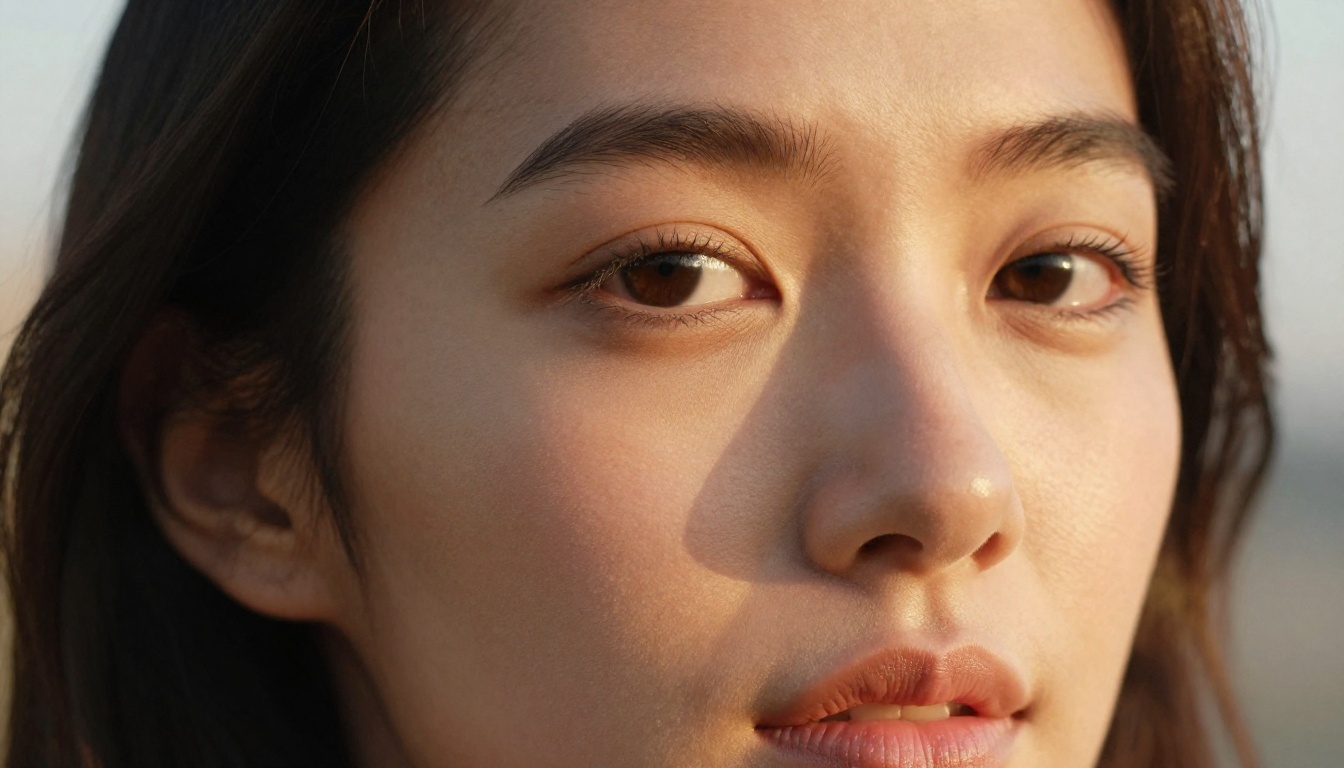
Even a good AI portrait can look soft at larger sizes. PicassoIA's super-resolution tools can upscale your output by 2x to 4x, adding sharpness and fine detail that makes the final image print-ready or suitable for large-screen display.
Three Approaches to Turning Selfies into AI Art
There are three main ways people currently use free AI tools to turn selfies into art, and each has different tradeoffs.
Text-to-image with descriptive prompts
You describe the portrait you want in detail. No original photo is used as a direct input. This works well when you want to generate a portrait inspired by your look but not necessarily identical to it. Models like Flux Dev, Imagen 4, and GPT Image 1.5 excel here because they follow detailed instructions precisely.
Image-conditioned generation
You upload your selfie as a reference, and the model uses it as a structural or style guide. This preserves facial features more accurately. Flux Kontext Pro and RealVisXL v3.0 Turbo work particularly well for this approach.
ControlNet-guided generation
ControlNet models use the structural information (pose, face shape, depth) from your original photo to guide the AI output while changing the style or lighting entirely. SDXL Multi ControlNet LoRA on PicassoIA gives you precise control over how much of the original photo's structure carries over into the new image.
Styles That Work Best for Selfie-to-Art Output
Not every style translates equally well from a selfie. Here is a breakdown based on output consistency across models:
💡 Best starting point: Golden-hour photorealism produces the most reliable, impressive results for beginners. It works well across all skin tones and face shapes, and the prompt modifiers are forgiving even if you miss a few details.
The Aspect Ratio Setting Most People Skip
When working with any text-to-image model on PicassoIA, the aspect ratio setting has a bigger impact on portrait quality than most users expect. Most models are trained heavily on square or landscape datasets. When you generate in a portrait aspect ratio (4:5 or 9:16), the model allocates more pixel space to the face, which means finer detail in skin texture, eyes, and hair. For selfie output specifically:
- 4:5 is ideal for social media profile-type portraits
- 16:9 works for editorial, header, or landscape-oriented use
- 1:1 is reliable for quick generation and comparison
This single adjustment can noticeably sharpen the quality of facial detail in your AI portrait without changing anything else in your workflow.
What to Do After You Generate
Once you have output you are happy with, the possibilities go further than posting to social media:
- Professional headshots: A well-processed AI portrait with clean lighting works for LinkedIn profiles or team pages
- Profile photos: Social accounts, apps, forum avatars
- Printed artwork: Super-resolution upscaling makes AI portraits print-ready at large sizes
- Personal branding: Consistent, stylized portraits across all platforms create a strong visual identity
- Gifts: Printed AI portraits in different styles make distinctive and personal gifts
PicassoIA also gives you access to AI video tools if you want to animate your portrait or add movement. If your selfie has a busy background, the background removal tool strips it cleanly so you can place the portrait on any backdrop you choose.
Start Creating with PicassoIA Today
The gap between a good selfie and a genuinely impressive AI portrait is smaller than it has ever been. With free access to models like Flux Schnell, Realistic Vision v5.1, and Flux 1.1 Pro Ultra, the only thing standing between your current profile photo and something worth printing is about ten minutes of experimentation.
PicassoIA gives you access to over 90 text-to-image models, all in one place, without account walls or paywalls blocking the most capable options. Pick a portrait style, write a detailed prompt, and generate. See what comes back. Adjust one thing at a time. The results tend to surprise people.
Your selfie is the raw material. The AI handles the production. What you get back is something that looks like it was taken by a professional photographer in a controlled studio, and it started with nothing more than a phone in your hand. Go try it right now on PicassoIA.


