You upload a photo, type a short instruction, and the tool answers with a polite refusal. If that sounds familiar, you already know why people search for uncensored image to image tools. The idea is simple: start from a real picture, change the outfit, the light, the location or the mood, and keep the person looking like the same person. The frustrating part is that many mainstream editors block anything that smells like swimwear, lingerie or glamour, even when the result is perfectly tasteful.
This article walks through the free models that handle adult-leaning, non-explicit edits best, the prompts that give consistent results, and the mistakes that waste your credits. Everything below is built around photorealistic output: skin texture, believable fabric, natural light.
What Uncensored Image to Image Means
The phrase gets used loosely, so let's pin it down. Image to image (often shortened to img2img) means the model takes your photo as the starting point instead of generating from a blank prompt. Uncensored in this context means the model does not reject ordinary adult themes such as bikinis, lingerie, bare shoulders or sensual lighting.
It does not mean explicit. Pornographic output is a different thing, and this article does not cover it. What most people want is the same look you would find in a fashion catalog, a beach editorial or a boudoir shoot.
How the Process Works
A typical image to image pipeline has three inputs:
- A source photo that provides the face, pose and rough composition.
- A text instruction that says what to change, such as "replace the dress with a green bikini."
- A strength or fidelity setting that decides how far the result may drift from the original.
Edit-focused models read the photo and the instruction together, so they can swap clothing or relight a scene while leaving the face alone. Older img2img models simply add noise to your photo and redraw it, which is why faces often melt when the strength is too high.
Why Filters Get in the Way
Most refusals come from a safety classifier sitting in front of the model. It scans your prompt and sometimes your output, and it errs on the side of blocking. Words like "lingerie," "bikini" or "sexy" can trigger it even when the image is harmless. Platforms built for creative work tend to apply lighter rules, which is why model choice matters as much as prompt wording.
💡 Tip: If an edit gets blocked, rewrite the prompt in the vocabulary of a fashion photographer: "satin two piece set, editorial lighting, magazine style." Neutral, descriptive language passes more often than slang.
Best Free Models for the Job
Not every editor is equal. Some keep faces steady but ignore clothing instructions. Others follow instructions perfectly and blur the skin. The list below is ordered by how well each model balances realism, instruction following and flexibility with glamour themes.
Seedream 4.5: The First Pick
Seedream 4.5 is the model I reach for first. It accepts reference images, follows long instructions closely and produces skin with visible pores instead of the plastic gloss common in older generators. It handles swimwear, evening wear and boudoir styling without the constant refusals you get elsewhere, and its output goes up to 4K.
Where it stands out is lighting. Ask for "warm window light from the left, soft shadows under the collarbone" and it respects both the direction and the softness. That makes it excellent for turning a flat phone snapshot into something that looks shot in a studio.
PicassoIA Image Editor Pro: Unlimited Edits
PicassoIA Image Editor Pro is the one to use when you plan to iterate a lot. It offers unlimited generations, so you can try twenty variations of an outfit swap without watching a credit counter. Upload a photo, describe the change, and you get a result in seconds. For glamour and swimwear edits, that freedom to retry is worth more than a slightly higher resolution ceiling.
Seedream 4 and the Qwen Editors
Seedream 4 is the older sibling and still a strong option when you want fast, clean results at 4K. Pair it with the Qwen family when your edit is instruction heavy:
- Qwen Image Edit 2511 is precise with clothing swaps and keeps text in the scene readable.
- Qwen Image Edit Plus handles multiple reference images, useful when you want one person's face in another outfit reference.
Flux Kontext Fast and LoRA Editors
Flux Kontext Fast is built for quick instruction edits: "change the background to a rooftop at sunset" and it does exactly that. For stylized looks, try P Image Edit LoRA or Flux 2 Klein 9B Base LoRA, which let you push a consistent visual style across a whole set of photos.
Quick Comparison Table
| Model | Best for | Face consistency | Speed | Skin realism |
|---|
| Seedream 4.5 | Lighting, swimwear, boudoir looks | Excellent | Fast | Excellent |
| Image Editor Pro | Unlimited iteration | Very good | Very fast | Very good |
| Seedream 4 | Clean 4K edits | Very good | Fast | Very good |
| Qwen Image Edit 2511 | Precise clothing swaps | Very good | Medium | Good |
| Qwen Image Edit Plus | Multi reference edits | Good | Medium | Good |
| Flux Kontext Fast | Background and scene changes | Good | Very fast | Good |
| P Image Edit LoRA | Consistent style sets | Good | Very fast | Good |
💡 Tip: Run the same photo and the same prompt through two models. The difference in skin texture and fabric detail is often bigger than you would guess from the model names.
How to Use Seedream 4.5 on PicassoIA
Since Seedream 4.5 is the lead recommendation, here is the exact routine that gives me the most reliable results.
Step by Step
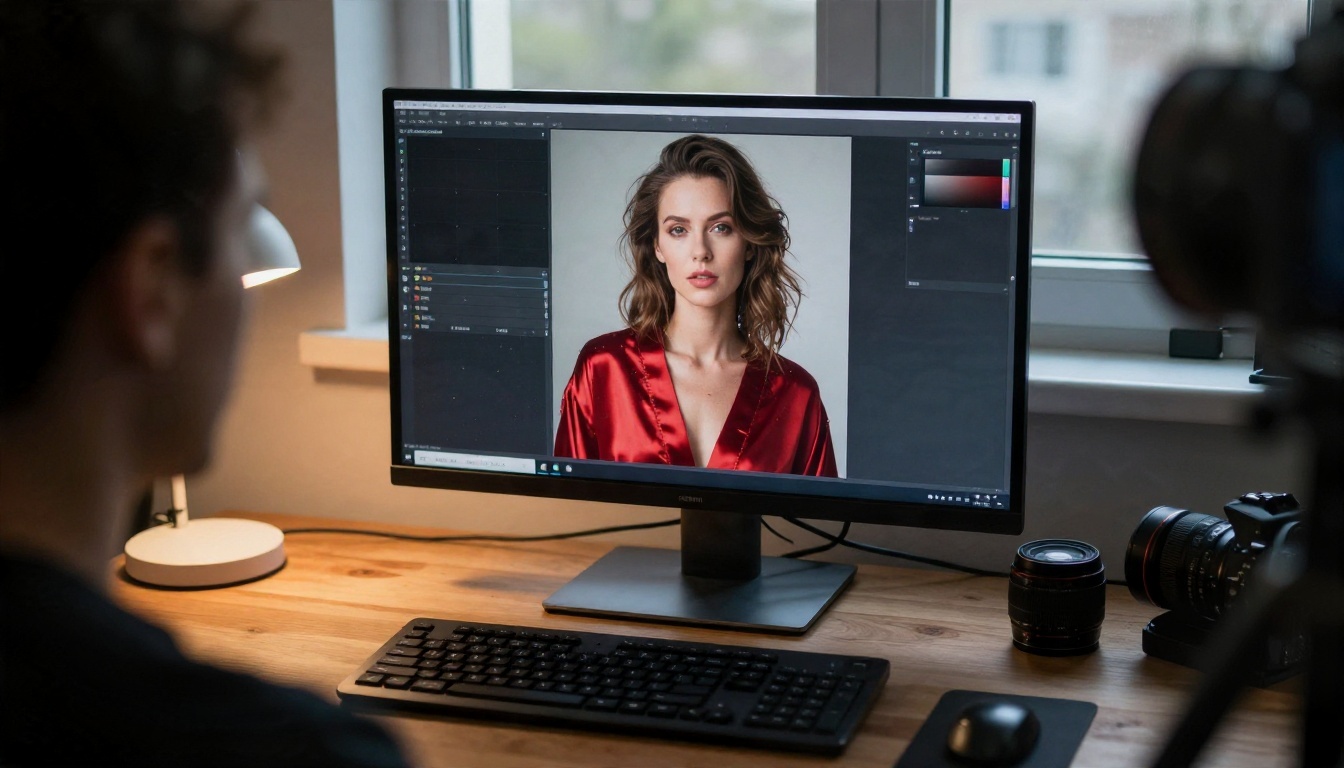
- Open the Seedream 4.5 page on PicassoIA.
- Upload your source photo in the reference image field. Pick a sharp, well lit picture where the face is clearly visible.
- Write one clear instruction. Start with the change, then the lighting, then the camera feel.
- Choose a 16:9 or 3:2 aspect ratio for landscape scenes, or 2:3 for portraits.
- Generate, review, then adjust only one thing at a time (outfit, light or background) before running again.
Parameter Tips
- Keep the source photo large. A 1500 pixel photo gives the model far more face detail than a compressed screenshot.
- Name the lens. "85mm f/1.8, shallow depth of field" nudges the result toward portrait photography and away from a flat, wide look.
- Describe the texture. Phrases such as "visible skin pores, fine peach fuzz, natural film grain" fight the plastic look.
- Repeat the identity line. Adding "same woman, same face, same hairstyle" to the prompt reduces drift between runs.
If you want to iterate without limits, switch to Image Editor Pro for the experiments and come back to Seedream 4.5 for the final high resolution pass.
Prompts That Actually Work
A good image to image prompt is short, specific and describes change, not the whole picture. The model already sees your photo, so repeating everything wastes attention.
Outfit Swap Prompts
Use this structure: [what to change] + [fabric and color] + [what to keep].
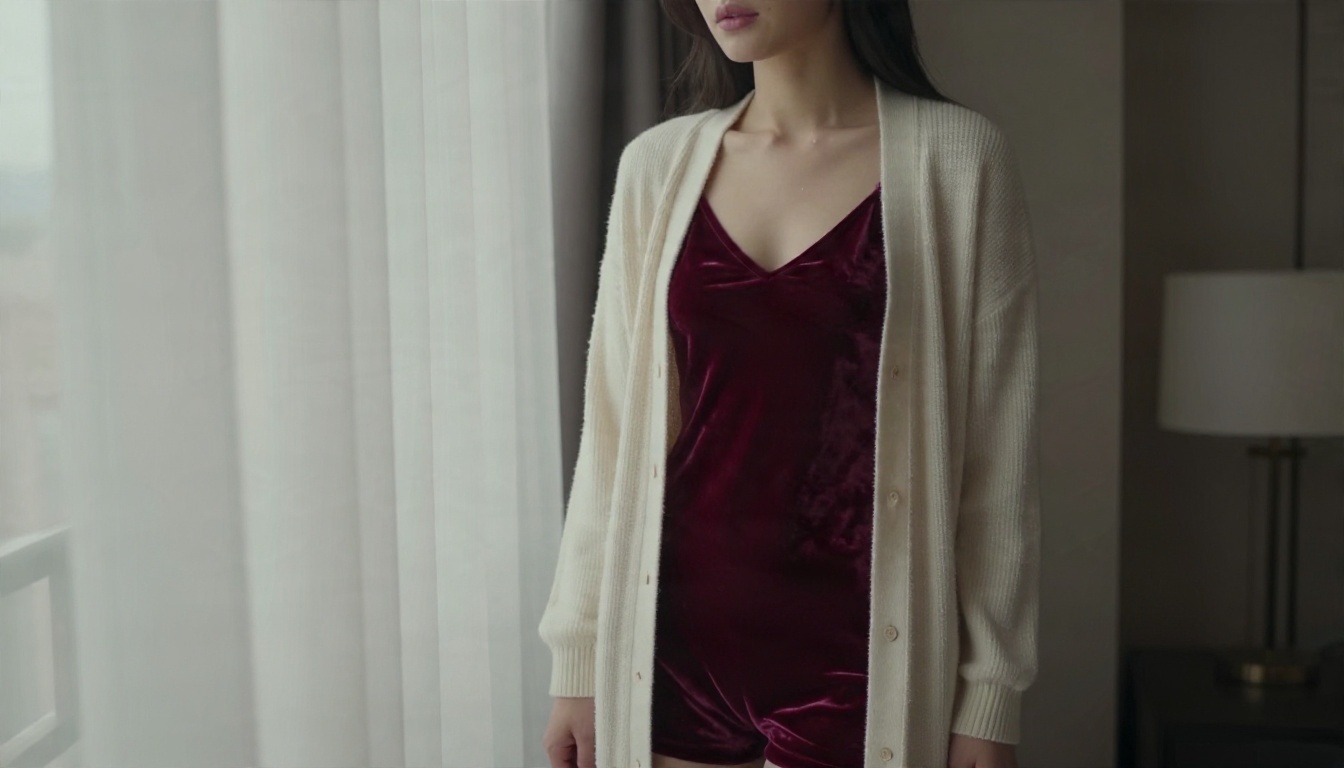
- "Replace the white top with a burgundy velvet lingerie set and a cream knit cardigan, keep the face, hair and pose unchanged."
- "Change the outfit to a black one piece swimsuit with sunglasses, keep the same woman and the same body proportions."
- "Swap the dress for a champagne satin blouse and a high waisted skirt, keep the pose and the background."
Fabric words matter. "Velvet," "satin," "lace" and "knit" each produce distinct textures, while a vague word like "fancy" gives you generic cloth.
Lighting and Mood Prompts
Lighting is the quickest way to make a snapshot look professional:
- "Relight with warm golden window light from the left, soft shadows, gentle highlight on the cheekbones."
- "Soft overcast diffused light, muted tones, subtle film grain, Kodak Portra 400 look."
- "Backlit morning glow from the right with a faint rim light on the hair."
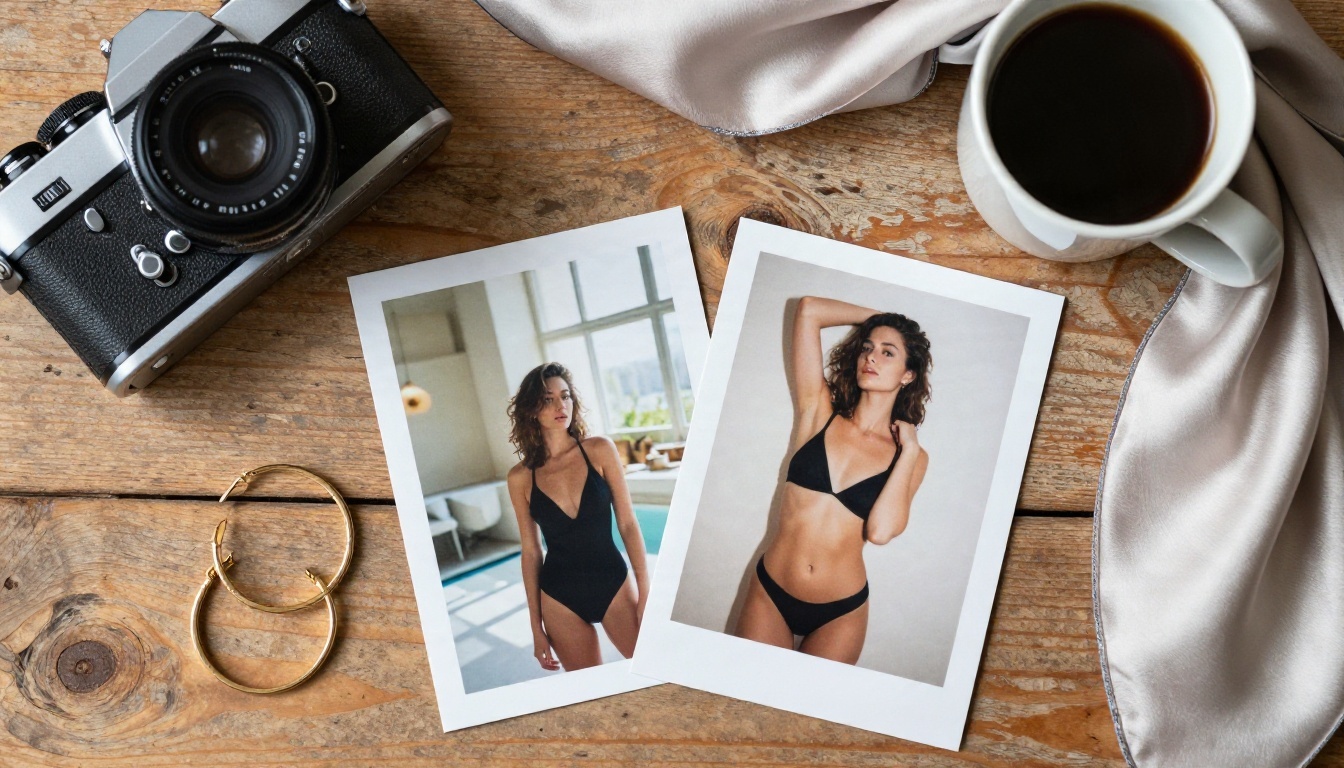
Background Change Prompts
Background swaps are where Flux Kontext Fast shines:
- "Move the subject to a villa pool terrace with turquoise water and palm trees, keep her exactly as is."
- "Change the setting to a European old town street at dusk with warm shop window light."
- "Place her in a brick wall loft studio with a large softbox on the right."
Keeping the Face Consistent
Face drift is the number one complaint. A few habits help:
- Edit one variable per run. Changing outfit, hair and background in a single prompt invites errors.
- Use the phrase "keep the face and identity unchanged."
- Lower the edit strength if your model exposes the setting.
- Start from the best, sharpest source photo you have.
💡 Tip: Save your best result and use it as the new source for the next edit. Chaining small edits beats one giant instruction.
Real Examples to Copy
Seeing the style range helps you choose what to ask for. These are examples of the looks that image to image tools produce well when the prompt is specific.
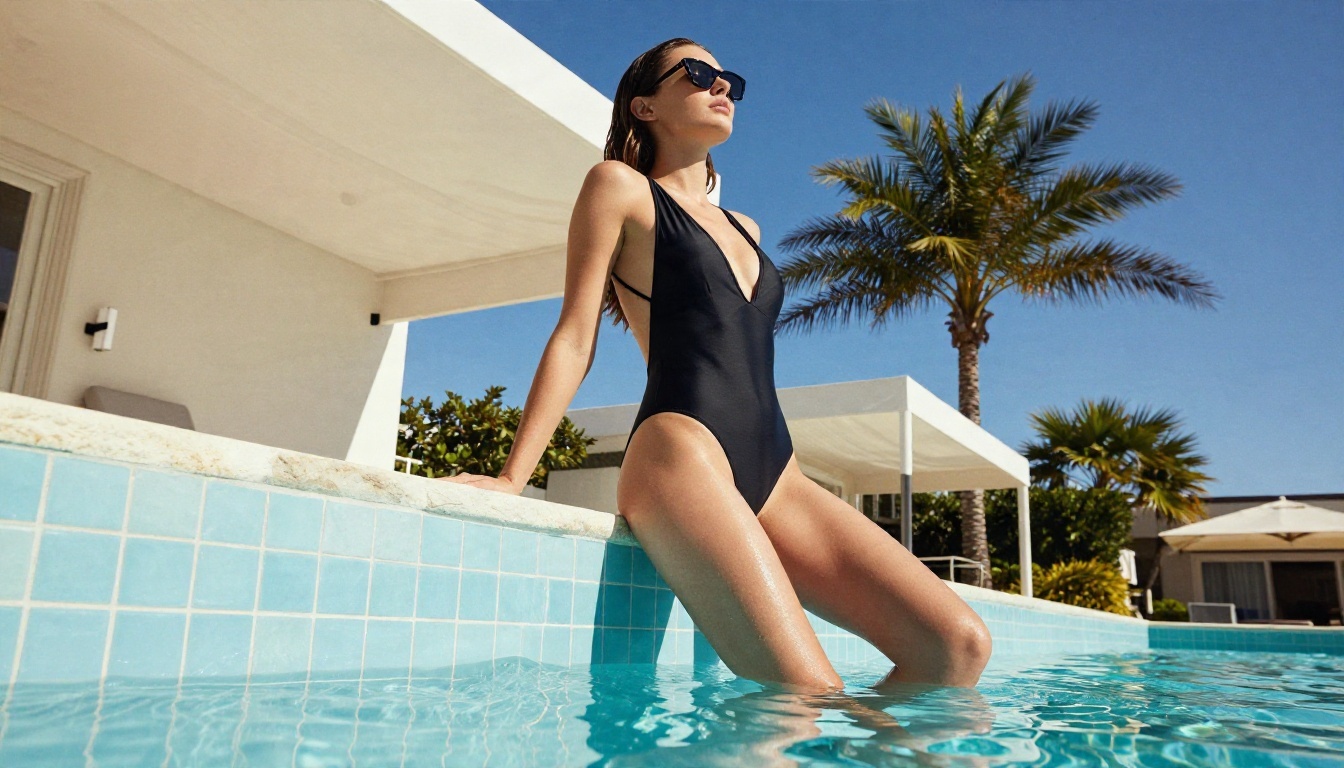
Poolside Glamour
A low angle, midday sun, wet stone and a clean black swimsuit. The prompt that gets you there: "black one piece swimsuit, sunglasses, infinity pool at a villa, 24mm lens from a low angle, sun softened by a white canopy, water reflections on skin." The reflections are what sell the realism, so always mention them.
Soft Bedroom Portraits
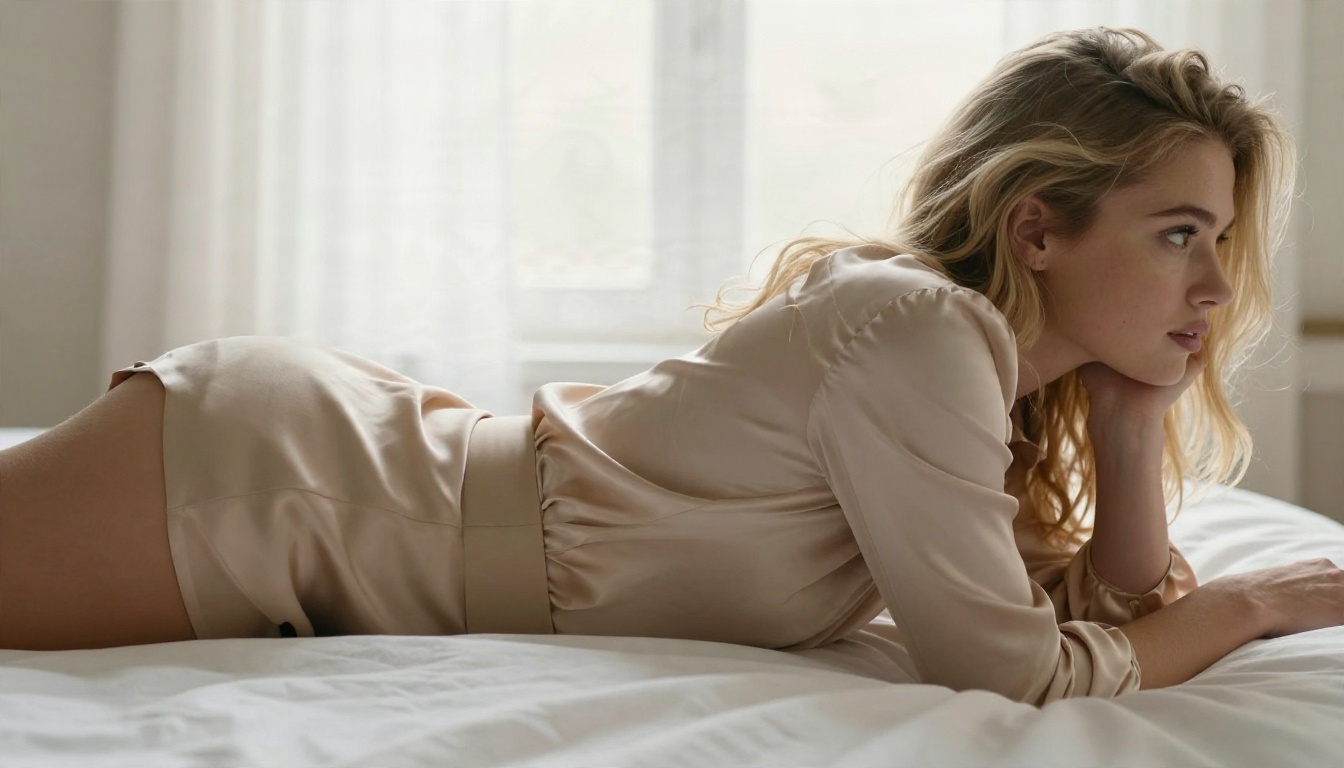
Quiet, intimate and entirely tasteful. Use a tight crop, a backlit window and natural fabric creases: "side profile close up, champagne silk, white linen duvet, backlit morning glow, 100mm lens, fine skin texture." This look rewards patience with the lighting more than the outfit.
Evening Street Style
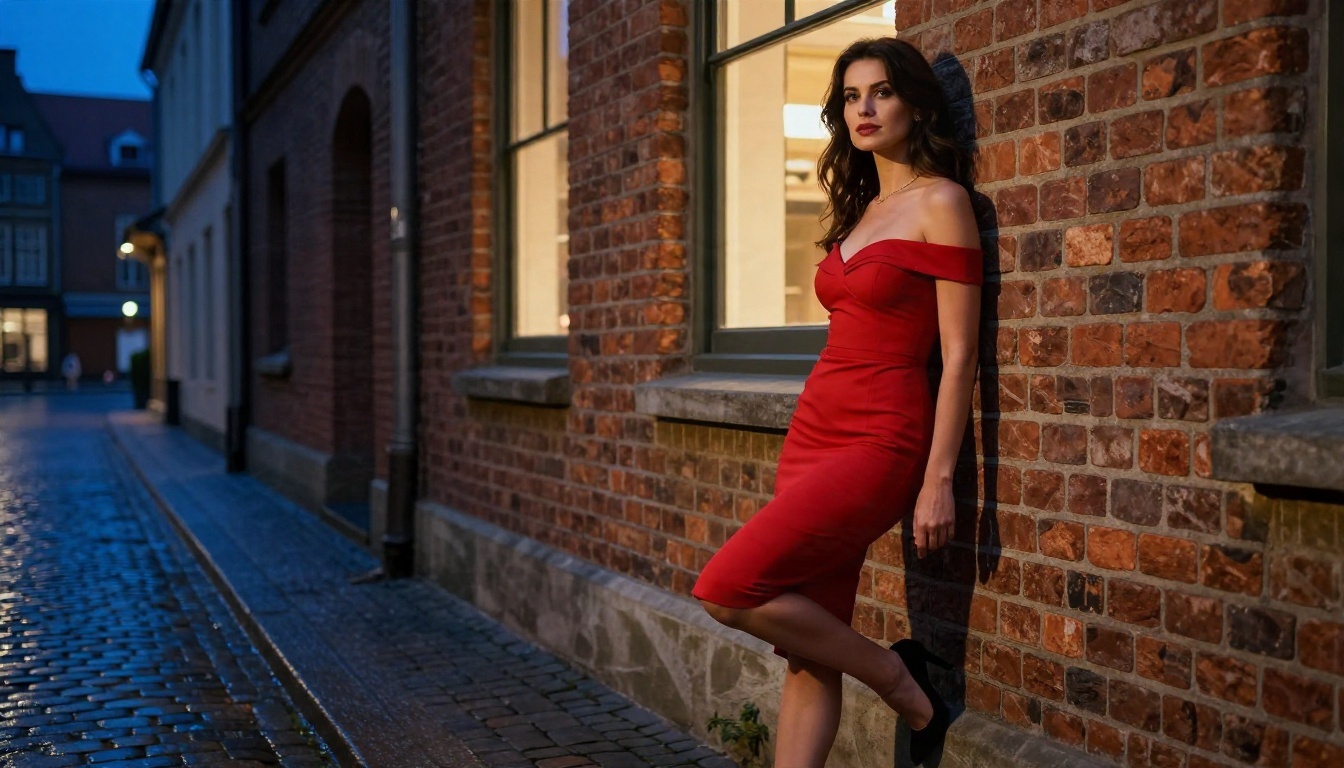
Mix warm tungsten light with a deep blue twilight sky and wet cobblestones. The contrast does the heavy lifting: "fitted red cocktail dress, brick wall, warm shop window light on the left, blue dusk sky, glistening cobblestones, 50mm f/1.8."
Studio Fashion Tests
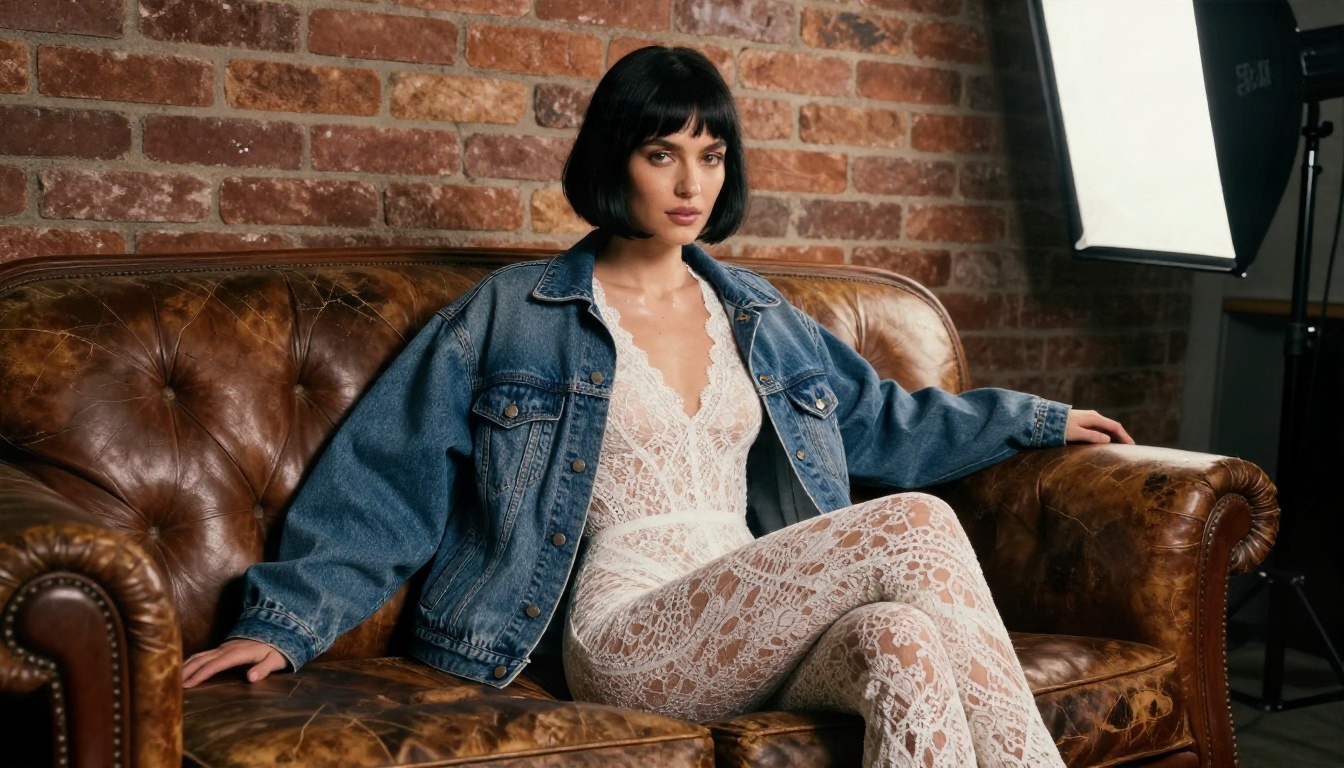
Layering something casual over something delicate, like a denim jacket over lace, creates contrast that reads as editorial. Add a "large softbox from the right with gentle fill" and a worn leather sofa for texture.
Mistakes That Waste Your Time
After a lot of runs, the same few errors keep showing up.
Stacking Too Many Changes
"Change the outfit, hair color, background, lighting and add a necklace" is a recipe for a muddy result. Split it into steps. Outfit first, then lighting, then background.
Using a Low Quality Source
A blurry, heavily compressed photo gives the model nothing to work with. If your picture is small, run it through a super resolution model first, then edit.
Ignoring Skin Texture Words
Without texture words, many models smooth skin into a waxy surface. Always include "visible pores," "natural skin texture" or "fine freckles." It is a single line that changes the whole feel.
Fighting the Filter With Slang
Crude wording increases refusals and lowers quality at the same time. Fashion vocabulary gets better results and fewer blocks.
Rules for Responsible Use
Free and unrestricted tools put the responsibility on you. A few lines worth holding firmly:
- Only edit photos of yourself, or of adults who clearly consented. Never use someone's picture without permission.
- Never edit anyone who is, or looks, under 18. No exceptions.
- No explicit content and no deception. Keep edits in the glamour, swimwear and boudoir range, and do not present edited images as real photographs of a real person who did not agree.
- Label AI edits when you publish them, particularly if the subject is a real person.
These rules protect the people in the photos, and they also keep your accounts and your work in good standing.
Make Your Own Edits Today
The fastest way to see the difference is to take one of your own photos and run a single, simple edit. Start with Seedream 4.5 for the sharpest, most lifelike result, then move to Image Editor Pro when you want to try dozens of variations without limits. Test one outfit swap, one lighting change and one new background, and compare them side by side.
Picasso IA puts all of these models in one place, so you can switch between a fast Flux Kontext edit and a detailed 4K Seedream pass without opening another tool. When you want to see what else is available, browse the full catalog at picassoia.com/en/all-models, pick a model, upload a photo and write your first prompt. Your next favorite image is one instruction away.


