You upload one photo, type two sentences, and a few moments later the photo is moving, with footsteps, wind or music already mixed in. That is what unlimited AI videos look like in practice today, and the part that matters most is not the clip itself but the fact that you can make the next one, and the one after that, without watching a credit counter drop. This article breaks down how image to video works, how sound gets generated, which prompts produce clips worth keeping, and what plan pricing really means when a platform says "unlimited".
💡 Quick answer: On PicassoIA, Seedance 2.5 Lite is the model built for unlimited generation. Elite and Infinite members run it with no per-clip cost and no daily counter, at 480p or 720p, in clips of 5 or 10 seconds, with synchronized audio on by default.
What "Unlimited" Actually Means
Every AI video platform has used the word "unlimited" at some point, and the fine print rarely matches the headline. Some plans are unlimited only in slow queues. Others limit the resolution, the clip length or the list of eligible models. Before you commit to any plan, it helps to separate the marketing word from the real conditions.
The Short Version
Unlimited means you can press Generate again without spending anything extra. That sounds simple, but it changes how you work. When every attempt costs credits, you write one careful prompt and hope. When attempts are free, you test ten prompts, compare them, keep the best take and move on. The quality of your final clip usually goes up because you got more tries, not because the model got better.
Which Models Are Unlimited
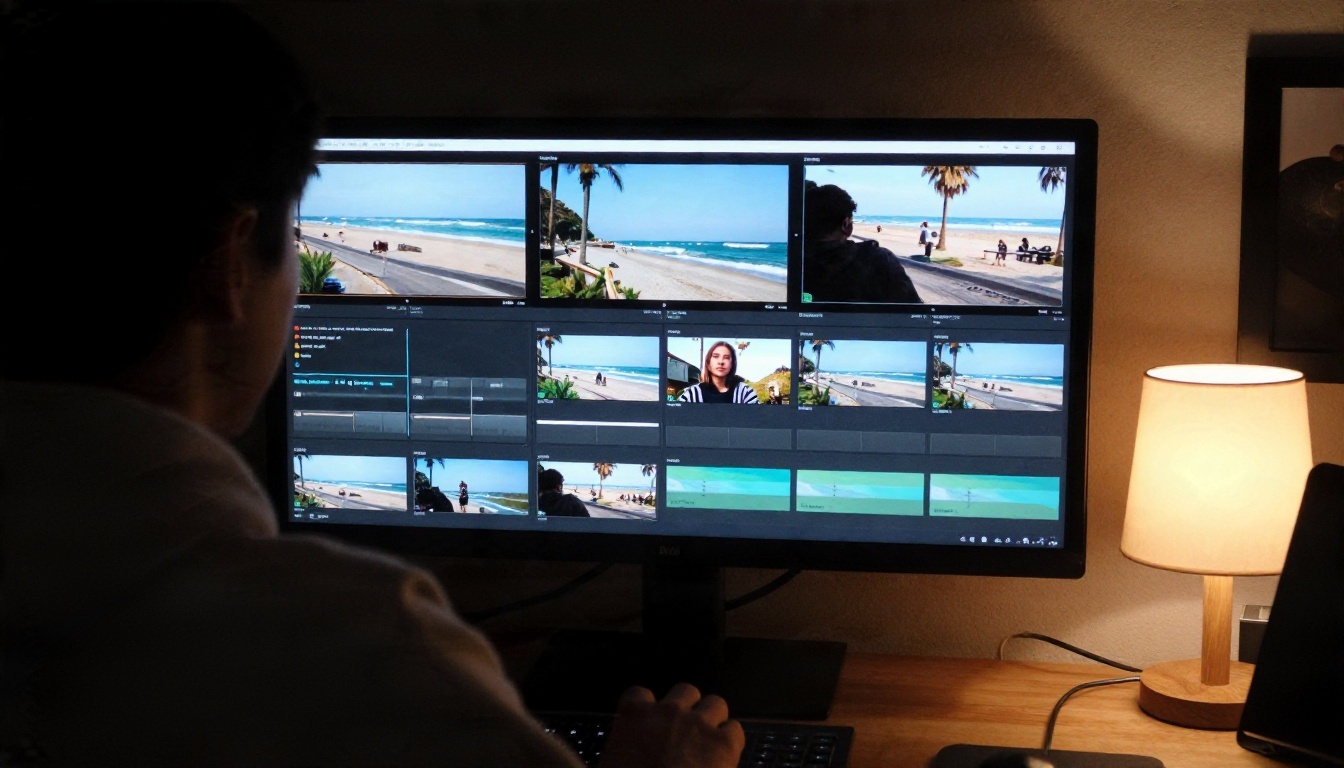
Unlimited does not apply to every model on a platform. The lighter models are the ones that make it sustainable, because they render faster and use fewer resources. On PicassoIA, the model described as free and unlimited for Elite and Infinite members is Seedance 2.5 Lite. It is the lightweight edition of Seedance 2.5, tuned for 480p and 720p so that volume stays practical.
Heavier models and higher resolutions are a different story. Treat them as premium options and check each model page for how it is billed before you run a long batch.
| Question | Lite unlimited model | Heavier premium model |
|---|
| Resolution | 480p and 720p | Often 1080p or higher |
| Clip length | 5 or 10 seconds | Varies by model |
| Cost per attempt | None on unlimited plans | May be priced per generation |
| Best use | Iteration, social clips, drafts | Final hero shots |
| Audio | Synced audio on by default | Depends on the model |
Image to Video, Explained Simply
Text to video asks the model to invent everything: the subject, the room, the light, the lens. Image to video removes most of that uncertainty. You supply the first frame, and the model only has to decide what moves and how the camera behaves. That is why image to video usually gives more predictable, more on-brand results than text alone.
Pick a Strong First Frame
The input image sets the ceiling for the whole clip. A sharp, well lit photo with a clear subject animates cleanly. A blurry or cluttered photo produces a blurry, cluttered video. Three habits make a visible difference:
- Leave space in the frame where motion can happen, such as sky above a subject or road ahead of a car.
- Avoid tiny faces and crowded scenes, because small details tend to wobble when the clip starts moving.
- Match the aspect ratio to your destination. The clip inherits the ratio of the input image, so crop to vertical before upload if the clip is headed for a phone feed.
Add a Last Frame for Control
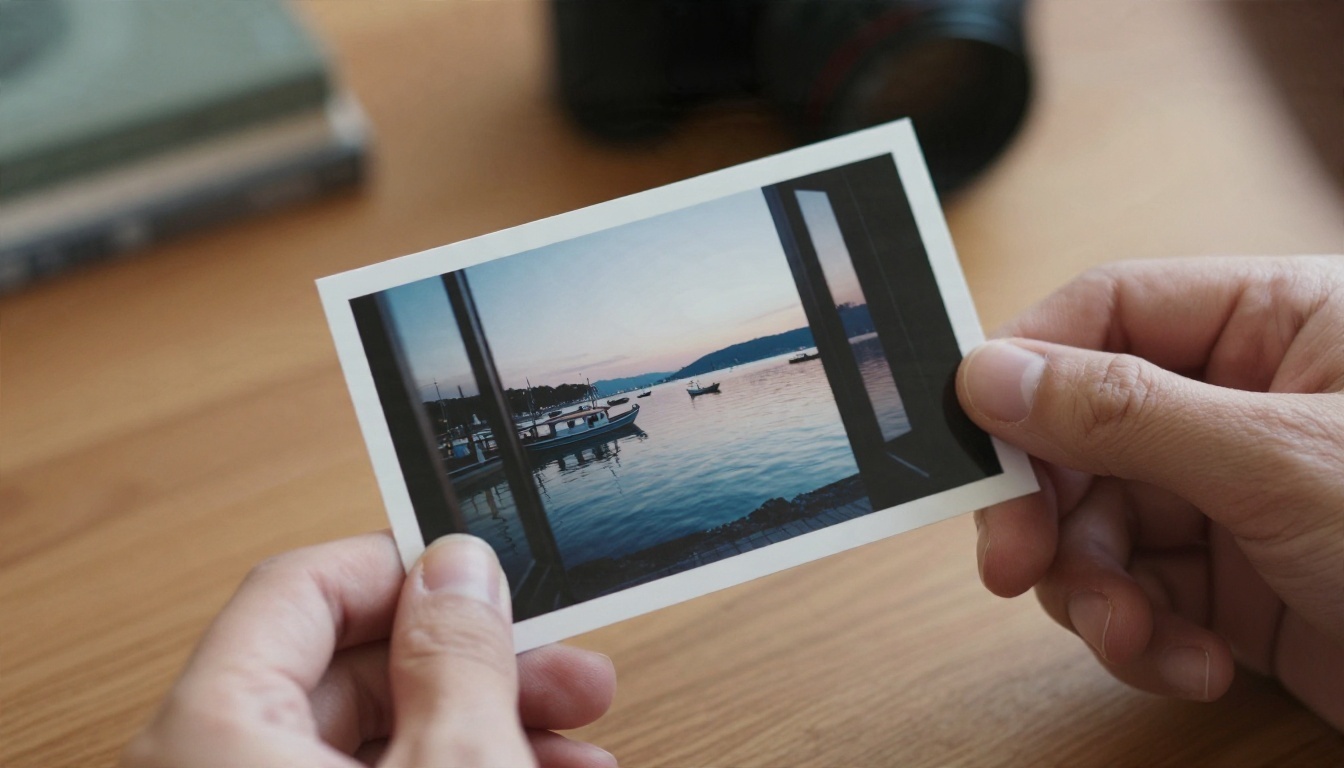
Seedance 2.5 Lite also accepts an optional last frame image. With both a first and a last frame, the clip animates from one to the other, which gives you much tighter control over where the shot ends. This works well for reveals, before and after comparisons, and product shots that need to land on a specific pose. Without it, the model decides how the shot ends on its own.
Where Photos Come From
Your first frame can be a real photograph, a product shot or an image you generated. Many creators produce a still with a text to image model, approve it, then send it to a video model. Approving the still first is cheap and fast, and it means the video step starts from something you already like.
Sound Comes Built In
Silent AI video used to be the norm, and adding audio meant a second tool, a second subscription and a lot of nudging on a timeline. Now several video models generate synchronized audio in the same pass as the picture.
What Synced Audio Does
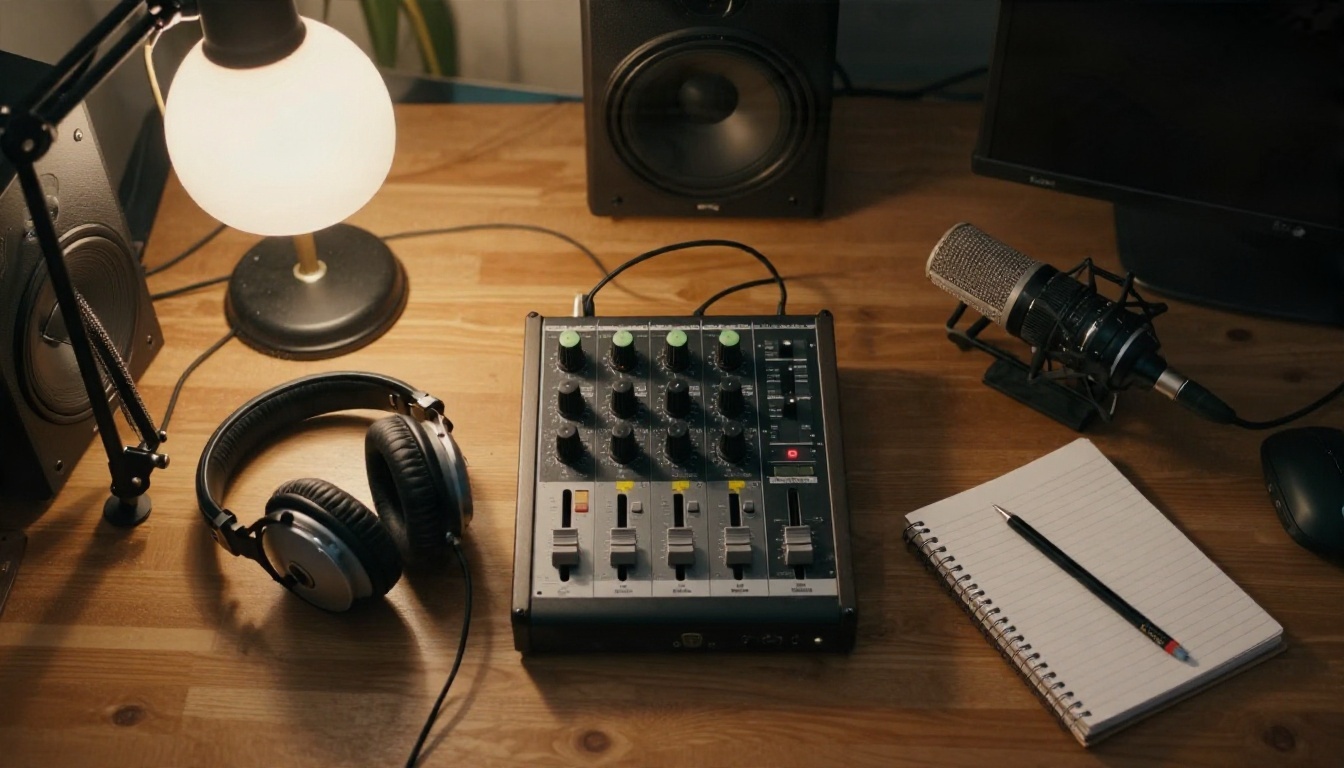
When audio is generated alongside the video, the sound follows what you see. Waves crash when the water moves, footsteps land when a foot lands, a door closes when the door closes. Seedance 2.5 Lite produces this audio by default, so a clip arrives ready to post instead of waiting for a sound pass. A save_audio option lets you switch it off when you want a silent clip.
Write Sound Into the Prompt
The model reads your prompt for audio cues too. If you want ambience, say so in plain words. Compare these two prompt endings:
- Weak: "A woman walks through a market."
- Better: "A woman walks through a morning market, with soft crowd murmur, a vendor calling in the distance and the rustle of paper bags."
The second version gives the model concrete sounds to anchor to. Keep it to two or three sound cues. Long lists of noises tend to get muddy.
When You Want Silence
Turn audio off in three cases: you plan to add licensed music, you are building a voiceover on top, or you are producing background loops for a website where sound would be annoying. In the Seedance 2.5 Lite settings, that means setting save audio to off.
💡 Tip: If you need a clip to follow a specific soundtrack or voice, try Audio To Video, which animates images using any sound you provide.
Prompts That Actually Work
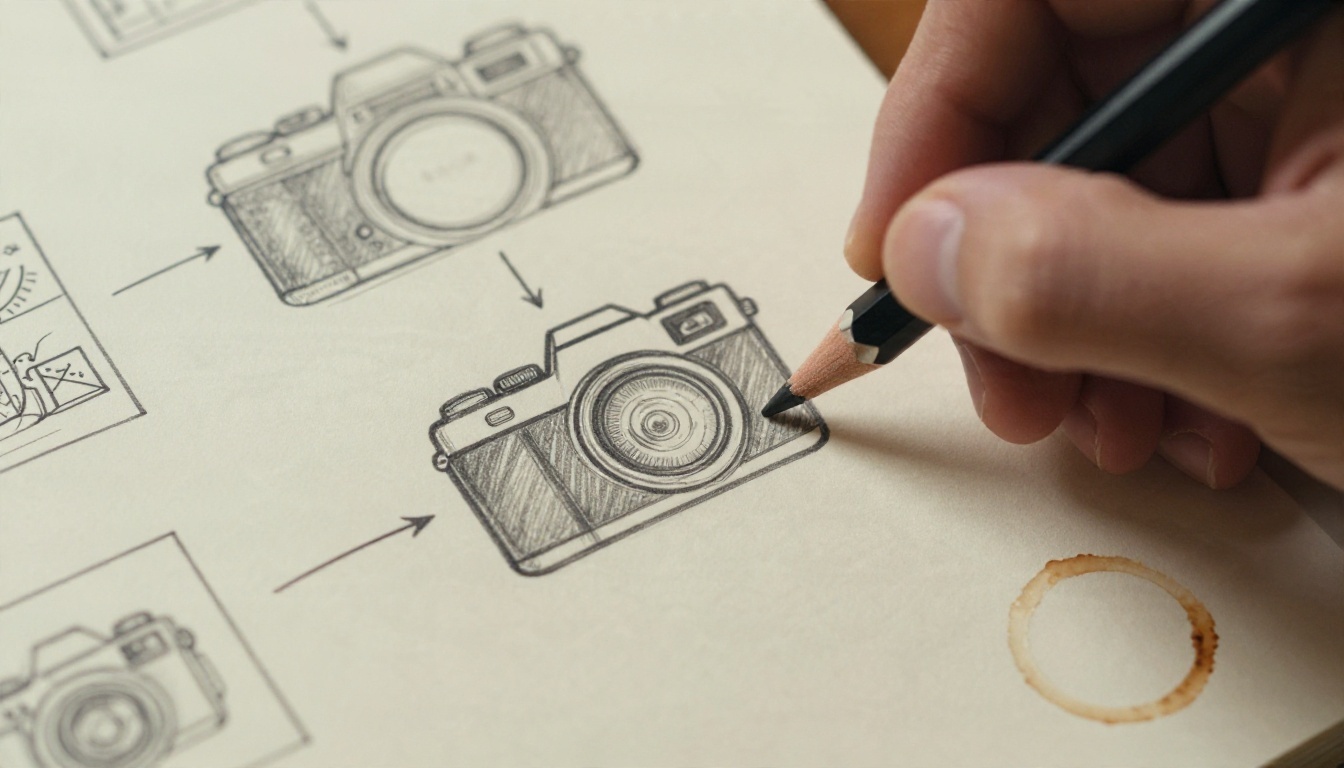
Good video prompts read like a shot list, not a wish. The model responds best to cinematic, chronological descriptions: what the subject does first, what happens next, and how the camera moves while it happens.
The Four Part Formula
Use this order and you will rarely go wrong:
- Subject and starting pose. Who or what is in the first frame.
- Motion over time. What changes across the 5 or 10 seconds.
- Camera movement. Slow dolly in, gentle pan, static tripod, handheld drift.
- Light and sound. The atmosphere and two or three audio cues.
Three Prompts to Copy
Product shot (image of a perfume bottle on marble):
"The bottle stands still on white marble. A single orange blossom petal drifts down beside it and settles. Slow dolly in toward the glass as soft window light shifts across the surface. A faint, quiet room tone and a gentle glass tap as the petal lands."
Travel scene (image of a harbor at dusk):
"Fishing boats rock gently on calm water as the last light fades. A slow pan from left to right across the harbor. Soft lapping water, a distant gull and the creak of rope on a mooring post."
Portrait (image of a creator on a rooftop):
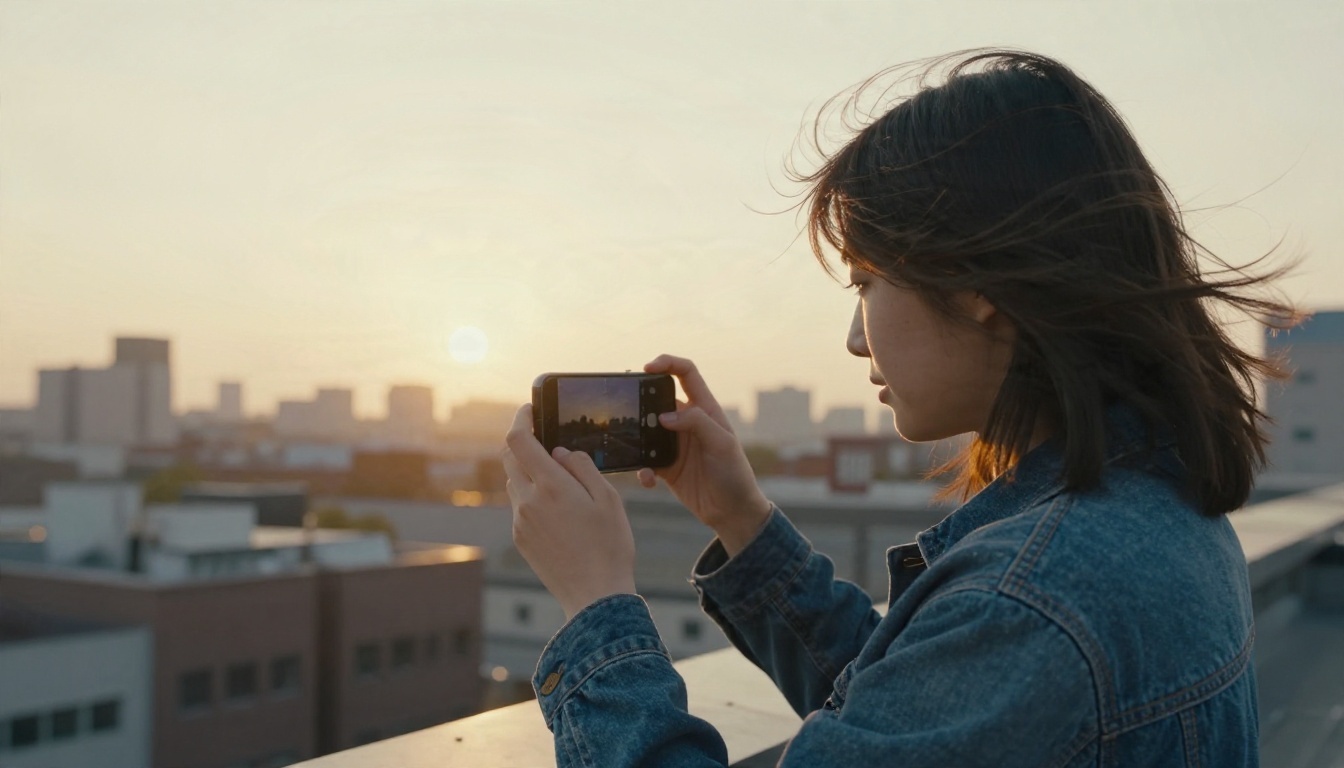
"She lowers her phone and looks out at the skyline, wind moving her hair. The camera drifts slightly closer at eye level. Warm golden backlight, distant city hum and a light breeze."

Common Mistakes
| Mistake | What happens | Fix |
|---|
| Too many actions in one clip | Motion becomes chaotic | One main action per clip |
| No camera direction | Random or static framing | Name one camera move |
| Contradicting the image | Odd morphing at the start | Describe what is actually in the frame |
| Long lists of sounds | Muddy audio | Keep to two or three cues |
| Ignoring the seed | Cannot reproduce a good take | Lock the seed once you like a result |
Plan Pricing Without the Guesswork
Pricing pages for AI video tend to blur three different things: a monthly fee, a pool of credits and a per-clip cost. The honest way to compare plans is to count how many clips you actually make in a month, and how many of those you throw away.

Unlimited Tiers vs Per Clip
On PicassoIA, the unlimited access to Seedance 2.5 Lite belongs to the Elite and Infinite memberships. Heavier models can be billed differently, so the right mental model is two lanes:
- The unlimited lane: Seedance 2.5 Lite for drafts, iteration, social clips and campaign volume.
- The premium lane: higher resolution or specialty models for the one or two final shots that deserve it.
I am deliberately not printing monthly prices here, because plan prices change and a stale number is worse than none. Check the current figures on the PicassoIA pricing page before you subscribe.
A Simple Break Even Test
Run this quick calculation with your own numbers:
- Count how many clips you generate in a typical week, including rejected ones.
- Multiply by four for a month.
- Multiply by the per-clip cost you pay today.
- Compare the total with the monthly fee of an unlimited plan.
If you throw away more than half of your generations, which is normal when you are searching for the right take, an unlimited plan usually wins quickly. If you make three clips a month and keep all of them, pay per clip.
Who Benefits Most
- Social creators posting several short clips every week.
- Ecommerce sellers animating dozens of product photos.
- Agencies drafting motion concepts for client pitches.
- Filmmakers testing camera moves and animated storyboards before a shoot.
How to Use Seedance 2.5 Lite on PicassoIA
Here is the full workflow, from photo to finished clip, using Seedance 2.5 Lite.
Step by Step
- Open the model page and sign in with an Elite or Infinite account to run it without limits.
- Upload your first frame in the input image field. Leave it empty if you want pure text to video.
- Write your prompt using the four part formula: subject, motion, camera, light and sound.
- Choose the duration: 5 seconds for a quick beat, 10 seconds for a shot with room for real action.
- Pick the resolution: 480p renders fastest, 720p is sharper.
- Leave aspect ratio on match input image when you start from a photo. The clip follows the photo.
- Press generate, watch the result and adjust one thing at a time.
Parameter Tips
| Setting | Options | Recommendation |
|---|
| Duration | 5 or 10 seconds | Draft at 5, extend to 10 for the winner |
| Resolution | 480p or 720p | Test at 480p, deliver at 720p |
| Aspect ratio | Match input, 16:9, 9:16, 1:1, 4:3, 3:4, 3:2, 2:3 | Crop your image first |
| Seed | Any integer | Lock it when a take is close |
| Save audio | On or off | On by default, off for silent loops |
| Last frame image | Optional | Use for reveals and exact endings |
A Fast Iteration Loop
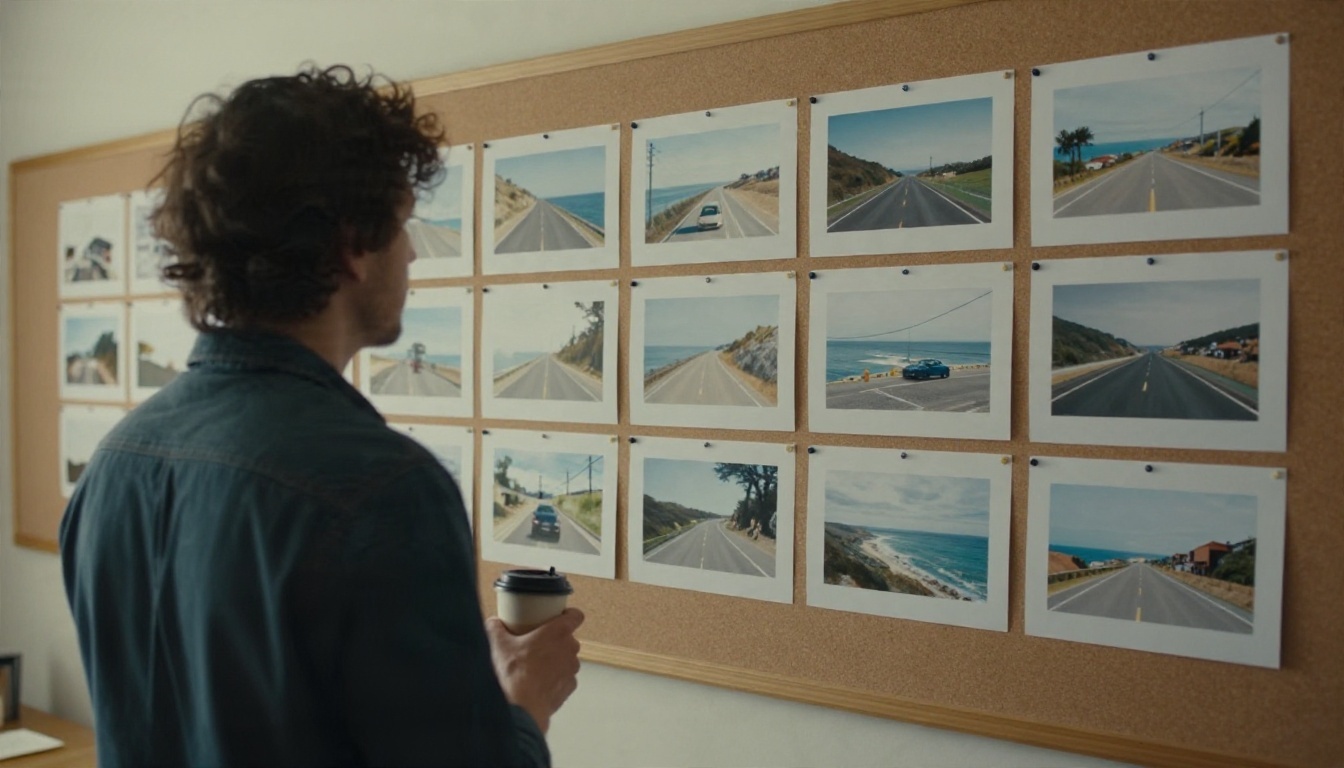
Because attempts cost nothing on an unlimited plan, work in rounds. Round one, test four different prompts at 480p. Round two, take the best and change only the camera move. Round three, lock the seed and render at 720p. Three rounds usually beat one long, careful prompt.
Other Models Worth Trying
Seedance 2.5 Lite is the unlimited workhorse, but other image to video models on PicassoIA are useful for particular jobs. Here is a short comparison.
A Practical Workflow
Draft on the unlimited lane first. When a concept works, decide whether the final delivery deserves a premium model. Many projects never need to leave the unlimited lane at all, since 720p with synced audio is plenty for social feeds, ads and web banners.
What to Expect From Quality
At 480p and 720p, clips look good on phones and in standard web placements. If you need a big screen or heavy cropping, render the final at a higher resolution on a premium model, or upscale the winning clip with one of the video enhancement tools on the platform.
Make Your First Clip Today
You now have the whole loop: a strong first frame, a prompt written like a shot list, sound cues in plain language, and a plan that lets you keep trying until the take feels right. The fastest way to see the difference is to do it. Pick one photo you already like, open Seedance 2.5 Lite, paste one of the prompts above and render it at 5 seconds. Then change one detail and render again.
Picasso IA gives you the image models, the video models and the sound in one place, so you can go from idea to finished clip without switching tools. Browse every option at picassoia.com/en/all-models, start experimenting, and see how far unlimited attempts can take your next video.


