Veo 3.1 Audio Generation: AI Videos with Sound and Dialogue
Veo 3.1 is Google's most capable text-to-video model, and its defining feature is native audio generation. This article covers how it produces synchronized dialogue, ambient sound, and sound effects directly from text prompts, with step-by-step instructions for getting the best audio-rich results and real-world use cases across content creation, marketing, and narrative film.
Every AI video looked the same for a while. Smooth motion, beautiful visuals, and then: silence. Or worse, a generic royalty-free music bed slapped on top in post. Veo 3.1 changes that equation completely. Google's latest video generation model produces synchronized audio natively as part of the generation process itself, not as an afterthought. Dialogue, ambient sound, footsteps, weather, crowd noise — it all comes out of the model alongside the frames. That shift from silent AI video to AI video with sound and dialogue is significant for anyone who creates video content at scale.
What Veo 3.1 Actually Does Differently
Most text-to-video models output video files. That is it. You write a prompt, you get moving images, and then you solve the audio problem yourself in a separate editing pass with a separate tool. Veo 3.1 was built with a different philosophy from the start: video and audio are one output, generated together, informed by the same prompt.
This is not a post-processing audio layer. The model processes your text prompt and generates both the visual track and the audio track simultaneously, with sounds matching what is happening on screen. A prompt describing someone walking across gravel at night will produce the crunch of gravel underfoot, the ambient night sounds, and the visual of that moment in sync.
This matters because:
Sound sync issues that plague manually added audio disappear entirely
Environmental audio feels authentic and scene-appropriate without extra effort
Dialogue stays in sync with mouth movement automatically
Post-production time drops significantly for short-form content
The underlying architecture uses Google's multimodal approach from their Gemini research, where audio and visual representations are learned together rather than separately. It is the difference between a model that knows what things look like and a model that knows what things sound, look, and feel like simultaneously.
Native Audio: More Than Background Noise
When people hear "AI audio generation" they often picture generated music or simple ambient loops. Veo 3.1's audio output is considerably more nuanced than that.
Three distinct audio layers the model handles:
Ambient environment: The sonic texture of a space. A kitchen sounds like a kitchen. A stadium sounds like a stadium.
Sound effects: Object interactions, movements, weather phenomena. Rain sounds like rain and reacts to the intensity described in the prompt.
Dialogue: Spoken words from characters in the video, with voices that match the characters present on screen.
The model infers what audio should be present from contextual clues in both your prompt and the generated visual content. You do not need to describe every sound individually. A prompt mentioning "a coffee shop on a rainy morning" will naturally produce espresso machine noise, the quiet murmur of conversation, rain against windows, and soft ambient music typical of that setting.
💡 Prompt tip: Describing the time of day, location type, and emotional tone gives Veo 3.1 more audio context to work with. "A crowded subway station at rush hour" will produce significantly richer synchronized sound than just "a train station."
Dialogue Generation That Sounds Real
This is arguably the most technically impressive part of Veo 3.1. Generating dialogue that stays in sync with lip movement in a video is genuinely hard. The model has to generate a visual character with a speaking mouth, generate audio speech that corresponds to words, and keep both tracks in temporal alignment throughout the clip.
The results are not perfect for all prompts, but for short dialogue clips the synchronization is noticeably better than anything available before in a text-to-video system.
What works well for dialogue:
Short exchanges of 1 to 3 sentences per speaker
Clear prompt description of who is speaking and what they are saying
Natural conversational scenarios rather than theatrical performance
What needs careful prompting:
Multiple speakers in fast back-and-forth conversation
Strong accents or non-standard speech patterns
Technical vocabulary or uncommon proper nouns
For use cases that require highly polished, controllable voice dialogue, combining Veo 3.1 with a dedicated text-to-speech model gives more precise control. Speech 2.6 HD lets you generate specific voice outputs with fine-grained tone and pacing control, which you can use to script exact narration alongside your generated visuals.
Sound Effects Built Into the Model
Sound effects in traditional video production require a sound library, an editor, and careful manual placement frame by frame. Veo 3.1 generates them contextually from scene description alone.
Sound Category
How the Model Handles It
Example Prompt Context
Footsteps
Surface material inferred from visual context
"walking across hardwood floors"
Weather
Rain, wind, thunder matched to visual intensity
"heavy storm outside a window"
Crowd
Density and energy matched to visual scene
"busy outdoor market square"
Object interaction
Material physics simulated in audio
"glass shattering on tile floor"
Vehicle
Engine and movement sounds from vehicle type
"motorcycle accelerating on highway"
Nature
Wind, water, and wildlife from environment type
"river flowing through pine forest"
The key limitation is that the model's audio quality is tied to the specificity of your prompt. Vague visual prompts tend to produce vague or generic audio output. The more detail you give about the scene's physical environment, the more accurate the contextual sound generation becomes.
For projects that need a generated music soundtrack layered on top of native video audio, Lyria 2 by Google pairs naturally with the Veo ecosystem. Music-01 by MiniMax is another strong option for generating custom tracks with full vocal elements that you can blend into your final output.
How to Use Veo 3.1 on PicassoIA
Veo 3.1 is available directly on the platform with a clean, straightforward interface. Audio generation is not a separate toggle or parameter you need to activate — it happens automatically as part of every single generation.
Step 1: Accessing the Model
Navigate to the Veo 3.1 model page in the text-to-video collection. You will see the prompt input field immediately. No additional configuration is needed to activate audio output.
For faster generation with similar audio quality, Veo 3.1 Fast uses the same underlying model with optimized inference speed. This version is particularly useful when you are iterating on prompts quickly and need to evaluate audio quality across multiple variations in a short session.
Step 2: Writing Prompts for Audio-Rich Output
Your prompt structure determines audio quality as much as visual quality. This format consistently produces the best audio results:
[Scene setting + time + location] + [Characters and action] + [Dialogue if needed] + [Atmosphere and mood]
Example prompt:
"A busy Tokyo street corner at dusk, pedestrians crossing under neon signs, a street musician playing acoustic guitar near a convenience store entrance, light rain starting to fall, sounds of the city mixing with the melody of the guitar, distant traffic, warm evening atmosphere"
This gives the model enough context to generate layered, realistic ambient audio with distinct sound sources alongside the visual content.
Step 3: Including Dialogue in Your Prompt
When you want spoken words in your video, include the dialogue text directly in your prompt with clear speaker attribution:
"Two coworkers standing by a coffee machine in a modern office, one says 'Did you see the quarterly results?' and the other responds 'Better than expected' — natural conversation tone, office ambient sounds in the background"
Keep dialogue short. Sentences of 10 to 15 words per speaker consistently produce better lip sync than longer paragraphs. If your scene requires extended dialogue, generate it as multiple short clips rather than one long prompt.
Step 4: Reviewing and Iterating
After generation, review both the visual and audio track independently before deciding to regenerate. Common issues to check for:
Audio sync drift: Does dialogue audio match lip movement throughout the full clip length?
Unintended sounds: Are sounds present that were not described or implied in the prompt?
Volume balance: Are ambient sounds overwhelming dialogue or important sound effects?
If the audio misses but the visual is correct, adding more descriptive audio context to the same base prompt often corrects it on a second generation without losing the visual framing you want.
For workflows where you need to animate an existing still image with a sound track, Audio to Video by Lightricks is a complementary tool on the platform. It lets you feed in an audio file and generate matching visual motion from a source image, which is a completely different workflow from Veo 3.1 but valuable for specific projects.
Veo 3.1 vs Other AI Video Models
The native audio generation capability is Veo 3.1's defining differentiator, but it helps to see it placed in context with other models available for video work.
The distinction between models that accept audio as input versus models that generate audio natively is significant and often misunderstood. Veo 3.1 generates audio output. LTX-2.3-Pro uses audio as an input to drive visual animation. Both are valid workflows for different creative goals.
Real-World Uses for Audio-Rich AI Video
The jump from silent AI video to AI video with synchronized sound opens up practical applications that simply were not viable before without a full production team.
Social Media Content
Short-form video content for platforms like TikTok, Instagram Reels, and YouTube Shorts benefits enormously from native audio. Creators no longer need separate voice recording setups to produce talking-head style content or scripted scenes. The entire workflow can stay within the AI generation pipeline from prompt to publishable output.
Product Demonstrations
A product video showing a blender in action needs the motor sound. A car ad needs the engine rumble. A sneaker commercial needs footsteps on concrete. Veo 3.1 produces these naturally from descriptive prompts, removing the sound design step for short promotional clips without sacrificing authenticity.
Narrative Short Films
For narrative content where characters speak, Veo 3.1's dialogue generation allows short scripted scenes to be produced with voice without casting, recording, or directing real actors. The output quality for short scenes is sufficient for proof-of-concept work, mood boards, and in many cases direct publication on creative platforms.
Training and Educational Content
Explainer videos with voiceover narration are a natural fit for this model. It handles a narrator's voice speaking over visuals when prompted with clear scene and speech context. Corporate training content, instructional shorts, and product onboarding videos become achievable without a recording studio setup or a professional narrator.
💡 Production tip: Combine Veo 3.1 for short visual clips with ambient audio alongside Speech 2.6 HD for longer scripted narration. Generate the scene audio natively in Veo 3.1, then layer precisely controlled voiceover from the TTS model for segments that require word-for-word accuracy.
Music and Performance Content
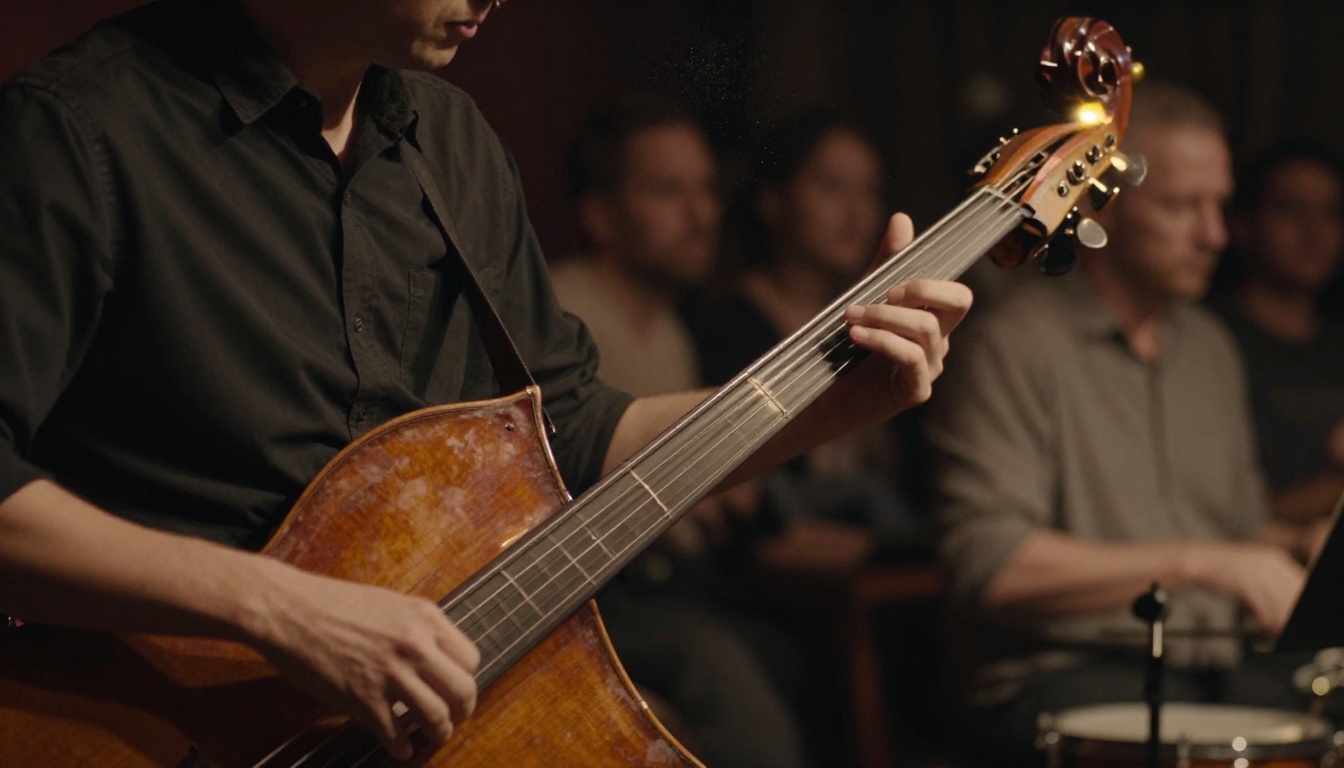
Musicians and artists can generate atmospheric performance visuals with contextually appropriate audio. A prompt describing a pianist in an empty concert hall at night will produce the visual and the sound of piano keys simultaneously, creating evocative content for streaming platforms and social sharing without booking a recording session or a venue.
Prompt Patterns That Produce Better Audio
After extensive testing, certain prompt structures consistently produce superior synchronized audio output. These patterns are worth keeping as reusable templates.
For ambient scene audio:
"[Location] at [time of day], [weather or atmosphere], sounds of [specific environmental elements], [general mood]"
For dialogue scenes:
"[Character description] in [location], [character name or role] says '[short dialogue]', [setting sounds in background]"
For action scenes with sound effects:
"[Subject] [action verb] across [material surface], [speed or intensity modifier], [description of material interaction sound]"
What NOT to do:
Avoid vague atmospheric words like "immersive" without physical specifics
Do not describe audio as a separate layer added to the scene — integrate it into the scene description naturally
Avoid very long dialogue strings in a single prompt; break complex conversations into multiple short generations
💡 For maximum audio-visual alignment: treat your prompt like a film script scene direction. The more it reads like "INT. RAINY CAFE - EVENING — two friends talk at a corner table, espresso machine in background, rain against the windows," the better the model constructs matching layered audio without guessing.
Create Your Own Audio-Rich Videos Now
If you have been producing AI video with silent output and then solving audio in post, the experience of generating a video where sound comes out alongside the frames on the first try changes the creative workflow in a real way. The feedback loop tightens, iteration is faster, and the final output requires far less production overhead to reach a publishable state.
Veo 3.1 is available now on the platform. Start with a simple scene description that includes specific location, time of day, and one or two audio cues. Try a coffee shop interior, a rainy city street, or a brief dialogue exchange between two people. Notice how the audio aligns with what is on screen, then iterate from there with more precise descriptions.
For workflows that need additional audio flexibility beyond what Veo 3.1 generates natively, the full platform covers every audio layer you might need. Audio to Video by Lightricks handles sound-driven visual animation from existing images. Lyria 2 and Music-01 produce custom AI-generated music tracks for background scoring. Speech 2.6 HD and Voice Cloning handle precise narration and character voice work.
Together, these tools give you complete control over every audio layer in your final video. Veo 3.1 is where that workflow starts.