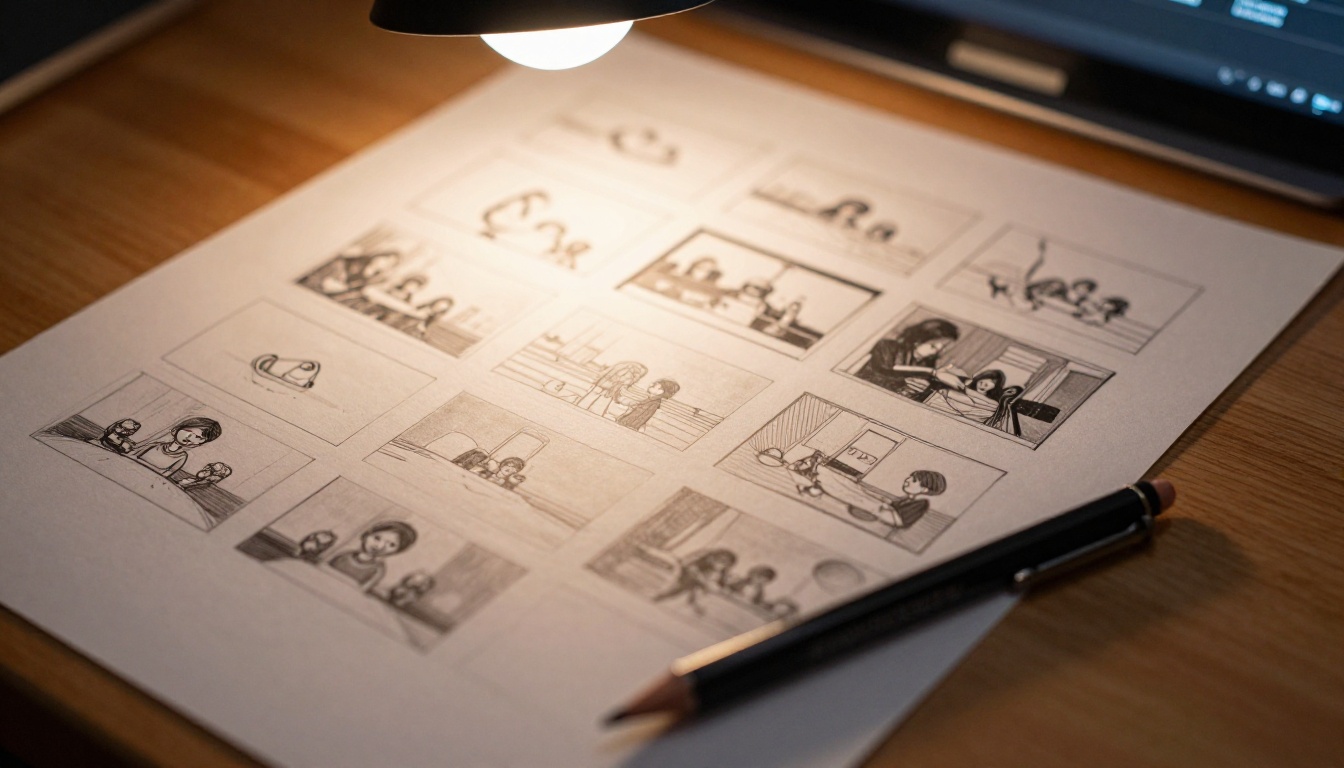
If you have a folder of reference photos and a clear idea of what should happen in a scene, Veo 3.1's Ingredients to Video feature was built for exactly that moment. Instead of relying entirely on text descriptions to define visual style, subject appearance, and mood, you can feed the model a reference image and let it do the heavy lifting. The result is a video that actually looks like the scene you had in mind.
What "Ingredients to Video" Actually Does
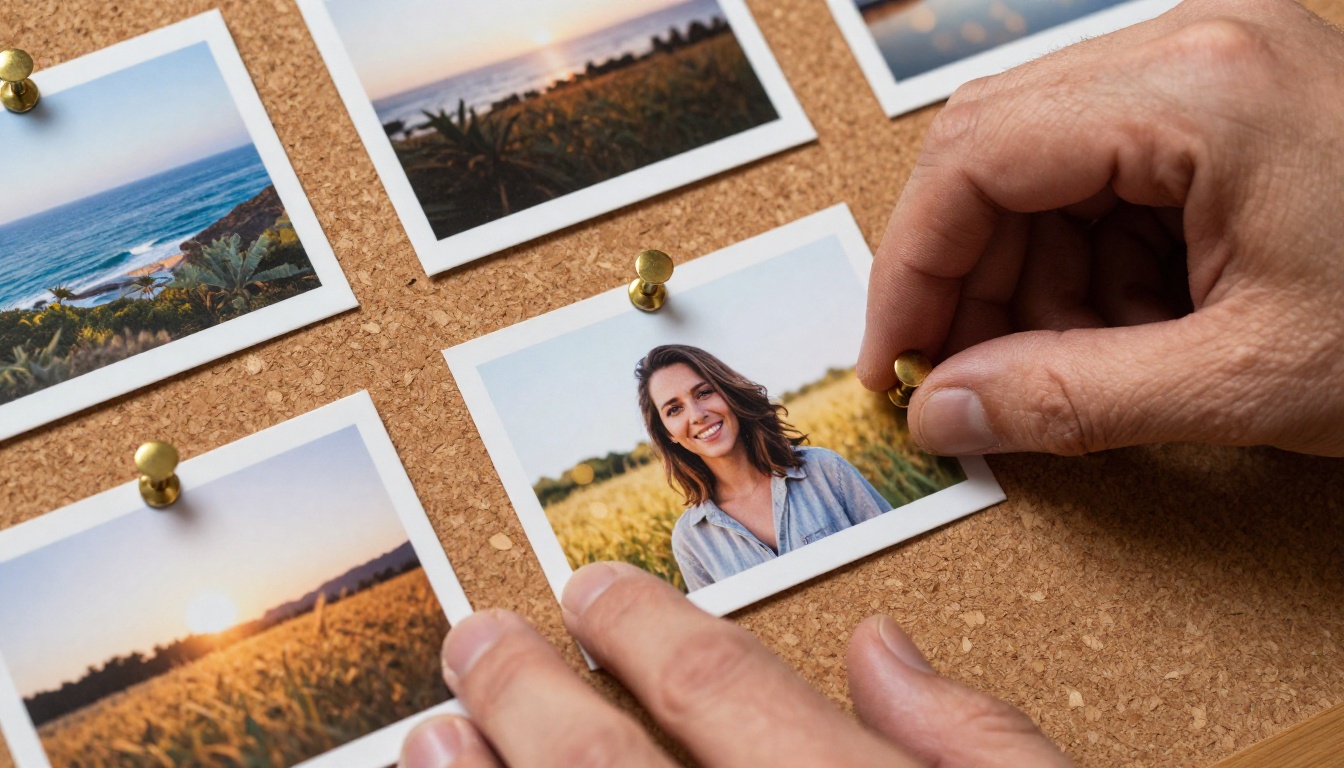
The name is deliberate. "Ingredients" signals that your inputs, including the reference image and your text prompt, are raw materials that the model combines to produce output. Veo 3.1 does not simply animate a static photo. It uses the visual information inside the reference as a compositional anchor, then generates motion that extends naturally from that starting point.
This is fundamentally different from image-to-video tools that just add subtle movement to a photo. Veo 3.1 synthesizes new frames based on what it infers about lighting, depth, spatial relationships, and subject characteristics from the reference. The video it produces can show camera movement, subject action, and environmental detail that were never in the original image.
The Role of Reference Images
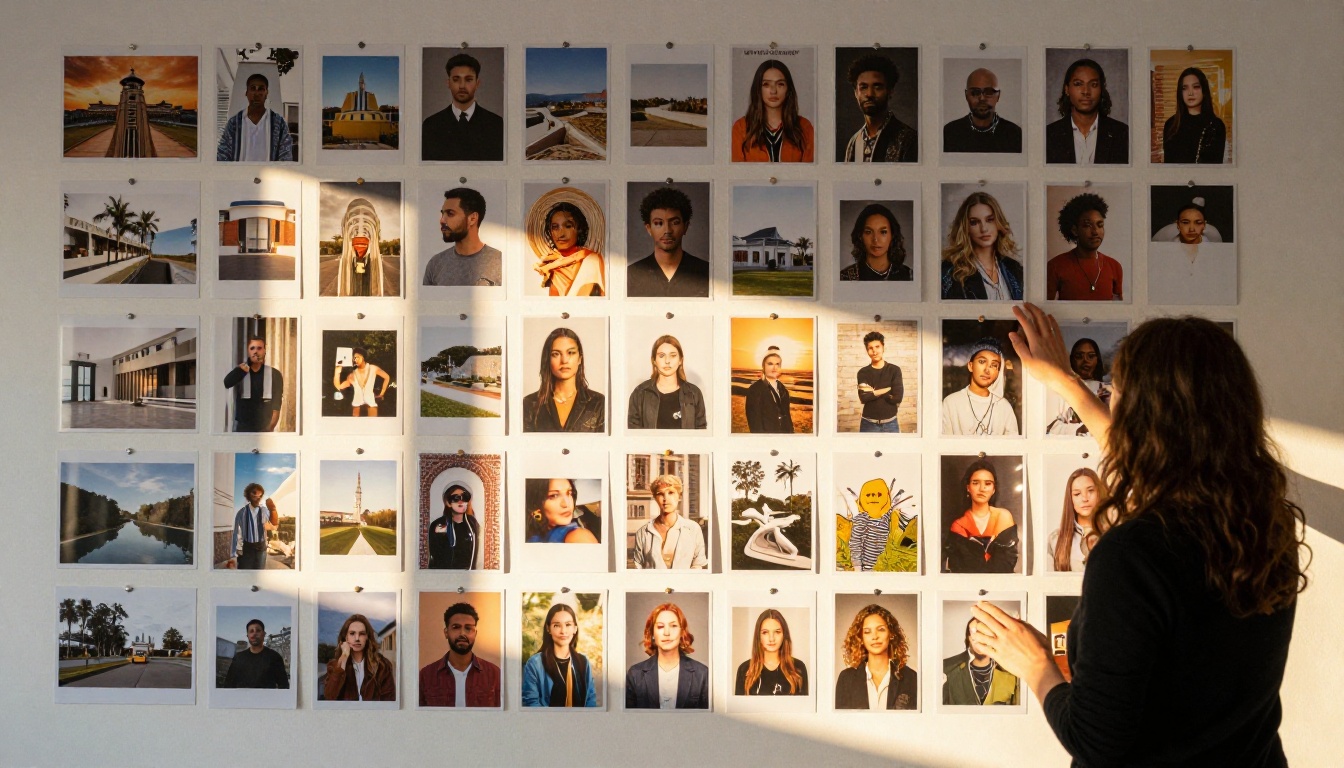
A reference image in this context is not simply a first frame. It is a visual specification document. Veo 3.1 reads it for:
- Subject identity: face structure, body proportions, skin tone, hair texture
- Lighting conditions: direction, hardness, color temperature
- Environment type: interior, exterior, natural, urban
- Color palette: the dominant and accent tones that carry through the generated video
- Apparent depth of field: bokeh character, focal distance cues
The more information your reference image contains, the more precisely Veo 3.1 can calibrate its output. A sharp, well-lit portrait gives the model more to work with than a blurry smartphone snapshot.
How Veo 3.1 Reads Visual Context
Google DeepMind trained Veo 3.1 on vast video datasets, which means it has strong priors about how scenes evolve over time. When a reference image shows a woman standing near a window with afternoon light, the model knows that this lighting situation produces specific shadow movements as time passes, specific specular highlights on skin and fabric, and specific ambient color shifts. That contextual knowledge is what separates Veo 3.1 from simpler animation tools.
💡 Pro tip: Reference images with strong directional lighting produce the most visually coherent video output. Flat, overcast lighting gives the model less to work with.
Why Reference Images Change Everything
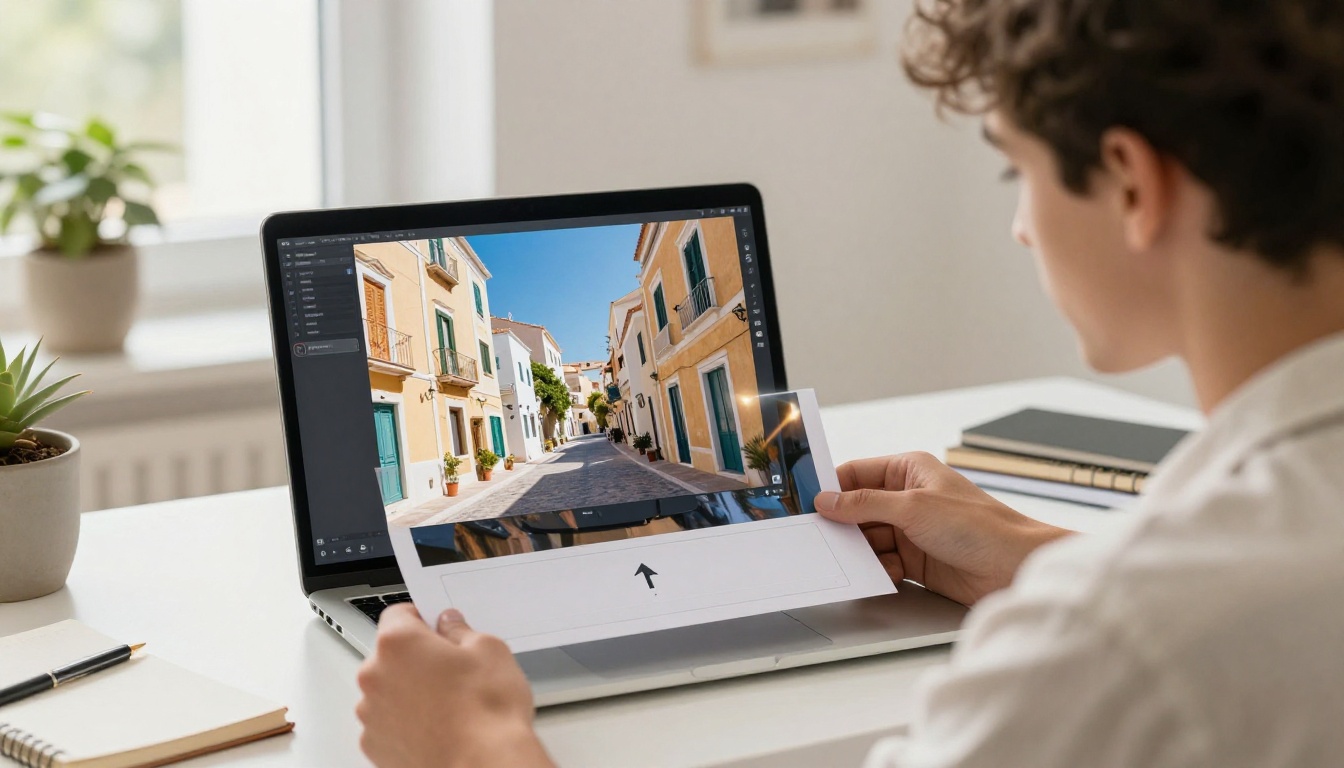
Text prompts alone have a fundamental limitation: words describe concepts, not specifics. You can write "a woman with warm brown hair in golden hour light" and the model makes a judgment call about what that looks like. Add a reference image of the exact person, scene, and lighting, and that judgment call narrows dramatically.
Consistency Without Prompting Tricks
One of the most persistent frustrations with AI video generation is consistency. Generating a second clip that features the same character, same location, and same lighting as the first requires precise prompt engineering, and even then results vary. Reference images solve a large portion of this problem.
When you use the same reference image across multiple Veo 3.1 generations, the model anchors each output to the same visual fingerprint. The person in your reference will have the same face, the room will have the same color temperature, and the light will fall from the same direction. This makes reference-guided video generation the most practical approach for anyone producing a series of clips.
Style Transfer in Motion
Reference images also function as style references, not just subject references. Provide a photograph with a specific cinematic look, a specific color grade, or a specific compositional style, and Veo 3.1 carries those qualities into the video frames it generates. This is how filmmakers and content creators use reference boards in traditional production: to establish a visual language before shooting begins.
The same logic applies here. Your reference image is your visual language document.
Real Use Cases That Work
| Use Case | What You Provide | What Veo 3.1 Generates |
|---|
| Fashion campaign | Model photo in specific outfit | 5-second clip with natural movement |
| Product showcase | Product flat lay or hero shot | Orbital reveal with cinematic lighting |
| Travel content | Destination landscape photo | Cinematic pan with atmospheric motion |
| Social media avatar | Portrait with specific look | Subtle loop with natural micro-movement |
| Real estate | Interior room photo | Smooth camera push through space |
How to Use Veo 3.1 on PicassoIA
Veo 3.1 is available directly through PicassoIA without any API setup or local installation. Here is the exact workflow for using it with reference images.
Step 1: Pick Your Reference Image
Before you open the tool, spend time selecting the right reference. The qualities that matter most:
- Resolution: 1024px or higher on the short edge. Higher resolution gives the model more detail to extract.
- Clarity: Sharp focus on your primary subject. Motion blur in the reference creates ambiguity.
- Composition: Frame your subject the way you want them to appear in the video.
- Lighting: Choose a reference image that has the lighting you want in the final video. The model will not invent better lighting than you provide.
Avoid using screenshots from social media. Compression artifacts and watermarks introduce noise into the model's reading of the image.
Step 2: Set Up the Prompt
With Veo 3.1, your text prompt should focus on motion and action, not appearance. The reference image handles appearance. Your prompt should answer: what happens in this scene?
Strong prompt structures:
- Action-first: "Walking slowly through a sun-lit garden, leaves falling around her, gentle breeze moving through hair"
- Camera-first: "Slow dolly forward into the room, depth of field pulling focus from foreground object to subject"
- Atmosphere-first: "Dawn light gradually brightening, mist rising from grass, birds passing through frame"
Keep prompts between 30 and 80 words. Veo 3.1 processes longer prompts but shorter, specific ones produce tighter results.
Step 3: Configure and Run
On PicassoIA, the Veo 3.1 interface gives you the core parameters:
| Parameter | Recommended Setting | Notes |
|---|
| Reference Image | Your selected photo | Upload directly from device |
| Prompt | Motion-focused description | 30-80 words |
| Duration | 5-8 seconds | Optimal for social and web use |
| Aspect Ratio | 16:9 or 9:16 | Match your output platform |
| Seed | Fixed value | Use same seed for consistent reruns |
Click generate and wait. Veo 3.1 typically takes 60-120 seconds per generation.
💡 Save your seed: If you get a result you like, note the seed value before closing. You can use the same seed with minor prompt variations to produce consistent output series.
What to Expect From Results
First generations are rarely final outputs. Use the first run to evaluate whether the model has read the reference correctly. Check for:
- Correct subject interpretation: Does the person or object in the video match your reference?
- Lighting continuity: Is the light direction and color temperature consistent with the reference?
- Motion naturalness: Does the motion feel physically plausible?
If the subject looks wrong, the reference image may be too ambiguous. If lighting is off, your prompt may be overriding the reference. Adjust and rerun.
Prompt Tips That Work With Reference Images
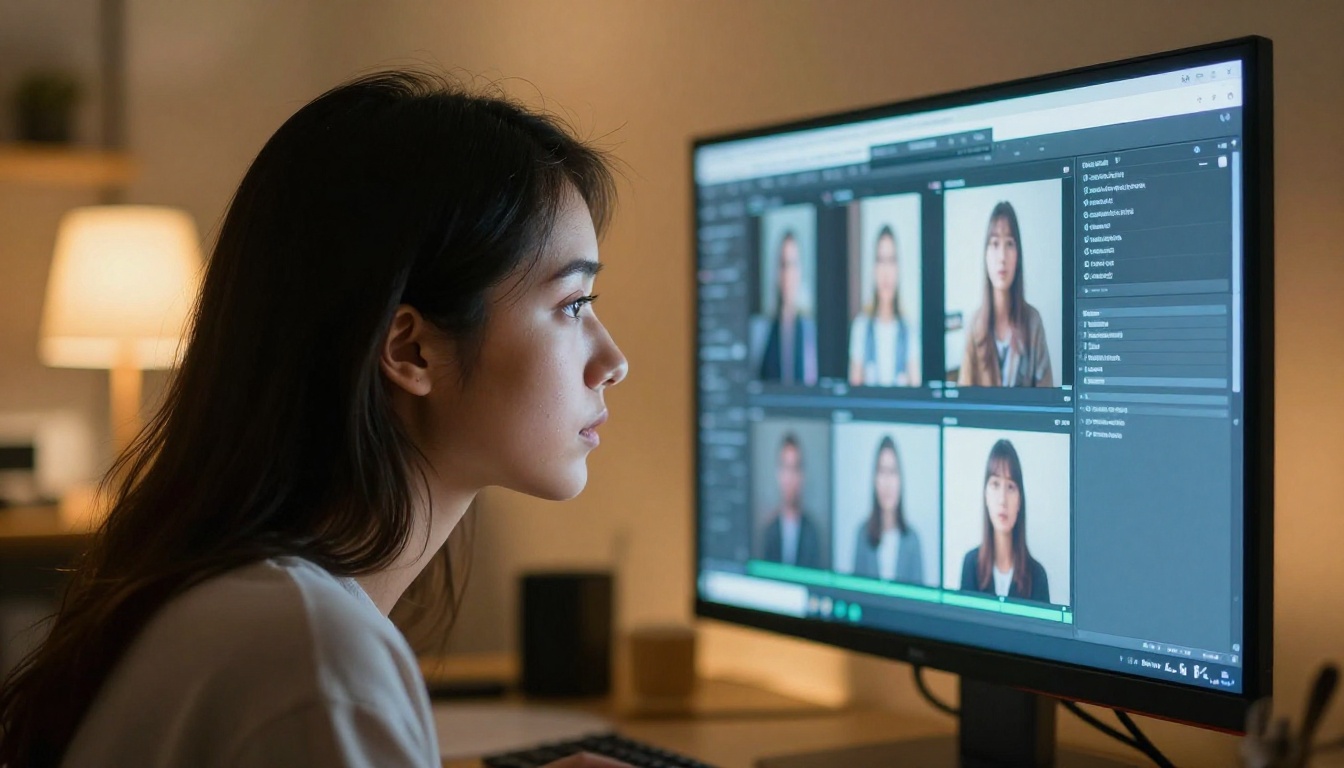
The combination of a reference image and a text prompt creates a small tension: the model has to reconcile two sources of information. Knowing how it resolves that tension helps you write better prompts.
Describe Motion, Not Appearance
This is the single most important rule for reference-guided generation. If your reference shows a woman in a red dress and your prompt says "woman in a red dress walking," you are redundantly describing what the reference already communicates. Worse, if your prompt says "woman in a blue dress walking," you create a conflict that produces unpredictable output.
Write prompts as if the model can already see exactly who and what is in the reference. Describe what they do, not what they look like.
3 Prompt Structures That Perform Well
Structure 1: Subject + Motion + Environment
"Turns slowly to look over shoulder, slight smile forming, warm afternoon wind moving through fabric"
Structure 2: Camera Movement + Focal Point
"Camera rises slowly from desk height to eye level, revealing full studio behind subject, shallow depth of field throughout"
Structure 3: Atmosphere + Time Passage
"Morning light strengthens over 5 seconds, shadows rotating slightly, steam from cup dissipating into air"
What to Avoid in Your Text Prompt
- Appearance descriptions that conflict with the reference image
- Vague style words like "cinematic" or "photorealistic" because the reference image already defines the style
- Vague motion words like "natural movement" — be specific about what moves and how
- Overly long prompts with multiple competing instructions
💡 Conflict resolution: When your prompt and reference image conflict, Veo 3.1 will generally weight the reference image more heavily for subject appearance and the prompt more heavily for motion direction. Use this predictably.
Veo 3.1 vs Other Image-to-Video Models
PicassoIA has over 87 video generation models. Choosing the right one for reference-image work requires knowing where each excels.
Veo 3.1 vs Kling V3
Kling V3 is a strong competitor for reference-guided video. It handles complex motion and produces longer clips with impressive physical accuracy. Where Veo 3.1 wins is in lighting fidelity, specifically how well it preserves the lighting character of the reference image. For portrait and fashion work where skin tone and light direction are critical, Veo 3.1 is the more reliable choice.
Veo 3.1 vs Wan 2.6 i2v
Wan 2.6 Image-to-Video is faster and generally more accessible per generation. It is excellent for simple animation where the reference image serves as a literal first frame. Veo 3.1's Ingredients to Video is the better choice when you want the model to generate video that extends beyond the literal content of the reference, creating scenes the reference only implied.
When to Pick Veo 3.1 Fast
Veo 3.1 Fast is the version to use when you are iterating quickly through variations. It produces shorter generation times at a small quality cost. The workflow most professionals use: iterate with Veo 3.1 Fast until the reference interpretation and motion are correct, then run the final output through Veo 3.1 for maximum quality.
| Model | Best For | Speed | Reference Fidelity |
|---|
| Veo 3.1 | Final outputs, lighting-critical work | Medium | Very High |
| Veo 3.1 Fast | Iteration and testing | Fast | High |
| Kling V3 | Long clips, complex motion | Medium | High |
| Wan 2.6 i2v | Quick animation, budget efficiency | Fast | Medium |
Common Mistakes With Reference Images
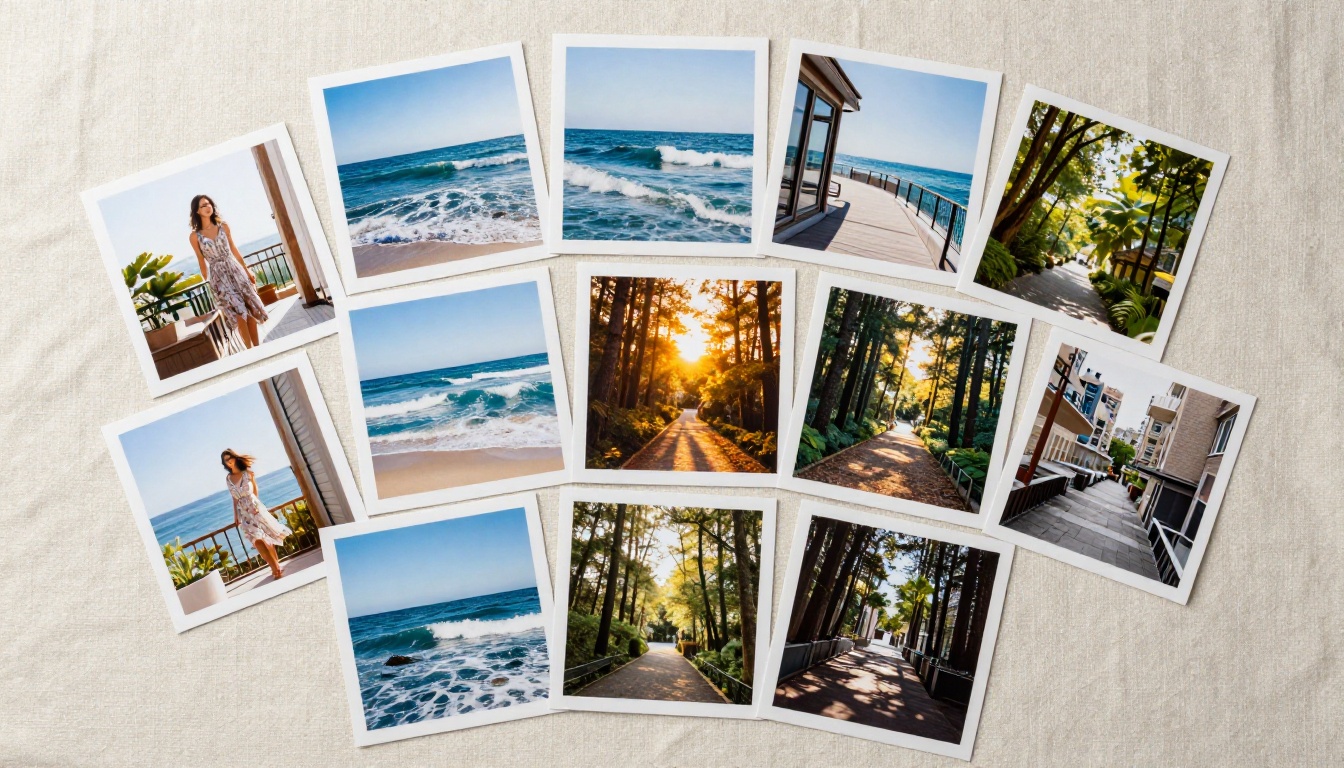
Most failed generations trace back to one of three input problems, not model limitations.
Low-Resolution Inputs
Uploading a compressed or small reference image is the fastest way to get inconsistent output. When the model cannot resolve fine detail in the reference, it fills in the gaps with its own priors. The result is a video that captures the general mood of the reference but not its specifics. Your subject looks different. The light is in the wrong place.
Minimum recommendation: 1024x576px for 16:9 content. Aim for 1920x1080px when subject detail matters.
Conflicting Prompts
A prompt that describes your subject's appearance will often override or blur the reference image's influence. This happens because Veo 3.1 receives both as instructions and has to weight them. The more specific and detailed your appearance description, the more it pulls the model away from the reference.
The fix is straightforward: strip all appearance language from your prompt and replace it with motion language only.
Ignoring Aspect Ratio
Reference images and output video should share the same aspect ratio. Uploading a 1:1 square portrait as a reference and requesting 16:9 output forces the model to invent what exists outside the frame. Sometimes this works. Often it produces distorted proportions or incorrect environment extrapolation.
Crop your reference to match your intended output ratio before uploading.
What You Can Build Right Now
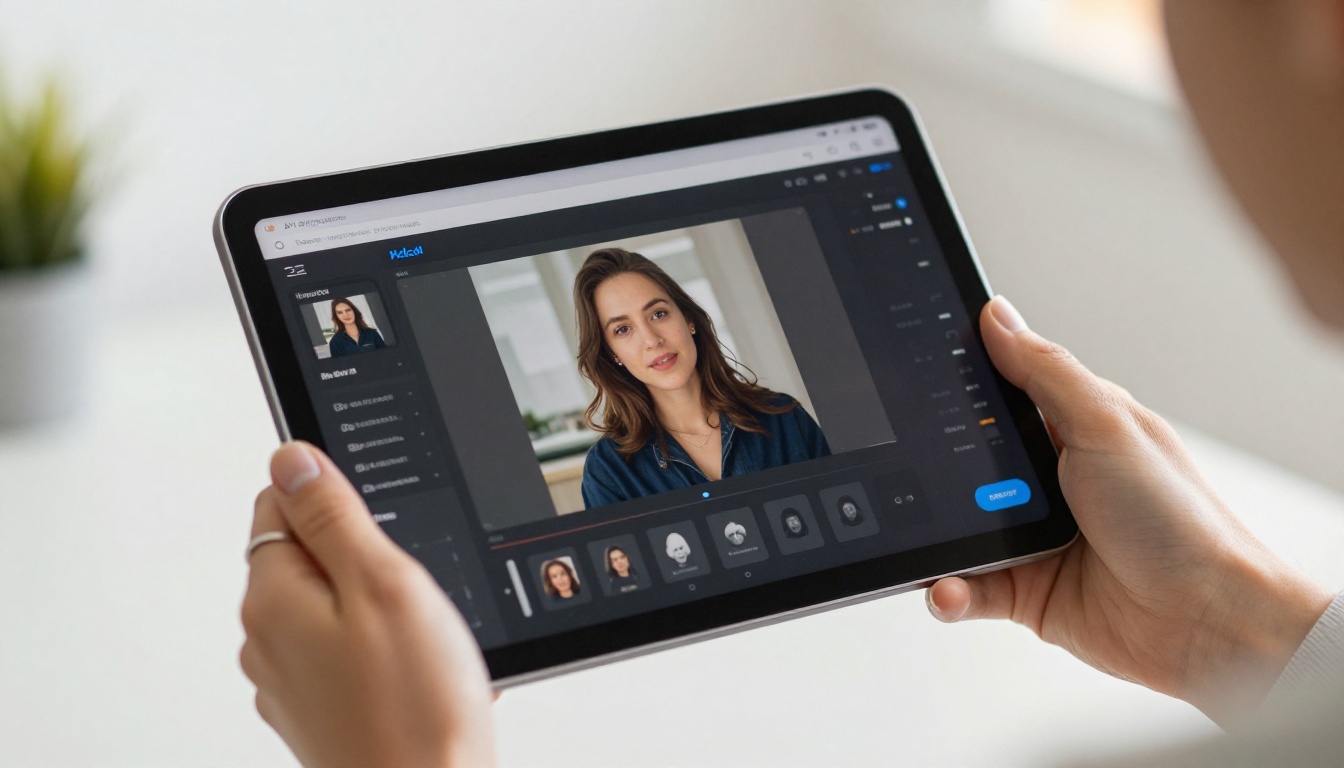
Reference-guided video generation with Veo 3.1 is not theoretical. These are specific content types that produce strong results on this workflow today.
Fashion and Lifestyle Content
This is where the technology is most immediately useful. Fashion brands and lifestyle creators need video of specific products on specific people in specific settings. Reference-guided generation lets you start from existing photography assets, shoot fewer hours, and produce more output.
A single high-quality fashion photograph becomes a 5-second clip, a close-up texture study, and an outdoor lifestyle video, all with visual consistency across every output.
Travel and Destination Video
Travel content producers often have photography from locations but need video. Reference-guided generation bridges this gap. A landscape photograph becomes a slow cinematic pan. An architectural interior becomes a smooth push-through. The reference grounds the model in the actual location's visual specifics rather than a generic interpretation of the scene.
Product Showcase Clips
E-commerce brands need product video but not always a full production budget. A product hero shot as a reference image, combined with a rotation or reveal motion prompt, produces usable product video that matches the brand's existing photography. The color, lighting, and background treatment in the reference carry directly into the video.
Start Creating With Your Own References
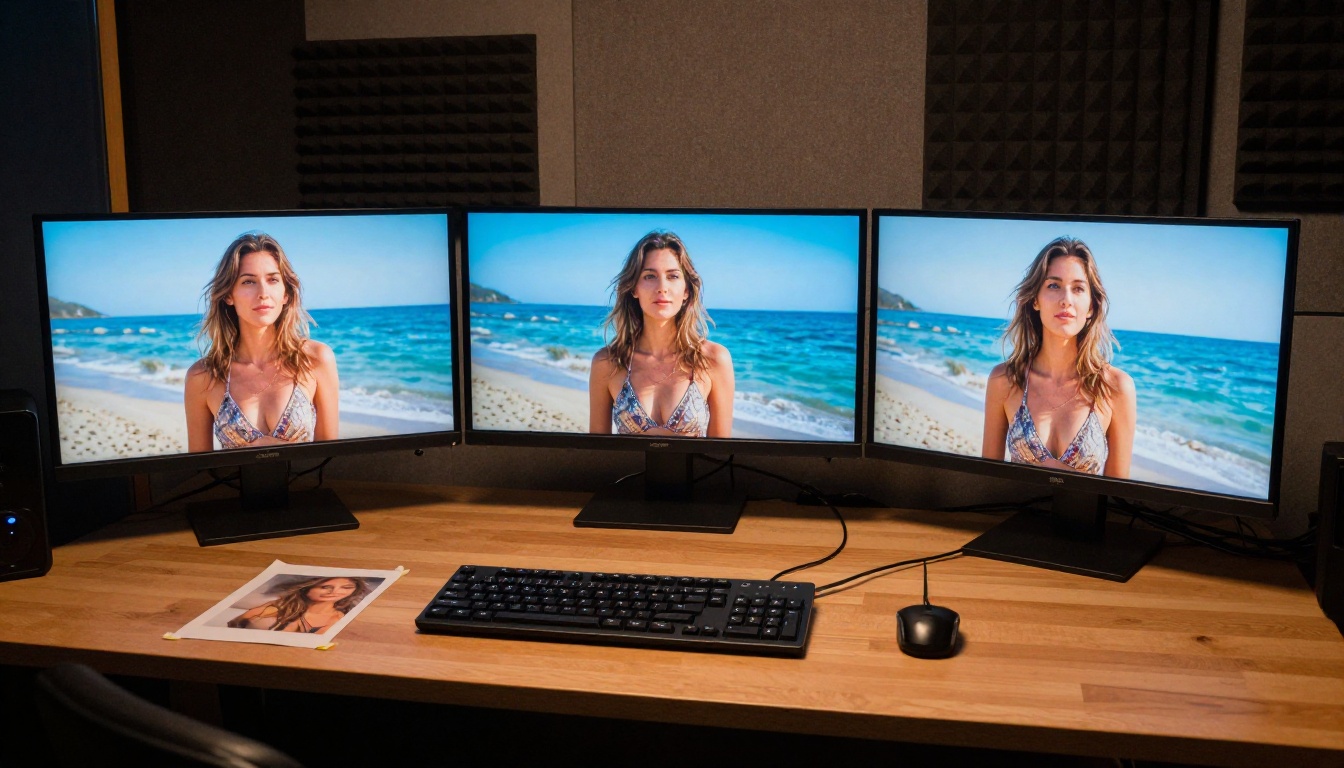
The fastest way to see what Veo 3.1's Ingredients to Video does is to run it yourself. Pick one photograph you already own that has clear lighting and a sharp subject. Write a short motion prompt in one sentence describing what should happen in the scene. Upload both to Veo 3.1 on PicassoIA and run your first generation.
The first result will show you more about how reference images interact with this model than any written explanation. From there, adjust your reference selection, refine your prompt, experiment with Veo 3.1 Fast for faster iteration cycles, and compare results with Kling V3 or Wan 2.6 i2v to find what fits your specific content needs.
PicassoIA gives you access to all of these models in one place, so you can run the same reference through multiple systems and compare the outputs side by side. That direct comparison is the sharpest feedback loop available for building intuition about AI video generation with reference images.