10 Prompt Tricks for Nano Banana Pro That Actually Work
Getting better images from Nano Banana Pro is not about luck or writing longer prompts. It comes down to knowing which details the model actually pays attention to. This article walks through 10 specific, proven tricks covering subject clarity, lighting language, camera specs, texture depth, film stock references, and layered prompt structures. Each trick is immediately actionable and produces measurable improvement in your AI image outputs.
Most people write prompts like grocery lists. "A woman standing in a field. Sunset. Beautiful." Then they wonder why Nano Banana Pro gives them something flat, generic, and forgettable. The model is not the problem. The prompt is.
The good news: improving your output does not require artistic talent or hours of trial and error. It requires knowing which parts of the prompt the model actually pays attention to. The 10 tricks below cover every layer, from how you name your subject to how you structure the entire prompt for maximum coherence. Use even three or four of these consistently and you will see an immediate, measurable difference in your results.
Why Nano Banana Pro Responds Differently
Not every text-to-image model behaves the same. Nano Banana Pro is optimized for photorealistic output with strong prompt adherence. That means it pays close attention to language structure, not just vocabulary. A prompt written with clear grammatical hierarchy, subject first, then action, then environment, then lighting, then camera specs, will consistently outperform one that dumps the same words in a different order.
This is also why the tricks below are grouped intentionally. They move from the most impactful (subject clarity) to the most structural (layered prompt blocks). Apply them in order for the fastest improvement.
You might also compare Nano Banana Pro with its siblings, Nano Banana and Nano Banana 2, for different resolution and stylization profiles. The tricks here apply across all three.
💡 Quick Rule: Think of your prompt as a camera brief, not a search query. You are directing a photoshoot, not typing into Google.
Tricks 1 and 2: Subject Clarity
These two tricks have the biggest immediate impact on output quality. Get them right first.
Trick 1: Name the Subject Precisely
The weakest word in most prompts is "woman" or "man" alone. It tells the model almost nothing specific, so the model fills in the blanks with whatever is statistically average in its training data. That is rarely what you want.
Instead, describe the exact subject you need.
Weak: a woman in a park
Strong: a 28-year-old woman with freckled skin and dark auburn hair in a loose bun, wearing an oversized cream linen jacket, sitting on a wooden park bench with her knees together
Specific descriptors narrow the model's interpretive range. That means less variation between generations and more consistency when you iterate on the same prompt.
Weak Subject
Strong Subject
"a man"
"a tall man in his 40s with salt-and-pepper stubble and deep-set brown eyes, wearing an open-collar chambray shirt"
"a cityscape"
"lower Manhattan skyline at dusk, Hudson River in the foreground, warm pink clouds reflecting off the water"
"a dog"
"a golden retriever mid-leap catching a frisbee, tongue out, ears pinned back by the wind"
"an office"
"a minimalist open-plan studio with exposed concrete ceilings and warm Edison bulb pendant lights, mid-afternoon light"
Trick 2: Describe the Action, Not the Pose
Static poses produce static images. Even for a still portrait, describing an action creates more natural, lifelike body language than describing a frozen position.
Weak: a woman standing near a window
Strong: a woman pausing mid-turn toward a window, one hand lightly resting on the curtain edge, glancing back over her shoulder with a half-distracted expression
The second version forces the model to generate implied movement, which results in more editorial-quality images with authentic body language rather than the stiff "pose for the camera" quality that plagues most AI portraits.
Tricks 3 and 4: Lighting Control
Lighting is where most images live or die. Most prompts say nothing about it at all, which leaves Nano Banana Pro making a default choice. Default choices produce default results.
Trick 3: Specify the Light Source
"Good lighting" is meaningless to the model. Tell it exactly where the light comes from and what kind of source it is. Use this formula:
[light quality] [light type] from [direction]
Practical examples:
soft diffused natural daylight from the right side, no harsh shadows
warm tungsten lamp glow from below and slightly behind the subject
harsh midday sun directly overhead creating sharp downward shadows
volumetric morning fog light filtering through trees from the upper left
Each of these creates a completely different image from the same subject. You are not just describing brightness. You are sculpting the entire atmosphere and emotional tone of the shot.
Trick 4: Name the Time of Day AND the Quality
"Golden hour" is overused and often produces clichéd results because the model has seen that phrase paired with every kind of mediocre AI image ever generated. Be more specific about what golden hour actually means visually.
Instead of: golden hour lighting
Try: warm amber late-afternoon sun at a 15-degree angle from the horizon, casting long 10-foot shadows, creating a rim of orange light around the subject's hair and shoulders, deep blue in the shadow areas
This specificity gives the model something concrete to render rather than a loose concept to interpret however it wants.
💡 Pro Tip: Combine lighting direction with shadow description. "Long shadows stretching toward the camera from the left" is more useful than "dramatic lighting."
Tricks 5 and 6: Camera and Composition
These tricks separate amateur-looking generations from images that feel professionally shot. Most people never add camera information to their prompts at all.
Trick 5: Pick a Real Camera Angle
Leaving the camera angle unspecified means the model picks whatever is statistically most common for your subject type, usually a flat, mid-level frontal shot. Choose deliberately.
Angle
When to Use
Eye level
Portraits, conversations, neutral storytelling
Low angle (looking up)
Power, scale, drama, making subjects look imposing
Add the angle directly to your prompt: shot from a low angle looking up at the subject or aerial overhead view looking straight down at the scene.
Trick 6: Add Lens Specs
Real photographers choose lenses for specific reasons. The same logic applies to AI prompts. Each lens specification carries a complete set of visual characteristics that Nano Banana Pro translates directly into the image.
24mm wide-angle: Environmental storytelling. Subject and full context visible in one frame.
105mm macro: Extreme close-up detail. Surfaces, textures, and fine details rendered sharply.
35mm f/2.0: Street photography energy. Slightly wide, natural-looking, in-the-moment feel.
50mm f/1.8: Closest to human eye perspective. Natural, neither compressed nor distorted.
Add it to your prompt: shot with an 85mm f/1.4 prime lens, shallow depth of field, subject sharp, background in soft creamy bokeh.
Tricks 7 and 8: Style and Texture
These two tricks add the final layer of polish that separates an image that looks technically correct from one that feels genuinely real.
Trick 7: Use a Film Stock, Not a Mood Word
Words like "cinematic," "moody," or "atmospheric" are interpreted inconsistently because they mean different things to different people and different training datasets. Film stock names are interpreted with far more precision.
moody → Fujifilm Provia 100F, cooler tone cast, elevated contrast in shadows
vintage → expired Kodachrome 64, faded reds, green-shifted shadows, light leaks at the edges
professional → Hasselblad digital medium format rendering, neutral color science, even tonal range
Nano Banana Pro responds well to specific film stock references because each one carries embedded information about contrast, saturation, grain character, and color rendering all at once.
Trick 8: Describe Surface Textures
Texture is what makes an image feel tactile and believable. Add it explicitly to every major surface in your scene.
Without texture: a leather jacket
With texture: a worn brown leather jacket with cracked surface patina, visible stitching at the seams, a faint shine on the shoulder where the material has been worn smooth over time
Apply this to skin, fabric, ground surfaces, walls, and furniture in your scene. The more specific your texture language, the more convincing the tactile quality of the final output.
Example: aged oak wood table surface, deep visible grain lines, matte finish with occasional glossy scratch marks from daily use, absorbing warm directional light evenly without glare
Tricks 9 and 10: Structure-Level Prompting
Once you have the basics solid, these two tricks take your outputs from good to consistently excellent across every generation.
Trick 9: Use Layered Prompt Blocks
Instead of writing your prompt as one run-on sentence, structure it in logical blocks. Each block addresses a single aspect of the image. This forces clarity in your own thinking before the model even sees the prompt.
Block Structure:
[SUBJECT]: 28-year-old woman with curly red hair, wearing a silk ivory slip dress, arms loosely crossed
[ACTION]: standing at the edge of a rooftop terrace, looking out at the city below, weight shifted to one hip
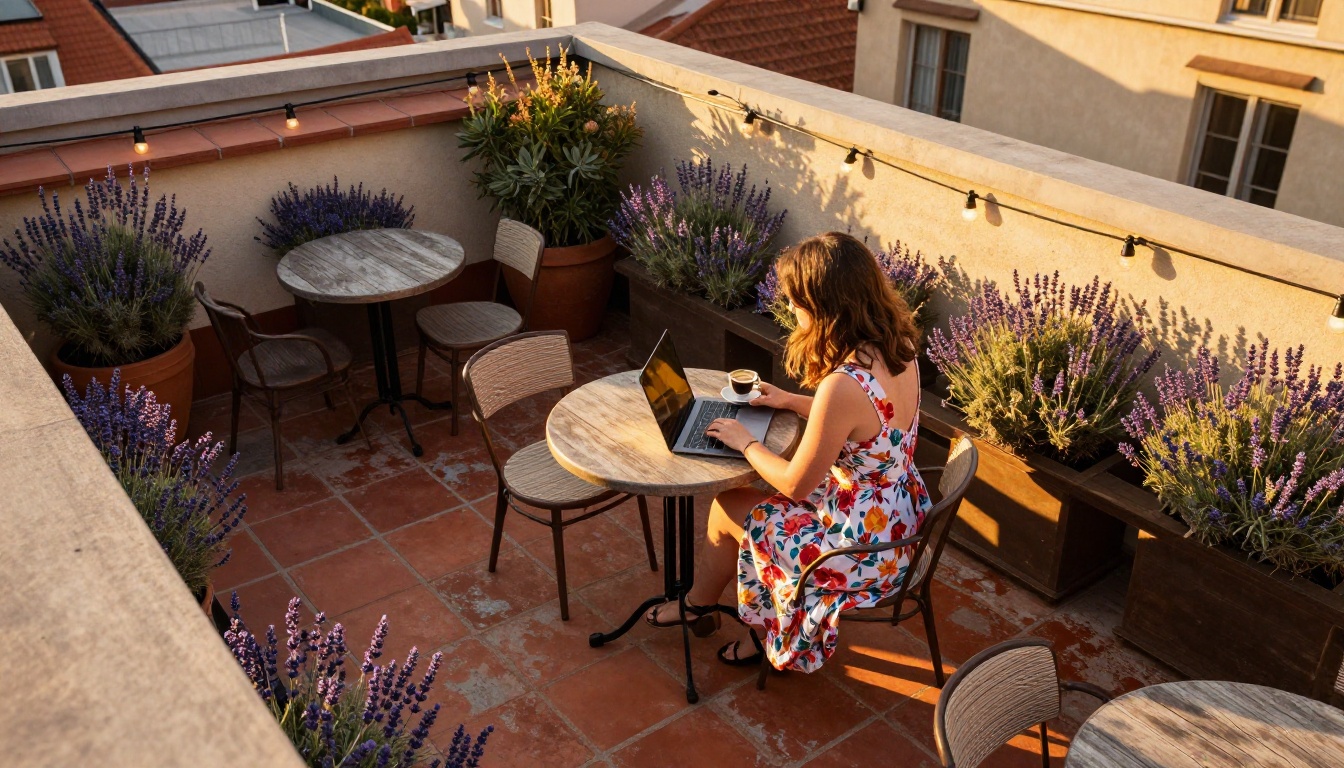
[ENVIRONMENT]: modern rooftop in Barcelona at dusk, warm pink sky with thin clouds, city skyline in the distance
[LIGHTING]: golden backlight from behind the subject, warm rim light catching hair and shoulders, soft city ambient fill from below
[CAMERA]: 85mm f/1.4, eye-level with a slight low angle, shallow depth of field, city background in smooth bokeh
[STYLE]: Kodak Portra 400, fine film grain, photorealistic, 8K resolution
You do not need to include these labels in the actual prompt text. Write the blocks first to organize your thinking, then combine them into natural language. This process consistently produces more coherent, detailed images than writing stream-of-consciousness from scratch.
Trick 10: Negative Prompts Are Not Optional
A negative prompt tells the model what to specifically avoid. For Nano Banana Pro, a well-written negative prompt is often the difference between a usable image and a rejected one.
Build your own over time based on what consistently fails in your generations. If hands keep coming out distorted, keep deformed hands, extra fingers, malformed limbs in every prompt. If backgrounds keep going flat or illustrated, add cartoon background, flat color, vector art look.
💡 Iteration Trick: Run a generation without a negative prompt first. Note what went wrong in specific terms. Add exactly those observations to your negative prompt for the next run. Repeat until your baseline negative prompt covers all your common failure modes.
How to Use Nano Banana Pro on PicassoIA
Nano Banana Pro is available on PicassoIA with no setup required. Here is how to apply everything above directly in the interface.
Step 1: Open the Model
Go to Nano Banana Pro on PicassoIA. The main prompt input field is at the top of the interface.
Step 2: Write Your Layered Prompt
Use the block structure from Trick 9. Start with subject and action, move through environment and lighting, finish with camera specs and film stock style. Write the blocks in a text editor first if it helps you stay organized.
Step 3: Add Your Negative Prompt
Find the negative prompt input below the main field. Paste your baseline negative prompt here before every generation. Do not skip this step.
Step 4: Choose Your Aspect Ratio
For environmental and landscape shots, 16:9 works best. For portraits, use 3:4 or 2:3. PicassoIA lets you select the ratio directly from the interface before generating.
Step 5: Iterate on One Block at a Time
Run your first generation. Identify which block produced the weakest result. Change only that block and regenerate. Changing multiple variables at once makes it impossible to know what actually improved the output.
💡 Also worth trying: Nano Banana and Nano Banana 2 use the same prompt logic and offer different style and resolution profiles for direct comparison.
All 10 Tricks at a Glance
#
Trick
What It Does
1
Precise Subject
Narrows the model's interpretive range for more consistent output
2
Action Not Pose
Generates natural body language instead of stiff positioning
3
Specify Light Source
Sculpts atmosphere and emotional tone with precision
4
Time and Light Quality
Avoids clichéd interpretations of vague lighting terms
5
Camera Angle
Controls visual hierarchy and subject framing
6
Lens Specs
Adds photographic depth, compression, and perspective logic
7
Film Stock
Replaces vague mood words with precise color and grain behavior
8
Surface Texture
Makes images feel physically real and tactile
9
Block Structure
Produces coherent, detailed prompts instead of run-on descriptions
10
Negative Prompts
Removes recurring failure modes from every generation
Start Generating Right Now
You have 10 specific, immediately actionable tricks. The next move is to open Nano Banana Pro and use at least three of them on your next generation.
Pick a subject you have tried before and got a result that felt close but not quite right. Apply Trick 1 to sharpen the subject description. Apply Trick 3 to specify the light source. Apply Trick 7 to replace any vague mood words with a film stock name. Run it. The change will be noticeable.
PicassoIA gives you access not just to Nano Banana Pro but also Nano Banana, Nano Banana 2, and a broad catalog of other text-to-image models. Once you have these prompt habits built in, switching between models becomes about trying different style profiles rather than starting from scratch every time.
The only way to get better at prompting is to prompt more. Start now.