Every creator who gets consistently stunning AI images from text prompts has one thing in common: they stopped writing descriptions and started writing directions. The difference sounds small but it changes everything about your output.
Most people type something like "a beautiful woman on a beach at sunset." What they get back looks like a generic postcard. What pro creators write looks more like a film director's shot sheet, and the results prove it.
These 3 prompt hacks are not theories. They come from creators who generate dozens to hundreds of images every single week across models like GPT Image 2, Flux 2 Klein 9B, and Wan 2.7 Image Pro. They work. And once you start using them, you will not go back to vague descriptions.
Why Most AI Prompts Fall Flat
The average user treats an AI image generator like a search engine. They type a few words and hope the model guesses what they mean. The model does guess, and it averages out everything it has ever seen that matches those words.
The result is technically correct and creatively dead.
The Description Trap
When you write "a man sitting in a cafe," you are describing a category, not a scene. The model has to fill in every blank: his age, his expression, the lighting, the camera angle, what he is doing with his hands, whether the background is sharp or blurred. It fills those blanks with the statistically most common answers.
That is why so many AI images look the same. The model is not being lazy. It is being precise about the average.
What Pros Do Differently
Pro creators do not describe. They direct. They close every decision gap before the model has a chance to average it out.

They specify: the camera angle, the lens focal length, the light source direction, the texture of the fabric, the emotional state of the subject. Not because they are showing off technical knowledge, but because every unspecified detail is a decision handed to a machine that defaults to average.
The 3 hacks below give you a structured way to close those gaps systematically, every time.
Hack #1: The Scene Anchor
A scene anchor is a single concrete physical detail in your prompt that defines the spatial relationship between your subject and the environment. It sounds technical. In practice, it is one phrase that snaps everything else into place.
Why Composition Drifts Without It
Without a scene anchor, the model has no fixed spatial reference. Your subject might float slightly off-center, the horizon might end up at an odd height, the background might bleed into the foreground in ways that feel slightly wrong without being easy to name.
A scene anchor gives the model a physical rule to organize everything else around. It is the single highest-leverage word you can add to any prompt.
How to Write a Scene Anchor
The formula is simple: [Subject] + [Position] + [Environmental Feature].
Examples:
- "woman standing at the far edge of a stone pier, ocean horizon at lower third of frame"
- "man leaning against the left side of an arched doorway, courtyard visible behind right shoulder"
- "child sitting on the bottom step of a wide marble staircase, other steps receding upward in the background"
Notice that each one tells the model exactly where the subject is in the frame, relative to something physical. That one decision chains into correct horizon placement, background depth, and compositional balance.
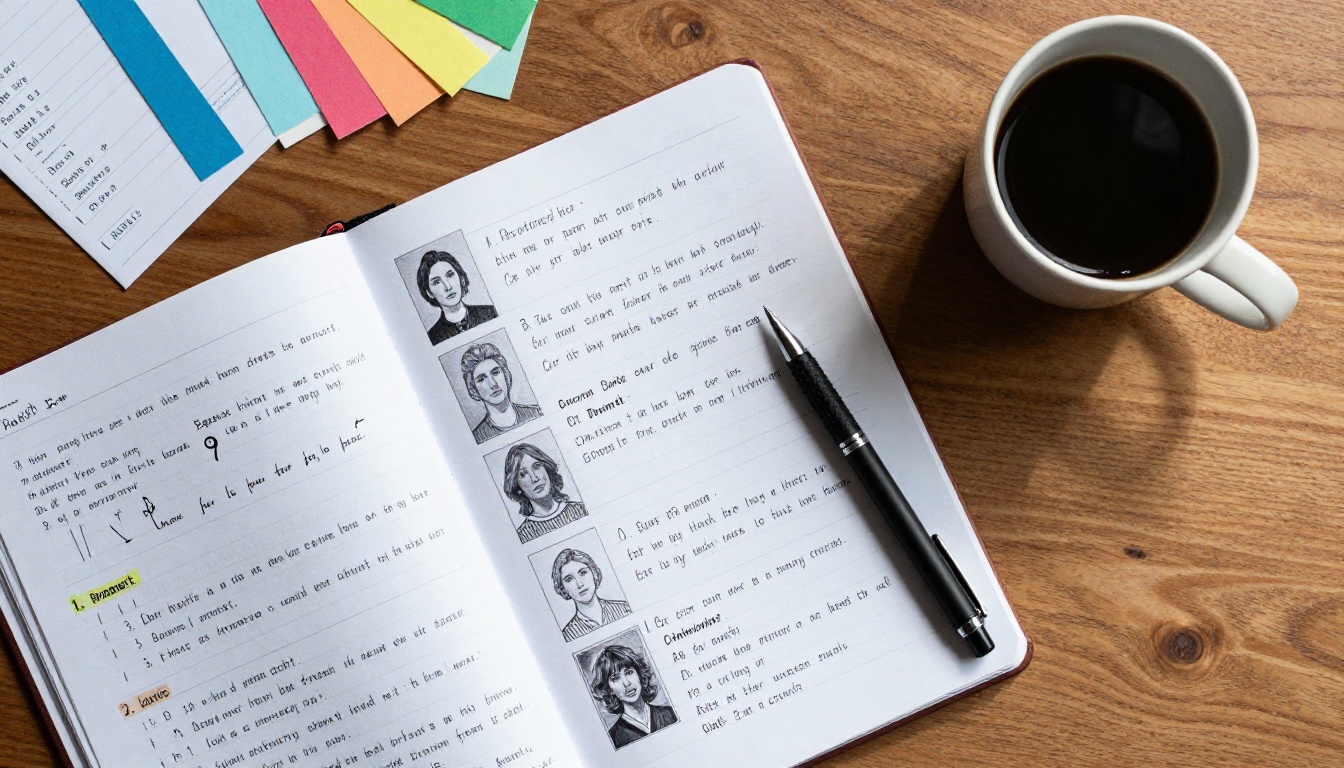
Scene Anchor Examples That Work
| Weak Prompt | With Scene Anchor Added |
|---|
| "woman on a beach" | "woman standing at the shoreline, waves breaking just behind her feet, horizon at lower third" |
| "man in a forest" | "man seated against the base of a wide oak tree, forest path receding behind his left shoulder" |
| "couple in a city" | "couple walking under a row of arched streetlamps, cobblestone street narrowing toward the background" |
💡 Write your scene anchor first, before anything else. It acts as the compositional skeleton the rest of your prompt builds on.
When you use models like Seedream 4.5 or Wan 2.7 Image Pro, which both support ultra-high-resolution 4K output, a strong scene anchor matters even more. At that resolution, a poorly anchored composition becomes obvious immediately.
Hack #2: Light Like a Cinematographer
Lighting is the single most powerful atmospheric lever in any AI image prompt. It is also the most consistently underused.
Most people, if they mention light at all, write "golden hour" or "sunset lighting" and leave it there. Those phrases mean something, but they are vague enough that the model still has enormous latitude in how it interprets them.
Cinematographers do not say "golden hour." They say where the light is coming from, what angle it hits the subject at, what it does to the shadows, and how it interacts with specific surfaces.
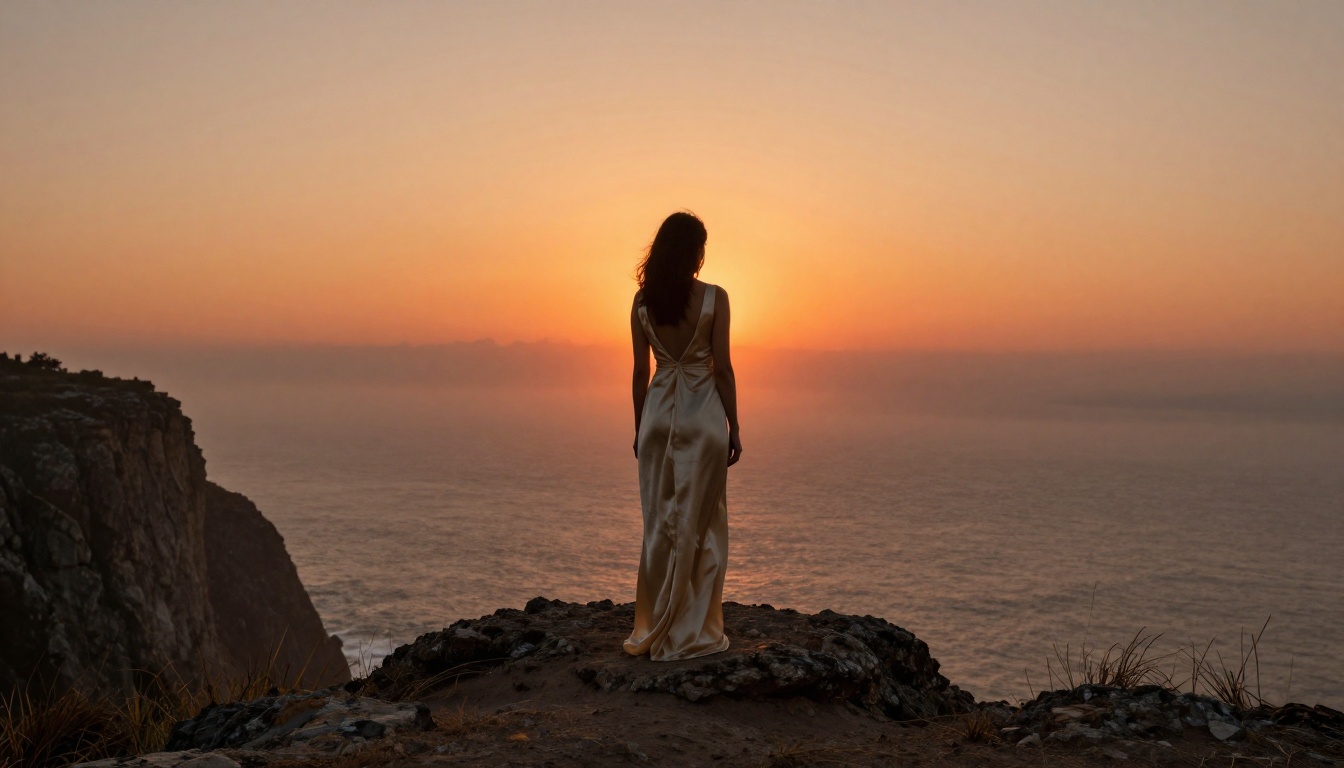
Why Lighting Keywords Change Everything
A lighting descriptor does two things at once. It sets the mood and it defines the physics of the scene. When you say "volumetric morning light from the left at 45 degrees," you have told the model:
- The color temperature (cool to neutral, morning)
- The direction (left, 45 degrees)
- The quality (volumetric, so light is visible in atmosphere or haze)
- The shadow direction (falling to the right and slightly downward)
That is four decisions made with eight words. The model does not have to guess any of them.
5 Lighting Descriptors Pros Use Most
Here are the specific phrases that appear most often in high-output creator prompts, with what each one actually does:
| Descriptor | What It Does |
|---|
volumetric morning light from the left | Creates atmospheric haze, long horizontal shadows, cool-warm color transition |
Rembrandt lighting, single key source upper left | Classic portrait pattern with triangle of light on shadowed cheek, dramatic depth |
overcast flat fill light, no harsh shadows | Even, soft, no directionality, ideal for detail-focused subjects |
rim lighting from behind, separating subject from background | Bright outline around the subject, emphasizes silhouette and separation |
practical window light right, warm amber late afternoon | Realistic interior scene light, horizontal bars of sunlight across surfaces |
Adding Texture to Your Light
The most advanced version of this hack is combining the light descriptor with the material it falls on. This is what separates a technically correct render from one that feels photographed.
Compare:
- Weak: "golden light"
- Strong: "golden late-afternoon light raking across the textured canvas of her linen jacket, catching each individual thread"
The second version forces the model to solve a texture problem. The result looks shot on film, not generated by software.
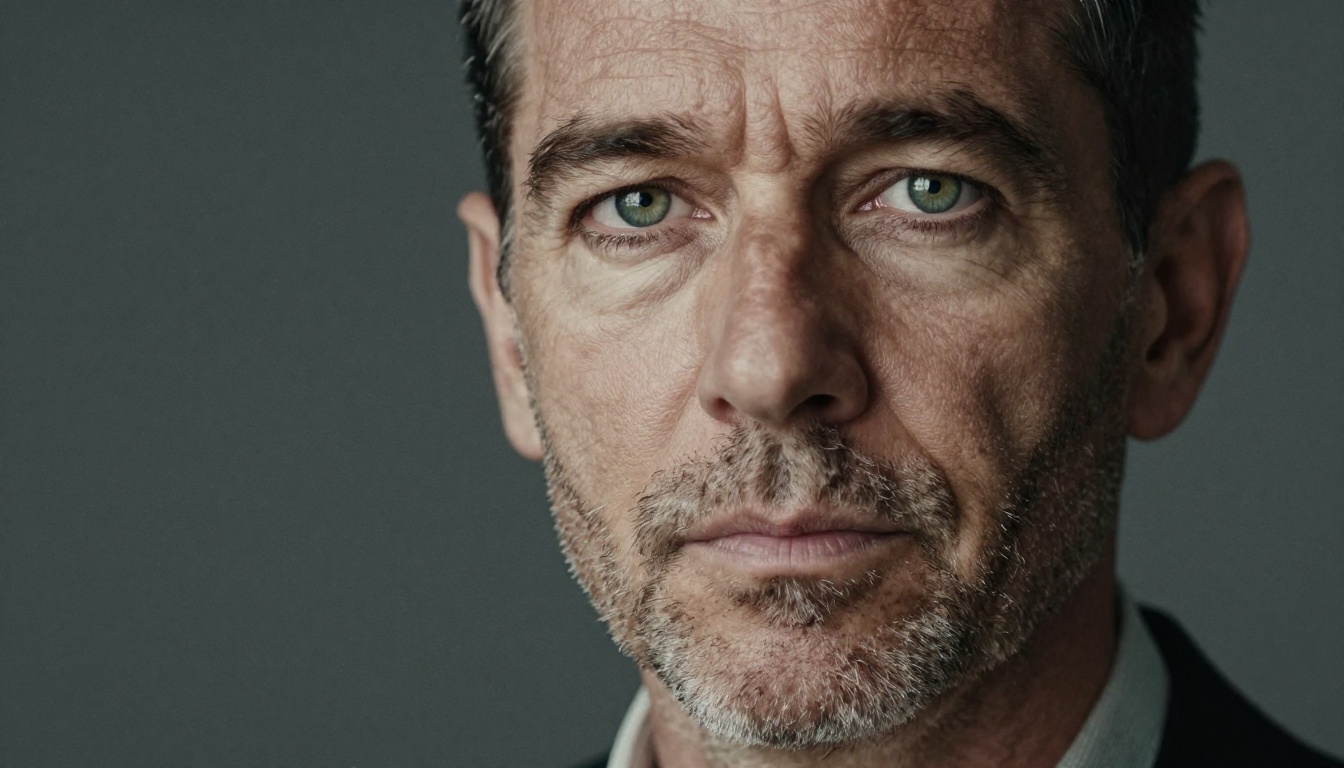
💡 Pair every lighting descriptor with a surface detail. "Warm amber light raking across the rough brick wall" gives the model both the light source and a material to render it on.
Models like GPT Image 2 and Hunyuan Image 2.1 handle complex lighting instructions with high fidelity. Both have been trained on large photographic datasets and respond to cinematographic language with impressive accuracy.
Hack #3: The Subject-Action-Context Formula
The third hack is about prompt structure. Most people write prompts as a list of adjectives. Pros write them as a story fragment.
The Subject-Action-Context formula, or SAC, structures your prompt the way a photograph is actually composed: who is doing what, and where are they doing it at this exact moment.
Breaking Down the SAC Formula
Subject: Who or what is the focus of the image. Be specific about age, physical details, clothing texture, and emotional state.
Action: What the subject is doing right now. The action determines the pose, the energy level, and often the compositional tension.
Context: The environment, the light, the camera angle, the lens choice, and supporting scene details.
The formula looks like this in practice:
[Specific Subject] + [Precise Action] + [Detailed Context]
Most people write prompts in the wrong order. They start with the place, then add the subject, and forget the action entirely. SAC gives you a checklist that also happens to match how good photography is described.

Before and After: SAC in Action
Here is what the same image looks like when written with and without the formula:
Without SAC:
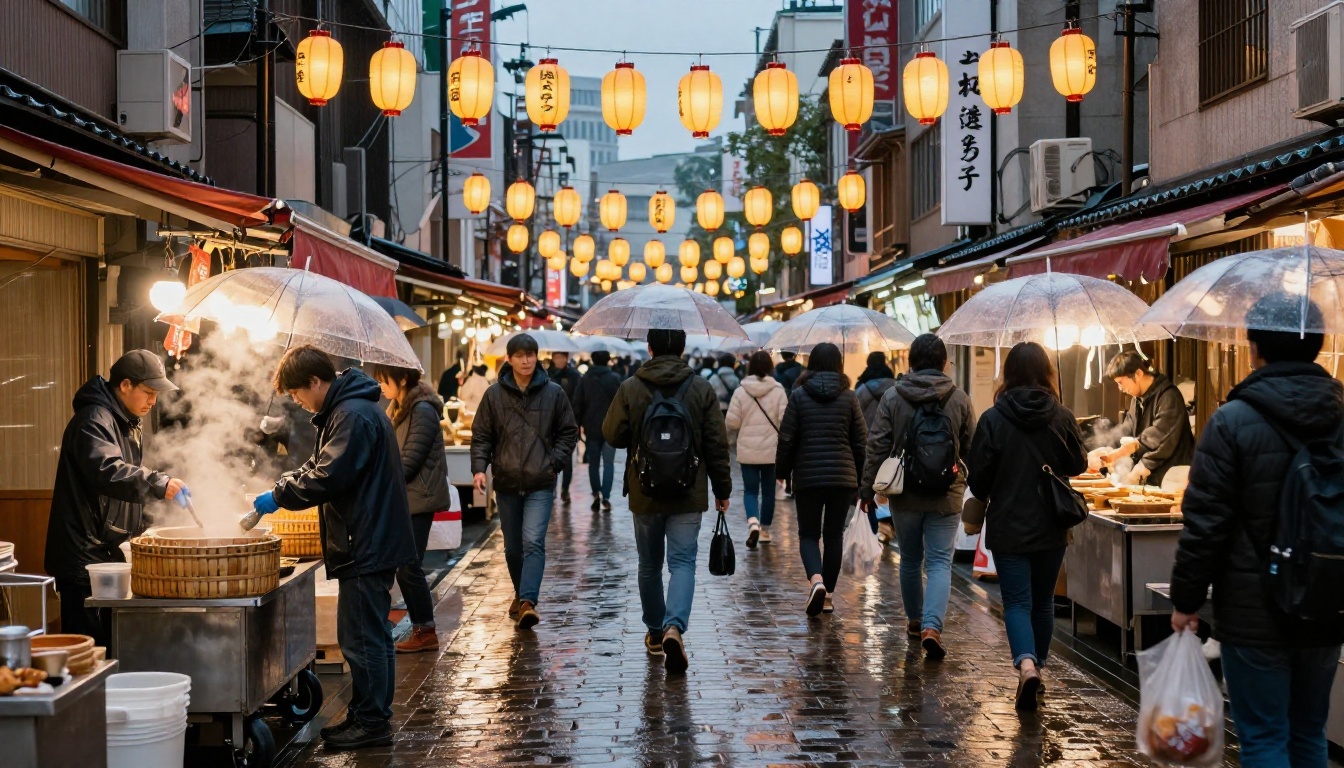
"A woman at a market in Tokyo at night"
With SAC:
"A Japanese woman in her 30s in a dark rain jacket holding a bamboo basket of fresh vegetables [Subject], pausing mid-step to look at a vendor's lanterns, one hand raised to shield rain from her face [Action], rain-slicked cobblestone street market at dusk, steam rising from noodle carts, paper lanterns strung overhead, 24mm wide angle, f/4, Fuji Velvia color profile [Context]"
The SAC version has eliminated almost every decision the model would otherwise make on its own. The output is not a lucky result. It is a directed one.
Applying SAC to Different Models
Different models on PicassoIA respond to SAC with slightly different nuances worth knowing:
| Model | SAC Tuning Note |
|---|
| GPT Image 2 | Highly responsive to natural language. Full sentences in the SAC structure work well |
| Flux 2 Klein 9B | Responds well to comma-separated technical descriptors after the SAC base |
| Flux 2 Klein 4B | Faster generation. Keep SAC tighter, prioritize Subject and Action |
| Wan 2.7 Image Pro | Excellent at environmental Context, lean harder on the C in SAC |
| Seedream 4.5 | Strong aesthetic interpretation, Subject details carry the most weight |
💡 Test your SAC prompt first without any style modifiers. See what it produces on its own structure alone. Then layer in texture and lighting to push it toward your exact vision.
Weak vs. Strong: The Full Prompt Comparison
Here is how all 3 hacks combine into a real before-and-after example:
Weak prompt (what most people write):
"Two friends laughing in a city at sunset"
Strong prompt (all 3 hacks applied):
Scene Anchor: "Two women in their late 20s standing on a rooftop terrace, the city skyline softly blurred in the far background"
Lighting: "Late afternoon rim lighting from the right, warm golden sunlight separating both figures from the bokeh skyline behind them"
SAC: "One in a sunflower linen sundress, one in a terracotta wrap top, both laughing mid-conversation, heads tilted slightly toward each other, one holding an iced drink with condensation on the glass, 85mm f/1.8, Kodak Portra 400, 8K photorealistic RAW photography"
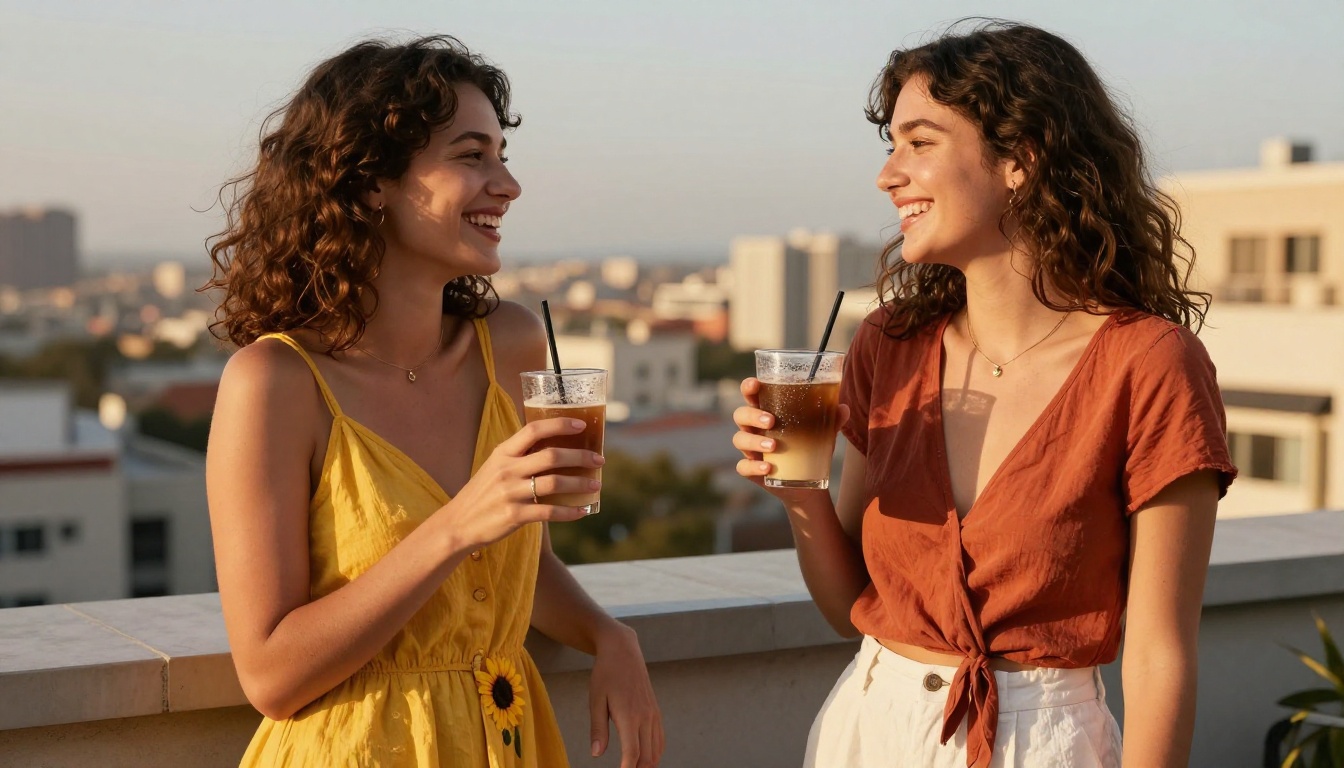
The output from the strong prompt is not just better. It is a different category of image entirely.
How to Use These Hacks on PicassoIA Models
All 3 hacks work across every text-to-image model, but different models on PicassoIA have different strengths.
GPT Image 2 for Natural Language Prompts
GPT Image 2 handles rich, sentence-structured prompts with impressive consistency. It is particularly good at scene anchors written in natural language and responds well to emotional context in the Subject description. If you are just starting to apply these hacks, GPT Image 2 is a forgiving and highly capable place to begin.
Flux 2 Klein for Stylized Precision
Flux 2 Klein 9B rewards technical specificity. It shines when you apply the lighting hack with surface texture details. The LoRA architecture adapts to styles you define through your prompt's descriptors, which means lighting and texture instructions get interpreted with a lot of precision.
Flux 2 Klein 4B is the faster counterpart. It is ideal when you are iterating quickly on composition using scene anchors before committing to a full-detail generation run.
Wan 2.7 Image Pro for 4K Environmental Scenes
Wan 2.7 Image Pro is built for 4K output, which makes it especially sensitive to the quality of your SAC Context block. Environmental and architectural details in the Context portion get rendered with exceptional sharpness at this resolution, so the more specific you are there, the better it performs.
Start Writing Better Prompts Right Now
The only way to truly feel the difference these 3 hacks make is to run them side by side against your current prompts. Open any model on PicassoIA, write your usual prompt, then rewrite it applying the scene anchor, a specific lighting descriptor, and the SAC structure.
The gap between the two outputs will do more to change how you write prompts than any amount of reading.
PicassoIA has over 91 text-to-image models available, including GPT Image 2, the Flux 2 Klein series, Seedream 4.5, and Hunyuan Image 2.1. Each one responds to well-structured prompts better than to vague descriptions. These hacks give you the structure.
The creative vision is yours. Start experimenting with it today.


