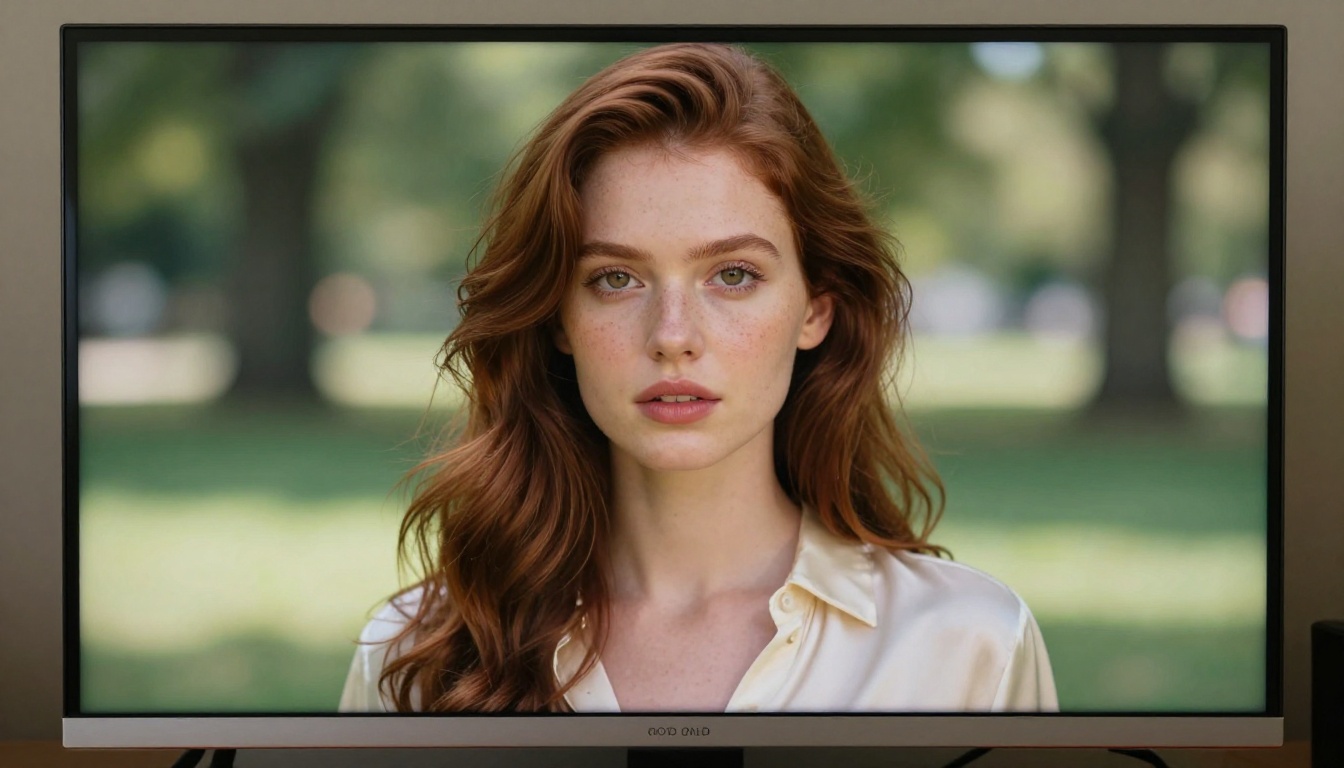
3 Prompting Mistakes That Ruin Seedream 5 Pro Results (and What to Do Instead)
Seedream 5 Pro generates sharp 2K images, but the wrong prompting approach produces blurry, off-target results every time. This article breaks down the 3 most common mistakes users make when prompting Seedream 5 Pro, shows you what causes them, and gives you concrete, tested fixes to start generating photorealistic images immediately on PicassoIA.
Most people who get bad results from Seedream 5 Pro are not dealing with a model problem. They are dealing with a prompt problem. The model generates crisp 1K and 2K photorealistic images from text descriptions of almost any length, handles up to 10 reference images at once, and processes complex compositional instructions with impressive accuracy. But give it a poorly structured prompt, and the output tells that story instantly.
The three mistakes covered here are not edge cases. They show up constantly in community outputs and studio workflows alike. Each one is fixable in minutes, and fixing all three is the difference between burning credits on regenerations and actually shipping images you can use.
What Seedream 5 Pro Does Differently
Where the Model Excels
Seedream 5 Pro sits in a specific niche: high-fidelity photorealism at speed. It processes prompts up to several thousand characters long, blends reference images with text descriptions simultaneously, and outputs 2K files suitable for print or large-format display without additional upscaling. The model is tuned toward realism: skin texture, fabric detail, architectural material, and natural lighting all perform at an unusually high level relative to generation time.
The model supports flexible aspect ratios including 16:9, 1:1, 3:4, and 21:9. It can match the aspect ratio of an uploaded reference image automatically. These are practical parameters that matter when generating content for specific platforms or client briefs.
Why Most Outputs Miss the Mark
The problem is not capability. It is communication. AI image models do not interpret prompts the way humans read instructions. They tokenize, weigh, and sample from learned statistical patterns. This means the order of information matters, the specificity of details matters, and the vocabulary you use matters enormously. Seedream 5 Pro is powerful enough that good prompting produces extraordinary results, but that same power means vague or conflicting prompts produce confusion rendered at high fidelity, which is in many ways worse than a mediocre result from a weaker model.
Mistake #1: Overloading Your Prompts
What Overloading Actually Does
The most common mistake is treating the prompt field as a dump site for every visual idea you have. Prompts that run 500 or 600 words of tangled, equal-priority descriptions confuse the model's attention mechanism. Seedream 5 Pro reads that text and decides what to weight. When everything sounds equally important, the model hedges. You get a result that tries to honor every element and succeeds at none of them fully.
A typical overloaded prompt looks like this:
"a beautiful woman with long blonde hair and blue eyes standing in a forest in autumn with red and orange leaves falling around her wearing a white dress with lace details and a flower crown and sunlight through the trees creating beautiful bokeh and a mountain visible in the background with a river to the left and birds flying overhead and the ground covered in moss and the trees are very tall and the sky is visible through the gaps and there is a soft misty atmosphere and cinematic lighting..."
That prompt contains a forest, mountains, a river, birds, specific clothing details, sky, mist, and more, all described with equal weight. The model has to make compromises. The result rarely has any single element rendered as well as it would be if the prompt had focused on two or three things instead.
The Right Prompt Length
The BytePlus documentation for Seedream 5 Pro recommends keeping prompts under 600 English words for best results. That ceiling exists because the model's attention mechanism has practical limits beyond which adding more content produces diminishing returns. The practical sweet spot is 80 to 200 words for a single image.
Structure your prompt in layers of priority:
Subject (who or what, specific details)
Environment (setting, time of day, location)
Lighting (direction, temperature, quality)
Camera and lens (angle, focal length, depth of field)
Mood and atmosphere (2 to 3 words, not sentences)
Anything beyond that fifth layer is probably noise. The model does not need you to describe the number of leaves on a tree. It needs the type of light hitting the subject.
💡 Fix: Cut your prompt to the 5 core layers. If a detail is not one of the top three things you care about in the output, remove it.
Mistake #2: Skipping Style and Quality Signals
Why Scene Description Alone Fails
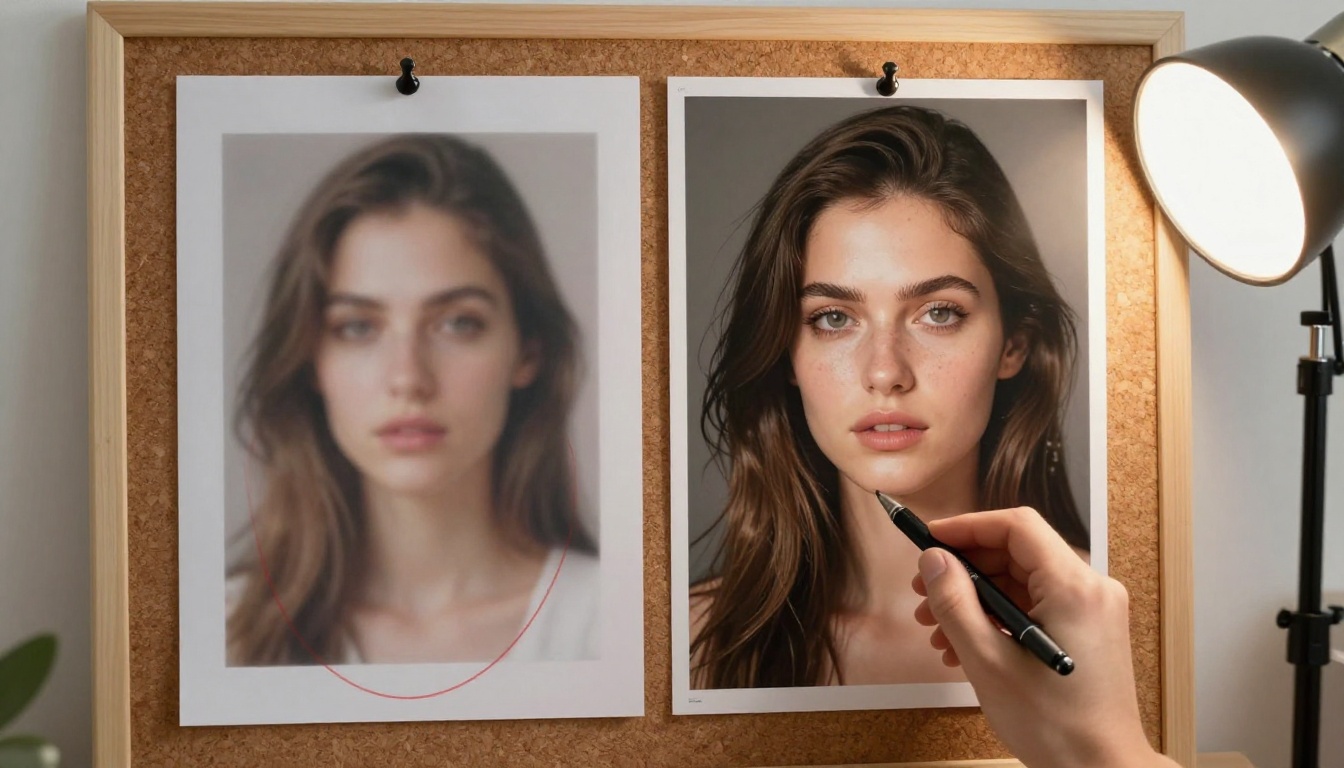
You describe a scene. You get an image. The image looks fine in the sense that it represents the scene you described, but it lacks depth, texture, material specificity, and that particular quality of real photography that makes an image feel like it was taken by a professional camera. This happens because describing what is in the image is only half the task. You also need to describe how the image looks.
Seedream 5 Pro learns from photographic data. Its internal vocabulary includes film stock characteristics, lens aberrations, sensor noise patterns, and studio lighting setups. When you do not invoke any of these, the model defaults to a generic visual language that produces technically adequate but emotionally flat images.
Modifiers That Actually Work
These categories of modifiers consistently improve output quality in Seedream 5 Pro:
Film and Camera Simulation:
Kodak Portra 400 color grade
Fujifilm Pro 400H film simulation
Kodak Ektar 100 vivid colors
35mm analog film grain
Lens and Optic Descriptors:
85mm f/1.4 portrait lens, shallow depth of field
24mm wide-angle lens, f/8, sharp throughout
Canon 135mm f/2 L-series telephoto
macro lens, 1:1 reproduction ratio
Lighting Specifics:
volumetric morning light from the east
single large softbox from camera left
overcast diffused daylight, no shadows
practical lamp creating warm 3200K light pools
Resolution and Quality Tags:
photorealistic, 8K resolution, RAW photography
medium format, ultra-high detail
fine texture rendering, natural skin tones
The combination of a film stock name plus a lens descriptor plus a specific lighting condition is usually enough to shift an output from generic to publication-quality.
💡 Fix: Add one film stock, one lens specification, and one lighting direction to every prompt. These three modifiers alone produce measurable quality jumps in Seedream 5 Pro outputs.
Mistake #3: Leaving Out Negative Prompts
The Hidden Power of Negative Prompts
Negative prompts are the second field in most text-to-image interfaces, and a large portion of users leave them blank. This is a significant error when working with realism-focused models. The positive prompt tells the model what to include. The negative prompt tells it what statistical patterns to avoid. For Seedream 5 Pro, negative prompts function like a quality filter applied at generation time.
Without negative prompts, the model has no instruction to avoid its common failure modes: soft focus on eyes, plastic-looking skin, asymmetric faces, extra fingers, background blur bleeding into the subject, overexposed highlights, or the generic AI aesthetic that appears when style tokens are absent from the positive prompt.
The Best Negative Prompts for Realism
Build your negative prompt from three layers:
Anatomy and Physical Errors:deformed hands, extra fingers, asymmetric eyes, elongated neck, distorted face, unnatural skin texture, plastic skin, airbrushed, smooth face
Technical Image Problems:blurry, out of focus, motion blur, jpeg artifacts, low resolution, pixelated, overexposed, underexposed, blown highlights, color noise
Style Contamination:cartoon, illustration, digital art, 3D render, CGI, anime, painting, watercolor, sketch, vector art, glowing effects, neon, cyberpunk
Combined, a working negative prompt for portrait photography looks like this:
deformed hands, extra fingers, asymmetric eyes, distorted face, plastic skin, airbrushed, blurry, out of focus, jpeg artifacts, low resolution, cartoon, illustration, 3D render, CGI, anime, glowing effects, neon
This does not need to be rewritten for each generation. Keep it saved and paste it in. The time investment is 10 seconds per generation. The quality difference is substantial.
💡 Fix: Build a standard negative prompt string for your most common use case (portrait, landscape, product shot) and paste it into every generation. The quality improvement per second of effort is among the highest available to any prompting workflow.
How to Use Seedream 5 Pro
Seedream 5 Pro is available directly on PicassoIA with no software installation required. Here is how to run a generation that avoids all three mistakes.
Step 1: Open the Model
Go to the Seedream 5 Pro page on PicassoIA and log in to your account. The interface shows a prompt field, an optional image upload area for reference images, an aspect ratio selector, and an output size toggle between 1K and 2K.
Step 2: Build the Prompt Right
Write your positive prompt using the five-layer structure: subject, environment, lighting, camera, atmosphere. Keep it under 200 words. Below the positive prompt, open the negative prompt field and paste your standard negative prompt string.
Here is a full example for a portrait:
Positive prompt:
Woman in her late twenties with naturally curly black hair, wearing an off-white linen blazer, standing in front of a sun-dappled garden wall with climbing roses. Warm late-afternoon light from the right, gentle rim light separating her from the background. Shot with an 85mm f/1.4 prime lens, shallow depth of field, subject razor-sharp, background smooth bokeh. Kodak Portra 400 film grain, photorealistic, 8K.
Negative prompt:
deformed hands, extra fingers, asymmetric eyes, distorted face, plastic skin, airbrushed, blurry, out of focus, jpeg artifacts, cartoon, illustration, 3D render, CGI, neon
Step 3: Set Parameters Right
Size: Choose 2K for commercial output or large-format use. Use 1K for rapid iteration when testing prompt structure before committing credits to a high-resolution run.
Aspect ratio: 16:9 for blog headers and YouTube thumbnails, 4:3 for presentations, 9:16 for Instagram Stories, 1:1 for profile images and product shots.
Reference images: Upload up to 10 reference photos and the model blends facial features, style elements, or compositional cues from all of them into a single output.
Prompt Templates That Work
Use these as starting points. Replace the bracketed values with your specific details.
[Location], [time of day], [subject if any], [mood], [lens + depth of field], [film stock], available light, photorealistic
Cinematic street photography
All five templates omit filler language. Notice there are no adjectives like "amazing" or "incredible." Aesthetic judgments do not help the model. Specific technical descriptors do.
When Your Output Needs More Detail
Sometimes a well-prompted Seedream 5 Pro image still needs additional sharpness, especially when viewed at larger scales. Clarity Pro Upscaler on PicassoIA adds pixel-level detail and sharpness to existing images without changing their content or composition. It is useful for portrait skin texture, fabric weave patterns, and architectural material rendering where the 2K output is not quite enough.
For straightforward resolution increases without detail enhancement, Recraft Crisp Upscale handles clean edge-preserving upscaling efficiently and works well on Seedream 5 Pro outputs.
Building Your Own Prompt System
The three fixes here are foundational, but they also point toward a larger workflow shift. Rather than writing a new prompt from scratch for every generation, build a personal prompt library. Keep three or four negative prompt presets (portrait, landscape, product, abstract) and five or six lens-lighting-film-stock combinations that consistently produce results you like. Every new prompt then becomes a matter of swapping the subject and environment into a proven structure.
This approach makes quality consistent across a batch. When the technical scaffolding is fixed, the variance comes only from the creative content. You spend less time in regeneration loops and more time refining the actual image.
💡 Tip: Use Reve 2.1 on PicassoIA when you want a slightly different aesthetic alongside Seedream 5 Pro's realism. Two high-quality models in your workflow gives you range without adding complexity.
Try It Now on PicassoIA
The improvements described here require no additional tools, no paid add-ons, and no specialized knowledge. A more focused prompt, a few technical modifiers, and a standard negative prompt string are the entire toolkit.
Open Seedream 5 Pro on PicassoIA and run your next generation with all three fixes applied. The difference in output quality is visible immediately. Build your prompt library, test your modifier combinations, and see what this model can actually produce when the prompts are doing their job.