Your phone already holds thousands of pictures worth coloring: the dog asleep in a sunbeam, a toddler's first birthday, the lighthouse from last summer's trip. The only missing step is turning those photos into clean black outlines that a crayon can fill. A few years ago that meant tracing paper and an hour of patience. Today it takes about thirty seconds, and plenty of tools do it for free.
This article walks through how AI coloring pages from photos actually get made, which free generators and phone apps are worth a try, how to build your own version with an image editing model, and how to pick photos that produce crisp, printable results instead of messy scribbles.
How Photo to Coloring Page Works
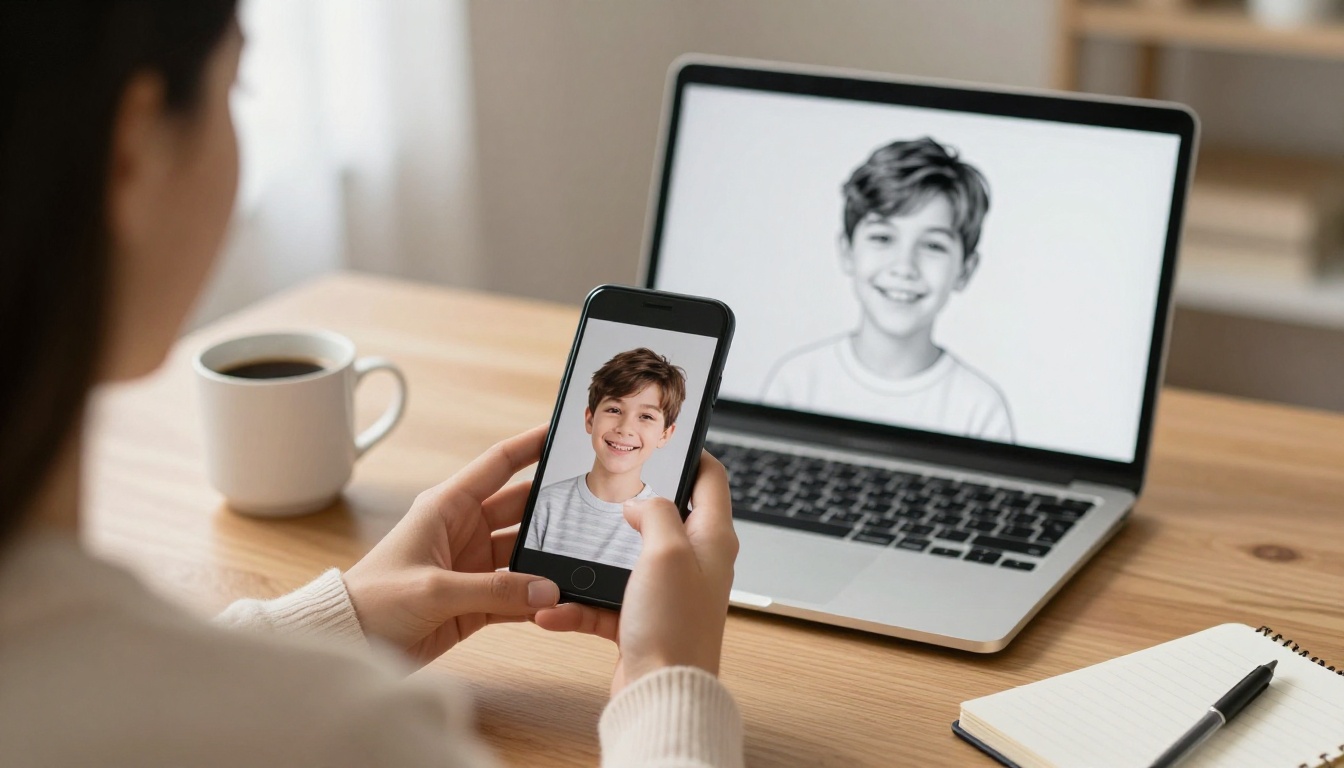
At the simplest level, a photo to coloring page tool takes a color image and returns a black and white line drawing with white fill areas. What happens in between differs a lot from tool to tool, and that difference decides whether your result looks like a professional coloring book or a smudgy photocopy.
From Pixels to Outlines
The oldest approach is edge detection. The software looks for sharp changes in brightness, draws a line wherever it finds one, and discards everything else. It is fast and works offline, but it treats every wrinkle, shadow, and blade of grass as equally important. A portrait ends up with hundreds of tiny strokes across the cheeks, which is miserable to color.
Modern AI tools take a different route. A generative model looks at the photo, recognizes that there is a dog, a fence, and a flower bed, and then redraws the scene as an illustrator would. It chooses which lines matter, closes gaps between shapes, and leaves large white regions that are comfortable to fill.
Why Edge Detection Alone Falls Short
Here is a quick comparison of the two approaches:
| Feature | Classic edge filter | AI line art model |
|---|
| Speed | Instant | 10 to 40 seconds |
| Line cleanliness | Often broken or noisy | Closed, smooth shapes |
| Handles busy backgrounds | Poorly | Can simplify or remove them |
| Face likeness | Loses detail | Keeps recognizable features |
| Difficulty control | Threshold slider only | Prompt or preset based |
| Typical cost | Free | Free tier, credits, or subscription |
💡 Tip: If a tool gives you thousands of tiny lines, it is probably running an edge filter. If the outline looks hand drawn with confident, continuous strokes, a generative model is doing the work.
Free Generators Worth Trying
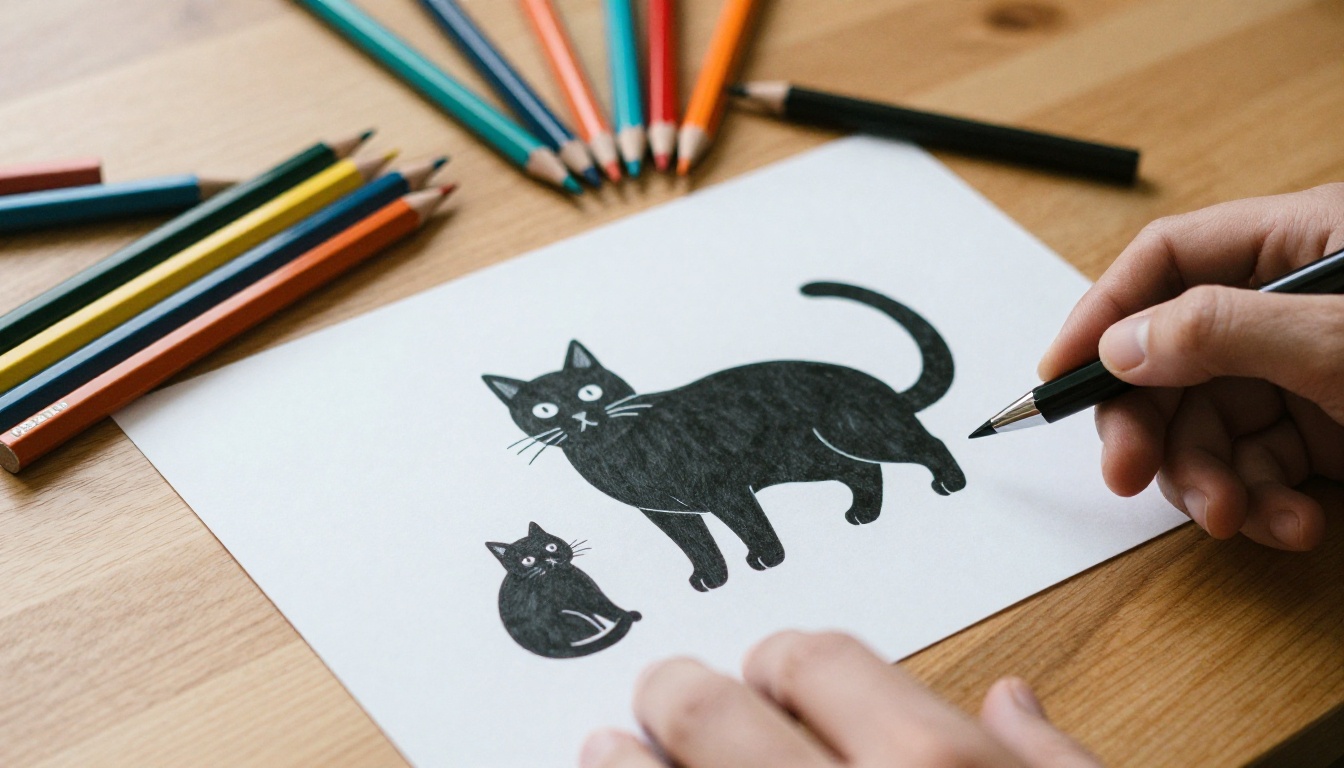
Several browser tools let you drop in a photo and download a printable page without installing anything. The details below come from each vendor's own pages, so treat the "free" claims as marketing language and test the actual limits yourself.
Browser Tools With Free Tiers
Pixelbin's coloring page generator converts a photo into black and white line art in one click. It accepts JPG, JPEG, PNG, and WEBP files, and its page states that you can use it without an account or card details. It also mentions batch processing through an API, which matters if you want to convert a whole folder of pictures.
Cutout.pro's AI coloring page generator offers themed styles such as Mandala and a minimal toddler look. Its page shows a credits button, so heavy use may hit a limit sooner than you expect.
iColoring AI describes itself as watermark free. For photos you can choose whether to remove the background, then save the result as PNG or PDF. The page says processing usually takes about half a minute.
ColorMe.ai is listed as a tool that turns photos or text prompts into printable pages, with a free tier available.
Side by Side
| Tool | Input | Output | Standout feature | Watch out for |
|---|
| Pixelbin | Photo | Line art image | No account claimed, batch API | Few style options |
| Cutout.pro | Photo | Themed line art | Many style presets | Credit limits |
| iColoring AI | Photo or text | PNG or PDF | Optional background removal | Quality varies by photo |
| ColorMe.ai | Photo or text | Printable page | Photo and text modes | Free tier limits |
💡 Tip: Always run your first test on a simple photo, such as a single pet against a plain wall. If the outline looks good there, move on to busier pictures.
Phone Apps for Coloring Pages
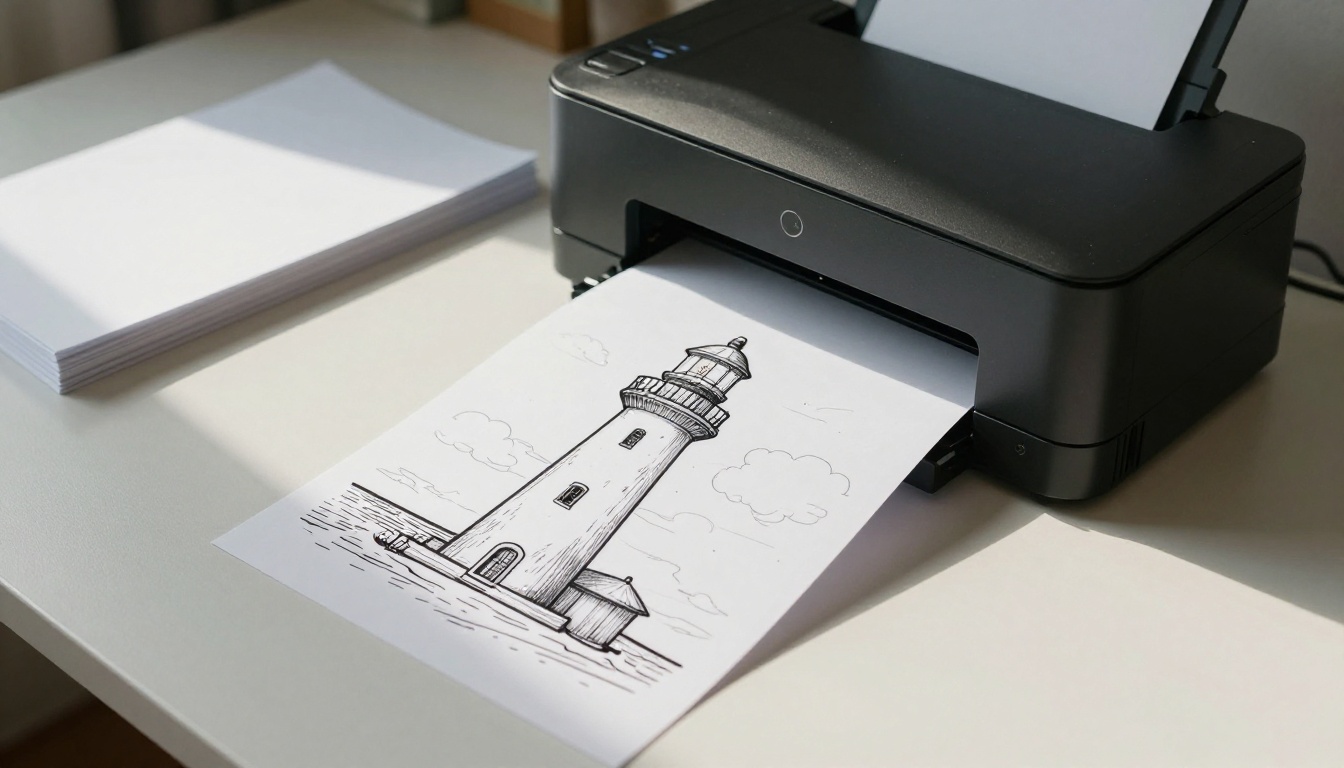
If most of your pictures live on your phone, an app skips the upload and download dance. App store listings show a handful of options for iPhone and iPad.
What the App Store Offers
ColoringBook AI Generator is listed as free with in-app purchases. Its photo feature advertises face preservation and automatic background removal, which is useful for portraits.
AI Coloring Page-Coloring Book is also free with in-app purchases. In photo mode you upload any picture and get a smooth printable outline, with four difficulty levels to choose from.
Crayola Color Camera shows up in comparison lists as a free download with optional purchases, and it is aimed squarely at younger kids.
BestColoringPagesAi has a free version, but its subscription is reported in a range of roughly $5 to $40 per month, and the free plan is limited.
Before You Install Anything
Family photos are personal. Before you upload pictures of children to any app or website, check three things:
- Privacy policy: does the service keep your uploads, and for how long?
- Export limits: can you save a high resolution file, or only a small preview?
- Watermarks: many free tiers stamp a logo across the page, which ruins the print.
If a tool fails any of those checks, move on. There are enough alternatives that you never have to accept a bad trade.
Build Your Own on PicassoIA
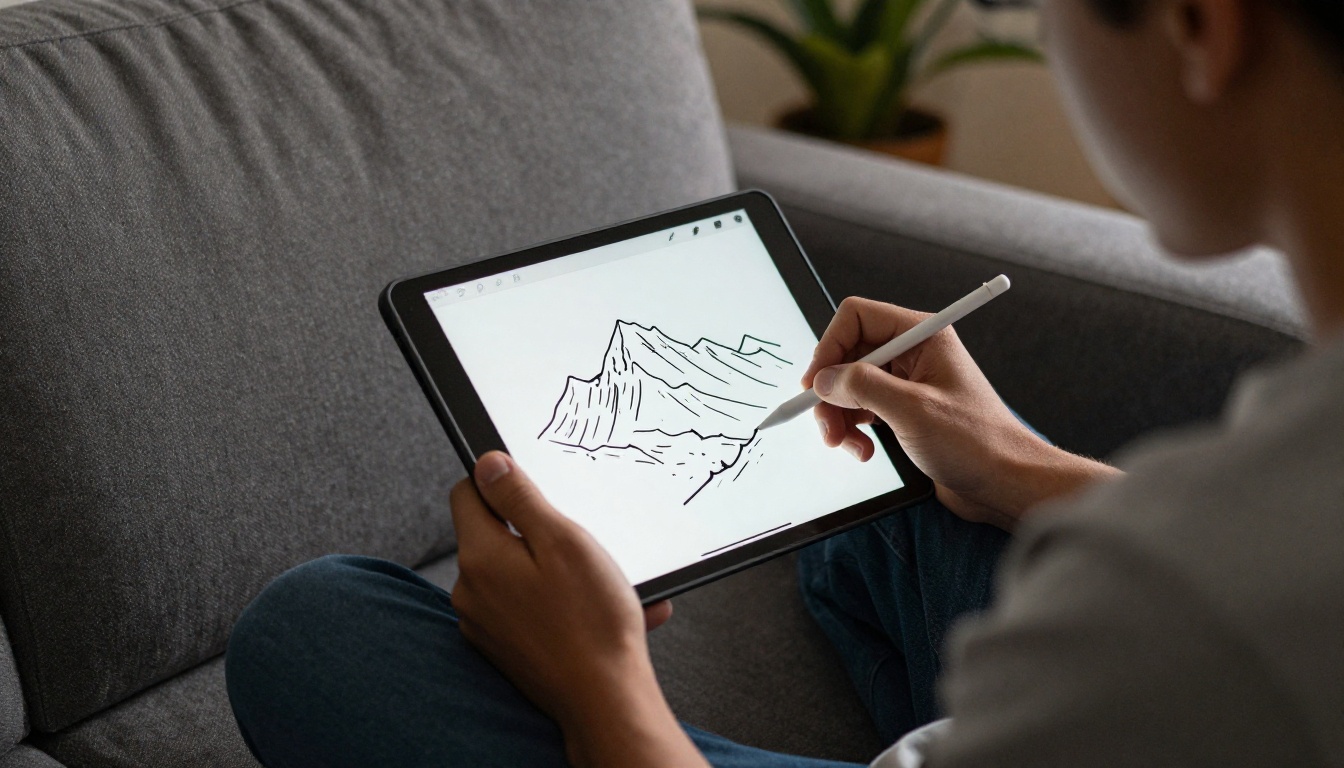
Preset generators are convenient, but they decide the line weight, the style, and the amount of detail for you. An image editing model lets you describe exactly what you want in plain language, and PicassoIA hosts several of them.
Models That Handle the Job
Image editing models take an existing photo plus a text instruction and return a modified version. That is exactly what a coloring page conversion needs. These are good candidates:
- Nano Banana edits and generates images from a photo and a prompt. It tends to keep faces recognizable, which matters for portraits.
- Qwen Image Edit Plus follows detailed editing instructions closely, so it is a good pick when you want strict control over line style.
- Flux Kontext Fast is quick, which helps when you want to test several variations of the same photo.
- Seedream 4.5 produces sharp, high resolution output, handy when you plan to print on large paper.
How to Use Nano Banana on PicassoIA
Here is a simple workflow for converting a photo:
- Open the Nano Banana page on PicassoIA.
- Upload your photo as the input image. A well lit picture with a clear subject works best.
- Write a prompt that names the result you want, for example: "Convert this photo into a black and white coloring page with clean, thick outlines, no shading, no gray fill, white background, large open areas to color."
- Generate the image and look at the result at full size.
- If the lines are too busy, add "fewer details, simplified background" and run it again.
- If the lines are too thin, add "bold outlines, uniform line weight".
- Download the file and print it.
💡 Tip: Say "no shading" and "no gray" every time. Without those words, many models add soft gradients that print as muddy patches and are impossible to color neatly.
Prompt Ingredients That Work
A good coloring page prompt has four parts:
- Output type: "black and white coloring page, line art only"
- Line quality: "thick clean outlines, continuous lines, uniform weight"
- Fill rules: "no shading, no gray tones, no filled black areas, pure white background"
- Complexity: "simple shapes for a young child" or "intricate detail for adults"
Swap the last ingredient to change the difficulty without touching anything else.
Pick Photos That Work
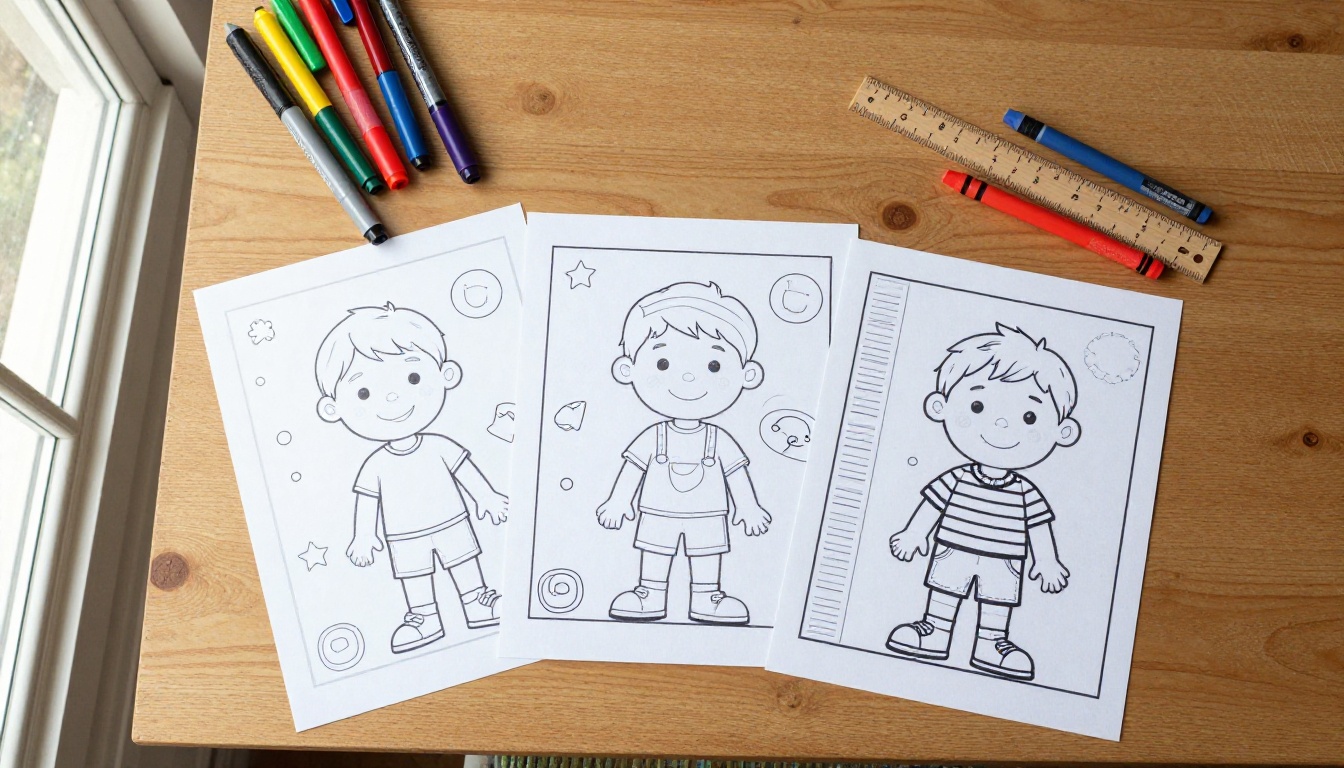
The same tool can give you a gorgeous page from one photo and a mess from another. Source quality does most of the work.
Subjects That Convert Well
- Single pets against a simple background, such as a dog on a lawn
- Portraits with soft, even lighting and the face turned toward the camera
- Landmarks and buildings with clear geometric shapes
- Flowers and gardens shot close enough to show distinct petals
- Toys, cars, and objects photographed against a plain surface
Photos to Skip
- Crowded scenes with a dozen overlapping people
- Low light shots where grain looks like texture to the model
- Heavy filters or strong backlighting, which hide edges
- Tiny subjects in a wide frame, since the outline will be too small to color
💡 Tip: If your favorite photo is busy, crop it tightly around the main subject before uploading. A tighter crop gives the model fewer things to argue about and gives you larger shapes to fill.
Line Weight and Difficulty
Line thickness and shape count decide who enjoys the page. A three year old needs thick lines and big shapes. A retired architect wants fine detail and patterns.
Pages for Young Children
Ask for bold outlines, few shapes, and a blank background. Toddlers have little control over their crayons, so they get frustrated when lines are thin or regions are tiny. Chunky crayons and a simple outline of a pet or a family member make a perfect first project.
Pages for Adults and Seniors
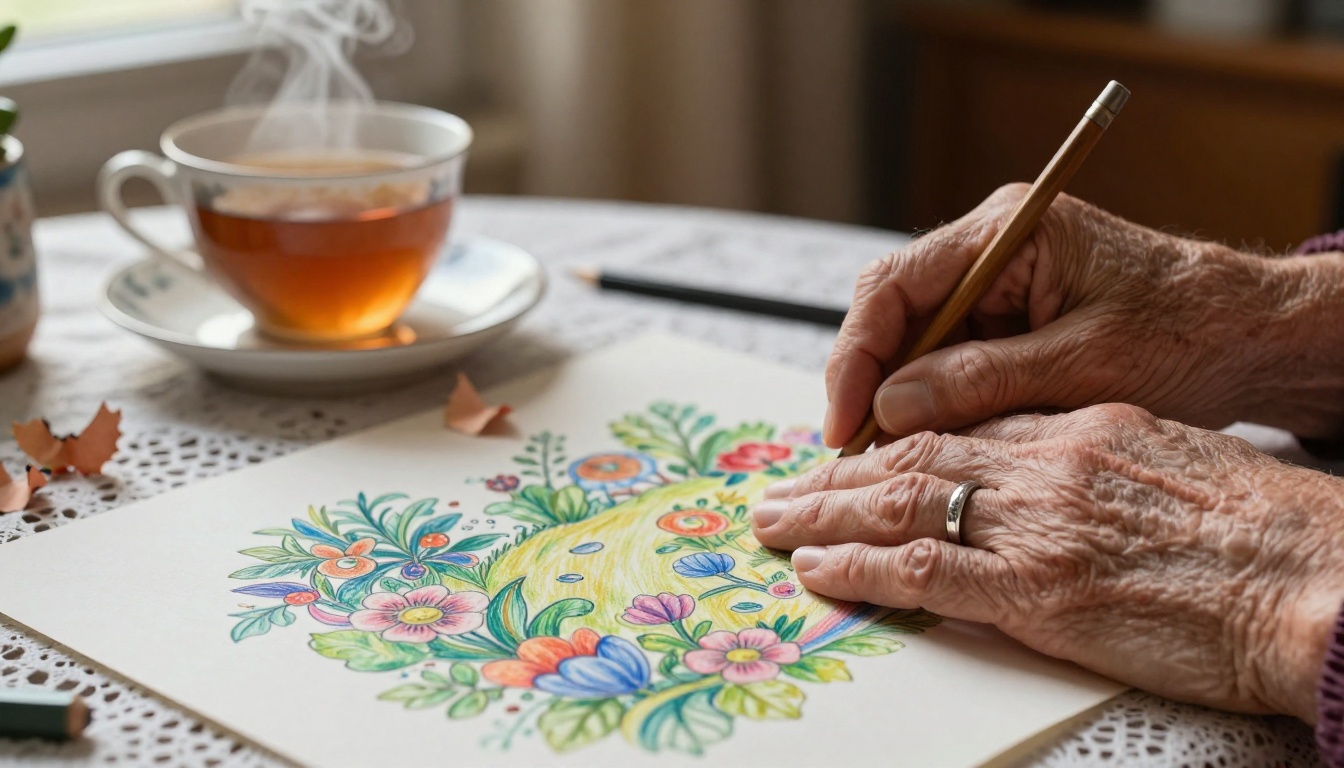
For adults, ask for fine line work, decorative patterns, and rich detail. Garden photographs work especially well, because petals, leaves, and bark already contain natural patterns. Many people find coloring a calm way to spend an evening, and a page made from their own garden or travel photo feels more personal than a store bought book.
Here is a rough reference:
| Audience | Line weight | Detail level | Best tools |
|---|
| Toddlers (2 to 4) | Very bold | Minimal | Kid focused apps, simple presets |
| Kids (5 to 9) | Medium to bold | Moderate | Any generator, with "simple shapes" prompts |
| Teens and adults | Thin to medium | High | Prompt based editing models |
| Seniors | Medium | Moderate with clear shapes | Prompt based tools, large print |
Print and Use Your Pages
A great outline can still disappoint on a bad printout. A few settings make a real difference.
Paper and Printer Settings
- Resolution: export at the highest setting available. A small preview will look blocky once it is printed on letter or A4 paper.
- Paper weight: standard copy paper works for crayons and pencils. For markers, step up to heavier paper so ink does not bleed through.
- Black and white mode: switch your printer to grayscale. It uses less color ink and keeps lines crisp.
- Margins: leave a small white border, because most printers clip the edges.
If your generated outline is a bit low in resolution, run it through a super resolution model before printing. PicassoIA offers upscaling tools for exactly that purpose, and a sharper source means smoother lines on paper.
Ideas Beyond the Kitchen Table
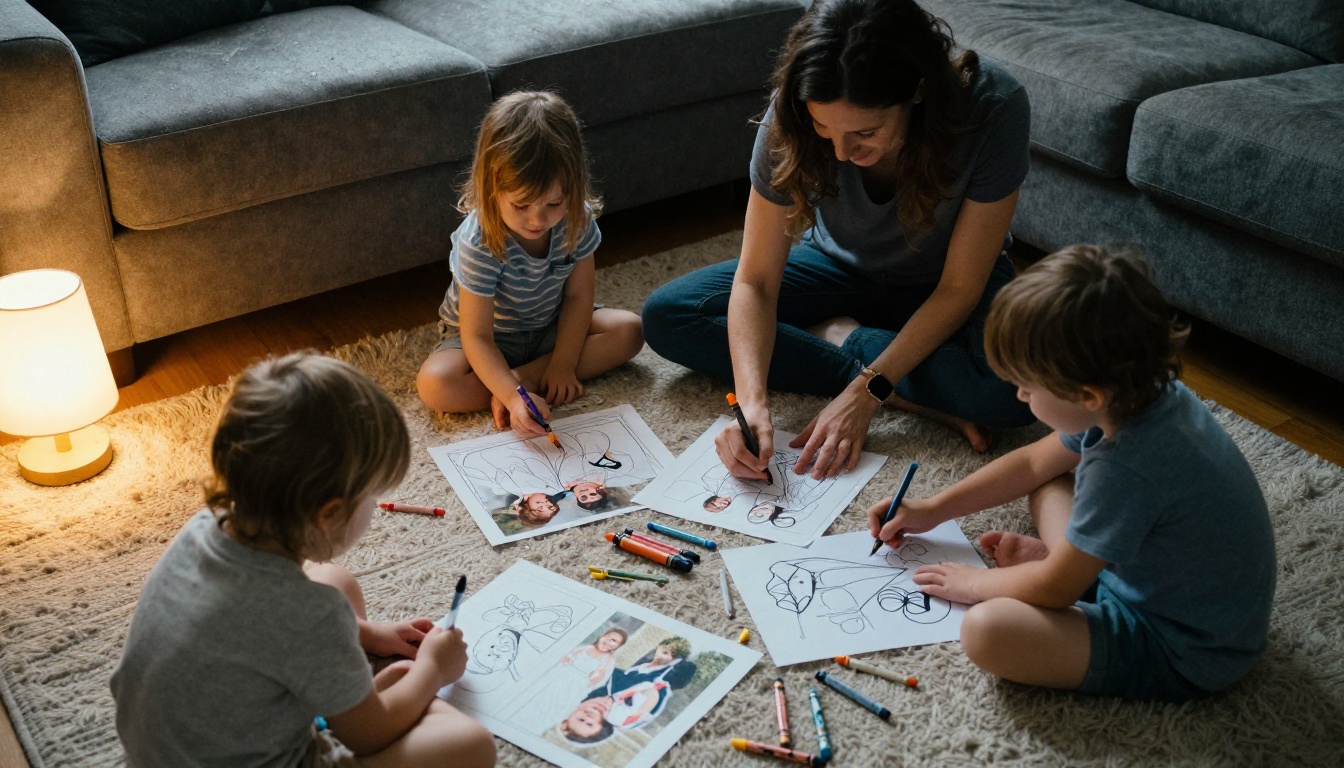
- Birthday party activity: print the guest of honor's portrait for each child to color.
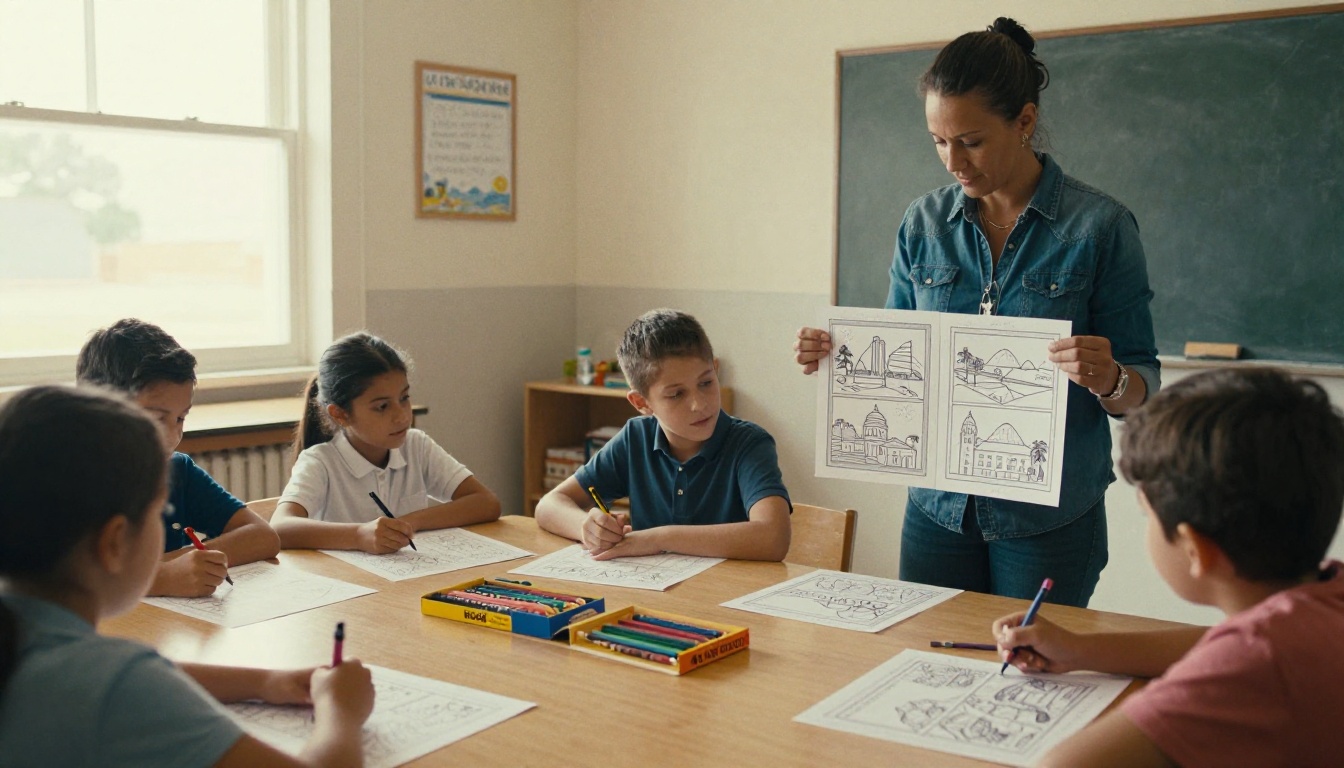
- Classroom projects: convert photos of local landmarks, then use the pages for a lesson on neighborhood history.
- Grandparent gifts: a booklet of family photos turned into pages makes a memorable present.
- Pet memorials: many owners color an outline of a beloved pet as a gentle way to remember them.
- Travel journals: convert a landmark shot and color it in on the trip.
Common Mistakes to Avoid
Most disappointing results trace back to the same handful of errors:
- Using a dark, grainy photo. The model reads noise as detail and draws it everywhere.
- Skipping the background instruction. If you do not say "white background," you often get a half drawn room behind your subject.
- Accepting the first result. One extra prompt tweak usually fixes thin lines or too many details.
- Printing from a thumbnail. Always download the full size file.
- Ignoring privacy. Check what a service does with uploaded pictures of children.
Try It With Your Own Photos
You do not need to pick one tool and stay with it. A smart routine is to use a free web generator for quick, casual pages and a prompt based editing model whenever you want control over line weight, difficulty, and style.
Open PicassoIA, upload a favorite photo, and try the Nano Banana prompt from earlier. Run it twice with different complexity words, print both versions, and see which one your family prefers. Then try Qwen Image Edit Plus or Seedream 4.5 on the same picture to compare outlines. Within a single afternoon you will have a stack of personal coloring pages that no store sells, made from the moments you already care about.


