Most people jump into AI art with no plan and wonder why their results look generic or blurry. This article breaks down the 5 most common mistakes beginners make with AI art, from writing weak prompts to ignoring resolution settings, and shows you exactly how to fix each one for immediate results.
Most people generate their first AI image, stare at a muddy, off-target result, and assume the model is broken. It rarely is. The model did exactly what it was told. The problem is that vague instructions, wrong model choices, and missed settings are invisible to a beginner until someone points them out directly.
The good news: every mistake on this list has a clear fix. Once you spot what is causing each problem, your results shift quickly. Here are the 5 most common mistakes beginners make with AI art, and the exact corrections for each one.
Mistake 1: Your Prompts Are Too Vague
The single biggest cause of disappointing AI art is an underdeveloped prompt. Beginners write "a beautiful woman in nature" and expect a professional result. What they get is a flat, generic output because the model has no real context to work with.
Why one sentence never works
AI image models are literal. They generate exactly what you describe, no more. A prompt like "a sunset" gives the model no information about the mood, the location, the lighting direction, the camera angle, or the visual style. The model fills in all those blanks at random, which is why two people can run the same short prompt and get wildly different results.
The fix: Treat every prompt like a photography brief. Describe the subject, the setting, the lighting, the camera lens, and the visual style you want.
Here is the difference between a weak prompt and one that actually works:
Weak Prompt
Strong Prompt
"a woman in a field"
"A woman in her 30s standing in a golden wheat field at sunset, volumetric light from the left, 85mm f/1.8, Kodak Portra 400 grain, photorealistic"
"a city at night"
"Aerial view of a rainy Tokyo street at night, reflections on wet asphalt, warm storefronts softly blurred, 35mm wide-angle lens, cinematic depth of field"
"a portrait"
"Close-up portrait of a man in his 40s, natural window light from the right, slight stubble visible, 50mm f/2.0, shallow depth of field, film grain"
The longer and more specific your prompt, the more control you have over the output. More words does not mean more confusion for the model. It means more constraints, and constraints produce coherent images.
Words that boost output quality
Terms like "photorealistic," "cinematic lighting," "8K," "natural light," "depth of field," and "film grain" are not decorative. They steer the model toward high-quality outputs. Include them in every prompt regardless of subject matter.
Mistake 2: You're Using the Wrong Model
Beginners often open the first model they find and assume all AI art tools produce similar results. They don't. Different models are trained on different datasets and optimized for different types of output. Using a fast draft model for your final artwork is like shooting a product campaign on a phone camera.
Why model choice matters more than you think
Some models prioritize speed. Others prioritize detail. Some excel at photorealism, others at painterly or stylized outputs. Picking the wrong model for your goal produces mediocre results no matter how strong your prompt is.
Which model fits your goal
Here is a practical breakdown of the three most relevant models for beginners on PicassoIA:
For beginners,Flux Schnell is the best starting point. It generates a 1-megapixel image in under 5 seconds with no credit caps, which means you can run 50 prompt variations in a single session without burning through resources. Once you find a direction you like, switch to Flux Dev for the final high-fidelity version.
Negative prompts are one of the most powerful tools in AI art, and most beginners never touch them. A negative prompt tells the model what not to include in the image. Without one, the model has complete freedom to add elements you never asked for.
The cost of skipping negative prompts
Run a portrait prompt without a negative prompt and you may get: extra fingers, two faces merged together, watermarks in the corner, text artifacts scattered across the scene, or blurry areas that look structurally wrong. None of those things appeared in your positive prompt. They appeared because there was no instruction to exclude them.
The most effective negative prompt terms for beginners:
blurry, out of focus — removes soft, undefined areas
extra fingers, deformed hands — fixes the notorious AI hand problem
watermark, text, logo — removes embedded text artifacts
bad anatomy, disfigured, mutation — keeps proportions correct
duplicate, clone — prevents doubled subjects
Build your standard negative prompt
Copy this and paste it into any generation as your baseline:
blurry, out of focus, extra fingers, deformed hands, watermark, text, logo, oversaturated, cartoon, illustration, low quality, jpeg artifacts, bad anatomy, disfigured, duplicate, grain noise
Adjust it based on what you observe. If portraits keep showing soft backgrounds when you want them crisp, add "soft background" to the list. Negative prompts are not fixed rules; they are a living reference you refine over time.
Mistake 4: You're Ignoring Resolution and Upscaling
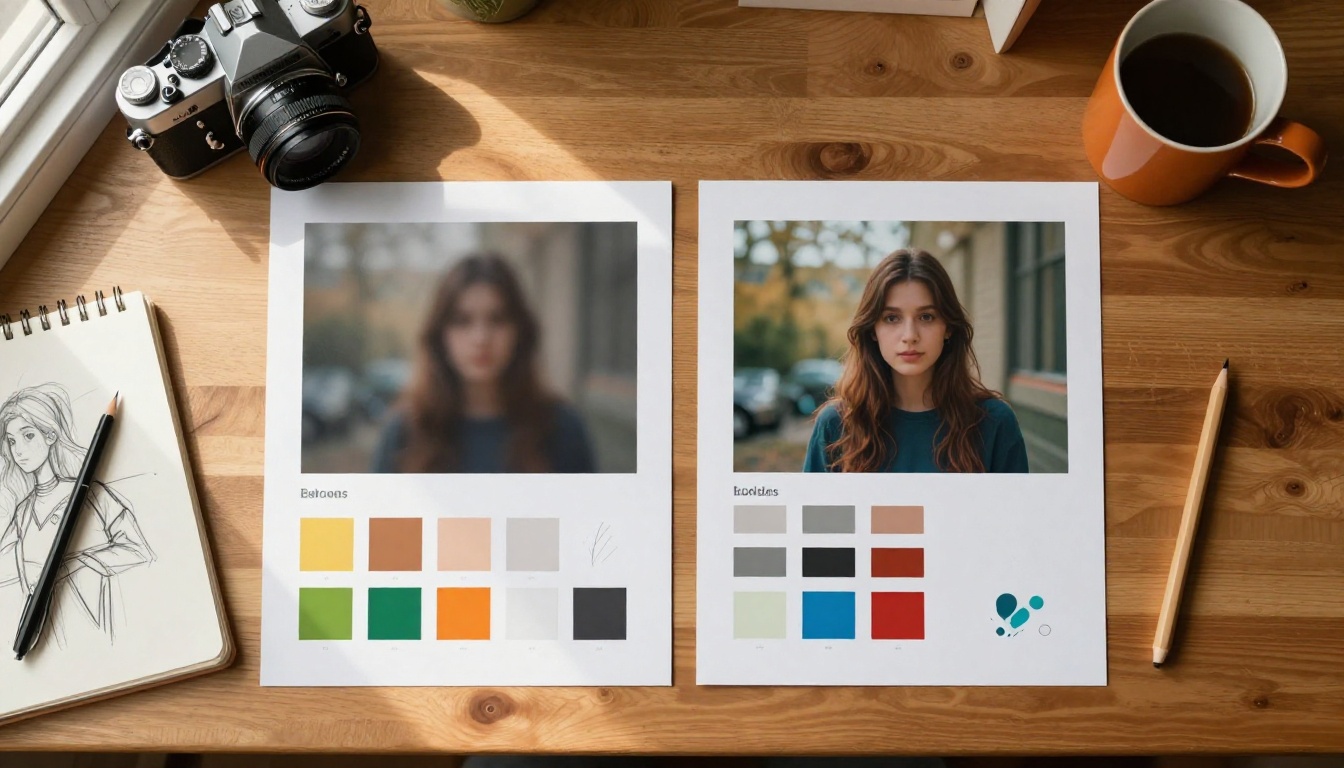
A well-crafted prompt on a good model will still produce a disappointing result if the resolution settings are wrong. Many beginners generate at default settings, see a small or soft image, and conclude the model is at fault. It is not. The resolution settings were never adjusted.
Resolution settings that actually matter
Most models default to 512x512 or 768x768 pixels. For a social media thumbnail, that might work. For a print, a banner, or a portfolio piece, it will not. Low resolution means visible pixel edges, soft detail, and an image that falls apart at any meaningful display size.
The fix: Always set your output resolution to the highest available option. For Flux Schnell and Flux Dev, that means setting megapixels to "1" and choosing the right aspect ratio for your use case.
Aspect ratio is not just a visual choice. It affects how the model composes the scene. A 16:9 ratio tells the model it is framing a widescreen environment. A 9:16 ratio signals a vertical portrait composition. Running a landscape subject in a portrait ratio produces a cropped, awkward result.
Use Case
Best Aspect Ratio
Social media post (square)
1:1
YouTube thumbnail / banner
16:9
Instagram story / mobile
9:16
Print artwork
4:3 or 3:2
Ultra-wide wallpaper
21:9
Upscaling for final quality
Even a 1-megapixel image can look soft when printed or displayed at large sizes. AI upscalers fix this without regenerating the image from scratch.
PicassoIA has several dedicated upscaling models:
Real ESRGAN: Free upscaler that sharpens images up to 4x. Strong on photorealistic outputs.
Google Upscaler: Enlarges photos 4x without detail loss. Handles faces and natural textures well.
Topaz Image Upscale: The highest-ceiling option, scaling up to 6x with impressive sharpness retention.
💡 Make upscaling the final step in every workflow. Generate at 1 megapixel, then pass the best result through Real ESRGAN or Topaz Image Upscale for a print-ready file.
Mistake 5: You Generate Once and Stop
This is the mistake that separates people who get consistently good results from those who don't. One generation is never enough. AI art is an iterative process. The first output shows you where the model went, not where it should go.
Why the first result is almost never the best
The first generation is a draft. It tells you whether the model interpreted your prompt correctly, whether the composition works, and whether the lighting and style are pointing in the right direction. It is not the final piece. Treating it like one is how you end up settling for mediocre work.
The habit to build: run at least 5 to 10 variations of any important prompt before settling on a direction.
Seed-locking for controlled iteration
When you find a result that is close to what you want but not quite right, do not abandon it. Lock the seed and change one element at a time.
How seed-locking works:
Generate an image and note the seed number from the output
Copy the seed into the seed field on the next run
Change only one part of your prompt
Compare the two outputs side by side
This shows you exactly what each prompt change does. It is the difference between random variation and intentional control. Both Flux Schnell and Flux Dev support seed parameters, making this workflow straightforward.
Think of each generation as a conversation. You write a prompt, the model responds, you refine, the model responds again. The best AI artists are not the ones with the most creative initial ideas. They are the ones who iterate fastest and read the model's output most accurately.
💡 Spend more time refining your prompt than waiting for results. The generation takes seconds. The thinking should be slower and more deliberate.
How to Use Flux Schnell on PicassoIA
Flux Schnell is the ideal starting model for applying everything above. It is the fastest text-to-image model on the platform, generates at 1 megapixel, supports 11 aspect ratios, and has no generation caps. Here is how to run your first serious image with it.
Set up and write your prompt
Go to the Flux Schnell page on PicassoIA. No account or credits required to start.
Write a structured prompt using the formula from above. A practical starting prompt:
A woman in her late 20s sitting in a sunlit café, reading a book, soft morning light from the left window, 85mm f/1.8, shallow depth of field, Kodak Portra 400 grain, photorealistic, 8K
Then set your parameters:
Aspect ratio: 16:9 for widescreen, 1:1 for square
Megapixels: Set to "1" for full resolution
Go Fast: Leave enabled
Num Inference Steps: Keep at 4 (the recommended value for Schnell)
Seed: Leave blank on the first run, then lock it once you find a direction worth refining
Generate, evaluate, and refine
Add your baseline negative prompt into the negative field, then run the generation.
Ask yourself after each output:
Did the composition match what I described?
Is the lighting direction correct?
Are there any artifacts (extra fingers, watermarks, blurry areas)?
If the composition is right but quality needs to go further, copy the same prompt into Flux Dev and set inference steps to 28-50 for a more polished result.
Once you are satisfied with the output, bring it to Real ESRGAN or Topaz Image Upscale to scale it up for any final use.
What Changes When You Fix All Five
The gap between a beginner's first AI image and their 50th is not about talent. It is about seeing what is actually causing each problem. Vague prompts produce generic outputs. Wrong model choices waste time. Missing negative prompts introduce artifacts. Low resolution limits usability. And stopping after one generation means leaving your best work unfinished.
Fix all five and your results shift immediately. Not gradually over weeks. Immediately, within the next session.
Mistake
Root Cause
Fix
Generic, flat images
Vague prompts
Use the structured prompt formula
Wrong style or subject
Wrong model selected
Match model to output goal
Artifacts and distortions
No negative prompts
Add a standard negative prompt baseline
Soft or small images
Default resolution settings
Set to 1 megapixel, upscale after
Never getting great results
Stopping after one attempt
Iterate 5 to 10 times per concept
Start Creating Your Best AI Art Now
Everything in this article is something you can apply in the next 20 minutes. Open Flux Schnell on PicassoIA, write a structured prompt using the formula above, add your negative prompt, set resolution to 1 megapixel, and run five variations. Compare them. Adjust one element. Run five more.
By the end of that session you will have results that look nothing like your first attempt, and you will see exactly why each change mattered.
PicassoIA has over 91 text-to-image models, including Flux Schnell, Flux Dev, and Stable Diffusion, alongside dedicated upscalers like Real ESRGAN and Topaz Image Upscale, all with no generation caps. The only limit is how many iterations you are willing to run. Start there.