Getting your AI-generated character to wear the exact same outfit across ten different images sounds simple until you try it. The blazer shifts color. The belt disappears between scenes. The trousers turn into shorts without warning. If you have spent an afternoon regenerating the same scene hoping the outfit would stick, this article is for you.
AI art consistency in clothing is a solvable problem. You just need the right workflow. Here are 5 practical, field-tested tips that work across any text-to-image generator, plus a walkthrough for putting them into practice on PicassoIA.
Why Outfit Consistency Is Hard in AI Art
The Core Problem with Text-to-Image Prompts
Text-to-image models do not "remember" anything between generations. Every prompt is processed from scratch. When you type "woman in a red blazer," the model interprets that relative to its entire training distribution. A "red blazer" in one generation and a "red blazer" in the next are not the same jacket. They share a statistical cluster in the model's latent space, but the exact cut, buttons, fabric texture, and collar shape vary every time.
This is the fundamental challenge of AI fashion consistency: the model has no memory, so you have to provide it.
What Happens Without a Plan
Without a structured system, outfit drift creeps in fast. You start with a cream blouse and forest green trousers, but by image five the blouse is ivory, the trousers have become navy, and a belt has appeared from nowhere. By image ten you are looking at a completely different character.
The fix is not more regenerations. It is better architecture in your prompts. The following five tips address this directly, from the earliest planning stage to the final review.
Tip 1: Write a Detailed Style Anchor Prompt
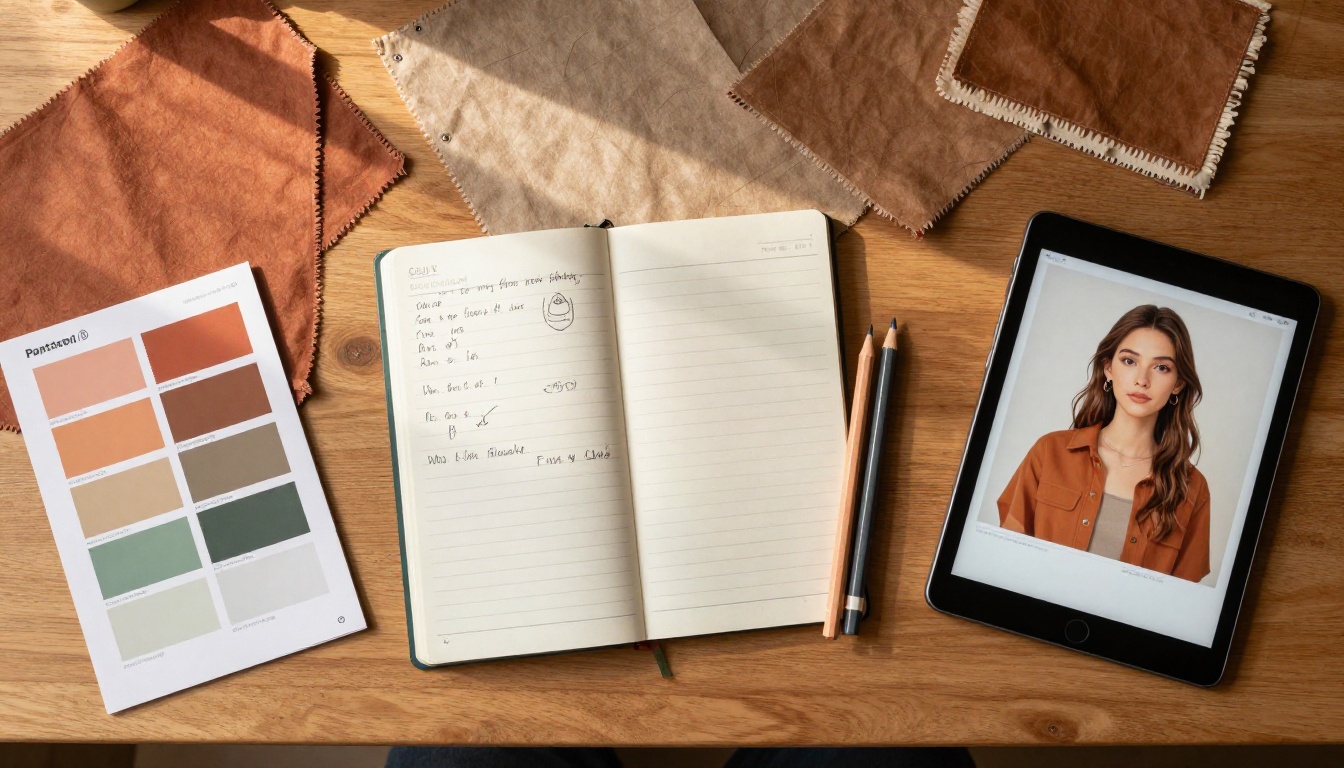
The single most effective technique for consistent outfits in AI art is writing a style anchor: a dense, specific block of outfit description that you paste verbatim into every single prompt.
Most people write something like: "woman wearing a blazer and trousers." That is not an anchor. That is a suggestion.
What a Style Anchor Looks Like
A proper style anchor reads like this:
"wearing a structured caramel-tan single-breasted wool blazer with notched lapels and visible stitching along the seams, paired with high-waist wide-leg cream linen trousers with two side pockets, a polished gold rectangular belt buckle on a 3cm dark tan leather belt cinching the waist, and pointed-toe cream leather mules with a 4cm block heel"
Notice the difference. Every garment has a fabric, a cut, a color with modifier, and visible hardware or detail. This level of specificity narrows the model's sampling window dramatically and produces far more consistent output across multiple generations.
Words That Actually Work
These descriptors reliably improve outfit consistency across sessions:
| Vague Term | Specific Anchor |
|---|
| "red blazer" | "burgundy single-breasted structured wool blazer, notched lapels" |
| "jeans" | "high-waist straight-cut mid-wash indigo denim jeans" |
| "belt" | "3cm caramel leather belt with polished gold rectangular pin buckle" |
| "heels" | "pointed-toe cream leather block-heel mules, 4cm heel height" |
| "bag" | "small structured cream leather top-handle bag with gold clasp" |
💡 Pro tip: Save your style anchor in a notes app and copy-paste it into every new prompt without editing a word. Consistency requires friction-free repetition.
The more you specifiy, the less the model guesses. Guessing is where outfit drift begins.
Tip 2: Build a Character Reference Sheet
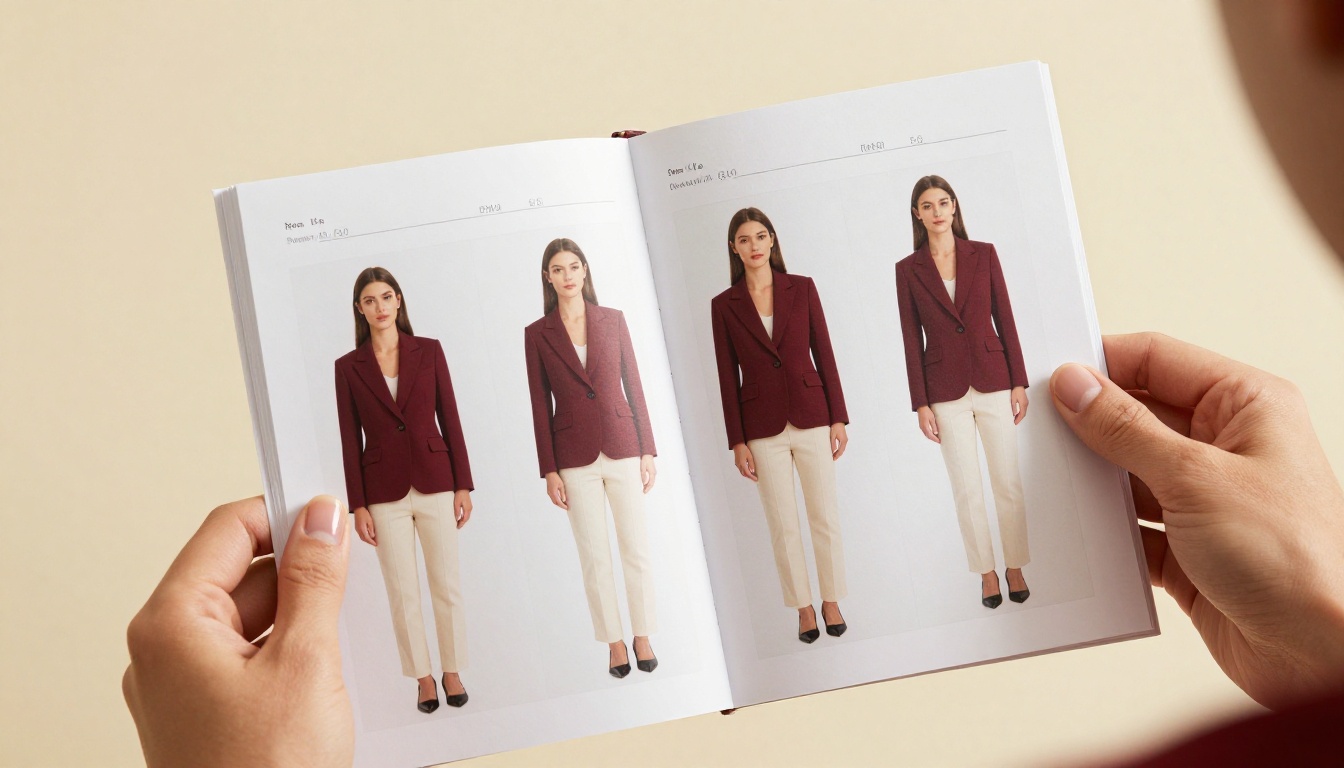
A character reference sheet is one of the oldest tools in animation and illustration. Applied to AI art, it becomes your visual consistency contract. Where the style anchor is a text standard, the reference sheet is its visual equivalent.
What to Include in Your Sheet
Generate your character in at least four neutral poses wearing the exact same outfit, using your style anchor prompt. Save these as your reference images. Your sheet should show:
- Front view with arms at sides, full body
- Three-quarter view in a natural relaxed stance
- Side profile from the left or right
- Back view to confirm jacket back, belt position, and shoe heel
Once you have four solid reference generations, you have proof of concept that the prompt works. Every subsequent generation should use the same prompt structure and, where possible, the same seed number.
Using It Across Scene Variations
Pin your reference sheet somewhere visible while you work. Before every generation, run this quick check: does my current prompt contain every element shown in the reference? If a detail is missing, add it back before generating.
This approach is especially powerful when creating scene variations: your character in a cafe, in a park, in a corporate lobby. The location changes. The style anchor and reference sheet behavior stay identical. The outfit travels with the character regardless of context.
Tip 3: Use an LLM to Write Your Prompts
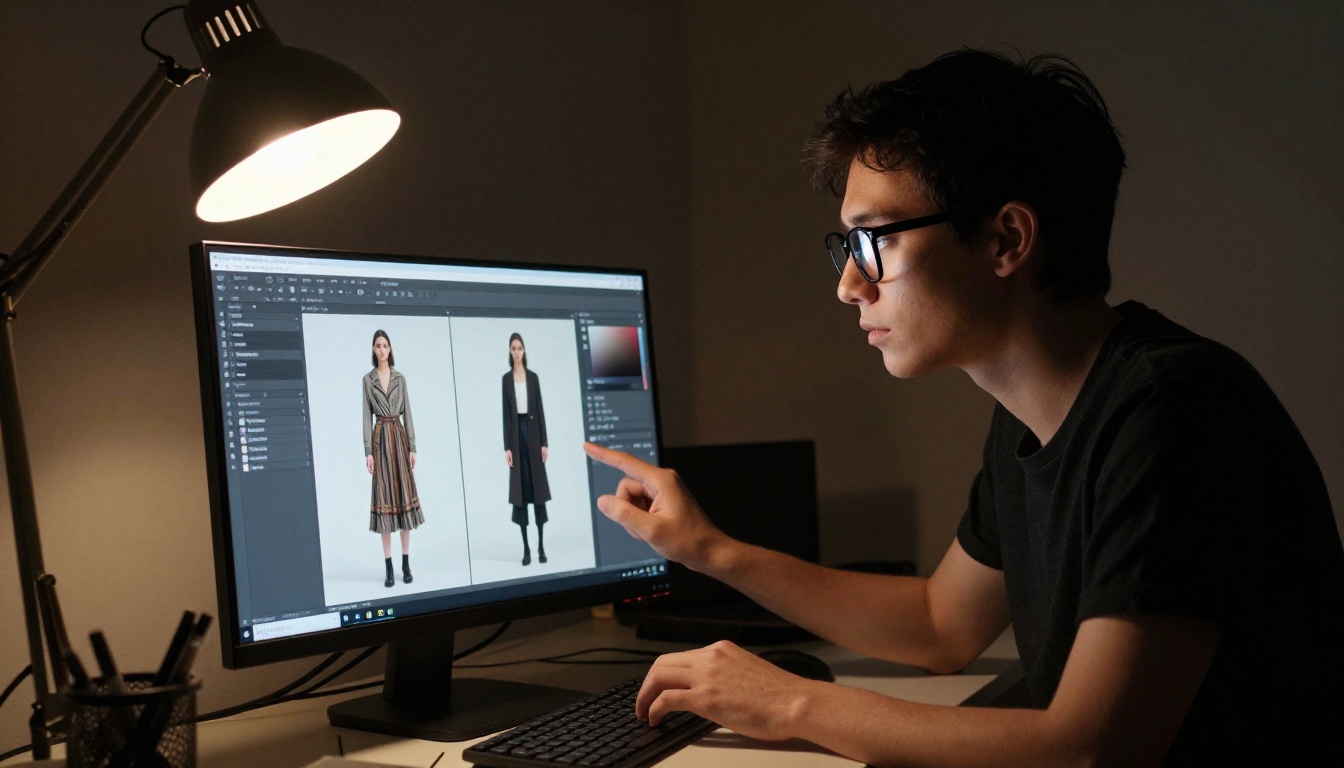
Here is a technique very few AI artists use consistently: put a large language model between your idea and your image generator. LLMs are outstanding at expanding vague outfit descriptions into precise, repeatable style anchors.
Why LLMs Are Outfit Consistency Engines
A model like Claude Sonnet 4.6 or GPT 5 can take a brief description and return a fully expanded, specific style anchor in seconds. Give it this kind of input:
"I want a character wearing a 1970s-inspired outfit. Brown palette. Professional but with a bohemian edge."
Then ask the LLM to return a detailed text-to-image prompt covering specific fabrics, colors with Pantone-style descriptors, visible hardware, and cut details. The LLM's language precision translates directly into reduced variance in your generated images. You are using an AI writer to write better instructions for an AI image model.
This is a particularly powerful workflow because LLMs are trained on vast amounts of fashion writing, styling vocabulary, and descriptive language. They know the difference between a "cocoon coat" and an "A-line overcoat," between "onyx" and "matte black," between "ribbed" and "cable-knit." That vocabulary precision is exactly what consistent outfit generation requires.
Best LLMs on PicassoIA for This Workflow
PicassoIA gives you access to top language models alongside its image generators, so you can run the entire workflow in one place:
- Claude Sonnet 4.6 — exceptional at nuanced descriptive writing and fashion vocabulary
- GPT 5 — fast, accurate at expanding brief style notes into fully detailed prompts
- Gemini 3.5 Flash — ideal for iterating quickly across many outfit variations
- DeepSeek V3.1 — strong multilingual support if you work in languages other than English
- GPT-4o — reliable for structured, templated prompt output
The workflow: write your rough outfit idea in plain language, send it to an LLM on PicassoIA, get back a fully formed style anchor, paste it into your image generator. This single step cuts inconsistency significantly and takes under two minutes.
Tip 4: Lock Your Seed and Style Settings
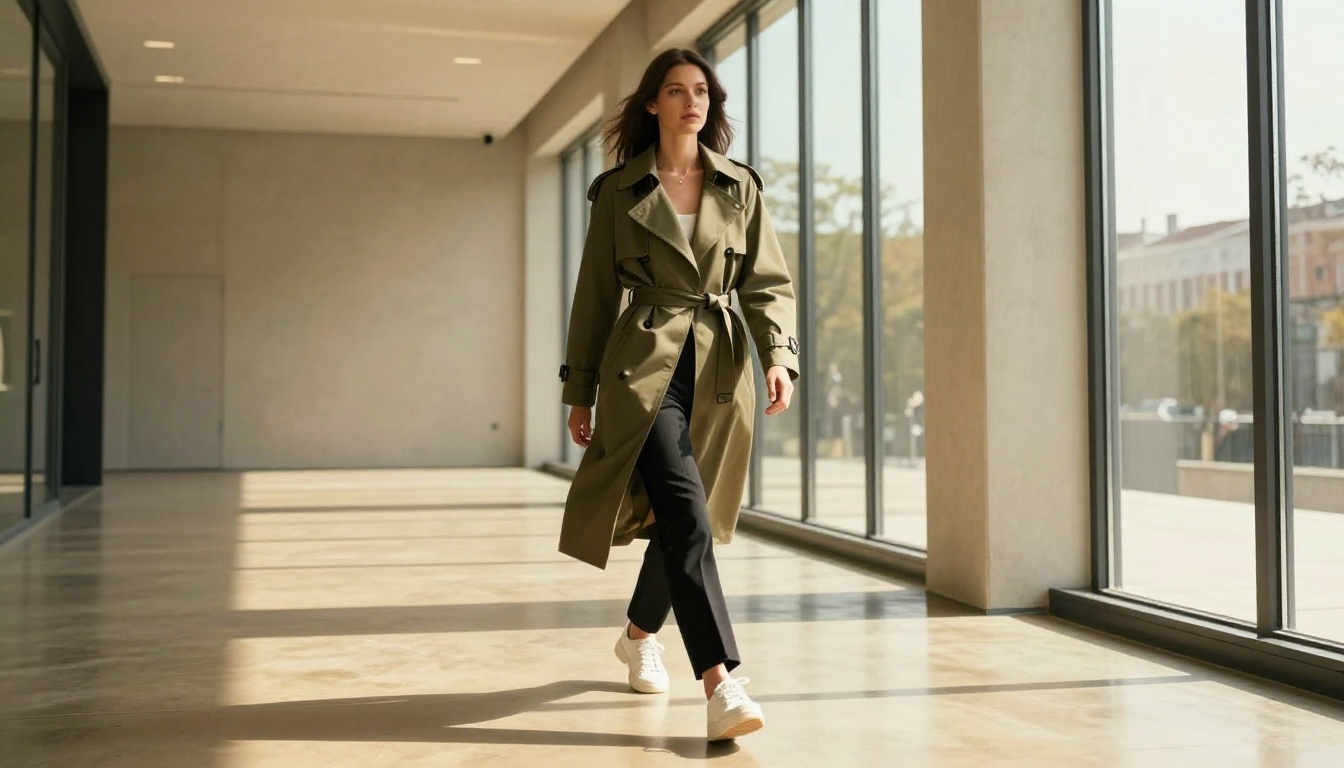
Once you find a generation you love, the seed number that produced it is pure gold. A seed is the number that initializes the random noise the model uses to build your image. Same prompt plus same seed plus same settings equals virtually identical output.
How Seed Numbers Work
Most text-to-image generators include a seed value in their generation output. Write it down immediately. When you want scene variations of your character, keep the seed constant and vary only the environmental descriptors:
- Swap "in a cafe" for "in an autumn park" — the outfit stays consistent
- Swap "morning overcast light" for "golden hour backlight" — the character does not change
- Swap "standing" for "sitting on a bench" — far less outfit deviation than starting from a new seed
This is called seed anchoring, and it is one of the most reliable AI outfit consistency tools available regardless of which platform you use.
💡 Keep a simple spreadsheet with: prompt version, seed number, notes on what worked. This becomes your single source of truth for a character series.
When to Break the Seed
Seed locking is not permanent. If you need your character in a dramatically different pose, an extreme close-up, or an unconventional angle, the seed may start degrading output quality or introducing artifacts. In those cases, return to your style anchor, generate fresh without a locked seed, find the best output, record that new seed, and use it going forward for that new context.
Think of seeds as session checkpoints: use them heavily within a creative session, and refresh them when your scene requirements shift significantly.
Tip 5: Upscale and Sharpen Outfit Details
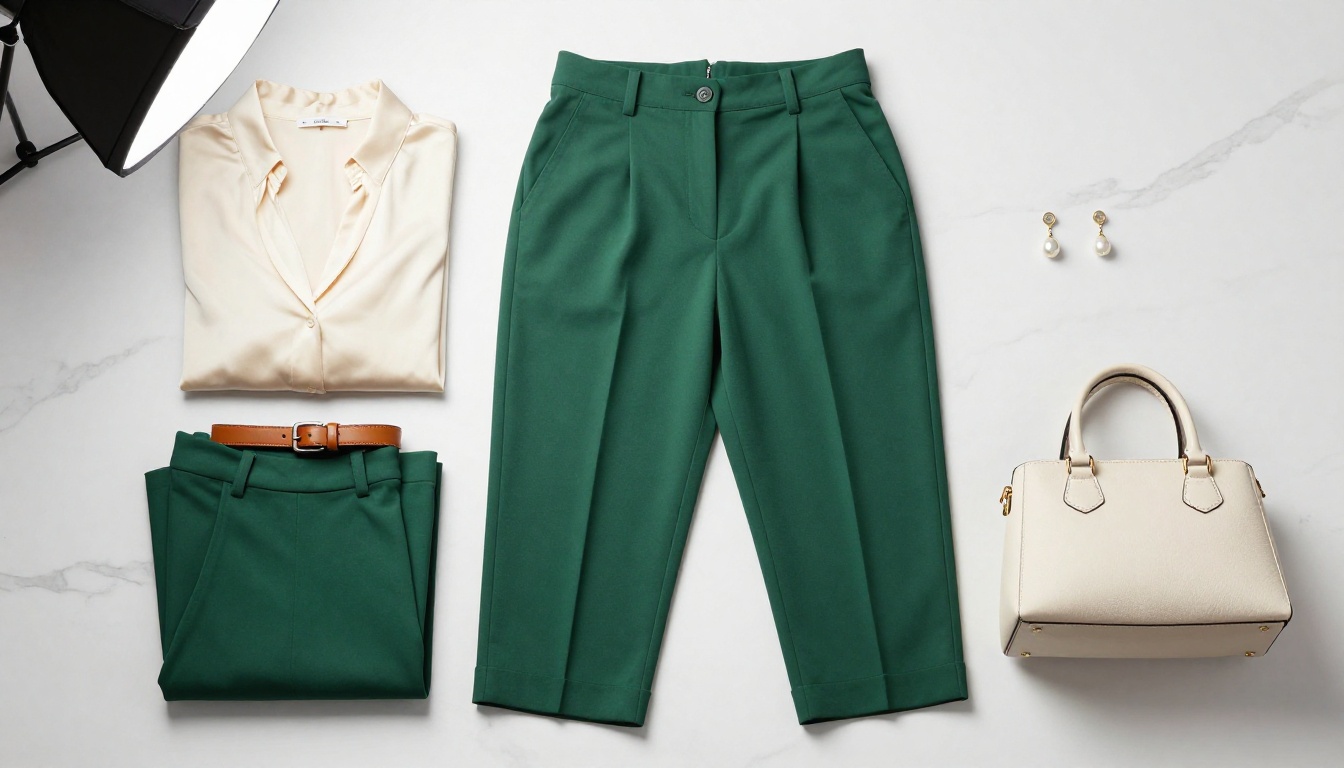
This is the most underrated tip on this list. Low-resolution generations hide outfit inconsistencies. At 512x512 or even 768x768 pixels, fabric details smear together. Buttons blend into cloth. Belt textures flatten. When you upscale post-generation, these inconsistencies become obvious, and they compound across a series of images.
Review every image at high resolution before deciding it is consistent with your reference sheet.
Why Resolution Matters for Consistency Review
High-resolution images reveal the true state of your outfit. A blazer that looks perfect at thumbnail size may show the wrong button count or mismatched stitching at 4K. Upscaling before your consistency review gives you an accurate picture of what the model actually produced.
It also improves your next generation directly. When high-resolution review reveals a discrepancy, you can identify the specific detail that drifted and add it explicitly back into your style anchor. Low-resolution review misses these correction opportunities entirely, which is why outfit drift often goes unnoticed until you have a large series of images that no longer match each other.
Best Upscalers on PicassoIA
PicassoIA offers dedicated super-resolution models that preserve and sharpen clothing texture and detail:
- Clarity Pro Upscaler — photorealistic enhancement with excellent preservation of textile micro-texture, ideal for detailed fabric work
- Crystal Upscaler — specialized for portrait and clothing detail, perfect for fashion-focused AI art series
- Real ESRGAN — fast 4x upscaling with strong detail reconstruction across fabric and leather surfaces
- Image Upscale by Topaz Labs — industry-standard quality at up to 6x magnification, retaining micro-texture in both fabric and skin
Run every outfit generation through one of these before your consistency review. What looks consistent at 512px may reveal problems at 4K. Catching them early saves significant time.
Using These Tips on PicassoIA
PicassoIA brings text generation, image generation, and upscaling into a single platform. That integration makes the consistency workflow significantly faster than jumping between separate applications.
Step-by-Step for Your First Consistent Character
Step 1: Write your style anchor with an LLM. Open Claude Sonnet 4.6 or GPT 5 on PicassoIA and describe your character's outfit in plain language. Ask the model for a detailed, specific text-to-image prompt covering fabric type, exact color names, cut details, visible hardware, and footwear.
Step 2: Generate your reference sheet. Take your expanded style anchor and paste it into a text-to-image model on PicassoIA. Generate four neutral-pose versions: front, three-quarter, side, back. Record the seed for every image you want to carry forward.
Step 3: Review at high resolution. Run each reference image through Clarity Pro Upscaler or Crystal Upscaler. Check fabric texture, button count, belt details, and shoe style at full resolution before locking in your reference sheet.
Step 4: Refine your style anchor. If the high-resolution review reveals discrepancies, update the anchor prompt. Add the specific details that drifted. Re-generate and re-upscale until the reference sheet is solid and consistent across all four views.
Step 5: Generate your scene variations. With your anchor prompt and seeds saved, generate your actual scenes. Keep the style anchor verbatim in every prompt. Vary only the environment, lighting condition, and pose. Check each output at high resolution before adding it to your final series.
This workflow turns what used to be a frustrating regeneration loop into a systematic, repeatable process that produces professional-level consistency.
Now Build Your Own AI Wardrobe
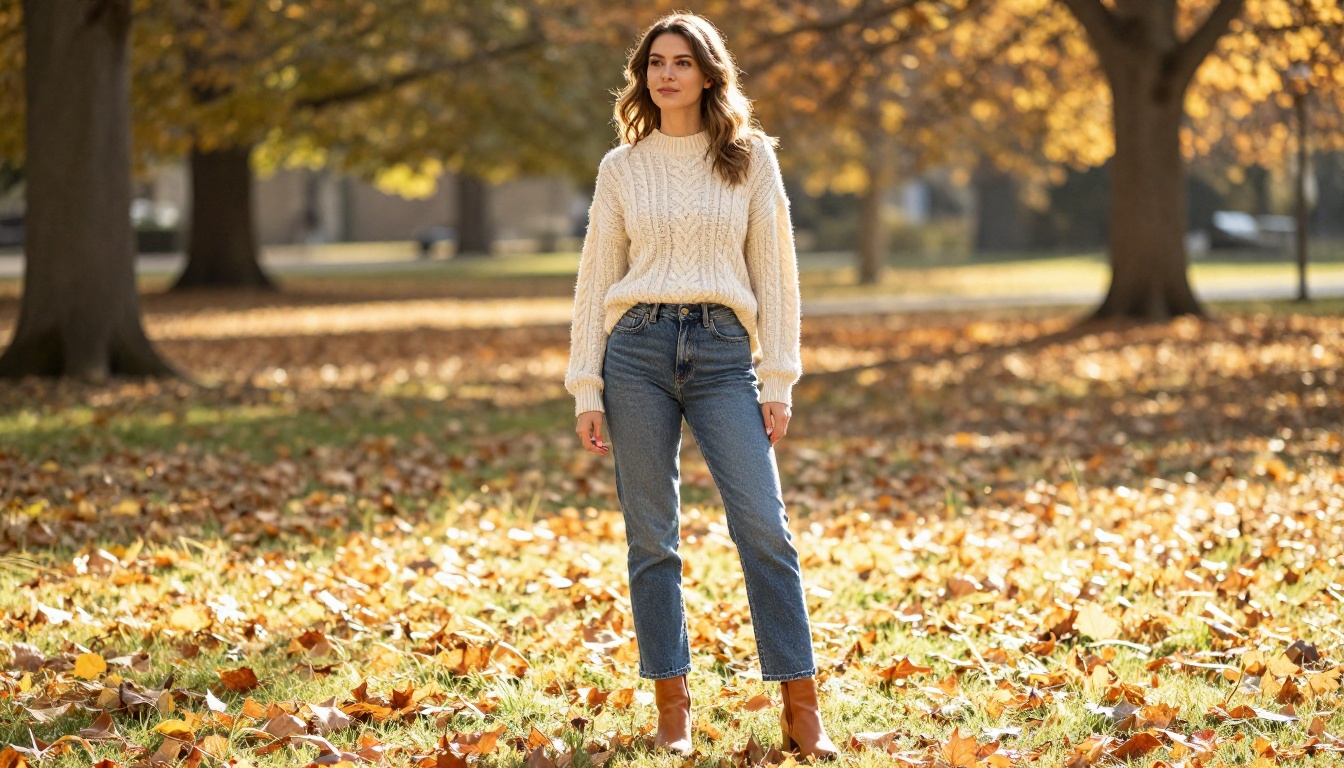
Outfit consistency in AI art is not about luck or regeneration odds. It is a craft built from specific language, visual reference discipline, seed management, and high-resolution review. The artists producing the most coherent AI character series are not generating more images. They are generating smarter.
Every tip in this article compounds the others. A strong style anchor makes your reference sheet more coherent. A solid reference sheet makes seed anchoring more effective. High-resolution review catches the gaps that text and seeds miss. Used together, these five practices create a consistent wardrobe that travels reliably across any scene you build.
PicassoIA gives you every tool in one place: powerful large language models to write your style anchors, over 90 text-to-image models to bring your characters to life, and professional-grade upscalers to review and sharpen every result.
Browse the full catalog at picassoia.com/en/all-models and start building your first consistent AI wardrobe today.


