Your AI companion videos are generating real reactions, but without subtitles, you're losing a significant portion of your audience before the first line of dialogue ends. Over 85% of social media video is consumed without sound. That number alone should reshape how you approach every piece of content you publish.
Adding subtitles to your AI companion videos is not optional anymore. It is a retention mechanism, an accessibility feature, and a direct driver of watch time, all in one. With modern AI transcription and captioning tools, the process takes minutes rather than hours, and the results are measurable: captioned videos outperform uncaptioned ones across every major platform.
This article walks through the full caption workflow: from automatic speech-to-text transcription, to styling your captions for different platforms, to a step-by-step breakdown of the tools that make the process fast and accurate.
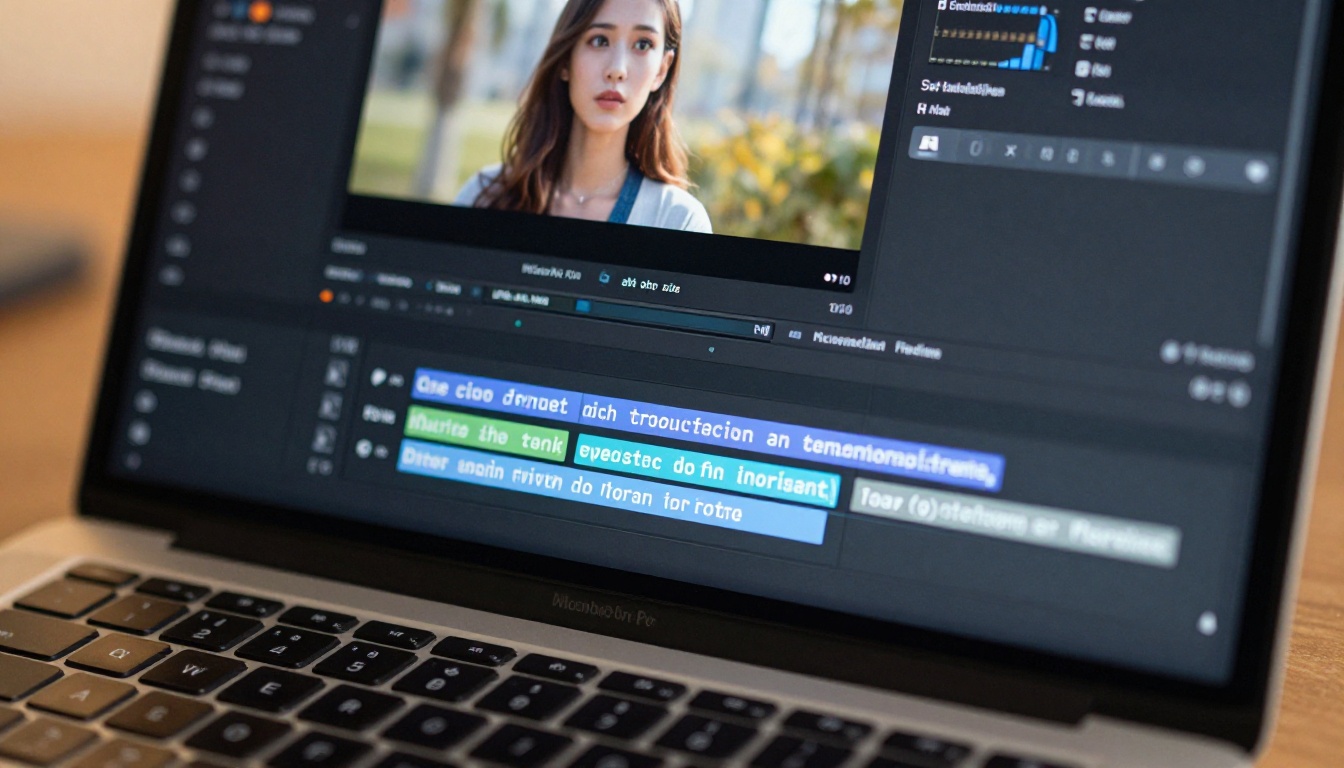
What Makes AI Companion Videos Different
AI companion videos present a specific set of captioning challenges that standard video content does not. When you are working with synthesized voices, AI-generated characters, and algorithmically composed dialogue, the context viewers need to follow along is different from watching a human speaker on camera.
Synthesized Voice Patterns
AI-generated voices are exceptionally clear compared to natural speech, which is an advantage for transcription accuracy. However, they sometimes deliver phrasing and sentence rhythms that do not map cleanly onto natural human speech patterns. Captions need to break at natural cognitive pause points, not just at arbitrary character counts.
This matters more for companion videos than for a product demo. Companion content is emotionally driven. The pacing of captions directly affects how the viewer experiences that emotional beat. A caption that breaks mid-phrase kills the rhythm of the interaction.
Visual Complexity Demands More Care
AI companion videos frequently feature dynamic backgrounds, animated characters, and visual effects that compete for attention with text overlays. This means you need to be more intentional about caption placement and contrast than you would in a simple talking-head format.
Placing captions over a face, an animated element, or a high-contrast background without a proper text shadow reduces readability dramatically. The solution is consistent: always use a drop shadow, a semi-transparent background bar, or position the caption in a visually calm zone of the frame.
Subtitles Matter More Than You Think
Most creators treat subtitles as an afterthought, something to add if time permits. That is exactly the wrong mental model. Captions are a core part of the viewing experience for a huge portion of your audience.
Who Actually Watches Without Sound
Think about where people consume video: on public transit, in a waiting room, in bed next to someone sleeping, at work with colleagues nearby. The default behavior on every social platform is silent viewing. If your AI companion video relies on the audio track to carry its meaning, you have already lost those viewers.
There is also a language dimension. Subtitles help non-native speakers follow along at their own pace. They help viewers who are hard of hearing or deaf. They also help people who prefer to read along while watching, a segment of the video audience that is larger than most creators assume.
Watch Time and the Algorithm
Every major platform, including TikTok, Instagram Reels, and YouTube Shorts, uses watch time as a primary ranking signal. Captions directly extend watch time by giving silent viewers a reason to stay. A viewer who would have scrolled away at three seconds stays because the subtitles are pulling them through the content.
💡 Platform tip: YouTube auto-generates captions, but they are often inaccurate on AI-synthesized voices and cannot be styled. Always upload your own SRT file or burn captions directly into the video for consistent quality on every platform.
How AI Transcription Works
Before you can add subtitles, you need a transcript. For AI companion videos with synthesized speech, AI transcription is fast and remarkably accurate, consistently hitting 95 percent or higher accuracy on clean audio.
The Speech-to-Text Pipeline
Here is what happens when you run a video through an AI transcription model:
- The audio track is extracted and processed as raw waveform data
- The model identifies phoneme boundaries and maps them to a vocabulary
- It produces a word-level transcript with precise start and end timestamps
- The transcript is segmented into subtitle blocks formatted as SRT or VTT
The output is an SRT (SubRip Text) or VTT (Web Video Text Tracks) file, both of which can be loaded into any video editor or uploaded directly to social platforms.
Gemini 3 Pro vs GPT-4o Transcribe
Two models stand out right now for AI companion video transcription. Both are available directly on PicassoIA:
| Model | Best For | Speed | Accuracy on Synthetic Voice |
|---|
| Gemini 3 Pro | Long-form videos, multilingual content | Fast | Excellent |
| GPT-4o Transcribe | Short clips, high-accuracy single pass | Very Fast | Excellent |
| GPT-4o Mini Transcribe | High-volume batches, cost-sensitive runs | Fastest | Very Good |
For most AI companion videos with synthesized speech, GPT-4o Transcribe delivers the best balance of speed and accuracy. For multilingual companion content or longer videos, Gemini 3 Pro consistently performs better on nuanced audio.
How to Use Autocaption on PicassoIA
PicassoIA includes Autocaption by Fictions AI, a dedicated captioning tool that handles the full workflow automatically: transcription, timing, styling, and burn-in. It is the fastest path from a raw AI companion video to a fully captioned, ready-to-post clip.
Step-by-Step Setup
Step 1: Upload your video
Go to Autocaption on PicassoIA and upload your AI companion video. Supported formats include MP4, MOV, and WebM.
Step 2: Set your language
Select the language of the voiceover. Autocaption supports multiple languages and handles accented synthetic speech cleanly.
Step 3: Choose your caption style
Style presets include:
- Bold white with black outline (highest readability across all backgrounds)
- Karaoke highlight (each word highlights as it is spoken)
- Minimal lowercase (clean, editorial feel)
- Colored emphasis (emphasis words highlighted in a contrast color)
Step 4: Set font size and position
For vertical videos (9:16), place captions in the middle-lower third. For horizontal (16:9), use the standard lower third. Never position captions over faces or visual focal points.
Step 5: Generate and download
Autocaption transcribes and styles captions in one pass, then renders a new MP4 with captions burned in alongside a downloadable SRT file for platform uploads.
💡 Pro tip: Download the SRT file and upload it separately to YouTube and Vimeo. Both platforms index caption text for search, which directly boosts discoverability for your AI companion content.
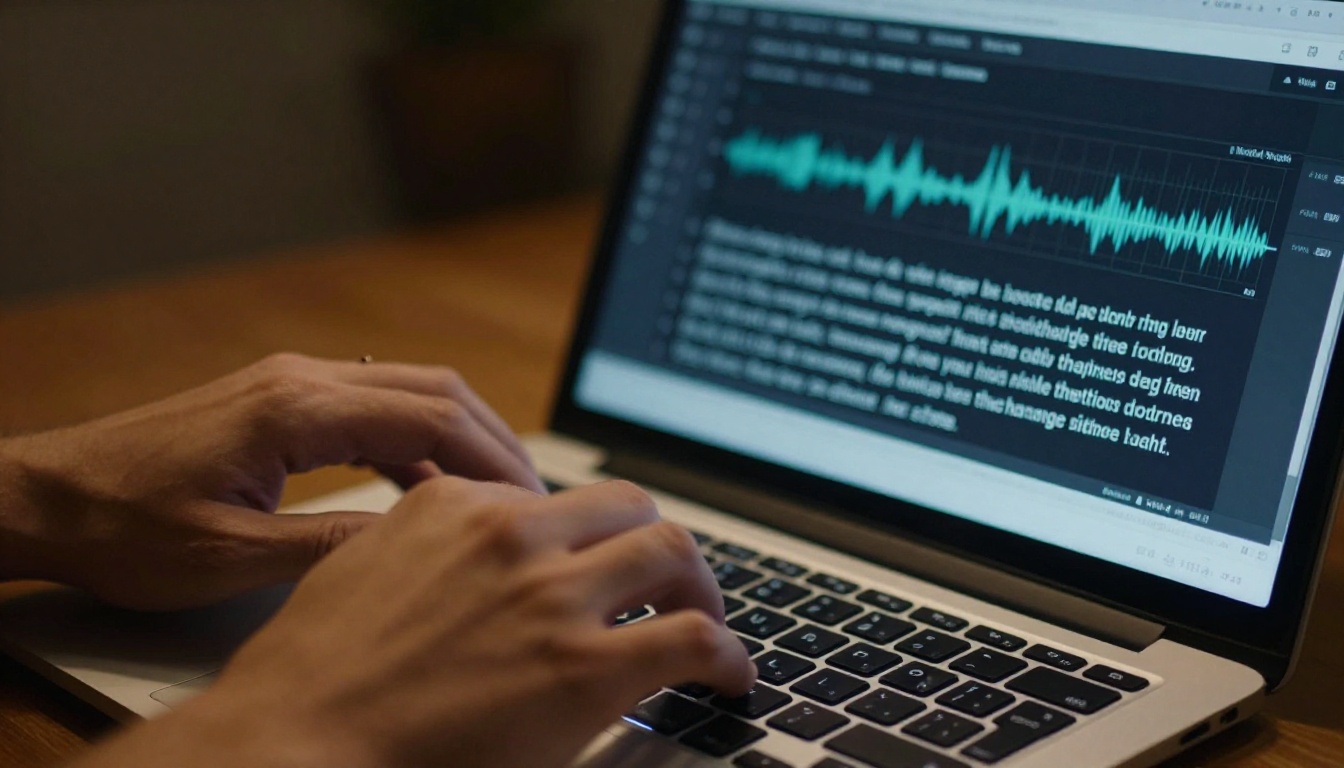
Style Options That Actually Work
Not all caption styles perform equally across platforms:
| Platform | Recommended Style | Why |
|---|
| TikTok | Bold, centered, karaoke | Matches the platform aesthetic |
| Instagram Reels | Clean white, lower-center | Suits browsing behavior |
| YouTube Shorts | Standard lower third | Familiar, readable at speed |
| LinkedIn | Minimal, sentence case | Professional context |
| Twitter/X | Bold, 3-4 words per line | Fast-scroll environment |
The general rule: shorter segments, larger text, higher contrast. If a viewer cannot read a caption in under one second, the segment is too long or the font is too small.
3 Common Caption Mistakes
Getting captions on your AI companion videos is the easy part. Getting them right is what separates content that performs from content that barely gets watched.
Wrong Timing Burns Retention
The most frequent technical mistake is subtitle timing that lags behind the audio by even half a second. This creates cognitive friction: the viewer reads words that do not match what they are hearing. After this happens twice, they scroll away.
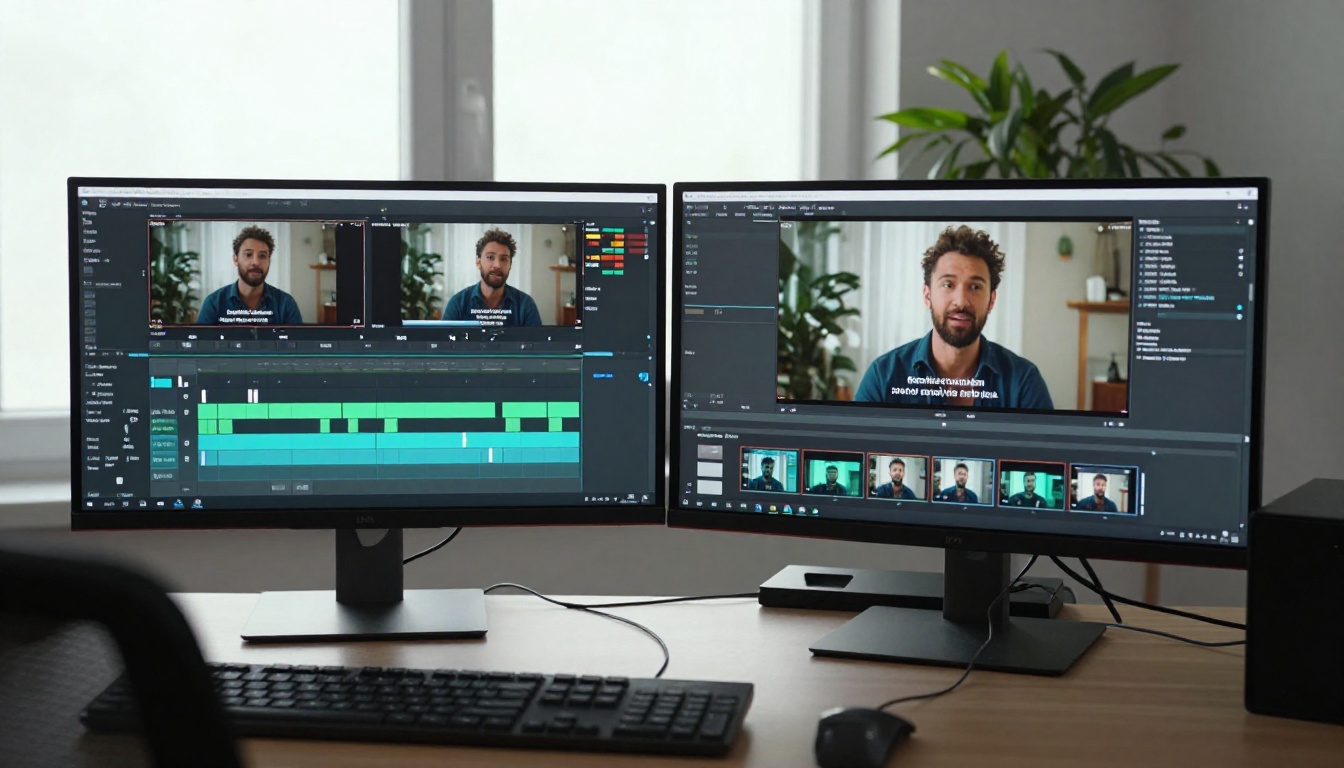
Fix: After auto-generating captions, always do a manual pass at 1x speed. Check every segment boundary against the audio. Most editors let you drag waveform handles directly to correct timing.
Captions That Clash With Visuals
AI companion videos frequently feature animated characters, dynamic backgrounds, and expressive visual moments. Placing captions over faces or high-contrast areas without a text shadow destroys readability and breaks the visual experience.
Fix: Always use a drop shadow (at minimum 2px blur, 50% opacity black) or a semi-transparent caption bar. When the lower third is visually busy, move captions to the upper portion of the frame.
Forgetting the Silent Audience
Some creators add subtitles but still write scripts around audio cues: "listen to this part," "hear the difference here," "notice the sound." These phrases are meaningless to viewers watching silently.
Fix: Write every caption as if sound does not exist. Replace audio-dependent cues with on-screen text descriptions or visual callouts. Treat subtitles as the primary communication channel, not a backup.
💡 Accessibility note: Burned-in captions (hardcoded) are visible on every platform and player. Soft subtitles (SRT files) can be turned off by the viewer. For full accessibility, always burn in captions as the baseline delivery.
Editing and Polishing Your Captions
Auto-generated captions are a starting point. A polished caption track needs a few additional passes to tighten up the result.
Trim, Split, and Sync
The four operations you will use most:
- Split: Break a long segment into two shorter ones for better readability
- Merge: Combine very short segments that appear in rapid succession
- Trim: Adjust start and end timestamps when captions bleed into the wrong visual moment
- Delete: Remove filler sounds ("um," "uh") that distract without adding meaning
PicassoIA's Trim Video handles precise cuts if you need to clean up silence or dead air before the transcription pass. Cleaner audio produces more accurate transcripts with less manual correction needed afterward.
For videos assembled from multiple clips, Video Merge lets you combine segments and maintain subtitle timing across the full piece cleanly.

Exporting SRT and VTT Files
An SRT file is the most universally supported subtitle format. Every major video platform accepts it. A VTT file is better suited for web player embedding and HTML5 video elements.
When uploading to YouTube, always attach the SRT directly to the video so the caption text gets indexed for search. On Instagram, there is no external SRT support for Reels, which makes burned-in captions the only reliable option. On LinkedIn, upload the SRT through the native video uploader for professional accessibility.
Posting Captioned AI Videos Everywhere
Every platform has its own rules for subtitles, and knowing those rules prevents wasted effort.
Platform-Specific Caption Rules
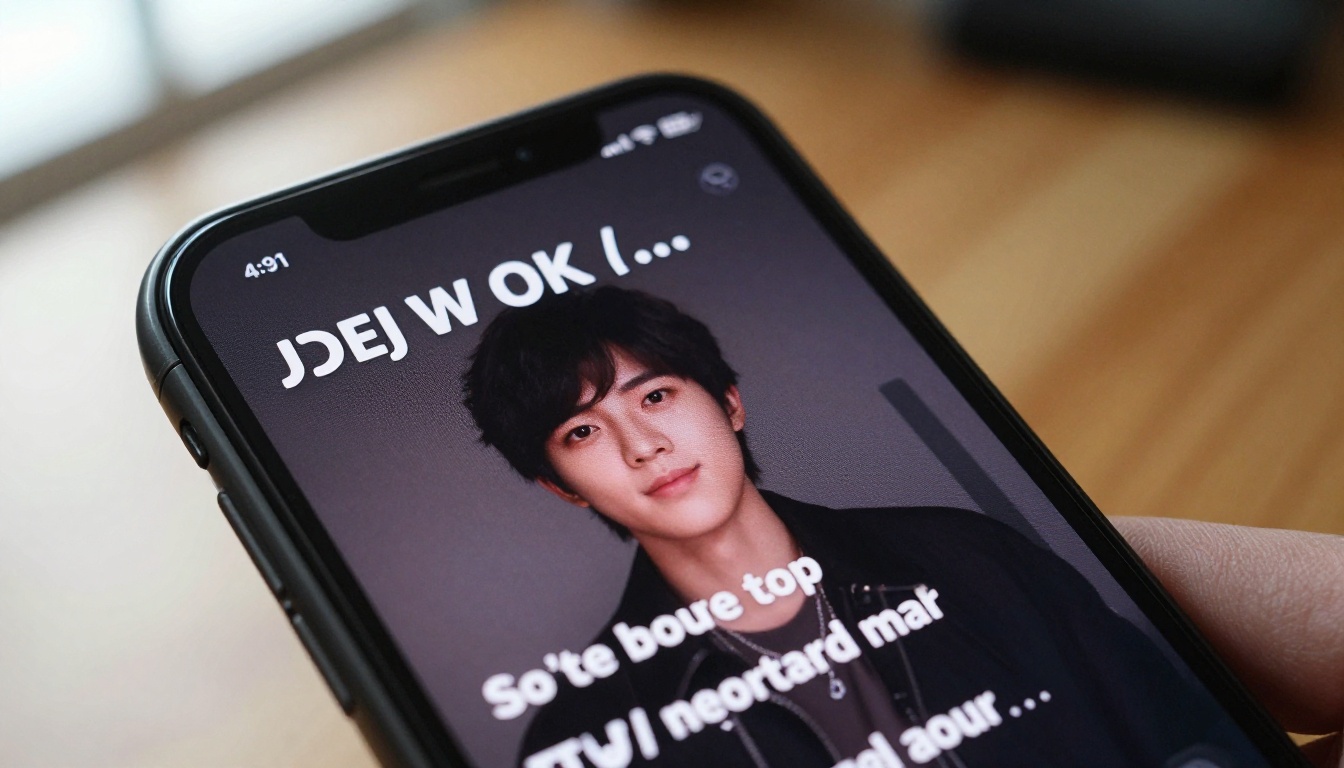
TikTok: Auto-generates captions that viewers can toggle on or off. These are often inaccurate on synthetic voices. Burning in captions guarantees the right text shows up regardless of what TikTok generates automatically.
Instagram Reels: App-generated captions exist but offer no typography control. Burned-in captions are the only way to control visual style precisely.
YouTube Shorts: Supports uploaded SRT files and auto-generated captions. Uploading an SRT is strongly recommended since YouTube indexes caption text and uses it for content discovery.
LinkedIn: Accepts SRT file uploads through the video uploader. Clean, professional styling performs significantly better in this context than animated or karaoke-style captions.
Twitter/X: No SRT support. Burned-in captions are the only option. Short segments (3-4 words maximum) perform best in a fast-scroll feed.
Burning In vs. Soft Subs
| Method | Pros | Cons |
|---|
| Burned-in (hardcoded) | Works on every platform, always visible | Cannot be disabled by viewer |
| Soft subs (SRT/VTT) | Searchable on YouTube, viewer-toggleable | Not visible where metadata is stripped |
The practical answer for most AI companion video creators: burn in captions as the default, then also provide an SRT for platforms that support separate file uploads. One captioning session covers both use cases.
💡 Workflow shortcut: Generate your captioned video once with Autocaption, download both the MP4 and the SRT, then distribute both to all relevant platforms. One session, every use case covered.
What Accurate Transcription Actually Requires
Poor caption quality is usually an audio input problem, not a tool problem. Here is what makes the actual difference:
Clean audio wins every time. AI-synthesized voices have exceptional clarity, which is why companion videos typically produce very accurate transcripts. But background music or ambient sound layers will interfere with transcription accuracy even on the best models.
Recommended audio setup before transcription:
- Keep background music at least 15 dB below the voiceover level
- Avoid overlapping audio during any spoken dialogue
- Export the video with audio at -3 dBFS peak (standard broadcast level)
When audio quality is uncertain, start with GPT-4o Mini Transcribe: it is faster and more affordable, so you can iterate on audio quality before committing to a full transcription pass with the more intensive models.

While you are in the editing workflow, several other tools on PicassoIA work alongside captioning to improve overall video quality.
P Video Edit lets you modify any video using a text prompt, which is useful if you need to adjust the visual style of your AI companion video after the generation step. Restyling content after the fact saves significant iteration time compared to regenerating from scratch.
If your companion video needs to be cut down for a specific platform, Trim Video handles precise cuts without requiring a full desktop editor. Pair it with Video Merge to stitch trimmed segments back together before the final captioning pass.
For audio clarity before transcription, the Extract Audio tool lets you pull the audio track, check it independently, and verify quality before feeding the video to a transcription model.
Put Captions on Your Next AI Companion Video
Every AI companion video you have published without subtitles is leaving retention, reach, and accessibility behind. The tools to fix that are already available on PicassoIA, and the workflow takes less time than most creators expect.
Start with Autocaption for a fully automated result in minutes. Use GPT-4o Transcribe or Gemini 3 Pro when you need a standalone transcript for editing before styling. Clean up your footage first with Trim Video, assemble it with Video Merge, and then run the captioning pass.
The viewers you are losing right now to missing captions are recoverable. Caption your next AI companion video, post it with proper subtitles, and watch what the numbers do.


