You type a sentence or drop in a photo, wait a minute, and a textured 3D object appears on screen. That part is easy now. The part nobody mentions on the landing page is what happens next: the download button is greyed out, the format you need is locked, the mesh has 40 times too many polygons for your game engine, or the license quietly forbids selling what you just made.
This article is about those details. If you are comparing an AI 3D model generator and wondering what "free" really includes, which export formats matter for your workflow, and where the limits hide, the sections below give you straight answers, plus a hands-on walkthrough with two generators you can use on PicassoIA right now.
💡 Quick answer: For most people, GLB is the format to grab first, STL is the one for 3D printing, and the biggest free-tier limits are usually daily credits, mesh density and commercial licensing, in that order.
What Free Really Means Here
"Free" in AI 3D generation is rarely one thing. It is a bundle of small restrictions, and the bundle changes from tool to tool. Based on the pricing pages and comparison posts I checked in November 2026, which often disagree with each other, the most common free setups look like this: a monthly or daily pool of credits, a handful of formats instead of all of them, and personal-use-only licensing. Because vendors change these terms often, treat every number in this article as a snapshot and confirm it on the live pricing page before you commit a project.
Credits, queues and daily caps
Most free plans meter you with credits. One tool I looked at gives roughly 100 credits a month, which works out to about three fully textured models. Another style of free plan resets daily, with around 20 generations a day reported for Hunyuan 3D on third-party sites. A daily reset is friendlier for experimenting, because you can burn through bad attempts without feeling the cost.
What to look for:
- Credits per model, not just credits per month. A textured model with PBR maps can cost several times more than a plain grey mesh.
- Queue priority. Free jobs usually wait behind paid ones, so a 60 second job can become a 10 minute job at busy hours.
- Retries. If the first result has a melted handle or a missing leg, does the retry cost full price?
Watermarks and hidden downgrades
Some free tiers watermark exports or lower the texture resolution. Others hand you a geometry-only file and keep the color maps behind a paywall. One generator states plainly that free users can download blank untextured meshes in OBJ, FBX, GLB or STL with no geometry limit, while full PBR textures need a paid plan. That is a perfectly usable deal if you plan to texture the model yourself, and a bad one if you expected a finished asset.
💡 Tip: Generate one throwaway model first and open the downloaded file in a viewer before you spend credits on a real project. It takes two minutes and tells you exactly what the free tier delivers.
Export format decides where your model can go next. A model you cannot open in your game engine, slicer or AR viewer is just a pretty preview. Here is the short version.
| Format | Best for | Carries textures? | Carries rig or animation? | Typical free-tier access |
|---|
| GLB | Web viewers, Unity, Unreal, Blender, quick sharing | Yes, packed in one file | Yes | Almost always included |
| OBJ | Universal import, sculpting and cleanup | Yes, with separate material files | No | Usually included |
| FBX | Game engines, animation tools | Yes | Yes | Often paid or limited |
| STL | 3D printing | No, shape only | No | Often included, sometimes paid |
| USDZ | AR on iPhone and iPad | Yes | Limited | Often paid or limited |
GLB: the safe default
GLB bundles geometry, textures and materials into a single binary file. You can drag it into Blender, a web page, a game engine or a messaging app and it just opens. If a free tier gives you only one format, you want it to be this one. It is also the format that makes it easiest to check a result quickly, because most viewers show it without any setup.
OBJ and FBX for editing pipelines
OBJ is the old reliable. Nearly every 3D program can import it, which makes it the go-to for cleanup, retopology and sculpting. The catch is that textures live in separate files, so you must keep the folder together. FBX is the standard for game and animation work because it can carry skeletons and animation clips. If you plan to rig a character, check that FBX export is available on your plan before you pick a generator.
STL for printing
STL stores only the surface shape. No color, no material, no texture. That is exactly what a slicer wants. If your goal is a printed figurine, a prototype or a replacement part, STL is the format that matters and the textures are irrelevant. This is also why geometry-only free tiers are a better deal for printing than for games.
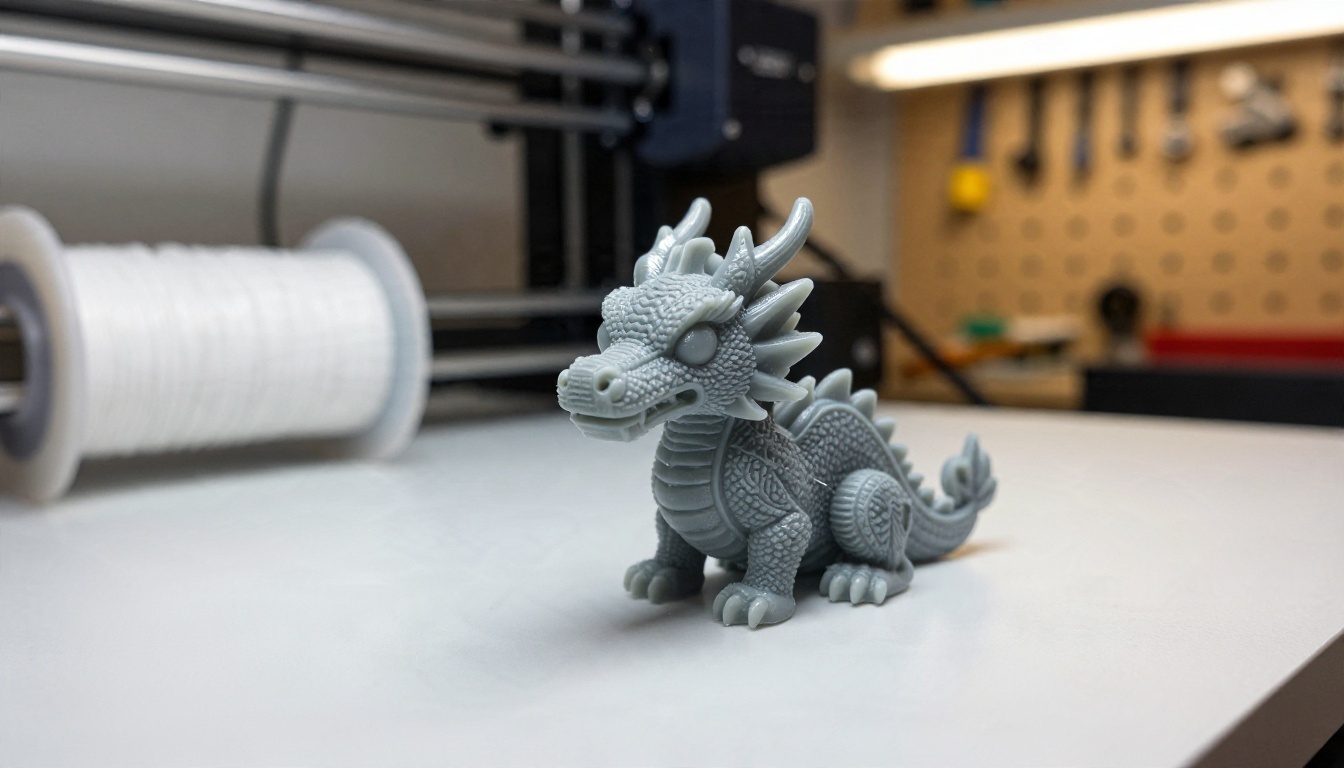
A warning for printers: an AI mesh is not automatically watertight. Thin walls, floating fragments and holes are common, so run the file through your slicer's repair tool or a mesh checker before printing. A model that looks perfect on screen can still fail on layer 40.
USDZ for AR on Apple devices
USDZ is Apple's format for augmented reality. If you want a customer to drop your product into their living room through an iPhone camera, you need it, or a tool that converts GLB to USDZ for you. Some generators export it directly. Rodin, which you will meet below, lists USDZ among its output options.

Limits That Bite Later
The limits that annoy people most are not the ones on the pricing table. They show up after you have already built a workflow around a tool.
Polygon counts and mesh quality
AI generators often produce dense, triangulated meshes. That is fine for a render and painful for a real-time game, where a hero prop might need 5,000 to 30,000 triangles, not 500,000. Look for a generator that lets you set the face count or choose a quality level. Without that control, you will spend your saved time on decimation and retopology.
Other technical limits worth checking:
- Input size. Many image-to-3D tools cap resolution and file size, for example 6 MB per image.
- Single object only. Most generators handle one subject well and fall apart on whole scenes.
- Back-side guessing. With one photo, the hidden side of the object is invented. Multi-view input reduces that.
- Text and thin details. Lettering, wires, fine chains and glasses frames are reliably weak spots.
Licensing for commercial work
This is the limit that causes real trouble. Several sources I read say free-tier output is licensed for personal use only, and a paid plan is required to sell or ship what you generate. Others allow commercial use but require attribution. Because these terms differ and change, read the license page of whichever tool you use and screenshot it with the date.

💡 Rule of thumb: If the model will appear in a product, a client deliverable or a game you plan to sell, treat the license as a feature you are buying, not a footnote.
Features Worth Paying Attention To
Beyond free credits and formats, a handful of features separate a toy from a working tool.
Quad vs raw topology
Topology is how the surface is cut into polygons. Quad meshes are made of four-sided faces arranged in clean flowing loops, which makes them far easier to sculpt, UV unwrap and animate. Raw meshes are triangle soup that capture detail but resist editing. If you are going to deform the model, pick quad. If you only need it as a static render or print, raw is fine.
PBR materials and geometry only
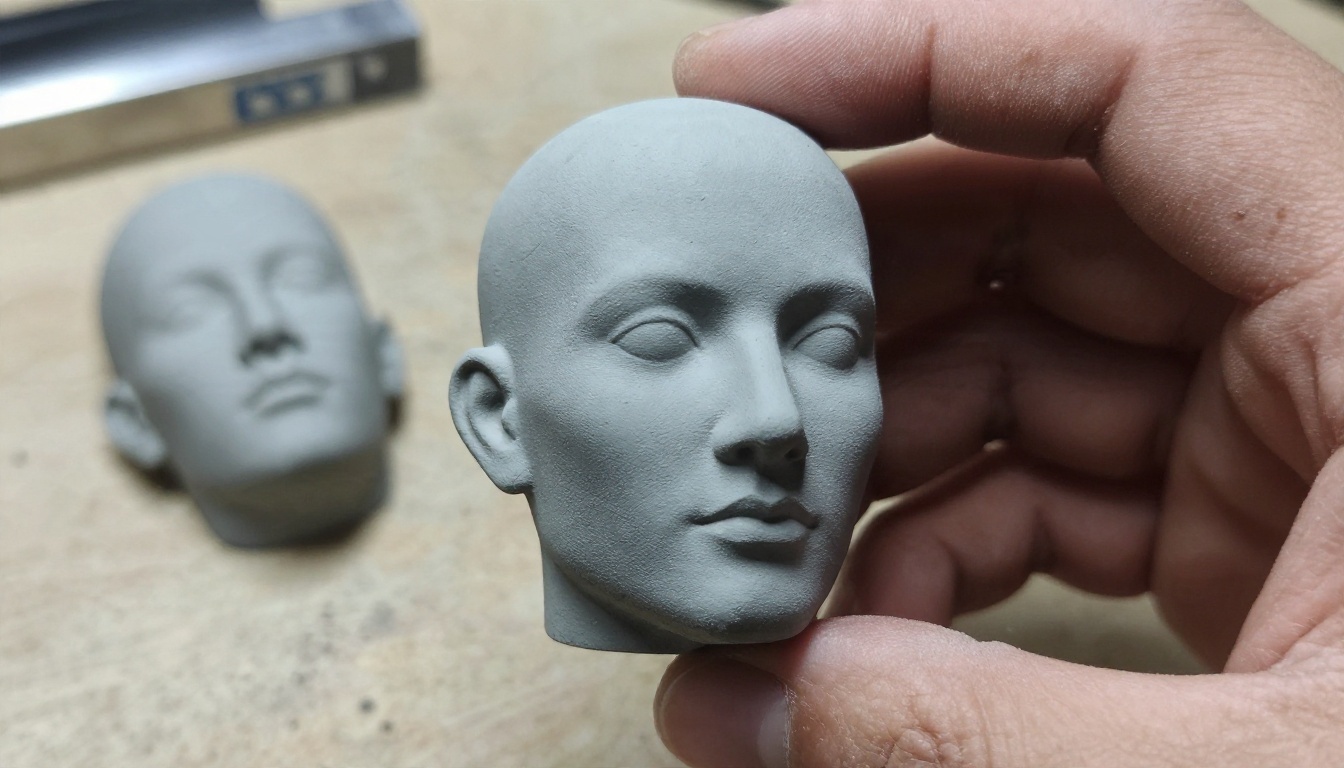
PBR stands for physically based rendering. A PBR model ships with maps for color, roughness, metalness and surface normals, so it reacts to light correctly in any engine. A geometry-only output gives you a clean white mesh with no textures at all. Hunyuan 3D 3.1 offers both: a Normal mode with textures and a Geometry mode that produces a plain white model. Use geometry-only when you plan to paint the model yourself or print it.
Rigging and T pose
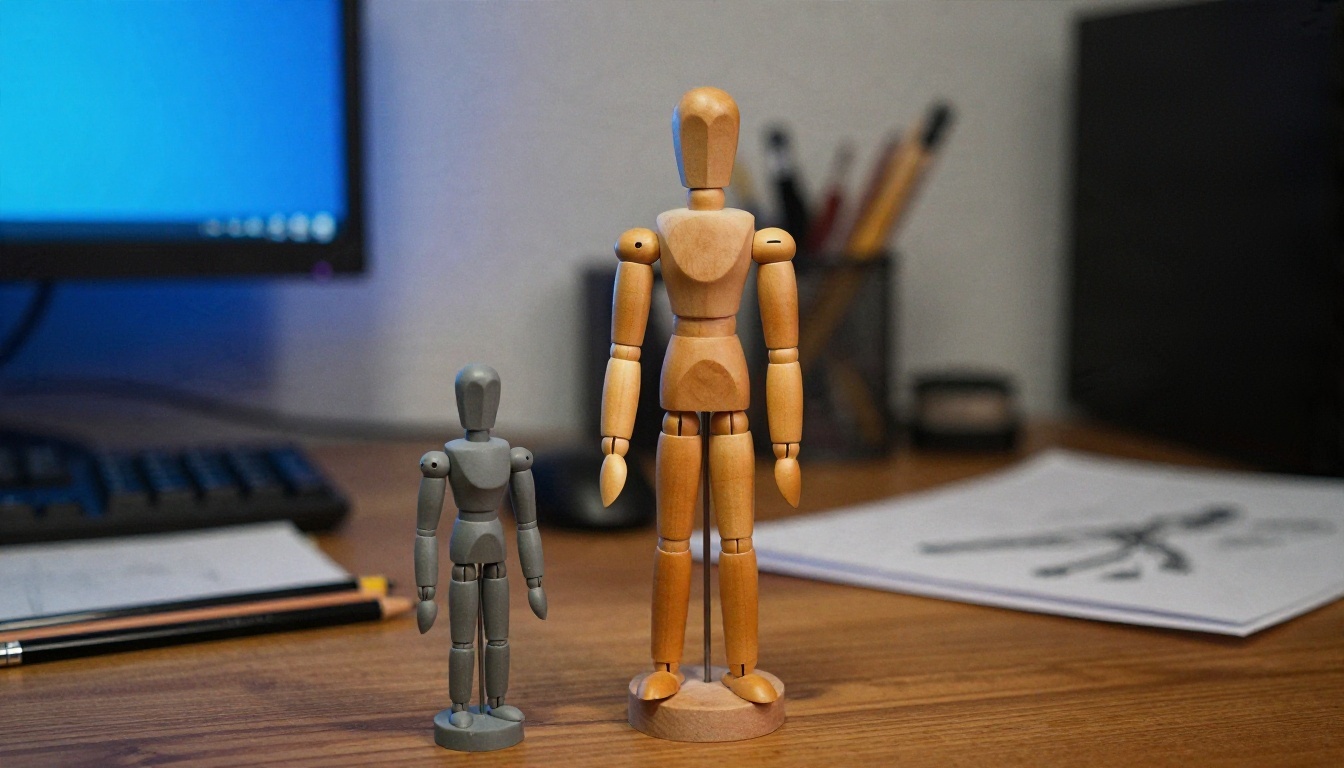
If you are making a character, the pose matters more than people expect. A character in a T pose or A pose has its limbs separated from the torso, which is what rigging software wants. Rodin has a T/A pose option for human figures. After that, Create Character v1 can auto-rig the character, and Text To Motion Diffusion v2 or Text To Motion VQVAE v1 can generate movement from a text description.
How to Use Rodin on PicassoIA
Rodin is the one to pick when export flexibility is the priority. According to its model page it exports GLB, FBX, OBJ, USDZ or STL, accepts up to five input photos, and supports PBR materials, quad or raw meshes and T/A pose. Here is a workflow that works well.
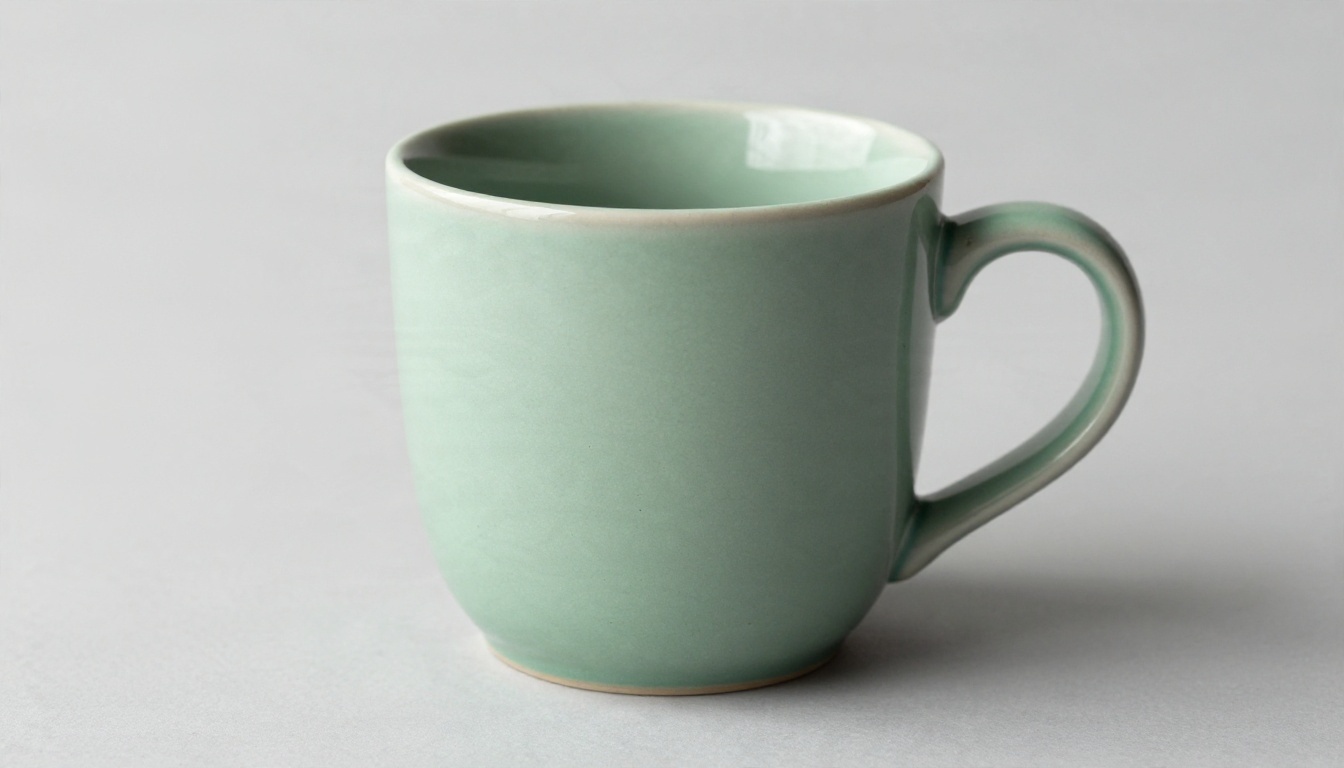
Step 1: Prepare a clean reference photo. Use a single object on a plain background, with the object filling more than half the frame and no text. If your photo has a messy background, run it through Remove Background first. No photo yet? Generate a product-style reference with Nano Banana or Seedream 4.5 and use that as your input.
Step 2: Open the model and write a prompt. The prompt field is required, so describe the object in one or two plain sentences: material, shape and finish. For example, "matte ceramic coffee mug with a rounded handle and a speckled glaze."
Step 3: Add up to five images. Uploading several angles of the same object gives the model real information about the hidden sides, which cuts down on invented geometry.
Step 4: Set the parameters.
| Parameter | Suggested value | Why |
|---|
| geometry_file_format | glb for general use, stl for printing, fbx for rigging, usdz for AR | Match the format to your destination |
| mesh_mode | Quad for editing or animation, Raw for static detail | Quad is far easier to clean up |
| material | PBR | Gives you maps that work in real-time engines |
| quality | medium to start, high for the final | Saves credits while testing |
| tapose | On for human characters only | Needed for rigging |
| seed | Fix it once you like a result | Reproducible variations |
Step 5: Generate, inspect, then export. Open the result, rotate it, check the back side and thin parts. If the shape is right but you need another format, rerun with the same seed and a different geometry_file_format.
💡 Tip: Test with quality set to medium. Only switch to high once the shape, pose and prompt are exactly what you want.
Hunyuan 3D 3.1 for Fast Drafts
Hunyuan 3D 3.1 is the better pick when you want speed and a simple set of controls. You can start from either a photo or a text prompt (one or the other, not both), toggle PBR on, and pick Normal for a textured model or Geometry for a plain white mesh. The face count parameter defaults to 500,000, which is very dense, so lower it considerably if the model is headed to a game or a website.
Practical settings:
- Web viewer or AR: face count in the low tens of thousands, PBR on.
- 3D print: Geometry mode, higher face count, then check the mesh in your slicer.
- Texturing yourself: Geometry mode, then bring the mesh into Blender or Substance.
- Image input: keep it under 6 MB, single object, simple background, no text.
A sensible routine is to draft with Hunyuan 3D 3.1 in Geometry mode to lock down the shape quickly, then run the best reference through Rodin when you need a specific export format or a rig-friendly quad mesh. You can compare both without any 3D software installed.
Picking the Right Setup
Different goals call for different priorities. This table matches common jobs to the features that matter most.
| Your goal | Format | Mesh | Material | Things to watch |
|---|
| Web product viewer | GLB | Lower face count | PBR | File size, texture resolution |
| Game prop | FBX or GLB | Quad, low poly | PBR | Polygon budget, UV quality |
| 3D printing | STL | Raw or Quad | None needed | Watertight mesh, thin walls |
| AR preview on iPhone | USDZ | Lower face count | PBR | Scale and real-world size |
| Animated character | FBX | Quad | PBR | T pose, clean limbs |
| Quick concept draft | GLB | Any | Geometry only | Cost per attempt |
Before you settle on a generator, run through this short checklist:
- Does the free tier export the format you actually need, not just the one in the screenshot?
- Is the daily or monthly credit pool enough for at least ten test attempts?
- Can you control face count or quality?
- Does the license allow your use, including commercial?
- Can you rerun with the same seed so a good result is reproducible?
Three common mistakes show up again and again. People judge a tool by its preview render instead of the downloaded file. They forget that textures are separate files with OBJ. And they print straight from an AI mesh without a repair pass. Avoid those and you will save hours.
Make Your First Model Today
You do not need a modeling background or a powerful graphics card to test any of this. Pick one object you can photograph or describe in a sentence, such as a mug, a shoe, a chess piece or a game prop. Run it through Hunyuan 3D 3.1 in Geometry mode for a fast shape check, then try Rodin with a GLB export and again with STL. Open each file, rotate it, and decide which one fits your workflow.
If you need reference photos, build them on PicassoIA as well. Generate a clean product shot with Seedream 4.5, clean the background with Remove Background, and feed the result straight into a 3D model. The whole chain from idea to downloadable mesh happens in one place.
Open Picasso IA, try your own idea, and see how far a single prompt and one good photo can take you. To browse everything available, head to picassoia.com/en/all-models.


