A track with a blank placeholder square on every streaming app looks unfinished, and listeners scroll past unfinished things. Fixing that no longer takes a designer, a photoshoot budget, or a folder of stock photos. A free AI album art generator can start from a photo you already own or from one written prompt, then hand back a square image that is ready for release day.
This article shows both routes. You will see how to upload a portrait and restyle it, how to write prompts that produce believable photographic artwork, which models fit which job, and how to check the final file before a distributor sees it. Every example runs on PicassoIA, and the free options are flagged as we go.
Why AI Album Art Works Now
Album art used to be a bottleneck with three stops: hire a photographer, brief a designer, wait. Image models changed the order of work. You describe the look, get a dozen options in a few minutes, and spend your energy choosing the one that matches the music.
That shift matters most for independent releases. Singles drop every few weeks, EPs need a consistent visual identity, and paying for a new image each time adds up fast. A generator lets you keep one visual language across a whole discography while changing the subject for every release.
There is a catch, and it is worth saying early. Listeners have seen a lot of glossy, over-smoothed AI images, and they can spot them from across a room. The artwork that works today looks like a photograph someone took on purpose: real light, a little grain, believable skin. Most of this article is about getting that result.
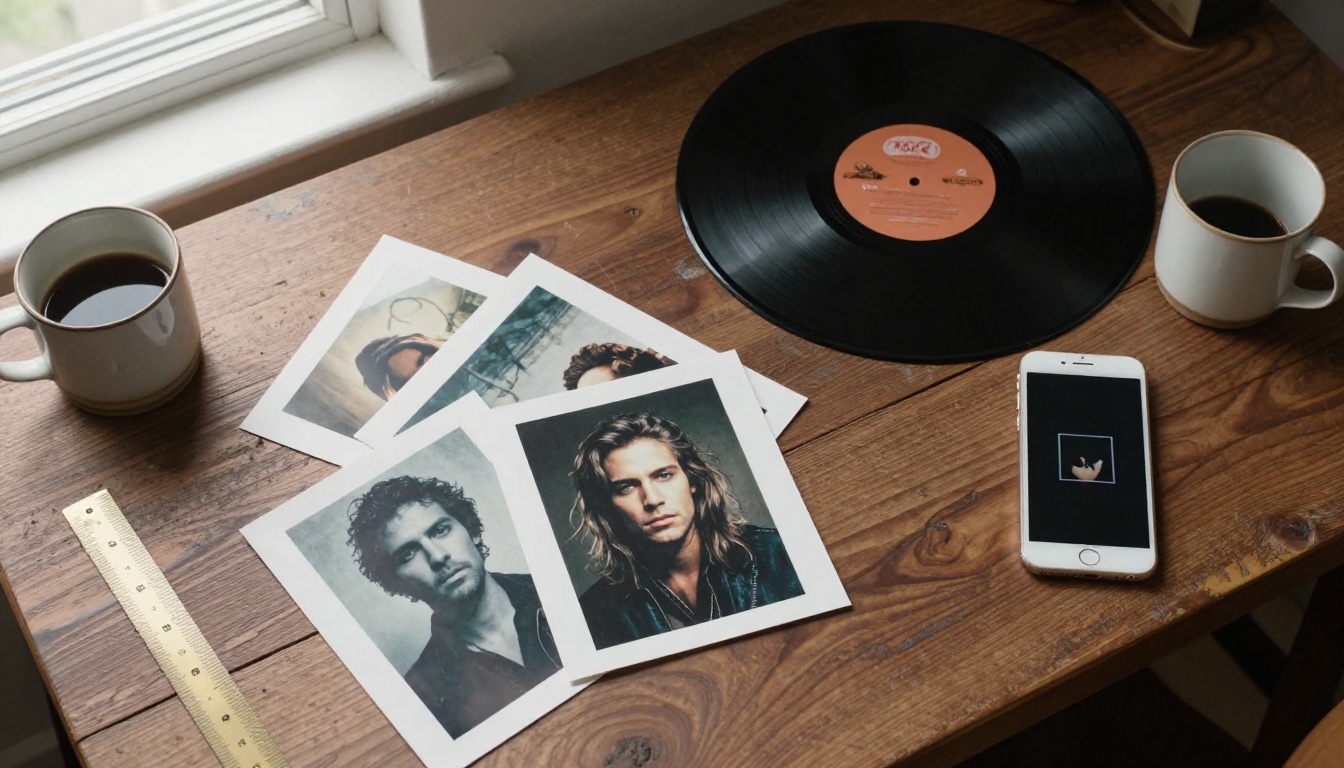
What Streaming Platforms Require
Every distributor publishes its own rules, but they converge on the same basics. Check your distributor's current requirements page before uploading, because limits change.
| Spec | Typical requirement | Why it matters |
|---|
| Shape | Square, 1:1 | Other shapes get cropped or rejected |
| Size | 3000 x 3000 px is the common target | Smaller files can be refused or look soft on large screens |
| Format | JPG or PNG in RGB color | CMYK files can fail or shift color |
| Text | Title and artist name only, if any | Small lettering disappears at thumbnail size |
| Content | No URLs, prices, or social handles | Most stores reject art that carries them |
Free Does Not Mean Low Quality
Free used to mean watermarks and tiny outputs. That has changed. The Seedream 4.5 page describes 2K and 4K output with no watermarks, and PicassoIA Image Editor Pro is listed as unlimited, with no per-edit cap or daily quota. Free access depends on your plan, so check each model page for current limits before planning a big batch.
💡 Tip: Budget your attempts. Plan on generating 10 to 20 options per release and keeping one. That ratio is normal, not a sign something is broken.
Two Ways to Start: Photo or Prompt
Both routes end at the same square file. They differ in how much of the result you control, and the right choice usually comes down to one question: does a real face need to be recognizable?
| Upload a photo | Write a prompt |
|---|
| Best when | You have a strong portrait, band shot, or location | You only have a mood, a title, or a genre |
| Likeness | Stays close to the real person | New faces every run |
| Speed | A few seconds per edit | Seconds to under a minute per image |
| Main risk | Pushing the edit too far loses the person | Faces and scenes can feel generic |
If you are the face of the project, upload. If the music is instrumental or mood-led, a prompt-only image often gives you more freedom, because nobody expects the figure on the sleeve to be a specific person.
Upload a Photo as the Base
Start with the sharpest photo you have. A good source image has these traits:
- Even light on the face, without a harsh flash shadow
- A plain or simple background
- At least 1500 pixels on the short side
- The eyes in focus, with no sunglasses or heavy hat shadow unless you want that look
Phone photos taken beside a window often beat expensive shots under hard studio flash, because soft light gives the model clean information about the face.
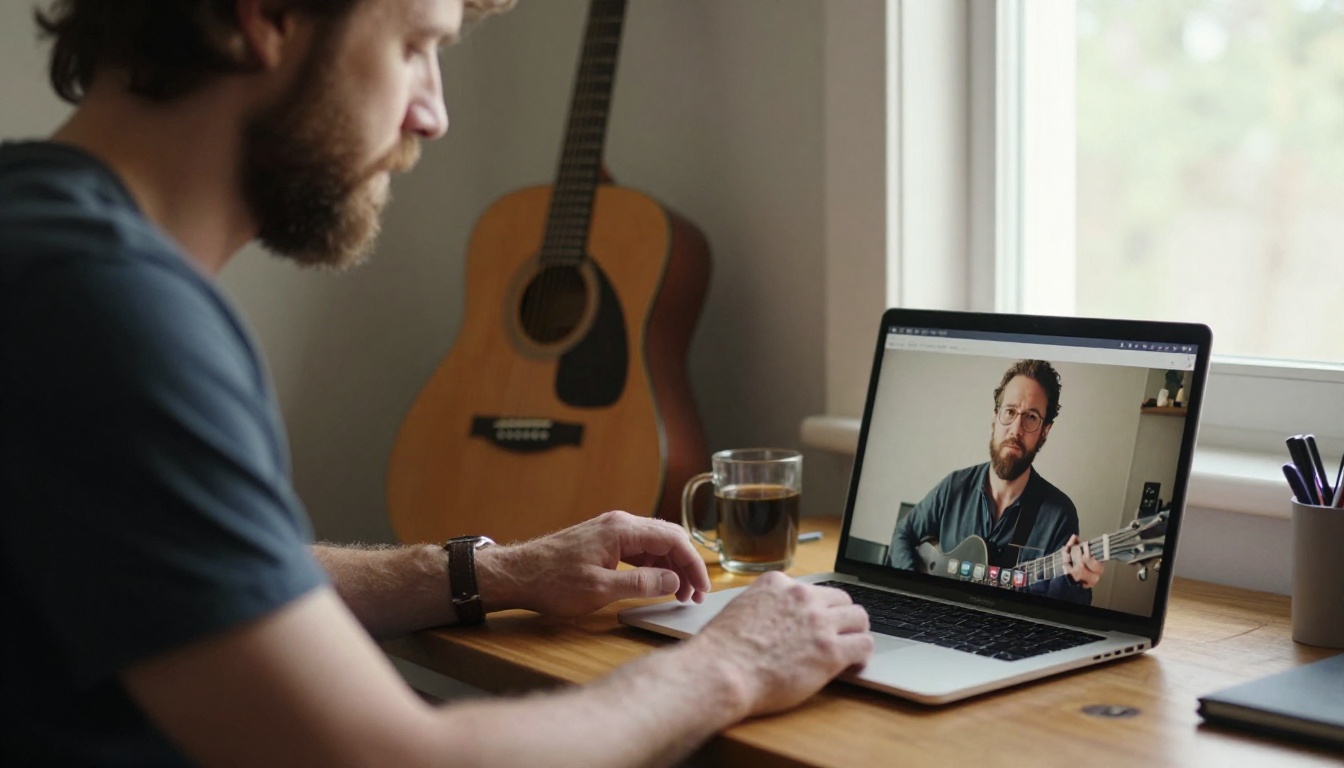
In an editing model, you describe the change in plain language and refer to your uploads by number. A solid first instruction looks like this:
Keep the man in image 1 exactly as he is. Place him in a foggy pine forest at dawn, soft overcast light, 35mm film grain, centered with empty space above his head.
Change one thing per run: the location, the light, or the wardrobe. Edits that change everything at once are the ones that drift away from the real person.
Write a Prompt from Scratch
No usable photo? Then the prompt does all the work. Good prompts for album art follow a simple order: subject, setting, light, lens, film stock, mood, and framing.
Here are three starting prompts for different sounds:
- Folk: A woman in a green wool coat standing on an empty rooftop at sunrise, wind in her hair, 50mm lens at f/2, soft side light, Kodak Portra 400 grain, muted palette, square composition with space above her head.
- Hip hop: Close portrait of a young man in a black hoodie against a weathered concrete wall, low sun from the right, hard shadows across half his face, 85mm lens at f/1.8, visible skin texture, 35mm film grain.
- Dream pop: A hand holding a single peach in a sunlit kitchen window, pale curtains moving, soft backlight, shallow depth of field, pastel tones, subtle film grain, centered square framing.
Read any of them back and you can picture exactly one image. That is the test. If you can picture three different images, the prompt is too loose.
Prompts That Look Like Real Photos
Photographic artwork with grain, imperfect light, and believable skin ages better than polished, plastic renders, and it sits comfortably next to major-label releases. The trick is to prompt like a photographer instead of a poster designer. Name the lens, the light direction, and the film stock, and avoid hype words like "stunning" or "epic" that add nothing to the picture.
Genre Cues That Work
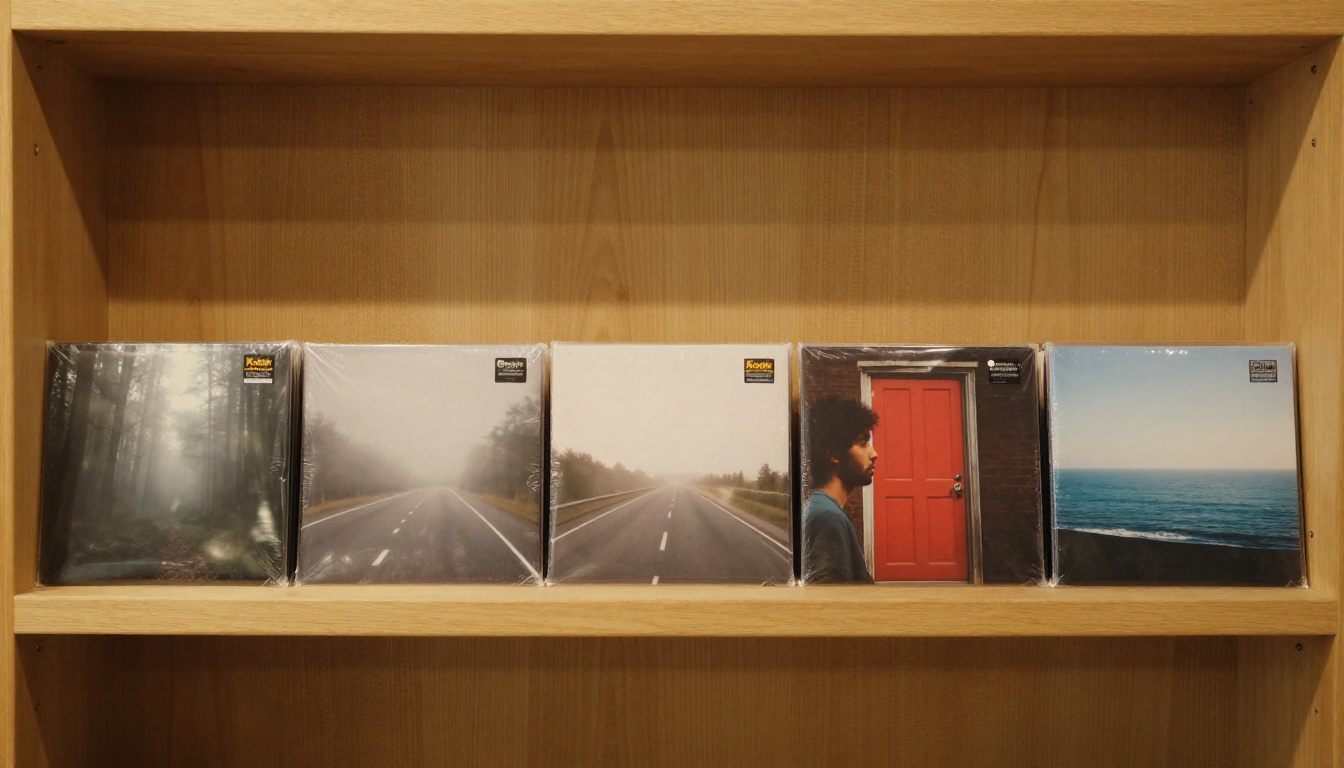
Use these as starting points and swap in your own subject. Each row gives you a visual direction and phrases that tend to steer a model toward it.
| Genre | Visual direction | Phrases to try |
|---|
| Indie folk | Quiet landscapes, fog, muted color | "foggy pier at dawn, 35mm, desaturated, film grain" |
| Hip hop | Tight portraits, hard shadows, street texture | "85mm portrait, concrete wall, low sun, deep shadows" |
| Pop | Clear face, simple backdrop, clean color | "studio portrait, seamless pastel backdrop, soft beauty light" |
| Rock | Flash photography, motion, worn locations | "on-camera flash, grainy 400 speed film, rehearsal room" |
| Jazz | Warm interiors, shallow depth, tungsten light | "smoky club corner, 85mm f/1.4, warm lamp light" |
| Ambient | Empty space, long horizons, soft haze | "empty beach at blue hour, wide lens, pale haze" |
| Electronic | Geometry, concrete, reflective surfaces | "empty stairwell, hard daylight, strong diagonal lines" |
Common Prompt Mistakes
These five account for most weak results:
- Long text in the image. Models still garble long lettering. Keep it to the artist name, or add type later in a layout tool.
- Too many subjects. A thumbnail has room for one idea.
- Ignoring the crop. Ask for empty space where the title will sit.
- Mixed styles. "Cinematic watercolor 3D photo" asks for four looks at once. Pick one.
- No seed. When you land a great result, lock the seed so you can reproduce it and change one detail at a time.
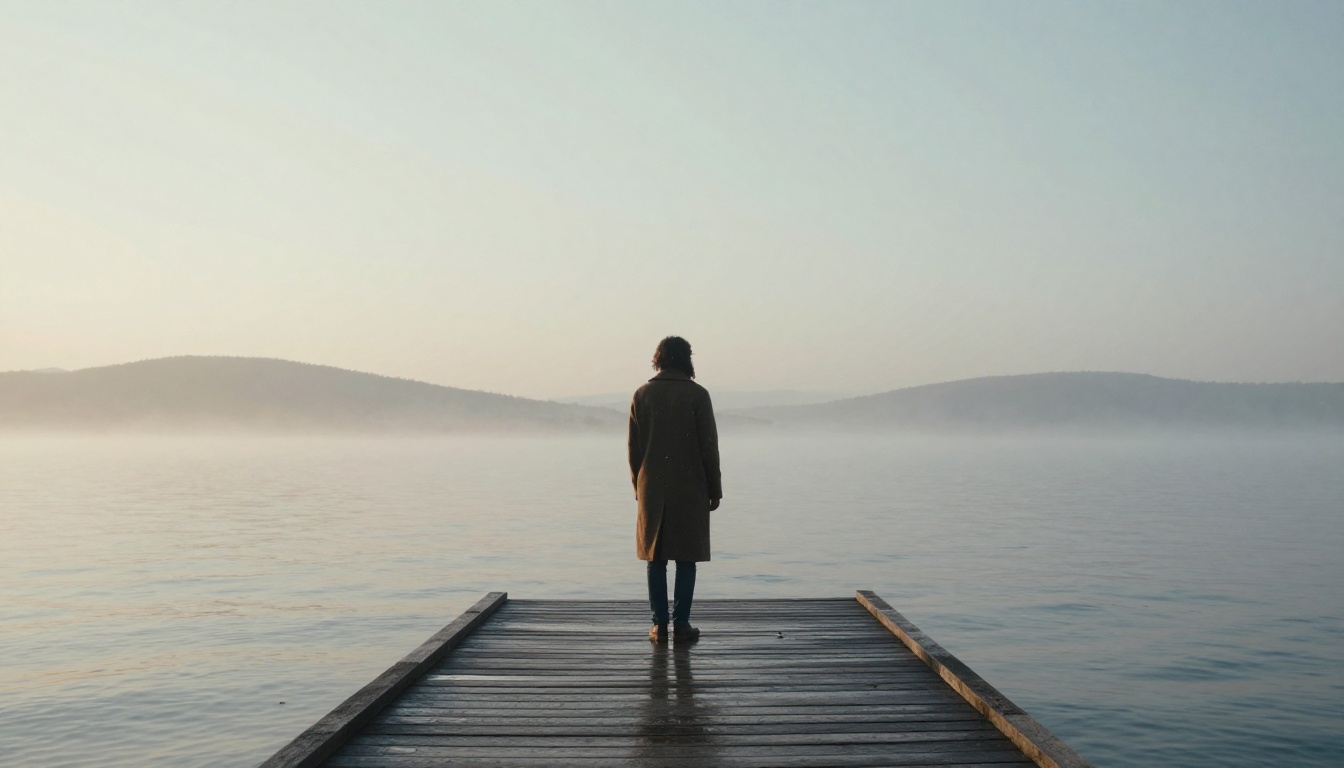
Here is a quick rewrite to show the difference. The weak version: "Epic amazing album art of a singer with cool lighting and a city and stars and a guitar." The stronger version: "A singer-songwriter in a long wool coat at the end of a foggy wooden pier at dawn, back partly turned, diffused cold light, 35mm lens, desaturated film grain, space above for a title." The second one names one subject, one place, one light, and one lens.
💡 Tip: Write the prompt, then delete every adjective that does not change the picture. Shorter prompts with concrete nouns beat long ones full of hype words.
How to Use Seedream 4.5 on PicassoIA
Seedream 4.5 is a dependable default for prompt-based album art. It produces 2K and 4K images, offers a 1:1 ratio for square art, and can generate a batch of related options in one run, which suits the generate-a-dozen-and-pick-one habit this whole process depends on.
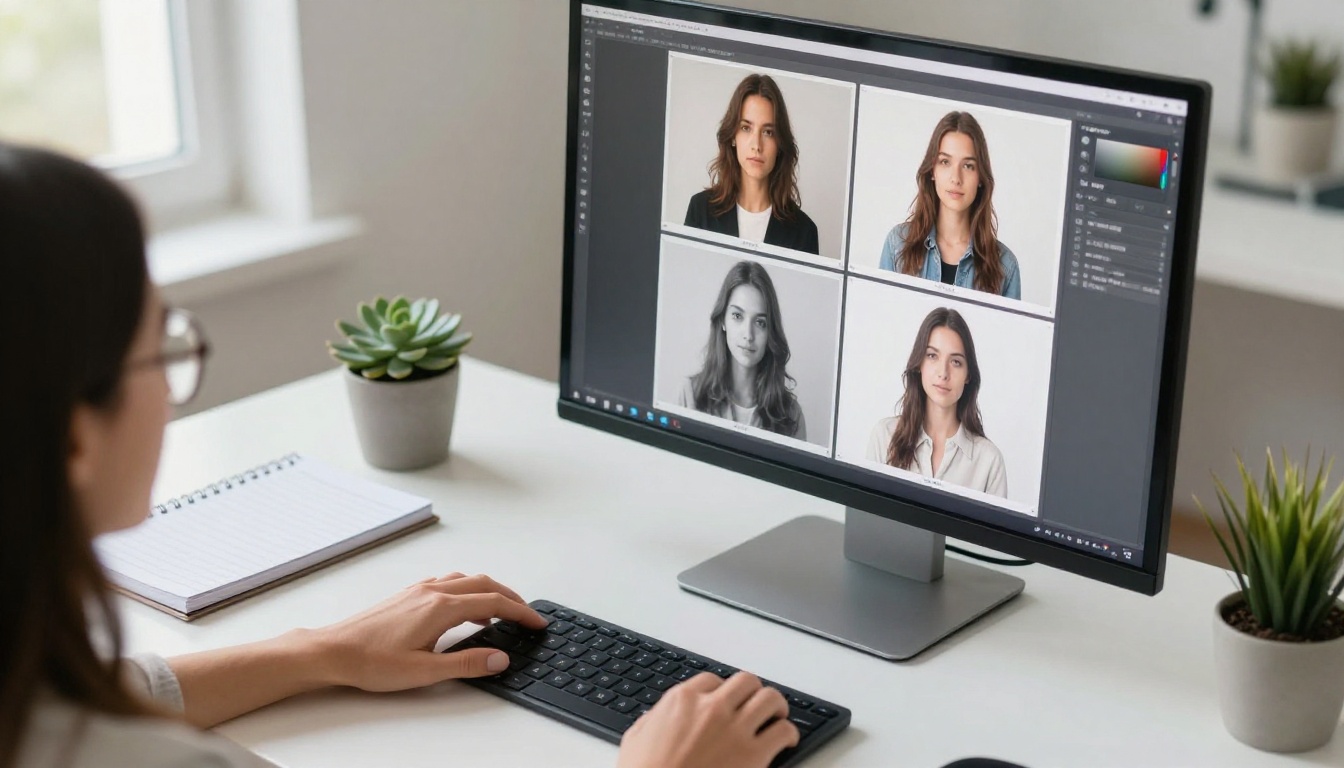
Step by Step Settings
- Open the Seedream 4.5 page and paste your prompt into the Prompt field.
- Set size to 2K for drafts and 4K for the final render. The model does not support 1K.
- Set aspect_ratio to 1:1. The default, match_input_image, only makes sense when you attach a reference picture.
- Leave sequential_image_generation on disabled for a single image. Switch it to auto and raise max_images (up to 15) when you want a batch of related options.
- Optional: add 1 to 14 pictures in Image Input to steer the style or the subject.
- Run it, compare the results side by side, and download the strongest one.
💡 Tip: Use 2K batches to find wording that works. Once the prompt is right, run the final at 4K and pick from that batch instead of hoping to reproduce a 2K draft exactly.
Reference images are the quiet power feature here. Drop in a photo of the exact light you want, such as a gray winter street, and describe your subject in the prompt. The model borrows mood and color from the reference while building a new scene.
Fix Weak Results Fast
| Problem | Fix |
|---|
| Face looks waxy | Add "visible skin pores, natural skin texture, slight film grain" and drop words like "flawless" |
| Background too busy | Name one simple surface: "plain plaster wall" or "open sky" |
| Subject too small for a thumbnail | Add "close framing, subject fills two thirds of the frame" |
| Colors look flat | Name a palette: "honey amber, faded denim blue, cream" |
| Everything looks too clean | Add "dust, scuffs, worn edges, film grain" |
Edit a Photo with Image Editor Pro
PicassoIA Image Editor Pro is the right pick when the face must stay recognizable. You upload one to three reference images, describe the change in plain language, and get an edited result in seconds. Because edits are unlimited, you can iterate on the same portrait as many times as it takes.
Keep the Face, Change the Mood
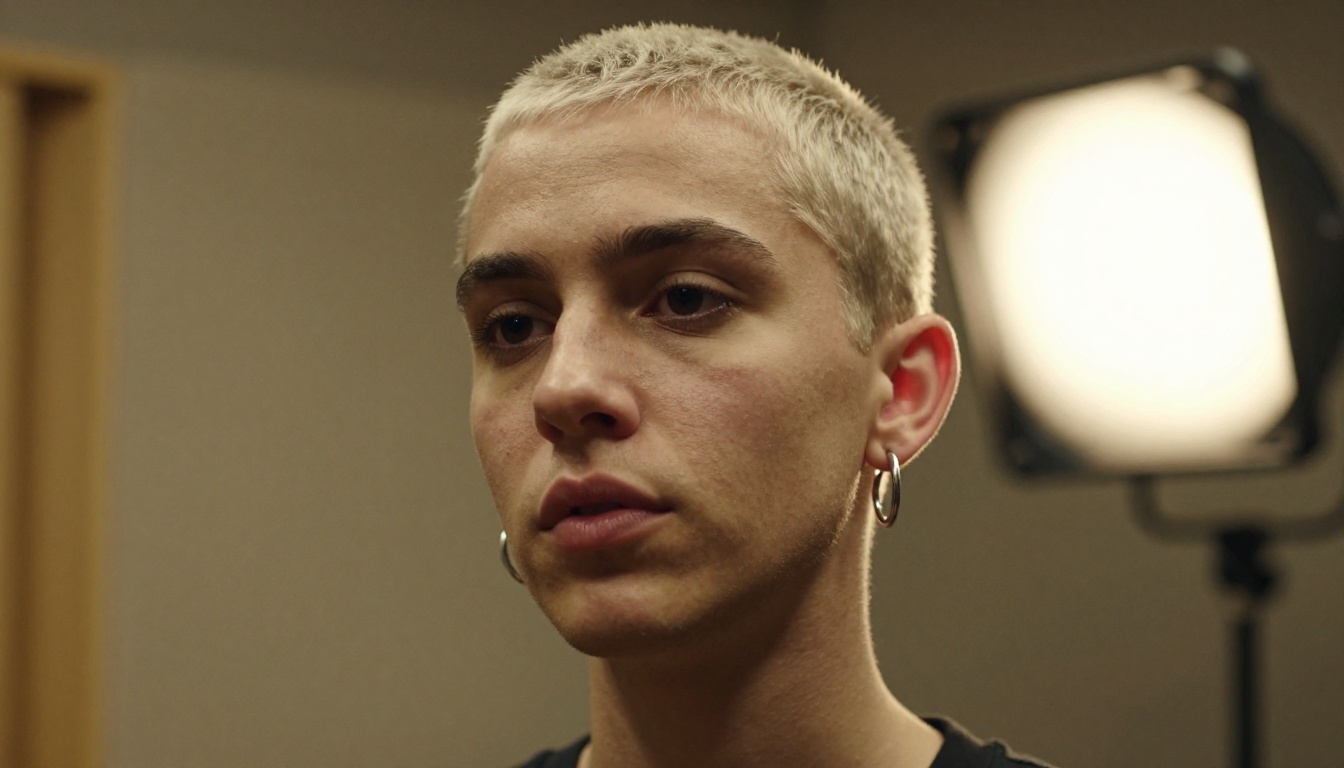
- Upload your best portrait as image 1. Add up to two more references, such as a location photo or a color palette, as images 2 and 3.
- Write the edit and refer to each upload by number: "Place the singer from image 1 inside the location from image 2. Keep the face unchanged."
- Set aspect_ratio to 1:1 for album art. The default, match_input_image, keeps the shape of your first upload.
- Set num_outputs to 2 to compare two variations per run.
- Lock a seed once you like a direction, then change one detail per run.
- Choose JPG or PNG as the output_format. WebP is the default, and distributors usually ask for JPG or PNG.
The phrase "keep the face unchanged" does real work. Without it, a dramatic scene change can quietly reshape the person. With it, you get the new light and location while the face stays yours.
Upscale Before You Export
Square 2K outputs are workable, but 3000 pixels is the usual target and a larger source is safer. Clarity Pro Upscaler enlarges images 2x, 4x, 8x, or 16x and keeps skin texture and facial features intact. Its creativity slider decides how much new detail gets added. Stay at zero or below for portraits so the face stays faithful, and nudge it up only for soft backgrounds. Export as PNG for lossless quality or JPG at 95 percent quality for a lighter file.
Models Compared for Album Art
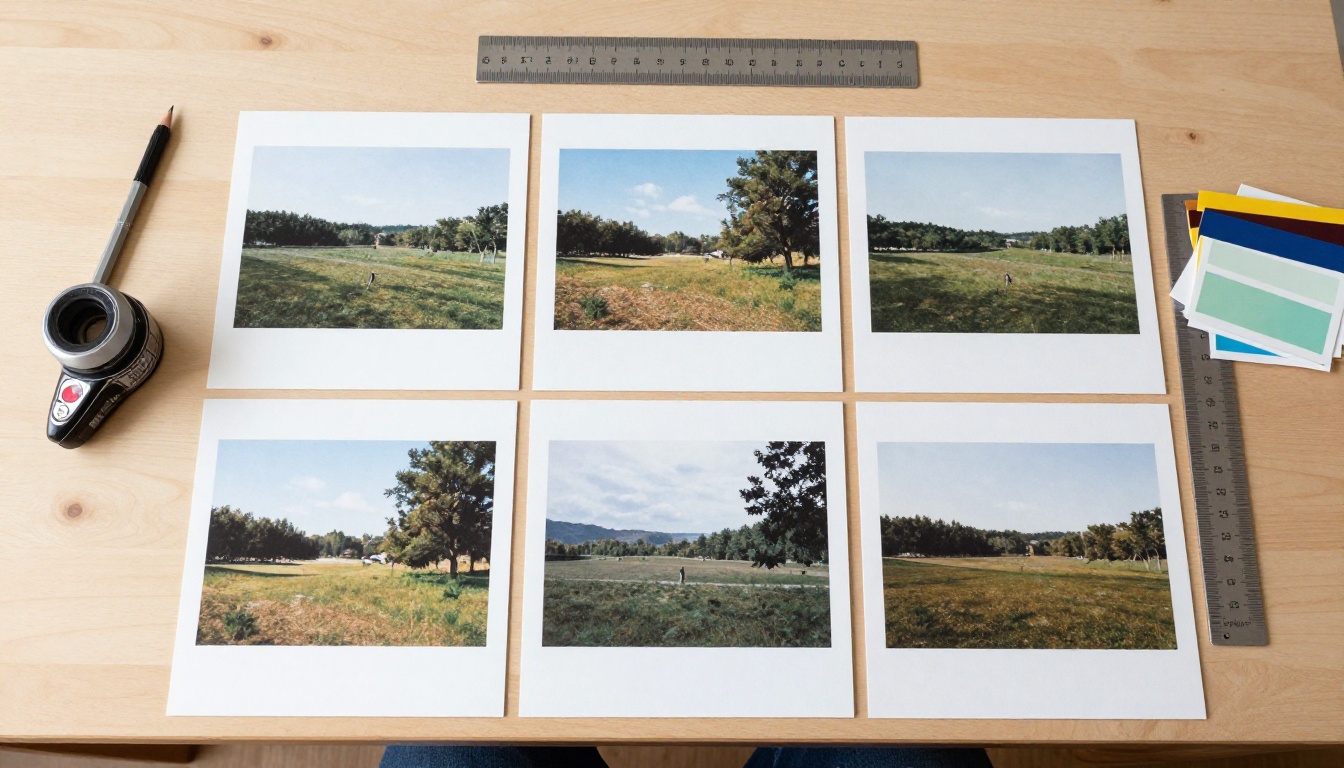
Different jobs favor different models. This table sums up what each model page says it does well.
| Model | Best for | Worth knowing |
|---|
| Seedream 4.5 | Prompt-based 2K and 4K art | 1:1 ratio, batches up to 15, up to 14 reference images |
| PicassoIA Image Editor Pro | Restyling a real photo | Up to 3 references, unlimited edits, 1:1 and PNG or JPG output |
| GPT Image 2 | Artwork with readable lettering | Up to 10 variations per run, 1:1 default, quality settings |
| Ideogram v4 Quality | Photographic looks from rough ideas | Magic Prompt refines your input, 2048x2048 output available |
| Qwen Image Edit Plus | Multi-photo edits and pose control | Merges elements from several photos, ControlNet support |
| Clarity Pro Upscaler | Final sharpening and size | 2x to 16x, PNG or JPG output |
Other options in the text-to-image collection worth a test include Seedream 5 Pro and Nano Banana 2 Lite. The fastest way to choose is to run the same prompt through three models and put the results side by side. Taste decides, and your taste is the only opinion that matters for your own release.
Best for Text on Artwork
If the design needs the artist name or a one-word title inside the image, start with GPT Image 2, whose page lists sharp text rendering as a core feature. Even so, keep lettering to a single short line, place it in the empty area you asked for, and check the spelling at full size before you commit. If the text still comes out wrong, generate the image without it and add the lettering in any layout tool.
Best for Photo Edits
For one portrait, use Image Editor Pro. For merging two photos, such as a singer from one shoot and a location from another, Qwen Image Edit Plus handles multi-photo edits and supports ControlNet inputs for pose control. Try both on the same source photo, since results vary by face and lighting.
Prepare Files for Release
Size, Format, and Color
- Generate at the largest size available, which is 4K in Seedream 4.5.
- Crop to an exact square, centered on the subject.
- Resize to 3000 x 3000 pixels. If the source is smaller, upscale first with Clarity Pro Upscaler and then resize down.
- Export as a high-quality JPG or a PNG in RGB color, with no transparency.
- Name the file after the release instead of leaving it as "final_v7".
Safe Zones for Thumbnails
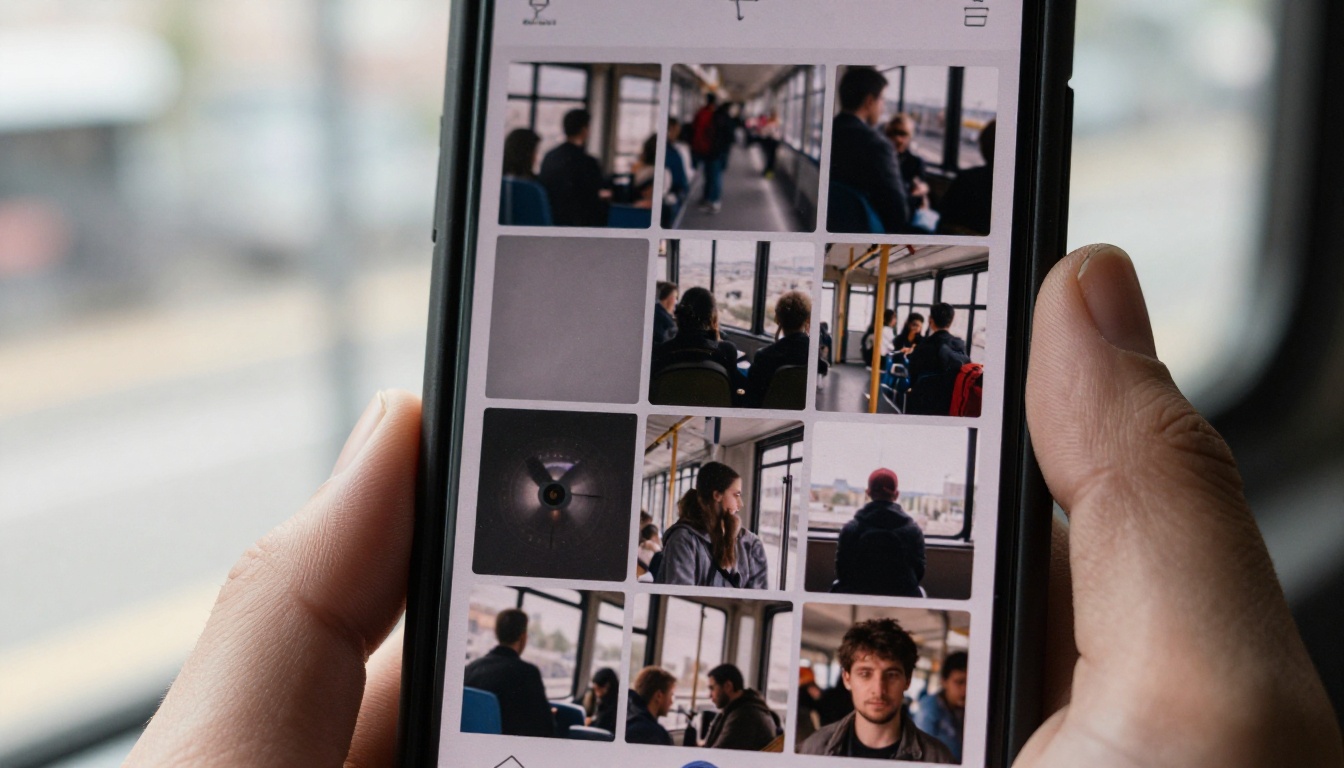
Most listeners will see your art smaller than a postage stamp, on a phone, in a list. Test for that before you upload.
- Shrink the file to 100 pixels and then 50 pixels. If the subject disappears, reframe closer.
- Keep the subject and any lettering inside the center 70 percent so crops and rounded corners do not clip them.
- Use one strong contrast: a bright face on a dark wall, or a dark figure on pale fog.
- Check it in grayscale. If the picture still reads, the composition holds.
- Put it next to three real releases in your genre. It should look like it belongs in the row without copying any of them.
💡 Rights check: Use photos of people who agreed to appear, read each model's terms, and confirm your distributor's current policy on AI-generated art before upload.
Make Your Own Album Art
Pick the track, pick one mood word, and run your first prompt today. Open Seedream 4.5 to generate from a prompt, or upload your portrait to PicassoIA Image Editor Pro to restyle a photo you already have. Generate a dozen options, shrink each one to thumbnail size, and keep the one that still says something at 50 pixels.
When the first image works, change one detail and run it again. Three rounds usually get you from a rough idea to a release-ready file. Browse every model at picassoia.com/en/all-models and test a few on the same prompt to see which one fits your sound.


