You have a photo you love, and you want to see it as a cartoon. Maybe it is a profile picture that stands out, a birthday gift for your sister, or a mascot for your shop. An AI cartoon generator from image does exactly that: you upload a photo, pick a look, and a few seconds later you have a drawn version of the same person, pet or scene. The tricky part is not the button. It is choosing the right style, writing a short instruction that keeps the face recognizable, and finding a free option that does not drown your result in watermarks.
This article walks through all three. You will see how photo to cartoon AI actually works, which styles are worth your time, how free tools compare, and how to run the process step by step on PicassoIA.
How Photo to Cartoon AI Works
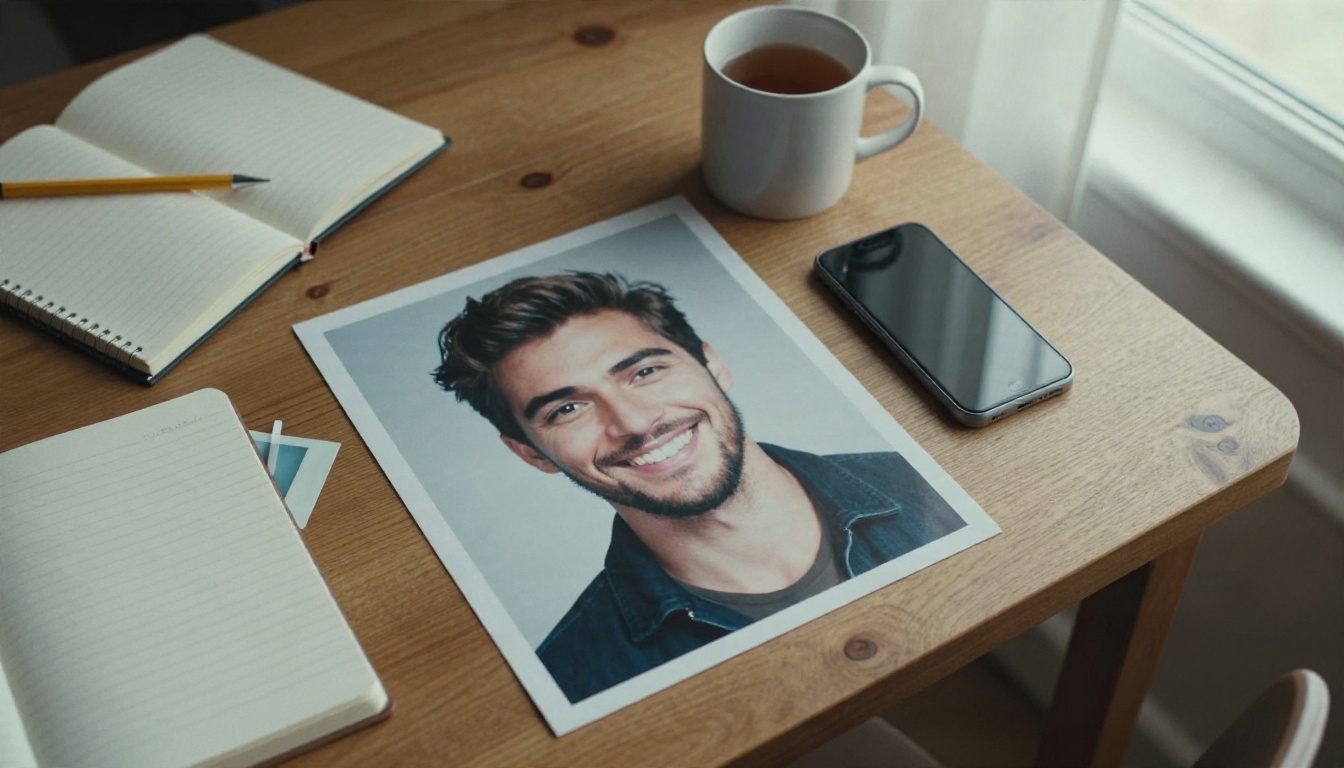
Every cartoon generator follows the same basic idea. It reads your photo, separates identity (the shape of the face, hair, glasses, expression) from rendering (skin shading, texture, lighting), then redraws the identity using a different rendering style. Think of a human illustrator who studies your picture, then sketches you with bold outlines and flat color.
What the Model Changes
When a photo becomes a cartoon, four things shift at once:
- Outlines appear. Real photos have no black lines; cartoons almost always do.
- Shading simplifies. Soft gradients on the skin turn into two or three clear tones.
- Proportions stretch. Eyes grow, noses shrink, jaws soften, depending on the style.
- Texture disappears. Pores, fabric weave and stray hairs are replaced by clean shapes.
A good generator changes all four while leaving your pose, hair color and expression alone. A weak one produces a generic cartoon face that could be anyone.
Why Faces Stay Recognizable
Modern image editing models take your photo as a reference and apply an instruction on top of it. That is different from older filters, which simply ran a fixed effect over every pixel. Instruction-based editors such as Flux Kontext Fast, Nano Banana and Qwen Image Edit Plus can follow a sentence like "turn this into a cartoon, keep the same hairstyle and glasses". That sentence is what protects likeness.
💡 Tip: The more of your photo you tell the model to preserve, the more recognizable the result. Name two or three features you care about: hair, glasses, a beard, a smile.
Cartoon Styles Worth Trying
"Cartoon" is not one look. It is a family of looks, and picking the wrong one is the most common reason people feel disappointed with their first result.
Classic Western Cartoon
Thick outlines, flat fills, slightly exaggerated expressions. This is the look of Saturday morning shows and newspaper strips. It suits profile pictures, greeting cards and humorous gifts. Because the style is forgiving, it works well even with average source photos.
Anime and Manga
Large expressive eyes, sharp hair highlights, soft cel shading. Anime conversion is popular for avatars and gaming profiles. Qwen Image Edit Plus LoRA Photo To Anime is built for this exact job, and Krea 2 Medium is a solid pick when you want painterly anime from a text description.
Comic Book and Pop Art
Heavy ink lines, halftone dots, bold shadows. It looks dramatic and reads well at small sizes, which makes it perfect for social media thumbnails and poster prints. Add "comic book ink, halftone shading" to your prompt and most editors will understand the direction.
Soft 3D Animated Look
Rounded features, glossy eyes, gentle studio lighting, the feel of an animated feature film. This style is the hardest to keep faithful, because the model must invent depth that the photo only hints at. Use a sharp, front-facing source image and expect to try two or three variations.
Flat Vector and Sticker Style
Minimal shapes, limited palette, clean edges. If you plan to print the result on a mug or use it as a logo, convert it afterwards with a vectorizer such as Arrow 1.1 Max Vectorize so it scales without blur.
Free Options Compared
Searching for a free cartoon maker returns hundreds of sites, and they are not equal. Before you upload a photo of your child or your passport face, know what you are trading.
What Free Really Means
Free comes in four flavors:
- Free with watermark. You get the image, but a logo sits in a corner. Fine for a quick test, awkward for a gift.
- Free with daily credits. A handful of generations per day, then you wait or pay.
- Free with low resolution. The cartoon looks fine on a phone and soft on a print.
- Free trial. Full quality for a short time, then a subscription.
Pricing and limits change often, so check the current terms on any tool before you rely on it. On PicassoIA, models such as Nano Banana Pro are promoted for free use, and PicassoIA Image Editor Pro is built around unlimited generations, which suits the trial and error that cartoon work needs.
Watermarks and Limits
Watermarks are not the only catch. Look for these before you commit:
- Resolution cap. A 512 pixel output cannot be printed on a poster.
- Commercial rights. Some free plans only allow personal use.
- Photo storage. Check whether your upload is kept after processing.
- Face limits. Some tools handle one face well and group photos badly.
💡 Tip: Run the same photo through two tools before deciding. Differences in likeness show up immediately, and the free tier that keeps your face wins.
Quick Comparison of Approaches
| Approach | Cost | Quality | Control |
|---|
| Phone app filter | Free, ads | Low to medium | None |
| Browser filter site | Free, watermark | Medium | Low |
| Instruction based AI editor | Free tier or credits | High | High |
| Manual illustration | Paid | Highest | Total |
How to Use Cartoonify on PicassoIA
The quickest route from photo to cartoon is Cartoonify. It is built on an instruction based editing model, so it keeps your composition and changes only the rendering.
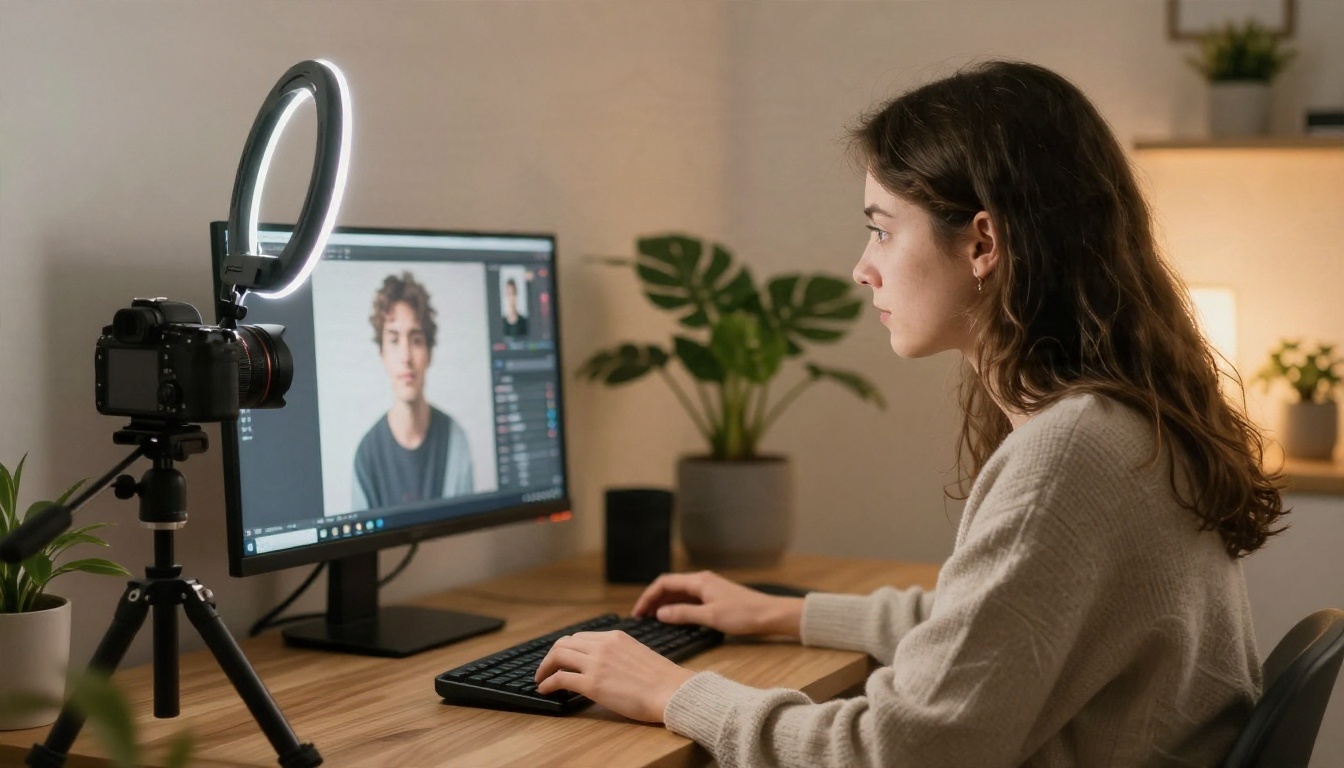
Step by Step
- Open the model page. Go to the Cartoonify page on PicassoIA.
- Upload your photo. Choose a clear image, ideally one face, well lit, at least 1000 pixels on the longest side.
- Set the aspect ratio. Keep it matched to the input if you want the same framing. Choose square if the result is for a profile picture.
- Run the model. Generation takes only a few seconds.
- Compare and repeat. If the face drifted, run it again or switch to a stronger editor like Seedream 4.5.
- Upscale if needed. For prints, pass the result through a super resolution model from the platform's upscaling category.
Parameter Tips
- Aspect ratio: match the original for gifts, square for avatars.
- Output format: PNG keeps outlines crisp; JPG is lighter for sharing.
- Seed: if you find a result you like, keep the seed so you can reproduce it.
- Iterations: two or three runs usually beat one, because small random changes affect the eyes and mouth.
When to Pick a Different Model
Cartoonify is fast and simple. If you need more control, move up:
Prompts That Keep Your Face
Most cartoon generators work best with one clear sentence. A long list of adjectives tends to push the model toward a generic face.
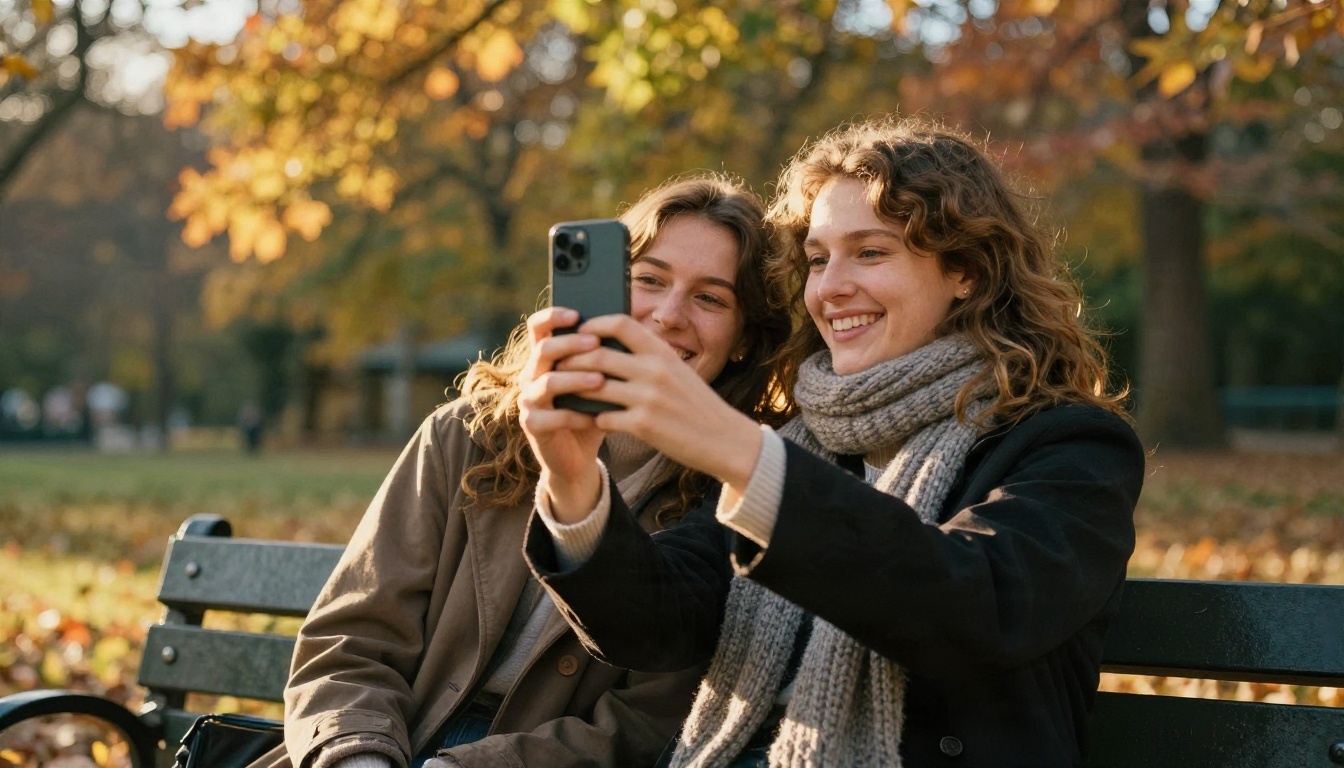
A Simple Prompt Formula
Use this structure:
[Action] + [Style] + [Keep list] + [Background note]
For example: "Turn this photo into a classic cartoon with bold outlines and flat colors. Keep the same hairstyle, scarf and smile. Keep the autumn park background simple."
Ready to Copy Prompts
- Classic: "Redraw this person as a Saturday morning cartoon character, thick black outlines, flat colors, same hair and expression."
- Anime: "Convert this photo to anime style with large eyes, soft cel shading and the same hairstyle and outfit."
- Comic: "Make this a comic book panel with ink lines, halftone shadows and a warm color palette. Keep the face shape identical."
- Soft 3D: "Render this person as a friendly animated movie character, rounded features, soft studio light, same hair color and glasses."
- Pet: "Turn this dog into a cute cartoon mascot, same fur color and markings, simple clean background."
Words That Help
Phrases like "keep the same", "preserve the face shape" and "same hairstyle" act as anchors. Words like "cute", "beautiful" and "perfect" push toward a generic face. If likeness is the goal, avoid them.
Photos That Work Best
The source image matters as much as the model. A cartoon generator cannot invent information that is missing from the original.
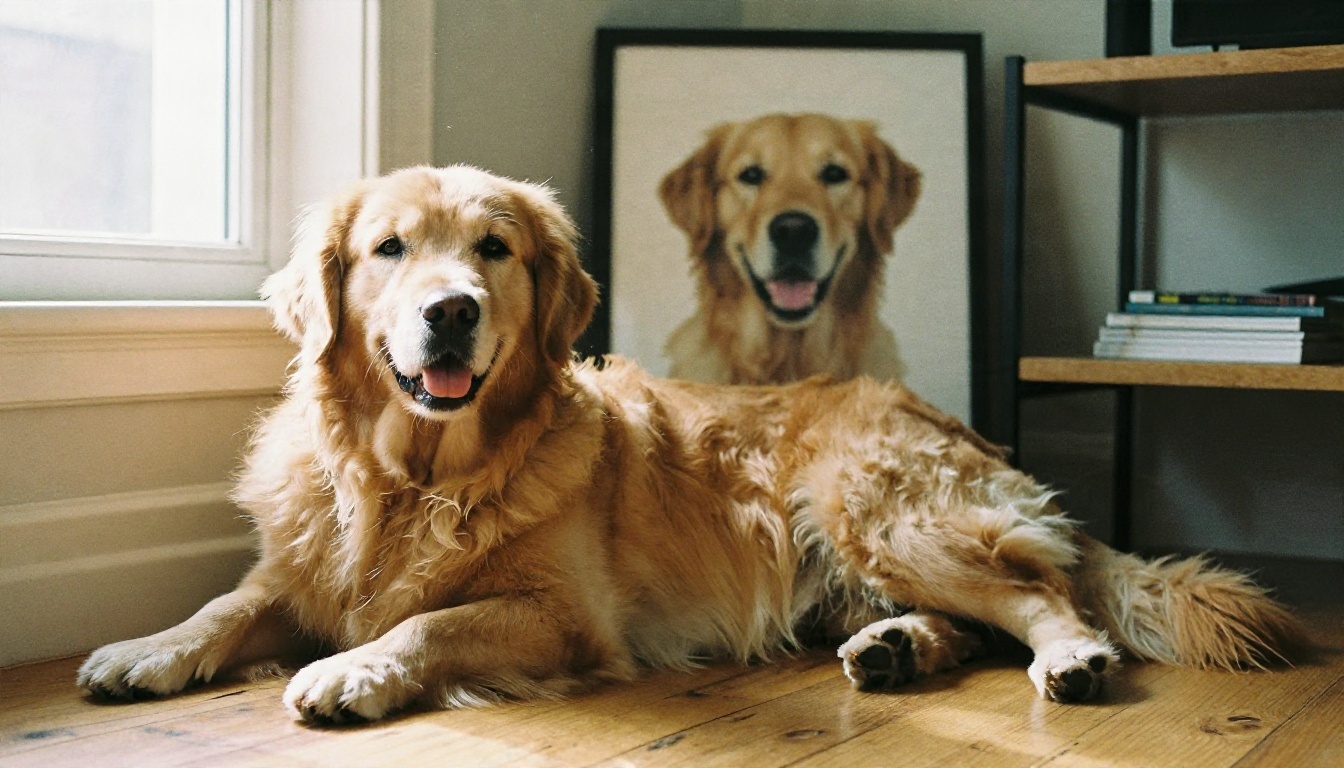
Choose a Strong Source
Look for photos with these traits:
- Face fills a third of the frame or more.
- Soft, even light. Window light is ideal. Harsh shadows turn into strange black shapes.
- Eyes visible. Sunglasses and heavy shadows reduce likeness.
- Clean background. Fewer objects means fewer random changes.
- Sharp focus. Blurry inputs give blurry cartoons.
Mistakes and Fixes
| Mistake | What happens | Fix |
|---|
| Low resolution photo | Smudged outlines | Upscale before conversion |
| Group photo with a small face | Faces look alike | Crop to one person at a time |
| Strong filter already applied | Odd skin colors | Use the original file |
| Too many style words | Face turns generic | Cut the prompt to one sentence |
| Side view with hair covering eyes | Wrong expression | Pick a front facing photo |
💡 Tip: If a background distracts the model, remove it first with a background removal model, convert the cartoon, then place the character on any backdrop you like.
Real Uses for Cartoon Portraits
People rarely create a cartoon for no reason. These are the cases that come up most.
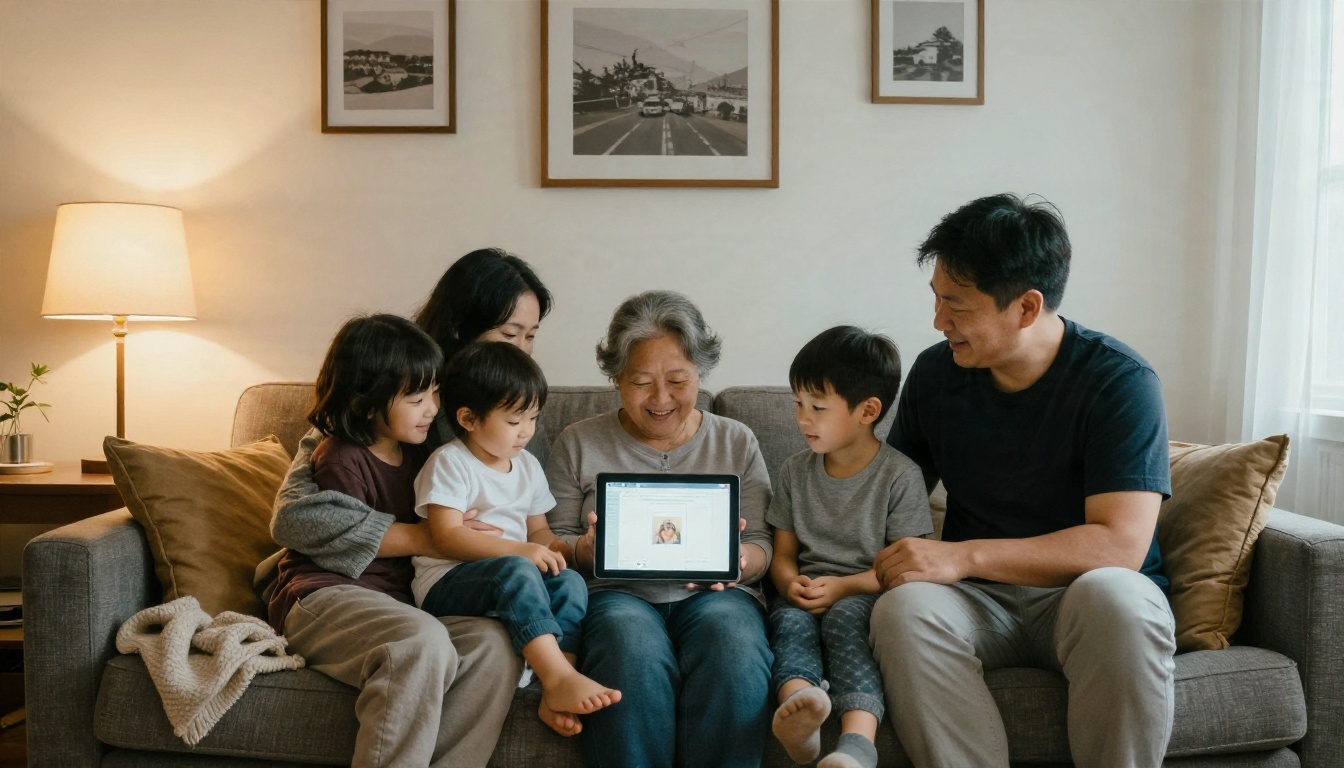
Family Gifts and Keepsakes
A cartoon portrait of the whole family makes a warm gift for grandparents, and it looks good on a mug, a calendar or a framed print. Pick a soft, friendly style and keep the pose from a photo everyone likes. Run each person separately if the group photo gives you uneven faces, then combine them in an editor.
Avatars and Channel Art
Streamers, gamers and writers often want an avatar that looks like them without showing their actual face. A cartoon keeps your hair, glasses and mood while giving you privacy. Anime and comic styles work particularly well here, because they stay readable at 100 pixels wide.
Small Business Mascots
A baker, a barber or a plumber can turn a friendly photo of themselves into a mascot for signs, menus and social posts. The result feels personal in a way stock illustration does not.
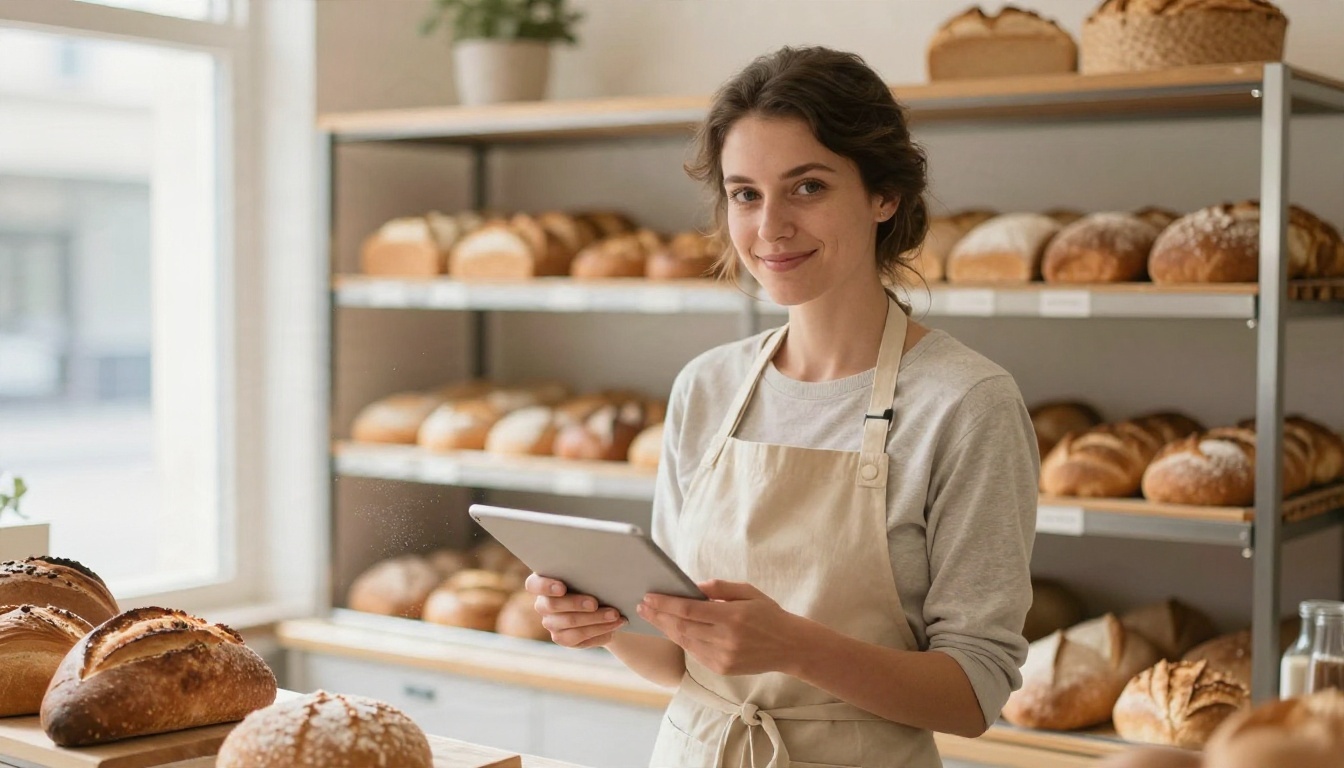
For this use case, consider vectorizing the final art so it works on shop windows and packaging, and check that your plan includes commercial rights before you print anything.
Pet Portraits
Pets are easy subjects: big eyes, clear markings, and no privacy concerns. A cartoon of a dog or cat makes a great gift, and the same file can become a sticker sheet.
Tips for Better Results
A few habits improve almost every conversion:
- Start with the original file. Social media apps compress photos and remove detail.
- Generate several versions. Pick the best eyes, then reuse that seed.
- Edit in steps. First change style, then adjust colors, then fix small details with an inpainting editor such as Qwen Image Edit 2511.
- Use the Filters model for quick looks. Filters is a fast way to test a few moods before you commit to a final prompt.
- Respect other people's faces. Only convert photos of people who are comfortable with it, and do not publish cartoons of someone else's child without permission.
How Long It Takes
A single conversion typically finishes in seconds. A polished result, with two or three style tests, a face fix and an upscale, takes about ten to fifteen minutes. That is far quicker than commissioning an illustrator, though a commissioned piece will still win when you need a one of a kind brand character.
Make Your Own Cartoon Today
You now have what you need: a clear idea of how photo to cartoon AI works, five styles to choose from, an honest look at free options, and prompts you can paste straight in.
Pick one photo you like, open Cartoonify on PicassoIA, and run it. Then try the same photo with Nano Banana or Seedream 4.5 and compare the faces side by side. If you want room to experiment without counting generations, PicassoIA Image Editor Pro lets you keep trying until the eyes, the smile and the hair all land. Your first cartoon is a few seconds away, and the second one will be better than the first.


