You open the App Store, type "AI clothes changer" and get a wall of near-identical icons, each promising a free try-on. You pick one, upload a selfie, and three seconds later a paywall appears over a blurred preview. Sound familiar? That is the standard experience, and it is why so many people give up before they ever see a decent result.
This article sorts the noise out. You will see what an AI clothes changer app really does, what the free tiers on iPhone typically allow, which prompts produce believable fabric instead of plastic-looking cloth, and how to run the same kind of outfit edit in a browser on PicassoIA when an app runs out of free credits.
💡 Quick answer: Most iPhone apps give you one to a few free outfit swaps, then switch to credits or a weekly subscription. For unlimited experimenting, a good prompt plus a photo editor model gives you more control and fewer surprises.
What an AI Clothes Changer Does
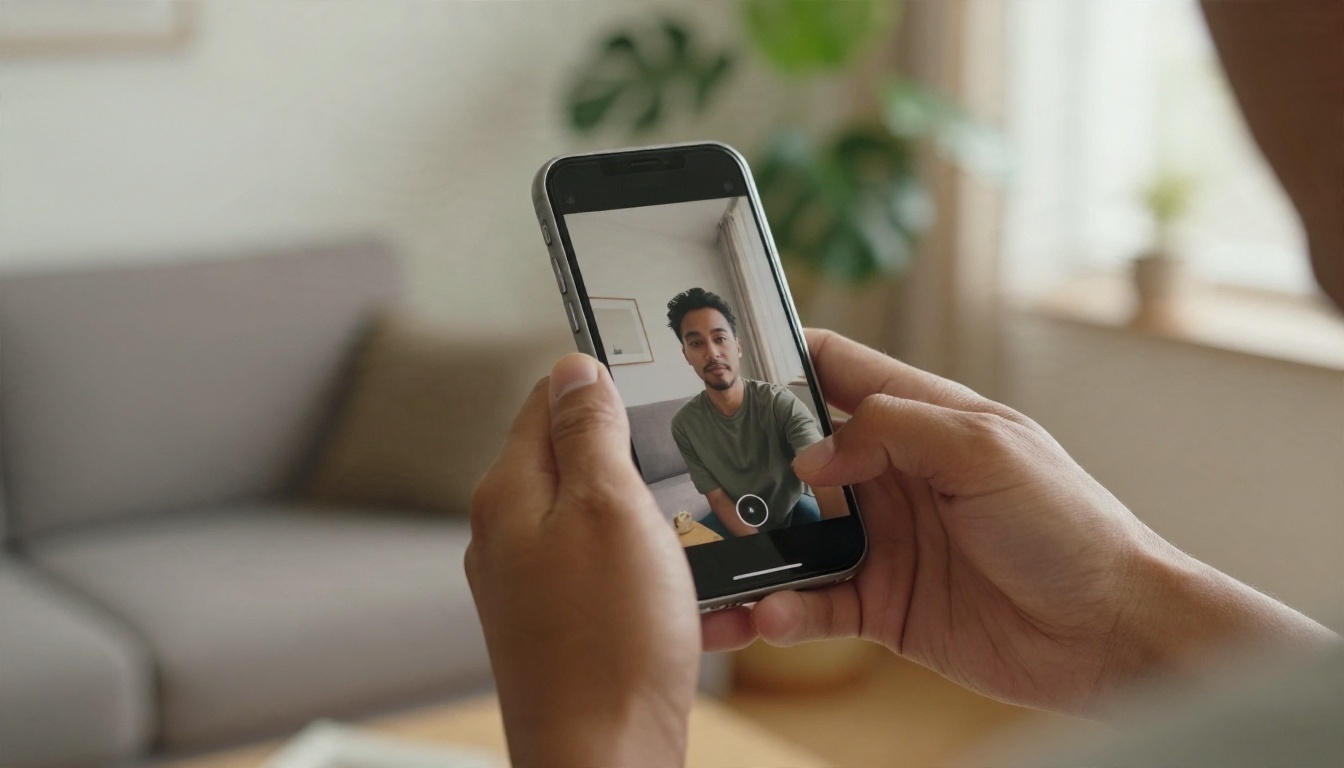
An AI clothes changer takes a photo of you, finds the garments you are wearing, and replaces them with a different outfit while leaving your face, pose, hands and background alone. The outfit can come from a text description ("a camel wool coat over a cream sweater"), from a second photo of a garment, or from a preset in the app's catalog.
Virtual try-on vs. photo editing
These two things get mixed up constantly, and the difference decides which tool you want.
- Virtual try-on apps are built around a garment catalog. You choose a dress or a jacket, and the app fits it to your body photo. Great for shopping decisions.
- Prompt-based outfit editing lets you describe anything, including clothes that do not exist in a store. Great for creative looks, costume ideas, profile photos and styling experiments.
- Hybrid apps offer both, usually with the catalog free and the custom prompts locked behind credits.
If your goal is "will this blazer suit me?", a catalog try-on is faster. If your goal is "what would I look like in a 1970s corduroy suit?", you want prompt-based editing.
Where the results break
Even the best models stumble in predictable places. Knowing them saves credits:
- Hands and cuffs. Long sleeves covering part of a hand are the most common failure.
- Layering. A jacket over a shirt over a scarf can collapse into one confusing shape.
- Patterns. Stripes, plaid and small prints tend to warp around folds.
- Body proportions. Loose garments can quietly change how wide your shoulders or waist look.
- Lighting mismatch. A bright new coat pasted onto a dim photo looks fake instantly.
Free Options on iPhone
The App Store listing for "AI clothes changer" is crowded, and new names appear every month. A search in November 2026 turned up apps such as FitIn, Dressify, Closet AI, CLOZO, TryOnCam, Outfitap and Fits, along with dozens of lookalikes. I could not find independent rankings, so treat the notes below as a summary of what the listings themselves say, not a verdict on quality.
What "free" really means
Almost every app is free to download and free to open. The free part usually ends there.
| App type | What you get free | What costs money |
|---|
| Daily-credit apps (such as Fits) | One creation per day | Unlimited creations |
| Signup-credit apps (such as Outfitap) | One free try-on on signup | Credit packs |
| Coin-pack apps (such as Dressify) | Sometimes a small starter balance | Coin packs, roughly $0.99 to $9.99 |
| Subscription apps (such as FitIn) | Limited previews | Weekly plans listed near $3.99, higher premium tiers |
Prices change often, so check the pricing screen before you upload anything. The weekly subscription model is the one that catches people out, because a "free trial" can roll into a recurring charge if you forget to cancel in iPhone Settings.
How to judge a free tier fast
Run this three-minute test on any app before you commit:
- Upload one clear full-body photo and request one simple change, like a plain white shirt.
- Check whether your face, hands and background stay untouched.
- Zoom in on collar and sleeve edges. Smeared edges mean low-grade output.
- Look for a watermark on the saved image.
- Find out whether you can export in full resolution without paying.
Red flags before you upload
Your photo is personal data, so a short checklist is worth it:
- No privacy policy, or one that never says how long photos are stored.
- A request for contacts or full photo library access when you only need to pick one image.
- Prompts or marketing that suggest removing clothing from other people's photos. Avoid those apps entirely.
- A paywall that appears only after you have uploaded and waited for processing.
💡 Tip: On iPhone, choose "Selected Photos" instead of "All Photos" when the permission dialog appears. The app then sees only the one picture you pick.
Prompts That Actually Work

Prompts matter more than the app. Two people using the same model will get very different results depending on how they describe the outfit and, just as important, what they tell the model to leave alone.
The four-part formula
A reliable outfit prompt has four pieces:
- Action: "Change the outfit to..."
- Garment detail: color, fabric, cut, length.
- Preservation: "Keep the face, hair, pose and background unchanged."
- Realism cue: "Natural fabric folds, matching lighting."
Put together: Change the outfit to a fitted charcoal wool blazer over a white cotton shirt, tailored trousers. Keep the face, hair, pose, hands and background exactly the same. Natural fabric folds, lighting matching the original photo.
Prompts you can copy
Swap in your own details. Each one works on both phone apps that accept text and on browser editors.
| Goal | Prompt |
|---|
| Job interview look | Change the outfit to a navy two-piece suit with a light blue shirt. Keep face, pose and background unchanged. Natural wool texture. |
| Casual weekend | Change the top to an oversized cream knit sweater and keep the jeans. Soft wool texture, relaxed fit, same lighting. |
| Wedding guest | Change the outfit to a knee-length emerald satin dress with thin straps. Keep face, hair, pose and background identical. |
| Winter coat | Replace the jacket with a long camel wool coat, open front, over the existing sweater. Realistic collar and button detail. |
| Summer holiday | Change the outfit to a white linen shirt with rolled sleeves and beige shorts. Keep the beach background untouched. |
Fabric and fit words that help
Vague words like "nice" or "stylish" give the model nothing to work with. These do:
- Fabrics: wool, linen, denim twill, cotton poplin, satin, corduroy, knit, leather.
- Fit: fitted, relaxed, oversized, cropped, tailored, high-waisted.
- Length: hip-length, knee-length, ankle-length, three-quarter sleeve.
- Finish: matte, brushed, ribbed, pressed, lightly wrinkled.
Mention one fabric per garment. Three fabrics in one sentence usually confuses the result.
Photos That Give Better Results
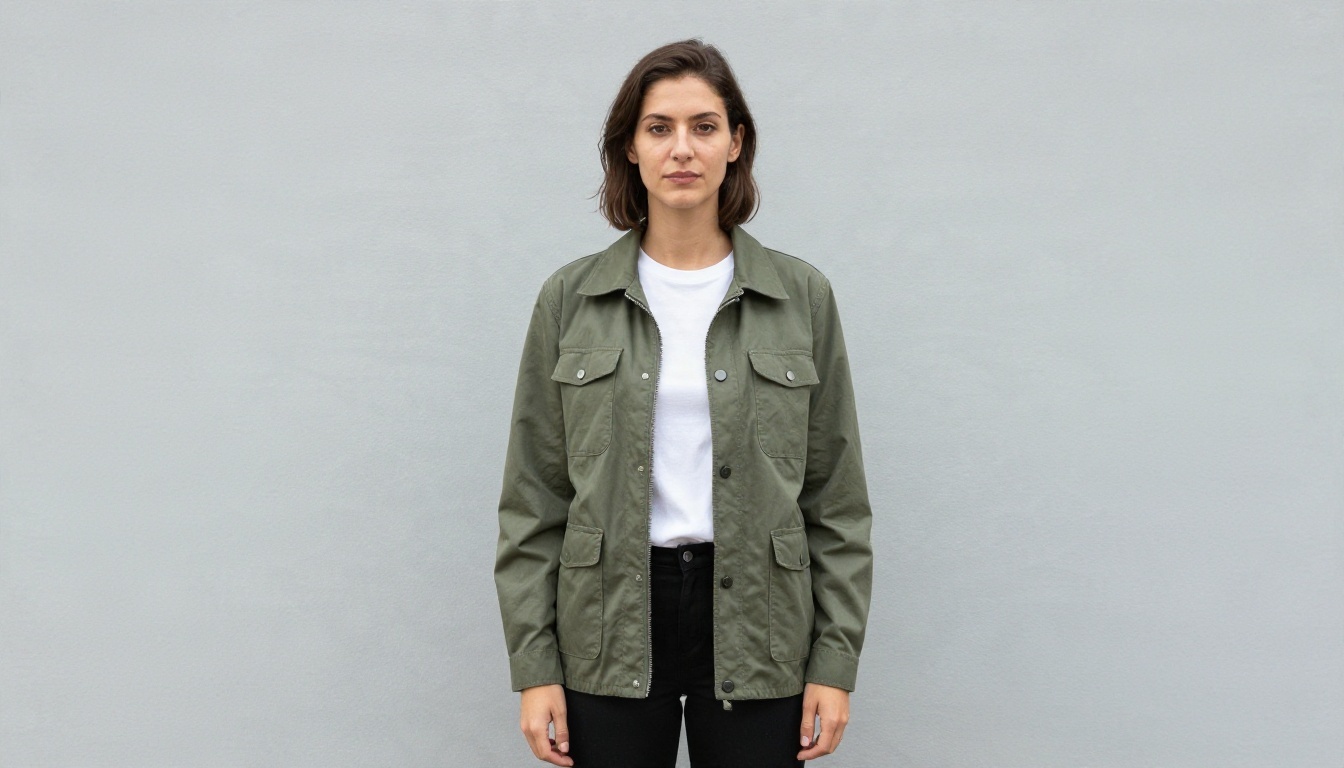
Your source photo is half the result. A bad input will beat even a great prompt.
The ideal source image
- Facing the camera, arms relaxed at your sides or lightly bent.
- Plain background, or at least one without clutter near your silhouette.
- Even daylight, from a window in front of or beside you, not directly overhead.
- Fitted clothes in the original photo, because baggy originals leave the model guessing about your shape.
- Full resolution. Do not send a screenshot of a screenshot.
Mistakes that waste credits
Crossed arms, a bag strap over the shoulder, a phone held in front of your torso in a mirror selfie, and heavy filters all create problems. If the original has your hand in a pocket, the model has to invent that hand again, and invented hands are the weak spot.
If your photo is soft or small, run it through an upscaler first. Real ESRGAN enlarges images up to 4x and gives edit models sharper edges to work with.
Try It Free in a Browser
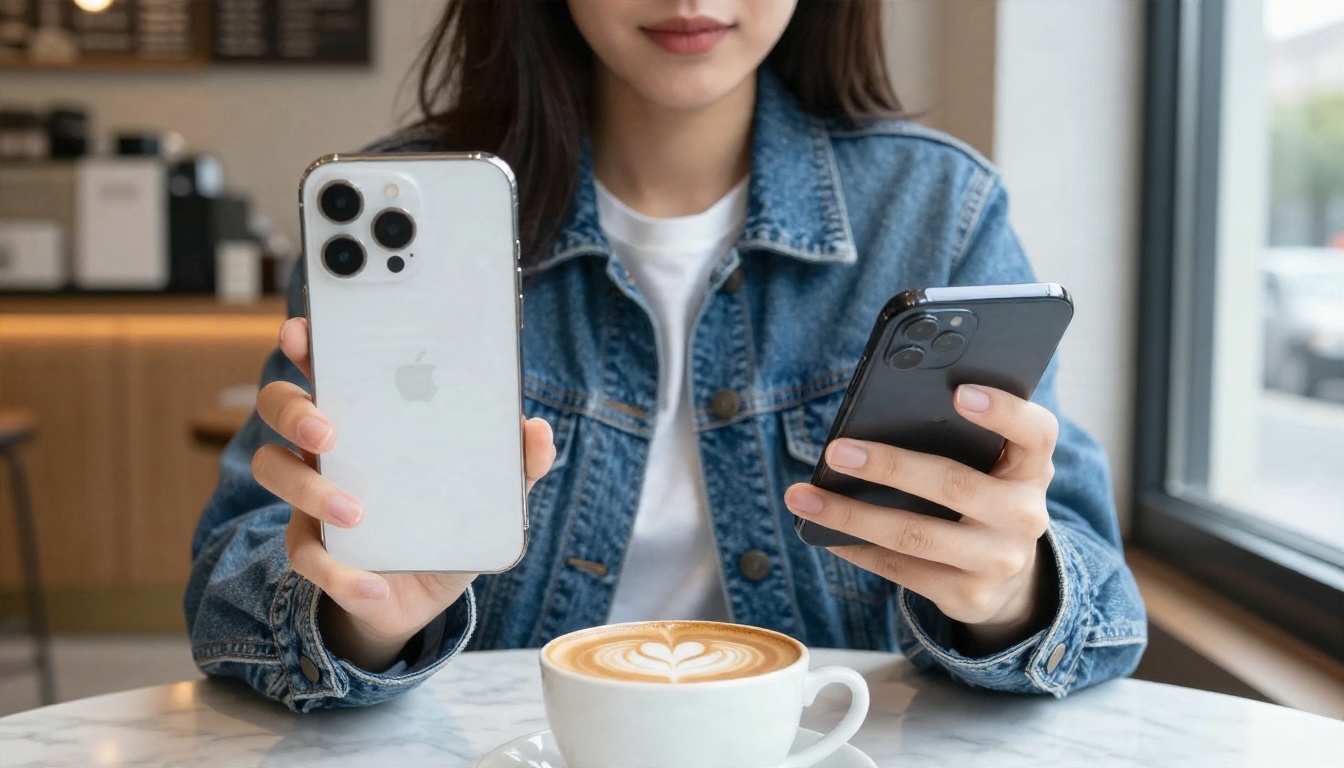
When an app runs out of free credits, a browser-based editor opens up Safari on your iPhone as a second option. You write the instruction yourself, so you are not limited to a catalog.
Which PicassoIA models fit
How to use Image Editor Pro on PicassoIA
PicassoIA Image Editor Pro is the simplest starting point because the generations are unlimited. Here is the workflow:
- Open the model page in Safari on your iPhone or on a desktop browser.
- Upload your source photo. Use the original file from your camera roll, not a screenshot.
- Write the outfit prompt using the four-part formula above. Name the garment, the fabric and what to keep unchanged.
- Generate and check the collar, cuffs and hands first.
- Refine with one change at a time. If the sleeves are too long, say "shorten the sleeves to wrist length" instead of rewriting the whole prompt.
- Save the best version, then upscale it if you plan to print it or post it large.
Parameter and prompt tips
- Ask for one outfit per generation. Requests for "three outfits side by side" produce muddy results.
- Add "keep the face and hair identical" every time. It costs nothing and prevents drift.
- When the first result is close but not right, edit the result instead of the original. Small corrections stack better than restarts.
- For catalog-style shots on a clean backdrop, pair the edit with Remove Background and then Generate Background for a studio or street setting.
- To test a new hairstyle with the outfit, try Change Haircut as a separate step.
💡 Tip: Keep a note on your phone with your best prompt. Reusing a working prompt and changing only the garment name gives far more consistent results.
Fixing Common Glitches
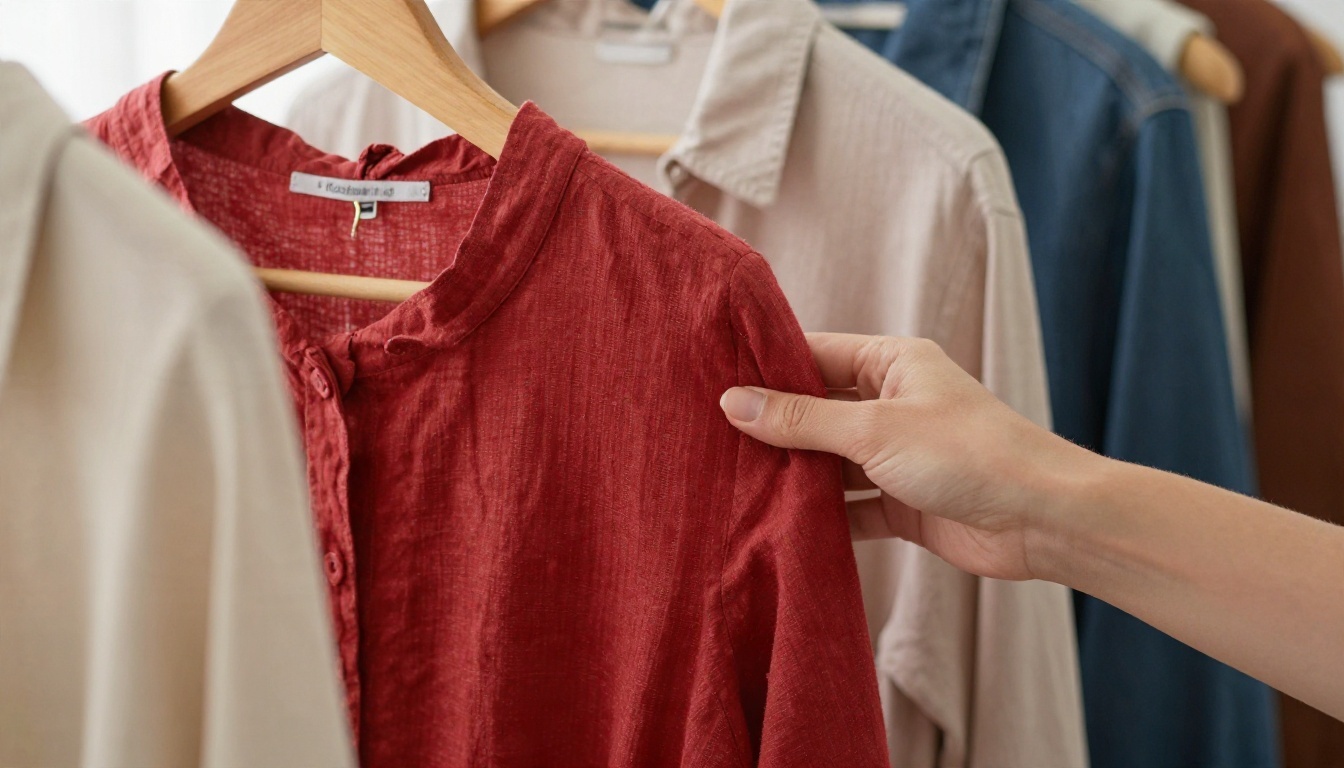
Even with a clean photo and a tight prompt, some outputs miss. Most problems have a short fix.
Warped sleeves and hands
Add a line such as "sleeves end at the wrist, hands fully visible, five fingers". If it still fails, choose a short-sleeve or rolled-sleeve version of the same garment. Fewer overlapping edges means fewer errors.
Lighting that does not match
When the new outfit looks pasted on, say so in the prompt: "match the soft window light from the left, same shadows and color temperature as the original photo." Also avoid describing glossy or metallic fabrics for dim photos, since reflections will not suit the scene.
Patterns that wobble
Stripes and plaid bend unnaturally on folds. Choose a larger, simpler pattern, or a solid color first, then ask for the pattern in a second pass. Solid fabrics also show off texture better.
Blurry or soft output
Run the final image through Real ESRGAN. If detail is still thin, regenerate with Seedream 4.5, which tends to hold fabric texture better at high resolution.

Outfit swapping is not only for online shoppers. People use it in quieter, more practical ways.
- Packing for a trip. Test five looks against the same photo and pack three.
- Interview and profile photos. Try a blazer or collared shirt without booking a photographer.
- Event dress codes. Check a wedding or formal outfit before you spend money.
- Small clothing brands. Show a garment on different models or in different colors without a new shoot.
- Costume and theme ideas. Preview a party outfit in a few minutes.
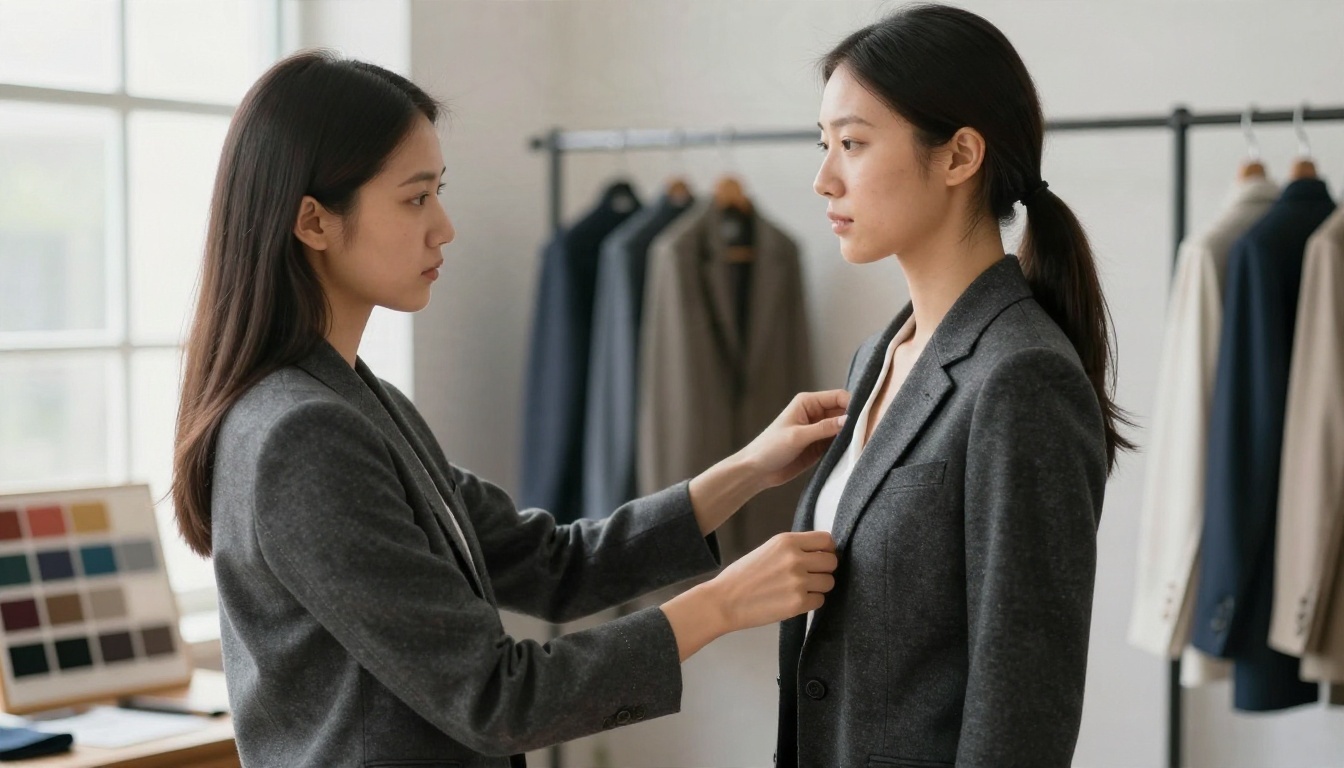
A useful habit is to treat the AI result as a sketch, not a promise. The cut, drape and color on a screen will not match a real garment exactly, and fit can only be judged properly in person. That is also why shoppers still check return policies.
Consent and Privacy Basics
Use these tools on your own photos, or on photos of people who have said yes. Editing someone else's picture without permission is a real problem, and changing what a person appears to be wearing without their agreement can be harmful. Stay away from apps that market clothing removal. Outfit editing is about styling, not exposing anyone.
A few practical habits:
- Delete uploaded photos from the app after use if the app offers that option.
- Avoid uploading images of children.
- Do not post an edited image of another person without telling them.
- Label heavily edited photos if you share them in a context where people may assume they are real, such as a seller listing.
Create Your Own Outfit Edits
You do not need a paid subscription to find out whether that jacket works for you. Pick a clean, well-lit photo, write a prompt that names the fabric and says what to leave untouched, and test two or three variations before you decide anything.
Open PicassoIA Image Editor Pro in Safari, upload one photo and try the interview-suit prompt from the table above. Then change a single word, such as navy to charcoal or wool to linen, and compare the two. For sharper, more detailed results, try the same prompt in Seedream 4.5 or Nano Banana Pro. Whatever you create, you can browse the rest of the models at picassoia.com/en/all-models and build your own outfit workflow from there.


