Your kid hears a song, the living room becomes a stage, and ten seconds later you wish that moment looked like a polished music clip. That is exactly why an AI dance video for kids is suddenly everywhere: one still image, one short motion prompt, and a character starts to groove. The catch is that children's images carry real privacy weight. A free maker is easy to find. A safe workflow takes a few extra minutes, and this article shows you what those minutes should contain.
You will see which photos are fine to upload (and which are not), what settings give smooth and natural dance motion, how to build a clip step by step on PicassoIA, and a short checklist to run before anyone hits share.
What an AI Dance Video Really Is
An AI dance video starts from a still image, usually a person, a character or an avatar, and uses a video model to animate it. The model predicts how the body, clothes and hair would move across about five to ten seconds, and many current models add matching audio. You describe the dance in plain language: "the child spins twice, claps, then waves at the camera."
There are two main ways to get there.
Image to video
You upload one picture and write a motion prompt. The picture becomes the first frame. This is the fastest route and the one most free makers offer.
Motion transfer
You provide a character image plus a short reference clip of someone dancing, and the model copies the movement onto your character. It gives tighter control over choreography. It also means a real person's movement is involved, so the same safety thinking applies to the reference clip.
💡 Quick rule of thumb: if a tool asks for a face photo of a child to work, pause. You can nearly always get the same fun result from a stand-in character.
Why Kids Love These Clips
Children are natural performers, and the AI version adds a surprise factor. A stuffed fox starts breakdancing. A drawing from the fridge steps off the paper. A grandparent far away receives a silly clip made just for them.
Parents and teachers use them for:
- Birthday greetings with an animated mascot instead of a real child's face
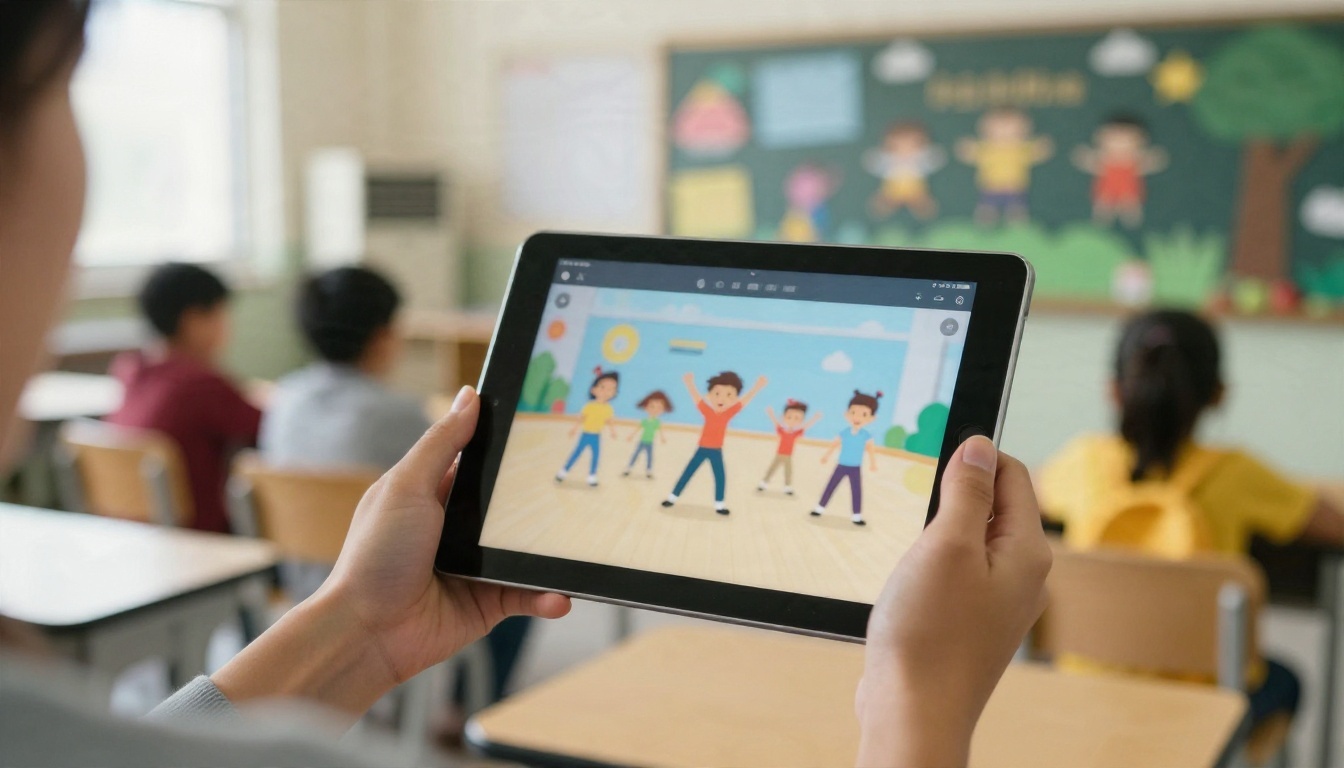
- Classroom brain breaks, short movement clips shown on a tablet
- Family group chats where a cartoon-free, realistic character does the "happy dance"
- Creative play, where kids invent a character and direct the moves themselves
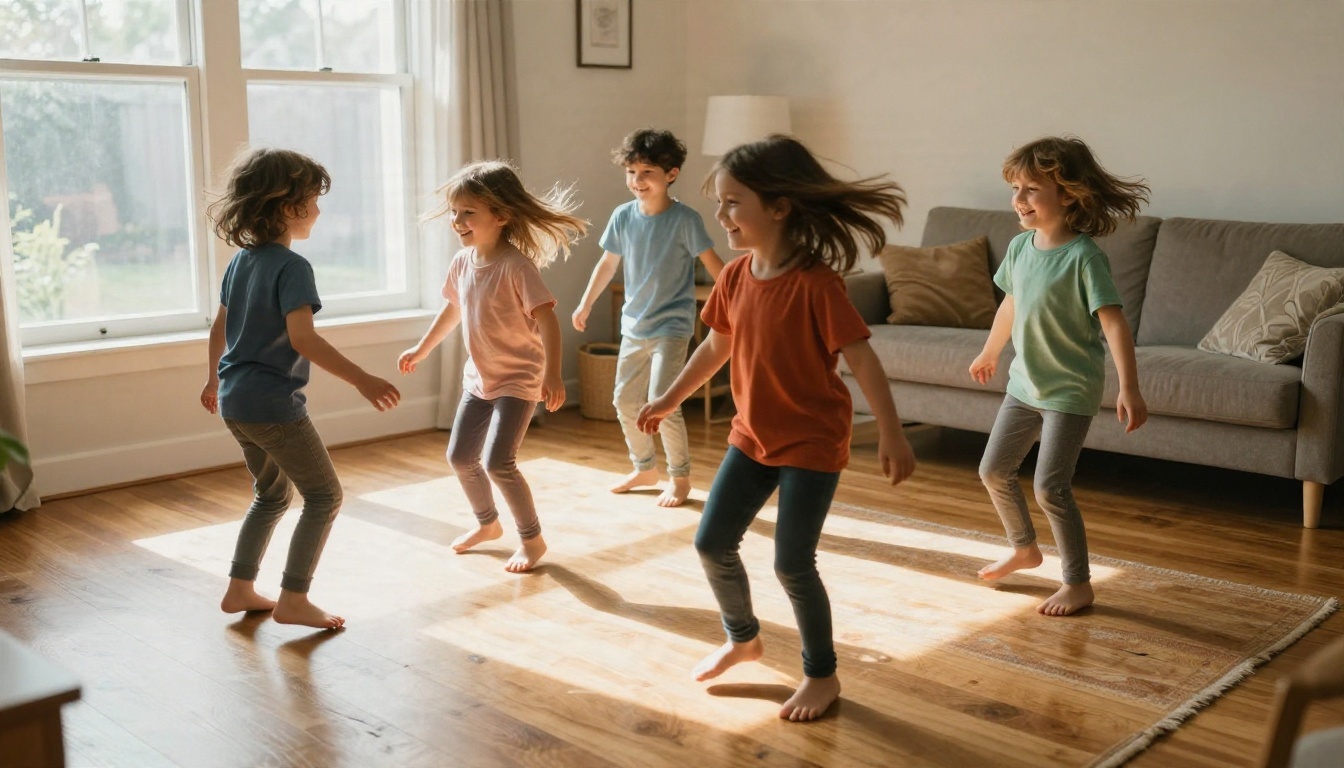
The last one is the sweet spot. When a child chooses the character and the song, the clip stops being content about them and becomes something they made.
Free Makers: What You Actually Get
"Free" can mean very different things. Some tools give unlimited generations, some give a handful of credits, and some add a watermark or hold your uploads for training. Check these points before you commit.
| What to check | Why it matters for kids' clips |
|---|
| Unlimited vs. credit based | Dance prompts often need 3 to 5 tries to look natural |
| Watermark | Watermarks make clips look less polished in school or family shares |
| Upload retention | You want control over how long a photo stays stored |
| Audio included | Saves a separate step for music or sound effects |
| Clip length | Five seconds is fine for a loop, ten gives room for a full move |
| Account age rules | Many platforms require adults to create the account |
On PicassoIA, several video models fit this job. Seedance 2.5 Lite is listed as a free and unlimited generator with clips up to 10 seconds, and PicassoIA Video is positioned as a free unlimited text or image to video option. Both are good places to try a first dance without worrying about burning credits.
When a paid model is worth it
If you want sharper limbs and more believable fabric motion, step up to something like Kling v3 Video, Wan 2.7 I2V or Hailuo 2.3 Fast. Start free, then upgrade only if the free result is not good enough.
Safe Photo Tips Before You Upload
This is the part most "free maker" pages skip. A dance clip is only as safe as the picture that goes into it.
Photos that are fine
- A stand-in character: a toy, a mascot, a pet, a drawing the child made, or an adult-made generated character
- A child photographed from behind or at a distance, with no identifiable face
- A silhouette at sunset or a shadow on the ground
- A generated image of a fictional child that does not resemble any real one
Photos to skip
- Close-ups of a child's face, especially from the front
- Anything with a school uniform, school name, team jersey or house number in view
- Pictures taken at a swimming pool, beach or in sleepwear. Keep clothing fully everyday and modest in every source image
- Photos of other people's children, unless their parents clearly agreed
- Images that show a street sign, license plate or landmark that places the child
💡 Strip the details. Before uploading, crop out background clues and remove location data from the file. Most phones let you switch off location in the share sheet.
The stand-in character trick
Generate or pick an image of a friendly character, then let the child direct it. You get all the laughs with none of the exposure. You can create that character with an image model such as Nano Banana or Seedream 4.5 and use the result as the first frame.
Never use face swap on a child
Face swap tools exist, but putting a real child's face onto a generated body, or a stranger's face onto a child, is a line worth never crossing. Keep it to characters.
Settings That Make Dance Look Natural
Most bad AI dance clips fail for the same few reasons: too much motion in too little time, a cluttered frame, or a prompt that asks for five dances at once. These settings fix most of it.
Resolution and length
Use 720p for tests and move to 1080p only for the final version if the model offers it. For length, 5 seconds gives the most stable motion. If you need more, make two clips and join them rather than asking for one long routine.
Aspect ratio
Pick the ratio for where it will be seen. Vertical 9:16 fits phones and chat apps. 16:9 suits a classroom screen or TV. Keep the source image in the same ratio so the model does not have to crop or guess.
The motion prompt
Describe one action per sentence and keep the camera simple.
- Good: "The character claps twice, then spins slowly to the right and smiles at the camera. Static camera, soft daylight."
- Weak: "Amazing epic fast dance with lots of moves and camera shake."
Settings cheat sheet
| Setting | Recommended | Reason |
|---|
| Resolution | 720p for tests | Faster, cheaper, enough to judge motion |
| Duration | 5 seconds | Stable limbs and faces |
| Camera | Static or slow push in | Fast camera moves cause warping |
| Prompt length | 1 to 3 short sentences | Fewer conflicting instructions |
| Audio | On, with a simple beat | Sync looks more natural than silence |
| Attempts | 3 to 5 | Pick the best, delete the rest |
💡 Tip: If hands look odd, ask for simpler arm moves such as waving, clapping or swaying. Finger-heavy choreography is where most models stumble.
How to Make One on PicassoIA
Here is a workflow that keeps the child's real image out of it entirely.
Step 1: Create the character
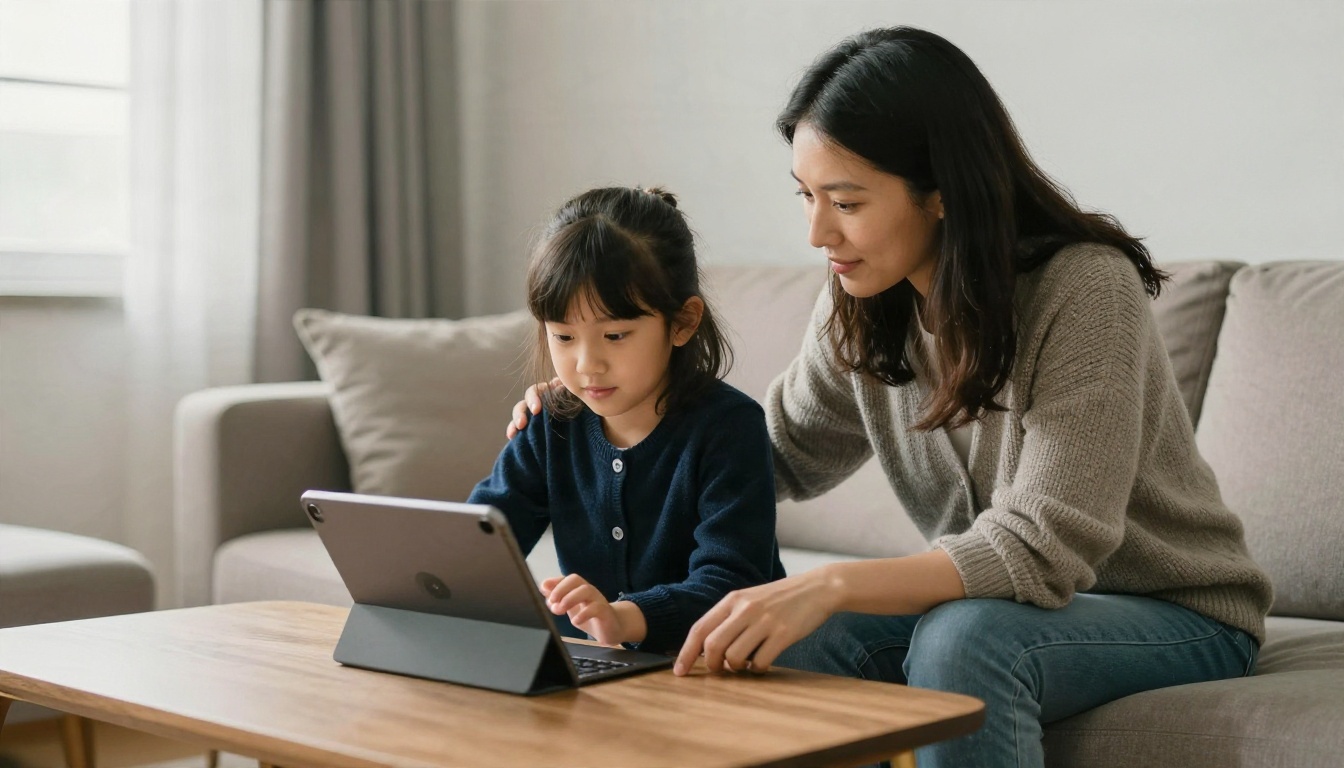
Open an image model such as Nano Banana Pro and write a prompt for a friendly character: "a smiling cartoon-free plush bear in a yellow raincoat standing in a bright living room, full body, front view, soft window light." Choose full body so legs and arms are visible.
Step 2: Pick a video model
For a free first try, open Seedance 2.5 Lite. If you want to compare, Wan 2.5 I2V Fast is a quick image to video option, and Veo 3.1 Fast is worth a test when you want audio built in.
Step 3: Upload and prompt
Add your character image as the first frame, then paste a short motion prompt. Example: "The plush bear bounces to the beat, claps twice, then waves. Static camera, warm daylight, soft room tone."
Step 4: Set the options
Choose 5 seconds, 720p and the aspect ratio that matches your image. Leave other options at their defaults for the first run, and change one setting at a time.
Step 5: Generate, review, repeat
Watch the clip with the child. Ask what they would change: slower spin, bigger wave, different jump. Rewrite the prompt using their words and generate again.
Step 6: Add a better soundtrack (optional)
If the built-in audio is not right, PicassoIA also has audio tools for music and voice. Keep tracks short, simple and licensed for your use.
💡 Motion transfer option: Kling v3 Motion Control lets you copy a dance from a reference clip onto a character. Use a clip you filmed yourself or an adult dancer, never a clip of someone else's child.
Mistakes That Ruin the Clip
Using a busy source image
Crowded backgrounds make the model animate the wrong things. Plain walls, clear floors and one subject work best.
Asking for too much
"Spin, jump, split, flip and wave" in five seconds gives you a blur. Choose two moves at most.
Skipping the review
AI can add odd details: an extra finger, a warped logo, a strange sound. Watch every clip start to finish with the sound on.
Posting publicly by default
Many apps start with a public setting. Change it before upload, not after.
Keeping every attempt
Delete the rejected generations. Fewer stored files means less to worry about later.
Sharing Settings and Privacy Checklist
Run this list before the clip leaves your device.
For teachers and group leaders
If you use these clips in a class, get written parent consent first and follow your school's policy on AI tools. A stand-in mascot used for the whole class keeps everyone's image out of it, and it is easier to explain to families.
Talking to kids about it
Keep it short and honest. Explain that the dancing character is not real, that a computer drew the movement, and that photos of people are private by default. Children who grow up knowing this are better prepared for every other piece of media they will meet.
Ready-to-Use Prompt Ideas
Copy these, change the character and tweak the details.
- Happy bounce: "A plush fox in a green scarf bounces side to side to a steady beat, then claps twice and smiles. Static camera, bright living room."
- Spin and wave: "A smiling robot toy with painted wood texture spins slowly to the right, stops, and waves at the camera. Soft daylight."
- Slow sway: "A child's crayon drawing of a sun, brought to life as a realistic paper cutout, sways gently left and right with a gentle rhythm."
- Party moves: "A friendly golden retriever stands on its back legs and does a small happy dance on a sunny lawn, tail wagging, static camera."
- Grandma greeting: "A cheerful plush rabbit holds a heart-shaped card, bounces twice and blows a kiss. Warm kitchen light."
💡 Prompts with animals and toys tend to produce cleaner motion than humans, and they keep real faces out of the picture.
Troubleshooting Common Problems
| Problem | Likely cause | Fix |
|---|
| Limbs bend strangely | Too many actions in the prompt | Cut to one or two moves |
| Face changes mid clip | Low-detail source image | Use a sharper, front-facing character image |
| Clip feels slow | Missing tempo word | Add "to a steady beat" or "bouncy" |
| Background shifts | Busy scene | Use a plain background |
| Audio does not match | Model guessed the sound | Describe the music in the prompt, or add audio separately |
| Output looks soft | Low resolution | Re-run at higher resolution or upscale the final clip |
Try Your First Dance Clip Today
You now have the full picture: pick a stand-in character, keep the real child's face out of every upload, use short prompts with one or two moves, choose 5 seconds at 720p for testing, and finish with the sharing checklist. The whole thing takes about ten minutes once you have done it once, and the result is something the family will replay all week.
Open PicassoIA, generate a character with an image model, and animate it with Seedance 2.5 Lite or any of the video models above. Try three different prompts, let your child pick the funniest, and keep it private. If you want to compare more options, browse everything at picassoia.com/en/all-models and make your next clip your best one.


