Every musician has been there. The track is finished, the mix sounds right, and then reality hits: the artwork isn't done. Hiring a designer costs money most independent artists don't have. Stock photo sites produce visuals that look exactly like what they are. AI image generation changes this equation completely, putting professional-grade album artwork in the hands of anyone who can describe a mood in a sentence.
This article breaks down exactly how to create your first AI-generated album artwork, which models work best for musicians, how to write prompts that produce what you're actually imagining, and how to export files ready for Spotify, Apple Music, and Bandcamp.

Why Your Album Artwork Costs You Streams
Album artwork is the first touchpoint before anyone hears a single note. On Spotify's browse and discovery pages, your image competes against thousands of thumbnails at 56x56 pixels. At that size, a cluttered composition disappears entirely.
Streaming platforms have consistently shown that strong artwork correlates with higher click-through rates on playlists and algorithmic recommendations. For independent artists without label budgets, this used to mean expensive design commissions or compromised visuals. AI image generation eliminates that trade-off.
The Three Things That Make Album Art Work
Before opening any tool, it helps to know what you're building toward. Effective album artwork does three specific things:
- Creates immediate mood recognition even at thumbnail size
- Works in black and white since it appears in notifications and dark mode
- Contains one clear focal point that doesn't compete with your artist name when overlaid
💡 The most successful AI-generated album art starts with a mood reference, not a prompt. Collect 5-10 images that capture how your music feels before writing a single word.
What Each Platform Actually Requires
| Platform | Minimum Size | Recommended | Format |
|---|
| Spotify | 640x640 px | 3000x3000 px | JPG/PNG |
| Apple Music | 1400x1400 px | 3000x3000 px | JPG |
| Bandcamp | 700x700 px | 2400x2400 px | JPG/PNG |
| YouTube Music | 1280x1280 px | 3000x3000 px | JPG/PNG |
| SoundCloud | 800x800 px | 3000x3000 px | JPG/PNG |
All of these use square (1:1) format. This matters when generating your AI images. Most models default to 16:9, so you'll need to explicitly request square output or crop intentionally before submitting to any distributor.
Choosing the Right AI Model
Not all AI image models produce the same results. For musicians creating album artwork, the choice of model changes the visual character of the output significantly. Here's how the most relevant models compare.
Flux 1.1 Pro for Photorealistic Shots
Flux 1.1 Pro is the go-to model for musicians who want photorealistic, atmospheric imagery. It handles low-light studio environments, outdoor portraits, and moody landscapes with exceptional detail. The model follows complex prompts closely, which is critical when you have a specific visual in mind.
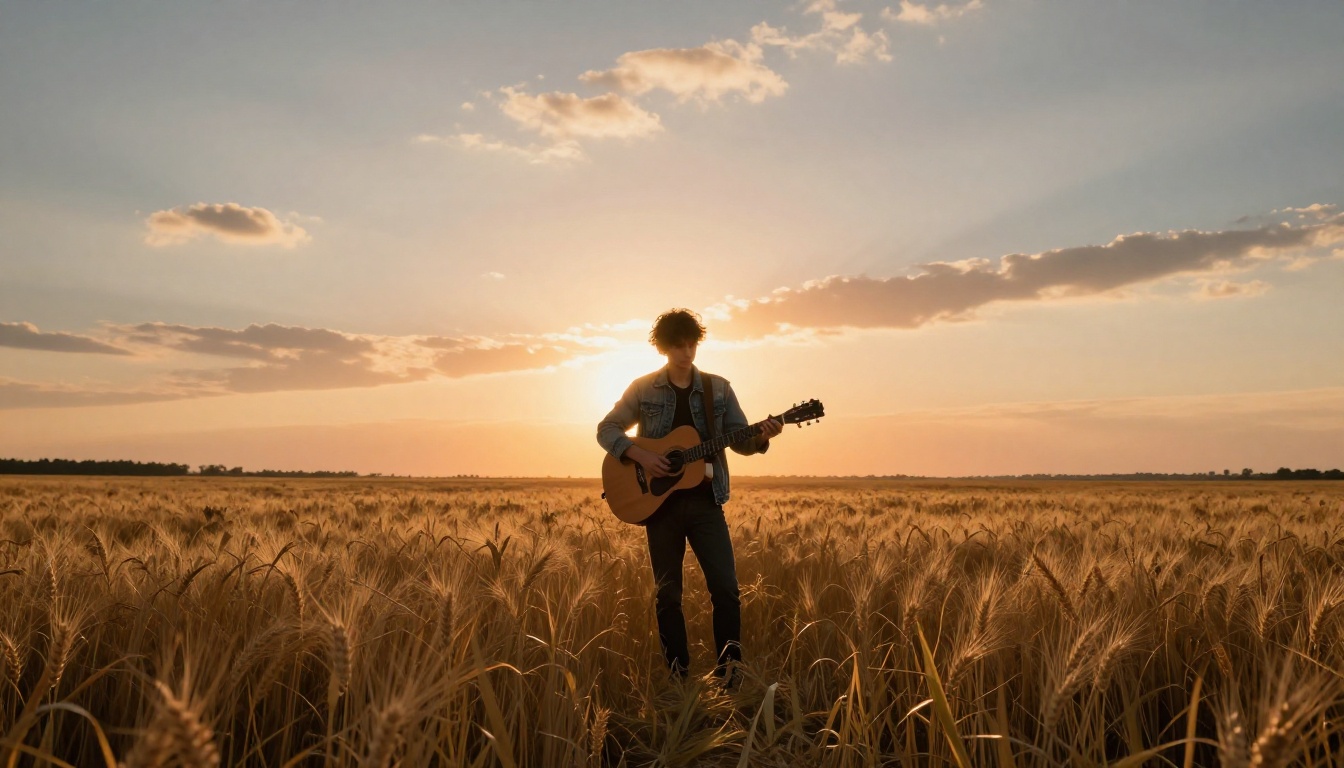
For an artist releasing a folk or acoustic record, Flux 1.1 Pro consistently produces imagery with natural film grain and warm tonal quality that works beautifully as album artwork.
Best for: Singer-songwriters, indie, folk, ambient, and classical-adjacent releases.
Flux 1.1 Pro Ultra for High-Resolution Output
When you need the largest possible output for print or premium digital use, Flux 1.1 Pro Ultra is the step up. It generates at resolutions beyond standard models, which matters if your artwork will appear on merchandise, posters, or vinyl sleeves in addition to streaming platforms.
Best for: Any artist who plans to use their artwork beyond digital streaming.
GPT Image 2 for Concept-Heavy Art
GPT Image 2 excels at following complex, conceptual prompts where the composition needs to be very specific. If your artwork concept involves a precise arrangement of objects, a specific relationship between elements, or requires accurately rendered props and environments, this model interprets instructions more literally than most others.
Best for: Electronic, experimental, hip-hop, and pop releases with concept-driven artwork.
Ideogram v3 Quality for Typography-Integrated Art
Ideogram v3 Quality is one of the few AI models that handles text within images with real accuracy. If you want your artist name or album title baked into the visual itself rather than added in post, Ideogram is the strongest option available. Ideogram v3 Turbo offers the same capabilities at faster output speed.
Best for: Artists who want text integrated into the image rather than overlaid in a separate step.
Recraft v4 for Stylized and Graphic Looks
Recraft v4 and Recraft v4 Pro produce clean, stylized output that works especially well for electronic, pop, and genre-crossing releases that want a designed, graphic aesthetic rather than a photographic one.
Best for: Pop, electronic, R&B, and artists with a strong visual brand identity.
How to Write Prompts That Actually Work
The quality of your output is almost entirely determined by the quality of your prompt. Most musicians write their first prompts like search engine queries and wonder why the results look generic. Here's how to write prompts that produce specific, atmospheric results.
Describe the Mood, Not the Song
The single biggest mistake in AI image prompting is describing the music instead of a visual scene. "Dark electronic music" is not a prompt. "A lone figure standing in an empty parking structure at 3am, sodium vapor lights casting orange pools on wet concrete, fog rolling in from the left" is a prompt.
Think cinematically. What would a film still from your music video look like? That specific frame is your starting point.
The Four-Part Prompt Formula
Every strong image prompt for album artwork contains these four elements:
- Subject: Who or what is the focal point?
- Environment: Where is it? What's the surrounding context?
- Lighting: What is the light source, direction, and quality?
- Camera details: What lens, angle, and film stock?
💡 Always end your prompt with technical photography details: "85mm f/1.4, Kodak Portra 400, shallow depth of field, photorealistic, 8K, RAW photography." This pushes the model toward photographic realism instead of illustration.
Genre-Specific Prompt Starting Points
| Genre | Suggested Subject | Suggested Lighting |
|---|
| Folk/Acoustic | Musician in natural landscape | Golden hour rim light from behind |
| Electronic | Abstract architectural environment | Cool blue tungsten interior |
| R&B/Soul | Close portrait, minimal background | Single soft box from 45 degrees |
| Indie Rock | Urban environment, candid feel | Overcast daylight, flat and honest |
| Jazz | Interior scene, instrument detail | Warm tungsten, narrow beam |
| Hip-Hop | Low-angle portrait, strong presence | Hard directional sunlight, sharp shadows |
What to Avoid in Your Prompts
Certain prompt elements consistently produce poor results for album artwork:
- Requesting multiple subjects without specifying their arrangement (the AI will place them awkwardly)
- Using abstract emotional words only like "sad" or "energetic" without visual anchors
- Requesting complex text in models not built for typography (use Ideogram v3 Quality for this)
- Being too vague on lighting since this is what actually creates mood in a photograph
How to Use Flux 1.1 Pro on PicassoIA
Flux 1.1 Pro is available directly on PicassoIA and is the recommended starting point for musicians creating their first AI album artwork. Here's the full process from prompt to download.
Step 1: Open the Model Page
Go to the Flux 1.1 Pro page on PicassoIA. You'll see the prompt input field, aspect ratio selector, and output settings on a single screen.
Step 2: Set the Aspect Ratio to 1:1
Album artwork is always square. Before entering your prompt, change the aspect ratio to 1:1. This option is in the settings panel below the prompt field. Skipping this step means cropping your output later and potentially losing important parts of the composition.
Step 3: Write Your Prompt Using the Four-Part Formula
Use the structure from the previous section. Here's an example prompt for a dark acoustic EP:
"A solitary acoustic guitar resting against a rough stone wall in a dimly lit cellar, single candle to the right casting warm directional shadows, close-up from a 45-degree angle, Kodak Portra 800 film grain, 50mm f/2.0 lens, photorealistic, 8K, RAW photography"
Step 4: Run the Generation
Click Generate. Flux 1.1 Pro typically takes 10-20 seconds per image. If the result doesn't match your vision, adjust the lighting or environment description rather than rewriting the entire prompt from scratch.
Step 5: Iterate on the Details
Generate 3-5 variations before deciding. Small prompt changes produce significantly different results. Try adjusting:
- The light source position ("from the left" vs. "from directly above")
- The distance ("close-up" vs. "medium shot" vs. "wide angle")
- The time of day or the indoor/outdoor setting
Step 6: Download at Full Resolution
Once satisfied, download the full-resolution output. For streaming platforms, ensure the file is at least 3000x3000 pixels. If the output is smaller, use the P Image Upscale model on PicassoIA to scale up without losing detail.
Refining Your Artwork After Generation
The first output is rarely the final output. Here's how to take a good AI image and make it release-ready.
Background Removal for Alternate Versions
If your artwork features a subject you want to isolate (a portrait, an instrument, a specific object), PicassoIA's background removal tools let you extract it cleanly. This is useful for creating alternate versions, merchandise mockups, or social media variants from a single generated image.
Upscaling for Distribution
AI-generated images sometimes output at lower resolutions than professional distribution requires. The upscaling models on PicassoIA can bring a 1000x1000 image to 3000x3000 without visible degradation. P Image Upscale is the fastest option for clean results, while Flux 2 Pro delivers the highest detail retention for complex textures.
Color Grading in Post
AI models have their own built-in color tendencies. Flux 1.1 Pro trends warm and filmic. GPT Image 2 tends toward neutral. If you need precise color correction to match a specific visual identity, export your image and apply corrections in any photo editor before finalizing.
💡 Before submitting to distributors, convert your artwork to the sRGB color space. Some AI models output in a wider gamut that can look desaturated or color-shifted on certain streaming platform displays.
Real Results by Genre
Musicians across genres are using AI image tools to produce distinct visual identities. Here's a breakdown of approaches that work consistently.
Folk and Acoustic
Artists in this space consistently gravitate toward natural environments with warm, analog-looking photography aesthetics. Flux 1.1 Pro with prompts referencing golden hour light, natural textures (stone, wood, grass), and film grain produces artwork that feels earned rather than generated.
Electronic and Ambient
These genres benefit from architectural abstraction. Empty spaces, industrial textures, and geometric compositions generated with Flux 2 Pro or Seedream 4.5 produce minimalist artwork that reads clearly at thumbnail scale.
Hip-Hop and R&B
Strong portraiture is the visual language here. Low-angle shots with hard directional lighting, generated through Flux 1.1 Pro Ultra for maximum resolution, produce portraits with the visual weight the genre demands. Pairing this with Ideogram v3 Quality lets you integrate artist name typography directly into the image.
Indie and Alternative
This genre has the widest visual range. Candid-feeling photography, honest light, and subjects that feel unstaged work consistently. Stable Diffusion 3 offers a slightly grittier, less polished output that can work to advantage for this aesthetic.
What to Do After the Image Is Ready
Generating the image is only part of the process. Here's what comes next before you submit to a distributor.
Adding Text in a Design Tool
Most musicians add their artist name and release title in a separate step using a design application. The most common workflows:
- Canva: Free, browser-based, has music-specific album art templates
- Adobe Photoshop/Illustrator: Professional control over typography
- Figma: Fast and clean for anyone already using it for other design work
Import your AI-generated image as the base layer and add text on top. Use the contrast and clarity of the existing AI image to determine whether white, black, or a color text treatment will read most clearly.
File Naming and Metadata
Distributors like DistroKid, TuneCore, and CD Baby have specific file requirements. Typically:
- Filename:
ArtistName_ReleaseName_3000x3000.jpg
- Color space: sRGB
- No transparency (flatten all layers before exporting as JPG)
Testing at Thumbnail Size
Before submitting, scale your final artwork down to 200x200 pixels and look at it on a phone screen. If the main visual element isn't immediately clear at this size, the artwork will disappear in playlist rows and discovery feeds. This is the most reliable quality filter in the entire process.
Mistakes That Kill Good Artwork
Even with a solid prompt, a few consistent mistakes produce disappointing results.
Overloading the Scene
Adding too many elements to one image creates visual noise. Album artwork that works has one dominant element. Two subjects, three objects, and a complex background is a recipe for something that confuses more than it communicates.
Using the Wrong Aspect Ratio
Generating in 16:9 and then cropping to square is a common workflow error. Either generate in 1:1 from the start, or leave significant negative space on all sides so the crop doesn't lose critical elements. Plan the crop before you prompt.
Ignoring the Thumbnail Test
The artwork might look spectacular at full size and completely illegible at 60 pixels wide. Test early and often at reduced size. This is the single most reliable quality filter available and takes about ten seconds.
💡 Generate 3 completely different visual concepts before deciding. The first idea is rarely the best one. AI tools make iteration so fast that there is no reason to settle for the first result.
Not Matching the Artwork to the Music
Artwork that contradicts the sonic identity creates cognitive dissonance. A harsh industrial electronic album with soft pastoral photography sends mixed signals to potential listeners. Spend time on the mood reference board before prompting.
Start Creating Your Own Album Artwork Now
The workflow is straightforward: pick a model that matches your aesthetic, write a four-part prompt describing a real photographic scene, generate multiple variations, refine with upscaling if needed, then finalize with typography in a design tool.
The models on PicassoIA give independent musicians access to the same visual quality level that was previously available only to artists with significant design budgets. Flux 1.1 Pro is the logical starting point for most genres, with Ideogram v3 Quality for any project where text needs to be part of the image itself, and Flux 1.1 Pro Ultra when resolution requirements go beyond streaming.
The gap between idea and finished album artwork is now measured in seconds, not days. Head to PicassoIA, open Flux 1.1 Pro, write one prompt using the four-part formula, and generate your first image. Your visual identity starts with that first output.


