Most text-to-image models treat typography as an afterthought. You describe a scene with a headline, a label, or a sign, and what comes back has letters that dissolve into shapes, words that jumble together, and text that reads like corrupted data. Ideogram V2 was built specifically to solve that problem. It renders readable, accurate text inside generated images and pairs that capability with clean inpainting, six visual style presets, over 60 resolution options, and a Magic Prompt system that expands short inputs into detailed scene descriptions. This article covers every feature in detail, compares V2 with V2 Turbo, and walks through exactly how to use both on PicassoIA.
What Ideogram V2 Actually Does
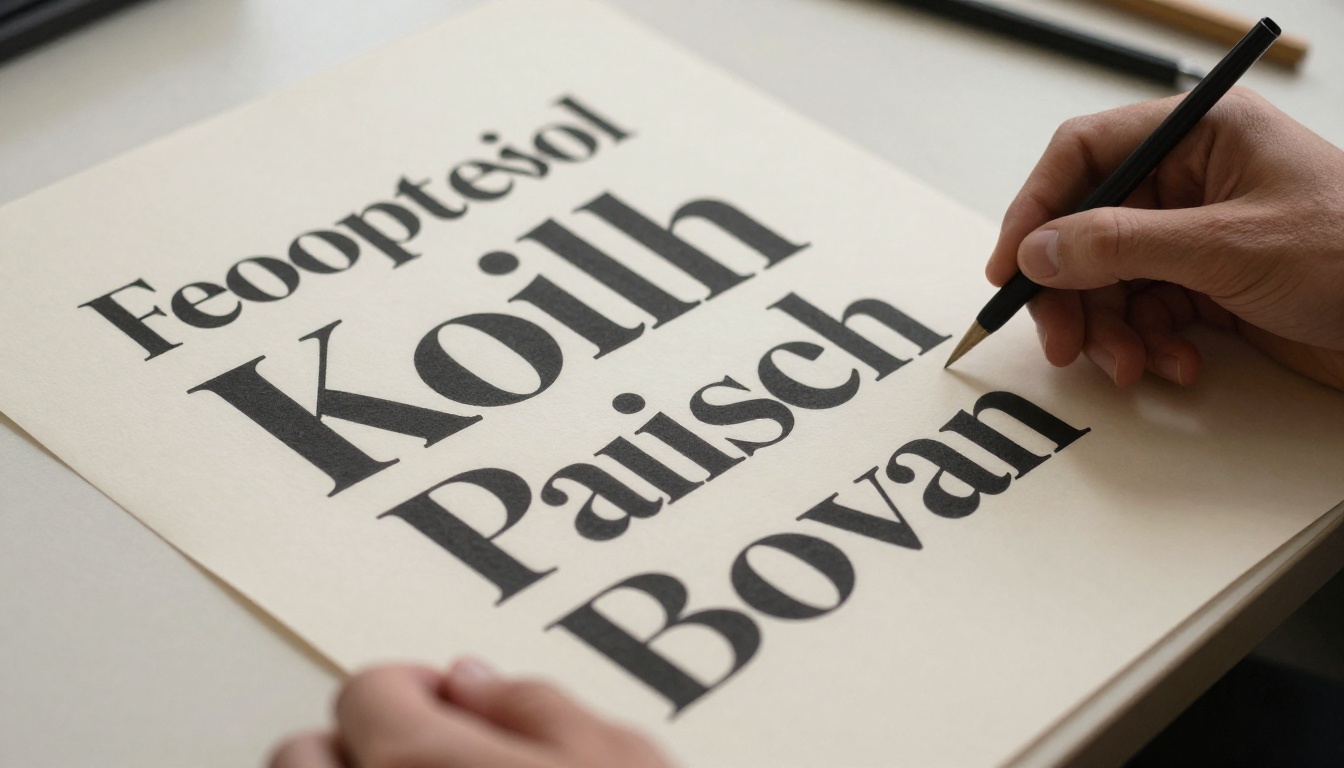
Ideogram V2 is a text-to-image generation model. You write a prompt, it produces an image. That description applies to hundreds of models, but the difference becomes apparent the moment your prompt includes words you want visible in the scene. Where other models produce distorted letterforms and nonsense characters, Ideogram V2 renders actual readable text with correct spacing, consistent letterforms, and typography that fits the visual context you described.
The Text Problem Other Models Ignore
Diffusion-based models learn by associating visual patterns with descriptive text. Text inside images is inconsistent in training data: it appears in dozens of fonts, sizes, orientations, and contexts. As a result, standard diffusion models generate shapes that look like text from a distance but collapse into illegible noise on closer inspection.
Ideogram V2 addresses this at the architecture level. When you include quoted text in your prompt, the model treats those quoted strings as literal typographic content to render accurately, not as descriptive metadata to influence style. This makes it the right tool for any workflow where readable words inside an image are required, including product labels, social media graphics, posters, event flyers, and branded content.
💡 Important: Enclose any text you want rendered in the image in quotation marks within your prompt. Without quotes, the model may interpret your words as scene description rather than literal text.
Inpainting That Works
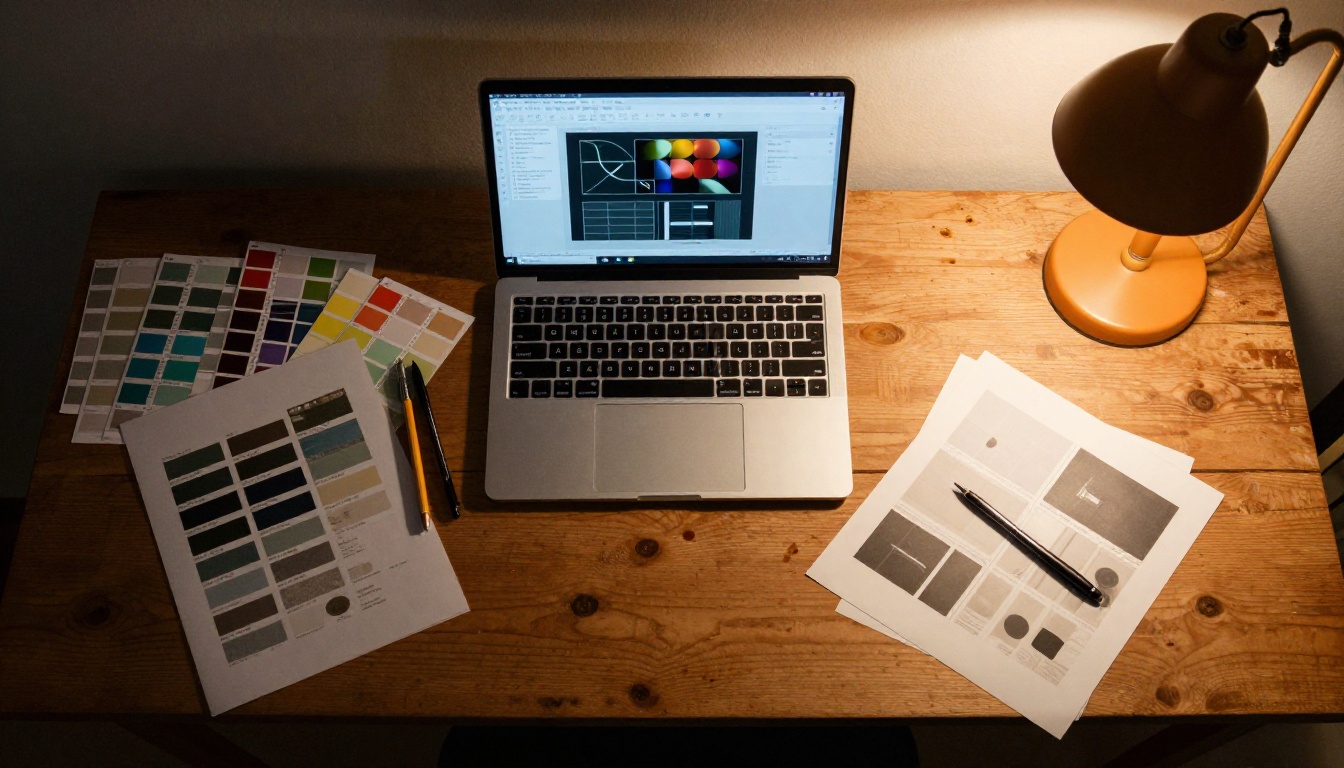
The second core capability in Ideogram V2 is inpainting. You upload a source image alongside a black-and-white mask, where black pixels mark what to replace and white pixels mark what to preserve. The model fills only the masked region, matching the surrounding image's lighting conditions, color temperature, and texture without touching the rest of the frame.
This is practical for two different scenarios. First, retouching AI-generated images that are almost correct but have one element that needs changing: a background object, a typographic error in the rendered text, or a detail that needs refinement. Second, editing real photographs: mask out an unwanted element, describe its replacement, and the model handles the fill with a blend that reads naturally in context.
Inpainting works best with tight, specific masks. Covering a large portion of the image gives the model too much freedom to reinterpret the scene. The tighter the mask, the more accurately the fill matches your description.
Every Feature, Explained

Beyond text rendering and inpainting, Ideogram V2 includes a full set of generation controls. Here is what each parameter does and when to use it.
Style Presets
The six style presets are the fastest way to shift the visual direction of an output without rewriting your prompt from scratch. Each preset steers the model toward a specific aesthetic:
| Preset | What It Produces | Best For |
|---|
| Auto | Model selects style based on prompt content | General use, mixed prompts |
| General | Balanced, versatile output | Broad subject matter |
| Realistic | Photorealistic lighting, texture, and detail | Product shots, portraits, scenes |
| Design | Clean graphic layouts, typography-forward | Social media, posters, banners |
| Render 3D | Three-dimensional rendered depth and volume | Product visualization, architecture |
| Anime | Illustrated, anime-influenced aesthetics | Character art, illustrated content |
For text-heavy outputs like posters or banners, Design consistently produces the cleanest typographic layouts. Realistic works for product photography mock-ups where you need convincing materials, lighting, and texture. Render 3D is useful when you want depth without committing to full photorealism.
💡 Tip: Try Auto first. On complex, mixed prompts, Auto frequently outperforms manual preset choices because it considers your entire prompt before selecting an approach.
Magic Prompt

Magic Prompt is an optional preprocessing layer that expands your input into a richer, more detailed description before generation begins. A short prompt like "minimalist coffee packaging" becomes a fully articulated scene description covering materials, lighting, color palette, typography placement, and compositional framing.
Magic Prompt runs in three modes:
- Auto: Expands selectively based on prompt length and complexity
- On: Always expands the prompt regardless of length
- Off: Uses your prompt exactly as written, with no modification
Magic Prompt adds the most value when you are ideating quickly and want more visual variety per generation. It reduces the need to craft detailed prompts by hand. For experienced users who write precise, long-form prompts and need exact control over what the model sees, Off is the appropriate setting.
Resolution and Aspect Ratio
Ideogram V2 offers two independent dimension controls. The aspect ratio picker provides standard proportions: 1:1, 16:9, 9:16, 4:3, 3:4, 3:2, 2:3, 3:1, 1:3, and additional ratios. The resolution dropdown lists over 60 specific pixel dimensions from 512x1536 to 1536x512, spanning portrait, landscape, and square formats.
When you set a specific resolution, it overrides the aspect ratio selection. When you are running inpainting, both settings are ignored because the output dimensions match the uploaded source image.
For common digital publishing formats, these resolutions map cleanly:
- 1024x1024 for square Instagram posts
- 1280x768 for YouTube thumbnails and landscape headers
- 768x1280 for Instagram Stories and portrait social formats
- 1024x576 for wide banner formats
Negative Prompts and Seed Control
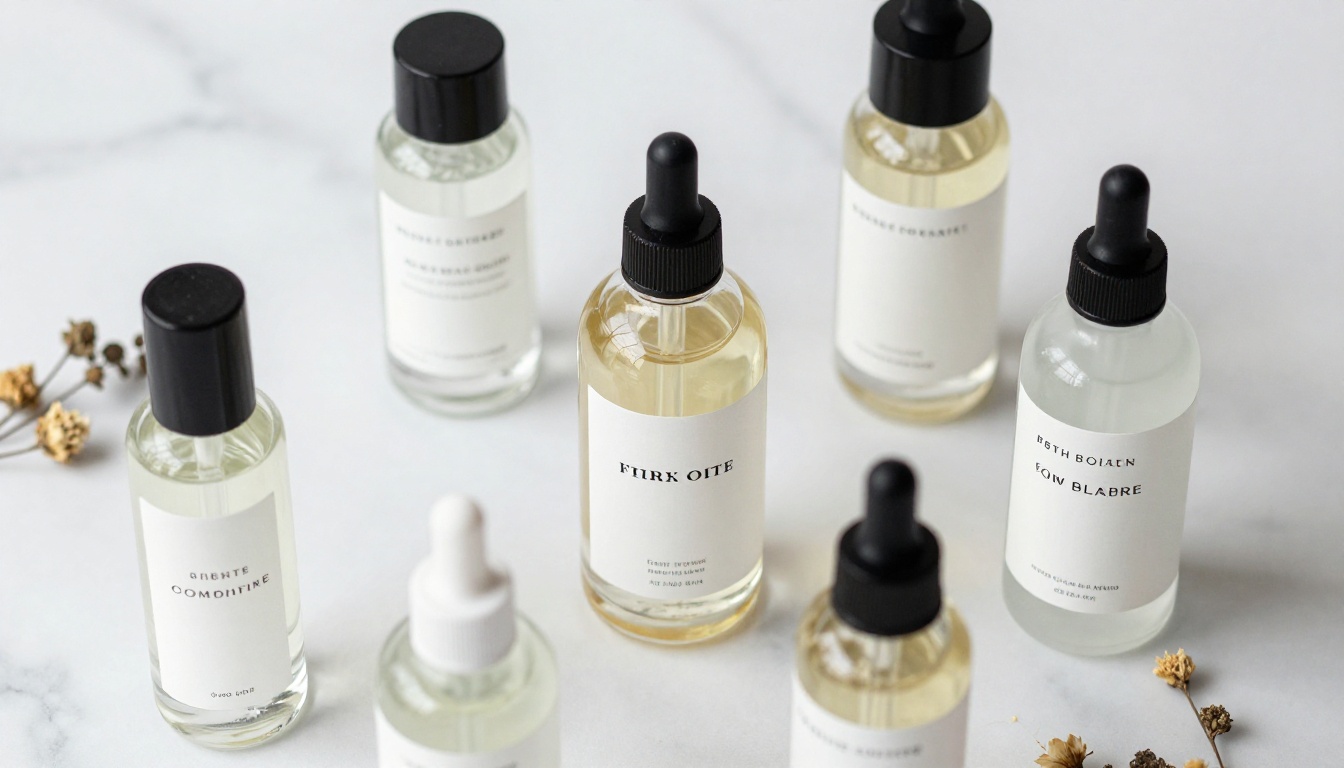
Negative prompts let you specify what the model should avoid. If your outputs consistently include watermarks, blurry backgrounds, extra limbs, or unwanted objects, list them in the negative prompt field. This tightens outputs without requiring you to add exclusionary language to your main prompt.
Seed control pins a specific number to anchor the composition. Every generation with the same seed and the same prompt produces the same result. When you want to iterate on a good starting point by adjusting only one variable, such as the style preset, one word in the prompt, or the resolution, setting a fixed seed isolates that variable and produces directly comparable outputs.
Ideogram V2 vs. V2 Turbo
Both Ideogram V2 and Ideogram V2 Turbo are available on PicassoIA. They share the same feature set, with one core distinction: generation speed.
| Feature | Ideogram V2 | Ideogram V2 Turbo |
|---|
| Text Rendering | Precise | Precise |
| Inpainting | Supported | Supported |
| Style Presets | 6 options | 6 options |
| Magic Prompt | Available | Available |
| Negative Prompts | Available | Available |
| Seed Control | Available | Available |
| Generation Speed | Standard | Faster |
| Ideal For | Final-quality outputs | Rapid iteration |
V2 Turbo is not a reduced-quality version of V2. On most prompts, the output quality is visually equivalent. The speed advantage becomes meaningful when you are running multiple prompt variations in a single session, testing different style presets, or comparing resolution outputs before committing to a final generation.
A practical workflow: use Ideogram V2 Turbo during the exploration phase, where speed matters more than absolute quality. Switch to Ideogram V2 for the final output once you have confirmed the prompt and settings.
Real Use Cases Worth Knowing
Social Media and Marketing
Social media content that requires both a visual scene and readable text normally involves two steps: generate the image with one tool, add the text layer in a design app. Ideogram V2 collapses that into one pass. You describe the scene, include quoted text in the prompt for headlines, captions, or calls to action, pick the Design preset, and get a finished graphic ready for review.
For repeating content formats like weekly sale announcements, quote cards, or event teasers, you can build a base prompt template and change only the text and subject for each piece. This produces visually consistent content across a full content calendar without requiring template management in a separate design application.
The Design style preset produces the cleanest typographic integration for this type of work. The model places text with appropriate hierarchy, spacing, and contrast against the background scene.
Product Packaging and Labels
Ideogram V2 handles product packaging and label concepts with enough accuracy to use for client presentations and concept validation. You describe the container type, the label layout, the brand name in quotes, and any secondary text such as ingredients or taglines, and the model produces a mockup showing how the typography sits on the product.
These are not production-ready files, but they are accurate enough to confirm whether a design direction is worth pursuing before commissioning a production designer. Combined with the Realistic preset, the model places products in contextual environments such as marble countertops, wooden shelves, or lifestyle settings with lighting that reads naturally.
Event Posters and Flyers

Event promotions require a visual background and readable typographic information in a single layout. Concert posters, conference announcements, sports event flyers, and film festival materials all follow this pattern. With Ideogram V2, both the scene and the text come from the same generation, with no layout software required to assemble the initial concept.
Use the 9:16 aspect ratio for vertical event posters or digital out-of-home formats. Use 3:1 for wide horizontal banners. The Design preset produces the most intentional text placement for these formats.
For rapid concept iteration before client review, Ideogram V2 Turbo cuts generation time per concept. Once a direction is confirmed, run the final version through Ideogram V2 for maximum output detail.
How to Use Ideogram V2 on PicassoIA
Both models run directly on PicassoIA without requiring any account setup, local installation, or technical configuration. Here is the process from start to finish.
Step 1: Open the Model Page
Go to Ideogram V2 on PicassoIA. The interface shows the prompt input at the top, with style preset buttons and parameter controls below it. If you want faster generation during the testing phase, open Ideogram V2 Turbo instead and switch to V2 once your prompt is finalized.
Step 2: Write Your Prompt
Write a prompt that describes the full scene, including:
- Subject and context: what the main visual element is and where it exists
- Text content: any words to appear in the image, enclosed in quotation marks
- Visual style references: materials, lighting conditions, color palette
- Format context: poster, label, banner, photograph, or illustration
Example: A lifestyle photography scene with a wooden tray holding a jar labeled "Raw Wildflower Honey" in a handwritten font, natural daylight from the left, warm amber tones, linen cloth beneath the tray, close-up 85mm perspective
Step 3: Set Style and Resolution

Select the style preset that fits your output type. For most text-heavy commercial work, Design or Realistic are the strongest choices. For concept or character work, Anime or Render 3D apply.
Set the aspect ratio or resolution to match your intended publishing format. If you know the exact pixel dimensions, use the resolution dropdown to set them directly rather than relying on aspect ratio.
Step 4: Generate and Refine
Click generate. Review the output for:
- Text legibility and spelling accuracy in the rendered image
- Style consistency with the prompt intent
- Composition and subject placement
- Lighting coherence across the full scene
If one area needs adjustment without regenerating the entire image, switch to the inpainting workflow: upload the output as your source image, paint a black mask over only the region to fix, and write a targeted description of what should replace it. The model fills the masked area and blends it with the surrounding image.
For structured iteration, save the seed from any output you want to build on. Change one prompt element at a time while keeping the seed fixed to isolate the effect of each change.
Tips That Actually Improve Results
Writing Text Into Prompts
The single most impactful prompt writing habit for Ideogram V2 is enclosing intended text in quotation marks. Without quotes, the model treats your words as scene description. With quotes, it reads them as literal typographic content to render.
Weak: A coffee shop blackboard with a daily special
Strong: A chalkboard menu reading "Oat Milk Latte $5" in casual handwritten chalk lettering, warm ambient cafe lighting
Beyond quotation marks, text placement and hierarchy respond well to explicit description. Tell the model where the text sits (headline at the top third, subtitle below in smaller text), what font category it resembles (bold geometric sans-serif, flowing script, condensed uppercase), and how it contrasts with the background (white letters on dark blue, black ink on cream).
Spacing between elements also benefits from description. If you want a poster with breathing room between the headline and a supporting image, mention it: "generous white space below the headline", "centered text with wide margins on both sides".
Using Inpainting Effectively
The most common inpainting mistake is masking too large an area. When the black mask covers a significant portion of the image, the model treats it as a major recomposition and often shifts the tone or lighting of the fill away from the surrounding image. Keep masks tight, covering only the specific region that needs changing.
Write inpainting prompts that describe only the fill area content, not the full scene. If the surrounding image has a specific lighting direction or color temperature, reference it in the inpainting prompt to help the model match the blend seamlessly. For example: "soft window light from the left, matching surrounding warm tone".
Inpainting works well paired with other tools on PicassoIA. After retouching with inpainting, run the output through Super Resolution to upscale it 2x or 4x for high-quality print or large-format digital output. If the base image needs noise reduction or restoration before retouching, the AI image restoration tools available in the platform handle that in a separate pass.
Start Creating Your Own Images
The fastest way to see what Ideogram V2 does is to run a prompt with text you actually need in the image. Start with something concrete: a product name on a label, a poster headline for an event, or a social media banner with a specific call to action. Pick the Design preset, set your aspect ratio, and generate. The output will either fit your use case or show you exactly what to adjust.
Start with Ideogram V2 Turbo for fast iteration, and switch to Ideogram V2 when you have a prompt worth generating at full quality. Both are available on PicassoIA right now, with no setup required. The text-to-image catalog on PicassoIA includes over 90 models across different visual styles and capabilities, so once you have worked through what Ideogram V2 offers, there is a broad range of other tools worth testing alongside it.


