If you spend Sunday evenings searching Google Images for a decent diagram, copying text from PDFs into slide boxes, and trying to resize clip art that looked fine on your monitor but pixelates on the projector, you are not alone. Most teachers put in 3-5 hours per week on presentations alone. AI for teachers making school slides cuts that number dramatically, and the output quality is genuinely better.
This is not about replacing your expertise. It is about stopping the copy-paste grind so you can spend those hours on what actually moves students forward.
Why Slides Still Matter in 2027
People keep predicting the death of slide-based teaching, yet classrooms from kindergarten to university still run on presentations. The format works because it gives a visual anchor for verbal explanation. Done right, a slide is not reading material. It is a focal point.
The Problem with Manual Slide Creation
Building slides manually is slow because it requires three completely different skills: writing the content, designing the layout, and sourcing or creating visuals. Most teachers are excellent at the first and spend painful amounts of time on the other two.
The average slide deck for a 45-minute lesson contains 20-35 slides. If each slide takes 8-12 minutes to build manually, that is 4-7 hours before you have even reviewed or refined anything.
What Students Actually Pay Attention To
Research on multimedia learning consistently shows students retain more information when visuals accompany verbal explanation. The critical word is relevant. Relevant visuals boost recall by up to 65% compared to text-only presentations. Irrelevant visuals actively hurt comprehension.
The challenge is that sourcing relevant, high-quality visuals for every slide is exactly the part that takes the most time.
The Science Behind Visual Slides
| Format | Average Retention After 72 Hours |
|---|
| Text only | 10% |
| Image only | 35% |
| Text + relevant image | 65% |
| Interactive visual | 70%+ |
These numbers explain why teachers who invest extra time on visuals consistently see better test results. The bottleneck is not knowledge, it is production time.
What AI Actually Does for Slide Design
AI does not produce a finished slide deck from nothing. What it does is eliminate the slow parts of the process while you keep full control of the content.

Text-to-Layout: From Prompt to Slide in Seconds
AI slide builders take a topic, an outline, or a block of text and generate a structured slide deck with layout suggestions, placeholder text, and design themes. You type "Grade 7 biology lesson on cell division, 15 slides, include a timeline of mitosis phases" and within 60 seconds you have a working skeleton.
This is not a finished product. It is a starting point that would have taken you 40 minutes to assemble manually.
Generating Custom Educational Images
This is where things get genuinely useful. Instead of searching stock photo sites for an image that is almost right, you describe exactly what you need and generate it.
"A labeled cross-section diagram of a plant cell, clean educational illustration style, white background" produces a usable image in under 30 seconds. No licensing concerns, no cropping watermarks, no explaining to students why your cell diagram has a 2008 copyright notice.
Tools like GPT Image 2 on Picasso IA handle this kind of instructional visual generation well, producing clean, clear images that scale properly on projectors.
Smart Content Suggestions
AI writing tools help you refine bullet points, summarize complex topics into slide-ready language, and suggest discussion questions to add to your slides. This is a different capability from image generation but equally useful in the prep workflow.
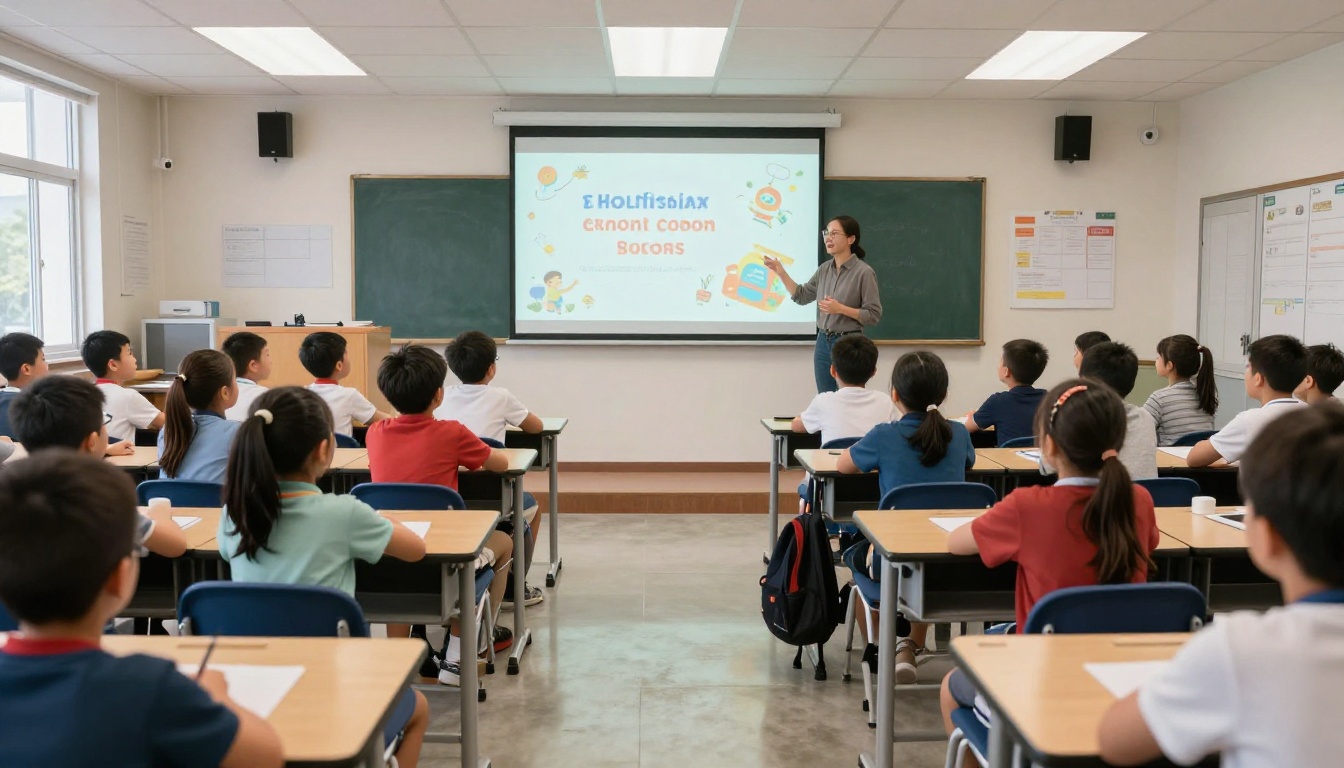
Not all AI tools serve classroom use equally well. For teachers specifically, the output has to be clean, readable on a projector from 20 feet away, and produced quickly enough to fit into a real prep schedule.
AI Slide Builders Worth Your Time
Several platforms now offer AI-generated slide decks from a topic brief. The best ones give you control over the number of slides, content depth, and visual theme. The most productive workflow is to generate your structure and slide copy with these tools, then replace the stock visuals with AI-generated images specific to your subject.
💡 Tip: Generate the full slide deck first, then go back and replace generic placeholder images one by one with subject-specific visuals. This keeps the workflow linear and fast.
Image Generators That Change Everything
For custom educational visuals, text-to-image AI models on Picasso IA are the most practical option available to teachers right now. A few worth knowing:
- Flux Schnell LoRA: Fast generation, good for producing multiple image variations quickly. Useful when you need 8-10 different visuals in a single session.
- GPT Image 2: Strong at following detailed text descriptions, handles educational diagram-style prompts with precision.
- Stable Diffusion 3: Reliable for photorealistic scenarios, useful for social studies, history, and science lesson visuals.
- Seedream 4.5: Excellent 4K output, ideal for slides displayed on high-resolution screens or printed for classroom walls.
- Recraft 20B: Creates images in any consistent style, useful for building a visually cohesive slide set across a full unit.
- Flux Krea Dev: Produces images that look natural rather than obviously AI-generated, which matters when you want photography-style visuals.
When to Use Each Tool
| Situation | Recommended Approach |
|---|
| Need 15 slides fast | AI slide builder for structure + Flux Schnell LoRA for visuals |
| History or social studies images | Stable Diffusion 3 or GPT Image 2 |
| Science diagrams and concepts | GPT Image 2 with detailed prompts |
| Consistent visual style across a unit | Recraft 20B with a fixed style seed |
| High-res visuals for printing or large screens | Seedream 4.5 |
| Natural-looking photography style | Flux Krea Dev |
Generating Custom Slide Images with AI
The process is straightforward but the quality of your results depends almost entirely on how well you write your prompt. This is the one skill worth spending 30 minutes on.
Step 1: Write a Clear Subject Brief
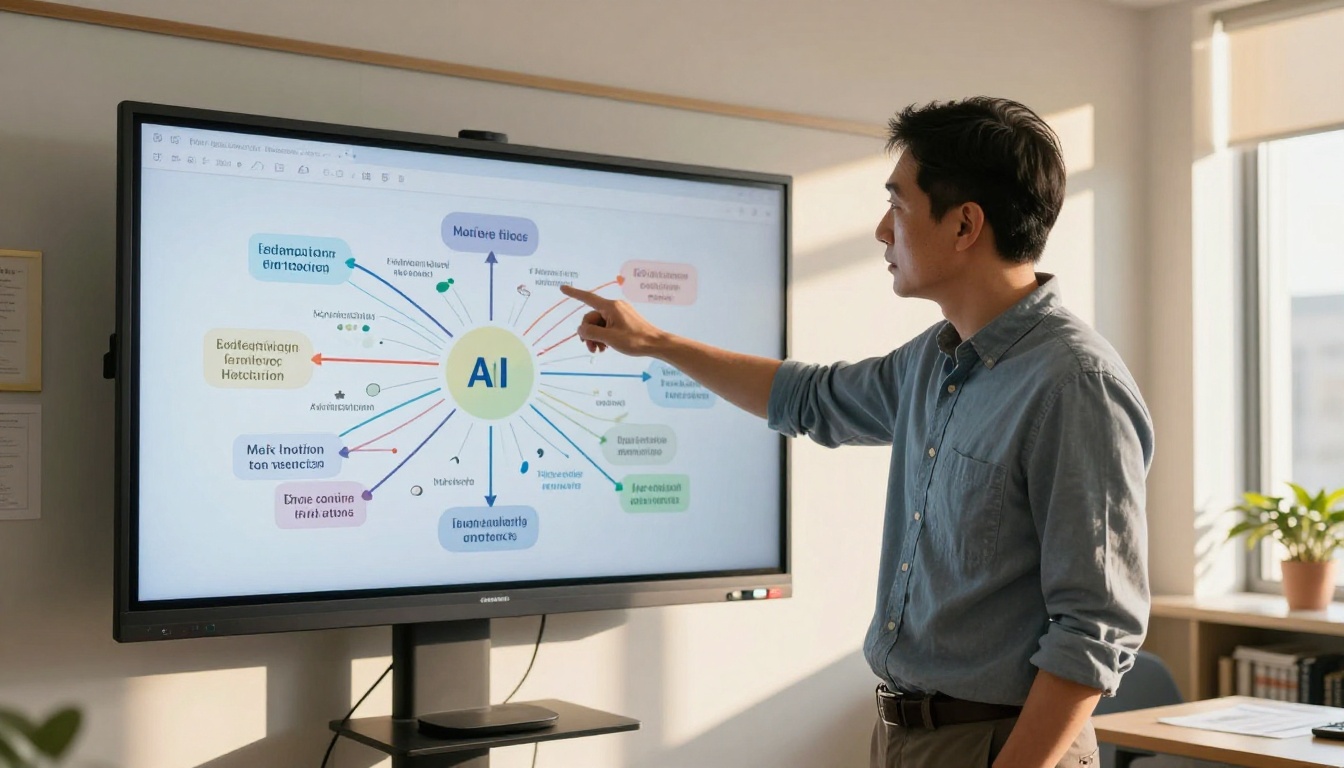
Start with the specific concept the image needs to represent. Vague prompts produce vague images. Compare these two:
- Vague: "Show photosynthesis"
- Specific: "A simplified diagram showing sunlight hitting a green leaf, arrows indicating carbon dioxide entering and oxygen exiting, golden morning light, clean white background, educational infographic style"
The specific prompt produces a usable image. The vague one produces something that looks like stock art from 2015.
Step 2: Choose Your Image Style
Different subjects benefit from different visual styles:
- Science: Clean diagrams, labeled illustrations, realistic photography for specimens
- History: Realistic period-accurate scenes, documentary photography style
- Geography: Satellite-style photography, physical landscape shots
- Mathematics: Clean vector-style diagrams, geometric precision
- Literature: Atmospheric scenes that evoke the mood and setting of the text
💡 Tip: For younger students (K-5), warmer colors and slightly simplified imagery improve recognition. For older students, photorealistic styles increase the perceived credibility of the visual.
Step 3: Drop Images Into Your Slides
Once you have your images, most AI image generators on Picasso IA support the 16:9 ratio directly, which means no cropping or resizing needed. Place the image as a full-bleed background with text overlay, or as a right-aligned image with text on the left.
One rule: if the slide has more than 30 words and an image, something needs to come out.
Practical Workflows for Busy Teachers
Efficiency here means having a process you can repeat without reinventing the wheel every time.
The 20-Minute Slide Deck
This is a real workflow for a 15-slide lesson on a topic you know well:
- Minutes 1-3: Type your lesson outline into an AI slide builder. Get the structure.
- Minutes 4-8: Review the generated copy, adjust for your grade level and class context.
- Minutes 9-18: Open Picasso IA. Generate 6-8 images with specific prompts for your priority slides. Download each.
- Minutes 19-20: Drop images into slides, adjust layout as needed.
That is a 15-slide deck with custom visuals in 20 minutes. The same deck built manually takes 90-120 minutes.
Building an Image Library for Your Subject
Over time, building a personal image library for the topics you teach repeatedly saves enormous amounts of time. When you generate an image you will use again, save it to a folder organized by subject and topic.
/science/cells//history/world-war-2//geography/climate-zones/
Within a semester, you will have hundreds of reusable assets. Regenerate only when you need something new or more specific.
Reusing AI Assets Across Lessons
A well-generated image of the water cycle works in a geography lesson, a science lesson, and an environmental studies unit. Generate it once, use it three times. This multiplier effect is where AI tools start saving serious time across the academic year.
💡 Tip: Use a consistent visual style across all slides in a unit. This creates cohesion that students recognize, which aids recall because the visual context becomes associated with the subject content.
Common Mistakes Teachers Make with AI Slides
Getting the most from AI tools means avoiding a few patterns that are very common when people first start using them.

Over-Relying on Templates
AI-generated slide decks come with templates. The problem is that every teacher using the same tool gets the same templates. Students notice. After two or three classes taught by different teachers using the same AI slide service, the template becomes invisible to students, which defeats the purpose.
Use AI for structure and content, then break the template on priority slides where you want attention. Change the background, font weight, or image placement for slides with the most critical concepts.
Using the Wrong Image Style
A photorealistic image of a historical battle scene can be powerful in a high school history class. The same image can overwhelm or confuse a Year 3 class learning about the same period at an age-appropriate level. Match visual complexity and realism to your audience.
Similarly, overly stylized or artistic images distract from the educational content. The image should support the learning objective, not compete with it.
Ignoring Slide Hierarchy
AI tools generate slides but they do not know which concept is most important in your lesson. That is your expertise. After generating a deck, review every slide and ask: what is the one thing students need to take from this slide? Everything else on that slide should be secondary to that point.
Bold the central term. Put the main concept at the top or center. Use the image to reinforce it, not decorate it.
What Students Say About AI-Enhanced Slides
Anecdotal feedback from teachers who switched to AI-generated visuals is consistent across subject areas and grade levels.
Attention and Recall Improvements
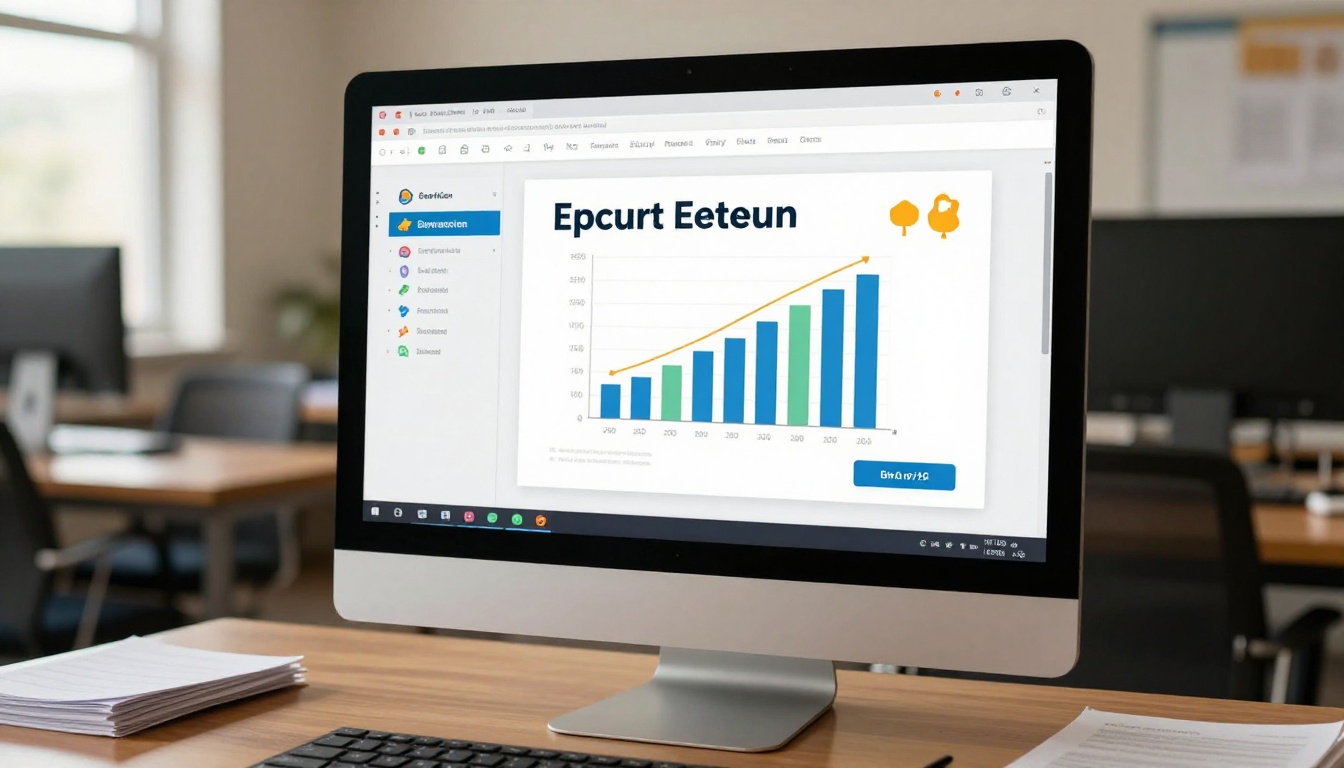
Teachers report that when they replace generic stock images with AI-generated images tailored exactly to the lesson content, students ask more questions about the visuals. This sounds minor but it is a reliable signal of stronger attention. When a student asks about an image, it means the image made them think.
Several teachers note that AI-generated scenario images, especially for social studies and science concepts, prompt student discussion before the teacher has even started explaining the slide content. The image becomes a conversation starter rather than a decoration.
Visual Content vs. Text-Heavy Slides
The contrast becomes stark when teachers show students the same content in two formats: one slide heavy with bullet points, one slide with a single well-chosen image and a three-word header. Students consistently describe the visual slide as "easier to understand" and "easier to remember."
💡 Rule of thumb: One image per slide that directly illustrates the main concept outperforms five bullet points every time. AI makes this achievable without taking hours.

Using GPT Image 2 for School Slide Visuals
Picasso IA provides direct access to GPT Image 2, one of the most capable models for educational image generation. Here is how to use it effectively for classroom presentations.
Accessing the Model
Go to GPT Image 2 on Picasso IA. No complex setup required. Write a prompt, click generate, and download the result.
Writing Prompts for Educational Use
For educational slides, prompts that work best follow this structure:
[Subject concept] + [visual format] + [style/quality modifiers] + [background/composition]
Examples:
- "The nitrogen cycle showing atmospheric nitrogen being fixed by bacteria in soil, educational infographic style, labeled arrows, clean white background, high contrast colors"
- "A cross-section of a volcano with visible magma chamber, sediment layers, and eruption event, scientific illustration style, clear labels, bright natural colors"
- "A primary school classroom scene from the 1950s, photorealistic documentary photography style, black and white, natural window light"
Parameter Tips
- Aspect Ratio: Always use 16:9 for slides displayed on standard screens or projectors
- Specificity: The more specific your prompt, the less time you spend regenerating. Include grade level context if it affects visual complexity
- Iteration: Generate 2-3 variations and pick the best one. The extra 60 seconds is worth it
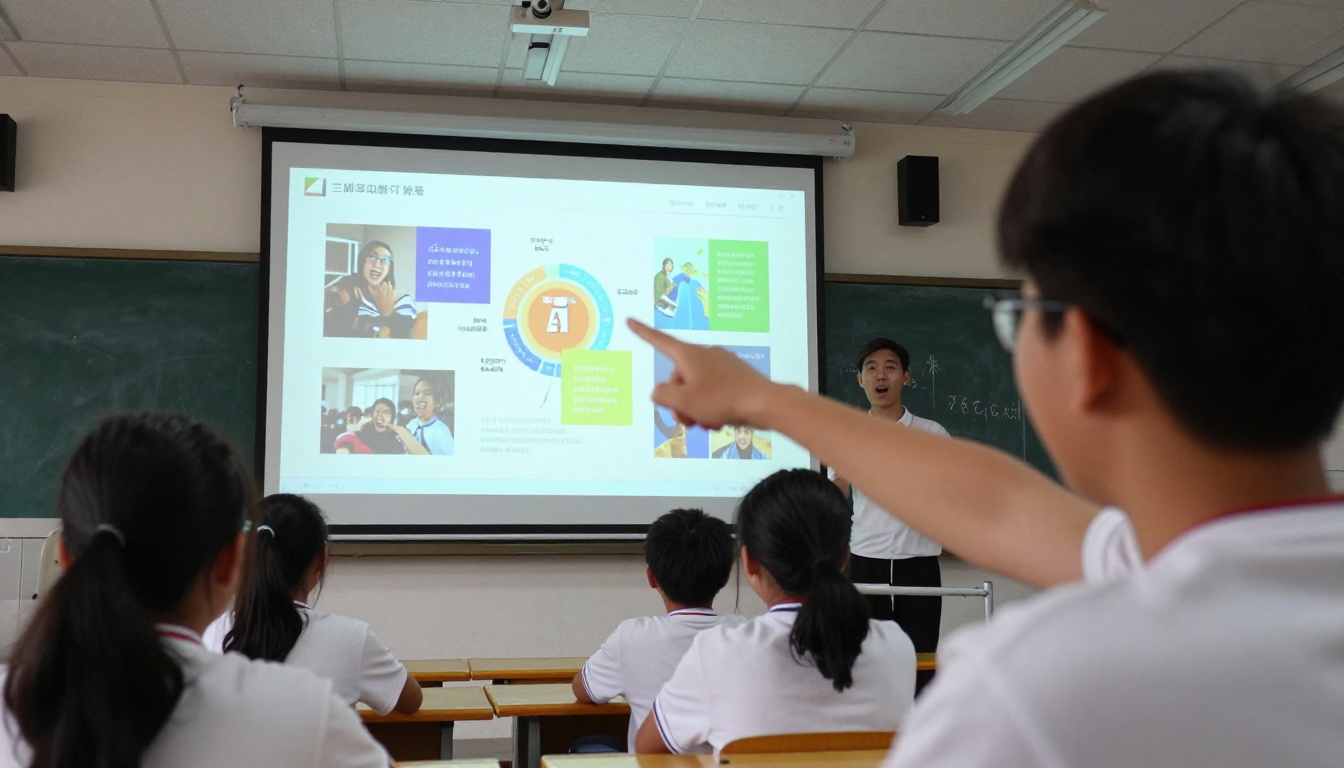
Start Creating Better Slides Today
AI for teachers making school slides is available right now, takes about 30 minutes to get comfortable with, and produces results that are objectively better than most manual slide-building workflows.
The tools on Picasso IA, from GPT Image 2 to Flux Schnell LoRA and Seedream 4.5, give you access to professional-grade image generation without any design training. You describe what you need. You get it in seconds. You put it in your slide.
Teachers who adopt this workflow report getting back 2-4 hours per week. That is time you can spend on lesson planning, student feedback, or simply not working past 9pm.
Pick one upcoming lesson. Write three image prompts. Generate them on Picasso IA. Drop them into your slides. See how long it actually takes.
That is the best introduction to what AI-powered slide creation can do for your classroom.


