You have a photo that is almost right. A stranger walks through the background, the sky is flat grey, the light looks dull. A few years ago you would have opened a heavy desktop app and spent an hour on masks and layers. Now you can type one sentence, such as "remove the person on the left and keep the pier empty", and get a new version in seconds.
That is the promise of an AI image editor with prompt input: you describe the change in plain language, and the model rewrites only what you asked for. Many of these tools are free, at least up to a point. This article shows what they do well, which prompts give clean results, where the free tier runs out, and which limits no amount of clever wording can fix.

What a Prompt Editor Actually Does
Editing is not generating
A text-to-image tool starts from nothing. A prompt-based editor starts from your photo and a sentence. The model reads the image, reads your instruction, and produces a new image that keeps most of the original while changing the part you named.
That difference matters for your expectations. If you ask a generator for "a woman in a camel coat on a cobblestone street", you get a brand new person. If you upload your own portrait and ask the editor to "change the street to a beach at sunset", the face, the coat and the pose should survive. Whether they truly survive depends on the model, and that is where the quality gap between tools shows up.
Why so many are free
Running these models costs real money, so "free" almost always means one of three things:
- A daily or monthly credit allowance that resets.
- Lower resolution or watermarked output on the free plan.
- A smaller, faster model on the free tier and the best model behind a paid plan.
Search results for this topic are full of tools claiming "unlimited" and "no signup" at the same time as "free credits after registration". Treat the word unlimited with suspicion until you have run ten edits in a row. We come back to this in the limits section.
Edits You Can Make From Text
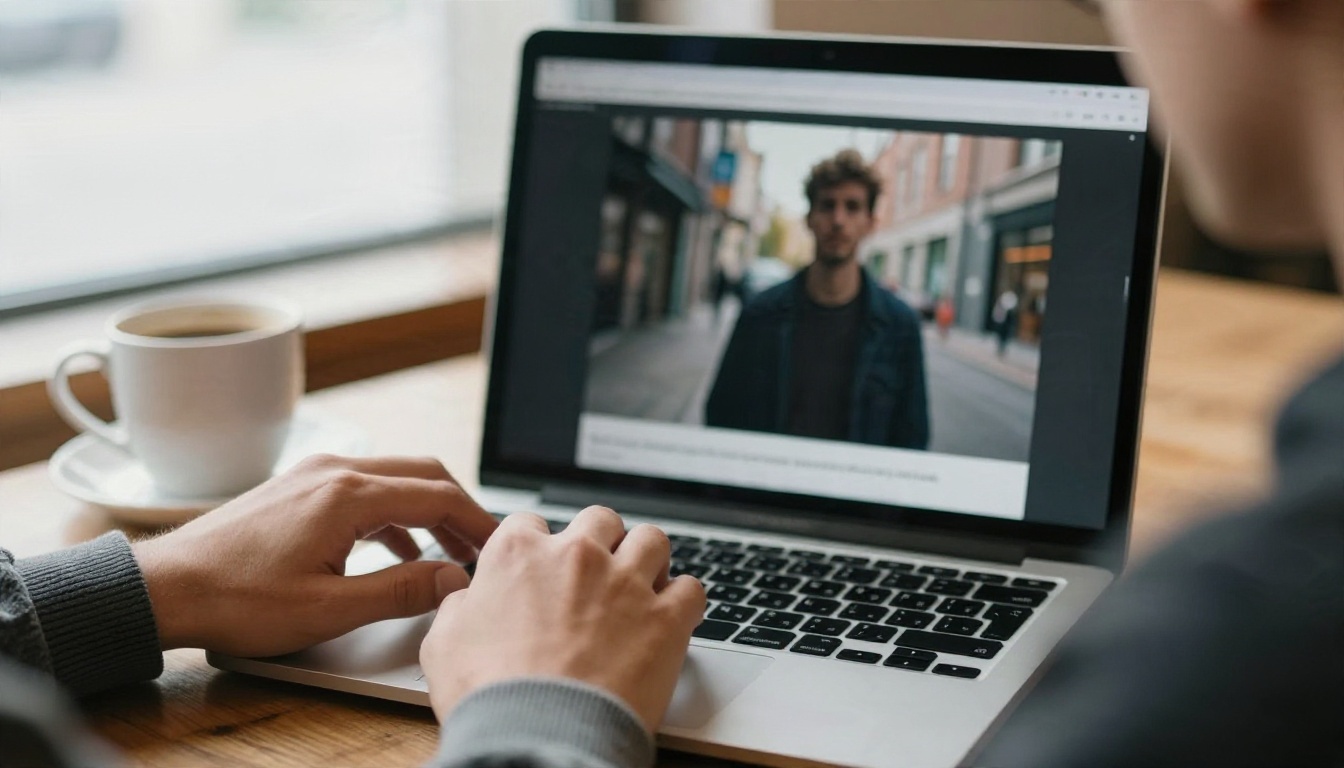
The best way to judge an editor is to throw ordinary jobs at it. These are the five that people actually ask for.
Remove people and clutter
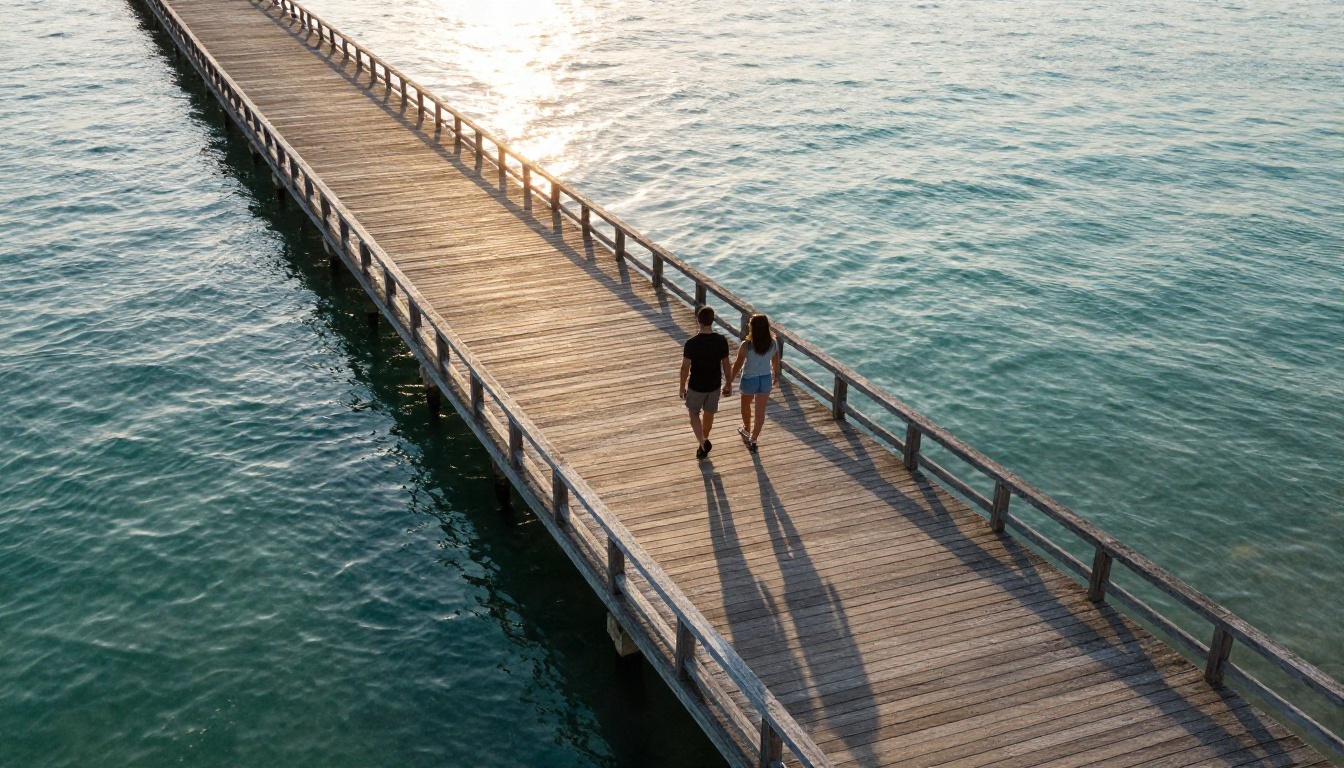
This is the most common request. A tourist photobombs your sunset shot, a bin sits next to your product, a cable hangs across a wall. A good prompt names the object and says what should be there instead.
💡 Prompt example: "Remove the people in the background and fill the space with calm water and wooden railing. Keep the couple unchanged."
The clause "keep the couple unchanged" does a lot of work. Without it, some models slightly redraw faces or clothes while they are busy filling the gap.
Swap backgrounds and skies
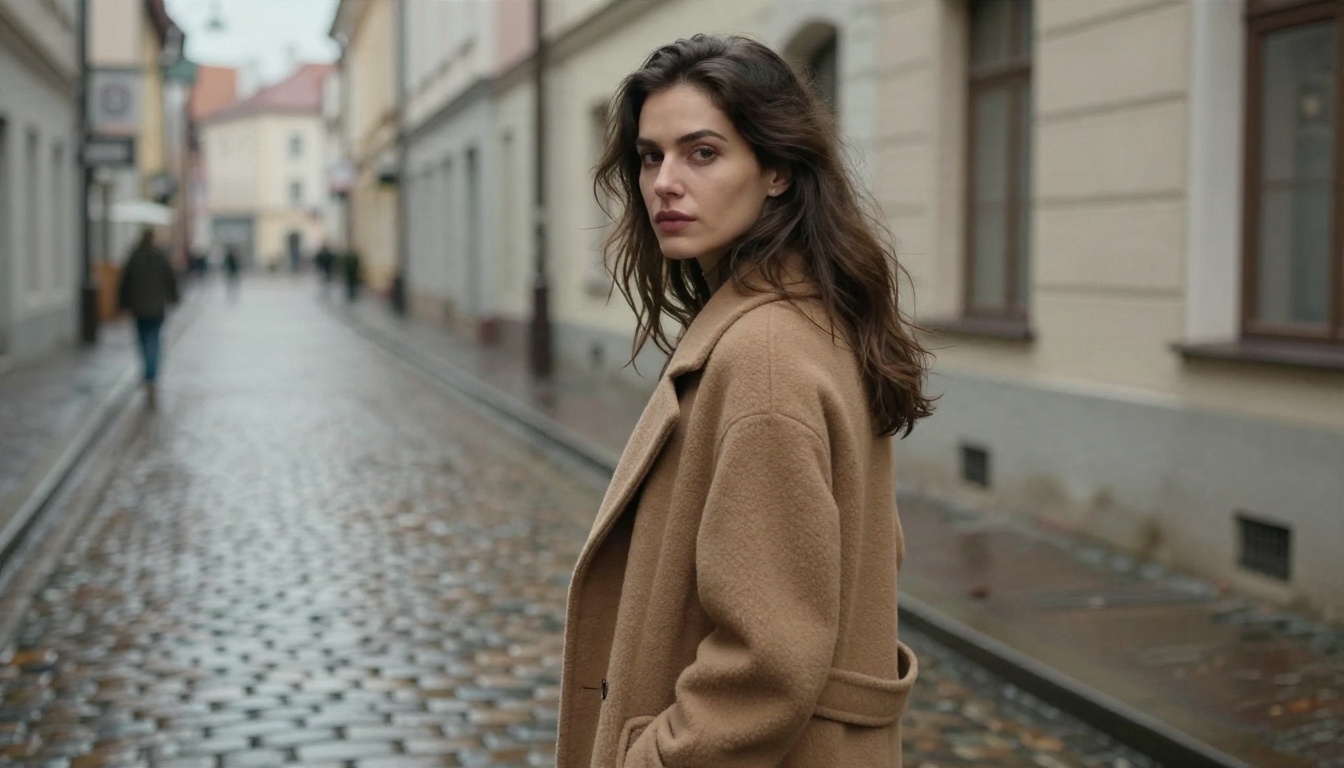
Changing a backdrop is where prompt editors feel closest to magic. A portrait taken in front of a grey wall can end up on a cobblestone street, in a garden or in an office. The same trick works on skies: a flat overcast sky becomes a warm sunset in one instruction.
The trouble is the edge. Hair, fur and loose wool fibers are hard to separate from a busy background. Check the outline of the subject at 100 percent zoom before you share the result.
Relight a flat photo
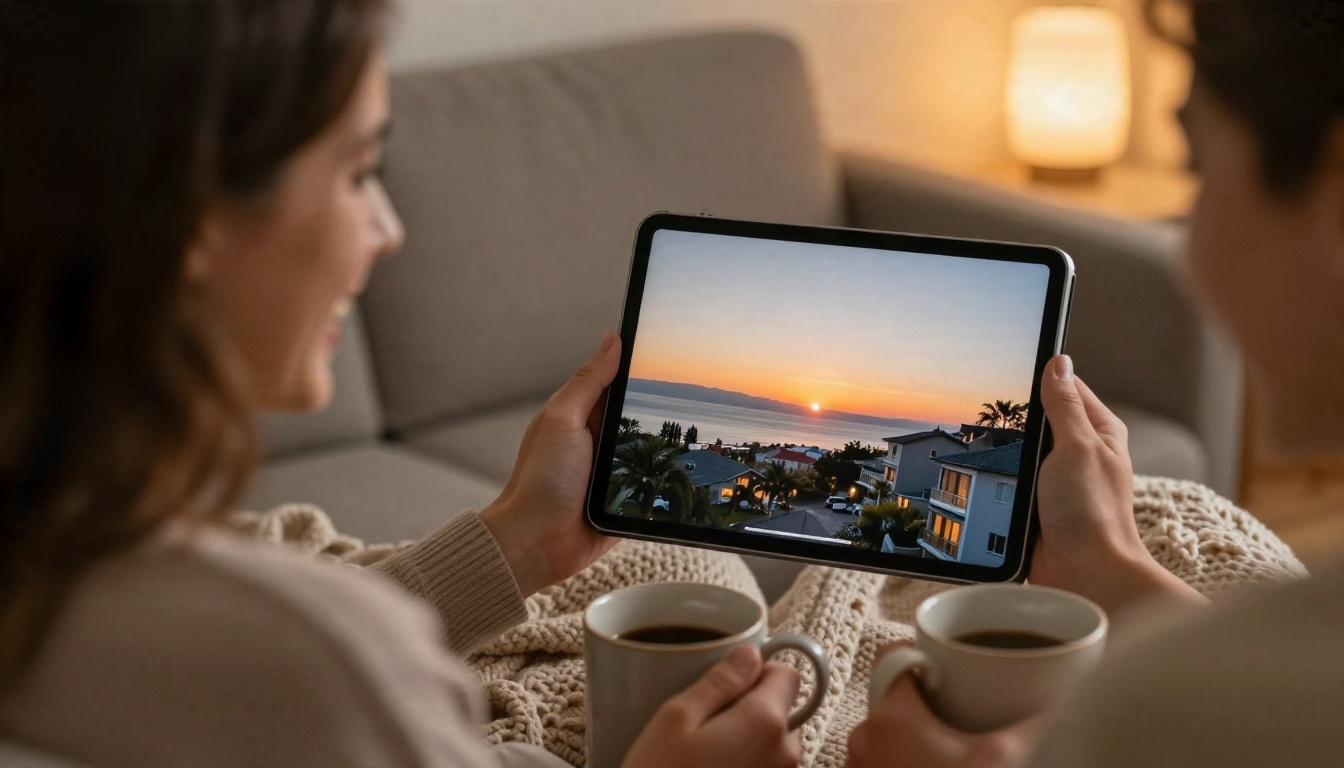
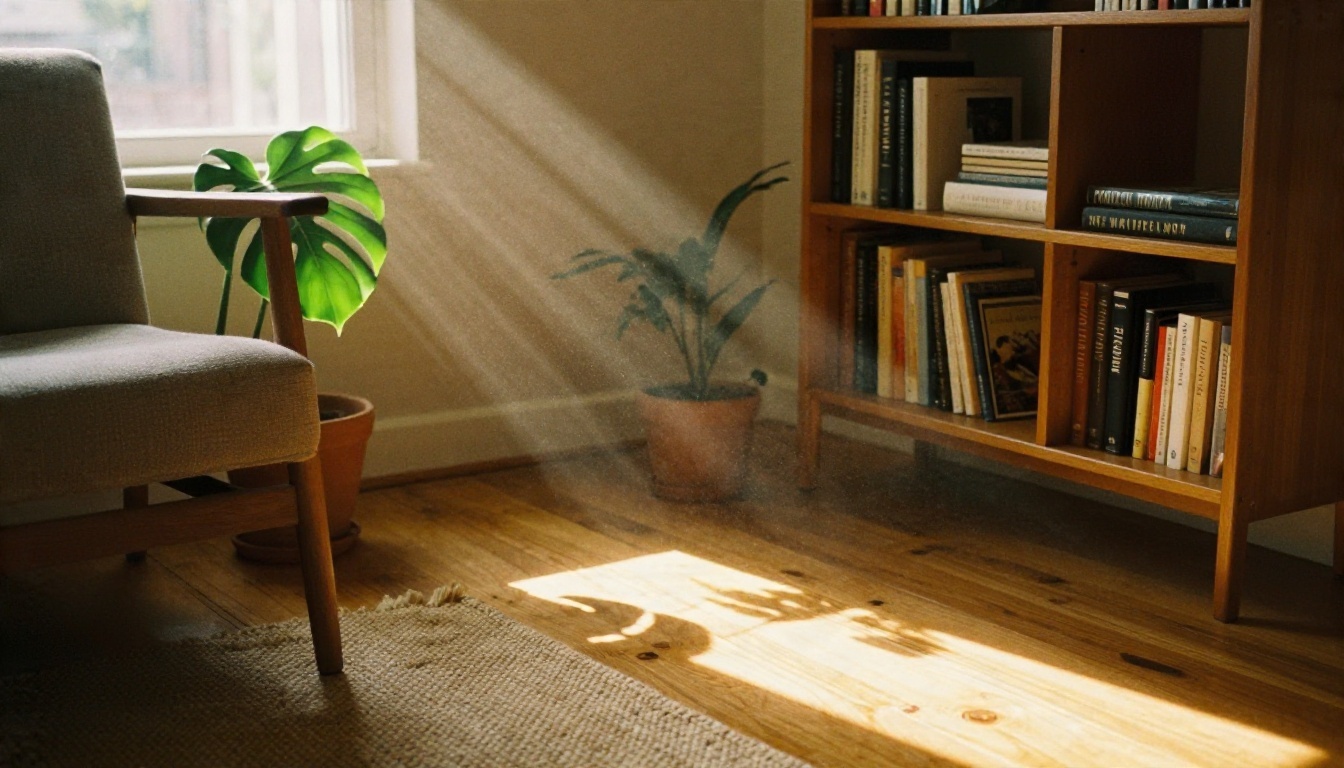
Relighting asks the model to move or change the light source. A dim living room can get low afternoon sun streaming from the left window, complete with warm patches on the floor. Interior photographers and real estate agents use this to rescue photos shot on grey days.
💡 Prompt example: "Add warm late afternoon sunlight coming through the left window, soft shadows on the floor, keep furniture and colors natural."
Notice that the prompt describes direction, softness and mood. "Make it brighter" is the weakest version of the same request, because it gives the model no light source to work with.
Restore old prints
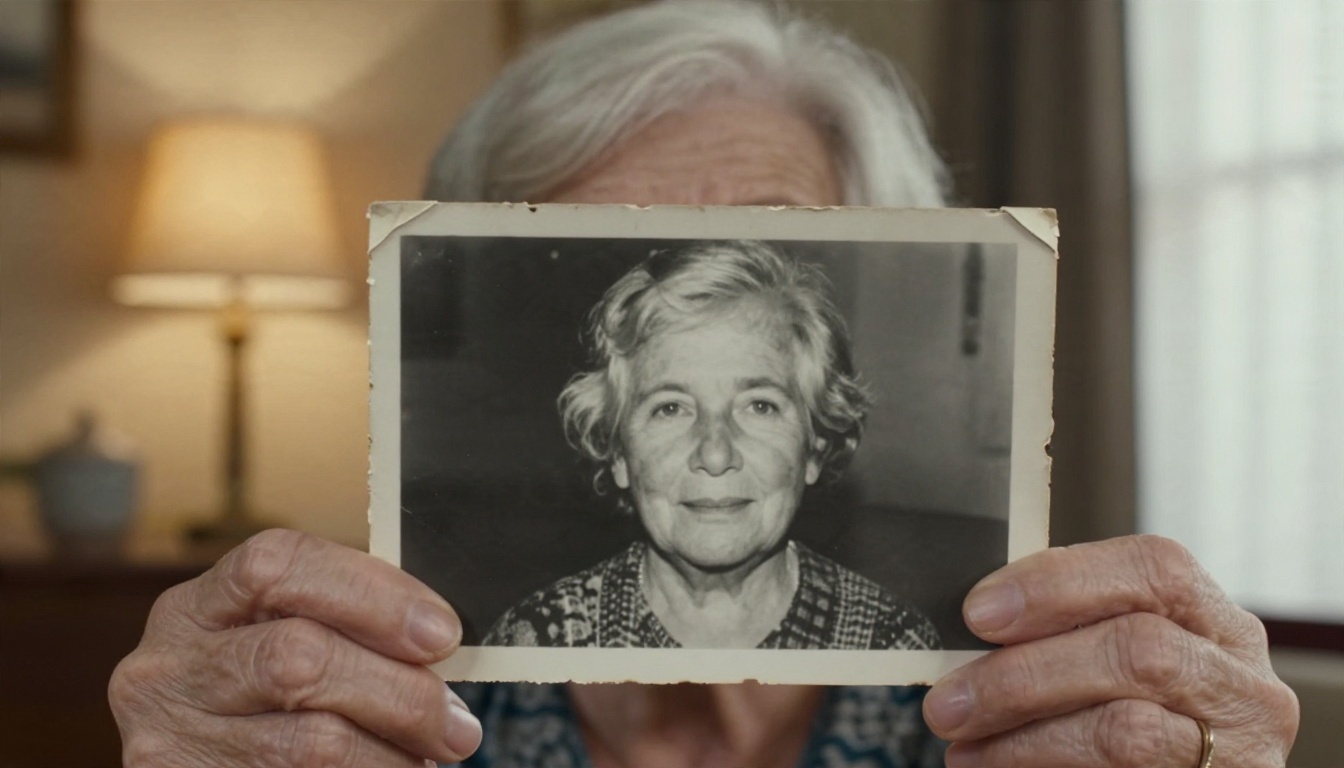
Scanned family photographs usually come with creases, dust, fading and scratches. A prompt like "repair the cracks and scratches, reduce the yellow cast, keep the faces exactly as they are" gives you a cleaner file. For heavily damaged faces, the model has to guess, so compare the result with the original before you trust it. A grandmother's smile that has been quietly redrawn is not a restoration.
Clean product shots
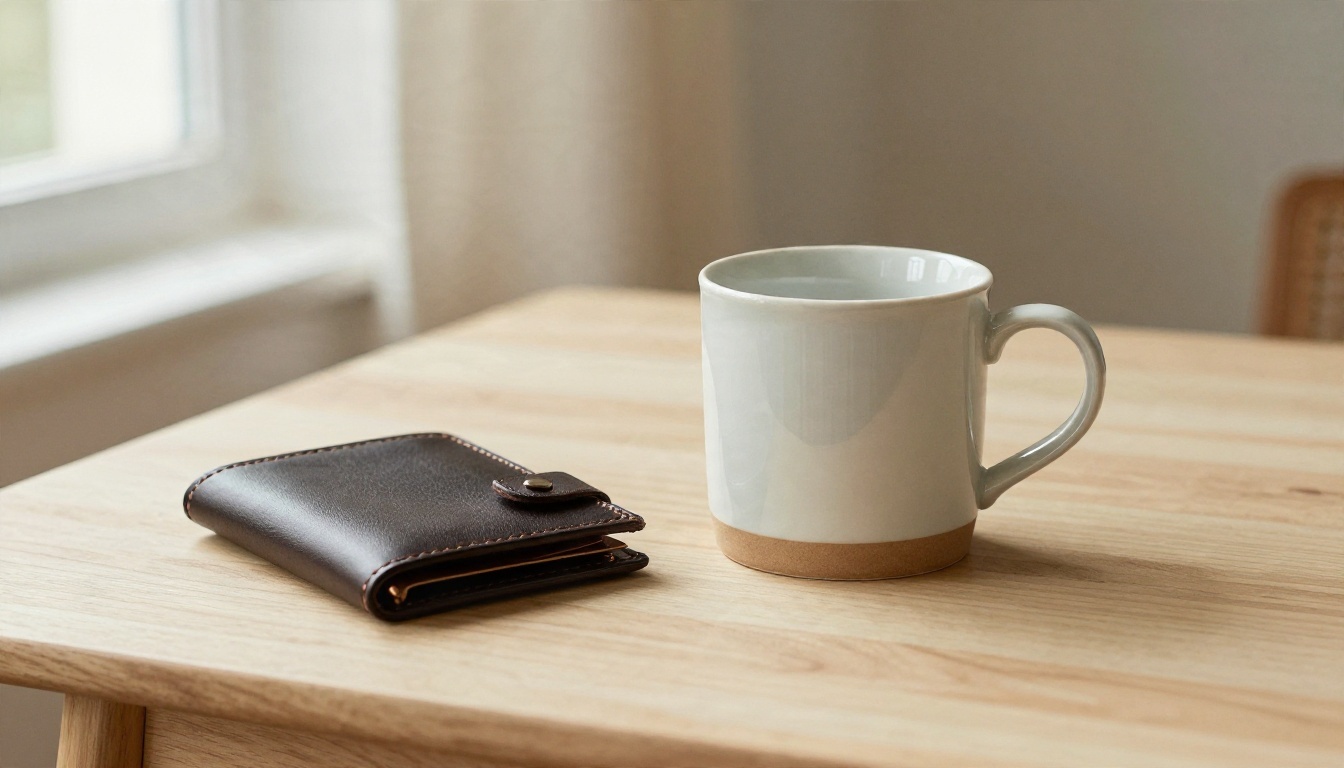
Small sellers use prompt editors to lift product photos taken on a kitchen table into something that looks like a studio set: a linen backdrop, soft side light, a gentle shadow. Keep the product itself locked in the instruction, since logos and stitching are the first details to drift.
Prompts That Work
A simple formula
After enough edits you notice that good prompts share a shape:
- Action: remove, replace, add, change, relight, restore.
- Target: the exact object or area ("the red car on the right").
- Result: what should appear instead.
- Protection: what must not change ("keep her face and hairstyle identical").
Put together: "Replace the grey sky with a soft sunset sky, keep the building and the people unchanged."
Weak and strong versions
| Goal | Weak prompt | Stronger prompt |
|---|
| Remove object | "Make it cleaner" | "Remove the bin next to the bench and fill with matching pavement" |
| New background | "Better background" | "Replace the wall with a sunlit garden, shallow depth of field, keep the subject sharp" |
| Lighting | "Brighter" | "Add soft window light from the left, warm tone, gentle shadows" |
| Restoration | "Fix this photo" | "Remove scratches and creases, keep original faces and clothing" |
| Product | "Make it professional" | "Place on a white linen surface with soft side light and a natural shadow" |
💡 Tip: Change one thing per prompt. If you ask for a new background, new light, a new outfit and a smile in the same sentence, the model will compromise on all four. Chain small edits instead and save each step.
How to Use Image Editor Pro on PicassoIA
If you want a tool built around unlimited tries, PicassoIA Image Editor Pro is made for exactly this workflow: upload a photo, type the change, and iterate as many times as you need. Heavy iteration is how you get good edits, so a cap on attempts is the thing that hurts most on other free plans.
Step by step
- Open the model page and choose Image Editor Pro.
- Upload your photo. Pick the sharpest, highest resolution version you have, since the model can only keep the detail you give it.
- Write one clear instruction using the formula above: action, target, result, protection.
- Run the edit and compare the output with the original at full size.
- Refine in small steps. If the first pass changes too much, add "keep everything else identical" and run again.
- Save the version you like, then use it as the starting point for the next edit.
Settings and habits that help
- Use the same prompt wording for repeat runs so you can compare results fairly.
- If a face drifts, shorten the prompt and add an explicit protection clause.
- For a final upscale, finish with Real ESRGAN to sharpen the saved file.
- When you only need a cutout, Remove Background is faster than describing it in a prompt.
Free prompt editors differ mostly in how faithfully they keep the parts of your photo that you did not mention. These are the models worth knowing on PicassoIA, and what each is good at.
For narrow jobs, there are also specialised models. Qwen Image Edit Plus LoRA Relight focuses on lighting, Qwen Image Edit Plus LoRA Skin on retouching, Text Removal on stripping words from an image, and Depth of Field on background blur.
💡 Which one first? Start with Image Editor Pro for the experiment, then move to a heavier model such as Seedream 4.5 when you need the final file at maximum detail.
Limits You Will Hit
No review of a free editor is honest without this section. Here is what goes wrong in real use.
Resolution and softness
Many free plans export at reduced size, and many models work internally at around one or two megapixels no matter how big your upload is. The result: the edited area can look softer than the untouched area. Zoom to 100 percent and compare. An upscaler fixes some of that, but it cannot invent detail that was never there.
Hands, text and faces
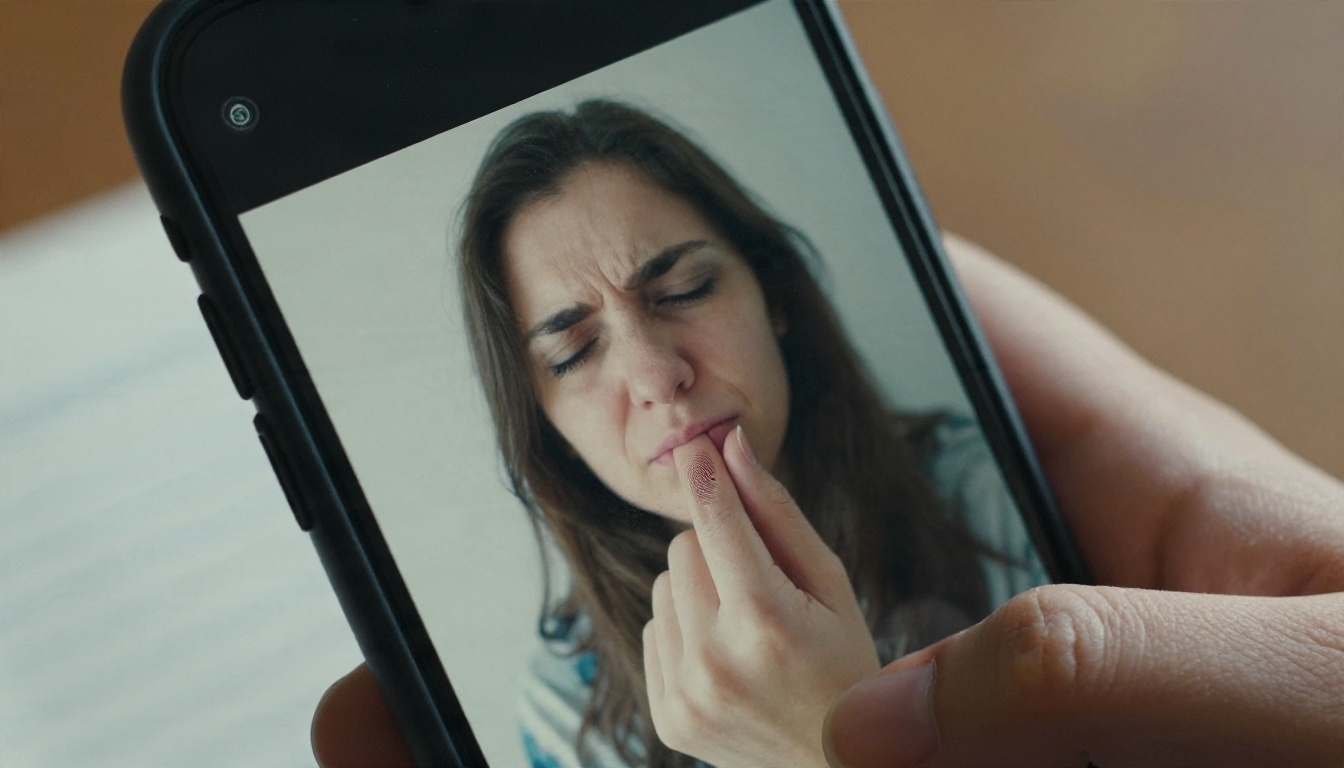
Three details trip up nearly every model:
- Hands. Extra fingers and bent joints still appear, especially when a hand is partly hidden.
- Text and logos. Words on signs, labels and clothing can turn into near-readable nonsense. If you need text, add it afterward in a normal design app.
- Faces. Small identity drift is common. The eyes get slightly bigger, the jaw changes, the smile shifts. Add "keep her face identical" and check anyway.
Daily caps and watermarks
Free allowances come in many forms, and they change often. Reviews published in 2026 describe small monthly AI edit counts on some design apps, daily token pools on some generators, and low-resolution exports on some editors. Because those numbers move, check the pricing page of any tool before you plan a batch of 200 product photos around it. The same reviews are often written by vendors, so read comparison pages with that in mind.
| Limit type | What it looks like | What to do |
|---|
| Daily credits | Edits stop after a set number | Plan batches, save good prompts |
| Watermark | Logo in a corner | Crop is not allowed by most terms, check the plan |
| Low export size | Small file on free plan | Upscale or choose a tool with full size output |
| Slow queue | Waiting minutes at busy hours | Edit at off-peak times |
Privacy and consent
You are uploading a photo to someone's server. Read how long it is stored and whether it is used for training. And a simple rule on people: edit photos of real people only when you have their permission, especially when the change alters their body, their surroundings or what they appear to be doing. A realistic edit is a believable claim, so be honest about it when you publish.
A Quick Edit Checklist
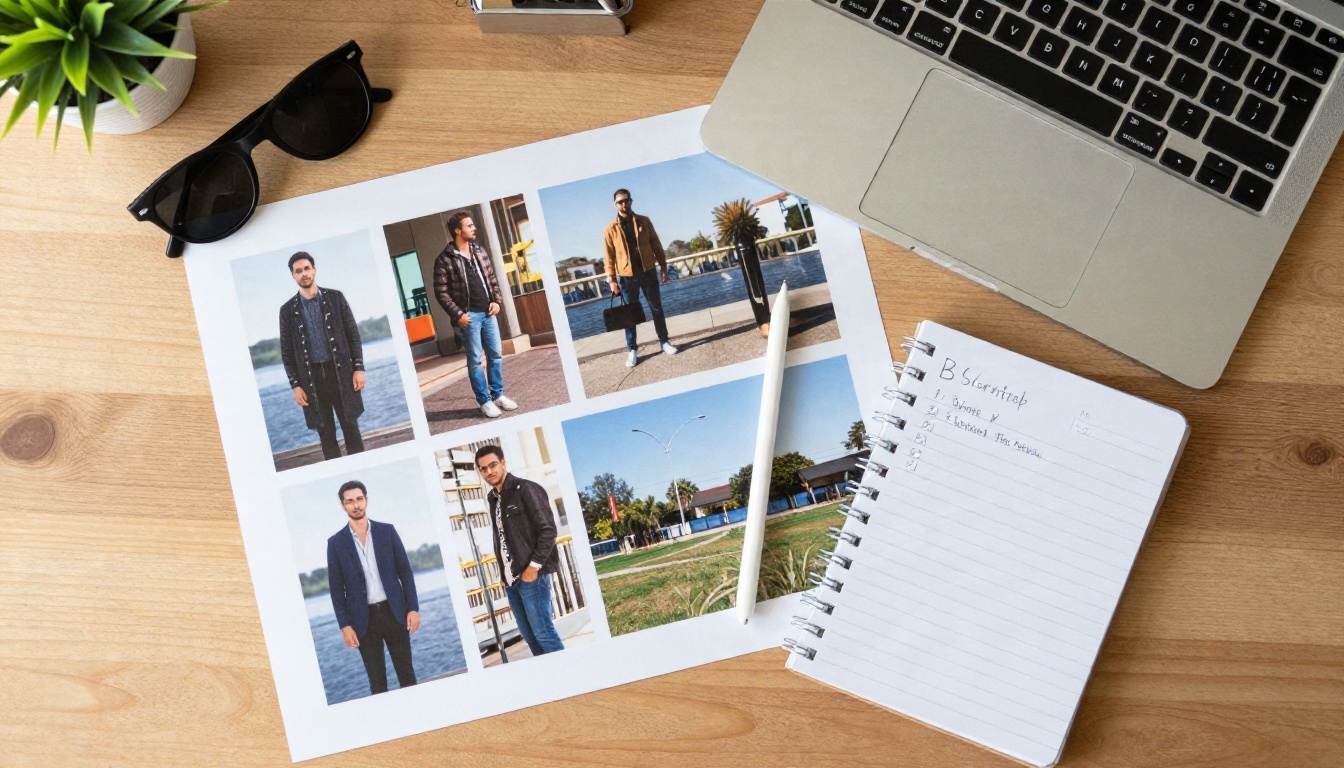
Before you hit run, check the list. It takes thirty seconds and saves a lot of retries.
Try Your Own Edits
The quickest way to find out what a prompt editor can do for you is to give it one of your own photos. Pick a picture that has a small, annoying flaw: a stranger in the frame, a dull sky, a dark corner. Type a single clear sentence, protect what you want to keep, and run it.
Open PicassoIA Image Editor Pro and try three versions of the same prompt, then compare them side by side. If you need maximum detail for the final file, run the best version through Seedream 4.5 or Nano Banana. A few rounds with Picasso IA will teach you more about prompt wording than any list of tips, and every result is a photo you can use today.


