Type "NSFW AI image generator" into a search bar and you get a wall of ads, fake "unlimited" claims and sign-up forms that want your card before you have made a single picture. Meanwhile, the thing most people want is simple: attractive, suggestive, photorealistic images of swimwear, lingerie and boudoir scenes, made quickly, without a lecture from a filter that blocks the word "bikini."
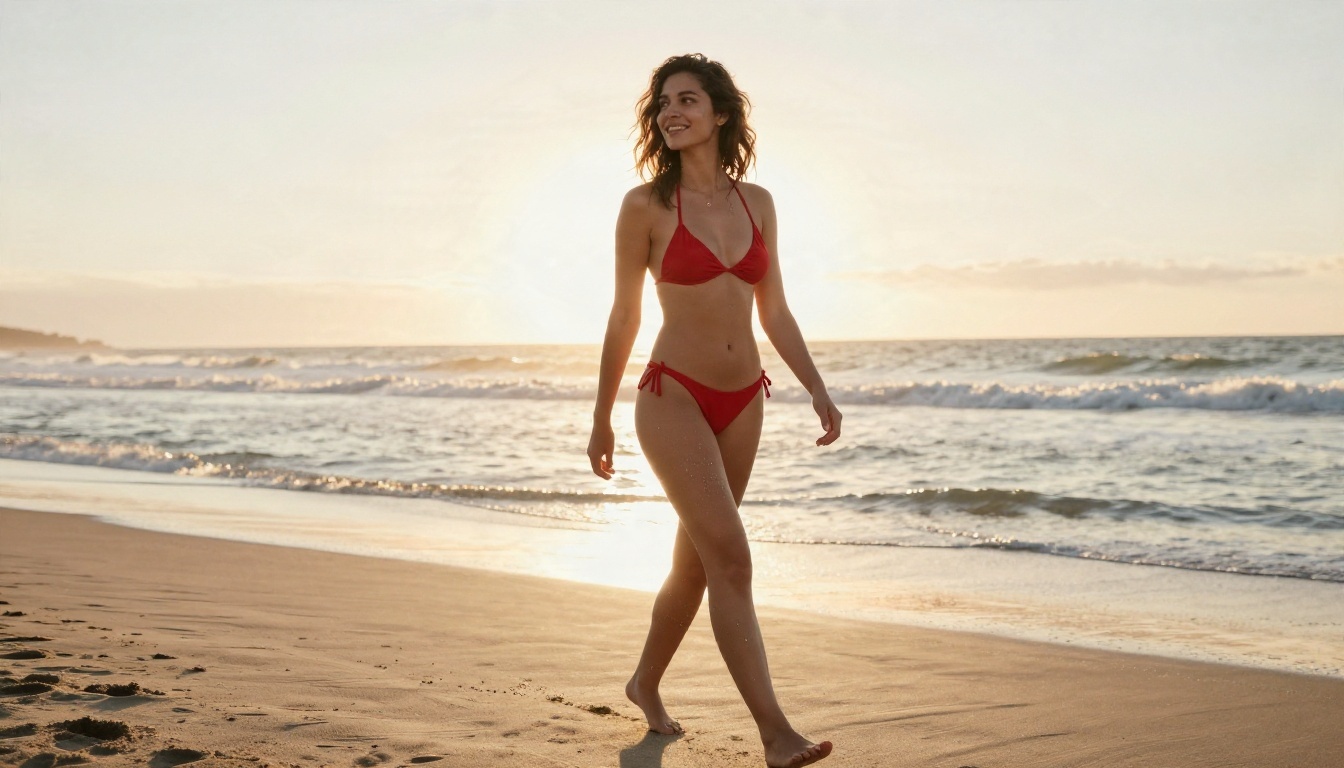
This article sorts out what is realistic. You will see which free options exist and what they cost you in other ways, which models on PicassoIA handle glamour content best, how to write prompts that look like real photography, and where the hard content limits sit no matter which tool you pick. Every image in this article was generated with AI and kept deliberately suggestive but not explicit, which is the sweet spot where most tools work best.
What NSFW Means for AI Images
"NSFW" is a loose label. It covers everything from a woman in a swimsuit on a beach to material that no mainstream platform will ever host. Before you pick a tool, it helps to know which end of that range you actually want.
Suggestive vs explicit
Most people searching for this topic want glamour: bikinis, lingerie, boudoir portraits, silk robes, implied nudity behind a curtain. That content is allowed on far more tools than you would guess, and it often looks better than anything explicit because lighting, mood and styling do the work.
Explicit pornographic content is a different category. Many platforms block it at the model level, payment processors push against it, and several jurisdictions regulate it. This article stays on the suggestive side and treats it as an aesthetic skill, not a loophole hunt.
Why people search for it
The demand is easy to explain. Photographers and creators want reference shots without booking a studio. Writers want character portraits. Small brands want swimwear and lingerie mockups. Plenty of people simply enjoy making attractive images. The problem is that over-cautious filters reject normal requests, which is why "uncensored" and "free" dominate the search results.
💡 Quick reality check: a filter that blocks "bikini" is not protecting anyone. It just pushes you toward worse tools. Pick a model that treats swimwear and boudoir as normal photography subjects.
Free Options That Actually Work
"Free" comes in three flavors, and each one has a catch. Research across 2026 reviews points to the same pattern: no cloud service is fully unrestricted, and the claims on affiliate blogs rarely match each other.
Platform free tiers
Many web tools give you a handful of daily credits. They are fine for testing, but the credits run out fast once you start iterating on a prompt. Reviews of free tiers in 2026 mention services like Mage.space and SeaArt as offering limited free use, though policies and limits change often, so check current terms before relying on any of them.
The better deal on PicassoIA is PicassoIA Image Editor Pro, which offers unlimited generations. When you are refining a prompt ten or twenty times to get the lighting right, unlimited beats a daily credit cap every time.
Local setups
Running Stable Diffusion or Flux on your own machine through a tool like ComfyUI is the only route that is truly unrestricted, because nothing leaves your computer. The trade-off is real: you need a strong GPU, hours of setup, and the patience to manage checkpoints and settings. For most people, that is too much friction for a few good photos.
What "free" costs you
Free tools rarely cost nothing. Here is what you often pay with instead:
| Hidden cost | What it looks like |
|---|
| Time | Queues, slow generations, tiny daily credit pools |
| Quality | Low resolution, watermarks, plastic skin |
| Privacy | Prompts and images stored on servers you cannot inspect |
| Money | A "free trial" that asks for a card and renews quietly |

Best Models for Glamour Images
The model matters more than any prompt trick. A model trained on high-quality photography, with a permissive approach to swimwear and boudoir subjects, will beat a famous model that refuses half your requests.
Seedream 4.5 comes first
Seedream 4.5 is the model to start with. It produces sharp, photorealistic skin, handles fabric like lace and silk convincingly, and follows long descriptive prompts closely. For glamour work, that prompt adherence is the whole game: when you ask for "morning light from the right through a sheer curtain," you actually get it.
It renders up to 4K, which gives you room to crop and print. If you only try one model from this article, make it this one.
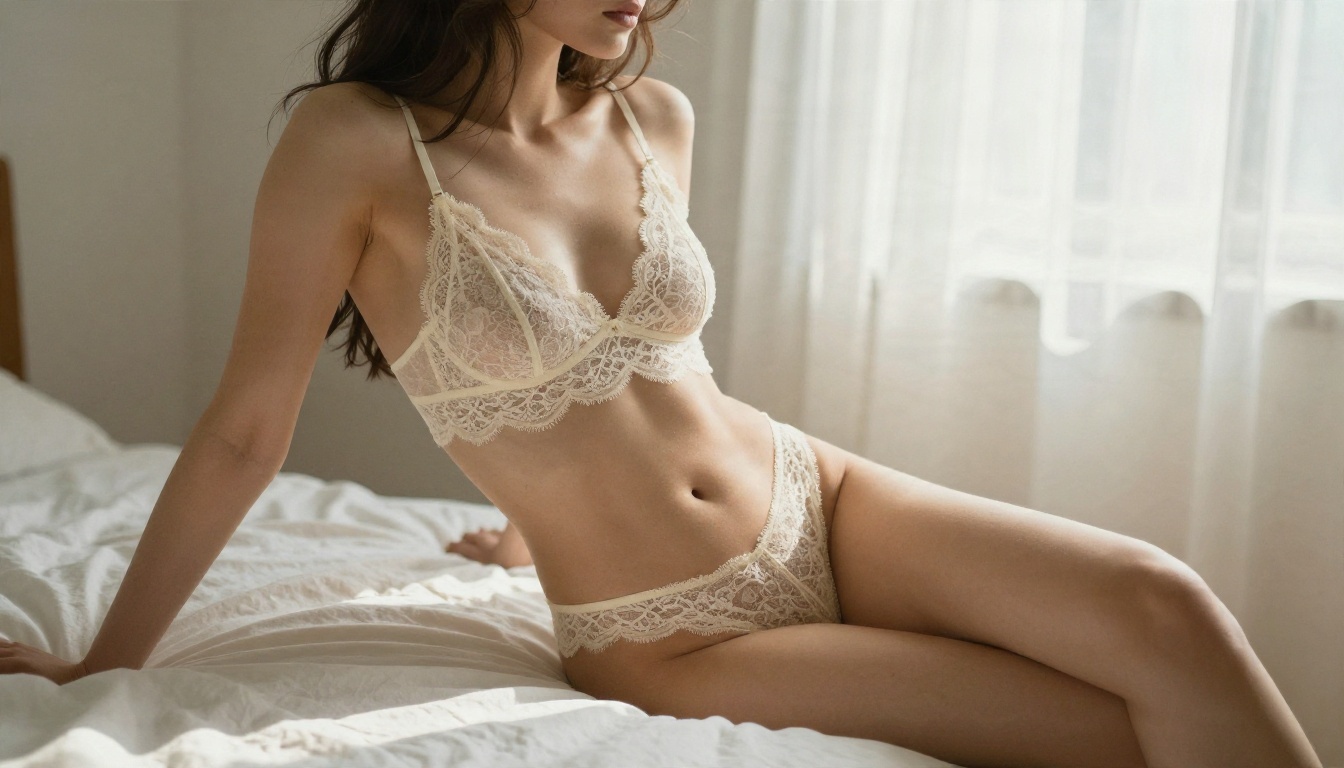
Image Editor Pro for volume
PicassoIA Image Editor Pro is the second stop. Its biggest selling point is unlimited generations, which changes how you work. Instead of rationing attempts, you can run variation after variation, adjust one detail at a time and keep the best frame. It also edits existing images, so you can change an outfit color, fix a background or adjust lighting on a photo you already like.
Fast alternatives worth trying
Once you have a favorite prompt, these models give you different looks and speeds:
💡 Speed tip: draft with a fast model such as Z Image Turbo, then send the winning prompt to Seedream 4.5 for the final high-detail render.
You can browse everything else on the full PicassoIA model list.
Prompt Tips That Work
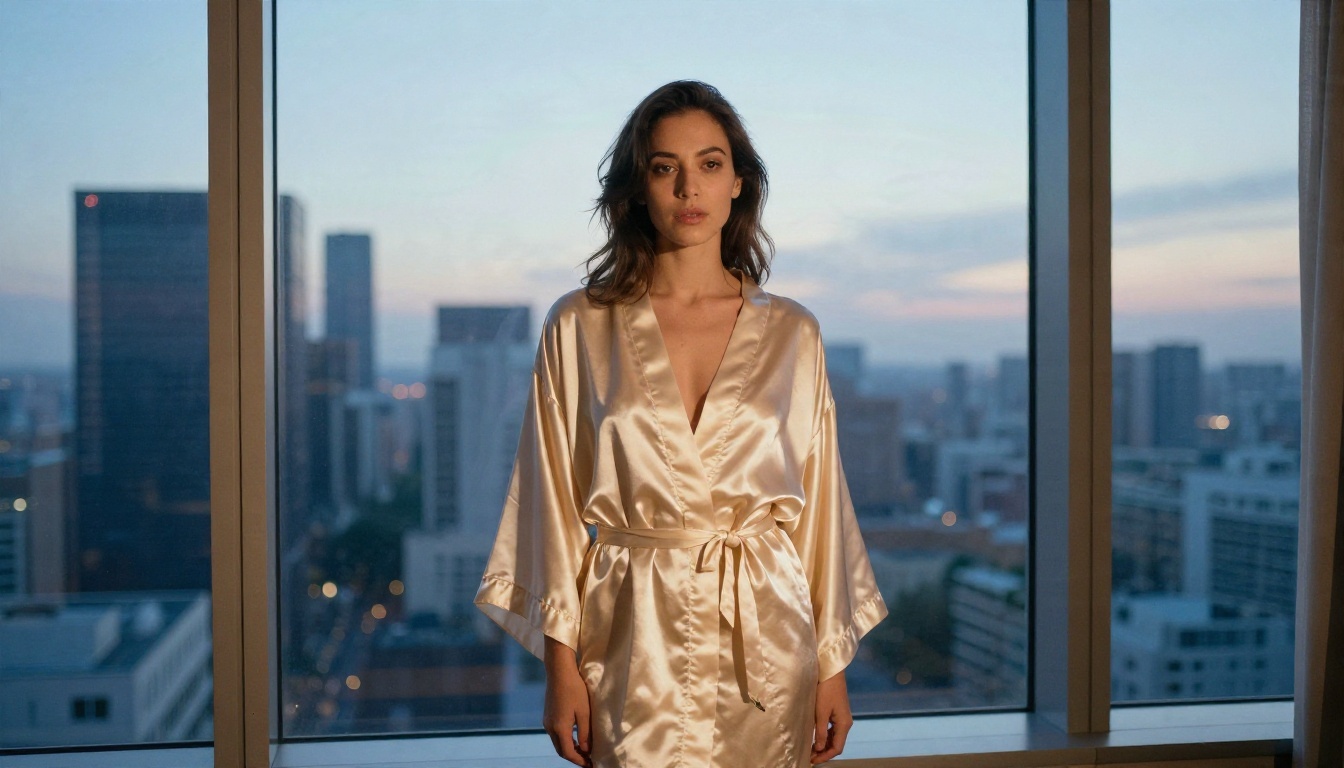
A good glamour prompt reads like a photographer's shot list, not a list of adjectives. The more you describe the camera and the light, the less the model has to invent, and the more your result looks like a real photo.
Build the prompt in layers
Use this order every time:
- Subject and pose: who is in the frame and what they are doing.
- Clothing: specific fabric and cut, such as "ivory lace lingerie" or "black two-piece swimsuit with thin straps."
- Setting: a real, specific place with props.
- Light: direction, quality and time of day.
- Camera: lens, aperture, angle and distance.
- Texture and mood: skin detail, film grain, atmosphere.
Here is a prompt that follows the formula:
A woman in an ivory lace bralette sitting on a rumpled white linen bed, soft diffused morning light from a sheer curtain on the right, eye-level medium shot, 85mm f/1.4 lens, shallow depth of field, visible lace pattern, natural skin pores, Kodak Portra 400 film grain, raw photograph.
Lighting and lens words
Lighting is what separates a flat image from a glamorous one. Try these phrases:
- Golden hour backlight for a warm rim along hair and shoulders.
- Soft window light from the left for gentle, flattering shadows.
- Dramatic side light for fashion editorial drama.
- Beauty dish from the front for clean portrait work.
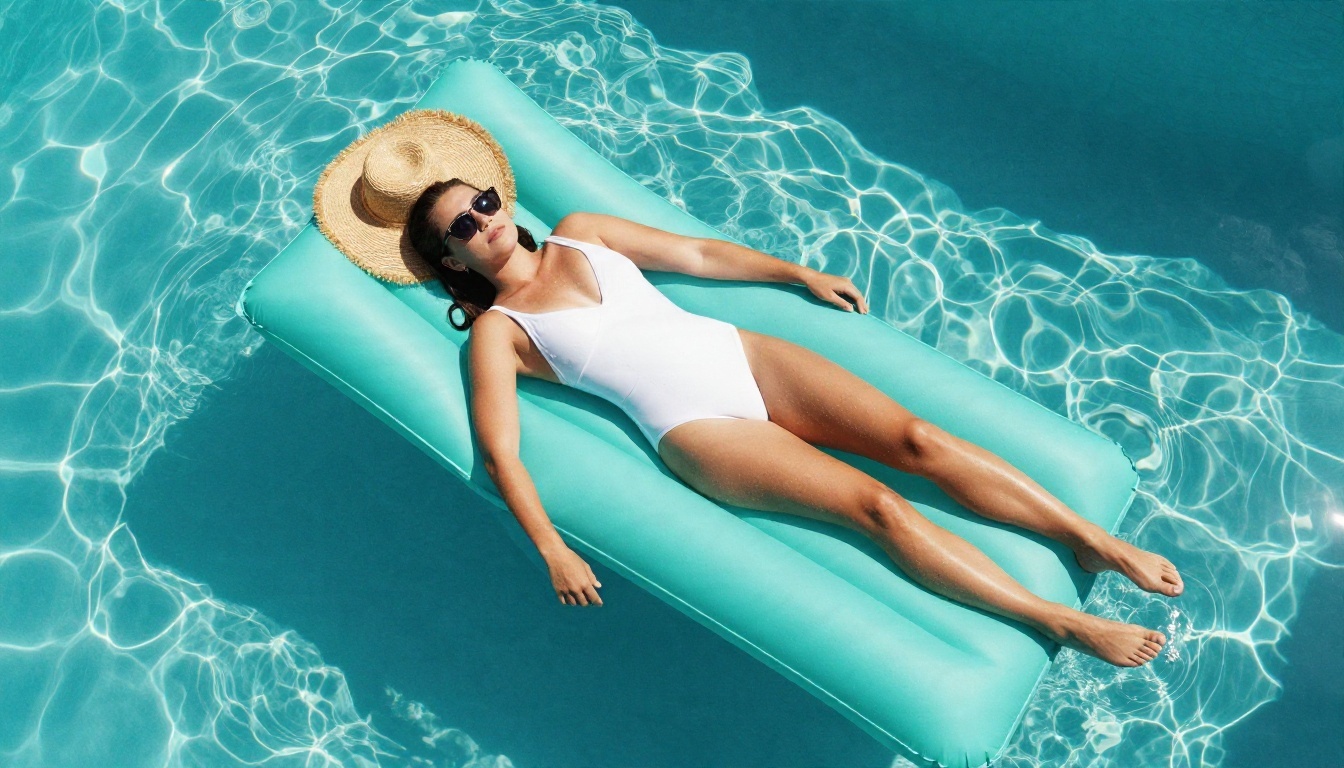
For lenses, 85mm f/1.4 gives creamy portraits, 35mm gives environmental context, and a 24mm top-down angle gives that pool or terrace overhead look. Changing only the lens and angle can produce a completely different image from the same subject.
Skin texture details
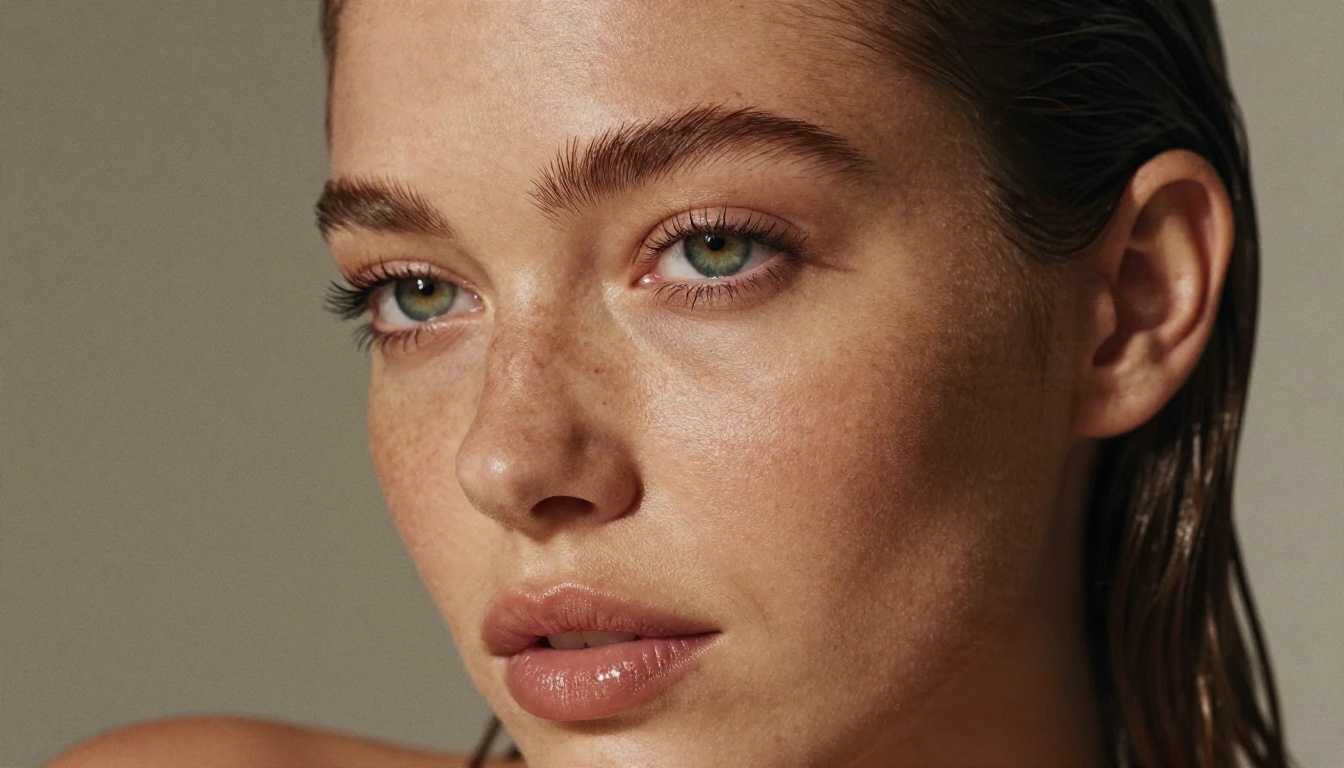
Plastic skin is the most common giveaway of an AI image. Counter it with direct instructions: "visible skin pores," "fine freckles," "tiny flyaway hairs," "faint sheen of sea salt," "goosebumps," "water droplets." Ask for imperfection and you get realism.
Mistakes that ruin results
| Mistake | Why it fails | Fix |
|---|
| "Beautiful sexy woman" only | Too vague, generic output | Describe outfit, place and light |
| No camera information | Flat, stock-photo look | Add lens, aperture and angle |
| Stacking ten styles | Muddy, confused image | Pick one mood and commit |
| Asking for "perfect skin" | Smooth, fake texture | Ask for natural pores and grain |
| Long negative lists | Models can ignore or confuse them | Describe what you want instead |
Generate with Seedream 4.5 Step by Step
Here is the fastest route from idea to finished image using Seedream 4.5 on PicassoIA.
- Open the model page and choose Seedream 4.5 from the text-to-image collection.
- Paste a layered prompt using the six-part formula above. Aim for 50 to 80 words.
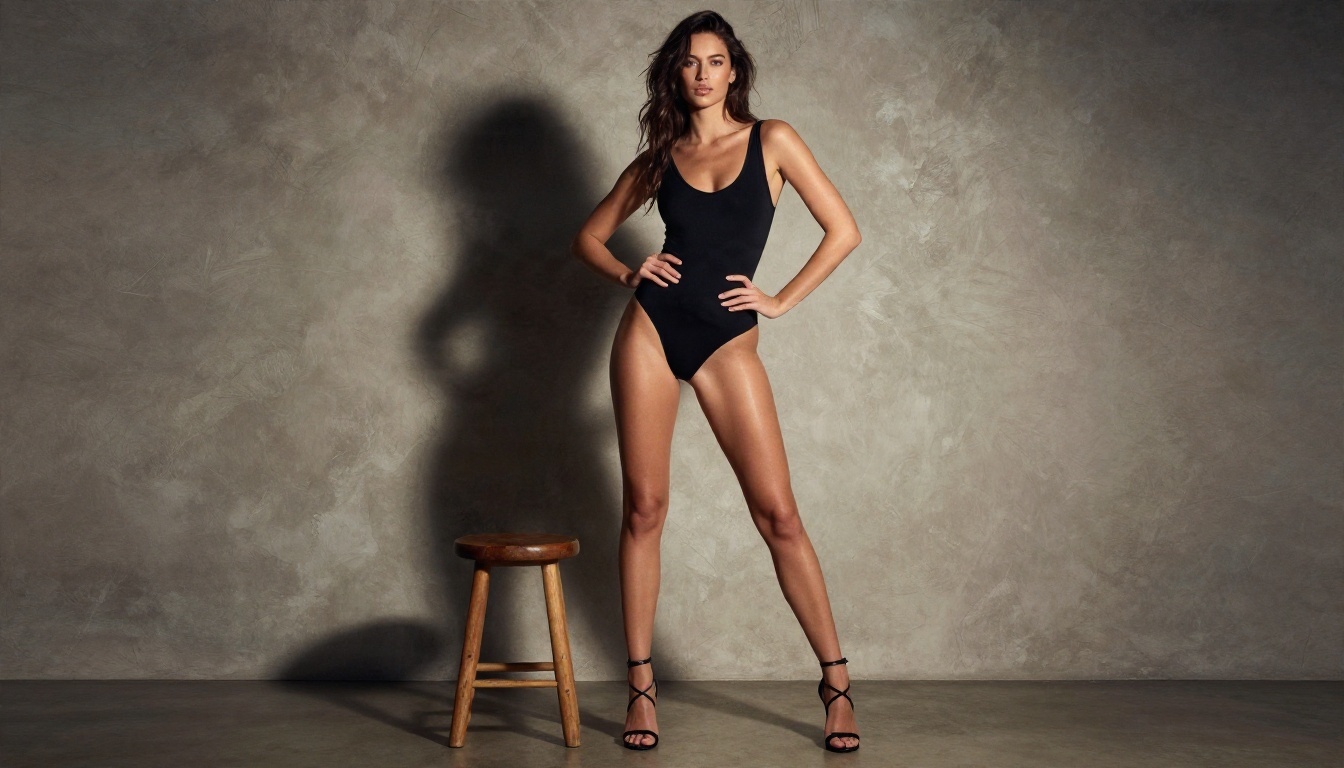
- Set the aspect ratio. Use 16:9 for scenic scenes, 3:4 or 2:3 for full-body portraits.
- Pick a high resolution if you plan to crop or print. Start lower for drafts.
- Generate and review. Look at lighting direction, hands and skin texture first.
- Change one thing at a time. Swap the light, then the lens, then the outfit. Changing everything at once hides what worked.
- Refine in Image Editor Pro. Send the best frame to PicassoIA Image Editor Pro for outfit, background or lighting edits with unlimited tries.
💡 Consistency trick: keep the same hair, outfit and location description in every prompt of a series. Only change the camera angle and pose.
Content Limits You Should Know
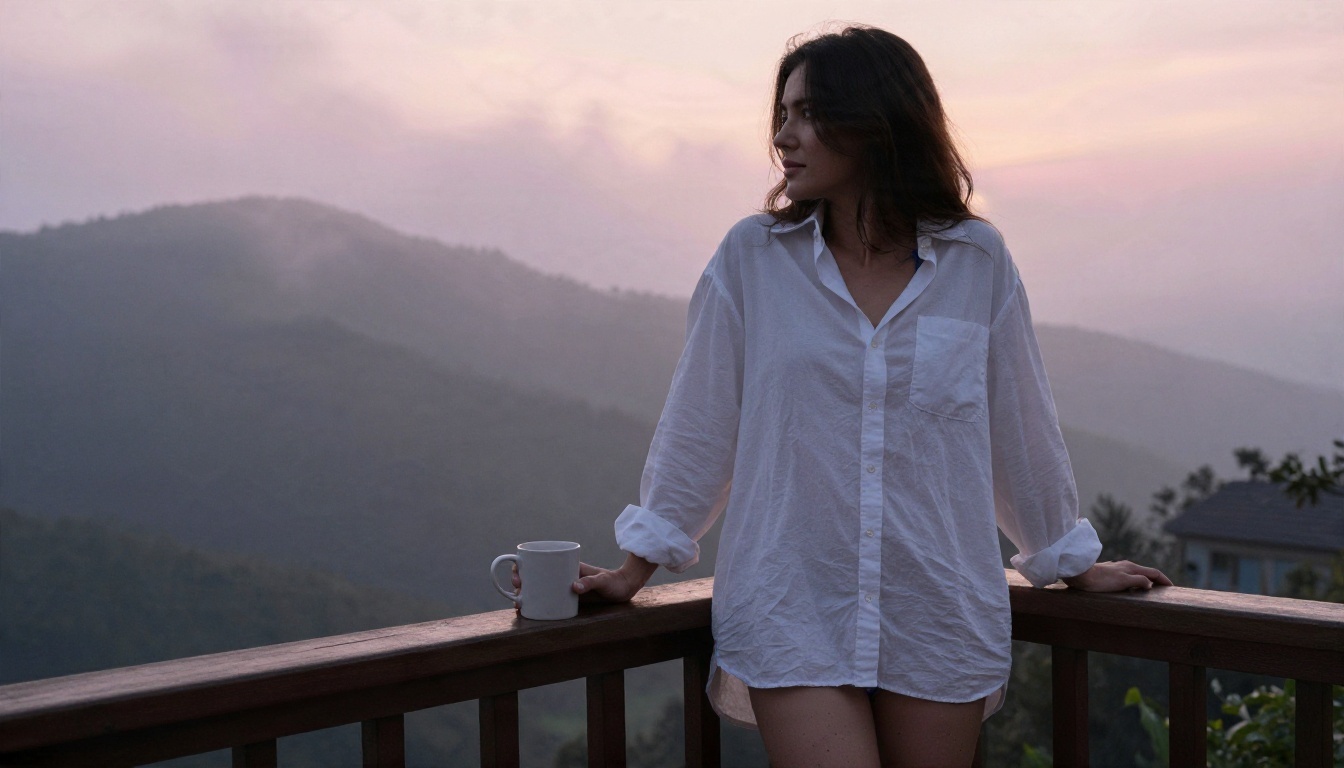
Even on the most permissive tools, some lines do not move. Knowing them up front saves you from banned accounts and legal trouble.
Hard lines everywhere
Content involving minors is prohibited everywhere, without exception, and prompts that hint at it get accounts closed and can be reported. Adult subjects only, always, with clearly adult styling and settings. Beyond that, extreme violence, non-consensual scenarios and anything illegal in your country are off the table.
Real people and consent
This is the line most people underestimate. Creating sexualized images of real people without their consent, including celebrities, coworkers and exes, is harmful, and in a growing number of places it is illegal. Platforms have tightened rules here. Grok, for example, prohibits pornographic depictions of real people, and reports say its adult-oriented image settings were restricted after public criticism in early 2026.
The safe approach is simple: generate fictional, original adult characters and never upload another person's photo to sexualize it.
Privacy and storage
Before you type anything personal, check how a platform stores prompts and outputs. Some keep everything indefinitely. Others let you delete history. Treat any online generator as semi-public, and avoid putting your real name, location or face into prompts.
💡 Legal note: rules on adult AI content vary by country and by how you use the images. Private creation is treated very differently from publishing or selling. Check local law if you plan to share or monetize.
Quick Comparison Table
Start Creating Your Own Images
You now have the pieces: a free route with unlimited tries, a lead model that renders convincing skin and fabric, a prompt formula built on real photography, and a clear picture of the limits. The only step left is to make something.
Open Seedream 4.5 on PicassoIA, paste one of the prompts from this article, and change a single detail: the light, the lens, the outfit. Then take your favorite result into PicassoIA Image Editor Pro and push it further with unlimited generations. When you want a different look, try the other models on the full PicassoIA model list.
Pick a scene, write the shot list, and see what comes back.


