You have a selfie you love. Good light, a real smile, maybe a breeze in your hair. Now imagine that same frame breathing: your eyes shift, your head tilts a few degrees, the hair moves, and a soft sound plays underneath. That is exactly what an AI selfie video generator does, and in 2027 you no longer need editing skills, a desktop rig or a paid subscription to try it. You upload one photo, type one sentence, and a few moments later you have a short clip ready for Reels, TikTok, a birthday message or a family chat.
The catch is that the market is crowded. Some tools are free but cap you with watermarks. Some apps are slick but lock the good features behind a weekly fee. Some web generators produce stunning motion but warp faces if you feed them the wrong photo. This article sorts it out: what the technology really does, how free online options compare with app options, which selfies animate best, and a step-by-step workflow you can run today on PicassoIA.
What an AI Selfie Video Generator Does
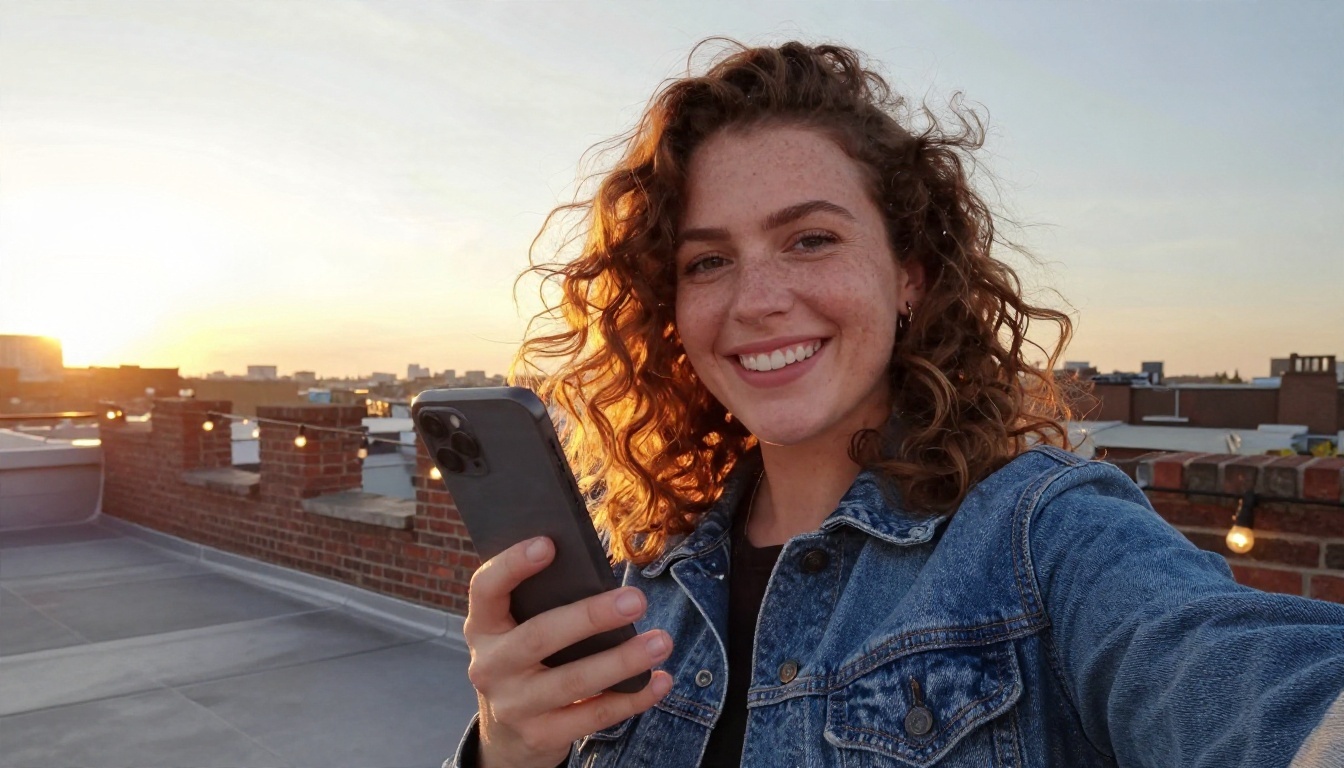
From Still Frame to Motion
An AI selfie video generator is an image-to-video model wrapped in a simple interface. The model treats your photo as the first frame of a clip and predicts what the next 120 frames or so should look like. Instead of filming new footage, it imagines plausible movement: a blink, a smile, a gentle head turn, fabric swaying, light shifting across skin.
Most generators produce clips between 3 and 10 seconds. That sounds short, but it matches how people actually use these videos. A 5-second loop of your face coming to life is plenty for a story, a profile video, a greeting or a meme.
What Happens Behind the Scenes
The process has three steps that you never see:
- Face and scene reading. The model identifies your face, hair, shoulders, background and the lighting direction.
- Motion planning. Using your text prompt (or its own defaults), it decides which parts move and how fast.
- Frame synthesis. It generates each new frame while trying to keep your identity consistent from the first frame to the last.
The better the model, the better step three goes. Weak models drift: your nose changes shape, your eyes lose their color, or your teeth multiply. Strong models keep your face stable while the motion stays natural.
💡 Quick rule: the more you ask a face to do, the more likely it is to drift. One simple motion per clip almost always beats a complicated one.
What You Can Actually Make
| Result | Typical prompt idea | Best for |
|---|
| Living portrait | "Subtle blink, soft smile, hair moves in breeze" | Profile videos, memorial tributes |
| Talking selfie | "She says hello to the camera, natural lip movement" | Greetings, intros, messages |
| Cinematic push-in | "Slow dolly toward her face, shallow focus" | Reels, travel clips |
| Fun reaction | "Laughs, covers mouth, looks away" | Memes, group chats |
| Walk and turn | "She turns and walks down the street" | Storytelling, short films |
Free Online vs App Options

Free Online Generators
Browser-based generators run on powerful servers, so they usually produce the sharpest, most stable results. You do not install anything, you can work from a laptop or phone browser, and updates to the underlying models arrive without you doing a thing.
What to check before you commit to one:
- Watermarks. Many free tiers stamp a logo on the clip, which makes it useless for anything beyond a test.
- Daily or monthly caps. "Free" often means a handful of credits.
- Clip length. Some free plans stop at 3 seconds.
- Resolution. 480p looks soft on a modern phone; 720p or higher looks right.
- Audio. Newer models generate synchronized sound, which makes a selfie video feel far more alive.
Mobile Apps
Phone apps win on convenience. You pick a photo straight from your camera roll, tap once and share directly. They also work well for template-style effects like hugs, dances or age transitions.
The tradeoffs are real, though. Many apps push weekly subscriptions, run heavy ads on the free tier, or limit exports to short low-resolution clips. Some also upload your photo to servers with vague retention terms, so read what you are agreeing to before you submit faces of other people.
Which One Fits You
| Factor | Free online generator | Mobile app |
|---|
| Face stability | High with a strong model | Varies by app |
| Control over motion | Full, via text prompt | Often limited to templates |
| Watermarks | Depends on tool | Common on free tier |
| Speed to first clip | Under a few minutes | Under a minute |
| Cost pattern | Free tier or credits | Subscription is common |
| Best for | Quality, custom motion | Quick fun clips |
My honest take: use an app for a throwaway meme, and use a browser generator when you care how your face looks.
Pick the Right Selfie First
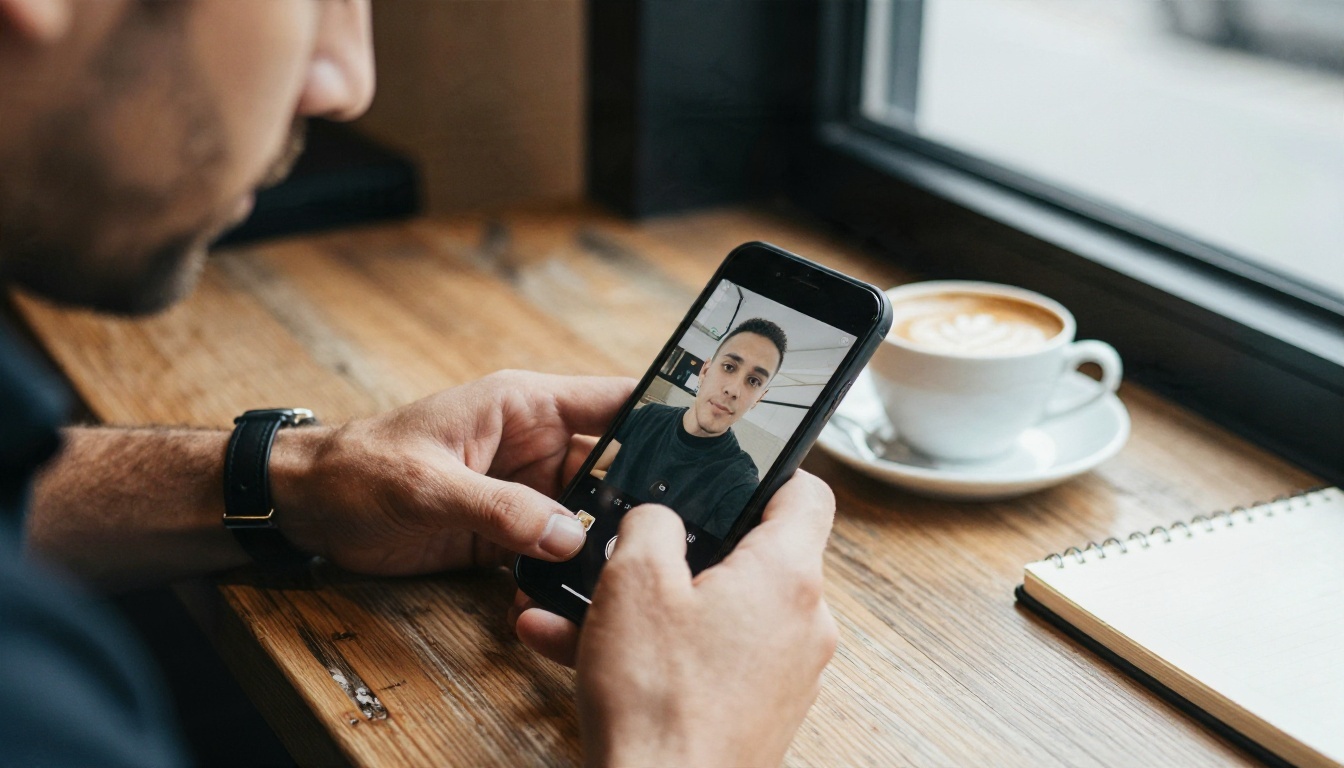
Here is something most tutorials skip: the input photo decides about 70 percent of the result. A great model cannot rescue a bad source.
The Photo Checklist
Choose a selfie that ticks as many of these as possible:
- Face fills a good part of the frame. Head and shoulders is the sweet spot.
- Even, soft light. Window light or open shade beats harsh noon sun.
- Eyes open and visible. Sunglasses and heavy shadows confuse the face reader.
- Sharp focus. Motion blur in the original becomes bizarre ghosting in video.
- Plain or simple background. Busy backgrounds can warp when the camera moves.
- Resolution of at least 1024 pixels on the long side. Tiny screenshots produce mushy clips.
Photos That Usually Fail
- Heavy beauty filters. Smoothing filters erase skin texture, and the model then invents its own, which looks waxy.
- Extreme wide-angle selfies. Distorted noses and stretched edges get worse in motion.
- Group photos with faces turned away. The model has to guess faces it cannot see.
- Hands covering the face. Fingers and mouths are where most artifacts begin.
💡 Fix before you animate. If your best selfie is slightly soft, run it through an upscaler like Clarity Pro Upscaler first. A sharper first frame means a steadier video.
The Models That Animate Selfies Best
Not every model treats faces the same. Some are tuned for sweeping cinematic scenes; others hold identity beautifully. Here is how the options on PicassoIA stack up for selfie work.
| Model | Strength for selfies | Good when you want |
|---|
| Seedance 2.5 Lite | Free and unlimited, up to 10 seconds | Lots of experiments without counting credits |
| PicassoIA Video | Free unlimited text or image to video | Fast everyday clips |
| Kling v3 Video | Cinematic motion, strong face consistency | Polished showpiece clips |
| Wan 2.7 I2V | Dedicated image animation | Faithful "photo comes alive" results |
| Hailuo 2.3 Fast | Quick photo animation | Rapid drafts and tests |
| Veo 3.1 Fast | Video with native audio | Talking selfies with sound |
| Grok Imagine Video 1.5 | Image to video with audio | Expressive, lively clips |
| Happyhorse 1.1 | Text or image to video | Trying a different motion style |
| Gen4 Turbo | Fast image to video | Quick iterations |
My Practical Pick Order
Start with Seedance 2.5 Lite because it costs nothing to experiment, then move to Kling v3 Video or Wan 2.7 I2V when you want a final version you would post proudly. If you need synchronized speech and ambient sound, try Veo 3.1 Fast.
Making a Selfie Talk
For a selfie that actually speaks, you have two routes. The first is to use a model with native audio, like Veo 3.1 Fast, and write the spoken line directly into the prompt. The second is to animate silently, then add mouth movement with a lipsync tool such as Kling Lip Sync. For a single photo to talking avatar, P Video Avatar is built for exactly that job.
How to Use Seedance 2.5 Lite on PicassoIA
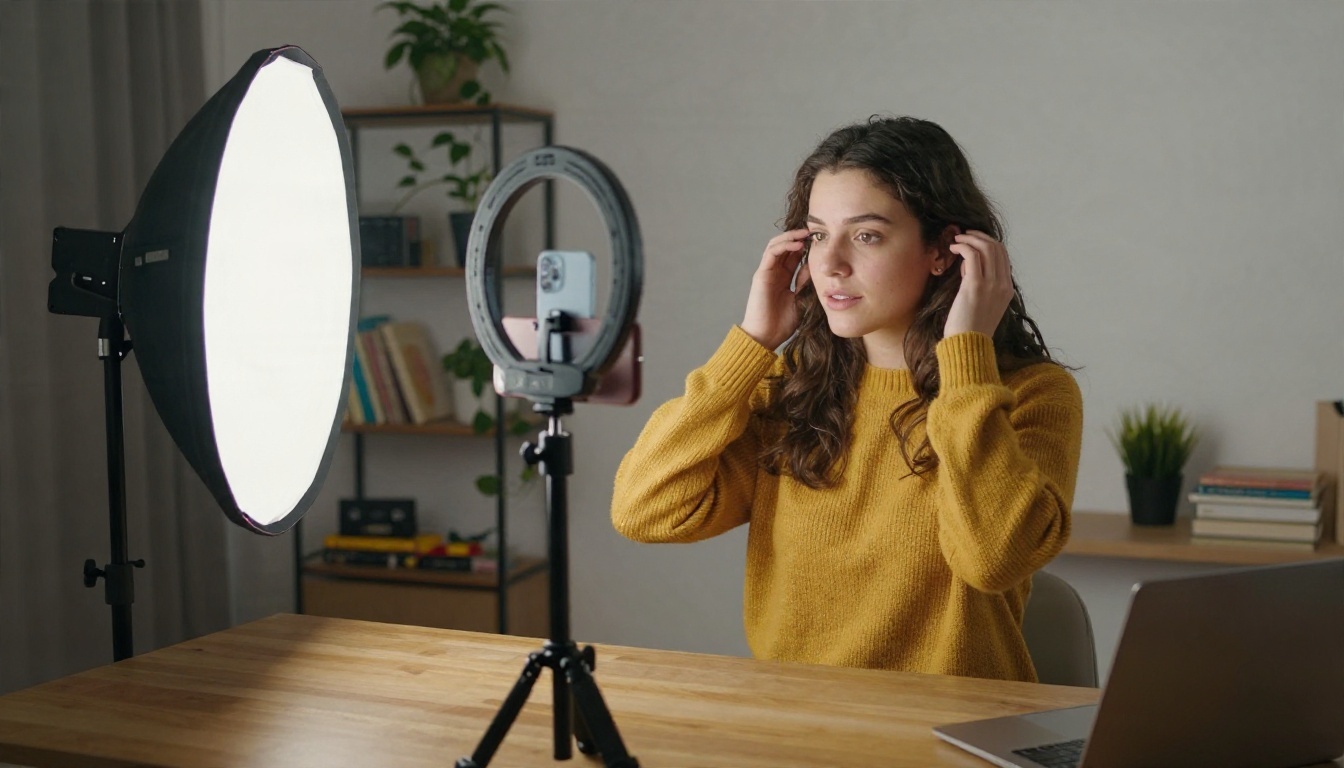
Seedance 2.5 Lite is a free and unlimited video generator that handles clips up to 10 seconds, so it is a natural place to practice. Here is the workflow I follow.
Step by Step
- Open the model page. Go to the Seedance 2.5 Lite page on PicassoIA.
- Upload your selfie. Use the image input to add your chosen photo as the first frame.
- Write a short motion prompt. One subject action, one camera move, one light cue. Example: "She smiles softly and tilts her head slightly, hair moves in a light breeze, slow camera push-in, warm window light."
- Set the duration. Start at 5 seconds. Longer clips give the model more room to drift.
- Generate and watch twice. The first watch is for the vibe, the second is for flaws: eyes, teeth, ears, hair edges.
- Iterate. Change one thing at a time. If the head turned too much, write "barely moves" instead of rewriting everything.
- Download and share. Save the clip and post it, or send it to your lipsync tool if you want speech.
Settings Tips That Save Time
- Describe motion, not appearance. The model already sees your face; spend your words on movement.
- Use "subtle", "slight" and "gentle". These words keep identity stable.
- Name the camera. "Static camera" keeps the background calm; "slow push-in" adds a cinematic feel.
- Fix what breaks. If the mouth looks odd, remove any speech from the prompt and add it later with lipsync.
💡 Free iteration beats perfect prompts. With an unlimited model, run five quick variations rather than spending twenty minutes polishing one prompt.
Prompts That Actually Work
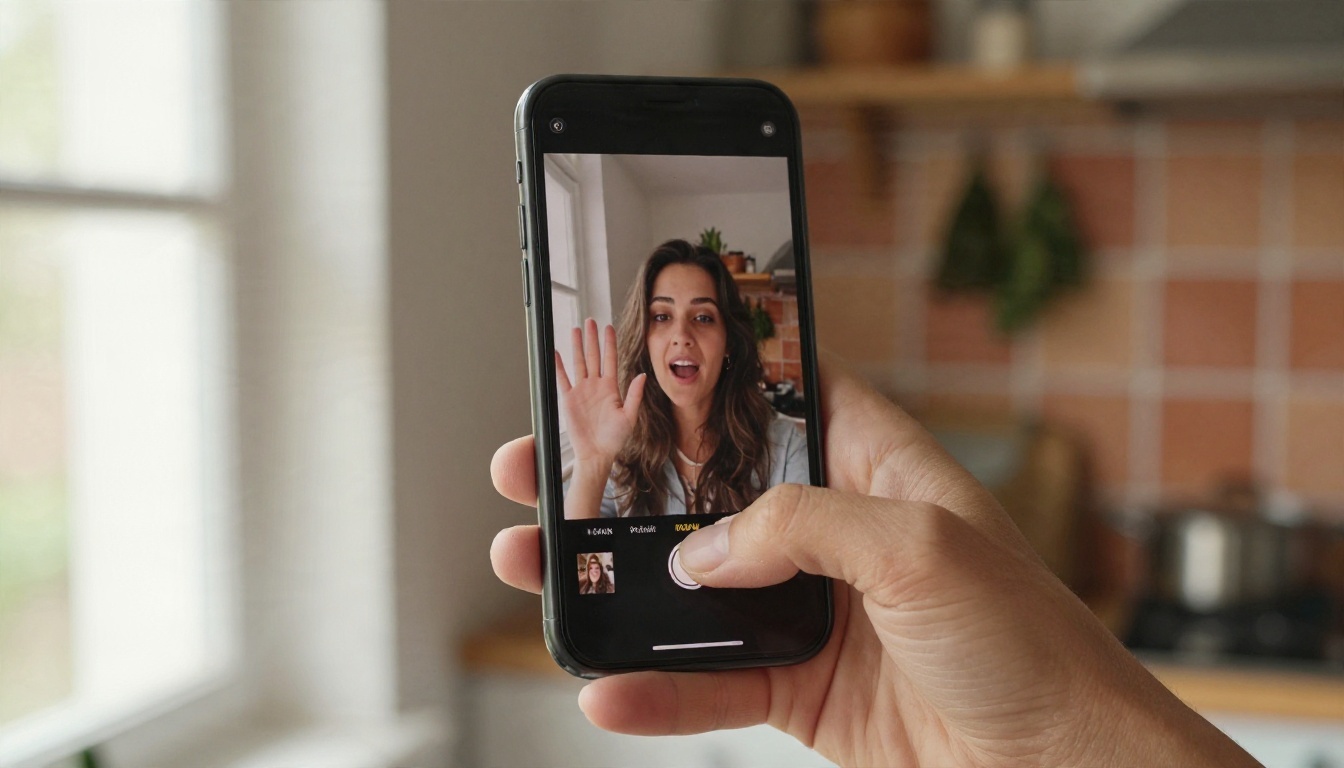
A reliable prompt formula for selfie animation is: [Subject action] + [small secondary motion] + [camera move] + [light and mood].
Subtle Motion Prompts
These are safe starting points because they keep the face stable:
- "She blinks naturally and smiles, a strand of hair drifts across her cheek, static camera, soft daylight."
- "He looks up from the phone and grins at the camera, slight head tilt, shallow depth of field, warm cafe light."
- "Gentle breeze moves her curls, she laughs quietly, slow push-in, golden hour glow."
- "Eyes shift to the camera, a small nod hello, background people blur softly, handheld feel."
Bolder Motion Prompts
Once the basics work, push a little:
- "She turns her head to the left, laughs, and brushes hair behind her ear, slow orbit around her, rooftop at sunset."
- "He steps forward into frame, waves, and says hello, tracking shot, natural street sound."
- "She lifts her phone and takes a selfie, then lowers it with a smile, medium shot, soft indoor light."
Adding Speech and Sound
Models with native audio can generate voices, breathing and room tone. Write the line in quotation marks and describe delivery: "She says 'Happy birthday, I miss you' in a warm quiet voice." Keep spoken lines under 10 words for 5-second clips, otherwise the lips rush and the timing looks off.
Common Mistakes
| Mistake | What happens | Better approach |
|---|
| Asking for three actions at once | Face warps, limbs blur | One main action per clip |
| Describing the face again | Model changes your features | Describe motion only |
| Using a filtered selfie | Waxy, plastic skin | Pick an unfiltered photo |
| Huge camera moves | Background melts | Slow push-in or static |
| Long speech lines | Lip timing breaks | Short phrases |
Where Selfie Videos Shine
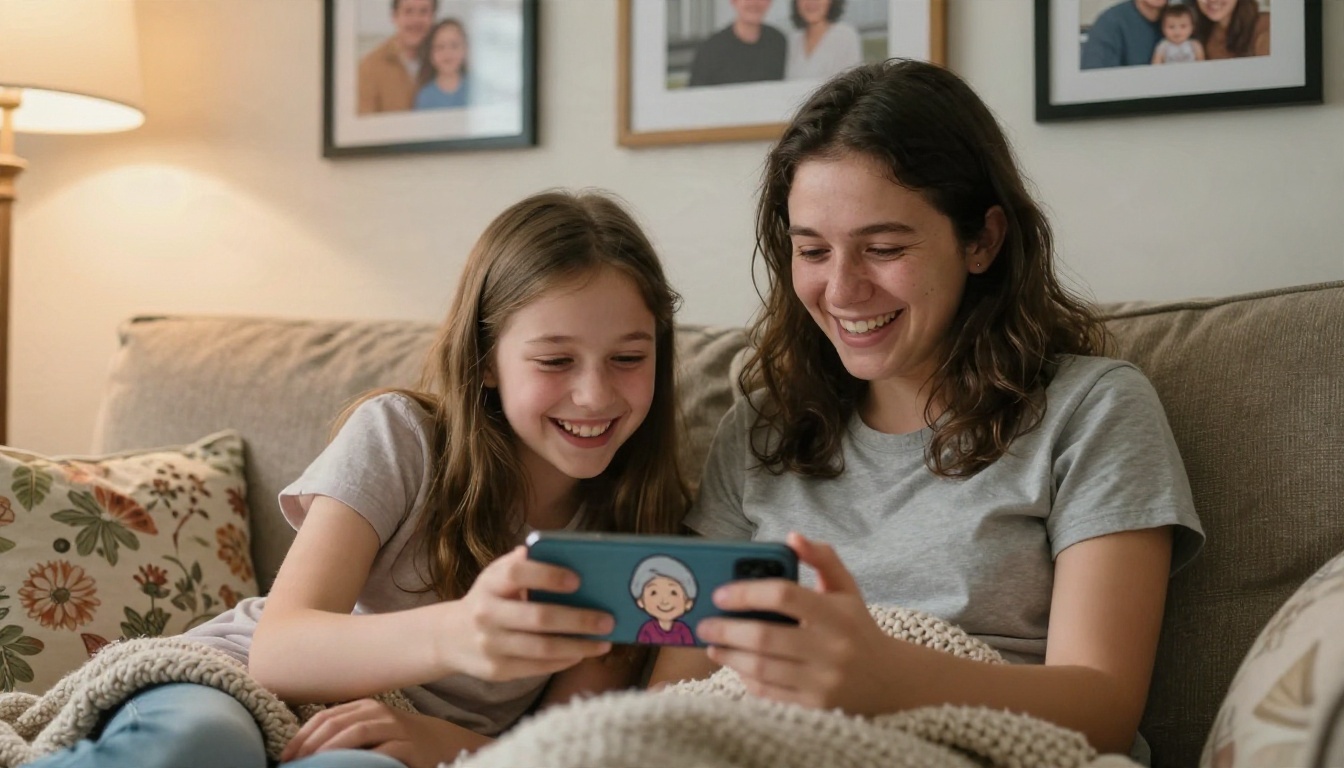
Family and Memory Clips
The most touching use is not a flashy edit. It is an old family photo coming softly to life: a grandparent smiling, a child turning to the camera. Keep these gentle, with minimal movement, and they land far better than anything dramatic. If the original is damaged or low resolution, restore and upscale it first.
Social Media Content
Short animated portraits make strong profile videos, story intros and channel trailers. Pair a cinematic push-in with a trending sound, and a simple selfie becomes a scroll-stopper. Creators also use selfie animation to build consistent intros without filming new footage every time.
Greetings and Gifts
A talking selfie saying happy birthday, congratulations or thank you feels more personal than a text. Generate a silent version, add a voice line, and send it in a chat. It takes minutes and people remember it.
Privacy and Consent

Your face is personal data, so treat it that way.
Before You Upload
- Use your own face or have permission. Animating a friend, coworker or stranger without their agreement is not okay, even as a joke.
- Skip photos of children on any service whose data policy you have not read.
- Check retention terms. Know whether the service keeps your uploads and for how long.
- Never present generated clips as real footage of a real person saying something they did not say.
Label Your Work
If you post an AI-generated clip where it could be mistaken for a real recording, say so in the caption. Most platforms now ask for it anyway, and it protects you from awkward misunderstandings.
💡 Simple test: if the person in the photo would be upset to see the clip, do not make it.
Make Your Own Selfie Video Today
You do not need to pay, install a heavy app or study video editing. Pick one clear, unfiltered selfie. Open Seedance 2.5 Lite or PicassoIA Video. Write one short motion prompt. Generate five quick variations, keep the best, and polish it with a higher-end option like Kling v3 Video or Wan 2.7 I2V if you want a showpiece.
Want to go further? Make a talking version with P Video Avatar, sharpen a soft photo with Clarity Pro Upscaler, or try a different style with Hailuo 2.3 Fast. Every model mentioned here is on PicassoIA, and you can browse the full lineup at picassoia.com/en/all-models.
Your selfie is already a good photo. Give it five seconds of motion and see what it does.


