You have a song. You have a face, maybe your own, maybe a character you designed. What you do not have is a film crew, a month of editing time or a budget for a director. AI lip sync for music video closes that gap: you feed a model a vocal track and a photo or a clip, and it moves the mouth, jaw and cheeks to match every syllable. The catch is that singing is far less forgiving than talking. Held vowels, fast consonants and breathy ends of phrases expose weak sync in about two seconds.
This article walks through the free tools worth testing, the settings that change the result, and the singing and recording habits that make the output look like a real performance. If you want a fast route, jump to the tutorial section and run your first clip in a few minutes.
How AI Lip Sync Works for Songs
Audio in, mouth shapes out
Every lip sync model does the same basic job. It listens to an audio file, breaks it into small sound units, maps those units to mouth shapes (visemes), then repaints the lower face of each video frame so it matches. Some models take a video and replace only the mouth region. Others take a single photo and generate the whole performance, including head movement, blinks and small gestures.
That split matters for music videos. Video to video models keep your original camera work, lighting and body motion. Photo to video models give you more freedom, because you can start from a portrait and end up with a singing clip without ever filming anything.
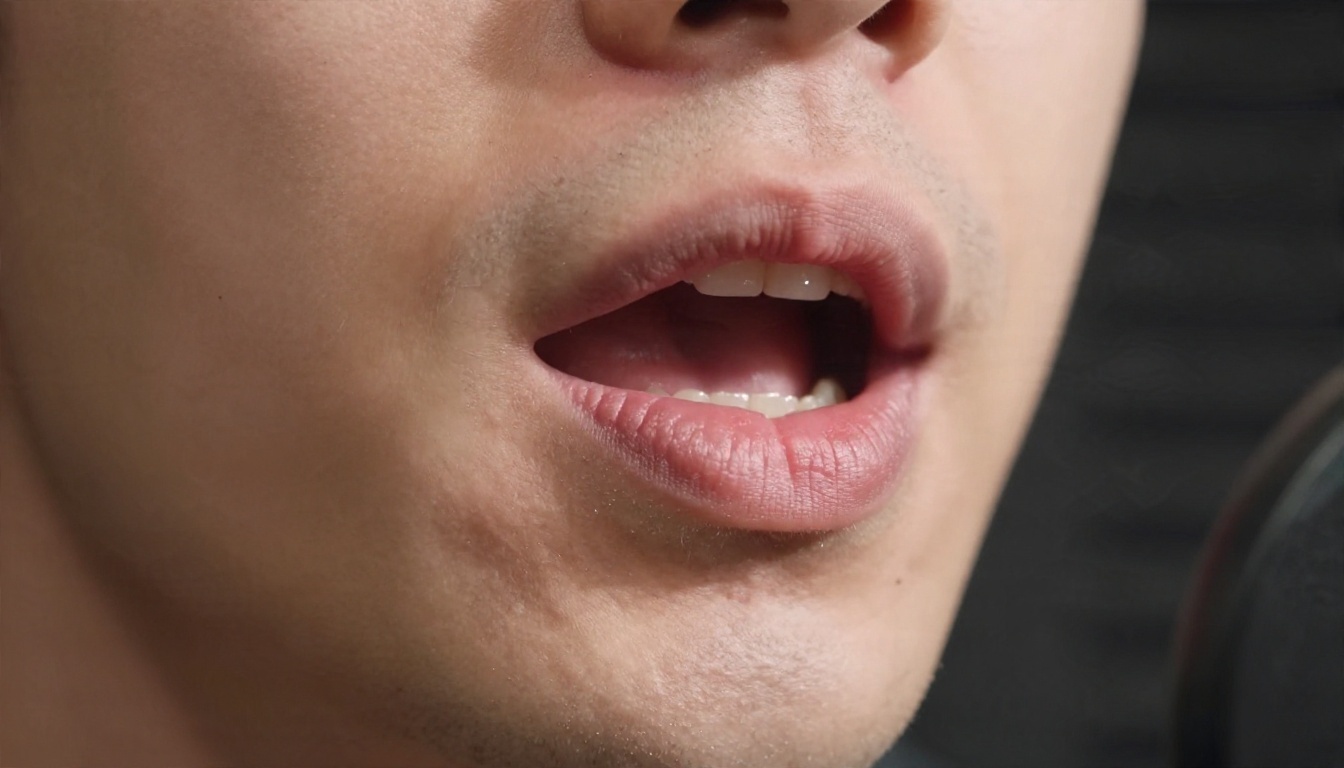
Why singing is harder than speech
Speech is short bursts with natural pauses. Singing is different in four ways:
- Held notes. A vowel can last four seconds, and the mouth has to stay open and stable without twitching.
- Wider mouth range. Belting opens the jaw far more than conversation does.
- Fast rhythmic passages. Rap verses and quick pop phrases leave very little time per mouth shape.
- Layered audio. Backing vocals, reverb and drums confuse the model about what the lips should actually be saying.
💡 Quick rule: the cleaner and drier your vocal is, the better the sync. Treat the lip sync model like a lip reader who hates reverb.
You do not need a paid plan to find out whether a model fits your song. Several PicassoIA lipsync models can be tried from the browser, and each model page shows current usage and any free allowance, so check it before you commit a full track. Allowances change over time, so I will not quote numbers here.
Photo to singer models
If you only have a portrait, start here. These models turn a still image plus audio into a talking or singing video.
- Omni Human 1.5 creates realistic lipsync video from a single photo, and handles upper body motion well, which suits performance shots.
- Omni Human is the earlier version, still useful for quick drafts.
- Fabric 1.0 makes any photo talk and is a good pick for stylized portraits and mascots.
- P Video Avatar builds talking avatar videos, handy for virtual artist projects.
Video to video models
If you already filmed a performance, or generated a clip with a text to video model, use a dedicated sync model to swap the mouth movement for your track.
- Lipsync 2 Pro is the one to try first for close ups, where teeth and lip detail show.
- Lipsync 2 syncs any voice to video at a lighter weight.
- React 1 adds realistic lipsync to any video and is a strong option when the face is moving.
- Kling Lip Sync matches mouth to audio in any clip, and works nicely on footage that came from Kling video models.
- Pixverse Lipsync syncs a video to audio instantly, good for fast iterations.
- Lipsync Precision and Lipsync Speed dub video with two different priorities: accuracy or turnaround time.
Quick comparison
| Goal | Start with | Input needed | Best for |
|---|
| Singing clip from a portrait | Omni Human 1.5 | Photo + audio | Artist avatars, album art that sings |
| Stylized or mascot singer | Fabric 1.0 | Photo + audio | Illustrated looks, brand characters |
| Close up on existing footage | Lipsync 2 Pro | Video + audio | Studio performance shots |
| Moving face, handheld shots | React 1 | Video + audio | Dynamic camera work |
| Fast draft to test a lyric | Pixverse Lipsync | Video + audio | Rapid iteration |
| Same song in other languages | Video Translate | Video | Releasing one video worldwide |
For translated releases, Video Translate dubs videos in 150+ languages, so one performance can serve several markets.
Free tiers on other platforms
Outside PicassoIA, plenty of lip sync products offer limited free credits, including Magic Hour, Hedra and HeyGen, plus open source research models such as Sonic and DreamTalk that you can run on hosted notebooks. Free allowances there tend to be short clips with watermarks or daily caps, and they change often. For a full 3 minute song, a tool that lets you split the track into sections and run them one by one is far more practical than a single capped generation.
Prep Your Audio First
Most bad lip sync is an audio problem, not a model problem. Spend ten minutes here and the rest gets easier.
Isolate the vocal
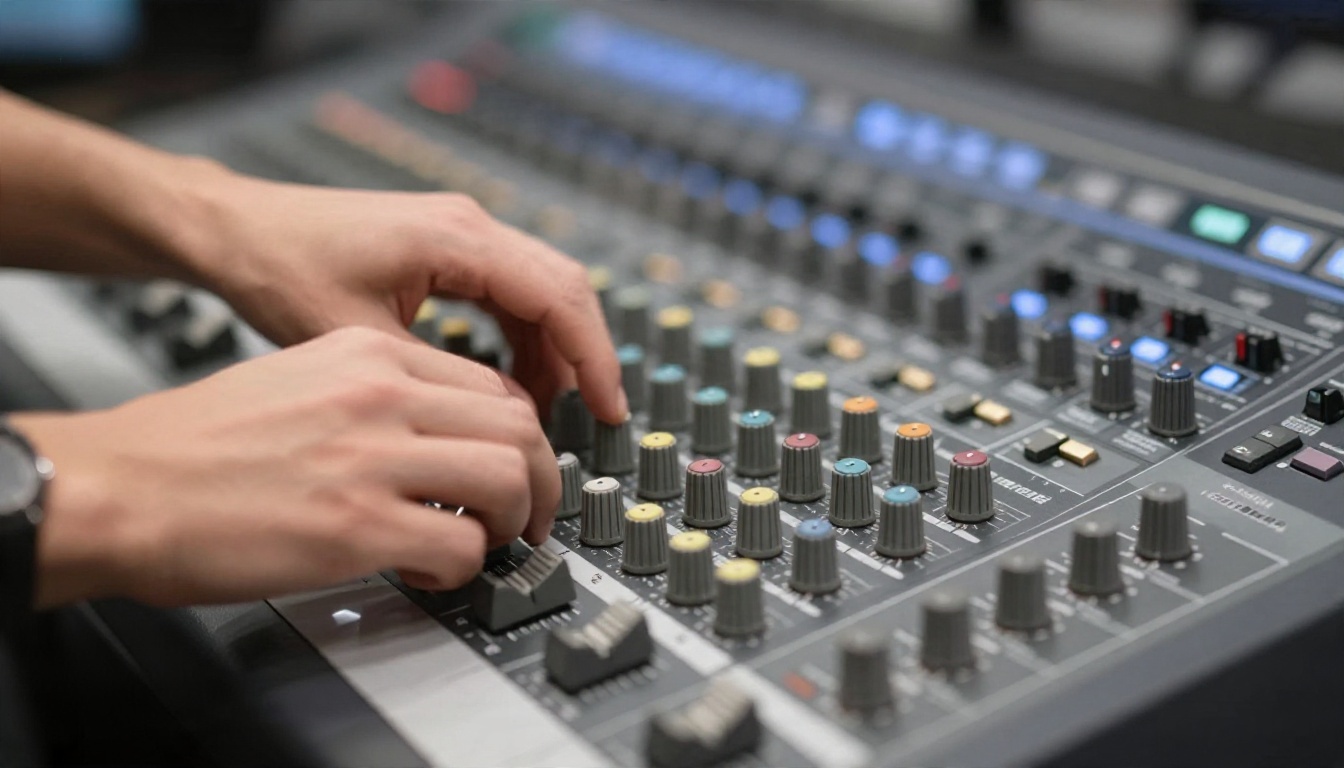
Give the model a vocal only stem whenever you can. If the full mix is all you have, run it through a vocal separation tool first. Why? Because snare hits and bass notes look like mouth sounds to the model, and you end up with lips that chatter along to the drums.
Checklist for the vocal file:
- Export as WAV or high bitrate MP3, at least 44.1 kHz.
- Remove long silences at the start so the first word lands where you expect.
- Keep reverb and delay light, or add them back in the final edit.
- Normalize the level so the voice is clear without clipping.
- Trim the section to the length you plan to generate.
Make the song with AI if needed
No track yet? Generate one. Music 2.6 writes full songs with vocals from a text prompt and lyrics. Lyria 3 Pro creates full length songs, and ElevenLabs Music composes tracks from a short description. Music 2.5 is another route for vocal songs.
💡 Tip: AI generated songs often have a clear, centered vocal, which is exactly what lip sync models like. Generate with sparse instrumentation if you plan to feed the full mix into a sync model.
Best Settings for Singing Clips
Option names differ from model to model, so open the model form and look for the equivalents below. The principles stay the same.
Pick the right source image or clip
- Face size. The face should fill at least a quarter of the frame height. Tiny faces in wide shots lose mouth detail.
- Frontal or slight three quarter angle. Profile views confuse most models.
- Mouth visible. Microphones, hands, hair and masks over the lips cause smearing. Hold the mic below the chin, or place it to the side.
- Neutral or soft expression. A closed mouth with relaxed lips gives the model the cleanest starting point.
- Sharp, evenly lit face. Hard shadows across the mouth create flicker.
Resolution, length and clip splitting
| Setting | Recommended | Why it matters |
|---|
| Output resolution | 720p for drafts, higher for final | Saves time while you test timing |
| Clip length | 5 to 20 seconds per run | Short runs stay stable and are easier to redo |
| Audio format | WAV or high bitrate MP3 | Fewer compression artifacts |
| Frame rate | Match your edit (24 or 30 fps) | Avoids judder when you cut |
| Source video length | Slightly longer than the audio | Gives the model room to finish the last word |
Split the song at natural breaks: verse, pre chorus, chorus, bridge. Generate each part separately, then stitch in an editor. If one chorus looks off, you redo 15 seconds instead of the whole track.
💡 Test with the hardest line first. Pick the fastest or most emotional phrase and run just that. If the model handles it, the rest of the song will be fine.
Singing Tips for Believable Results
Even if the face is AI generated, the performance still starts with a human voice. Better singing gives the model better information.
Sing with the mouth, not just the throat
Mumbling is the number one enemy of sync. Open your mouth on vowels, close the lips firmly on B, M and P, and let the tongue show on T, D and L. These crisp shapes give the model clear anchors. Over-articulate slightly during recording; it sounds natural once the track is in the mix.
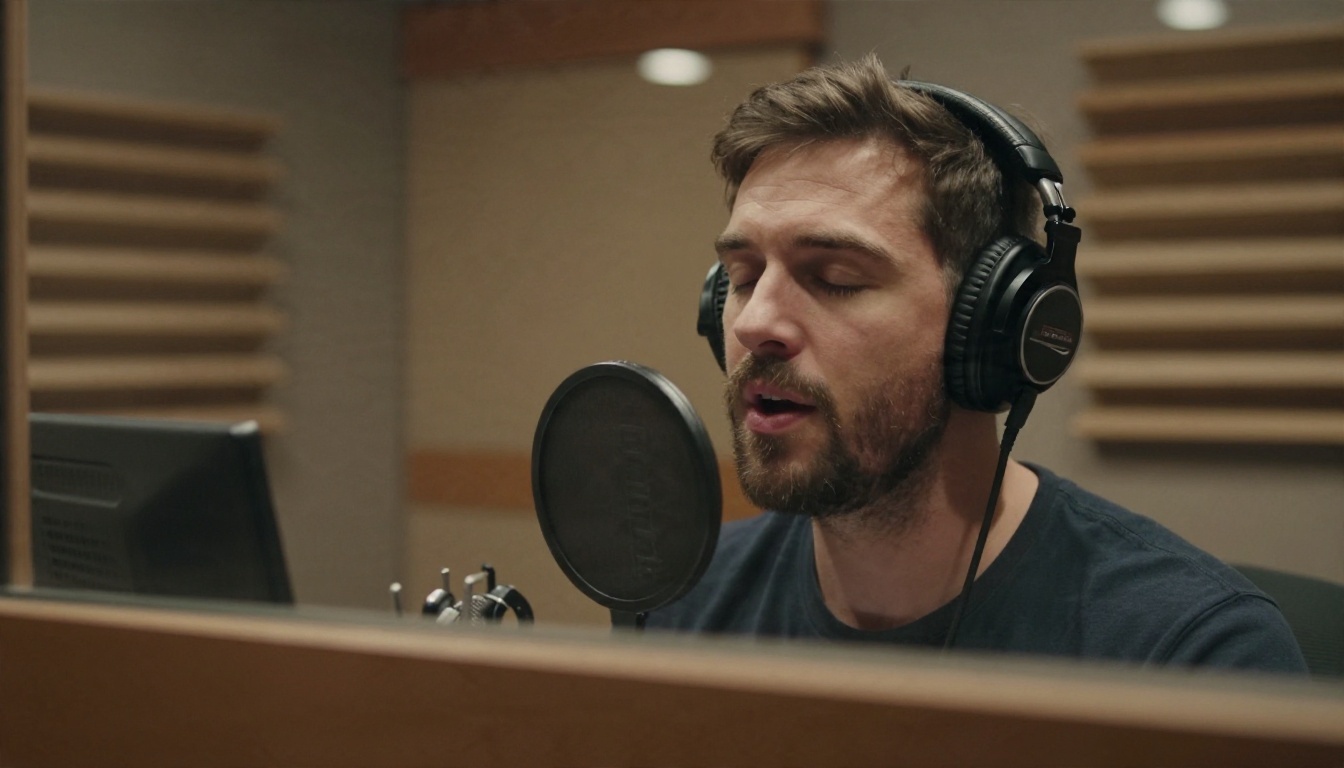
Record dry and close
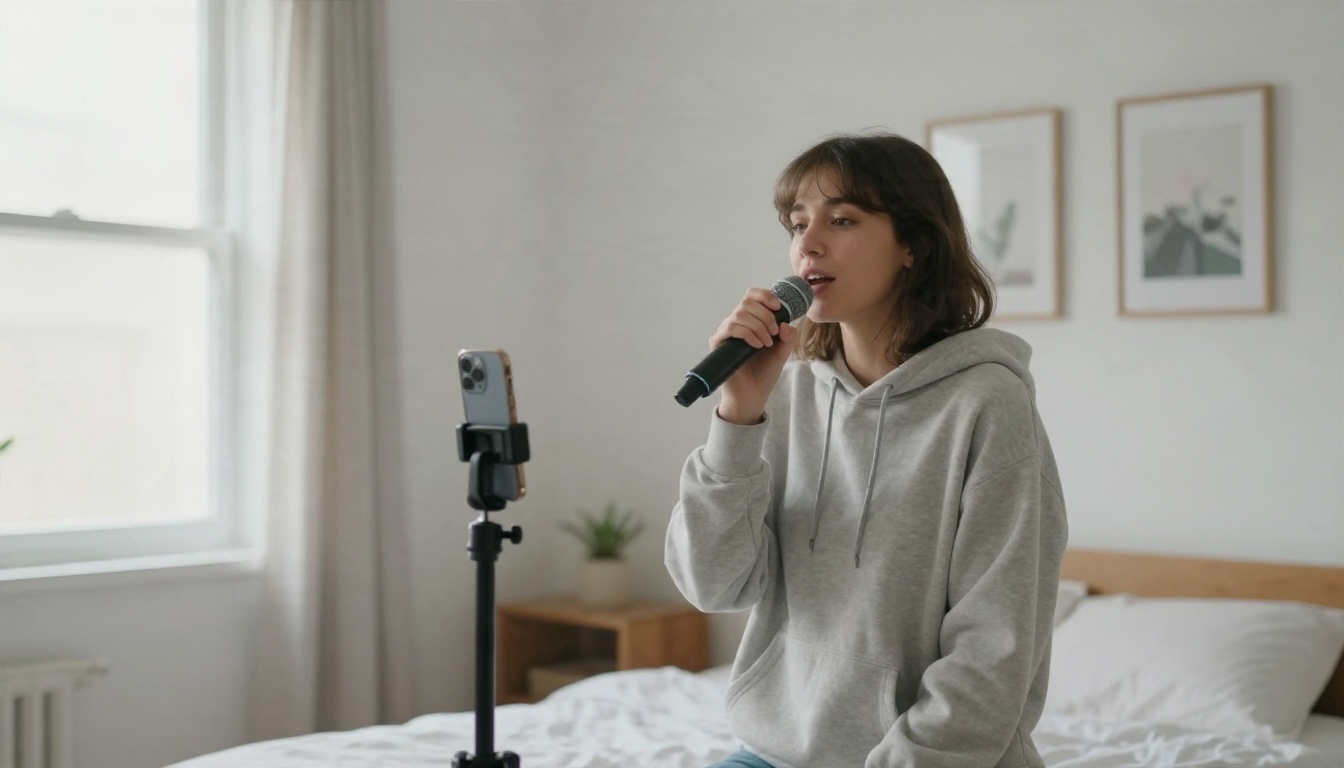
Record in a quiet room, about a hand's width from the microphone with a pop filter. Soft furnishings kill echo better than any plugin. If you only have a phone, record in a wardrobe or under a duvet and you will beat most untreated bedrooms.
Match energy to the shot
A quiet, intimate verse looks odd with a wide-open belting jaw. A big chorus looks flat with minimal movement. When you plan your clip, pair soft sections with close, calm framing and loud sections with wider, more dynamic shots.
Fix the most common mistakes
| Problem | Likely cause | Fix |
|---|
| Lips move on drum hits | Full mix as input | Use an isolated vocal |
| Mouth drifts late in the clip | Clip too long | Split into shorter runs |
| Teeth look blurry or merged | Low resolution source | Use a sharper, larger face |
| Mouth stays half open on pauses | Silence at the end of the file | Trim or add a small fade |
| Face wobbles on held notes | Strong vibrato plus reverb | Use a drier vocal take |
| Rap verses look mushy | Dense syllables, long clip | Run 5 to 8 seconds at a time |
How to Use Lipsync 2 Pro on PicassoIA
Here is a simple workflow with Lipsync 2 Pro, a video to video model that suits close up singing shots. Field names may differ slightly on the live form, so follow the labels you see.
- Open the model page. Go to the Lipsync 2 Pro page on PicassoIA and sign in.
- Upload your video. Choose a clip with a clear, front-facing, well lit face. A 5 to 20 second section works best.
- Upload your audio. Use the isolated vocal for that exact section, trimmed so it begins where the clip begins.
- Check the options. If the form offers sync mode or output settings, choose the more precise option for close ups and the faster one for drafts.
- Run the generation. Wait for the result, then watch it with sound on and again with sound off. Sound off shows whether the mouth shapes look natural on their own.
- Review problem spots. Look at held notes, fast phrases and the last word. If something is off, adjust the audio or the source clip and run that section again.
- Download and repeat. Export, then move to the next section of the song.
If your source is only a portrait, swap step 1 for Omni Human 1.5, upload the photo in place of the video, and keep the rest of the workflow the same.
💡 Pro habit: name every export with the section and take number, such as chorus_take2. By the time you have eight clips, you will be glad you did.
Build the Full Music Video
A lip sync clip is not a music video yet. The edit turns separate performances into a story.
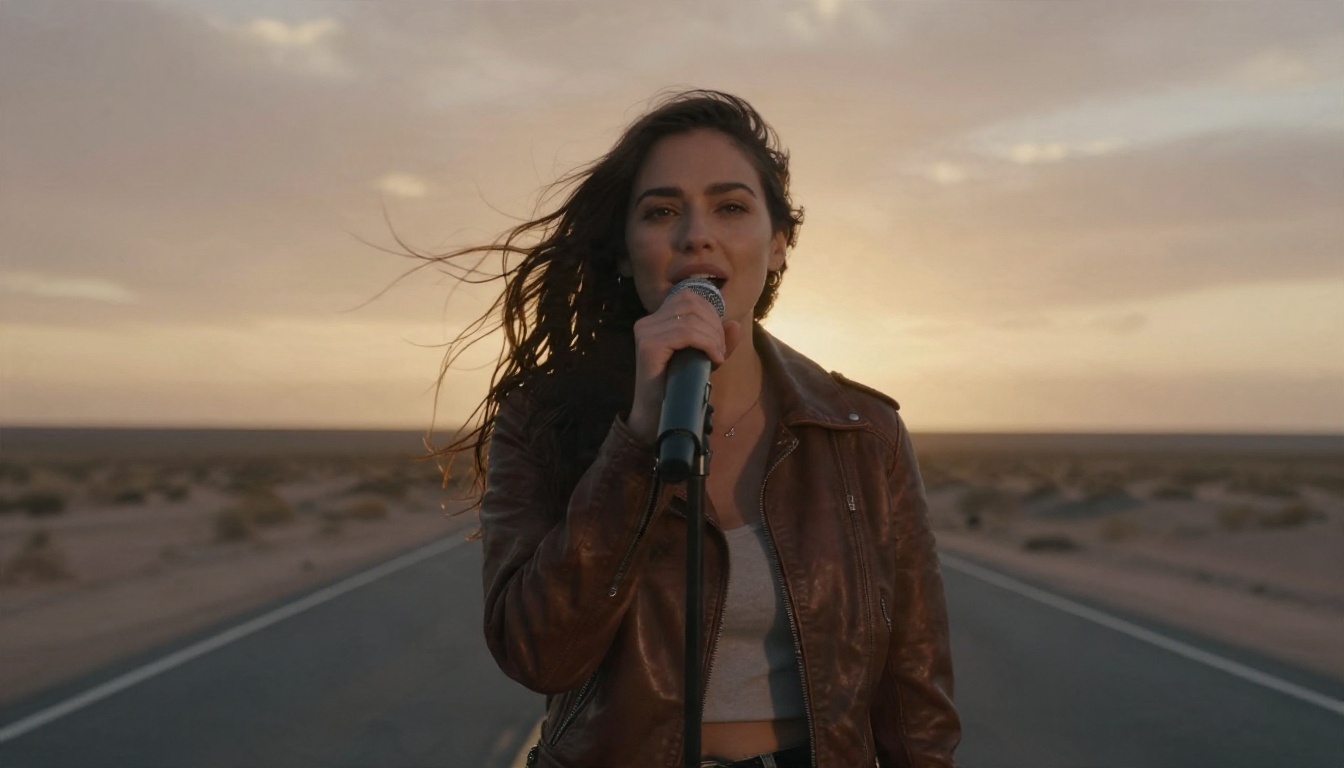
Stitch clips on the beat
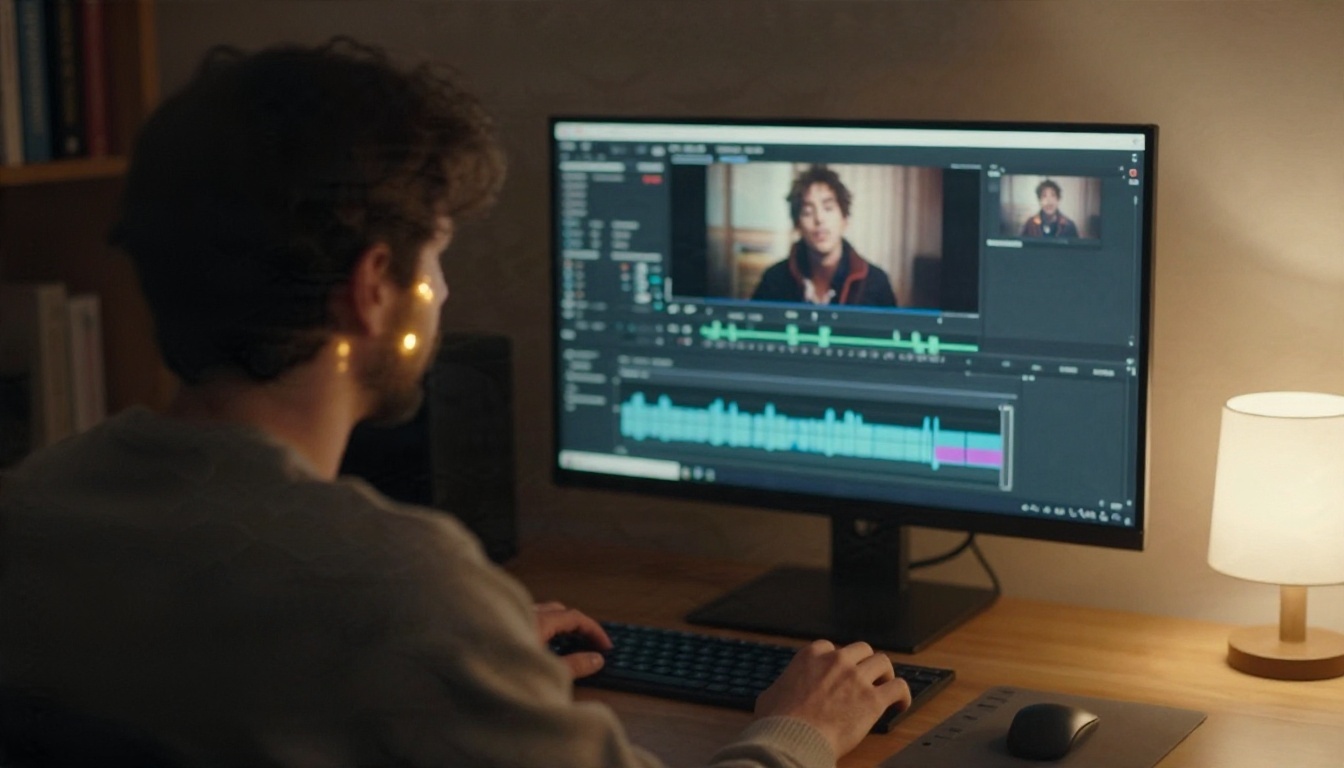
Drop every section into a timeline over the original full song, not the isolated stems. Cut on the downbeat of each bar, or on the first word of a line. If a generated clip drifts by a few frames, slide it in the timeline until the consonants line up with the waveform peaks.
Add B-roll and variety
Never run a three minute song on one camera angle. Mix in:
- Wide landscape or location shots with no visible mouth.
- Close ups of hands, instruments and details.
- Lyric inspired scenes generated with a text to video model.
- Short cutaways to the artist walking, dancing or looking away.
These cutaways hide small sync flaws and make the video feel produced. They also give you freedom to cover for a section that did not quite work.
Polish before posting
Run the final render through a video upscaler if the clips were generated at 720p. Add a light film grain across the whole edit so separate shots match. Finally, check the video on a phone, because that is where most people will watch it.
Make Your First Clip Today
The fastest way to improve is to run something small. Pick one chorus, pull out the vocal, choose a clear portrait or a short clip, and send it through Omni Human 1.5 or Lipsync 2 Pro. Compare the two results side by side. In one afternoon you will know which workflow fits your voice, your face and your budget.
Ready to go further? Browse the full list of lip sync, music and video models at picassoia.com/en/all-models, mix and match them, and build your own singing video one section at a time. The first take will not be perfect, and that is fine: change one setting, run it again and watch the mouth catch the beat.


