Somebody asks for a tribute video, and the service is on Saturday. You have a shoebox of prints, a handful of phone pictures with bad lighting, and no editing experience. This is the exact situation an AI memorial video generator was built for. You upload still photos, describe a gentle movement, and get back a short clip where a smile settles, a curtain stirs, or a hand rests a little longer. String those clips together with a voice and some music, and you have a tribute that took one evening instead of one week.
This article shows how the process works from the first scan to the final export. You will see what the technology does well, what it should never be asked to do, how to prepare old photos, a full tutorial for animating one photo on Picasso IA, and how to add narration and music. The tone matters as much as the tools in this subject, so the last sections focus on sharing the result with care.
What an AI Memorial Video Generator Does
An AI memorial video generator takes a still photograph and predicts how that scene could move for a few seconds. It uses the same image to video technology behind product ads and short films, pointed at something far more personal. Instead of building a slideshow with zooms and fades, you get a portrait that breathes, blinks, and smiles.
From Still Photo to Gentle Motion
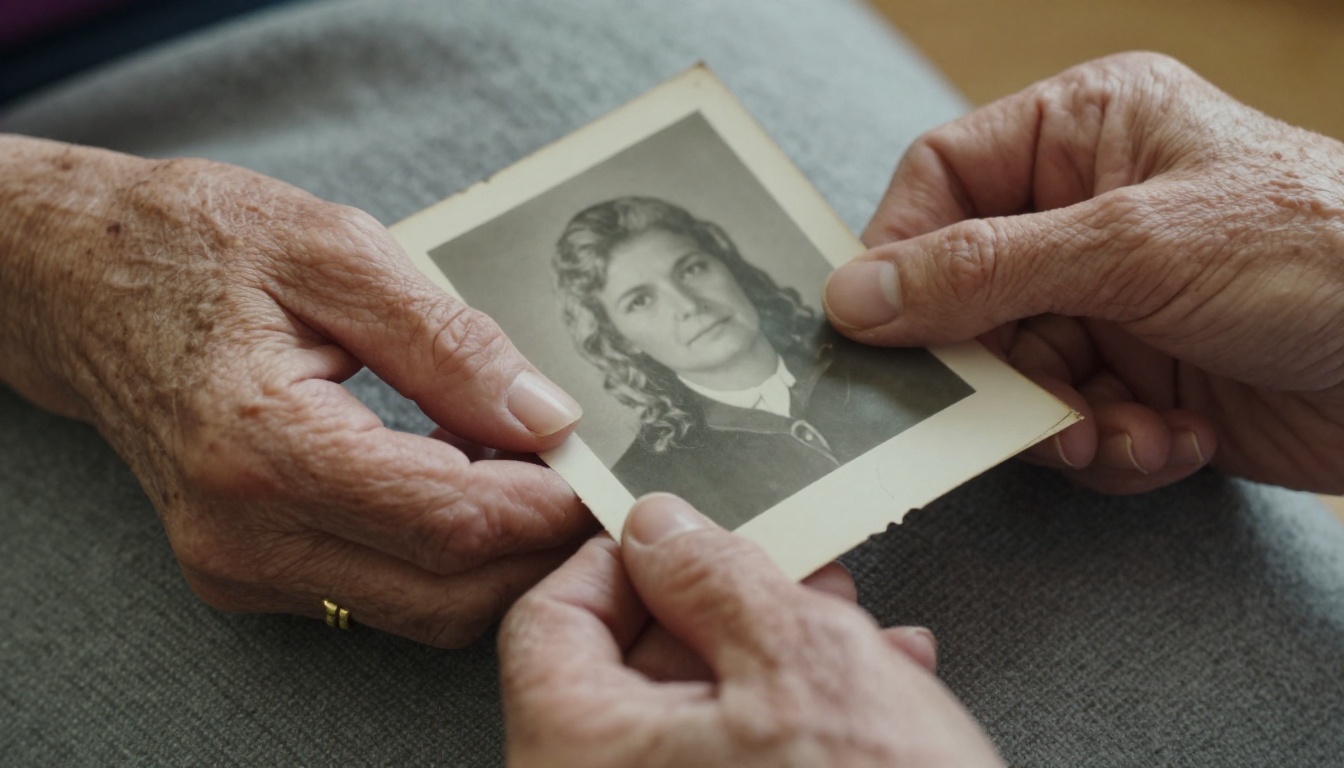
The model reads the photograph: faces, clothing, background, direction of light. Then it follows your written prompt to add movement. The best tribute clips stay quiet. Think of a slow blink, a faint smile, leaves stirring behind a portrait, or a camera that drifts a few centimeters toward a face. Each clip runs about five seconds, so a tribute is built by sequencing many small moments rather than stretching one.
The workflow has three parts:
- Photos in. Scans or phone pictures of prints, plus digital photos from family albums.
- Motion prompts. One short instruction per photo describing what moves and what stays still.
- Assembly. The clips, a voice, and a soundtrack come together in any video editor, including a free one.
💡 Tip: Choose photos where the face is sharp, evenly lit, and turned mostly toward the camera. A calm, front-facing portrait animates far more naturally than a profile shot in a crowd.
What It Cannot Do
Honesty with the family starts here. A generator has real limits:
- It cannot recreate a memory. A generated smile is an educated guess based on pixels, not a record of how that person actually smiled.
- It cannot rescue a face that is barely there. A tiny blurred face in the back row of a group photo will animate badly, or not at all.
- It does not know real mannerisms. The way someone tilted their head when they laughed is invisible to the model unless the photo shows it.
- It cannot produce long scenes. Clips are short, so the story has to come from your selection and order of photos.
Treat the output as a gentle suggestion of life added to real photographs, never as proof of how someone moved or sounded.
Who Makes These Tribute Videos
More people ask for these videos than you might expect, and most of them are not professionals. They are a granddaughter with a laptop, a funeral director short on time, a friend who volunteered to "put something together."
Services and Wakes
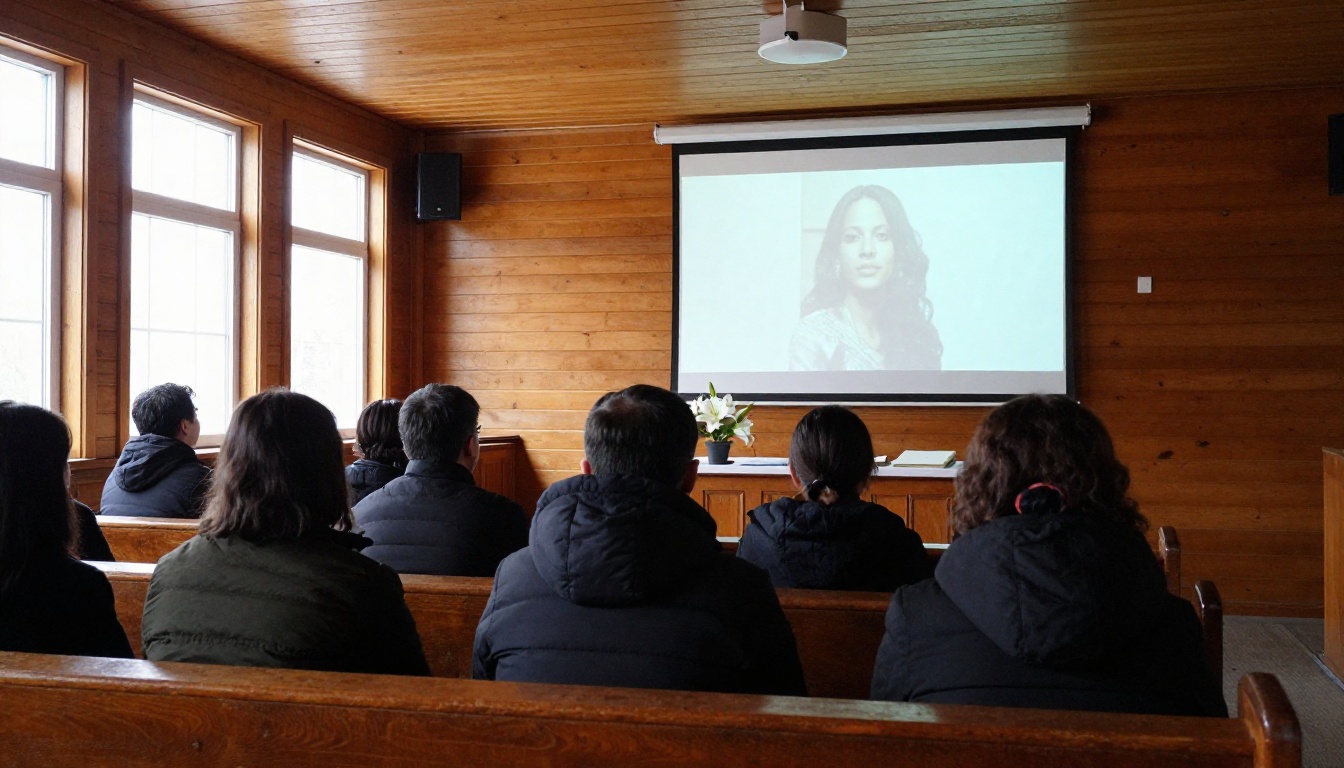
The most common use is a looping video on a screen at the front of a chapel or reception room. A dozen of the best portraits animated softly, mixed with still photos, hold a room's attention without asking anything of it. Guests arriving early have something to look at, and family members get a quiet moment of recognition.
Anniversaries, Birthdays, and Pets
Tributes do not end with the funeral. Families make short videos for the first anniversary, for a birthday that would have been, or for a parent's memorial page. Pet owners ask for them too, and those tend to be lighter: a dog bounding through a garden, a cat blinking slowly in a sunbeam.
Use these figures as starting points, not rules:
| Occasion | Typical length | Tone | Photos to prepare |
|---|
| Funeral or wake | 3 to 5 minutes | Quiet and warm | 25 to 40 |
| First anniversary | 1 to 2 minutes | Grateful | 10 to 20 |
| Birthday in memory | 1 to 2 minutes | Light and affectionate | 10 to 15 |
| Pet tribute | 60 to 90 seconds | Playful | 8 to 12 |
Prepare Your Photos First
The quality of the video depends heavily on the quality of the starting image. Ten minutes of preparation saves an hour of re-rendering.
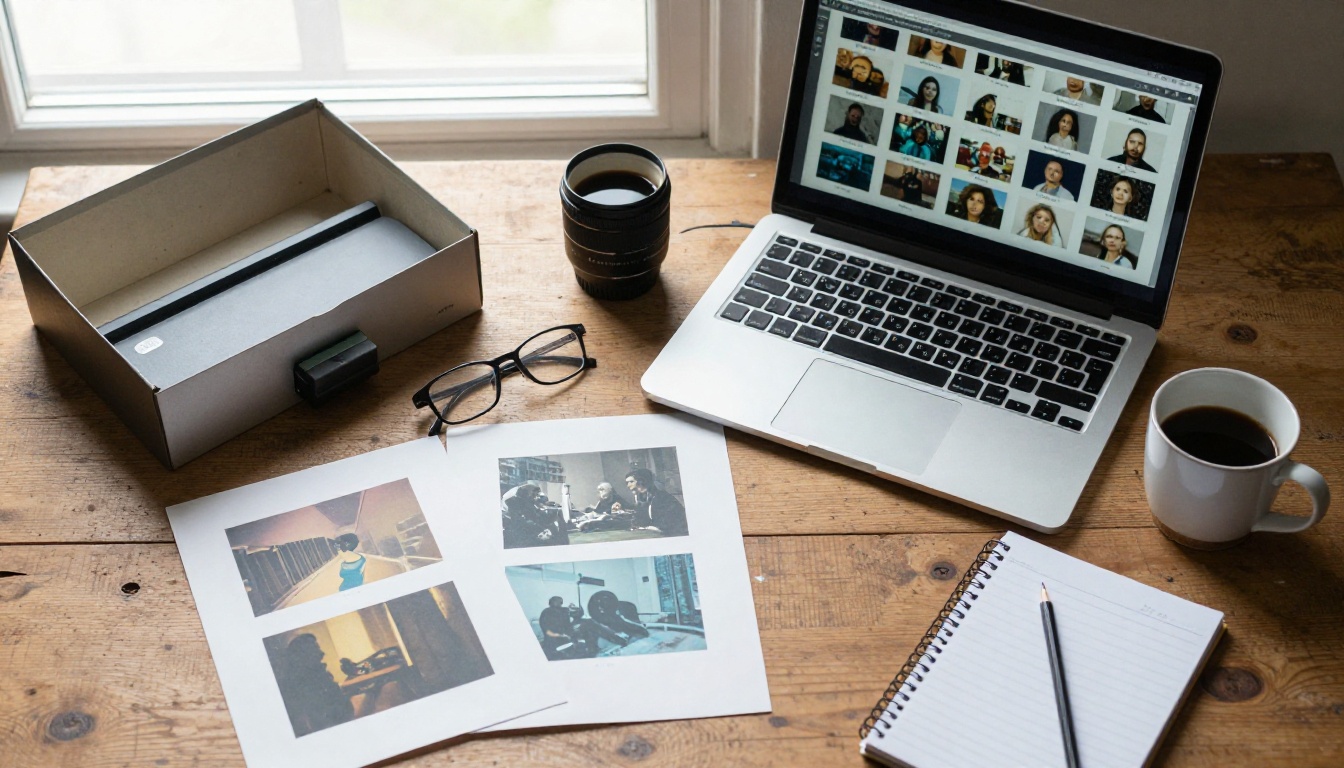
Scan and Sort the Originals
- Scan small prints at 600 dpi and larger ones at 300 dpi. Save as PNG or high-quality JPG.
- If you only have a phone, photograph prints in daylight near a window, flat on a table, with no flash and no glare.
- Sort into four folders: portraits, group photos, places, and objects such as hands, glasses, or a garden gate.
- Pick the best 20 portraits first. Group photos and places fill the gaps between them.
- Never overwrite the originals. Work on copies.
Repair Damage First
Faded, scratched, or low-resolution photos animate poorly because the model has less detail to work with. Upscale and sharpen them before you ask for movement.
💡 Check every face. Upscalers can slightly change features. Put the result next to the original, and if the face looks even a little different, use the original photo.
How to Use Wan 2.7 I2V
Wan 2.7 I2V turns a single image into a short video clip at up to 1080p. It is a good fit for tributes because it gives you control over the first and last frames, accepts an audio file, and lets you lock a result with a seed. Here is the workflow on Picasso IA.
Step by Step
- Open the model. Go to the Wan 2.7 I2V page on Picasso IA.
- Upload the photo as the First Frame. JPG, PNG, BMP, and WebP files up to 20 MB work.
- Write the motion prompt. Keep it to one or two sentences. Examples are in the next section.
- Set the resolution. Use 720p while testing and 1080p for the version you keep.
- Keep the duration at 5 seconds. It is the default and enough for one moment.
- Add a negative prompt, for example: distorted face, morphing, sudden movement, extra fingers, text, watermark.
- Decide on prompt expansion. Leave it on for short prompts. Turn it off if your prompt is detailed and you want it followed literally.
- Generate and watch twice. Once for the motion, once looking only at the face.
- Save the seed of any result you like, so you can rerun the same take with a small prompt change.
For a quiet loop, use the same photo as both the First Frame and the Last Frame. The clip ends where it began, which is ideal for a portrait that holds on screen between slides. If you upload a wav or mp3 file (3 to 30 seconds), the motion is timed to it; without one, the model generates matching audio on its own.
Prompts That Stay Respectful
Prompts decide whether a clip feels tender or strange. Three habits help: describe one movement, say what stays still, and keep the camera slow.
| Photo type | Prompt to start from |
|---|
| Calm portrait | The man's face stays natural and relaxed. He blinks slowly and a faint, warm smile appears. Soft window light, camera almost still with a very slight push in. |
| Garden or outdoor | Leaves move in a light breeze behind the woman. Her hair barely stirs. She stays calm and still. Golden afternoon light. |
| Objects and details | The candle flame flickers gently, steam rises from the cup, and the camera holds steady. |
| Group photo | Everyone stays in place with small, natural smiles. The camera drifts slowly to the right. |
Avoid prompts like "laughs loudly," "dances," or "turns and waves." Large movements invent behavior the person may never have had, and they are where faces start to distort.
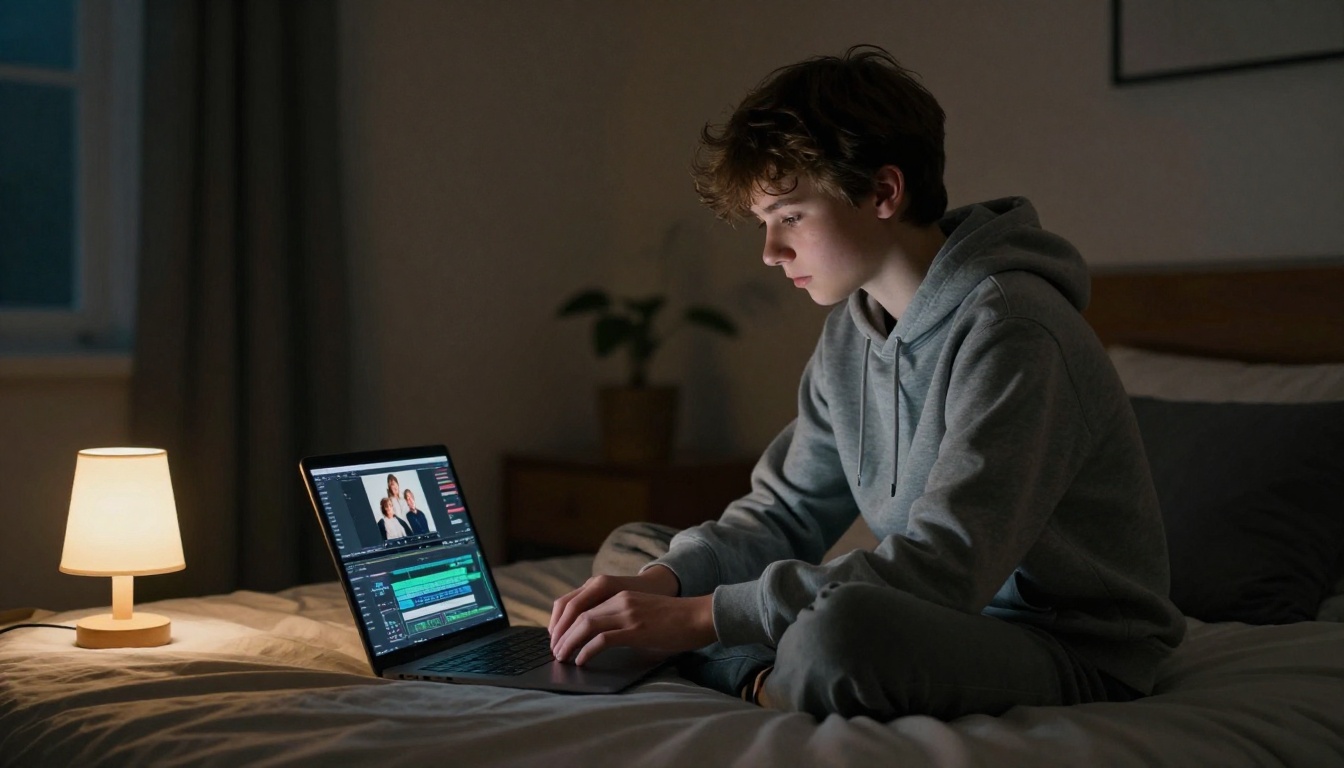
Picking the Right Video Model
No single model is best for every photo. A black and white portrait from the 1960s may animate better on one model than another, so test the same image on two or three before you commit.
| Model | Good for | What to know |
|---|
| Wan 2.7 I2V | Controlled single-photo clips and loops | Up to 1080p, first and last frame, audio sync |
| Kling v2.1 | Bringing a portrait to life | Built to animate any photo |
| P Video Animate | Simple photo animation | Turns one photo into a video |
| Ovi I2V | Clips that carry sound | Generates video with audio from a photo |
| Veo 3.1 Lite | Natural ambient audio | Native audio built in |
| Seedance 2.5 Lite | Long free tests | Free and unlimited, up to 10 seconds |
| Picasso IA Video | Free drafts from an image | Free and unlimited, text or image input |
Free Options for Tight Budgets
Families rarely want to count costs in the middle of a loss. Seedance 2.5 Lite and Picasso IA Video are listed as free and unlimited, so you can run as many test clips as you like, and Seedance 2.5 Lite reaches up to 10 seconds. A practical plan: draft every photo on a free model, pick the 15 clips that feel right, and rerun only those on Wan 2.7 I2V or Kling v2.1 for the final cut.
Add Voice and Music
A silent slideshow can be moving, but sound is what fills a room.
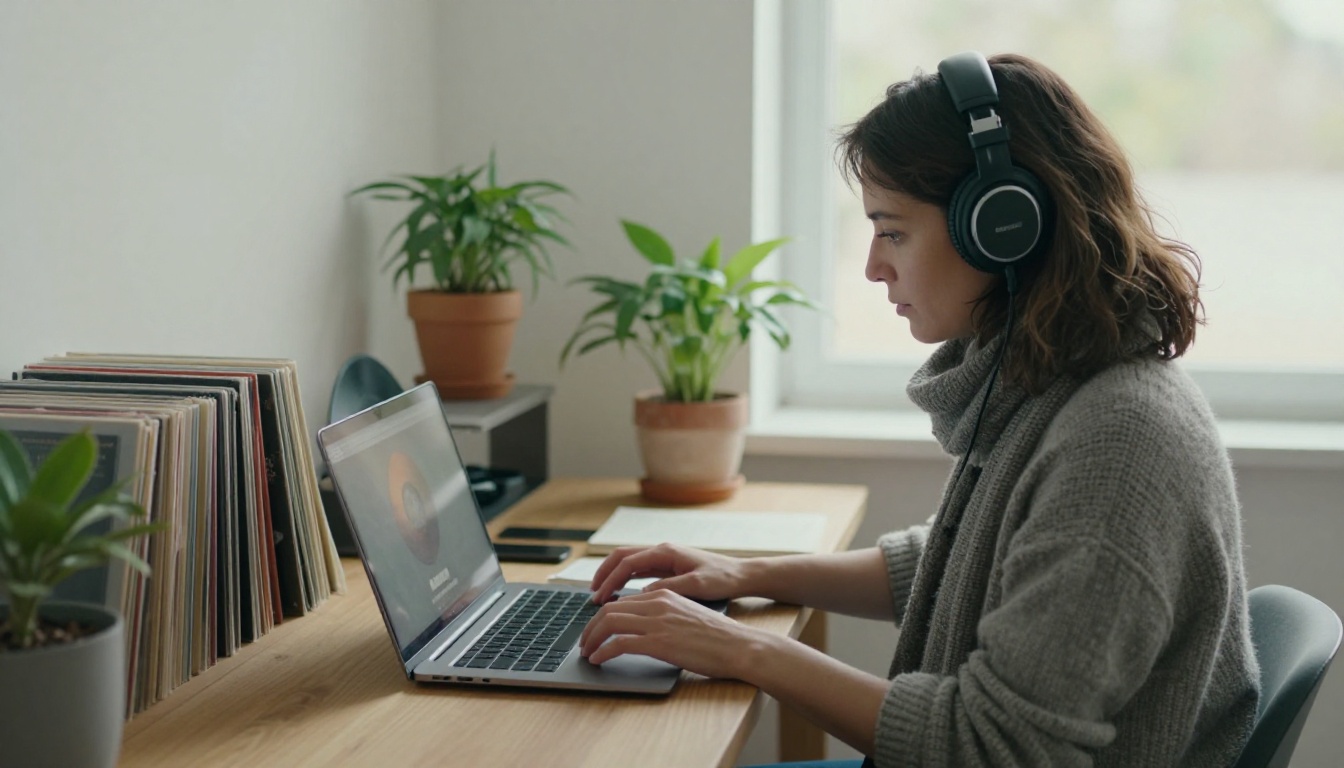
Narration That Sounds Natural
If the video needs spoken words, such as a short eulogy, a poem, or captions read aloud, a text to speech model saves you a recording session. Speech 2.8 HD delivers studio-quality voiceovers, and ElevenLabs V3 is another strong pick for natural delivery. Write short sentences, add commas where you want a pause, and read the script aloud once yourself before generating.
A recording of a family member reading, or of the person themselves from an old voicemail, will almost always mean more than a synthetic voice. Use generated narration for readings and captions, not as a stand-in for someone's actual words.
💡 Tip: Voice Cloning can copy a voice from a sample, and for a tribute that is a decision for the family, not the editor. Ask first. If relatives are uneasy, use a neutral narrator instead.
A Soundtrack That Fits
Pick music before you finalize clip lengths, then cut the video to its pace. Lyria 3, Music 2.6, and Stable Audio 2.5 can all produce an original instrumental from a text prompt. Try wording like: slow solo piano, warm and unhurried, no drums, gentle ending.
A generated track also avoids a problem that catches many families: a favorite commercial song can trigger a copyright claim and get the video muted or removed from public sites. Keep music quieter than narration, and fade it out over the last few seconds rather than cutting it.
Share It With Care
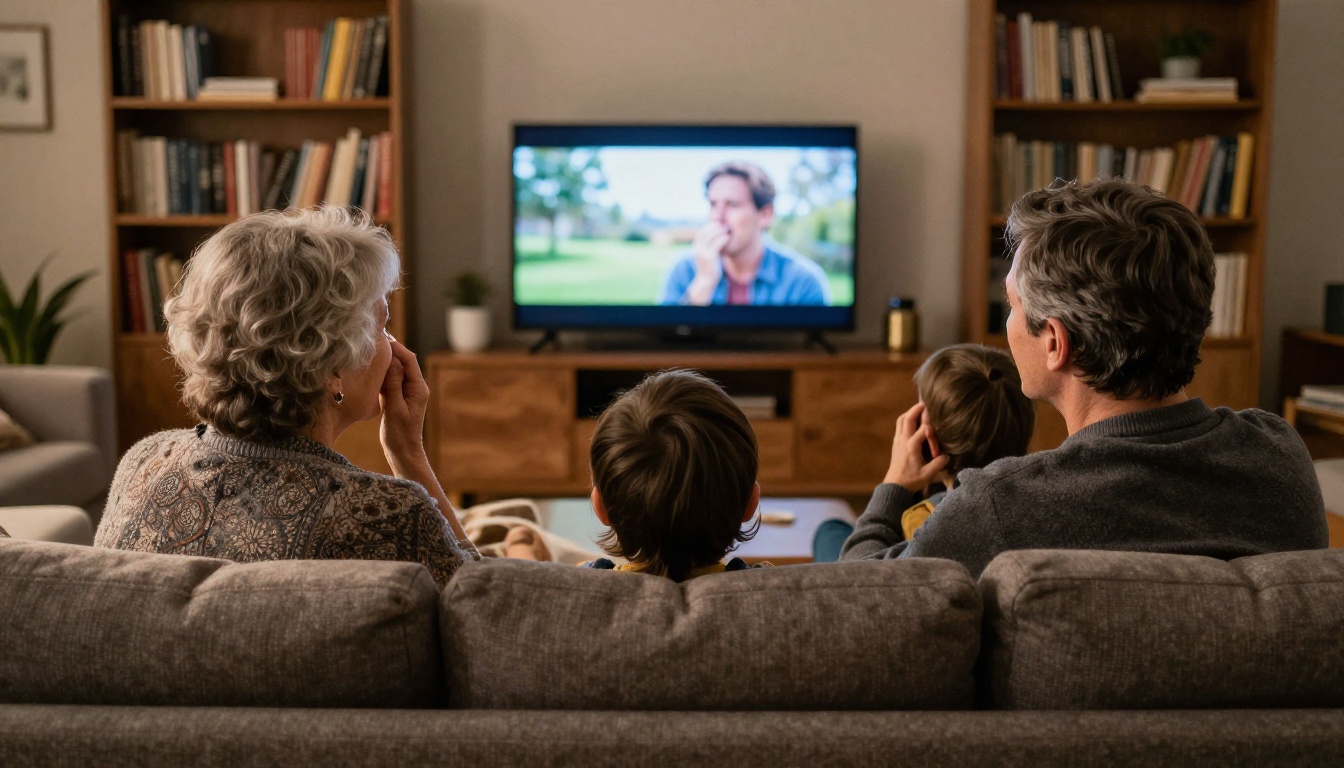
Ask the Family First
Show the draft to the closest relatives before the service. Some will find it comforting. Others may find a moving image of someone they lost hard to watch, especially in the first weeks. Offer a still-photo version as an alternative and let people choose. Say plainly that the movement in the clips was generated.
Common Mistakes
- Too much motion. If a clip makes you uneasy, it will make guests uneasy. Dial the prompt back.
- Small faces. Crop tightly or upscale before animating.
- Uneven pacing. Mixing three-second and ten-second moments feels jumpy. Aim for matching lengths.
- A video that runs too long. Five minutes feels long in a chapel. Three feels generous.
- Loud music over quiet photos. Let the pictures breathe.
- Losing the originals. Keep the untouched scans in a separate folder, always.
Make Your Own Tribute Today
You do not need a film crew, an editing degree, or a whole weekend. You need one photo that matters to you and about ten minutes.
Pick the portrait that feels most like them. Open Wan 2.7 I2V on Picasso IA, upload the photo as the first frame, write one calm sentence about what moves, and generate. If the result is close, adjust a single word and run it again with the same seed. Then repeat with the next photo, add a voice with Speech 2.8 HD and a soundtrack from Lyria 3, and assemble everything in your editor.
If you want to experiment before committing, browse the full catalog at picassoia.com/en/all-models, try a free model with a test photo, and see how a still image responds. The goal is not to replace a memory. It is to give the people who loved someone one more quiet moment with a face they miss.