You typed "free, no sign up, no watermark, no credits, no limits" into a search bar because you have a song and you want a video for it. Today. Without handing over an email address, a card number, or a week of your life. That is a fair thing to want. It is also a list of five promises that almost never show up together, and most pages that claim all five are quietly hoping you will not read the fine print.
This article sorts the real from the marketing. You will see what each of those promises actually means, where free tools run out of road, how a music video gets built from a song, and which PicassoIA models do the heavy lifting. There is a full walkthrough for Seedance 2.5 Lite, a prompt formula for music shots, and a list of mistakes that waste your clips.
What Free and No Sign Up Really Mean
The Honest Answer First
A tool that turns a full song into a full music video, with no account, no watermark, no cost and no cap, does not exist in any form I could verify. A quick check of what is out there turns up the same pattern again and again. Some generators make a tiny preview, around five seconds at low resolution, without an account, and ask you to sign in for anything longer. Some audio tools run without sign up but only make songs, not video. Some editors export clean files but expect you to bring your own footage. And plenty of "free" pages end at a paywall or a watermark once you click export.
That does not mean you are stuck. It means the question changes from "which tool has zero strings" to "which strings can I live with."
💡 Rule of thumb: If a page promises everything and shows no sample output, no resolution, and no clip length, treat the promise as an advertisement, not a spec.
Where Free Tools Hit a Wall
Music video generation is expensive to run. Every second of video needs serious GPU time, and synchronized sound adds more. So free access usually gets squeezed in one of four places:
- Length: a 5 second taste instead of a 3 minute song.
- Resolution: 480p or lower, with 720p or 1080p behind a plan.
- Marks: a logo burned into the corner of every export.
- Queue: free users wait, paying users do not.
Knowing which squeeze you are facing tells you what to plan around. A 480p preview is perfectly fine for testing an idea. A watermark is a dealbreaker if you are uploading the result to a streaming platform.
No Watermark, No Credits, No Limits
Watermarks
A watermark is the easiest claim to test: generate one clip and look at the corners. Do that before you invest an hour in a project, not after. If you plan to publish, also check the plan terms for commercial use, because a clean export and a commercial license are two separate things.
Credits
Credits are the most common way a "free" tool charges you without calling it a price. You get a small starter balance, a single clip eats most of it, and the next step is a subscription. When you compare tools, ignore the headline and ask a different question: how many 10 second clips can I make before I pay anything? A song of three minutes needs roughly 18 clips at 10 seconds each, and you will throw away at least as many as you keep. Budget for 40 to 60 generations per finished video.
That arithmetic is why unlimited generation matters more than a free trial. On PicassoIA, Seedance 2.5 Lite is built for exactly this: Elite and Infinite members run it without a per-clip cost or a daily counter, so trying ten variations of one shot does not drain anything.
Daily Limits and Clip Length
Even when a tool is free, it usually caps clip length. Most AI video models produce 5 to 10 seconds per generation, and a few reach 15 or 30. That is a model constraint, not a pricing trick. A music video is built from many short shots cut together, exactly like a traditional one, so short clips are not a problem as long as you plan for them.
| Promise | What to check | Realistic expectation |
|---|
| Free | Clip length, resolution, plan limits | Short clips or a trial, or free access on a membership |
| No sign up | Whether export needs an account | Often works for previews only |
| No watermark | Corners of the first export | Common on paid or member output |
| No credits | Per-clip cost on your plan | Possible only where generation is unlimited |
| No limits | Daily counter, resolution cap, length cap | Never absolute, always some boundary |
How a Music Video Gets Built
Start With the Song
Everything in a music video hangs off the audio, so make or choose the song first. The beat tells you where cuts go, the lyrics tell you what to show, and the song length tells you how many clips to generate. Write down the timestamps of the verse, chorus, bridge and ending before you open a video tool.
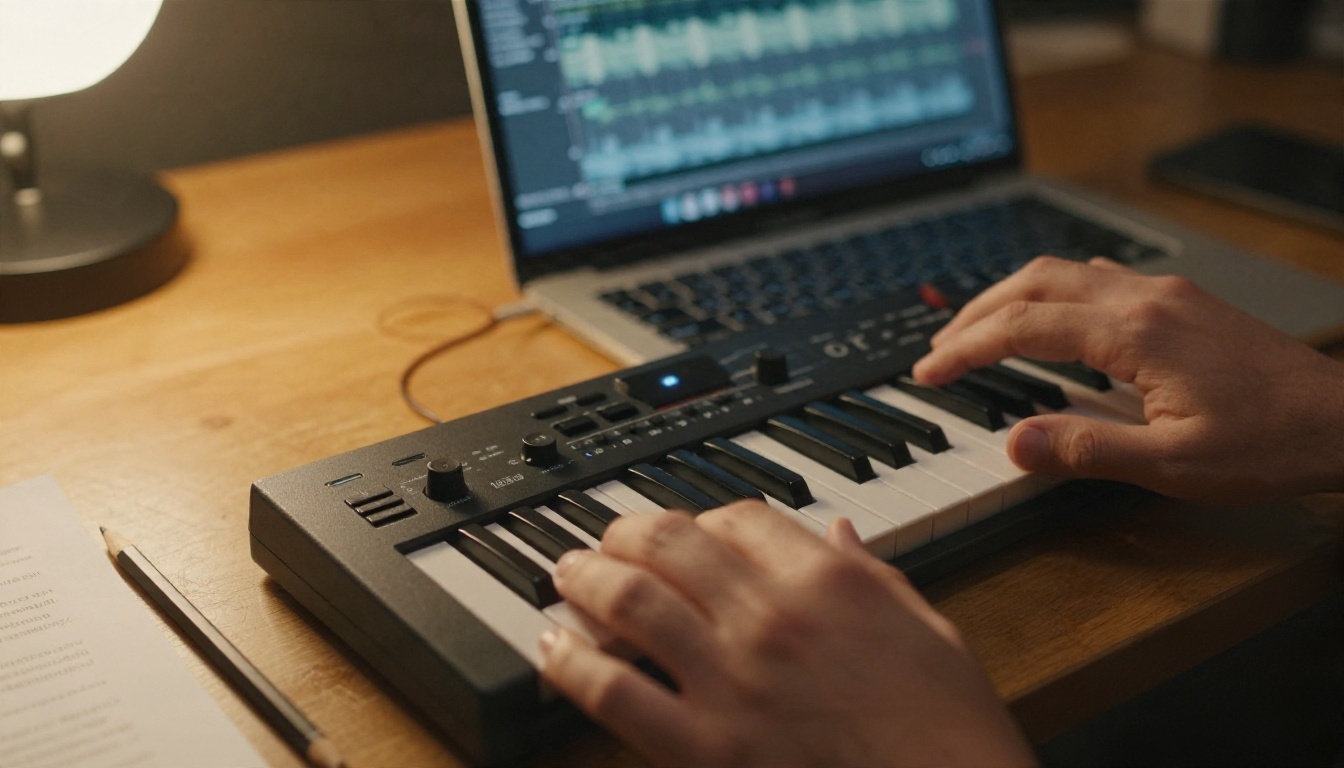
If you do not have a song, an AI music model can write one from a text prompt. More on those below.
Plan the Shots
Do not ask a video model for "a music video." Ask for one shot at a time. A simple three minute song might use this structure:
- Verse 1: quiet, close-up shots of the singer or the setting.
- Pre-chorus: camera starts to move, more motion in the scene.
- Chorus: wide, bright, energetic shots with the singer performing.
- Verse 2: new location, same character, same mood.
- Bridge: one strange or intimate shot that breaks the pattern.
- Final chorus: repeat the best chorus visuals with new angles.
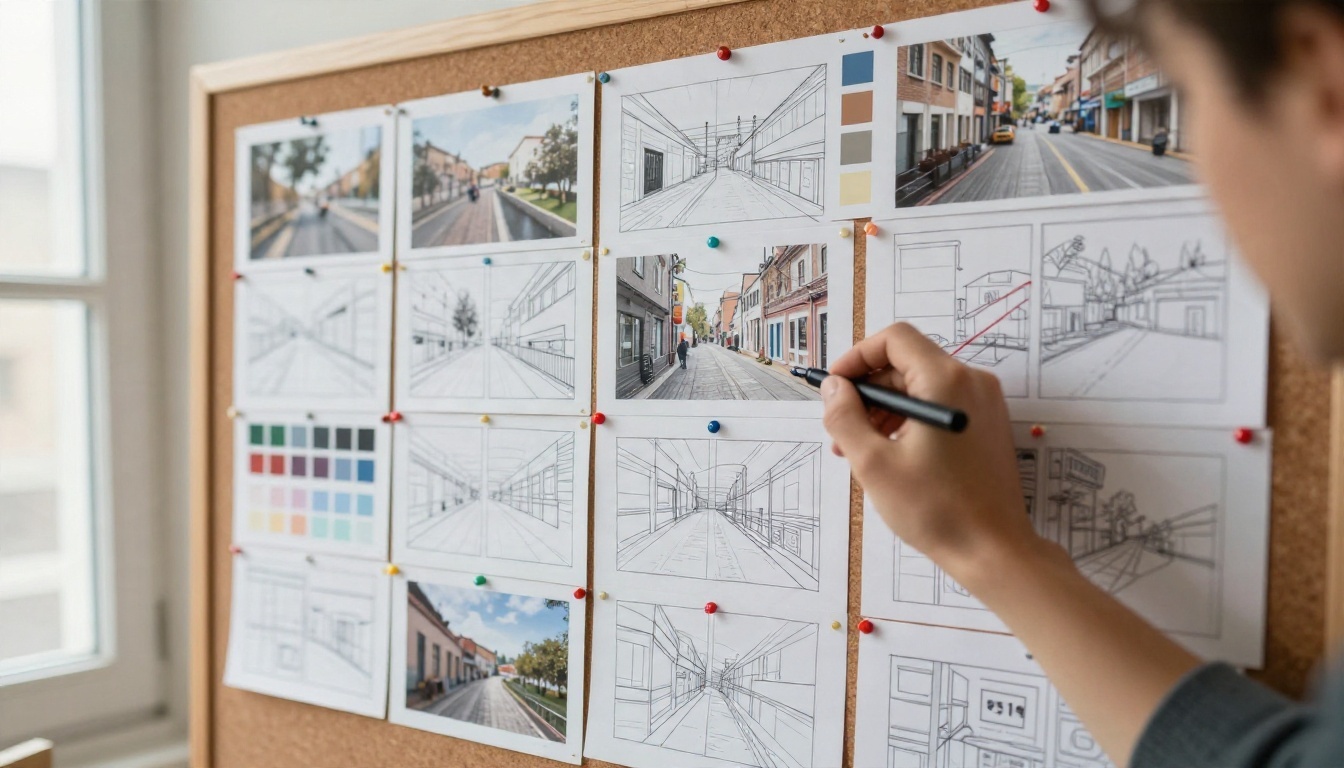
Sketch the plan on paper or a board. A physical corkboard, a notes app, or a spreadsheet all work. The point is to know what each clip is for before you spend a generation on it.
Generate, Then Edit
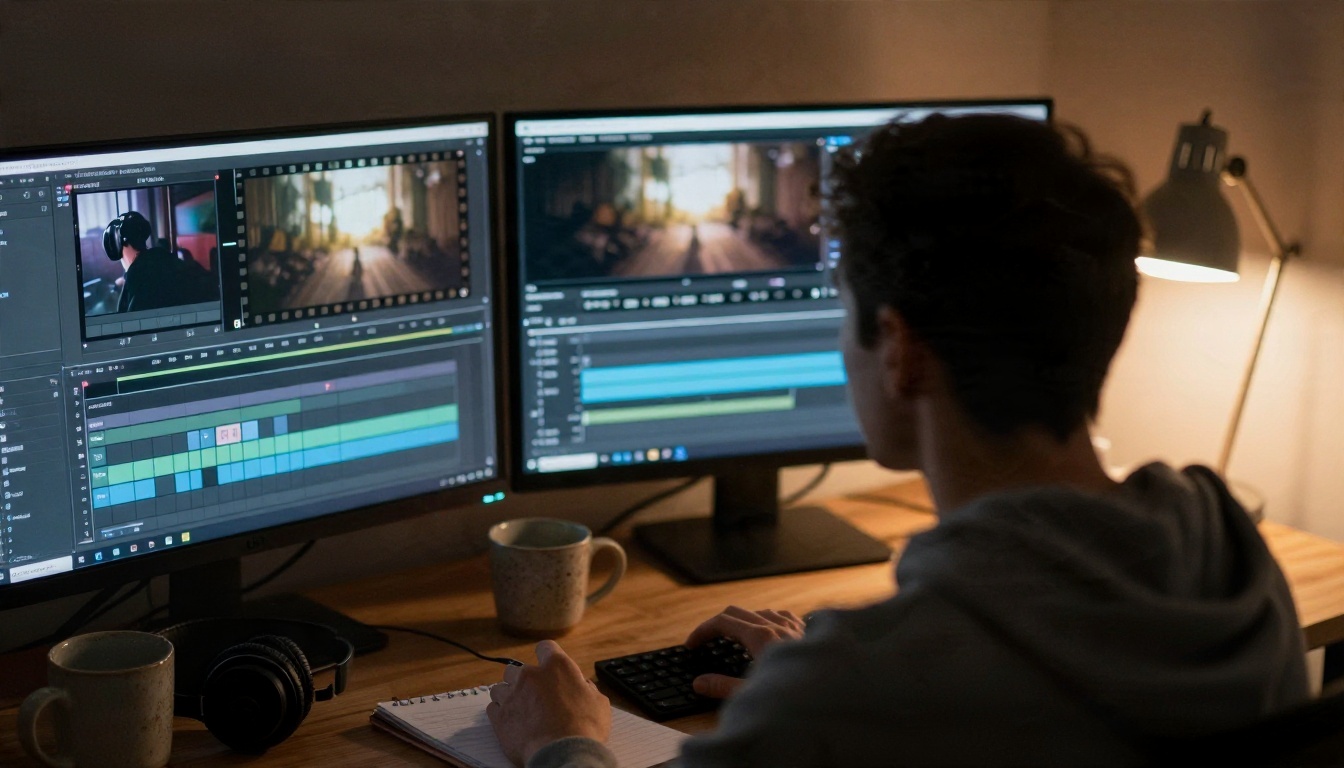
Generate each shot, keep the best take, and drop all of them into a regular video editor along with your song. Free editors such as CapCut and Clipchamp handle this part, and one of the cleanest ways to hide the joins between AI clips is to cut on the beat. If the cut lands on a snare hit, nobody notices that the lighting changed slightly.
Best PicassoIA Models for Music Videos
PicassoIA puts song generation and video generation in the same place, so you can build the whole project without hopping between five different sites.
Song Models
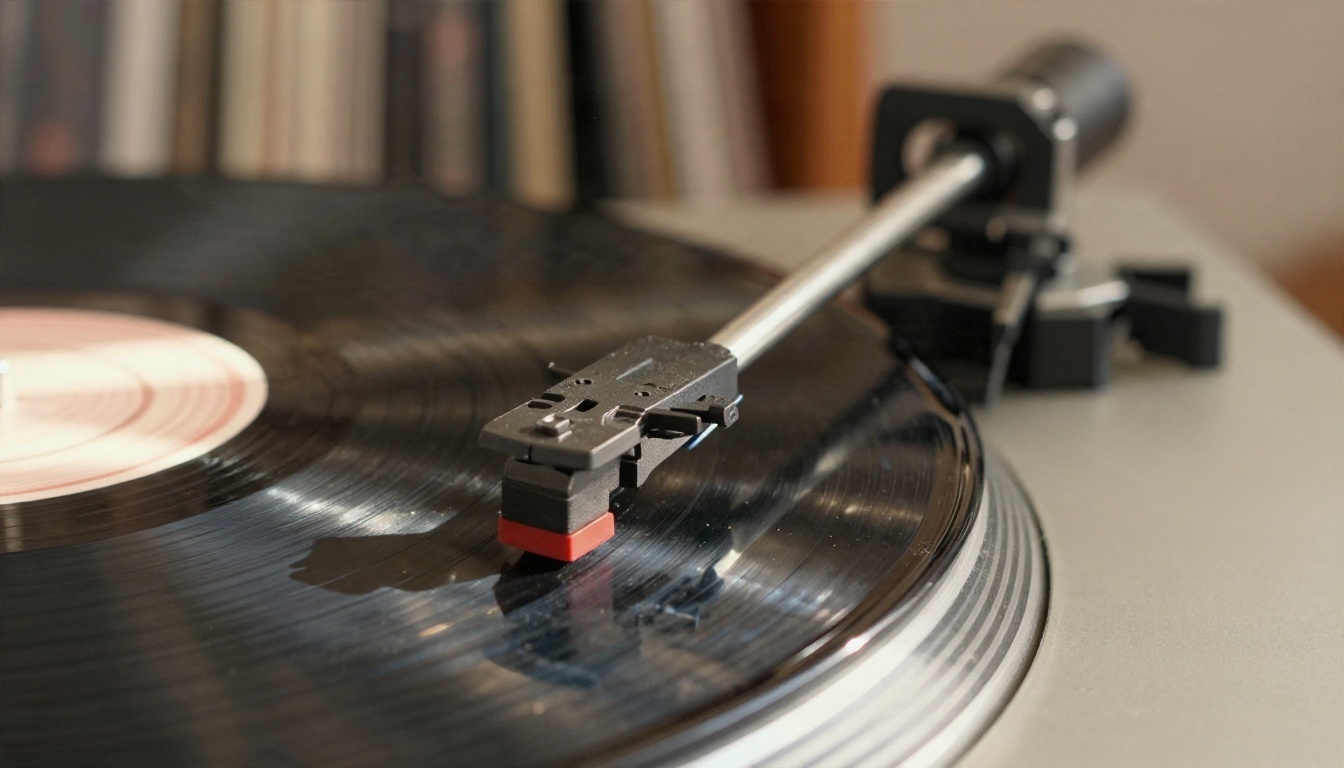
If you need the track itself, these are the ones to try:
Video Models
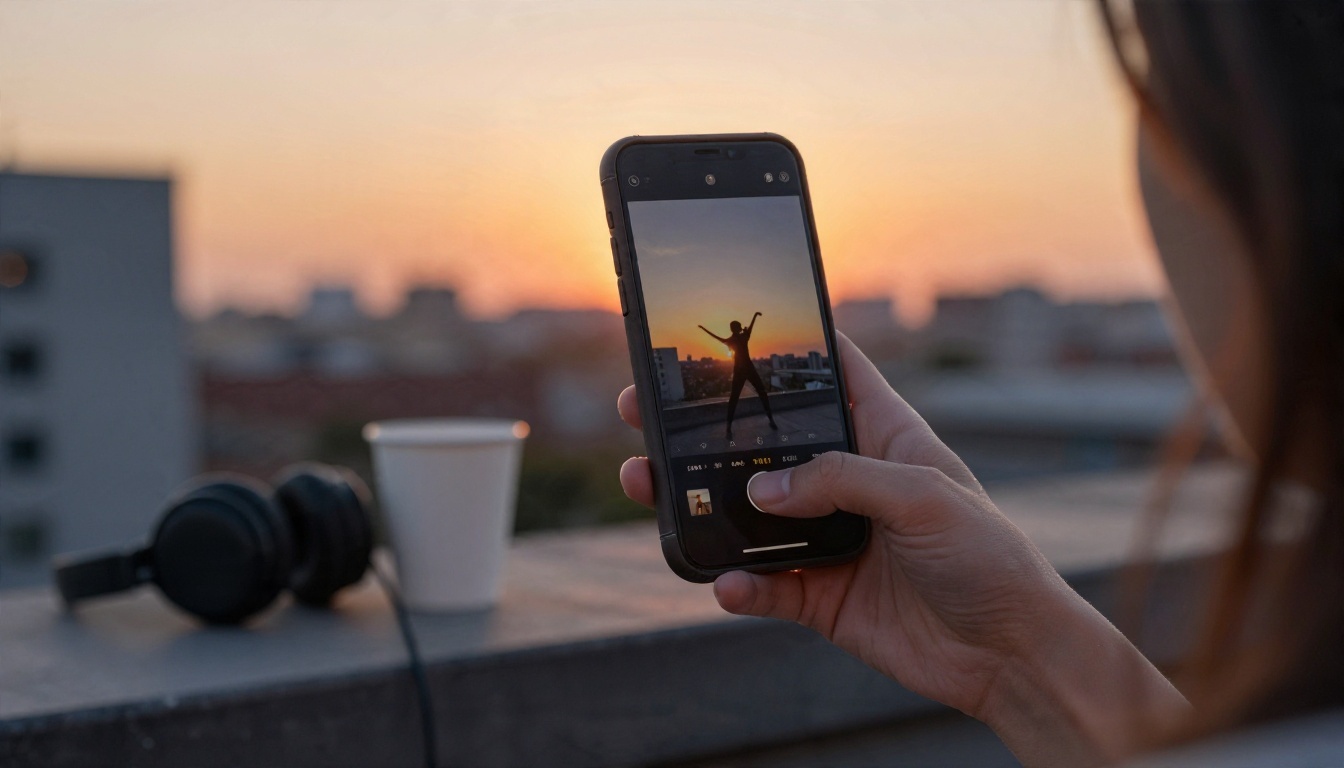
For the visuals, match the model to the job:
| Model | Best for | Notes |
|---|
| Seedance 2.5 Lite | Fast iteration, lots of takes | 5 or 10 second clips, 480p and 720p, synchronized audio, unlimited for Elite and Infinite members |
| PicassoIA Reference To Video | Same singer in every shot | Up to 9 reference images, reference video, audio track, up to 15 seconds |
| Kling v3 Video | Cinematic hero shots | Strong motion and camera work |
| Veo 3.1 Fast | Quick 1080p shots with sound | Good for chorus visuals |
| Seedance 2.5 | Longer shots | Clips up to 30 seconds |
| Wan 2.5 I2V Fast | Animating a still photo | Starts from your image |
💡 Workflow tip: Draft every shot with the unlimited model first. Only move a shot to a heavier model once you know the framing and action are right.
How to Use Seedance 2.5 Lite on PicassoIA
Step by Step
- Open the Seedance 2.5 Lite page on PicassoIA.
- Choose text-to-video to start from a description, or upload an image to use as the first frame.
- Write your prompt: subject, action, camera move, light, mood. Keep it to one shot.
- Pick a duration of 5 or 10 seconds. Use 5 for quick cutaways and 10 for performance shots.
- Set the aspect ratio: 16:9 for a standard video, 9:16 for Shorts, Reels and TikTok, or 1:1 for a square feed.
- Choose 720p for anything you plan to publish. Use 480p while you are still testing.
- Generate, review, and lock the seed when you find a look you like, so you can reproduce it with small prompt changes.
- Download the clip and repeat for the next shot on your list.
Audio is generated in sync with the video by default. For a music video you will usually replace it with your own song in the editor, but the generated sound is useful for checking whether the motion feels right.
Prompt Tips for Music Shots
A reliable formula is subject + action + camera + light + mood. For example:
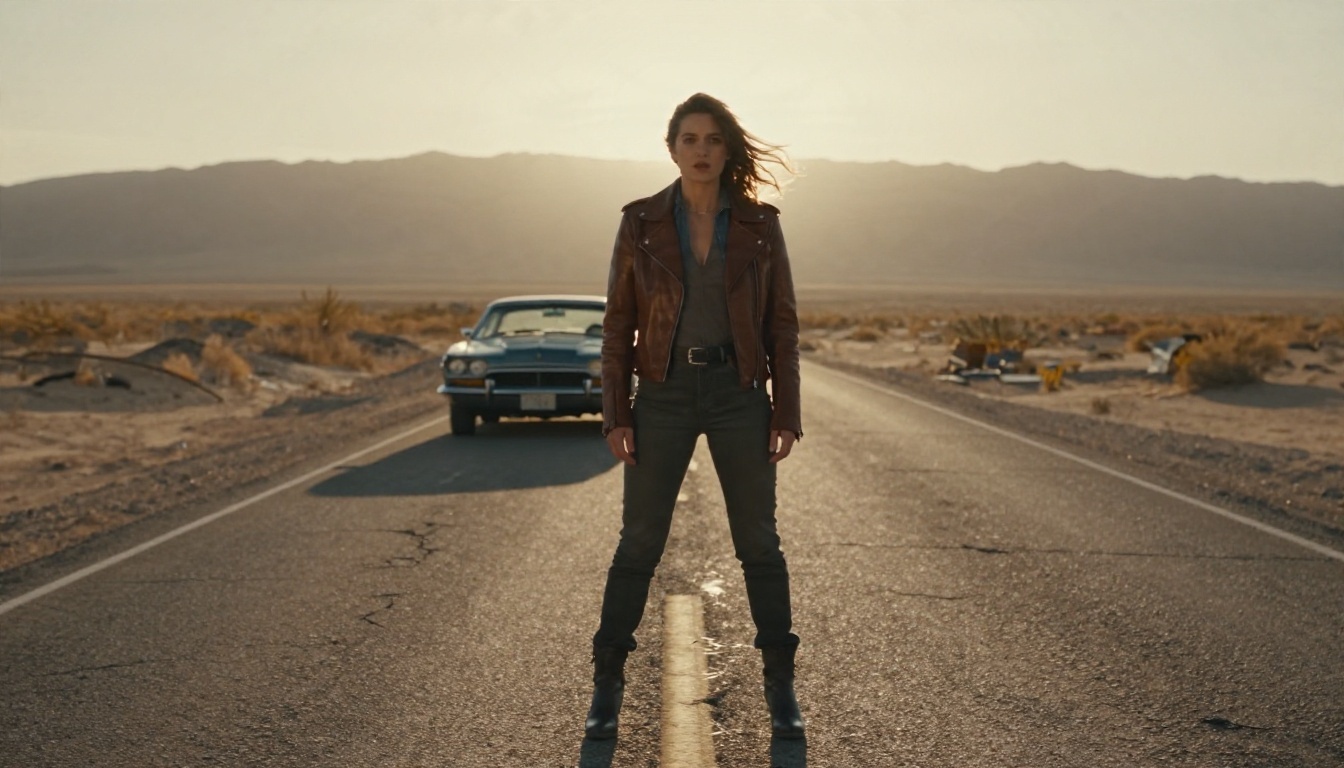
A woman in a leather jacket walks toward the camera down an empty desert road at golden hour, wind in her hair, slow dolly back, warm backlight, dust in the air, calm and cinematic.
Some small adjustments that make a visible difference:
- Match motion to tempo. Slow tempo gets slow dolly moves and held shots. Fast tempo gets handheld energy and quick pans.
- Name the light. "Golden hour backlight" or "soft window light" gives you a consistent look across clips.
- Keep one idea per prompt. Two actions in one shot often blur into mush.
- Write for the format. Vertical clips need subjects centered and tall. Landscape clips can use wide empty space.
- Avoid on-screen text. Models still struggle with lettering, so add titles in your editor.
Keep One Singer Across Every Shot
The hardest part of an AI music video is not making a good shot. It is making fifteen good shots that look like the same person. If you describe a character from scratch each time, the face, hair and outfit will drift.
Reference Images and Audio
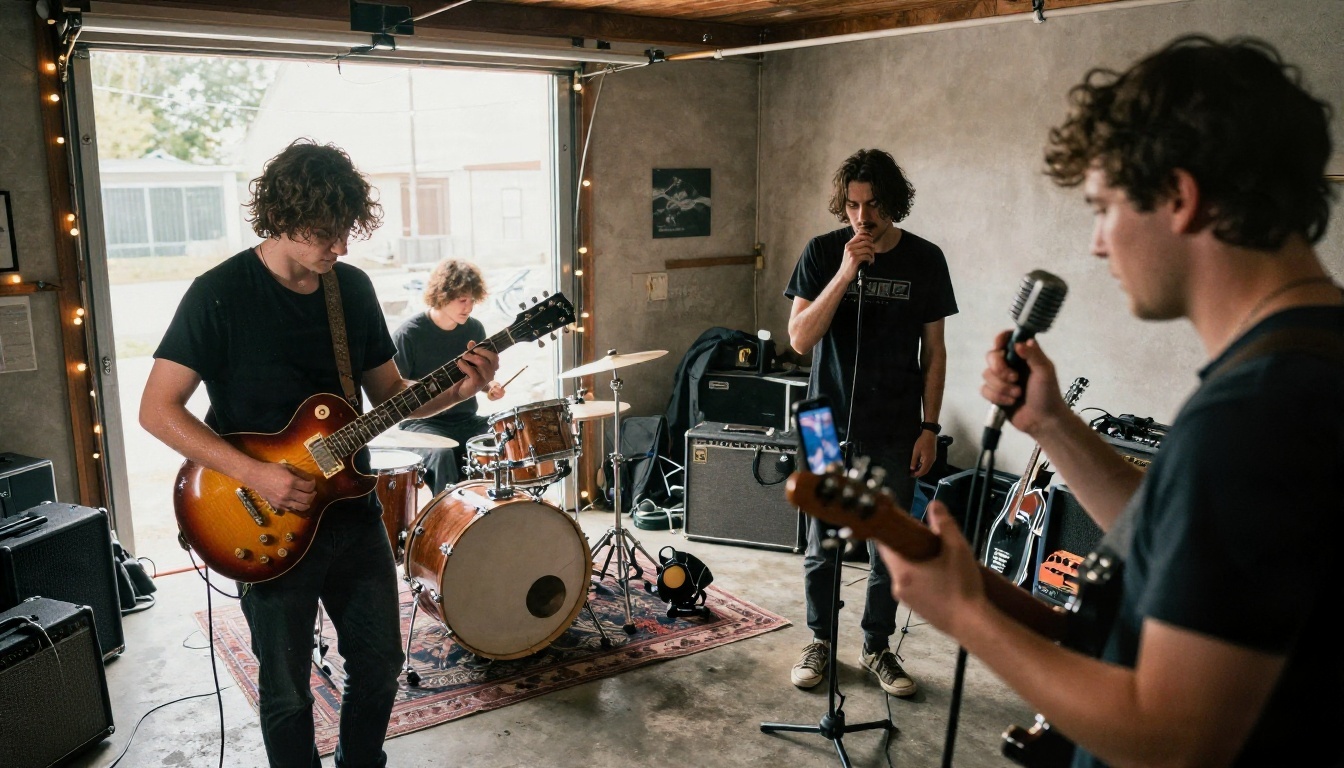
PicassoIA Reference To Video solves this by letting you upload up to 9 reference images of the people, outfits, products or places that must stay recognizable. The images are references, not first frames, so the same singer can appear in a garage, on a rooftop and on a highway while staying recognizable. You can also add a reference video to borrow its movement and camera work, and an audio file so a character sings or speaks it with synchronized lips.
Clips run from 1 to 15 seconds at 480p or 720p. Infinite members generate without limits at both resolutions and every length. Elite members generate without limits at 480p and at 720p up to 5 seconds, and longer 720p clips cost credits. On other plans each video costs 5 credits, so check your plan before you batch a whole project.
Lip Sync Options
If your video needs a singer who really mouths the words, you have three routes:
- Ref2Video with an audio file, which handles the performance in one step.
- Lipsync Precision, which dubs an existing video with new audio when accuracy matters most.
- P Video Avatar, which creates talking avatar videos from a portrait and a voice track.
For a faster, lower-cost pass, Lipsync Speed trades some precision for turnaround.
Mistakes That Ruin Music Videos
Most disappointing results come from a handful of avoidable habits:
- Generating before planning. Twenty random clips do not make a story. Write the shot list first.
- Ignoring the beat. Cuts that fight the rhythm make even beautiful footage feel wrong. Place them on kicks and snares.
- Changing style mid-video. One clip in warm film tones and the next in cold blue will look like two different videos. Repeat your lighting and color words in every prompt.
- Using one long take for everything. Models are best at 5 to 10 seconds. Cut often.
- Publishing without a watermark check. Open the final file and look at the corners before you upload.
- Skipping licensing. Make sure the songs and the plan you used allow the kind of release you intend.
💡 Quick audit: Before exporting, watch the video once with the sound off. If the story still reads, your visuals are doing their job.
Make Your First Music Video Today
You do not need a record label, a film crew, or a budget to put pictures to your music. You need a song, a shot list, and a place to generate clips quickly. Pick the song model that fits your sound, draft your shots with Seedance 2.5 Lite, keep your singer consistent with Reference To Video, and cut it all together on the beat.

Start small. One chorus, six shots, one afternoon. Watch it with someone else in the room and see where they smile. Then make the next one better. Every model mentioned here lives on PicassoIA, and you can browse the full catalog at picassoia.com/en/all-models to find the right voice, look and motion for your own track. Open PicassoIA, type your first shot, and see your song move.


