You have a song. Maybe you wrote it, maybe an AI wrote it from a two-line prompt. What you don't have is a video where your own face sings it. A few years ago that meant a camera, lighting, a shoot day and an editor. Today it takes one clear portrait photo, an audio file and a few minutes of rendering.
This article walks through the whole chain: how an AI music video generator uses your face, how lip sync actually works, what you can try for free, and the photo mistakes that quietly ruin results. Everything here is built around tools you can open on PicassoIA right now.
How a Face Becomes a Music Video
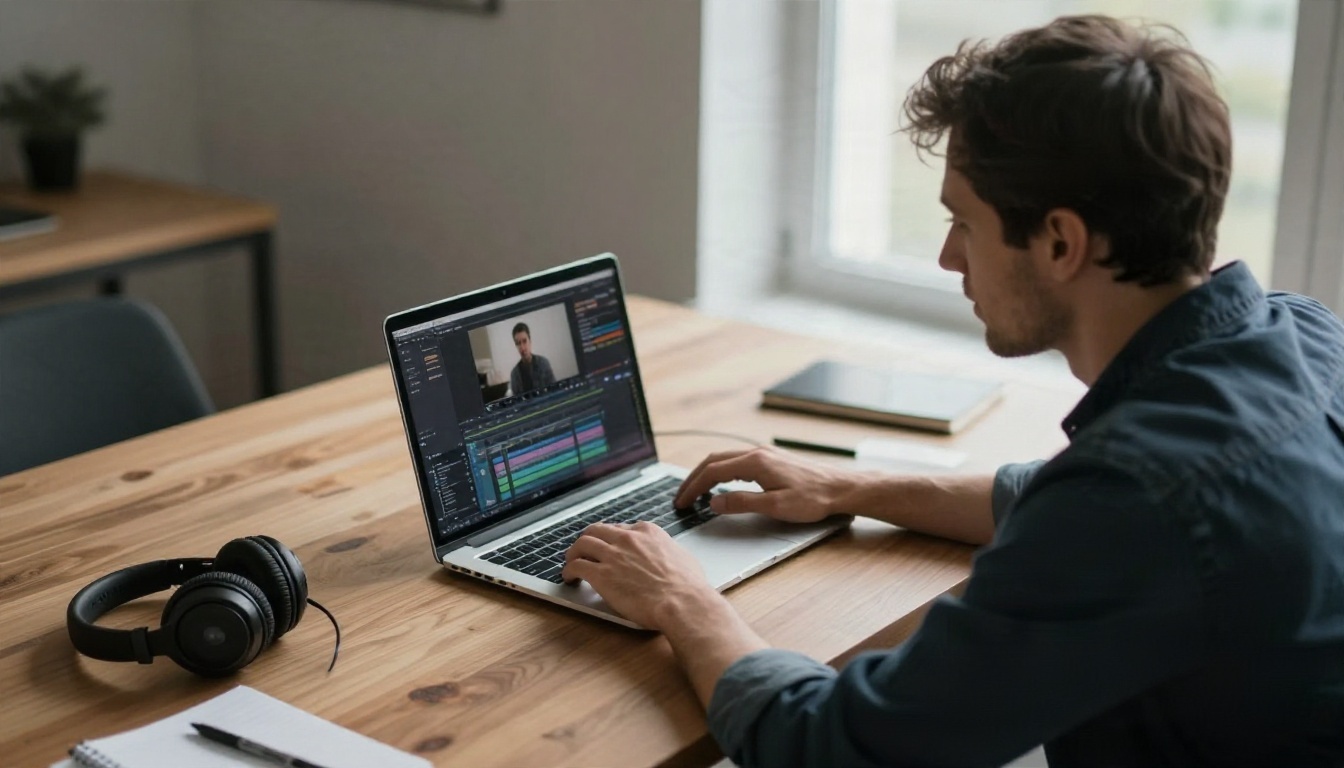
An AI music video generator with your face is usually not one tool. It is a short pipeline, and each step has a clear job.
- The song. You need an audio track, either your own recording or one generated by an AI music model.
- The face. One clean portrait photo is the identity anchor for the whole clip.
- The lip sync. A model reads the audio and animates your mouth, jaw, cheeks and head movement to match every syllable.
- The scenes. Optional cutaway shots, such as you on a rooftop or in a studio, give the video variety.
- The edit. You stitch the lip-synced performance and the scenes together in any editor.
The core of the whole thing is step three. If your lip sync looks wrong, no amount of nice scenery will rescue the video.
💡 Tip: Think of the face photo as casting. The model plays the role you hand it. A confusing photo produces a confusing performance, and a sharp, honest one produces a believable singer.
Two Kinds of Lip Sync
This is where most beginners pick the wrong tool, so it is worth slowing down.
Photo to singing video
You supply a still image and an audio clip. The model invents the motion: blinks, breathing, head sway, mouth shapes. This is the right choice when you have no existing footage of yourself performing.
Good options on PicassoIA:
- Omni Human 1.5 turns a portrait plus audio into a realistic lip-synced video, and it accepts an optional text prompt for camera and movement.
- Fabric 1.0 makes a photo talk or sing with natural facial motion.
- P Video Avatar is built for talking avatar clips from a single image.
- Omni Human is the earlier version, still useful for quick tests.
Video to re-synced video
You already have footage of yourself, maybe filmed on your phone, and you want the mouth to match a new vocal. Here the model keeps your real motion and only rewrites the lips.
- Lipsync 2 Pro is a strong pick when mouth detail matters, for example close-ups.
- Lipsync 2 is the lighter sibling for everyday clips.
- Kling Lip Sync matches a mouth to audio in an existing video.
- React 1 adds realistic lip movement to video you already shot.
- Lipsync from Pixverse syncs a video to audio quickly.
| Situation | Best route | Example model |
|---|
| Only a selfie, no footage | Photo to singing video | Omni Human 1.5 |
| Short clip you filmed | Video re-sync | Lipsync 2 Pro |
| Quick social test | Fast photo mode | Fabric 1.0 |
| Talking head for lyrics intro | Avatar clip | P Video Avatar |
Make the Song First
The audio drives everything, so produce it before touching any face tool.
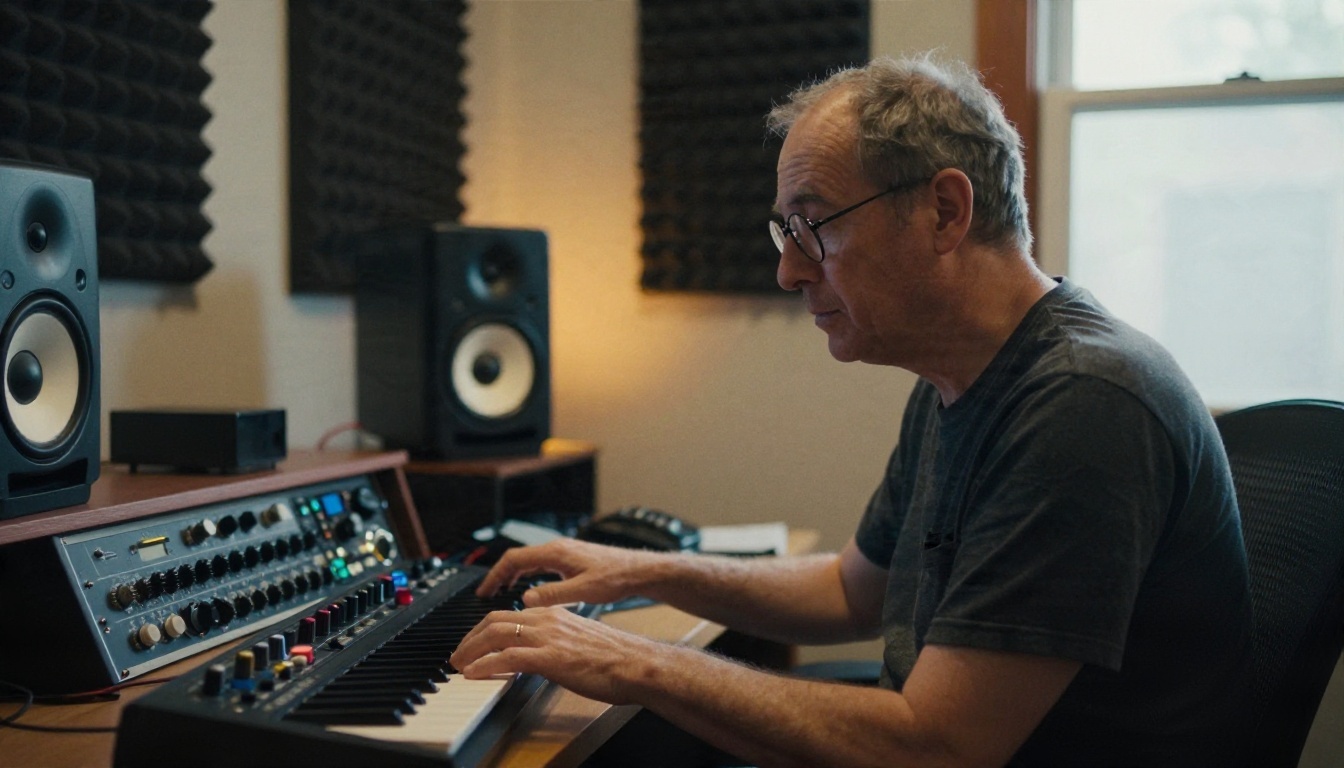
If you don't already have a track, PicassoIA's AI music category has several models worth testing:
- Music 2.6 generates full songs with vocals, and its page lists a free tier.
- Music 2.5 is a good fallback when you want a different vocal color.
- Lyria 3 Pro builds full-length songs from a description.
- Lyria 3 is the shorter, quicker option.
- Stable Audio 2.5 suits instrumentals and background beds.
Prompt in plain language: genre, tempo, mood, voice type, and two or three lyric lines. Something like "warm indie pop, 96 BPM, soft female vocal, lyrics about driving home at dawn" gives the model plenty.
⚠️ Watch the length. Many photo-to-video lip sync models cap audio at around 35 seconds. Omni Human 1.5, for instance, fails if the clip runs longer. Cut your song into verse and chorus segments, generate each one, then join them in your editor.
Vocals matter more than you think. A clean, forward vocal with little reverb gives the lip sync model clearer mouth cues. A wall of backing instruments blurs the signal. If the model struggles, try the vocal stem alone.
Photo Tips That Decide the Result
Here is the honest truth: the photo accounts for most of the quality. Two people can use the same model and the same song and get wildly different videos.
Light your face evenly
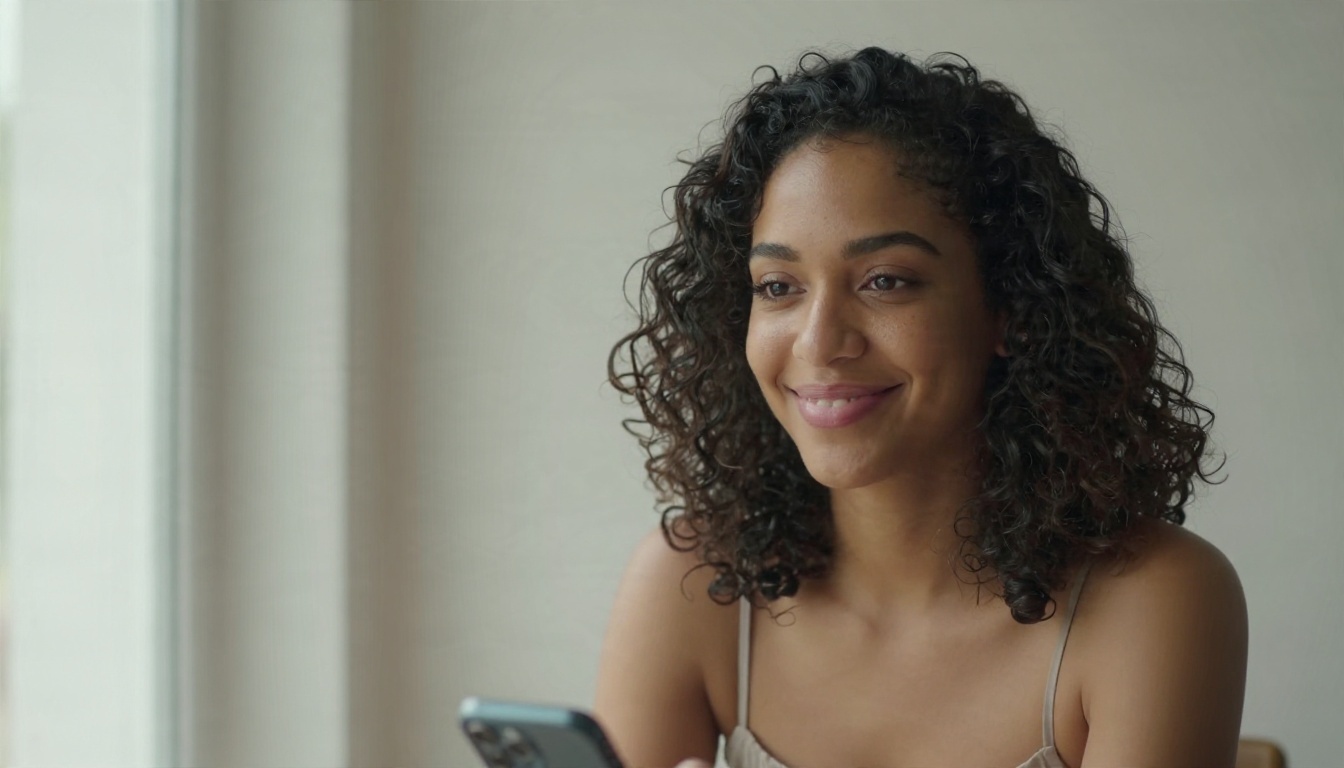
Stand facing a large window so daylight hits both sides of your face. Harsh side light creates a dark half-face that the model may exaggerate when the head turns. Overhead bulbs create eye shadows that look like tired, hollow eyes in motion.
Face the lens, mouth relaxed
Look straight into the camera with a neutral or gently closed mouth. A huge grin locks the teeth and lips into one shape, and the model has to guess how you look when you sing a closed vowel. A calm face gives it room to build every mouth shape.
Keep the frame clean
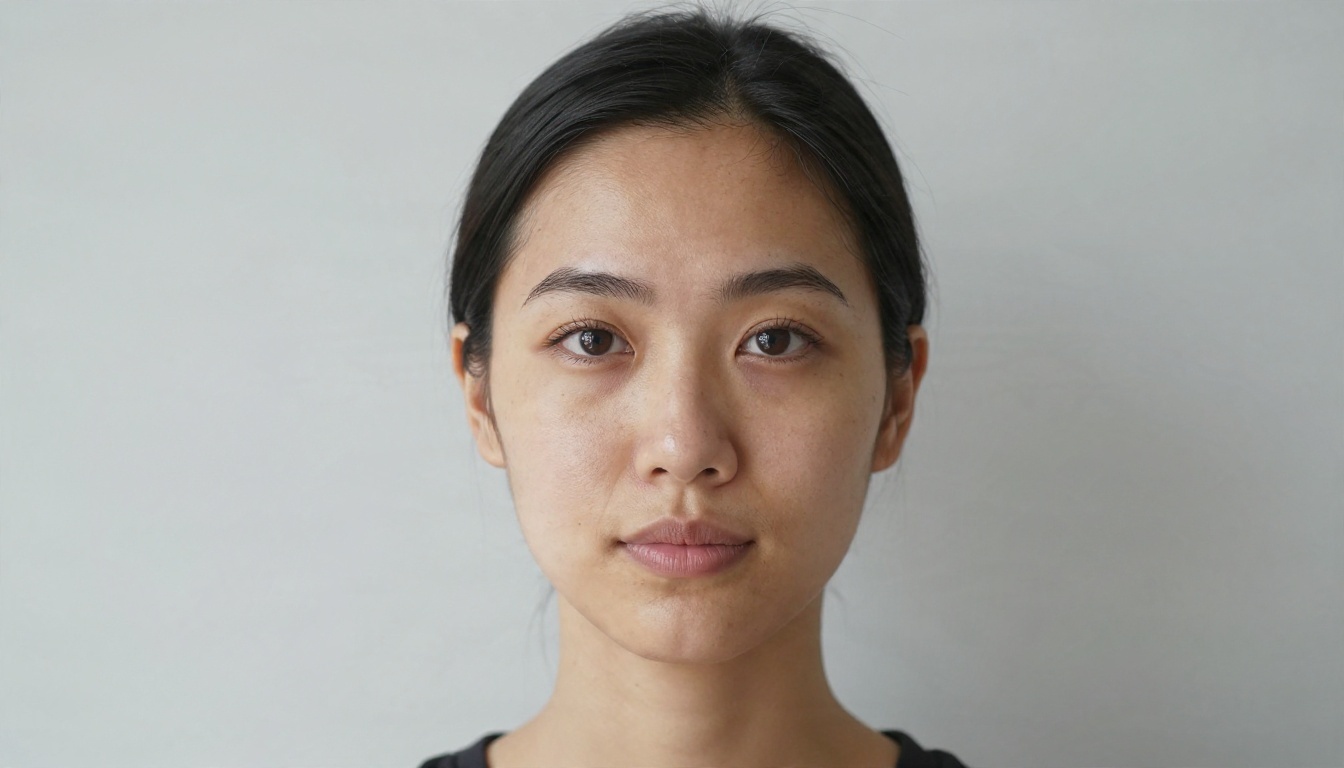
- Plain wall or soft background, no busy patterns.
- Shoulders visible, hair away from your mouth.
- No sunglasses, masks, hands in front of the chin or microphones covering the lips.
- Sharp focus on the eyes. Skip heavy beauty filters, since they smooth skin into a texture the model can't animate well.
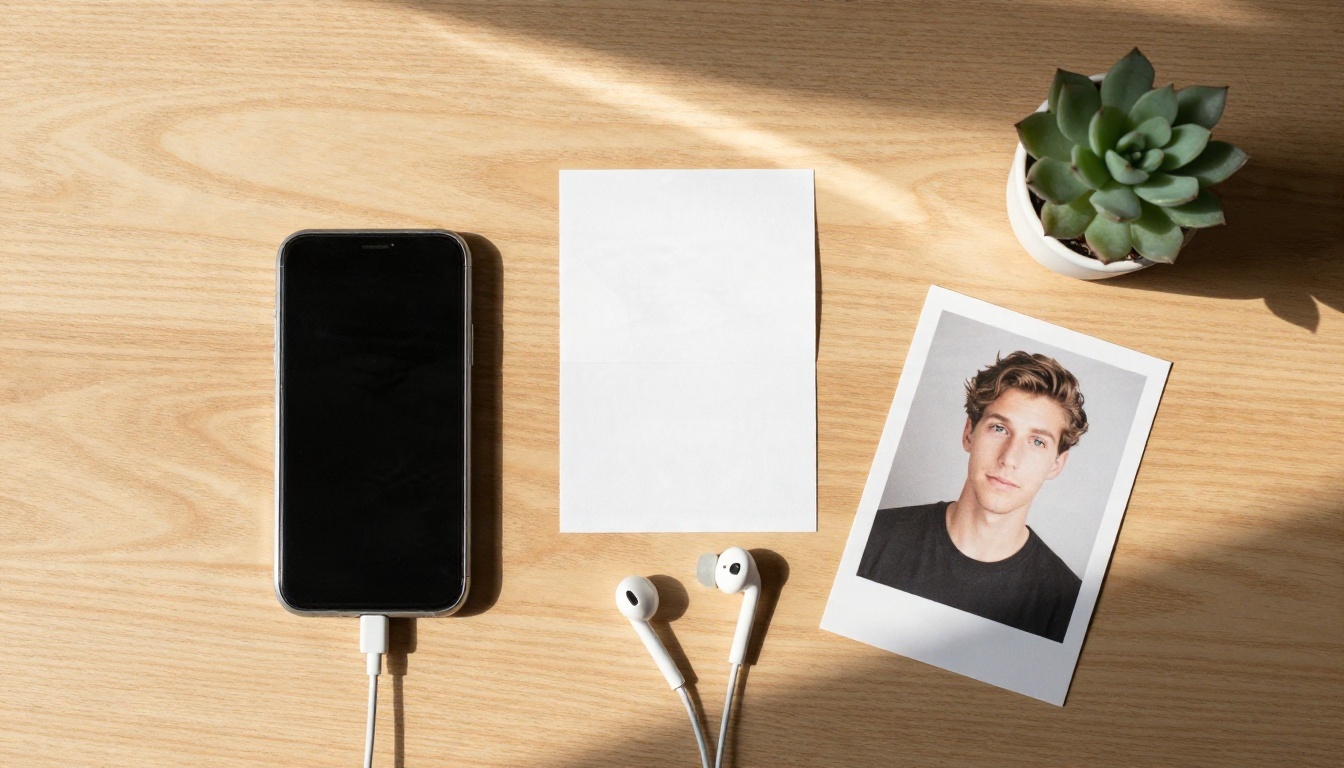
A phone on a small tripod at eye level, plus a folded white card to bounce light into the shadow side, is all the gear you need.
Quick photo checklist
| Do | Avoid |
|---|
| Eye-level camera | Looking up from a low selfie angle |
| Soft window light | Direct flash or a ceiling spotlight |
| Neutral mouth | Wide smile or pursed kiss lips |
| Hair tucked back | Bangs covering the eyes |
| Original resolution | Screenshots and compressed chat images |
💡 Tip: Shoot five or six variations: straight on, slight left turn, slight right turn. Test them all with a short 10 second audio clip before you commit to the full song. The best performer is rarely the photo you expected.
If your source photo is soft or small, run it through Nano Banana Pro for cleanup, or generate a fresh, sharp studio-style portrait of yourself with Seedream 4.5 using your photo as a reference.
Free Options Worth Trying
"Free" in AI video comes in three flavors, and it helps to separate them.
Free tiers inside paid tools
Most platforms give you a few starter generations. That is plenty for a test pass: one portrait, one 10 second audio snippet, one render. Use it to check whether the face looks right before spending anything on a longer clip.
Free and unlimited models
Some models on PicassoIA are marked as free or unlimited on their model pages. Seedance 2.5 Lite is listed as a free, unlimited video generator for clips up to 10 seconds, which makes it ideal for cutaway scenes in your music video, such as you walking through a city or standing on a stage. Music 2.6 also advertises free song generation.
Availability and limits change, so check the model page before you plan a full project around any single free option.
Free workflow habits
You can stretch any free allowance by working smart:
- Test short. Ten seconds of audio shows you everything about face quality.
- Lock the photo first. Don't change the portrait halfway through.
- Write one good prompt. Reuse the same seed when a model offers one, so lighting and look stay consistent.
- Export once. Cut and color in your editor rather than regenerating small fixes.
How to Use Omni Human 1.5 on PicassoIA
This is the most direct route from selfie to singing video, so here is a plain walkthrough.
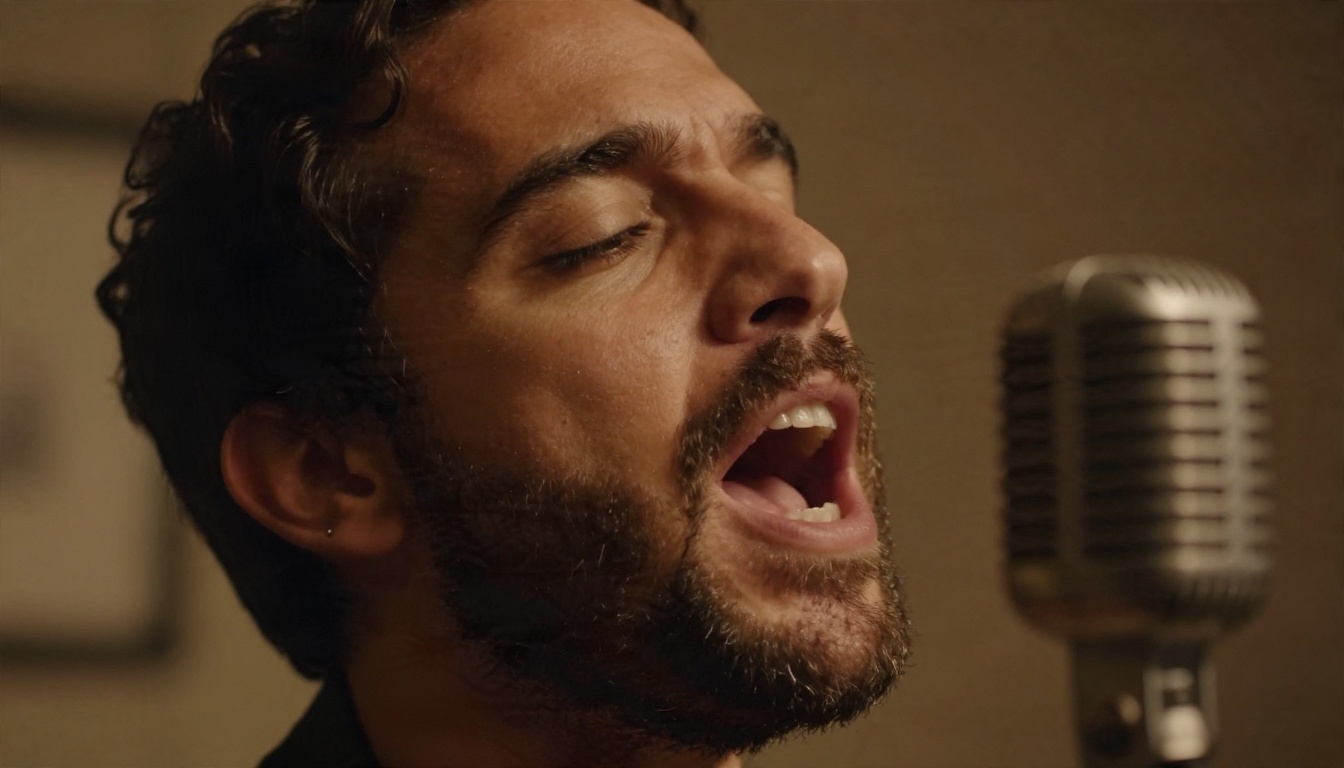
Step by step
- Open the model. Go to the Omni Human 1.5 page on PicassoIA.
- Upload your image. Choose the neutral, evenly lit portrait from the checklist above. The model accepts faces, full-body shots and even illustrated characters.
- Upload your audio. MP3 or WAV works. Keep it under 35 seconds, otherwise the generation fails.
- Add an optional prompt. Describe what you want: "gentle head sway, soft eye contact, slow push-in camera, singing with emotion." Prompts can be written in English, Spanish, Japanese, Korean, Chinese or Indonesian.
- Pick fast mode or not. Fast mode speeds up rendering but gives up some fine detail. Use it for drafts, then switch it off for the final render.
- Set a seed if you like a result. A fixed seed lets you repeat a look you already liked.
- Generate and review. Watch the mouth on the loud consonants (P, B, M) and the wide vowels. Those are the moments where weak syncing shows.
Parameter tips
| Setting | When to use it | Why |
|---|
| Fast mode on | Draft passes | Quicker feedback on face and sync |
| Fast mode off | Final render | More detail in skin and lighting |
| Short prompt | Most songs | Less risk of odd camera moves |
| Fixed seed | Multi-segment songs | Keeps the look consistent across parts |
If your face drifts between segments, switch to Fabric 1.0 for the weaker clip, or re-render it with the same photo and a simpler prompt.
A music video that shows only a talking face gets repetitive fast. Break it up with cutaways.
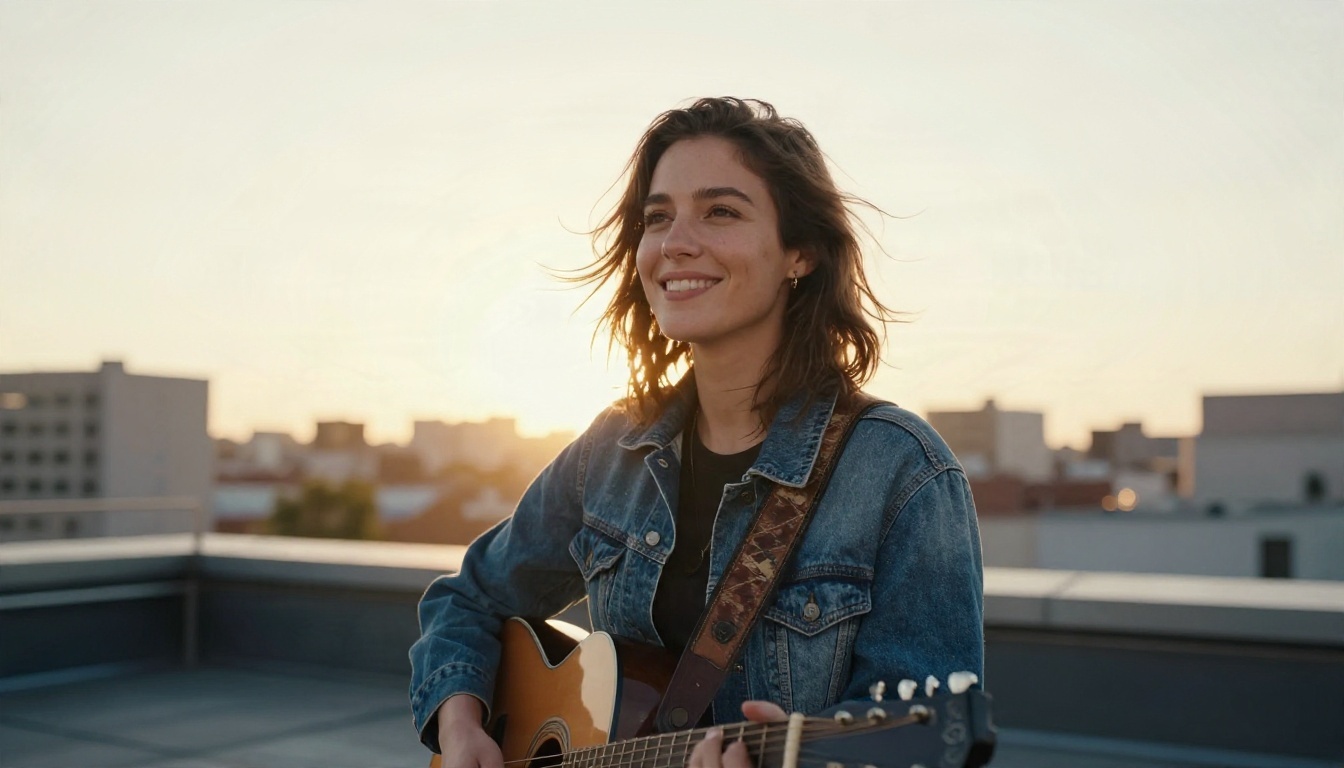
A simple structure that works:
- Opening: wide scene shot, 3 to 4 seconds, no vocals yet.
- Verse: your lip-synced close-up from Omni Human 1.5 or Lipsync 2 Pro.
- Pre-chorus: a cutaway to a location shot.
- Chorus: wider performance shot, with more head movement.
- Outro: slow fade on a final glance.
For the cutaways, generate still frames of yourself in different settings with Nano Banana Pro or Seedream 4.5, then animate them with a video model such as Kling v3 Video or Seedance 2.5. If you want a character to copy the movement of a reference clip, Kling v3 Motion Control is built for that.
💡 Tip: Keep clothing, hair and background colors the same across all scene frames. A music video feels like one world when the palette matches.
Common Mistakes and Quick Fixes
Most failed renders come from the same handful of problems.
| Problem | Likely cause | Fix |
|---|
| Mouth looks rubbery | Wide smile in source photo | Reshoot with a neutral mouth |
| Face changes shape | Heavy filters or a tiny photo | Use an original, sharp image |
| Lips drift off beat | Busy mix with loud instruments | Use a clean vocal stem |
| Render fails | Audio too long | Trim to under the model's limit |
| Eyes look dead | Eyes half closed in photo | Retake with relaxed open eyes |
| Teeth look odd | Hard side lighting | Use soft front light |
Two more habits help:
- Check the seam. When you join segments, the last frame of one and the first frame of the next should share head position. A small crossfade hides tiny jumps.
- Match audio loudness. Normalize every segment before editing so volume doesn't jump at the cuts.
Using Your Face Responsibly
A music video with your face is yours to make. Using somebody else's face is a different matter. Only animate photos of yourself, or of people who have clearly agreed to it. Don't use a public figure's portrait, and label AI content when you post it on platforms that ask for it. This keeps your channel safe and protects people who never signed up to sing in your video.
Share It and Keep Experimenting
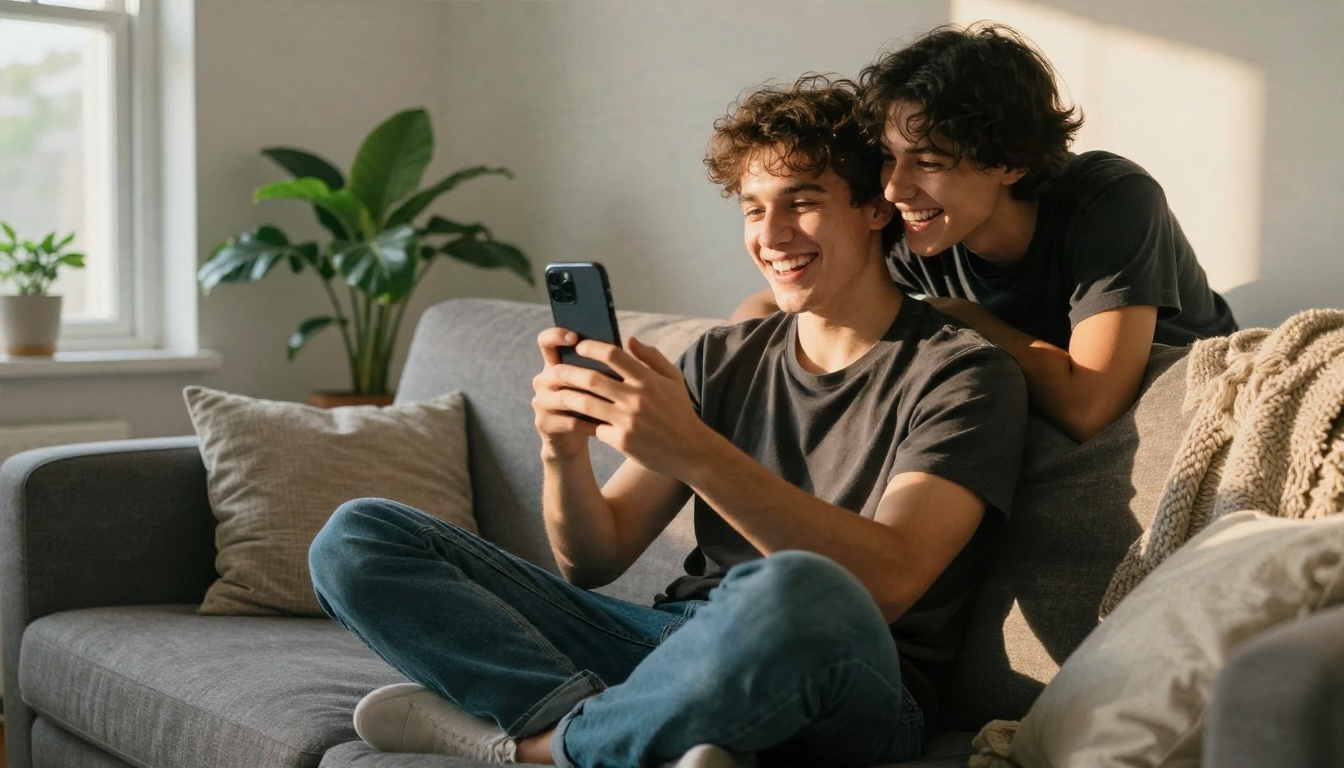
Vertical clips between 15 and 35 seconds are easy to post and easy to repeat. Release a verse first, see how people react, then finish the chorus. Short segments also keep each render quick and cheap.
You already have everything you need to try this today. Pick a portrait, write a short song prompt in Music 2.6, then open Omni Human 1.5 and watch your own face sing it back. When that first clip works, add scenes, swap voices, try another genre. Every model lives in one place at picassoia.com/en/all-models, so go build your first music video with PicassoIA.


