Typing a prompt into a website and waiting in a queue gets old fast, especially when the site filters half of what you ask for. That is why so many people now search for an AI porn generator local setup: a program that runs on your own computer, with no accounts, no upload limits and no one else seeing your prompts. It works, and it is free in the sense that you pay nothing per image. But it is not free of effort or hardware cost, and it is not the best choice for everyone. This article walks through what a local setup needs, which free tools are worth installing, which ComfyUI settings matter, and which online alternatives make sense when your graphics card cannot keep up.
Everything here stays at the level of glamour and suggestive imagery. The tools discussed can produce a wide range of adult content, and the responsibilities that come with that are covered in their own section below.
What "Local" Really Means
A local generator is simply an image model (a file of several gigabytes) plus software that loads it onto your graphics card and turns text into pictures. Nothing is sent to a server. You download the model once, and from then on your PC does all the work.
Privacy and Control
The biggest draw is privacy. Prompts, reference photos and finished images never leave your drive. There is no content filter you did not install yourself, no daily credit cap, and no risk that a service changes its rules next month and wipes your history.
You also get control over the pipeline. You can swap models, stack small add-on files called LoRAs, pick your own sampler, and save a workflow that recreates the same look every time. For people who want a consistent character or a specific photographic style, that repeatability is hard to match elsewhere.
The Trade-Offs
Local generation costs you time before it saves you any. Expect an evening of installing drivers, downloading checkpoints, and fixing a red error box in your interface. Generation speed depends entirely on your GPU, and a weak card can take a minute or more per image. Storage fills up quickly, and some of the best models are too large for ordinary gaming cards without compression.
💡 Quick test: if you enjoy tinkering, a local setup is a hobby that pays you back. If you only want a handful of good images tonight, an online model will get you there in under a minute.
Hardware You Actually Need
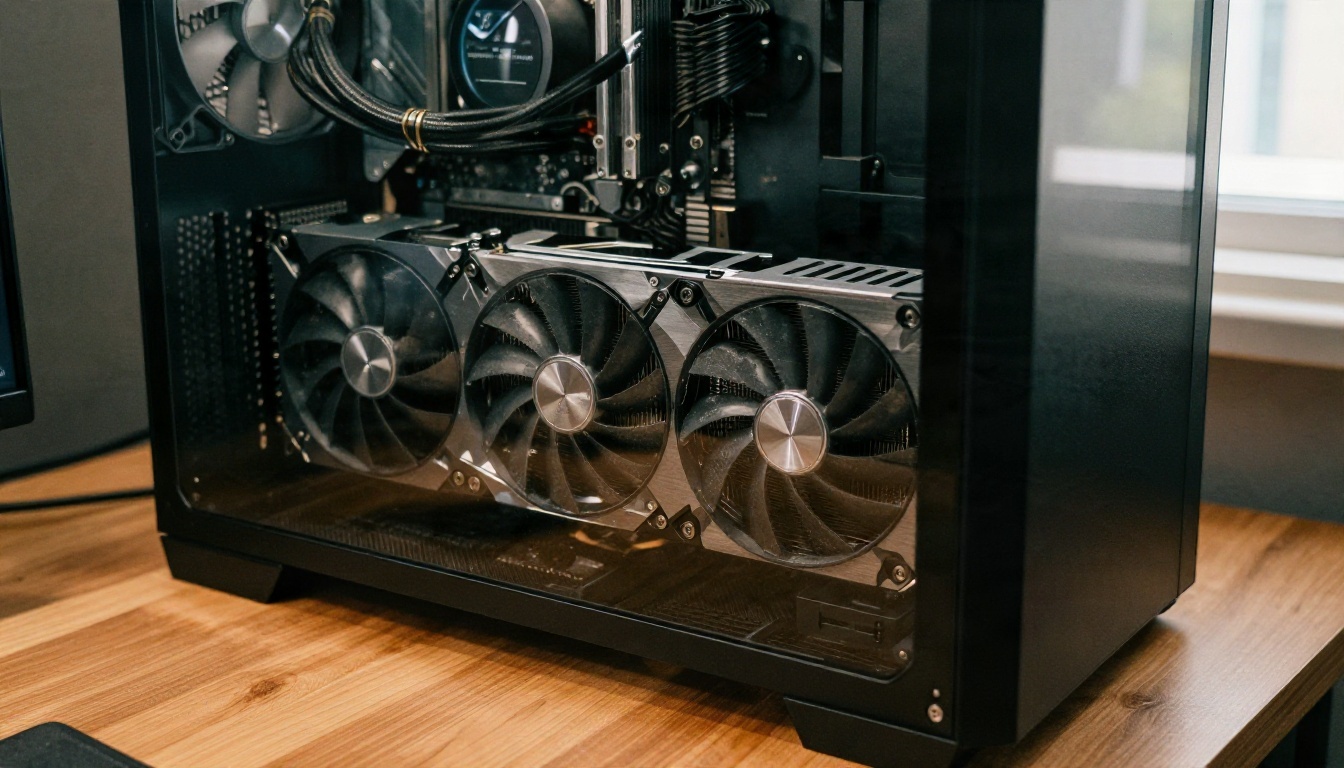
Video memory (VRAM) decides almost everything. System RAM and CPU matter far less. The numbers below are rough, because they shift with the model, the resolution and the software version, but they are a fair picture of where things stand in late 2026.
VRAM Tiers
| GPU VRAM | What runs comfortably | What to expect |
|---|
| 6 GB | Older SD 1.5 style models, heavily compressed SDXL | Slow, small images, lots of tweaking |
| 8 GB | SDXL with care, small modern models such as compact Flux 2 Klein variants | Usable, but ControlNet and big LoRA stacks get tight |
| 12 GB | SDXL comfortably, compressed (fp8 or GGUF) Flux models | The practical sweet spot for most people |
| 16 GB | Most modern checkpoints with room for upscaling | Smooth workflows, fewer out-of-memory errors |
| 24 GB and up | Large models at full precision | Fastest local experience, highest cost |
SDXL generally wants 8 GB at the very least and feels better at 12 GB. A full-precision Flux dev model asks for around 24 GB, which is why most owners of 12 GB cards use fp8 or GGUF versions instead. Those compressed files trade a small amount of fine detail for a large drop in memory use.
One software note: recent ComfyUI releases manage memory dynamically by default. Older advice about forcing a low-VRAM flag on the command line often does nothing now, so if you follow a tutorial from 2024 and see no change, that is why.
Storage and RAM
Plan for 16 to 32 GB of system RAM and a fast SSD. A single checkpoint is usually somewhere between 2 and 7 GB for Stable Diffusion family models and larger for Flux style models. Add LoRAs, upscalers and ControlNet files, and a serious collection easily reaches 100 to 200 GB. Put the models on an SSD, because loading from a spinning drive adds painful waits every time you switch.
💡 Budget rule: buy VRAM before anything else. A mid-range CPU with a 16 GB card beats a flagship CPU with an 8 GB card for image work.
Free Local Options Compared
Several free programs can run image models on your own machine. They differ mostly in how much they ask you to learn about the pipeline.
ComfyUI
ComfyUI is a node-based interface: every step (load model, encode prompt, sample, decode, save) is a box, and you connect the boxes with wires. It looks intimidating for ten minutes and then makes sense. It gets new model support faster than almost any other front end, handles compressed model formats well, and lets you share an entire workflow as a single file. If you want maximum flexibility, this is the one to install.
Other Front Ends
Not everyone wants to wire boxes together. Form-based tools such as AUTOMATIC1111 style web interfaces, Forge, and Fooocus show a simple prompt box and a row of sliders. They are friendlier for a first week and slower to adopt brand new models. InvokeAI sits in between, with a polished canvas for inpainting and editing.
| Tool | Difficulty | Best for | Weak spot |
|---|
| ComfyUI | Medium to high | Custom workflows, new models | Learning the graph |
| Forge / A1111 style | Low to medium | Familiar sliders, extensions | Slower model updates |
| Fooocus | Low | Quick results with few settings | Limited control |
| InvokeAI | Low to medium | Canvas editing, inpainting | Smaller community workflows |
ComfyUI Settings That Work
Default settings produce acceptable images. A few changes produce noticeably better ones, and they matter more than hunting for a "perfect" checkpoint.
Sampler, Steps and CFG
For SDXL style models, a solid starting point is the DPM++ 2M sampler with the Karras scheduler, 25 to 30 steps, and a CFG scale of 5 to 7. Pushing CFG higher makes skin look plastic and colors harsh. Distilled or turbo models behave differently: they want very few steps (often 4 to 8) and a low CFG, sometimes close to 1. Check the model page for its recommended values before you tune anything.
| Setting | SDXL style | Turbo or distilled |
|---|
| Steps | 25 to 30 | 4 to 8 |
| CFG scale | 5 to 7 | 1 to 2 |
| Sampler | DPM++ 2M Karras | Euler or model default |
| Batch size | 1 to 2 | 1 to 4 |
Resolution and Upscaling
Generate near the model's native size (around 1024 by 1024 for SDXL, or 1216 by 832 for a landscape portrait). Going far beyond that directly causes duplicated limbs and stretched faces. Instead, make a clean base image and then run a second pass: a latent upscale at a denoise value of 0.3 to 0.45 adds skin texture without changing the face.
For a quick, no-fuss alternative, an upscaling model such as Real-ESRGAN sharpens a finished image up to 4x without any workflow building.
Prompt Structure
Photorealistic results depend on describing a photograph, not a fantasy. A structure that works across most models:
- Subject: age (always adult), hair, expression, pose
- Clothing: fabric and cut, such as satin slip dress or lace trim
- Setting: room, window, props
- Light: direction and quality, such as soft morning light from the left
- Camera: lens and aperture, such as 85mm f/1.8
- Texture words: natural skin pores, film grain, fabric creases
Negative prompts help older SDXL models (blurry, extra fingers, plastic skin, watermark). Newer models often ignore them or need only a short list.
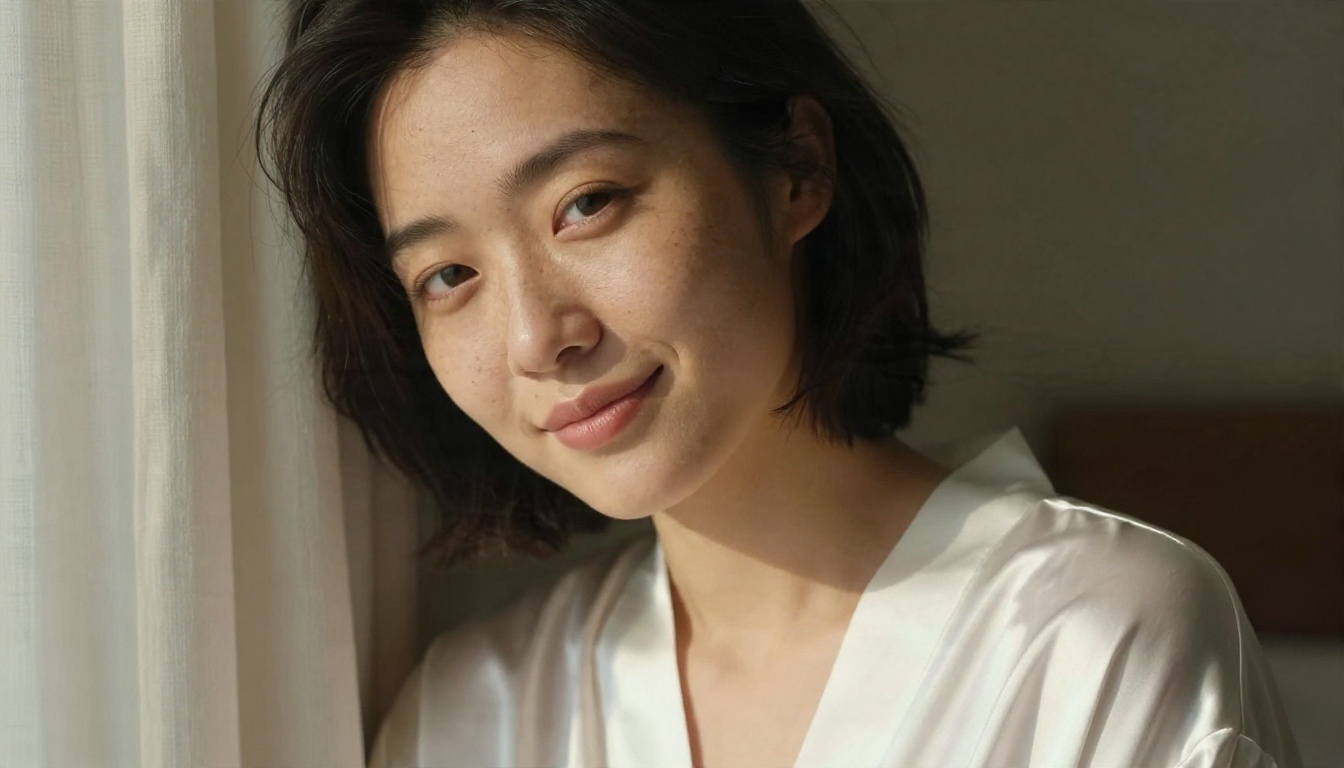
💡 Tip: change one setting at a time and keep the seed fixed. If you change five things and the image improves, you will never know which one helped.
Rules That Actually Matter
Running a generator at home does not suspend the law or common decency. Two rules are not optional.
Adults Only
Every character you create must be clearly an adult. Do not write prompts that suggest youth, and do not use models or LoRAs designed for that. Producing sexualized imagery of minors is illegal almost everywhere and is never acceptable. If a prompt produces an ambiguous result, delete it.
No Real Faces Without Consent
Do not generate sexual or suggestive images of a real person without their permission. That includes celebrities, coworkers, exes and anyone whose photos you collected. Laws on synthetic intimate imagery are tightening in many countries, and the harm to the person is real. Invented characters are the safe and sensible path.
Check the license for any model you download as well. Some checkpoints restrict commercial use, and some LoRAs carry their own terms.
Online Alternatives When Your GPU Struggles
Plenty of readers try a local install, hit out-of-memory errors on an 8 GB card, and wonder if the whole thing was worth it. This is where a hosted model earns its place: no downloads, no driver issues, and results in seconds.
Seedream 4.5 First
Seedream 4.5 is the first model to try for photorealistic glamour. It handles skin, fabric and lighting the way a camera would, and it follows long, detailed prompts well, which makes the prompt structure above work as written. It also produces up to 4K output, so you skip the upscaling step that a local pipeline needs.
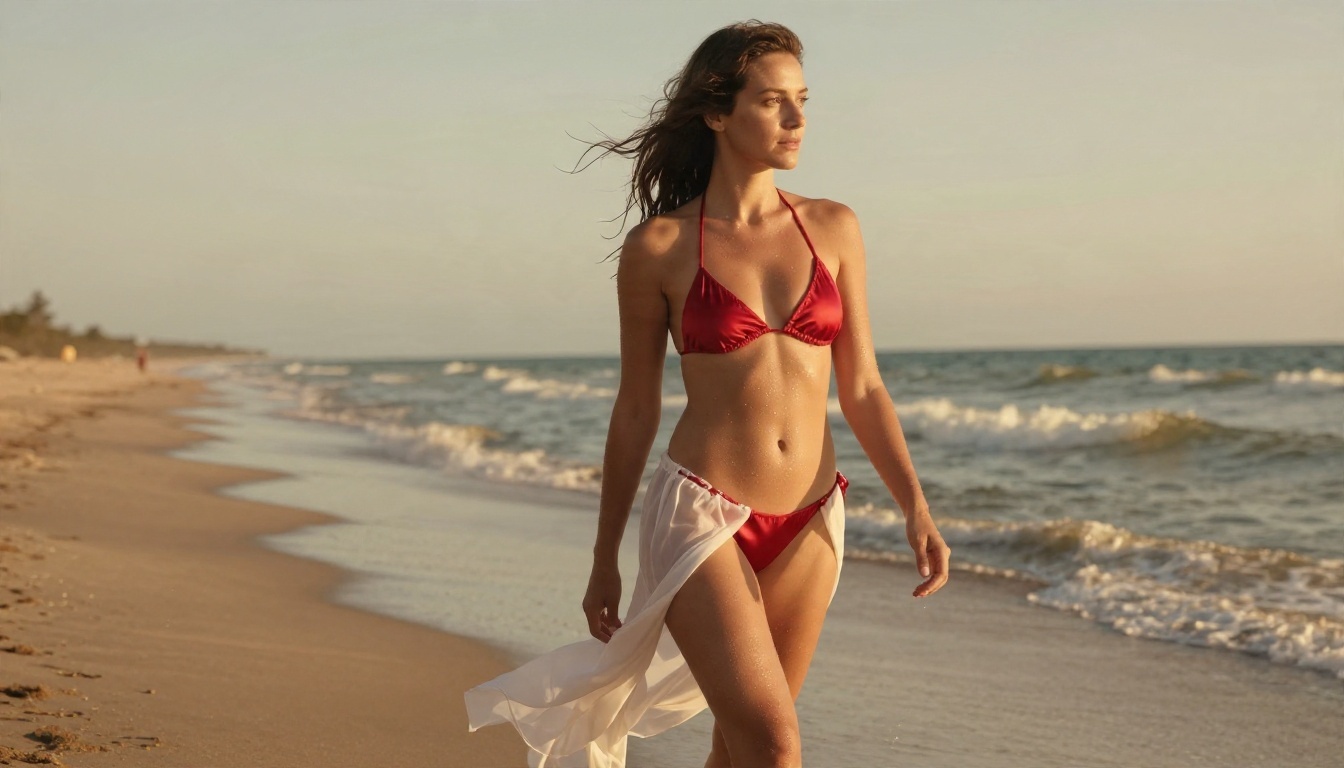
A simple routine on PicassoIA:
- Open the Seedream 4.5 page and choose a 16:9 or 3:2 aspect ratio for landscape portraits.
- Paste a prompt built from the six parts above. Keep it between 60 and 120 words.
- Generate two or three variations and compare them.
- Keep the best one and refine only the part that bothers you (light, pose or wardrobe).
Image Editor Pro for Edits
PicassoIA Image Editor Pro is built for the second half of the job: changing an image you already have. Swap an outfit, change the background, fix a hand, soften a harsh shadow. Because it offers unlimited generations, you can iterate as many times as you like without watching a credit counter, which is the same feeling people want from a local install, minus the setup.
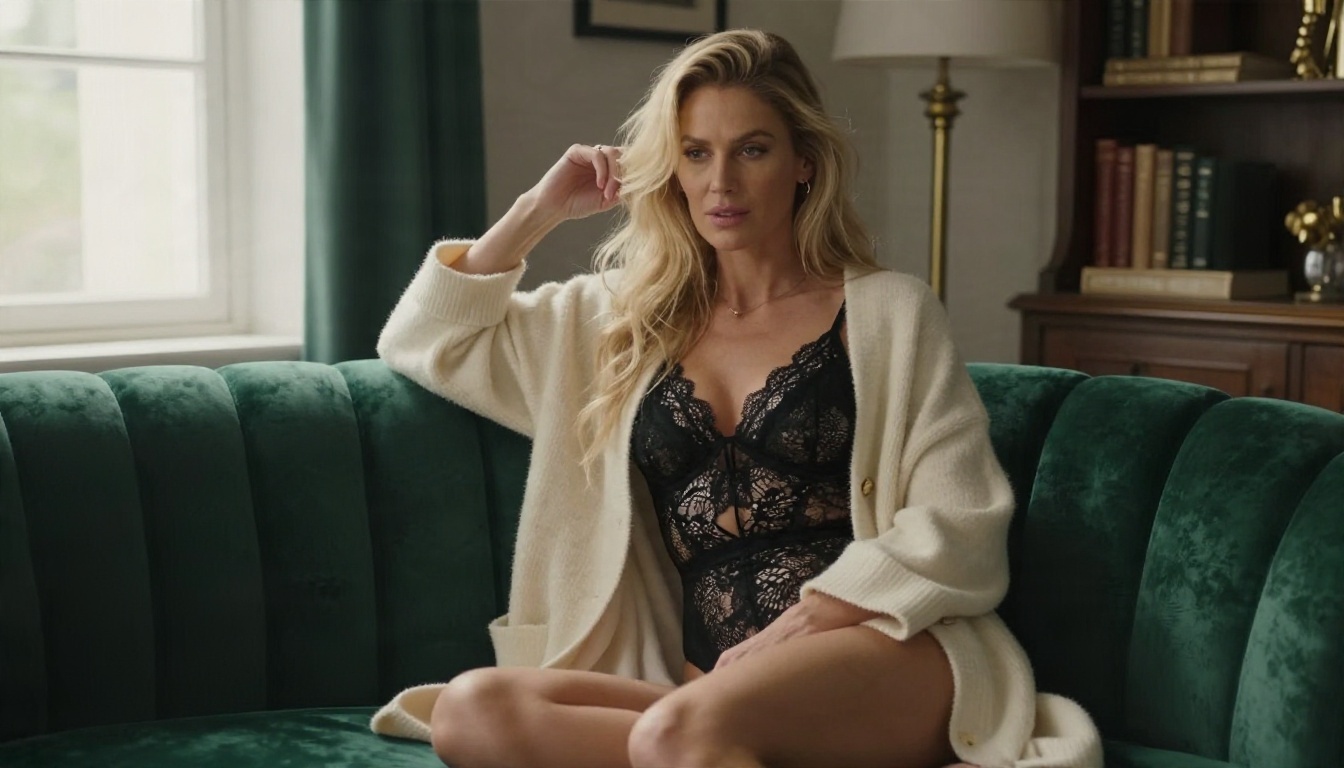
💡 Workflow idea: generate the base picture in Seedream 4.5, then open it in Image Editor Pro to adjust wardrobe, setting and lighting until it matches your idea.
More Models Worth Trying
Different models have different strengths. These are worth testing, in roughly this order:
A good habit is to draft ideas with Z Image Turbo because it is quick, then re-run the winning prompt in Seedream 4.5 for the final render. If you want to reuse a look across many images, Flux 2 Klein 9B Base LoRA is the model built around LoRA style control. Fans of the Stable Diffusion family can try Stable Diffusion or Stable Diffusion 3.5 Large for familiar prompt behavior.
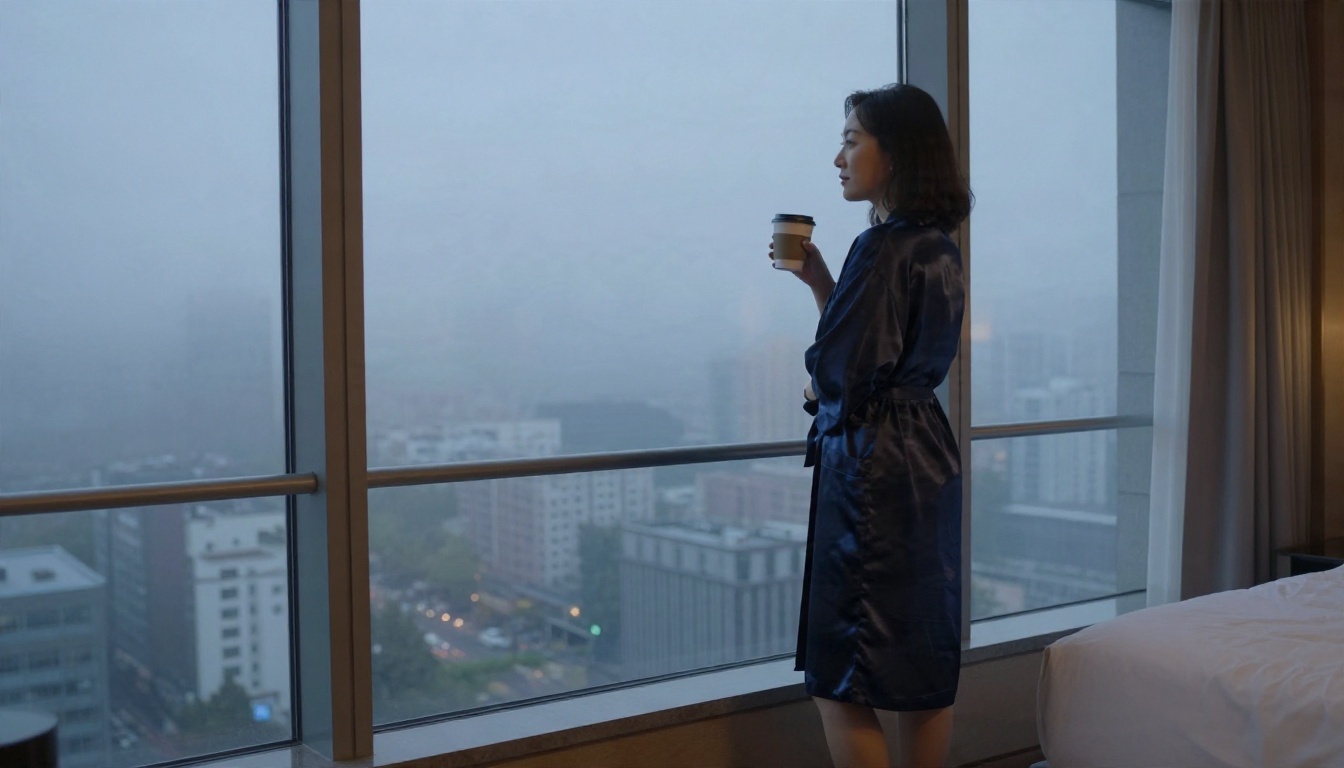
Local vs Online: Quick Verdict
| Factor | Local (ComfyUI) | Online (PicassoIA) |
|---|
| Upfront cost | GPU, SSD, time | None |
| Cost per image | Electricity only | Included with the platform |
| Setup time | Hours to days | Seconds |
| Speed on a mid GPU | 20 to 90 seconds | A few seconds |
| Privacy | Everything stays on your PC | Handled by the platform |
| Custom LoRAs and workflows | Unlimited | Selected models |
| Maintenance | Updates, drivers, storage | None |
| Maximum quality | Depends on your VRAM | High, up to 4K |
Pick local if you own a 12 GB or larger card, enjoy tinkering, and want full control over every step. Pick online if you want quality results quickly, own a modest GPU, or simply do not want to maintain software. Many people end up doing both: drafting at home and polishing online.
Start Making Your Own Images
You do not have to choose forever. Spend an afternoon with ComfyUI if you are curious, and keep an online model open in another tab for the days when a render needs to look great right now. Try the prompt structure from this article in Seedream 4.5, refine the result in PicassoIA Image Editor Pro, and compare it with what your own GPU produces. The difference in effort will tell you which route fits you.
Ready to see what your ideas look like as photographs? Pick a model, write one detailed prompt, and generate your first image today. The full model list is at picassoia.com/en/all-models, and every model there is a few clicks from your first result.


