You can now type one sentence and get a selfie that looks like your phone took it, with real skin, soft window light and a natural half smile. That is what an AI selfie generator does. Pair it with a free selfie fixer for the photos already sitting in your gallery and you get sharp, flattering portraits without a ring light, a studio or ten retakes. This article shows how the prompts are built, gives you twelve to copy, points out which PicassoIA models handle faces best, and walks through cleaning up blurry or harsh shots in a few minutes.
What an AI Selfie Generator Does
An AI selfie generator is a text-to-image model pointed at one specific job: a believable close portrait, shot from arm's length. You describe the person, the light and the setting, and the model paints a photo from scratch. No camera, no bathroom mirror, no fifteenth attempt at the "good side".
Text Prompts vs. Photo References
There are two ways in. The first is pure text: you describe everything and the model invents the face. That suits fictional characters, mood boards and ad concepts. The second is photo reference: you upload one or more of your own pictures and ask the model to keep that face while changing the outfit, the place or the light. Seedream 4.5 accepts between 1 and 14 reference images, which is plenty to hold a consistent look across a whole set.
💡 Only use your own face, or faces you have written permission to use. Generated selfies of other real people can cause real problems for everyone involved.
Why Some Selfies Look Fake
Most fake-looking results share the same three tells: skin like melted wax, eyes without a catchlight, and a background that is far too tidy. Real selfies have pores, small shadows under the nose and a slightly messy room behind the person. When a prompt asks for those imperfections on purpose, the output changes fast. Most of what follows is about asking for the right ones.
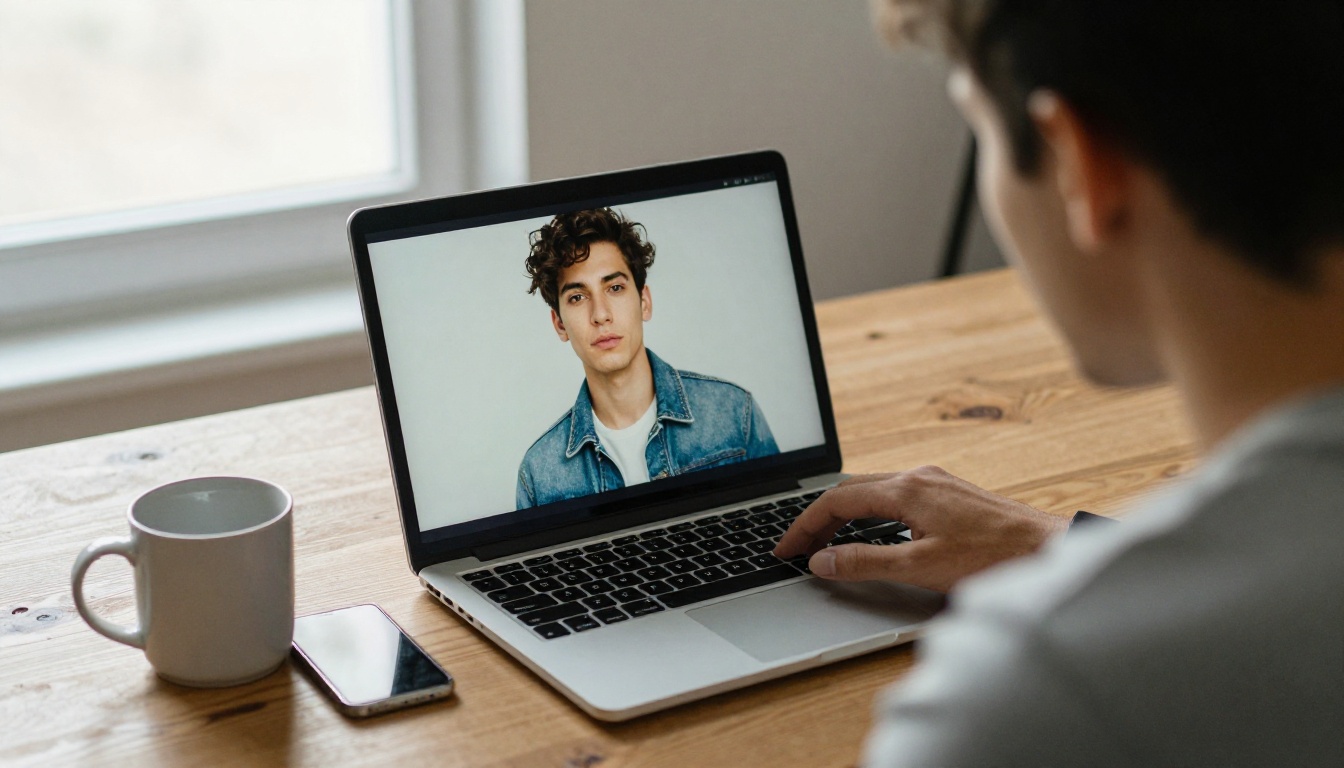
Good selfie prompts are short paragraphs, not piles of keywords. Five blocks, in this order, give the model everything it needs:
- Subject: age range, hair, expression
- Pose: arm's length, slight head tilt, eye contact
- Place: the room or street behind them
- Light: direction, time of day, softness
- Camera: lens, depth of field, film look
Subject and Pose
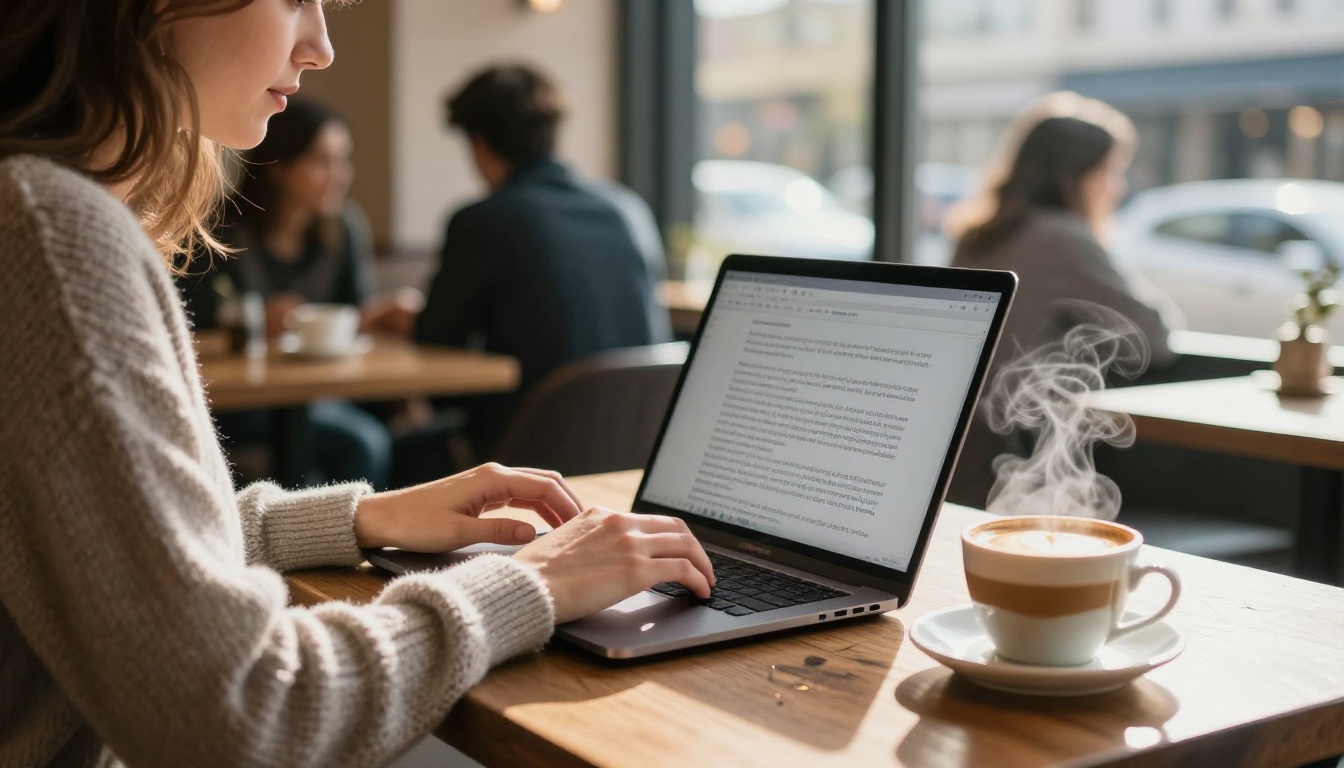
Say who and how they stand in the first sentence. "A woman in her late twenties with wavy chestnut hair, half smile, holding a phone at arm's length, head tilted slightly" works far better than "pretty girl selfie". Add one camera-like detail such as "slightly above eye level", because that is how most people really hold a phone.
Light and Lens
Light does most of the realism. Name a direction ("soft window light from the left"), a moment ("golden hour", "overcast morning") and a lens ("85mm f/1.8, shallow depth of field"). A wide 24mm lens gives the stretched, close look of a real front camera. An 85mm lens gives the flattering, compressed look of a portrait photographer.
Skin and Imperfections
Add phrases like "visible pores", "light freckles", "fine baby hairs" and "natural shine on the forehead". End with "no airbrushing". These words push the model away from the polished plastic finish that gives AI portraits away.
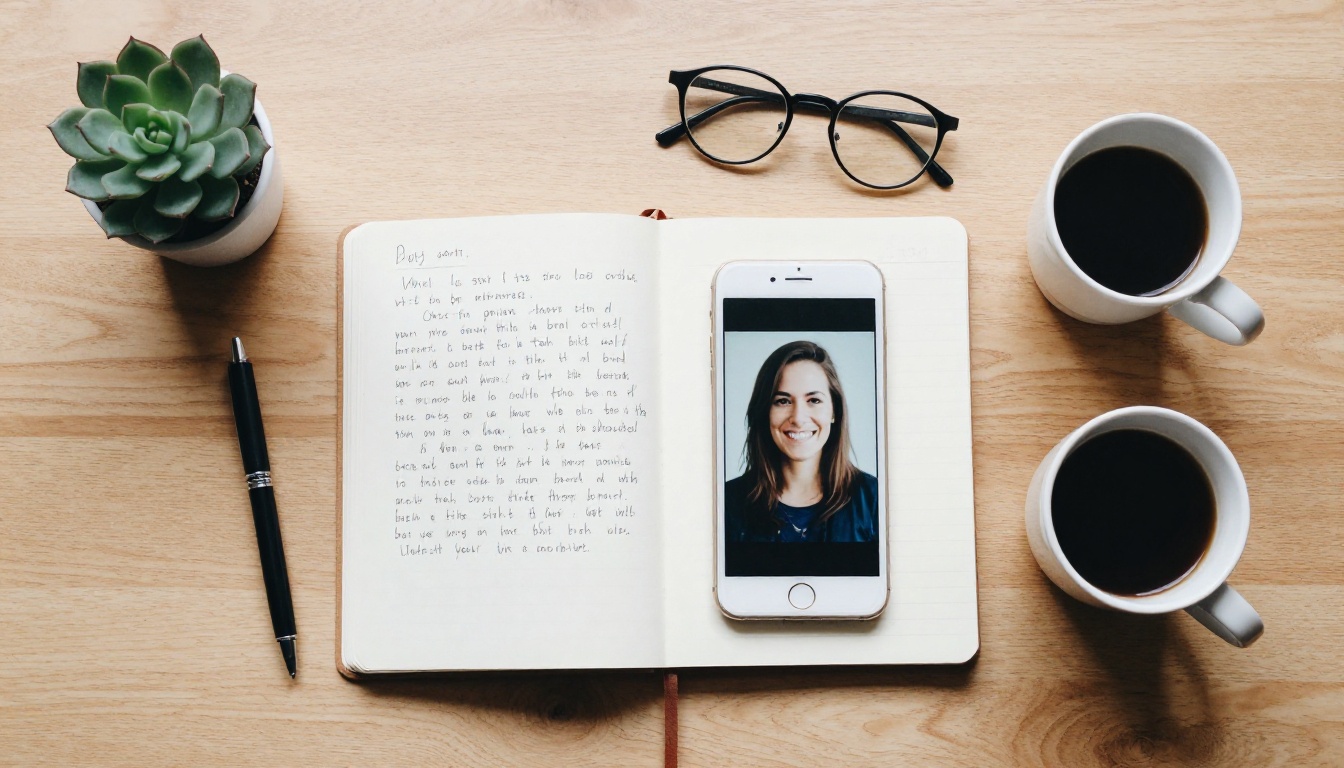
Here is the same idea as a quick comparison:
| Block | Weak version | Strong version |
|---|
| Subject | pretty girl | woman in her thirties, light freckles, wavy hair |
| Light | good lighting | soft window light from the left, golden hour |
| Camera | high quality | 85mm f/1.8, shallow depth of field |
| Skin | perfect skin | visible pores, no airbrushing |
12 Selfie Prompts to Copy
Paste any of these into a text-to-image model and swap in your own details. Each one follows the five-block formula.
Everyday Looks
- Golden hour balcony: A woman in her late twenties takes a selfie on a sunny balcony, oatmeal knit sweater, wavy chestnut hair, soft low sun from the left, city rooftops blurred behind her, 85mm f/1.8, visible pores, natural freckles, Kodak Portra 400 grain.
- Morning kitchen: A man in his thirties with messy hair and a gray t-shirt holds a phone at arm's length and a coffee mug in the other hand, overcast window light, 35mm lens, sleepy half smile, natural skin texture.
- Cafe window: A young woman with a loose braid sits by a cafe window, steam rising from a cup, soft daylight on her face, slightly above eye level, shallow depth of field, no airbrushing.
- Car selfie: A friendly man in the passenger seat, seatbelt across his denim jacket, warm late sun through the side window, wide 24mm front camera look, relaxed grin.
Studio and Profile Looks
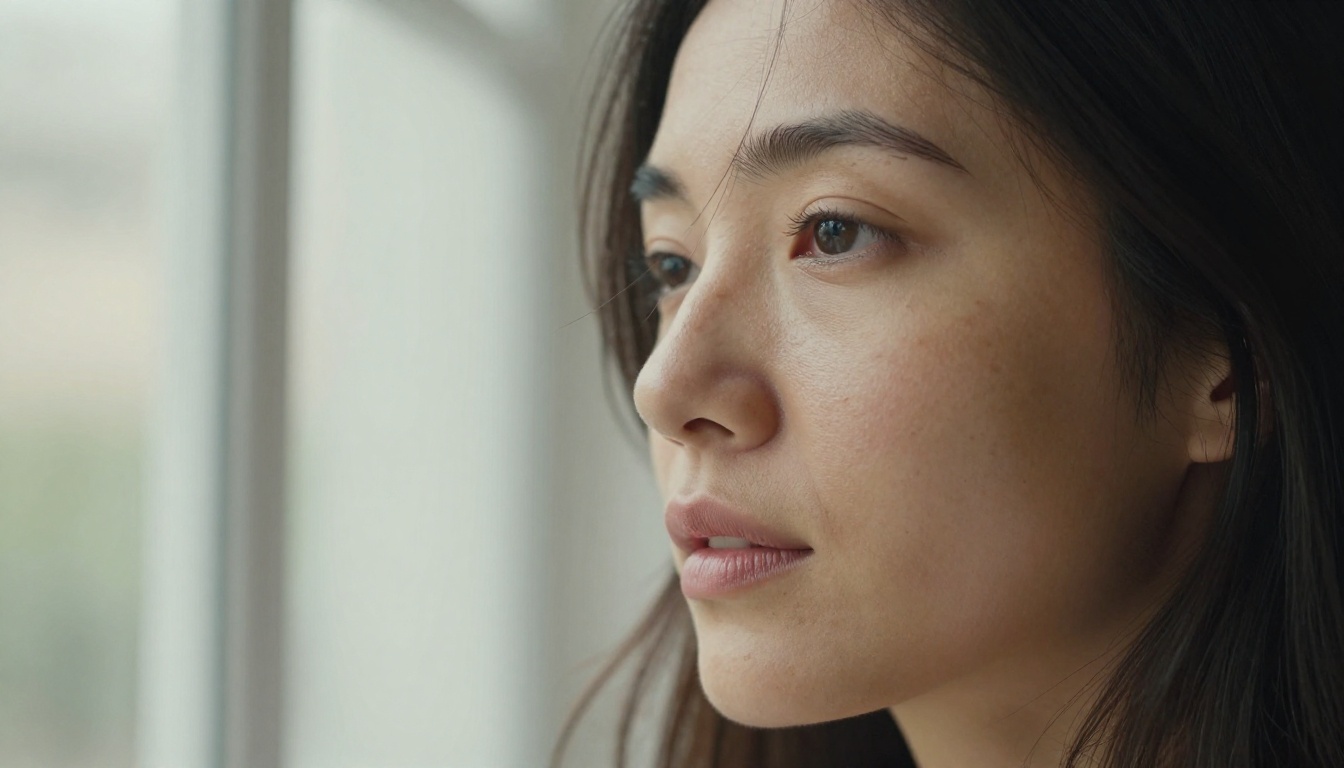
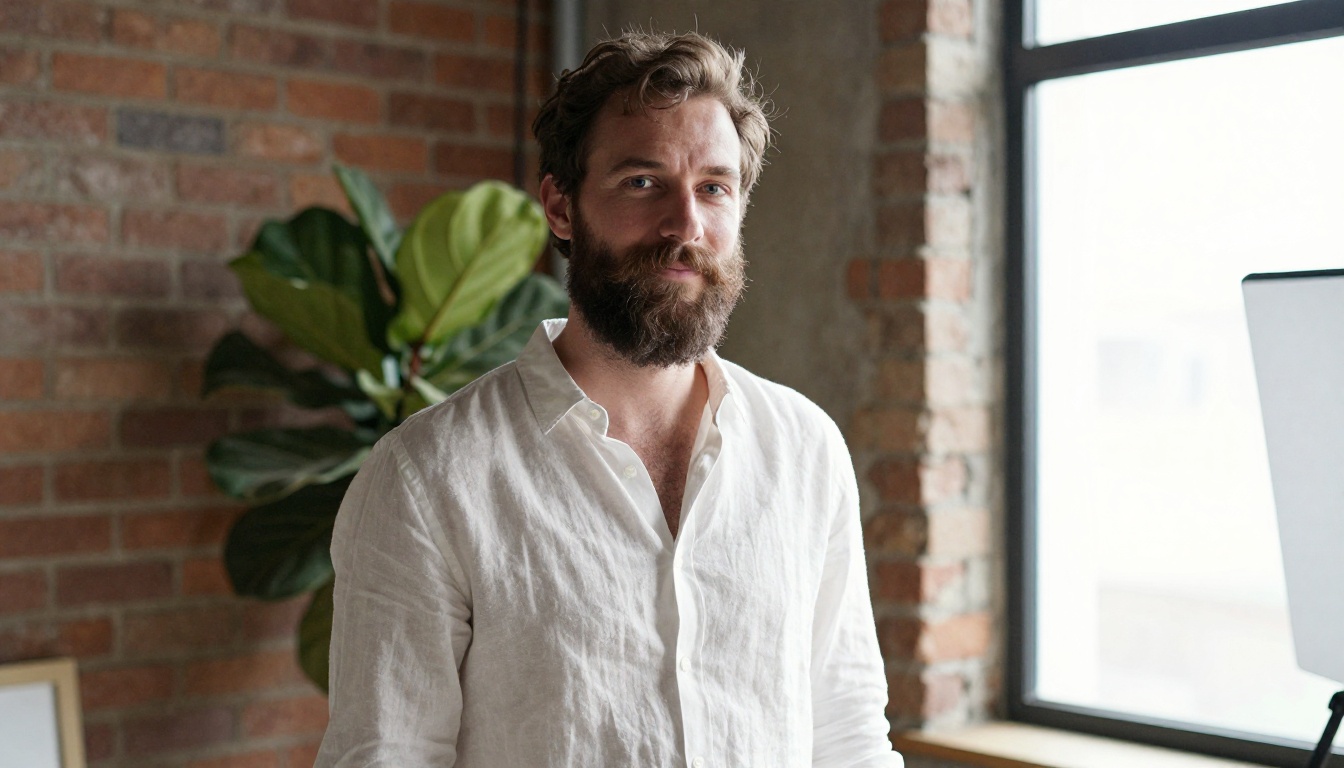
- Loft headshot: A bearded man in a white linen shirt in a bright loft, soft window light from the right, white reflector fill, exposed brick wall, 70mm f/2, subtle smile, framed from the chest up.
- Dusk portrait: A woman in a black turtleneck beside a window at dusk, one warm lamp on her left, deep soft shadows, 85mm f/1.4, calm direct gaze.
- Plain background: A person with a neutral expression against a light gray wall, even soft daylight, shoulders square, 50mm lens, no harsh shadows behind the head. Good for profile pictures.
- Bookshop look: A woman with round glasses and a wool beanie in a narrow bookshop aisle, warm shelf light, close framing, fine knit texture, 50mm f/1.8.
Group and Travel Selfies
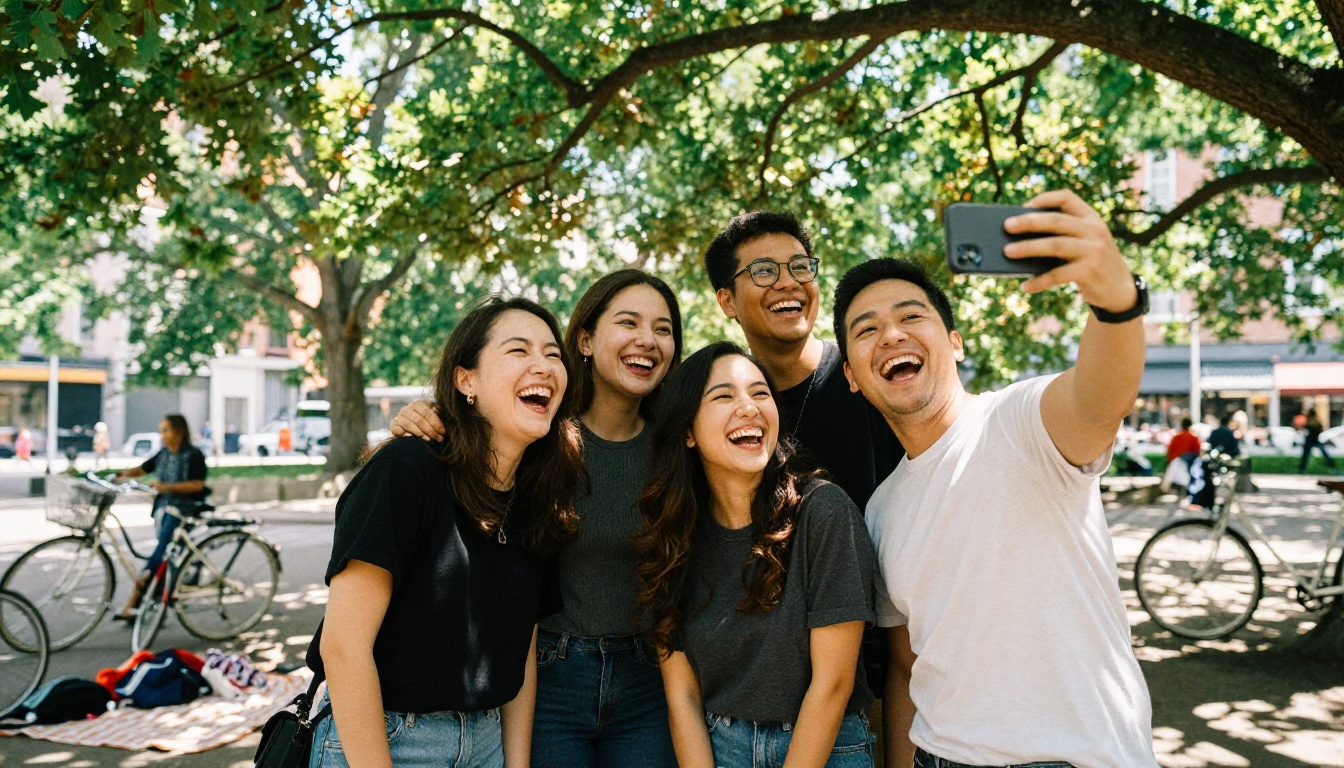
- Park picnic: Four friends squeezed together laughing, one holding the phone out, dappled sunlight through oak leaves, picnic blanket and bicycles behind them, wide 24mm lens.
- Pebble beach: Two friends on a beach at sunrise, cropped at the shoulders, salt wind in their hair, soft pink and orange light behind them, 24mm.
- Mountain lookout: A hiker with a backpack takes a selfie at a lookout, thin clouds, cool morning light, windblown hair, slight sunscreen shine on the nose.
- Quiet street at night: A woman on an empty city street, warm shop window light on her face, street lamps softly blurred behind her, 35mm f/1.4, light film grain.
Best PicassoIA Models for Selfies
You do not need every model, but a short list is enough for most needs. All of these live on PicassoIA, so you can switch between them without new accounts or downloads.
Best for Realistic Faces
Seedream 4.5 and Nano Banana Pro both output up to 4K, which matters for selfies because skin detail is the first thing to fall apart at low resolution. GPT Image 2 is a good third opinion when a prompt has many small details.
Best for Speed and Volume
P Image returns an image in roughly a second, so you can test ten phrasings of a prompt before you commit to a final render. If you already have one good photo, Flux Kontext Portrait Series turns it into a whole set of portraits, and PicassoIA Image Editor Pro handles quick changes without a generation cap.
How to Use Seedream 4.5 on PicassoIA
Seedream 4.5 is a solid first stop because it gives you resolution, aspect ratio and reference photos in one screen. Here is the exact order I would follow:
- Open the model page on PicassoIA and find the prompt box.
- Paste your prompt, built with the five blocks: subject, pose, place, light, camera.
- Set size to
2K while you test and switch to 4K only for the final render.
- Pick an aspect ratio:
3:4 or 9:16 for phone-style portraits, 1:1 for avatars, 16:9 for banners.
- Add reference photos (optional) in the image input field. One to fourteen images are accepted, and a sharp, evenly lit, neutral-face photo gives the best likeness.
- Ask for variations by setting sequential image generation to
auto and max images to 4. The model returns a related set instead of one frame.
- Generate, compare, and change one block at a time. If the light is wrong, only edit the light sentence.
💡 Resist the urge to rewrite the whole prompt after one bad result. Changing a single block shows you what each part really does.
Free Selfie Fixer for Real Photos
Sometimes you do not need a new picture, just a better version of the one you took. Three problems come up again and again: skin that looks off, a file that is soft or tiny, and light that is harsh or flat.
Retouch Skin Without the Plastic Look
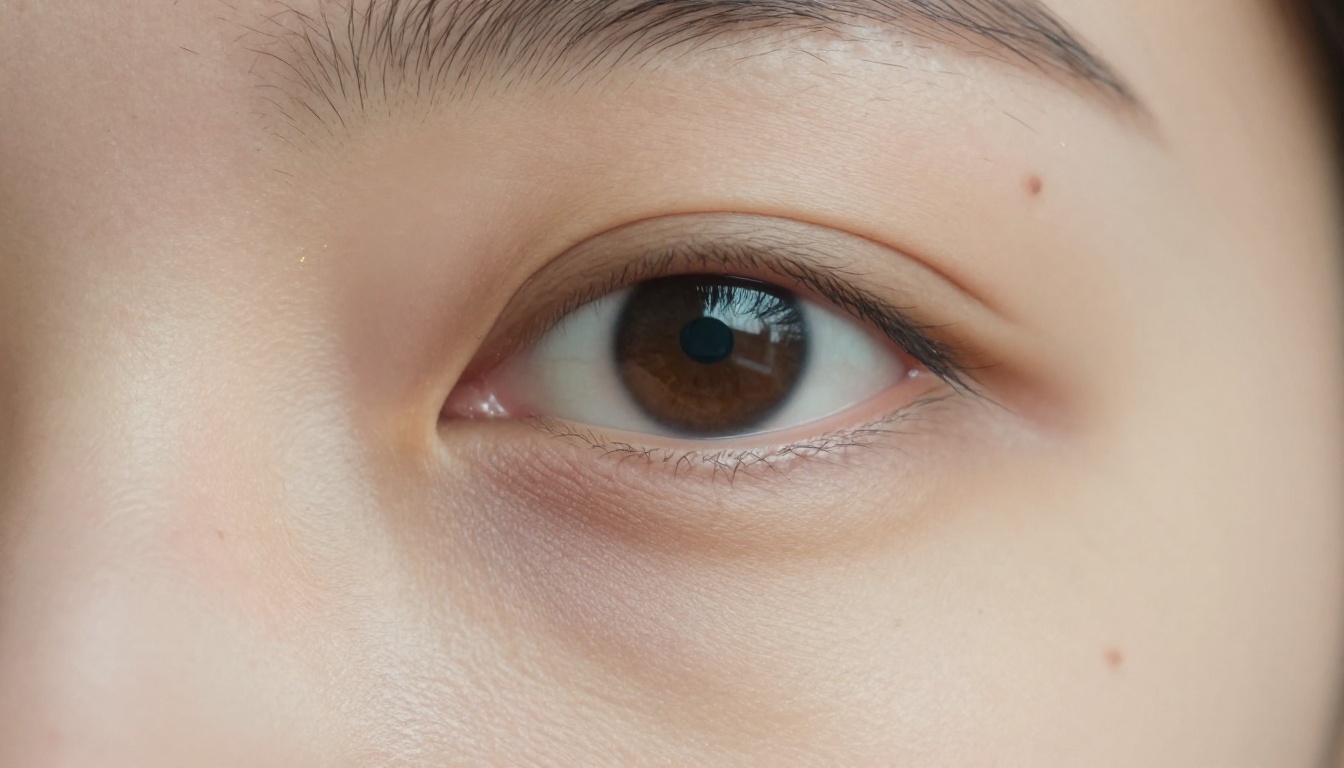
Qwen Image Edit Plus LoRA Skin is built for skin retouching. Upload the photo and keep the instruction short: "even out redness, keep pores and freckles, keep the original face shape". Telling it what to keep matters more than telling it what to remove, because that is what stops the waxy finish.
Sharpen Blurry Selfies
Front cameras produce small, soft files, and messaging apps compress them further. Crystal Upscaler is tuned for faces and scales a photo up to 4x, rebuilding eyes, hair strands and skin texture instead of smearing them. The steps take under a minute:
- Open the Crystal Upscaler page.
- Upload the selfie.
- Leave the scale factor at
4 (lower it if the result looks too crisp).
- Choose
png for editing or jpg for quick sharing, then run it.
Other solid options are Real-ESRGAN for a free 4x upscale, Clarity Pro Upscaler for photorealistic results, and Google Upscaler for clean 4x enlargements.
Fix Harsh or Flat Light
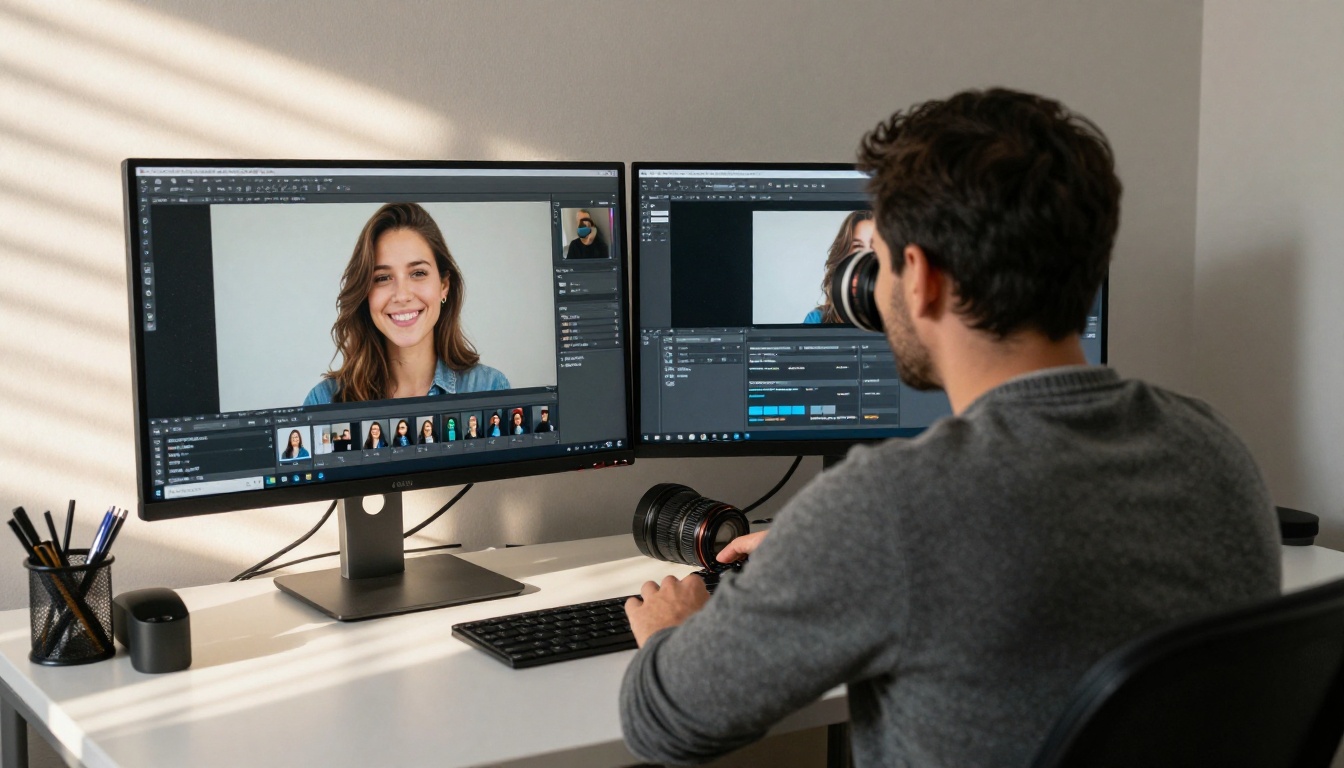
Flash glare and flat indoor light ruin otherwise good photos. Qwen Image Edit Plus LoRA Relight changes the lighting of an existing image, so a prompt like "soft window light from the left" can replace a harsh overhead bulb. For small changes that do not need a specialist model, PicassoIA Image Editor Pro is the quick option.
5 Mistakes That Ruin AI Selfies
Vague Prompts
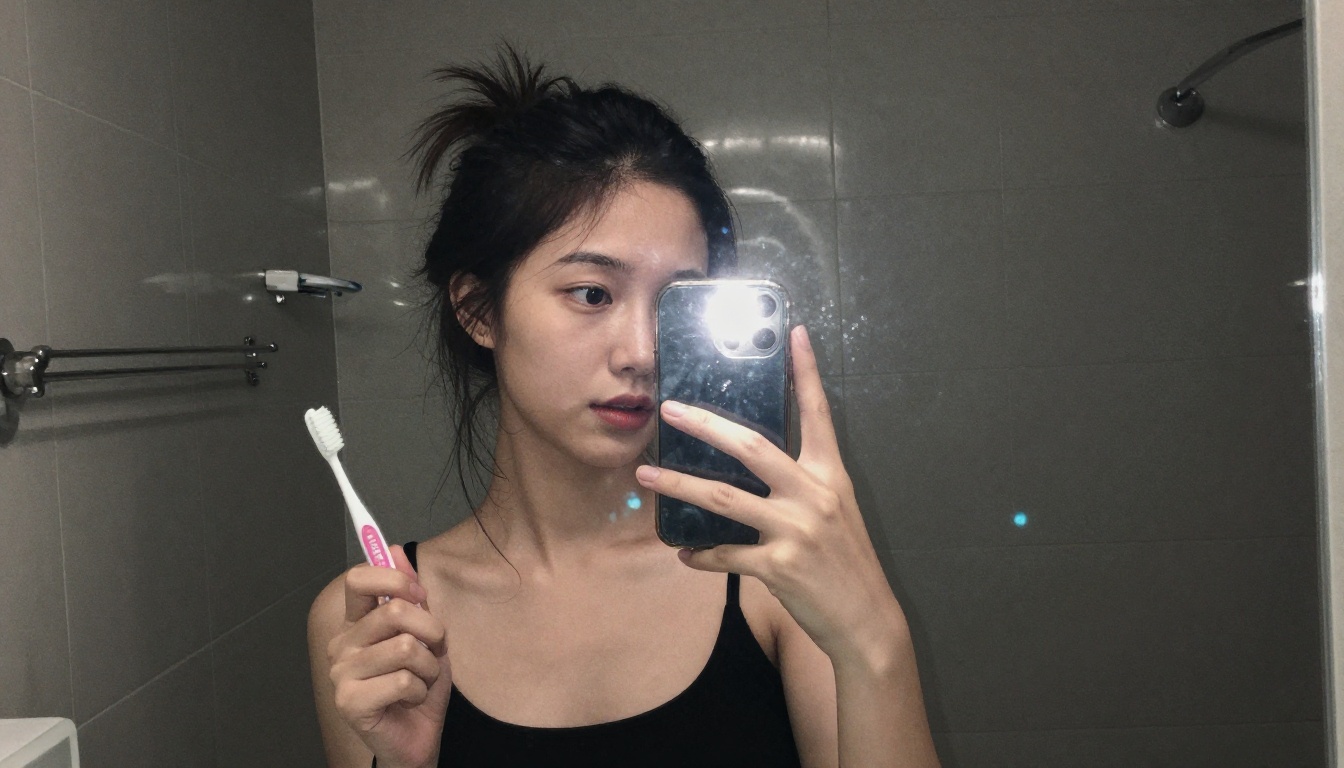
"Selfie of a girl" gives the model nothing to decide with, so it falls back on the same generic, over-smooth face every time. Specific light, a specific lens and a specific place are what make one result different from the next.
Heavy Smoothing
Asking for "flawless skin" or "perfect skin" is the fastest way to get the waxy look. Ask for "natural skin texture" and "no airbrushing" instead. When retouching a real photo, tell the editor to keep the pores.
Three more quick ones:
- Mixed styles: "photorealistic, anime, oil painting" in one prompt confuses the output. Pick one look and stay with it.
- Skipping resolution: a 1024 pixel selfie will fall apart on a large screen or a print. Generate at 2K or 4K, or run an upscaler last.
- The same pose every time: change the angle, the distance and the expression between runs, or your whole set will look like one frame repeated.
Make Your Own Selfies Today
You now have the full loop: a five-block prompt formula, twelve prompts to start from, a short list of models that handle faces well, and a free way to repair the photos you already took. The fastest way to get better at this is to run it. Pick one prompt from the list, paste it into Seedream 4.5, change a single block, and compare the results side by side. Then take your favorite and run it through Crystal Upscaler for a print-sharp finish.
Open PicassoIA, try a few of these prompts on your own face, and see how close you can get to a selfie that looks like you on your best day. Every model mentioned above is listed at picassoia.com/en/all-models, so you can compare them and keep the one that suits your style.


