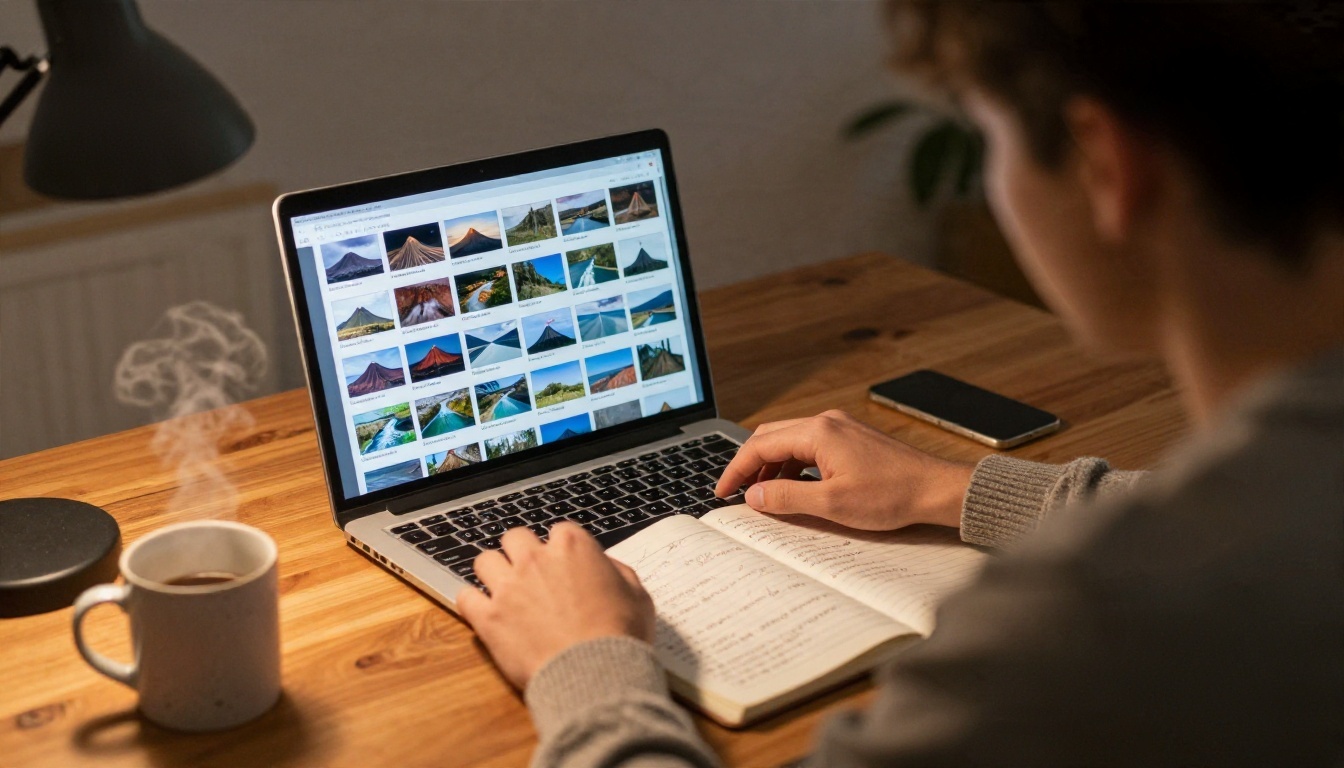
Sunday night, a laptop, and a lesson on volcanoes that starts in twelve hours. Most teachers know that feeling. The content is in your head, but the slides, the photos, and the narration for the student who missed class are not. An AI slideshow maker for teachers closes that gap by turning a rough outline into a finished deck, with pictures that match your topic and a voice that reads each slide aloud.
This article walks through the three pieces that matter (images, voiceover, and the online app that holds them together), then breaks down what the popular tools charge so you can decide where your money, or your zero budget, should go.
💡 Quick answer: Write the lesson outline with a language model, generate original photos for each slide, record the narration with a text to speech model, and assemble everything in the slide app you already use. Free tiers are enough for most single-classroom use.
What a Teacher Slideshow Maker Does
A good slideshow maker is not one magic button. It is a short chain of small jobs, and each job can be handled by a different tool.
The three parts of every deck
- Script and structure. A language model such as GPT 5.6 Luna can turn a topic, a grade level, and a time limit into slide titles, three bullet points per slide, and a short spoken script.
- Images. Instead of hunting through stock libraries, you describe the picture you need and generate it.
- Voiceover. A text to speech model reads your script, so the slideshow works for homework, substitute days, and absent students.
Who gets the most out of it
| Teacher situation | Biggest win |
|---|
| Primary school, many subjects | Fast visuals for topics outside your specialty |
| Secondary, one subject, five classes | Reusable decks with consistent look |
| Flipped classroom | Narrated slides students watch at home |
| Language teacher | Same slide, voiceover in several languages |
| Substitute cover plans | A deck that teaches itself while you are away |
If you teach the same unit every year, the time saving compounds. You build it once, polish it after the first class, and reuse it.
Images That Actually Fit Your Lesson
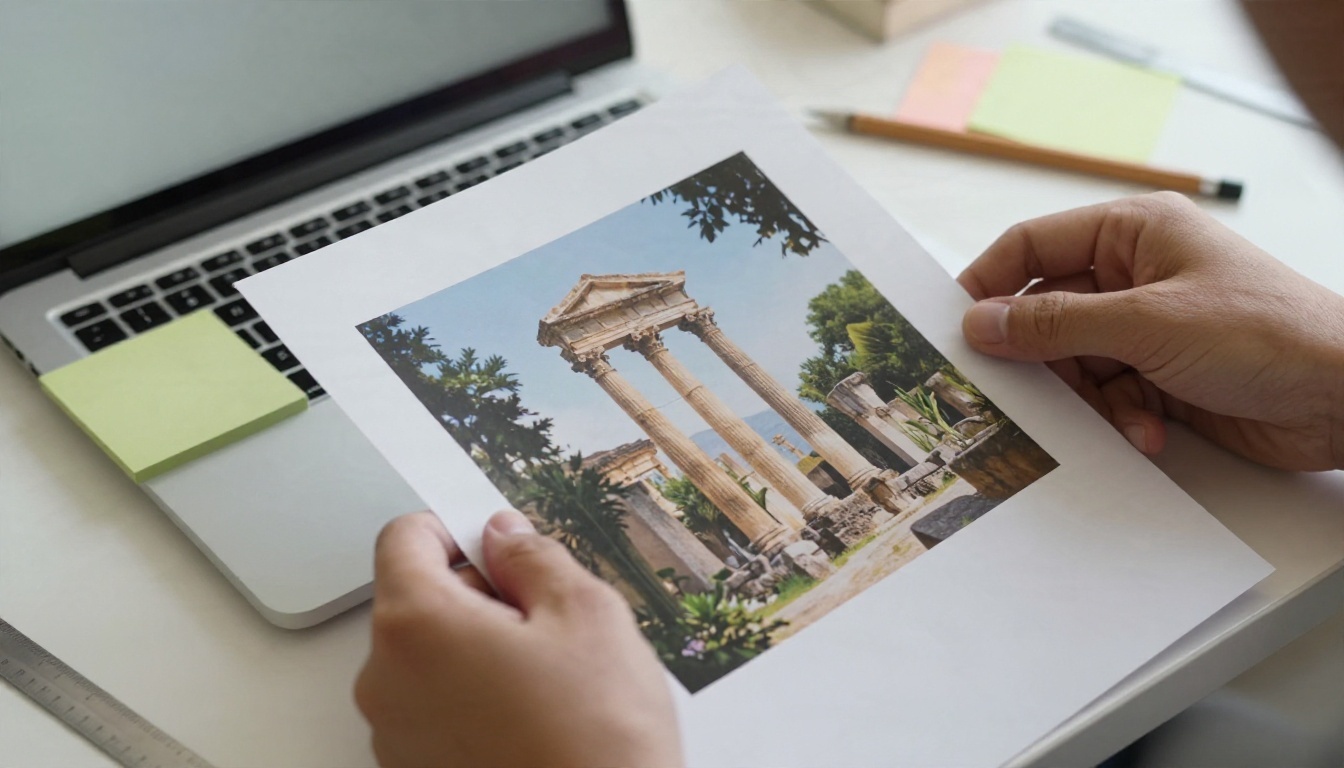
Stock photos have a familiar problem: the picture almost matches what you need. The monarch butterfly is on the wrong flower, the Roman ruin is crowded with tourists, the classroom scene looks nothing like your students.
Generate instead of searching
A text to image model lets you describe the exact scene. Seedream 4.5 is a strong pick for sharp, realistic photographs at high resolution, which matters when a slide is projected on a big wall. Nano Banana Pro is handy when you want to edit an existing picture, and Qwen Image 3 gives you another photorealistic option if you want to compare results. For quick drafts, Flux 2 Klein 4B Base is a lighter model.
Prompts that work in a classroom
The best slide images are simple and uncluttered, with empty space where text will sit. A prompt formula that works:
- Subject: what the student should notice first
- Setting: where it happens
- Light: natural daylight, golden hour, overcast
- Camera: wide shot, close-up, low angle
- Space: "empty sky on the left for text"
Example: a monarch butterfly resting on a purple coneflower, shallow depth of field, soft morning light, clear blurred background on the right side, natural photograph.
💡 Tip: Ask for the same lighting and color mood across a whole deck. Ten slides with a consistent look feel professional even when the slide design is basic.
Fix resolution before you project
A photo that looks fine on a laptop can turn soft on a classroom projector. Run important images through Real ESRGAN to upscale them 4x. It takes seconds and removes the fuzzy-edge look on a large display.
Voiceover for Slides
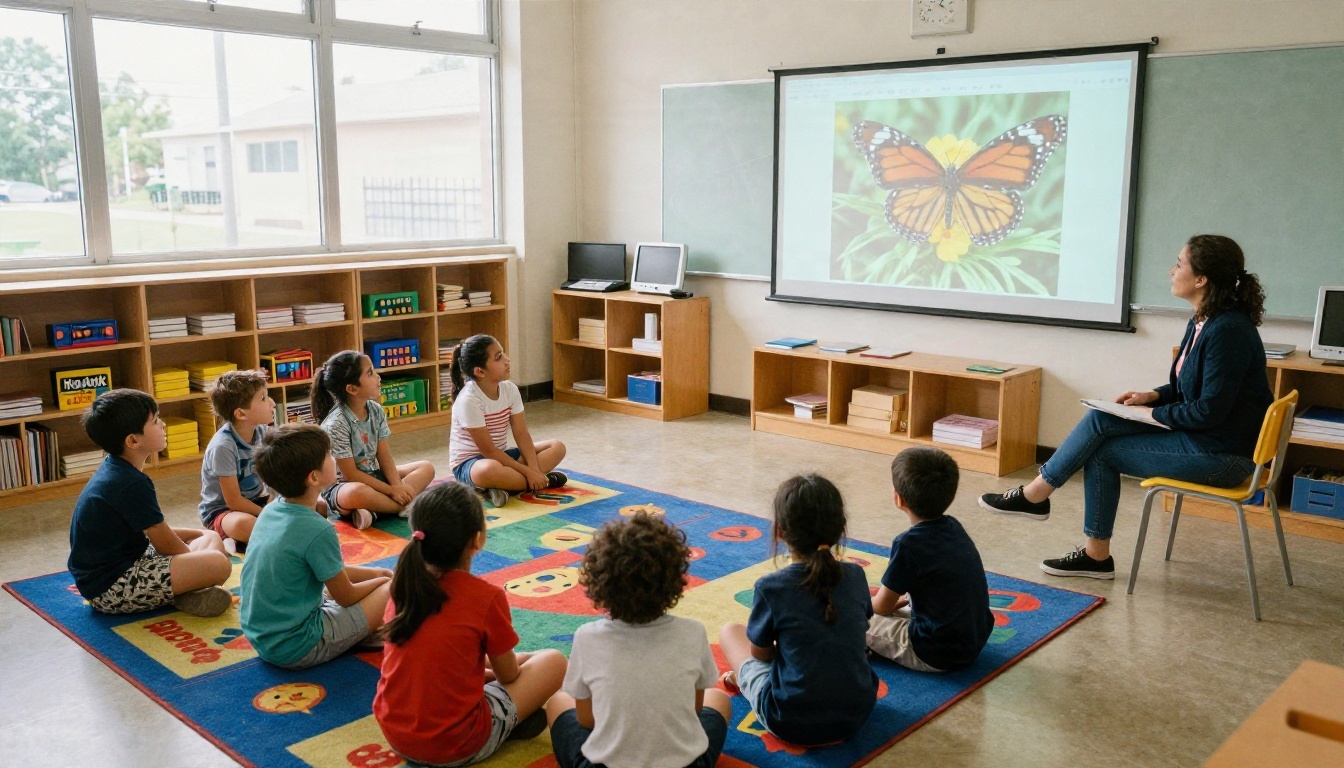
Narration is where a slideshow stops being a classroom prop and becomes a lesson students can use alone. It also saves your voice on days when you teach six periods in a row.
Pick a voice that suits the age group
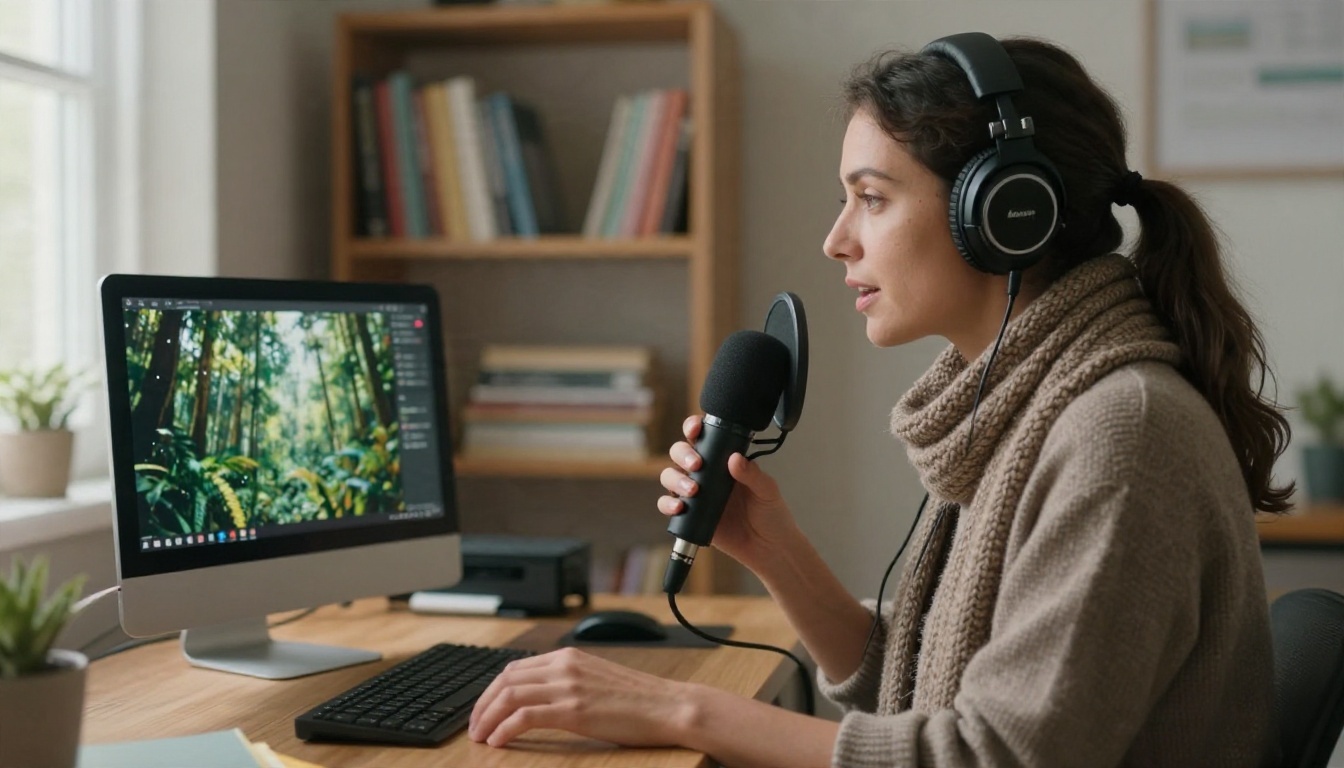
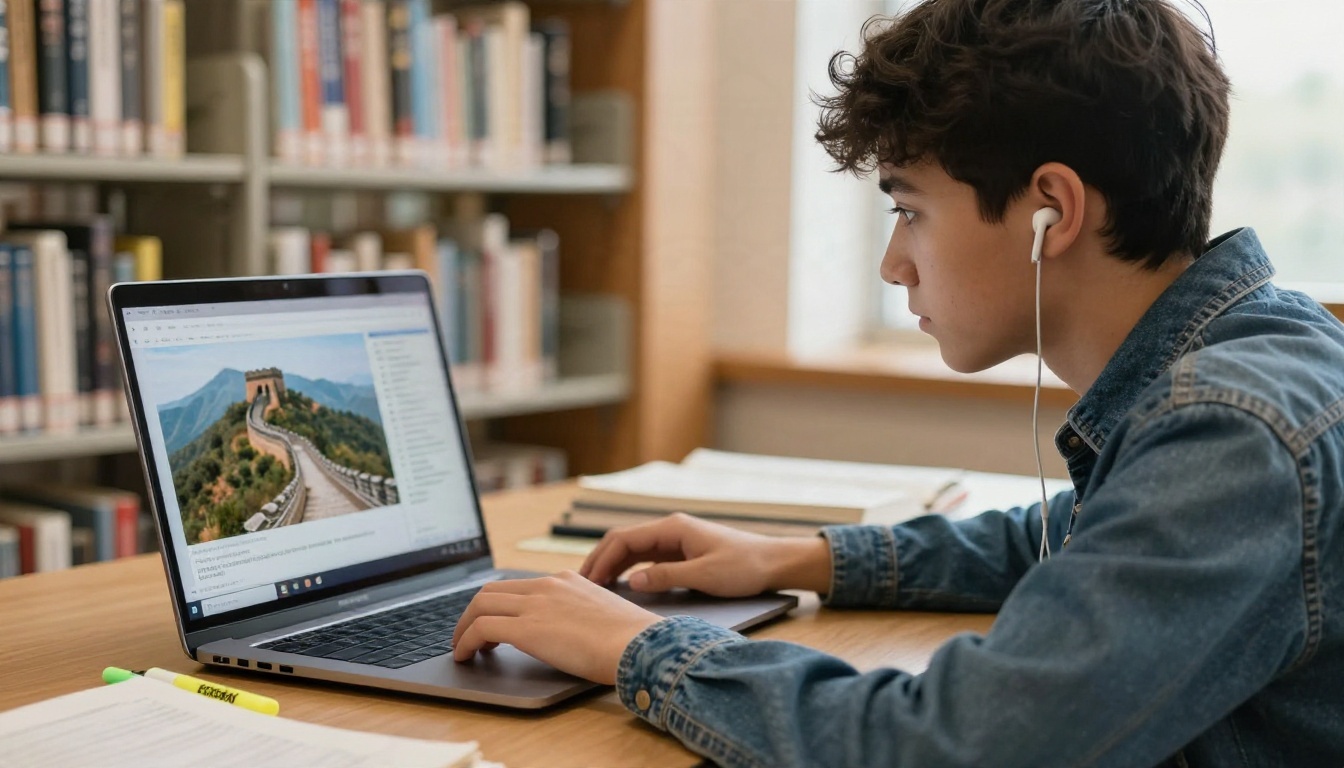
Younger students respond to a warm, slow, friendly reader. Older students tolerate a faster, neutral pace. On PicassoIA you can compare several voice models with the same script:
Write for the ear, not the eye
A slide that reads well often sounds stiff when spoken. Three habits fix most of it:
- Keep sentences under 20 words.
- Spell out numbers and symbols the way you would say them.
- Add a pause cue, such as a short sentence on its own line, after each new idea.
Paste your script into the voice model, listen once at normal speed, then fix the lines that stumble. A two-minute script usually needs two passes.
Languages and access
Narration helps students who read slowly, students learning the language of instruction, and families who want to follow along at home. With ElevenLabs Dubbing you can translate a finished narrated video into 90+ languages, and ElevenLabs Music can produce a quiet instrumental track for the opening slide if you want one.
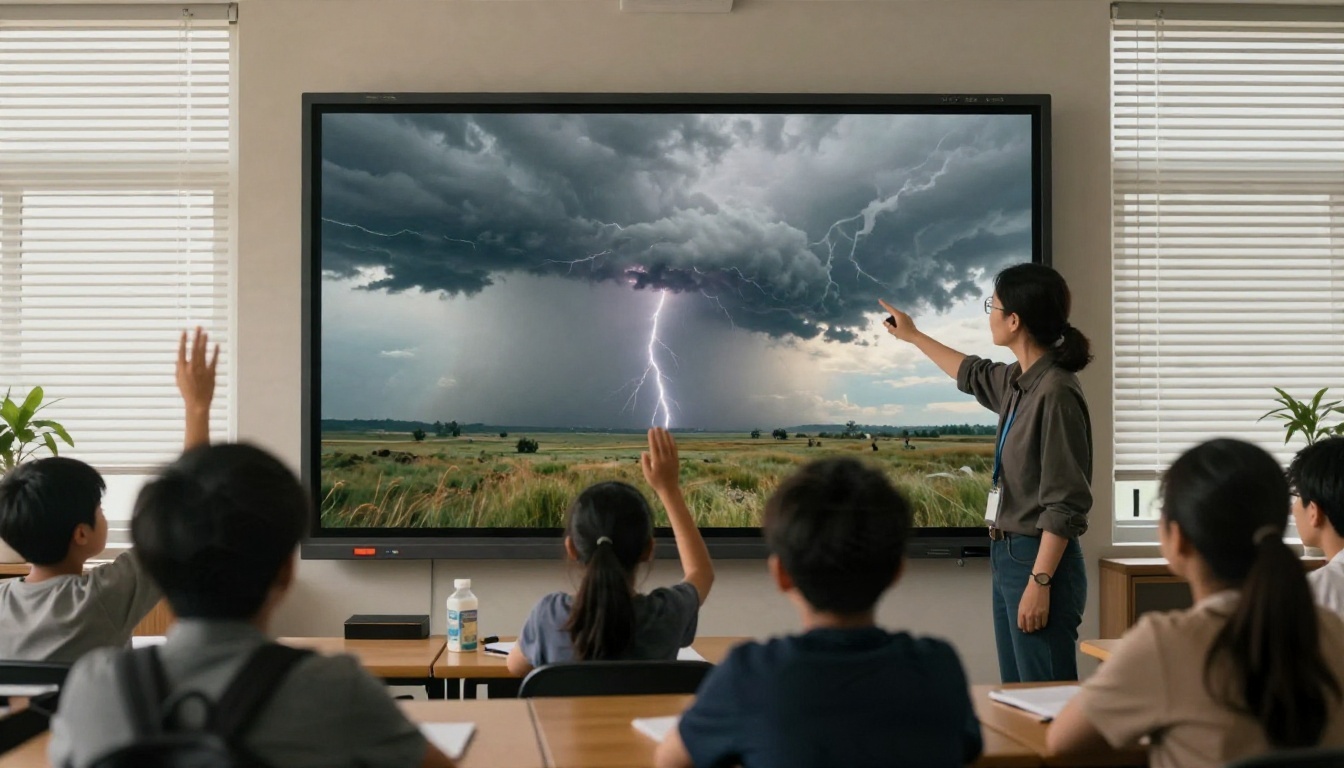
💡 Short clips: If one slide needs motion, such as clouds building into a storm, a video model like LTX 2.5 Fast can animate a still photo into a short clip you drop into the deck.
Online App Options Compared
The assembly step happens in a slide app. Most teachers already have one, and that is a good reason not to switch.
What the popular apps offer
The table below summarizes how the common tools position themselves based on what their own sites and reviews say. Features change often, so treat this as a starting map.
| App | Strength | Watch out for |
|---|
| Canva | Free for verified K-12 teachers, huge template library, exports to PDF and PowerPoint | No built-in standards alignment |
| Gamma | Fast full-deck generation from a prompt | Limited free AI credits |
| MagicSchool | Built around teacher tasks beyond slides | Slide tool tends to give an outline first |
| Curipod | Interactive polls and quizzes inside slides | Free features are limited |
| Google Slides | Already in most school accounts | Basic native AI features |
| PowerPoint | Familiar, strong export and narration recording | Cost depends on your school license |
Where PicassoIA fits
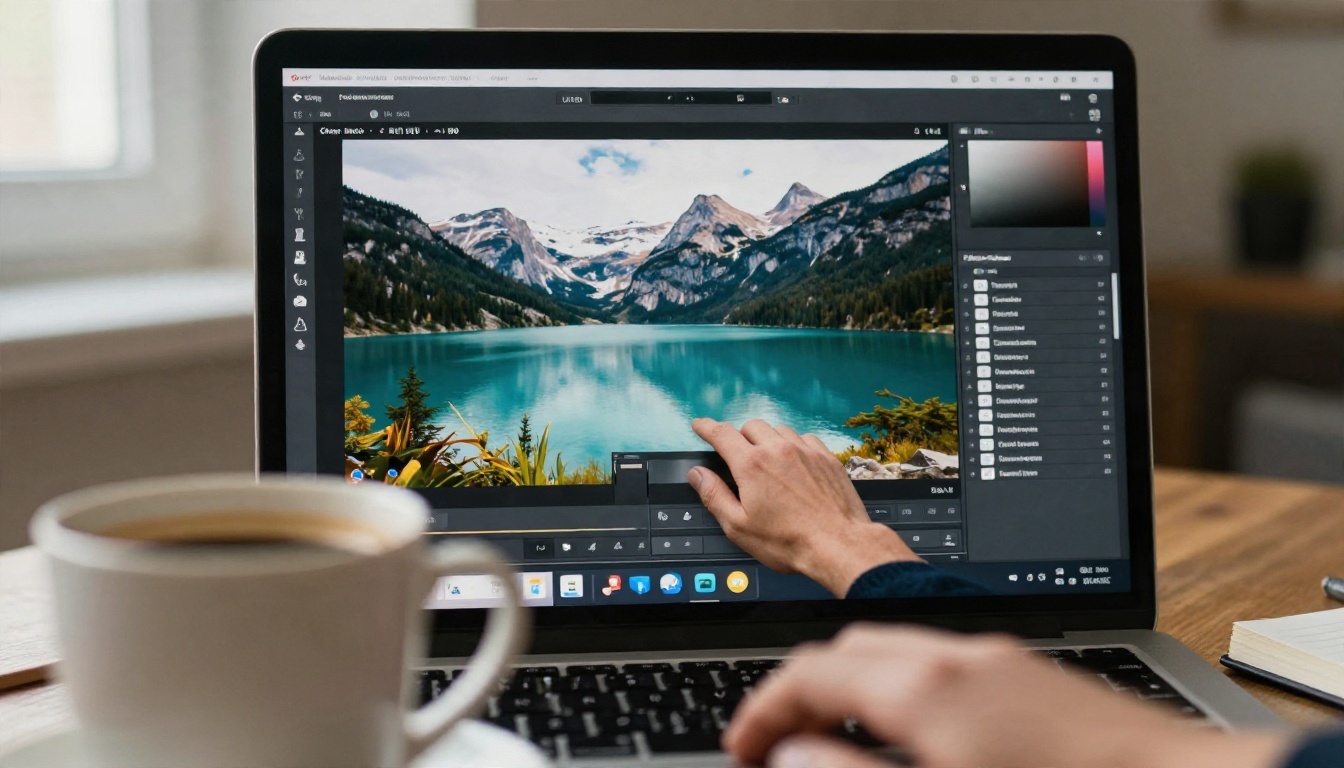
PicassoIA is not a slide editor. It is the place where you create the raw material: the script, the original pictures, the narration audio, and the optional short video clip. You then drop those files into Canva, Google Slides, or PowerPoint. This split has a real benefit. Your deck is not locked inside one app, so if you change tools next year, your images and audio come with you.
💡 Rule of thumb: If an app generates slides, images, and voice in one place, you save clicks but lose control. If you generate each piece separately, you pick the best model for each job.
Pricing: What Teachers Really Pay
Prices in this category move quickly, and several review sites disagree with each other, so check each vendor's own page before you pay. The figures below are rough ranges based on recent reviews.
Typical plans at a glance
| Tool | Free option | Paid plan, rough range |
|---|
| Canva for Education | Free for verified K-12 teachers | Not needed for most classroom use |
| Gamma | Free plan with a limited, one-time credit pool | Around $8 to $10 per month |
| MagicSchool | Free tier | Around $8 to $13 per month |
| Curipod | Free tier for teachers | Around $7.50 to $9 per month |
| Plus AI | Short trial | From about $10 per month |
| Chalkie | Free tier | About $6.65 per month |

The hidden costs
Subscription price is only part of the story. Watch for:
- Credit limits. A free plan that gives you a fixed pool of credits can run out after a handful of decks.
- Export locks. Some tools only export to PowerPoint on paid plans.
- Watermarks. Fine for drafts, awkward for parent evenings.
- Per seat pricing. A department of eight changes the math fast.
A low-cost setup that works
If you want to spend as little as possible:
- Use the free Canva for Education plan or the slide app your school already provides.
- Write your script with a language model on PicassoIA.
- Generate only the images you cannot find elsewhere.
- Record narration only for lessons students will watch alone.
That setup costs close to nothing for a normal week of teaching, and you add a paid tier only if you hit a real limit.
A Step by Step Workflow
Here is the process in order. A ten-slide deck takes most teachers about 45 minutes the first time and 20 once they have a routine.
Step 1: Outline with a language model
Give GPT 5.6 Luna the topic, grade, lesson length, and one learning target written as a simple sentence. Ask for ten slides, each with a title, three short bullets, and a 40-word spoken script. Edit freely. You know your students better than any model does.
Step 2: Generate one image per slide
Write a one-line prompt for each slide. Generate two or three options with Seedream 4.5 and pick the cleanest. Keep a consistent light and color mood.
Step 3: Upscale what will be projected
Run the main images through Real ESRGAN. Skip small thumbnails.
Step 4: Record narration
Paste each script into Speech 2.8 HD or another voice. Save one audio file per slide, which makes later edits painless: change one sentence and replace one file.
Step 5: Assemble in your slide app
Import images, add audio to each slide, and set slides to advance automatically if the deck is meant to play alone. Export to PDF for sharing and to the native format for editing.
Step 6: Test on the real projector
Open the file on the classroom computer before the lesson. Check audio volume at the back of the room and make sure no image looks soft.

Common Mistakes to Avoid
Too much text on the slide. The voiceover carries the detail. The slide only needs a title and a few words.
Trusting facts blindly. Language models can make confident errors, and a generated picture is an illustration, not evidence. Check dates, names, and numbers against your textbook or a reliable source. Label generated images as such when you teach topics like history or science, so students do not mistake them for archive photographs.
Mismatched visuals. One photo in golden light and the next in flat gray makes a deck feel patched together.
Skipping the student test. Show one slide to a colleague or a student before you build all ten. If they cannot tell what the picture shows, rewrite the prompt.
Ignoring school policy. Some districts restrict which tools you may use with student data. Narrated decks that only contain your own lesson content are usually simple, but ask your administrator before uploading anything with student names or faces.
💡 Privacy habit: Never include real student photos or names in a prompt or script. Describe generic scenes instead.
Try Your First Lesson Deck
You do not need to rebuild your teaching around AI. Pick one lesson you will teach next week, write a ten-slide outline, generate the images, record the narration, and drop everything into the slide app you already trust. If it saves you an hour, repeat it. If not, you lost one evening and gained a set of original images.
Everything described here, from script writing to photorealistic images, upscaling, and voiceover, is available on PicassoIA. Start with Seedream 4.5 for your first slide image, add narration with Speech 2.8 HD, and browse the full list of tools at picassoia.com/en/all-models. Build one slide today and see how it sounds in your classroom tomorrow.


