You've probably heard someone say "AI can do that for you" and thought: great, but I have no idea where to start. That feeling is more common than you think, and it has nothing to do with intelligence. It has everything to do with how AI tools have been presented, full of terminology that sounds intimidating and tutorials that assume you already know what a neural network is. You don't need any of that. This article is about getting you creating images with AI today, without the vocabulary test.

What AI Actually Does
Words In, Pictures Out
Here is the entire process in one sentence: you type a description, and the AI draws it. That's it. No programming, no Photoshop skills, no design background required. You write something like "a dog sitting on a beach at sunset" and within seconds you get a realistic image of exactly that.
The technical side, things like diffusion models, latent space, and transformer architecture, is completely invisible to you. You never touch it. Think of it the way you think about sending an email. You don't know how email servers route your message across the globe, and you don't need to. You just write and press send.
AI image generation works exactly the same way. You describe what you want. The tool produces it. The only skill involved is knowing how to describe things clearly, which is something you already do every day.
No Code Required
One of the biggest myths about AI tools is that you need to be a developer to use them. You don't. The tools available today have simple, clean interfaces that work on any browser, any phone, and any computer. If you can use a search engine, you can use an AI image generator.
The same way you don't need to know how a camera works to take a good photo, you don't need to know how an AI model works to create a great image. The complexity is handled entirely behind the scenes.
Why People Think It's Complicated
The Jargon Trap
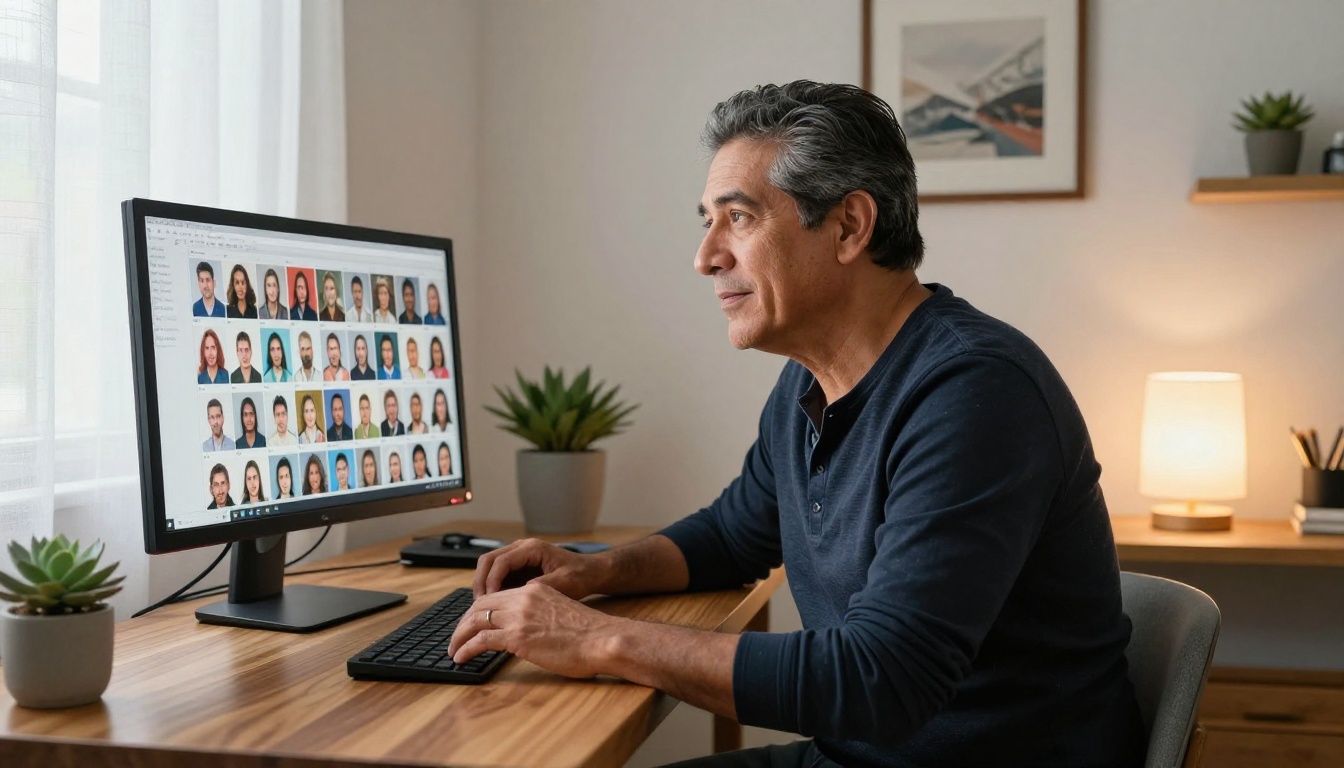
Most AI content online is written by people who are deeply inside the technology. They forget that terms like "CFG scale," "LoRA weights," and "negative prompts" mean nothing to someone who just wants to make a nice image for their social media post. This creates a false impression that AI image tools are hard to use.
They're not. The jargon is describing what's happening under the hood, but you never have to see under the hood. You can drive a car every day without knowing what a differential gear is.
💡 If an article about AI makes you feel like you need a degree to continue reading, skip it. Most of what you need to know fits in a few sentences.
No Algorithms to Worry About
Some people get stuck because they want to fully grasp how something works before they try it. With AI image generation, this approach will slow you down considerably. The tools are designed to be used, not studied.
The best approach is to start making images immediately, see what comes out, adjust your description, and try again. Within thirty minutes of actual use, you'll know more than you'd pick up from a week of reading about it.

What You Can Actually Create
The range of things you can make with AI image tools today is genuinely surprising. Here's a quick look at what's possible:
Portraits and People
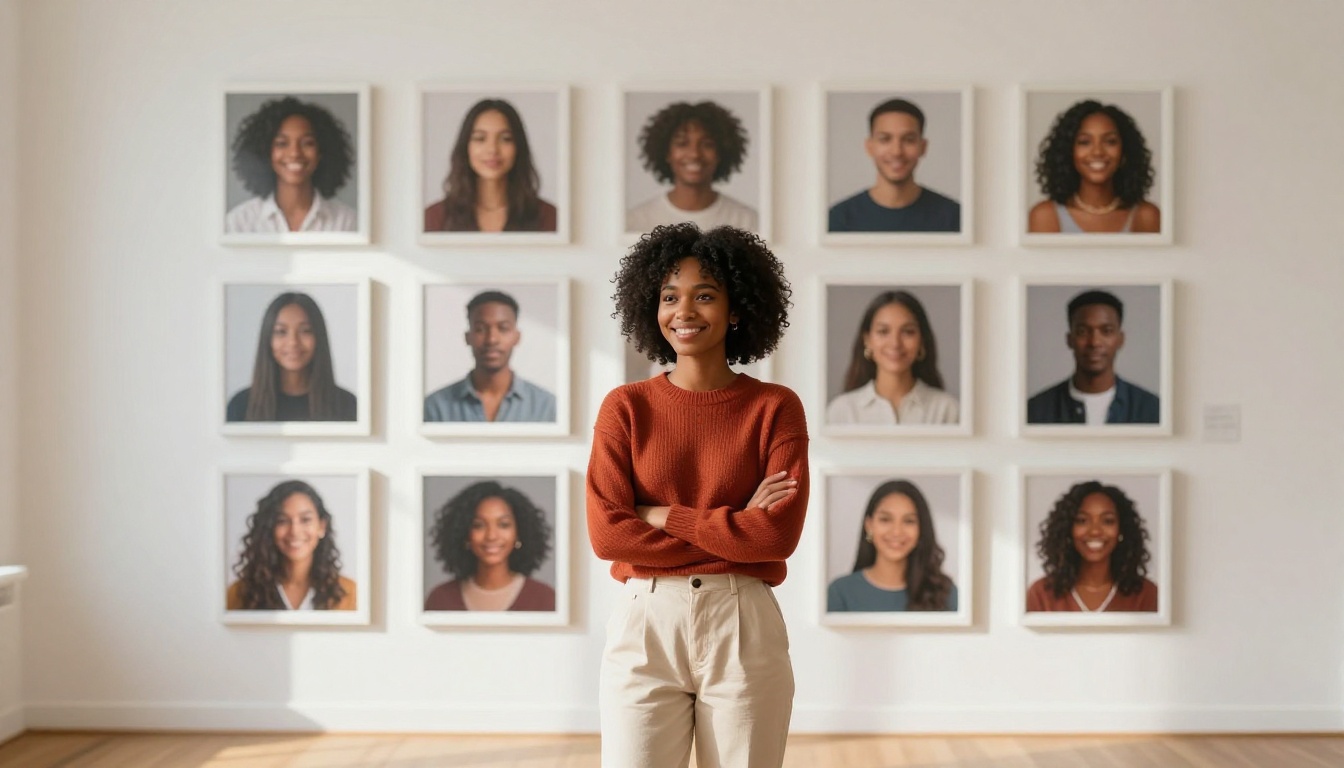
Want a photo-realistic portrait of a fictional character? A professional headshot of an invented person? AI tools can generate faces with extraordinary detail, including realistic skin texture, natural lighting, and genuine expressions. You can specify age, style, mood, clothing, and background, all from a text description.
Scenes and Settings
Landscapes, city streets, interior spaces, natural environments, historical settings. If you can describe it, AI can picture it. A rainy afternoon in 1920s Paris. A quiet Japanese garden in autumn. A sunlit kitchen from a specific angle. These are all within reach.
Product and Brand Visuals
Small business owners use AI image tools to create product mockups, social media graphics, and brand imagery without paying for a photo shoot. A bottle of olive oil on a rustic wooden table with herbs scattered around it takes seconds to generate and costs nothing.
| Use Case | What You Type | What You Get |
|---|
| Social post | "woman smiling in a coffee shop, warm light" | Realistic lifestyle photo |
| Product mockup | "skincare bottle on marble with flowers" | Clean product shot |
| Blog image | "cozy home office with laptop and plants" | Editorial-style photo |
| Personal art | "sunset over the ocean, film grain, warm colors" | Beautiful landscape image |

There are many AI image generators available today. A few stand out for different reasons, and they're all accessible on PicassoIA without any setup or installation.
GPT Image 2 for Everyday Use
GPT Image 2 is one of the most beginner-friendly models available. It handles natural language descriptions particularly well, meaning you don't have to write in any special format. Just describe what you want in plain sentences and it delivers results that are consistently polished and realistic. It's the model most people should start with.
Stable Diffusion 3 for Detail Lovers
Stable Diffusion 3 is a great option when you want more control over the visual output. It produces crisp, high-detail images and responds well when you describe specific textures, lighting conditions, or compositional elements. Once you feel comfortable with basic prompts, this model rewards more descriptive writing.
Flux 2 Klein for Style Control
Flux 2 Klein 9B Base LoRA is ideal if you want strong control over the visual style of your images. It handles stylistic instructions very effectively and produces images with a consistent aesthetic. Photographers and designers tend to gravitate toward it once they move past the basics.
Seedream 4.5 for 4K Quality
When you want the highest visual fidelity, Seedream 4.5 delivers 4K-quality output with impressive detail retention. It's excellent for images you plan to print or use in high-resolution contexts like banners, posters, or presentations.
💡 Where to begin: Start with GPT Image 2. It's the most forgiving for first-time users and produces great results with simple, conversational descriptions.
Writing Your First Prompt
Start With Three Simple Words
Your first prompt doesn't need to be a paragraph. Start with just three elements: subject, setting, and mood.
- Subject: what is in the image? (a woman, a mountain, a cup of coffee)
- Setting: where is it? (in a park, on a desk, at the beach)
- Mood: what does it feel like? (peaceful, dramatic, warm, moody)
Put them together and you have a working prompt: "a woman in a park, warm afternoon light." That's enough to get a genuinely good result on your first try.
What Makes a Prompt Work
Better prompts are more specific prompts. Compare these two:
Weak: "a house"
Strong: "a white wooden farmhouse surrounded by tall sunflowers, golden hour light, wide-angle shot, film grain"
The difference isn't complexity. It's specificity. The more clearly you can visualize what you want, the better the result. Think like you're describing a scene to someone over the phone and they have to draw it from your words alone.
Here are a few additions that consistently improve results:
- Lighting terms: golden hour, soft morning light, overcast sky, candlelight
- Camera angles: aerial view, close-up, eye level, low angle
- Mood descriptors: peaceful, nostalgic, energetic, intimate
- Quality cues: 8K, photorealistic, RAW photography, film grain
Common Mistakes (And Fixes)
| Mistake | Why It Hurts | Fix |
|---|
| Too vague | AI doesn't know which direction to take | Add 3-5 specific details |
| Too many ideas at once | Result feels chaotic and unfocused | Focus on one main scene |
| No lighting info | Images can look flat and lifeless | Add one lighting descriptor |
| No mood or style | Output feels generic | Add one adjective for feel |
How to Use GPT Image 2 on PicassoIA
GPT Image 2 is a perfect starting point. Here's exactly how to use it, step by step.
Step 1: Open the model page
Go to the GPT Image 2 page on PicassoIA. You'll see a text input field front and center. Nothing else to install or configure.
Step 2: Type your prompt
Write your description in the input field. Start simple. Try something like: "a cup of coffee on a rainy window sill, warm indoor light, close-up shot." Plain language works perfectly here.
Step 3: Choose your settings
You'll see options for image size and aspect ratio. For social media posts, 1:1 works well. For blog headers or desktop wallpapers, 16:9 is the right choice. Leave all other settings at their defaults for now.
Step 4: Generate and review
Click the generate button. Within seconds you'll see your result. If you like it, save it. If you want to adjust it, change one or two words in your prompt and generate again.
Step 5: Refine through iteration
Good results rarely appear from the first prompt. The real process looks like this: generate, see what you got, change something specific, generate again. After three or four rounds, you'll have something you're genuinely happy with.
💡 Iteration is the process. Professional AI artists run dozens of generations per image. There is no "wrong first try." Every attempt teaches you something.

Real Prompts, Real Results
Before and After
Nothing shows the difference like seeing actual prompts side by side.
Prompt 1 (basic): "a beach"
The result will be generic. Pleasant, but forgettable. It could be any beach on any day with no character or story.
Prompt 2 (specific): "an empty white sand beach at dawn, soft pink light on the water's surface, shallow depth of field, film grain, no people"
Now you get something with mood and intention. The light has a specific quality. The emptiness feels deliberate. The film grain makes it warm and analog. Both prompts required the same technical knowledge: none. The only difference is how much you described.
The Difference Detail Makes
Think about how you'd describe a photo you love to a friend. You wouldn't say "it's a person." You'd say "it's this woman, she's laughing, the light is hitting her from behind, and the background is all blurry." That's a prompt.
The words you naturally reach for when describing something you love are almost exactly what you need. Trust your instincts. Be specific. Use plain language.
| Detail Level | Example Prompt | Quality of Result |
|---|
| Minimal | "a dog" | Generic, forgettable |
| Moderate | "a golden retriever sitting in a field" | Better composition, still plain |
| Detailed | "a golden retriever sitting in a sunlit field, tilting head, shallow depth of field, warm afternoon light, photorealistic" | Genuinely impressive |
Beyond Basic Image Creation
Once you're comfortable generating images, PicassoIA opens up into a much wider set of tools. You can edit specific parts of an image by describing the change you want. You can remove backgrounds in seconds. You can scale a small image to print-quality resolution using Wan 2.7 Image Pro. You can even restore old, damaged photos with AI image restoration tools.
None of these require more technical knowledge than what you've already read. The same principle applies across every tool: describe what you want. The platform does the rest.
Here's a quick look at what's available:
- Image editing: Change specific elements by describing the change you want
- Background removal: One click, instant clean result
- Image upscaling: 2x to 4x resolution without visible quality loss
- Photo restoration: Fix old or damaged photographs automatically
- Style adjustments: Apply a specific photographic look to any image
Start Creating Right Now
The only thing left is to actually do it. Pick a simple scene you'd like to see. Describe it in one or two sentences. Go to GPT Image 2 on PicassoIA and paste your description into the prompt field.
You don't need to prepare. You don't need to read more. The tool is waiting for your words, and the first image you make will show you more than anything you could study.
The thing about AI image generation is that it rewards curiosity far more than expertise. The people who get the best results aren't the ones who know the most. They're the ones who try the most. They generate often, they adjust without overthinking it, and they stay genuinely curious about what comes out.
That's the only thing this requires. And you already have it.
PicassoIA gives you access to over 90 text-to-image models, including GPT Image 2, Stable Diffusion 3, Seedream 4.5, and Flux 2 Klein 9B Base LoRA, all in one place, all usable right now with nothing more than a plain description. Whether you want to create something for your business, your personal projects, or just to see what AI can do, the starting point is exactly the same: open a model, type what you see in your head, and press generate.
Start with GPT Image 2. See what happens. That's all it takes.


