That photo of your grandmother at the kitchen table, the one from 1973 with the brown wallpaper and the coffee mug she always held with both hands. She is completely still in it. She has been still for fifty years. But what if she could look up, just for a second, the way she always did when someone walked into the room? That is exactly what AI photo animation does, and it takes less time than you might expect to animate family photos in minutes using tools that are accessible to anyone.
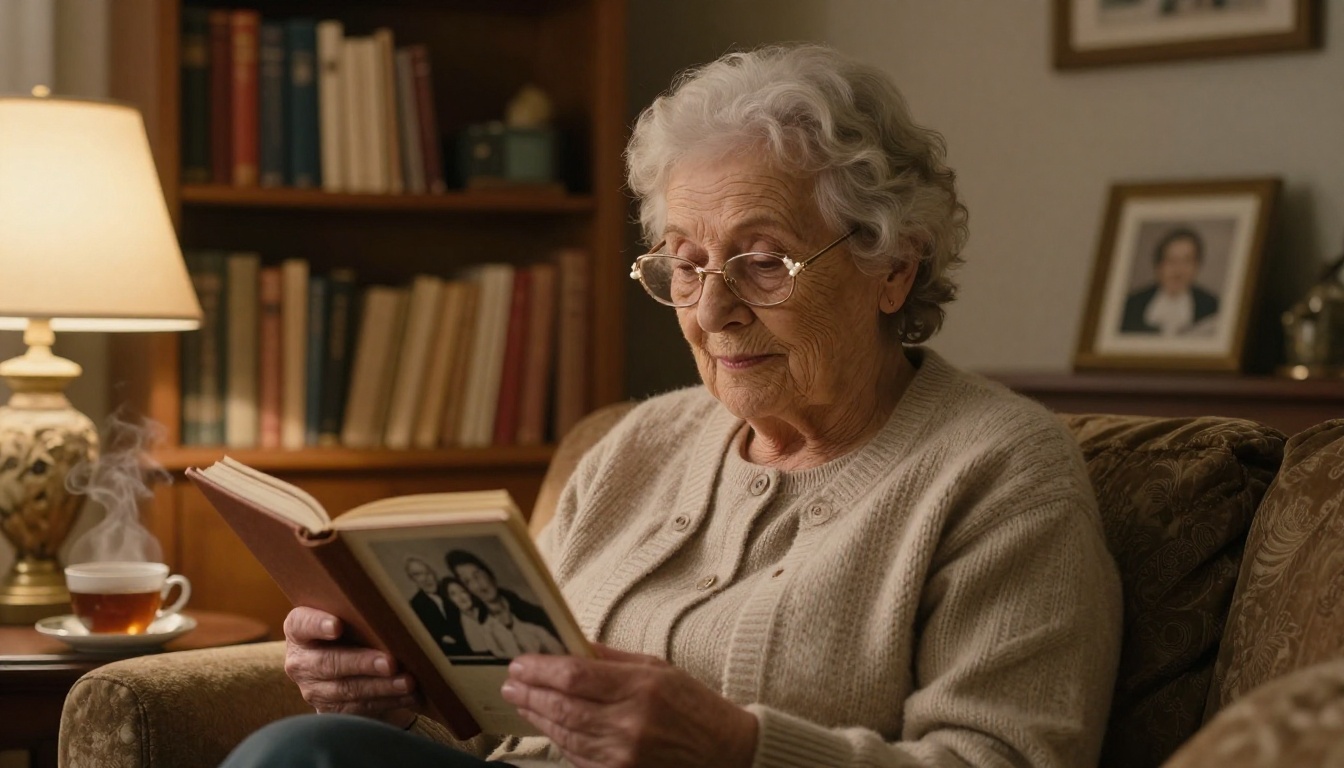
Why Static Photos Feel Like Lost Moments
There is a specific kind of grief that comes with old photographs. You can see the person. You remember the sound of their voice, the way they moved through a room, the particular way they smiled. But the image holds none of that. It is flat. It is silent. It is the opposite of a memory.
This is why so many people have started looking for ways to bring old photos to life. Not to alter history or create something fake, but to feel, for a brief moment, a sense of motion and presence in an image that otherwise only hints at it.
AI photo animation does not reconstruct reality. It generates plausible motion based on what the model understands about how people, light, and environments move. The result is not always perfect. But when it works, it is deeply moving in a way that surprises almost everyone who tries it for the first time.
💡 Photo animation works best on portraits. Images where a face occupies a significant portion of the frame produce the most emotionally resonant results.
What AI Photo Animation Actually Does
When you upload a family portrait to an image-to-video model, the AI analyzes the photo and predicts what motion would look natural given the subject, background, and composition. It generates a short video, typically between 3 and 10 seconds, in which the person appears to breathe, blink, turn slightly, or respond to an invisible environment.
The underlying technology is called image-to-video generation, or I2V. These models are trained on millions of hours of video footage, which gives them a deep understanding of how physical objects move, how light changes over time, and how human faces shift expression. When you give them a still image, they fill in the temporal dimension that was missing.
Modern I2V models have improved dramatically. The best ones today produce results that are smooth, naturalistic, and surprisingly faithful to the original photograph. Hair moves in a subtle wind. Eyes shift with lifelike weight. A slight smile plays at the corner of a mouth. The result is less than a second of motion repeated over several seconds, but that is enough.
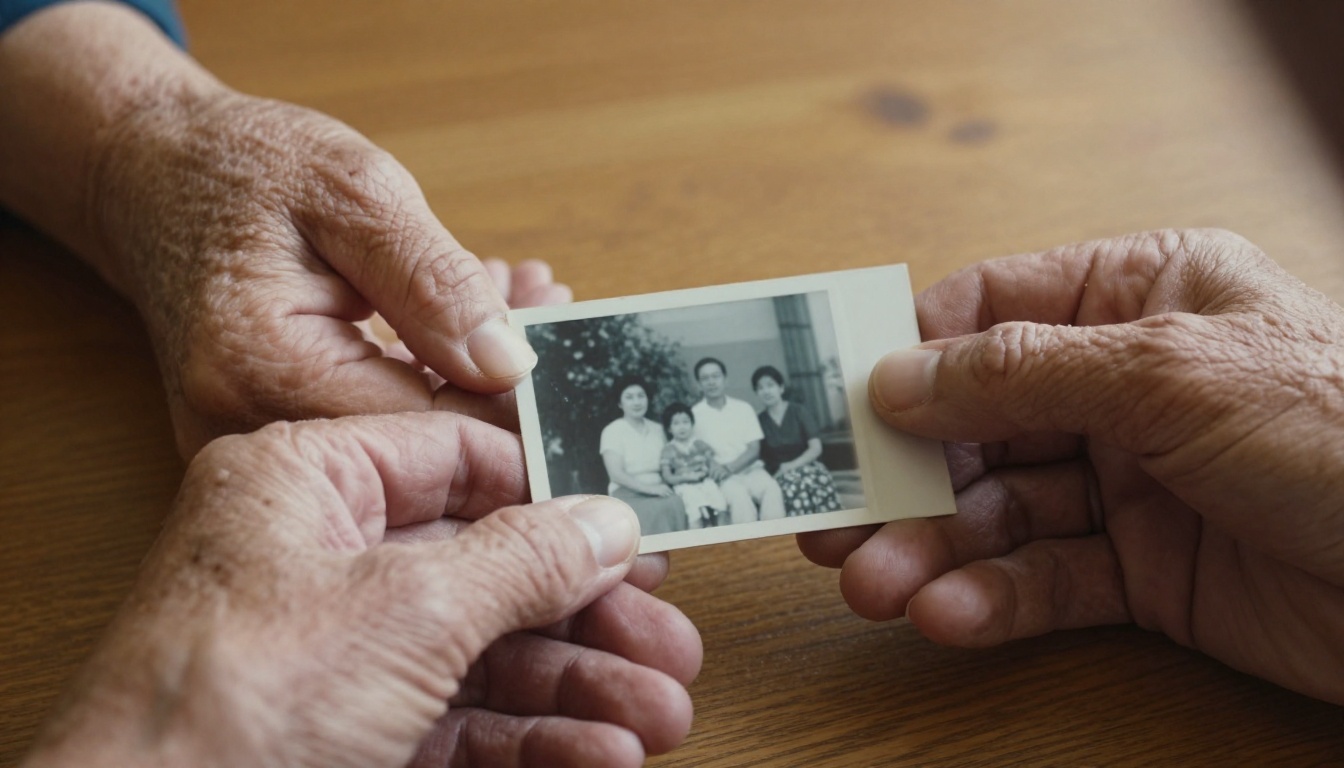
The Best Models for Animating Family Photos
Not every image-to-video model handles portrait animation the same way. Some are built for cinematic landscapes. Some specialize in stylized animation. For family photo animation, you want models that prioritize face fidelity and natural human motion. Here are the ones that deliver.
Wan 2.7 I2V - Smooth, Natural Motion
Wan 2.7 I2V is one of the strongest options available for animating still photos right now. It handles facial features with impressive care, preserving the likeness of the subject while adding motion that feels organic rather than mechanical. Hair, clothing, and background elements all respond realistically to implied movement. The output quality is high and the results are consistent across a wide variety of portrait styles, from modern color photos to older, lower-resolution prints.
If you want your animated family photos to look cinematic and believable, this is the model to start with.
Kling v2.6 Motion Control - Face-First Animation
Kling v2.6 Motion Control gives you more direct influence over how your subject moves. While most I2V models interpret a text prompt and generate motion based on their training, this model lets you steer the animation with greater precision. For family portraits where preserving the exact expression and posture of a subject matters, that control is invaluable.
Kling Avatar v2 is another strong option from the same family, specifically optimized for animating faces into short, expressive video clips. If the photo you want to animate is primarily a face or headshot, this model is worth trying.
Hailuo 2.3 Fast - Speed Without Sacrifice
Hailuo 2.3 Fast is the right choice when you want results quickly without a significant drop in quality. It processes images faster than most I2V models and still produces smooth, realistic motion. The trade-off is slightly less control over the finer details of the animation, but for casual family photo animation, the difference is rarely noticeable.
Video 01 Live from the same developer is also worth noting. It specializes in animating still images with a focus on making the motion feel natural and emotionally coherent, which is exactly what you want when the subject is someone you love.
More Options Worth Trying
How to Animate Family Photos on PicassoIA
The process is straightforward. You do not need technical experience, video editing software, or any special setup. Here is exactly how it works.
Step 1 - Choose the Right Photo
Not every family photo animates equally well. Some compositions work much better than others, and choosing the right starting image makes a significant difference.
Photos that animate well:
- Clear, well-lit portraits where the face is in focus
- Images where the subject fills a reasonable portion of the frame
- Photos with a relatively simple or non-busy background
- Images with good contrast between the subject and background
Photos that animate poorly:
- Very blurry or heavily pixelated images
- Group shots where many people are at a similar small scale
- Photos where the subject is mostly obscured or turned away from camera
- Images with extreme over or underexposure
💡 Old photos can still work. Even a grainy, faded photograph from the 1960s can produce a moving animation, particularly with the Wan I2V family of models which handle lower-resolution inputs more gracefully than some alternatives.
If you are working with an old photograph that has significant damage, yellowing, or scratches, consider running it through a super-resolution or AI image restoration tool first. Upscaling and cleaning up the image before animation consistently improves the final result.

Step 2 - Pick Your Model
Once you have your photo ready, navigate to the text-to-video collection on PicassoIA and select an image-to-video model. For most family photo animation work, Wan 2.7 I2V is the best starting point. Upload your photo using the image input field.
If you want to start with a free option to test the workflow before committing to a specific approach, Wan 2.1 I2V 720p produces solid results at no cost.
Step 3 - Write a Motion Prompt
This is the part that most people underestimate. The motion prompt you write has a direct and significant impact on the quality of your animation. A vague prompt produces generic, sometimes jarring results. A specific, well-crafted prompt produces naturalistic motion that feels true to the person in the photograph.
Think about what kind of motion would feel natural for the specific photo you are animating:
- A grandmother seated at a table: "subtle breathing, slight head turn toward camera, warm smile forming at the corner of the mouth, soft blink, gentle movement of hands"
- A grandfather standing in the garden: "natural breathing, slight sway in the breeze, eyes scanning the garden, subtle smile"
- A baby in someone's arms: "gentle breathing, small hand movement, eyes opening and closing slowly"
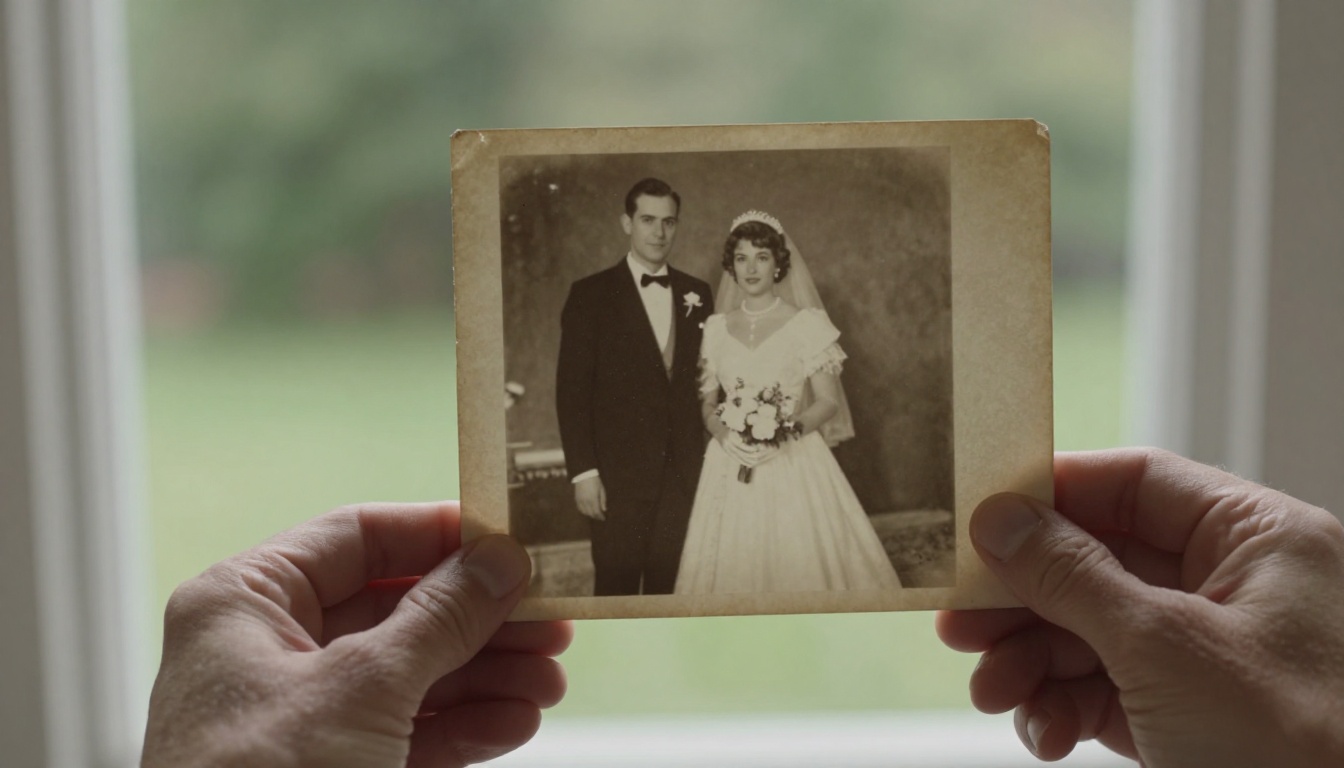
- A couple at their wedding: "subtle breathing, slight lean toward each other, soft smiling, natural eye movement"
The key principle is specificity and restraint. Ask for small, believable motions rather than large dramatic ones. Real people in real photographs were usually relatively still when the photo was taken, so the animation should reflect that.
Step 4 - Download and Share
Once the model finishes processing, you will have a short video file ready to download. Most outputs run between 4 and 8 seconds. The video loops naturally, which makes it ideal for sharing on social platforms or embedding in digital photo albums.
For sharing with family members who are not on social media, the video format works easily in any messaging app. Many people find that sharing an animated portrait of a family member who has passed away is one of the most meaningful things they have done with the technology.
5 Prompt Tips for Better Results
Writing good motion prompts is a skill that improves with practice. These five principles will get you to better results faster.
1. Start with breathing. Nearly every portrait benefits from the simple addition of "subtle, natural breathing" in the prompt. It is the most fundamental sign of life and immediately makes the image feel inhabited.
2. Reference the specific setting. If the photo was taken outdoors, mention "gentle breeze" for hair and clothing. If indoors, "soft light movement" can create warmth without anything feeling excessive.
3. Keep facial motion minimal. Asking for a "slight smile" or "natural eye movement" works far better than asking for a "big smile" or "laughing." Overcorrecting the expression can break the likeness.
4. Add a camera motion if the result feels too static. A subtle prompt addition like "gentle dolly in" or "slow zoom" can add cinematic feeling to an otherwise static animation.
5. Iterate. Your first attempt rarely produces the exact result you want. Try the same image with two or three different prompt variations before deciding on a final version.
💡 Try Kling v2.6 Motion Control when you want precise control over exactly how the subject moves. Its motion guidance tools let you specify direction and intensity in ways that pure text prompting cannot.
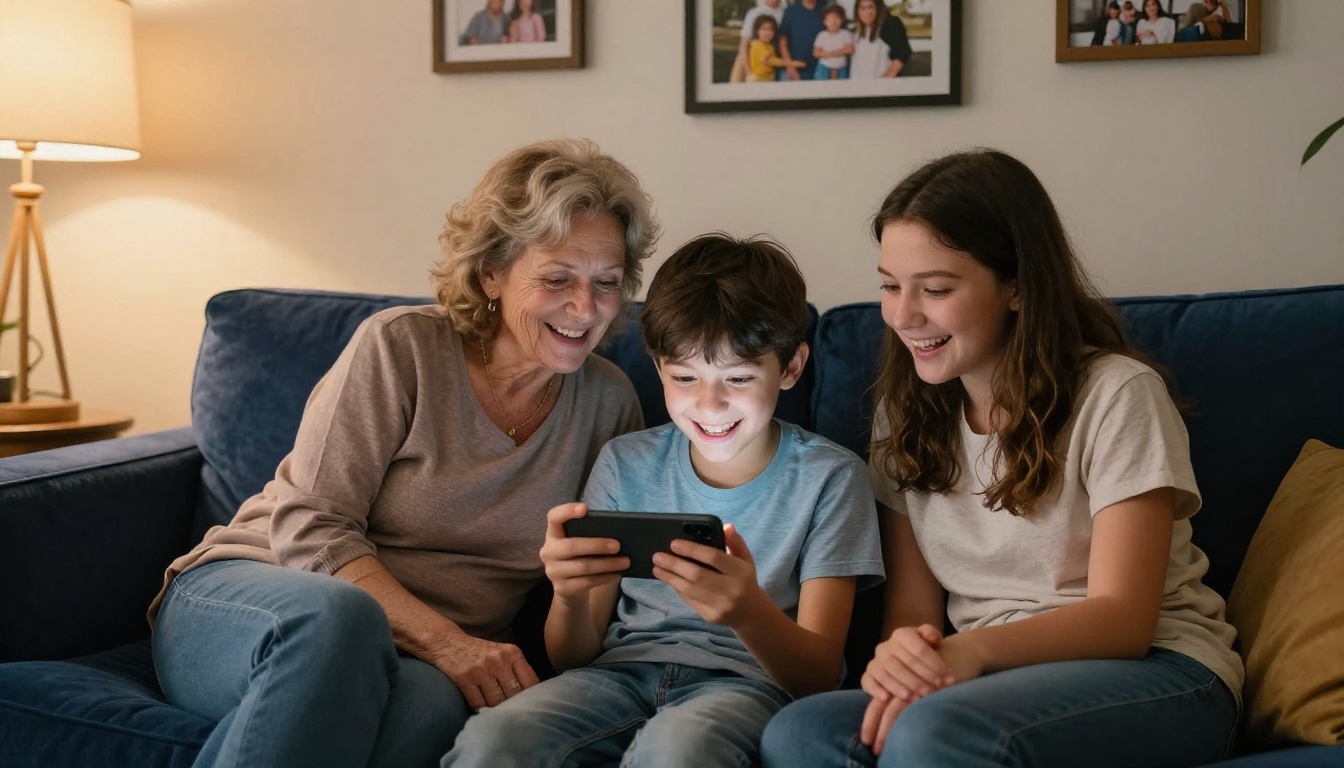
What To Do With Your Animated Photos
Once you have your first animated family photo, the question becomes: what do you do with it? There are more options than most people initially consider.
Share it privately with family. A family group chat is often the perfect venue. The reaction to seeing a deceased relative appear to move is frequently emotional, and sharing it in a private space gives people room to respond authentically.
Create a memorial video. Multiple animated portraits can be edited together into a memorial video for a birthday, anniversary, or funeral. This kind of tribute is deeply personal and something no template or stock footage can replicate.
Preserve it digitally alongside the original. Store the animated version next to the original photograph in your digital archive. Future generations will have both: the historical record and the living interpretation.
Print a QR code for physical albums. If you maintain physical photo albums, a small printed QR code next to a photograph can link to its animated version. Scanning the code brings the image to life without altering the physical artifact.
Use it as a tribute post. On birthdays, anniversaries, or the dates that matter, animated portraits make for deeply resonant posts that connect families across distance.
Choosing the Right Model for the Right Photo
Different photographs call for different approaches. This quick reference table helps you match your photo type to the most appropriate model.
Photo Quality and Preparation
The single biggest factor in the quality of your animation is the quality of the input photograph. Here is what to check before you upload.
Resolution matters, but not as much as clarity. A sharp 2-megapixel photo will animate better than a blurry 20-megapixel photo. Focus and contrast are more important than raw pixel count.
Scan old prints at high resolution. If you are working from physical photographs, scan them at 600 DPI or higher. The additional resolution gives the model more information to work with and produces cleaner results.
Crop to the subject. If the photo has a lot of empty space around the subject, crop it before uploading. The model uses its processing budget across the entire image, and cropping the composition to the subject gives it more to work with on the part that matters.
Straighten and clean up first. If the photo is tilted, yellowed, or has visible damage, basic corrections in any photo editing app before uploading will improve the animation. You do not need professional tools. The built-in photo editor on any phone handles this adequately.
💡 After animating, you can also use Super Resolution tools to upscale the individual frames of the resulting video for a sharper final output. This is particularly useful when starting from older, lower-resolution photographs.
Frequently Asked Questions
How long does it take to animate a family photo?
Most image-to-video models process a single image in between 30 seconds and 3 minutes depending on the model and current server load. From start to finish, including upload and download, the entire process typically takes less than 5 minutes.
Will the animation look fake?
Results vary by photo and model. High-quality portraits processed through Wan 2.7 I2V or Kling v2.1 can look remarkably natural. Lower-quality inputs or overly ambitious motion prompts tend to produce less convincing results. The best results look like a video clip of the person rather than a manipulated image.
Can I animate group photos?
Yes, though group photos are more challenging. The more subjects in the frame, the more complex the motion prediction becomes. For a photo with four or more people, the results are more variable. Cropping to smaller sub-groups before animating can improve consistency.
Is there a way to control exactly how the person moves?
Kling v2.6 Motion Control offers the most direct motion guidance of any model currently available. For portrait-specific face animation, Kling Avatar v2 provides targeted facial motion control.
What video format does it produce?
Most models output MP4 files, which are compatible with every major platform, device, and messaging app.
Bring Your Family Memories to Life
The photographs you have been keeping in boxes, in albums, and in folders on hard drives are waiting. They hold versions of people who moved and laughed and looked around the room, and for decades all you could do was look at a flat echo of those moments. Now you can do more.
Pick one photo. One that matters. Upload it to Wan 2.7 I2V or whichever model fits your photo best. Write a simple motion prompt. See what happens.
The first time you watch someone you love appear to breathe again in an old photograph, it is hard to describe what that feels like. Most people say it is something between beautiful and overwhelming. Either way, it is worth trying, and it takes less than five minutes to find out for yourself.
The tools are here. The photos are there. The space between them is smaller than it has ever been.


