A Beginner's First AI Image Tutorial: From Text to Stunning Photos
You don't need design skills, software installations, or expensive subscriptions to create your first AI-generated image. This article walks you through picking the right model, writing prompts that actually work, and producing photorealistic results on your very first try.
You type a few words. You hit a button. And in under 10 seconds, a photorealistic image of anything you imagined appears on your screen. That's the promise of AI image generation, and it actually delivers. Whether you want a dramatic portrait, a serene landscape, a product shot, or something completely abstract, today's AI image models produce results that are impossible to distinguish from professional photography.
This is your first step into that world.
What AI Image Generation Actually Is
Let's skip the PhD-level explanation. At its core, AI image generation translates words into pixels. You write a description, called a "prompt," and the AI model interprets your text to construct a matching image.
The model doesn't copy images from the internet. It has been trained on millions of visuals and learned the statistical relationships between words and visual patterns. When you type "golden hour portrait of a woman in a wheat field," the model knows what golden light looks like, what a wheat field looks like, and how to combine those elements into a coherent, beautiful image.
How the Models Differ
Not all AI image models work the same way. Some prioritize photorealism. Others are built for speed, artistic range, or specific use cases like product photography or portrait work.
Here's a quick breakdown of what you'll encounter on Picasso IA:
This is where most beginners get stuck. They type "a beautiful woman" and get a flat, generic result. Then they assume the model is bad. It's not. The prompt is just thin.
Think of your prompt as a brief for a photographer. The more specific your brief, the better the photo. You wouldn't hire a photographer and say "take a nice picture." You'd say "shoot her in golden light, low angle, with a wheat field behind her, and bring an 85mm lens."
The 4-Part Prompt Formula
Every strong prompt has four components:
Subject: Who or what is in the image
Environment: Where are they, what surrounds them
Lighting: Time of day, direction of light, quality (soft/harsh)
Camera/Style: Lens, film type, perspective
Weak prompt:
A woman at the beach
Strong prompt:
A woman in a white linen dress standing at the shoreline of a tropical beach, warm golden hour light from the left side, shot on 85mm f/1.8 lens, Kodak Portra 400 film grain, soft focus background with turquoise waves
The second prompt gives the model everything it needs. The image won't be generic. It'll have mood, depth, and a specific visual character.
Style Keywords That Elevate Every Image
Add any of these into your prompt and watch the quality jump:
Kodak Portra 400 or Fujifilm Pro 400H for natural film-like color
f/1.4 shallow depth of field for professional bokeh
RAW photography to push photorealism
volumetric morning light for atmosphere
cinematic widescreen for that movie-still quality
8K ultra-detailed for maximum sharpness
💡 Tip: The more specific your prompt, the less creative interpretation the model applies. For maximum control, describe every element. For creative surprises, keep it looser.
Picking the Right Model on Picasso IA
Picasso IA hosts over 90 text-to-image models in one place. That's overwhelming if you're new, so here's how to think about it.
For Pure Photorealism
GPT Image 2 is built by OpenAI and handles an enormous variety of subjects with strong coherence. It follows prompt instructions precisely, which makes it excellent for beginners who want predictable, high-quality results on the first try.
Seedream 4.5 from ByteDance pushes output resolution to native 4K. If you're creating images for print, large displays, or need pixel-level detail, this is your model.
For 4K Detail and Texture
Wan 2.7 Image Pro and its companion Wan 2.7 Image are built specifically for detailed, high-resolution compositions. Wan 2.7 Image Pro outputs true 4K with exceptional texture fidelity. Textures in fabric, skin, and natural materials are all rendered with real-world accuracy.
For Stylized Outputs with LoRA
Flux 2 Klein 9B Base LoRA and Flux 2 Klein 4B Base LoRA from Black Forest Labs support LoRA fine-tuning. This means you can apply specific visual styles on top of the base model, extremely useful once you move past basic generation and want consistent style across multiple images.
For Free Generation
Hunyuan Image 2.1 from Tencent delivers 2K output and handles both portrait and landscape subjects well. It's an ideal starting point if you want to experiment without worrying about credits.
Your First Image on Picasso IA: Step by Step
Here's exactly how to go from blank screen to finished image on your first visit.
Step 1: Choose Your Model
Go to Picasso IA and open the text-to-image collection. For a first-timer, click on GPT Image 2. It's the most beginner-tolerant model in the collection. Vague prompts produce decent results. Specific prompts produce outstanding ones.
Step 2: Write Your Prompt
Use the 4-part formula above. Don't overthink it. Start with something you actually want to see. A portrait of someone you find beautiful, a landscape from a place you want to visit, a product shot for an idea you've been sitting on.
Here's a starting prompt you can copy and modify:
A [SUBJECT] in [SETTING], [LIGHTING DESCRIPTION], shot on 85mm f/1.8 lens, Kodak Portra 400, photorealistic RAW photography, 8K
Replace the brackets with your specifics and generate.
Step 3: Set Aspect Ratio
Before hitting generate, check your aspect ratio. Picasso IA lets you choose from standard options:
1:1 for social media squares
16:9 for YouTube thumbnails, banners, desktop wallpapers
9:16 for Instagram Reels, TikTok, mobile wallpapers
4:3 for presentations and standard photo prints
For your first image, use 16:9. It gives you the most compositional room and looks great everywhere.
Step 4: Generate and Evaluate
Hit generate. In a few seconds, your image appears. Now evaluate it like a photographer would:
Is the composition balanced?
Is the lighting direction consistent?
Are the proportions natural?
Does the mood match what you described?
If the answer is no to any of these, don't delete it. Instead, copy your prompt and tweak one element. Change the lighting description, add a camera angle, specify a background detail. Regenerate and compare.
💡 Tip: Run the same prompt 3 times. You'll get 3 slightly different interpretations. Pick the best one. AI generation has a random element, and variation works in your favor.
Prompt Examples That Actually Work
These are real prompt structures, not hypothetical ones. Use them as templates.
Portrait Photography
Prompt:
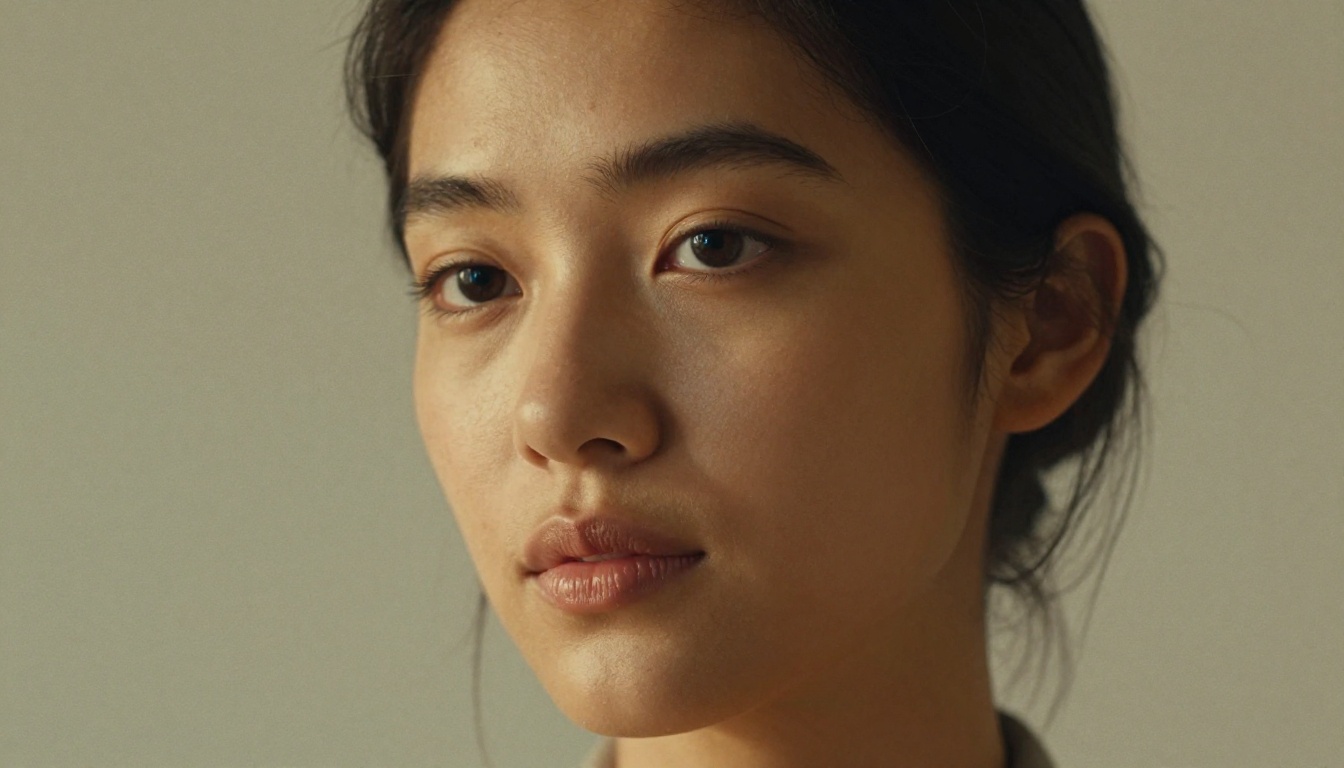
Close-up portrait of a woman with olive skin and dark eyes, soft natural window light from the right, slightly off-camera gaze, Canon 85mm f/1.2 at f/1.4, Kodak Portra 160, cream background, photorealistic RAW 8K
What it produces: A clean, professional-quality portrait with natural skin tone, soft bokeh, and analog film aesthetic.
Aerial and Nature
Prompt:
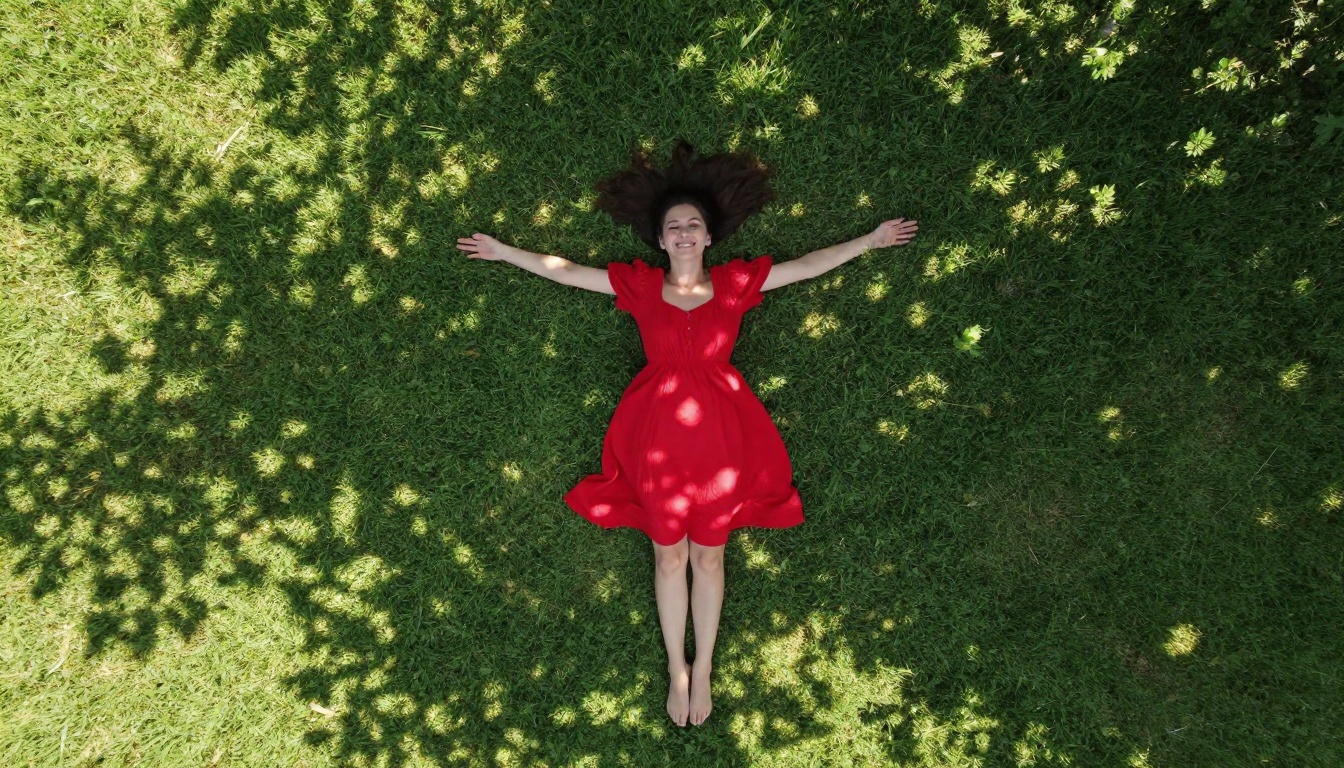
Aerial drone shot looking straight down at a woman in a red dress lying on bright green grass, arms spread wide, dappled sunlight through tree canopy, DJI Mavic 3 Pro, RAW 8K aerial photography, natural outdoor light
What it produces: An editorial-style aerial composition with graphic visual impact, perfect for travel content or social campaigns.
Beach and Outdoor
Prompt:
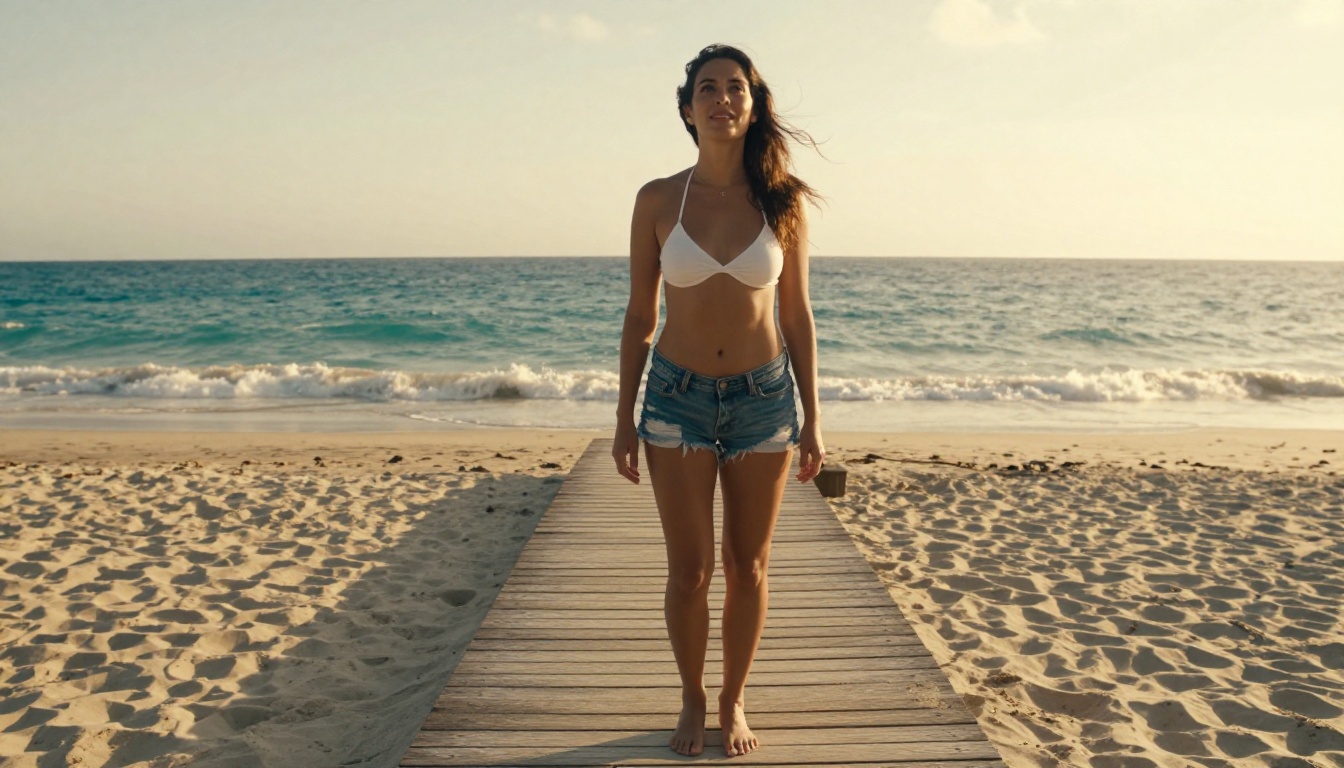
Low-angle cinematic shot of a woman in a white bikini top and denim shorts on a wooden boardwalk, tropical beach background, golden afternoon rim light from the right, Nikon Z6 50mm f/1.8, Kodak Portra 400, RAW 8K
What it produces: A natural, editorial-quality beach shot with cinematic depth and warm analog color.
Making Your Images Even Sharper
Once you have your base image, Picasso IA offers post-generation tools to push quality further.
Upscaling for Print Quality
P Image Upscale takes your generated image and increases its resolution without adding artifacts. This is especially useful if you're planning to print large or use the image at full-screen on a 4K display. The model sharpens textures, tightens edges, and preserves the original look without over-processing.
Editing Specific Areas
P Image Edit LoRA lets you make targeted edits to parts of an existing image. Changed your mind about the background? Want to adjust the outfit? You don't need to regenerate from scratch. Describe the change and apply it to the specific region.
💡 Tip: Upscale first, then edit. Editing a low-resolution image produces muddy results. Always start with the sharpest version before making targeted changes.
3 Mistakes Beginners Always Make
These aren't obvious from the outside, but they account for 90% of disappointing first results.
1. Writing a prompt that's too short
"Beautiful landscape" gives the model almost nothing to work with. It's like asking a chef to "make something delicious." Without constraints, you get average output. Specify the season, time of day, terrain type, focal length, and film stock. Every detail shapes the final image.
2. Not specifying lighting
Lighting is the single biggest variable in photographic quality. Without a lighting description, the model defaults to even, flat, neutral light. That's fine for reference shots, but uninspiring as a final image. Add "golden hour from the left," "soft overcast window light," or "dramatic side lighting" and watch everything change.
3. Regenerating instead of iterating
Most beginners generate, dislike the result, and start over with a totally different prompt. That's wasteful. Instead, keep 80% of your prompt and change one element at a time. This is how you learn what each parameter actually does. After 3 or 4 iterations, you'll have a much stronger mental model of how the AI responds to language.
What Prompt Length Actually Gets You
There's a useful pattern worth memorizing:
Prompt Length
Typical Result
5 to 10 words
Generic, inconsistent output
20 to 30 words
Recognizable subject with average composition
50 to 70 words
Professional-quality with strong mood
80 to 100 words
High-fidelity with precise technical control
Most of the example prompts in this article fall in the 50 to 70 word range. That's the sweet spot for beginners. Long enough to get specific results, short enough to stay readable and easy to iterate on.
Now Go Create Something
You have everything you need. A model recommendation, a prompt formula, real examples that work, and post-generation tools to push quality further.
The best way to internalize all of this is to actually run a generation right now. Pick any subject that interests you. A person, a place, an object, a mood. Apply the 4-part formula. Choose GPT Image 2 or Seedream 4.5 as your model. Set the aspect ratio to 16:9. Hit generate.
Whatever comes out, it won't be your last image. It'll be the first of many, each better than the one before it. That's how this works.
Head over to Picasso IA, open the text-to-image collection, and start with one prompt. There's no wrong answer on your first try.